How to Use Tag to Manage Questions in OnlineExamMaker Question Bank?
Tag Management: Organize Your Question Bank More Efficiently
As your question bank grows, finding and managing specific questions can become increasingly challenging. In addition to organizing questions into categories, OnlineExamMaker provides a flexible tagging feature that helps you manage and find questions more efficiently.
1. Why Use Tags to Manage Questions?
Think of organizing your question bank like organizing your wardrobe. Categories are like drawers for shirts, pants, and socks. They provide a fixed structure. Tags, on the other hand, are like labels attached to individual items. You can add labels such as “100% Cotton,” “Summer Collection,” or “Sportswear” to describe different attributes.
Using tags to manage questions offers three key benefits.
Describe Questions from Multiple Perspectives
A question can have several attributes, such as “2025 Exam,” “Advanced Difficulty,” “Frequently Tested,” or “Requires Calculation.” You can assign multiple tags to a single question, even though it belongs to only one category. This allows you to describe and organize questions from multiple perspectives.
Find the Right Questions More Easily
Tags help you quickly find the questions you need when creating an exam. For example, you can filter for difficult multiple-choice questions or exclude questions that appeared on last year's exam. This makes exam creation faster and more efficient.
Keep Your Question Bank Organized
By tagging questions based on different attributes, you can build a clearer, more structured question bank that is easier to maintain, review, and update.
2. How to Use Categories and Tags Together
Categories and tags work best when used together to organize your question bank.
Categories: Build the core structure of your question bank.
Use categories to organize questions according to a relatively stable, hierarchical knowledge structure.
For example:
Mathematics → Chapter 1: Sets and Functions → 1.1 Sets
Tags: Identify flexible attributes of questions.
Tags can be added or adjusted according to your needs. Common examples include:
- Difficulty: Easy, Medium, Hard
- Year: 2024, 2025
- Question Type: Multiple Choice, Fill in the Blank
- Knowledge Point: Frequently Tested, Commonly Missed
Example: Organizing a Quadratic Equation Question
Suppose you have a mathematics question about quadratic equations. You can organize it as follows:
- Category: Mathematics → Middle School Mathematics → Algebra → Quadratic Equations
- Tags: Hard, 2025 Practice Exam, Multiple Choice, Key Exam Topic
With categories and tags working together, you can organize questions by knowledge area or quickly filter them by difficulty, year, question type, and other criteria.
3. How to Manage and Use Question Tags
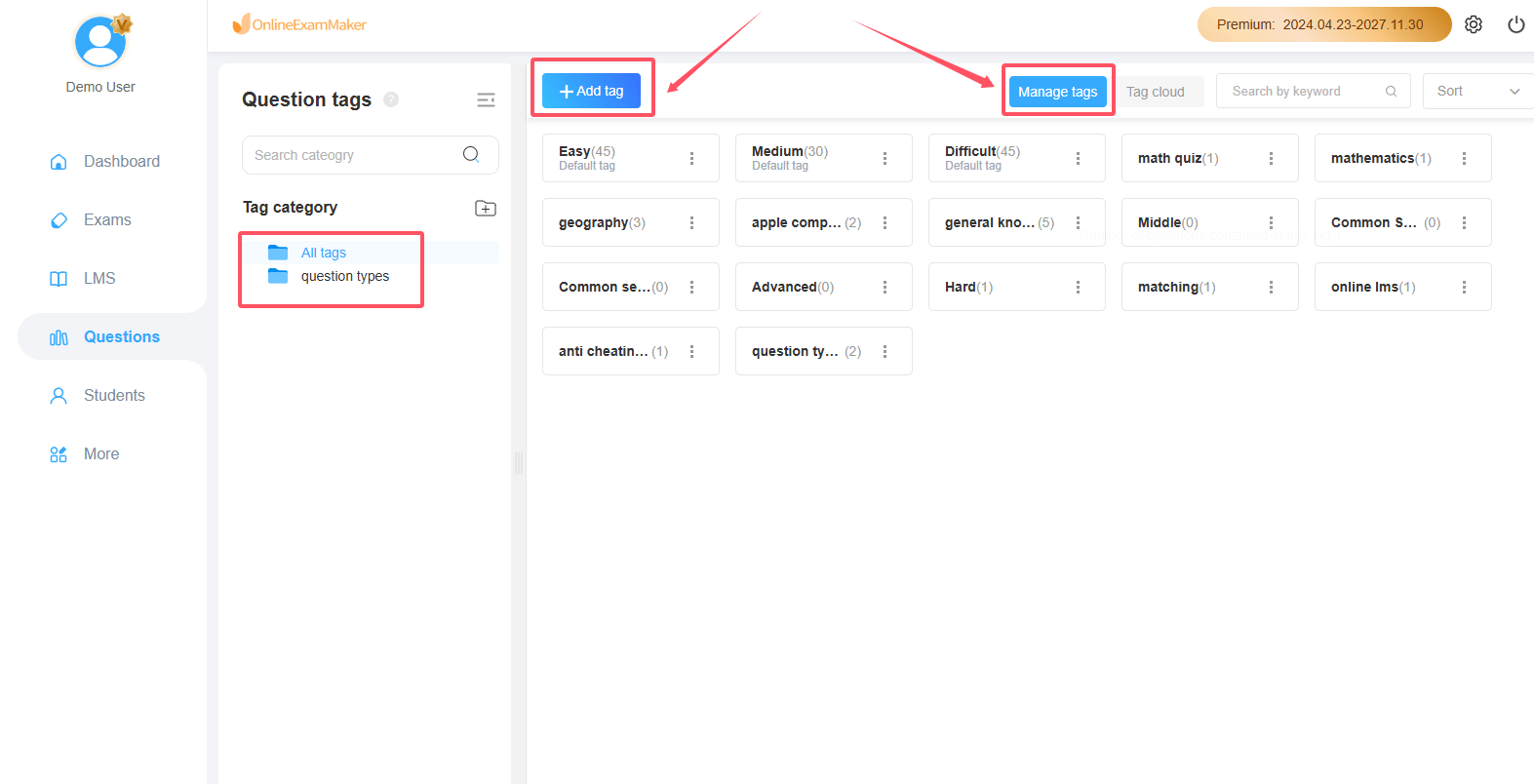
Step 1: Manage Your Tags
You can access Tag Management in your OnlineExamMaker admin dashboard: OnlineExamMaker dashboard → Question Bank → Question tags
From the Tag Management page, you can:
- Create new tags
- Edit existing tags
- Delete tags
- Organize tags into tag categories
These options help you keep your tags organized and easy to manage.
Step 2: Add Tags to Multiple Questions at Once
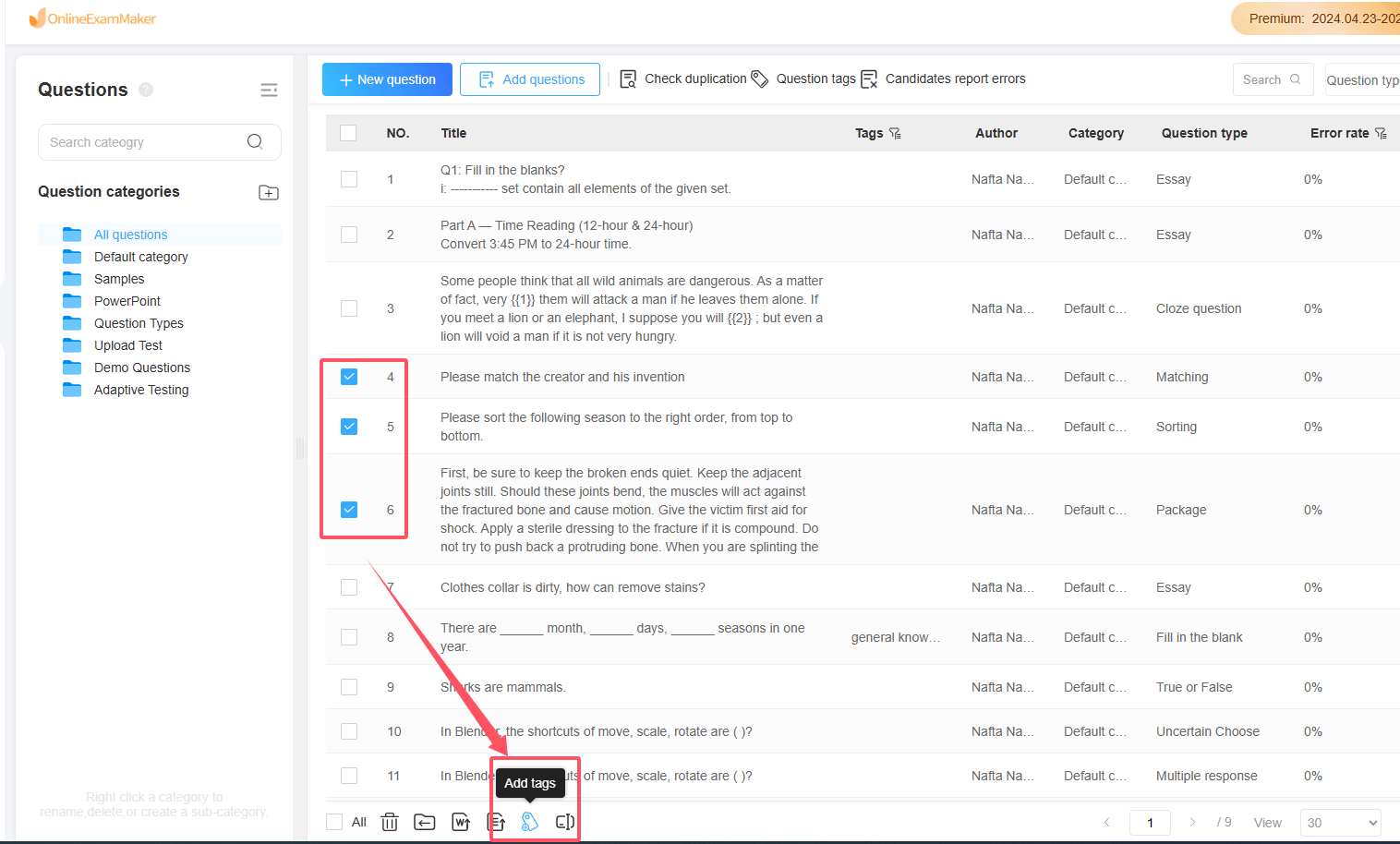
To save time, you can assign tags to multiple questions in a single operation.
- Go to Question Bank → Question List.
- Select the questions you want to update.
- Click "Add Tags".
- In the pop-up window, select one or more tags.
- Apply the selected tags to all the questions you've selected.
This feature is especially useful when organizing a large question bank.
Step 3: Filter Questions by Tags
OnlineExamMaker lets you filter questions by tags in two places.
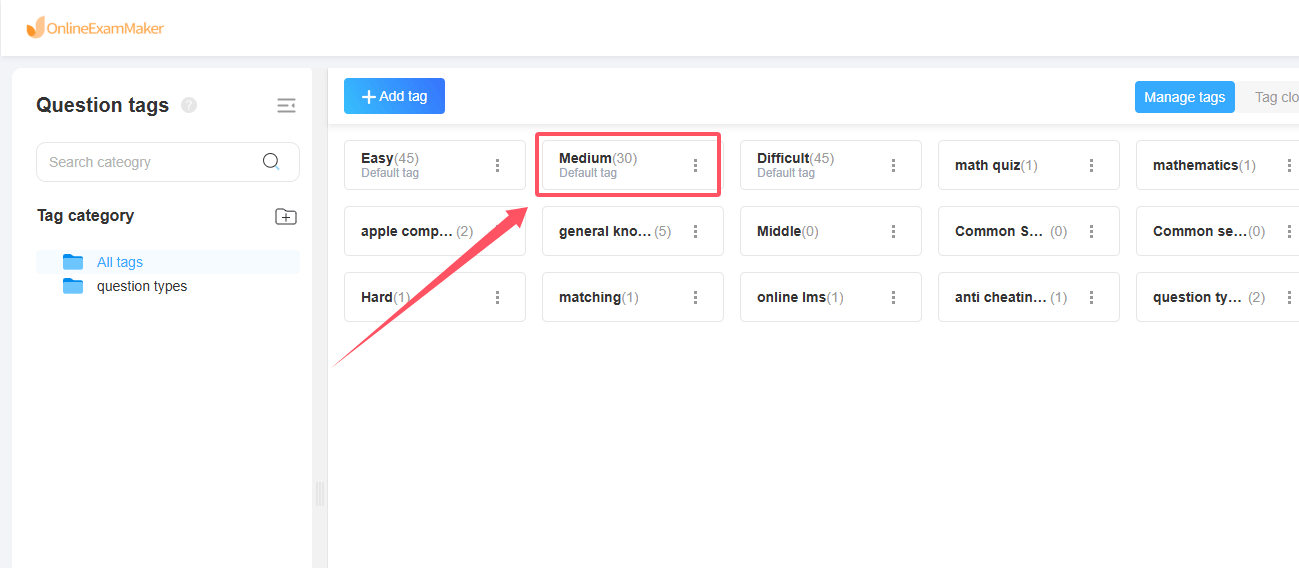
Option 1: Filter Questions in the Question List
Go to **Question Bank **, then click "Question tags" button, and click a tag to quickly find all questions associated with it.
Option 2: Filter Questions When Creating an Exam
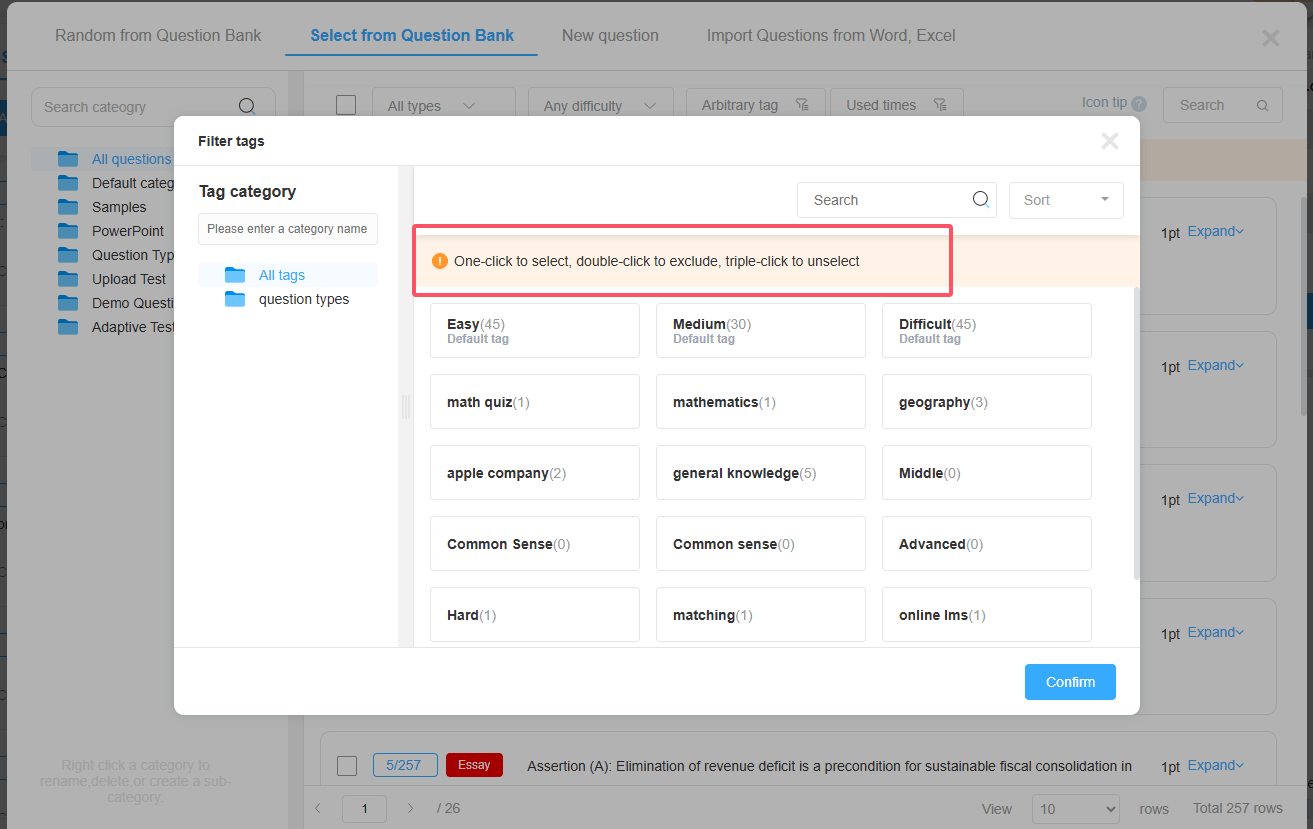
When creating a fixed exam, click Add Questions. In the pop-up window, use tags to filter questions and select the ones you need.
Advanced Tip: Include or Exclude Questions by Tag
OnlineExamMaker also allows you to include or exclude questions based on specific tags, giving you more precise control over question selection.
- Click a tag once: Filter for questions that include the selected tag. The tag will be highlighted.
- Click the same tag again: Exclude questions with that tag. An exclusion icon will appear on the tag.
For example, when creating a new exam, you can include questions tagged “Advanced Difficulty” while excluding questions tagged “Previously Tested” to build an exam that better matches your requirements.