How to Add Watermark to Online Exam UI?
OnlineExamMaker supports displaying watermarks on the exam screen to protect your test questions from unauthorized copy and distribution.
When enabled, the exam screen displays a unique Exam Record ID for every candidate's attempt, alongside candidate details (typically Name + Login ID). This deters test-takers from taking photos or screenshots of the exam, while making it easy to quickly trace the source if any exam content gets leaked.
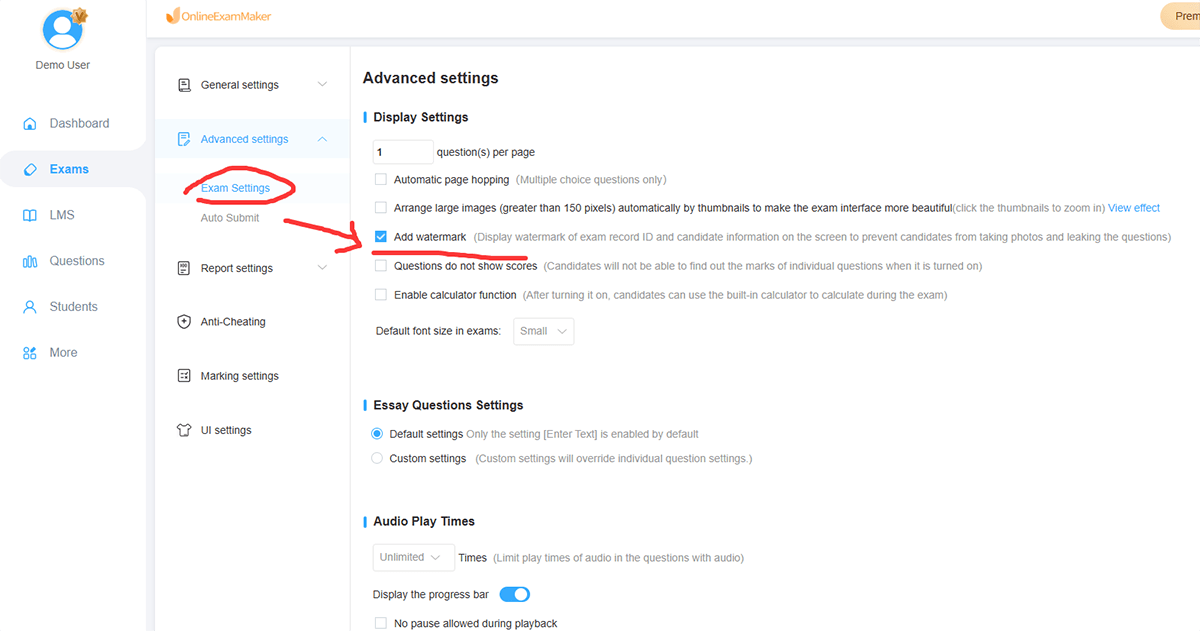
How to enable watermark setting for your exam?
Click "Advanced Settings", select "Exam Settings", check then "Add watermark", then save settings.
As shown in the image below, after successfully enabling the watermark setting, the online exam UI will display the exam record ID and candidate information.