Install LAN Exam Maker (New Linux Version) on a Linux Server
The supported Linux systems for LAN Exam Maker:
- CentOS
- Debian
- Ubuntu (Docker compatible environment)
- Other Linux systems that support Docker
The system is deployed using Docker containers , eliminating the need to install complex runtime environments, significantly reducing deployment and maintenance costs, and ensuring stable and efficient system operation.
Precautions
It is recommended to use a regular user (non-root) to execute the installation script.
If installed using the root user, the database may fail to start properly due to Docker permission issues.
Step-by-step installation guide
Step 1: Confirm the system architecture
Before downloading the LAN Exam Maker installation package, please confirm the CPU architecture of your current Linux system.
Please execute the following command:
uname -m
Common outputs are as follows:
| Output | Corresponding architecture | Downloadable version |
|---|---|---|
x86_64 |
x86 (64-bit) | Linux x86 version |
aarch64 |
ARM (64-bit) | Linux ARM version |
Please
uname -mdownload the installation package corresponding to the architecture from the official website of LAN Exam Maker based on the output results; otherwise, it may not be able to be installed or run normally.
Step 2: Download the installation package
Go to the official website to download the Linux Docker installation package for your Linux system:
https://onlineexammaker.com/download.html
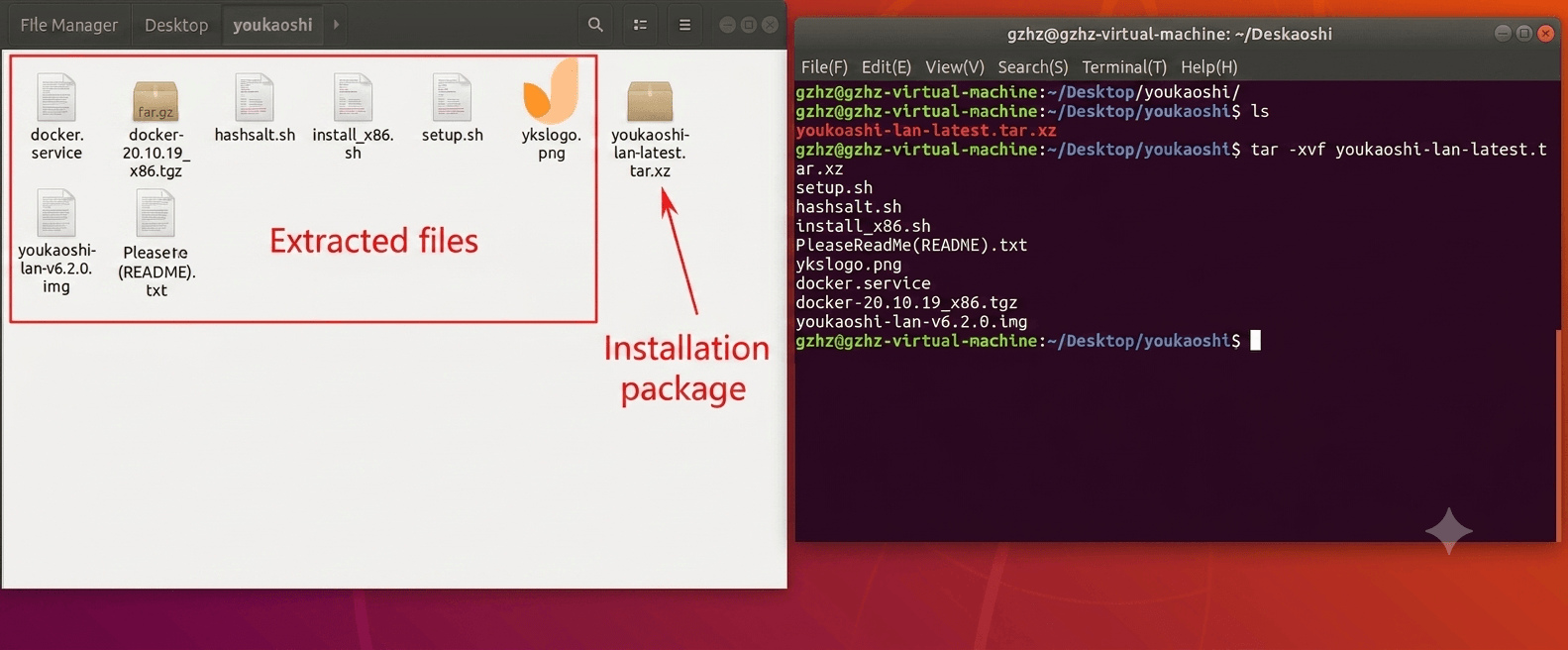
Step 3: Unzip the installation package
It is recommended to place the installation package in a separate directory and then execute:
tar -xvf youkaoshi-lan-latest.tar.xz
The directory structure after decompression is as follows:
Step 4: Execute the installation script
After confirming that the current directory contains the installation files, execute:
./install_x86.sh
The actual filenames may differ; please refer to the filenames in the installation package.
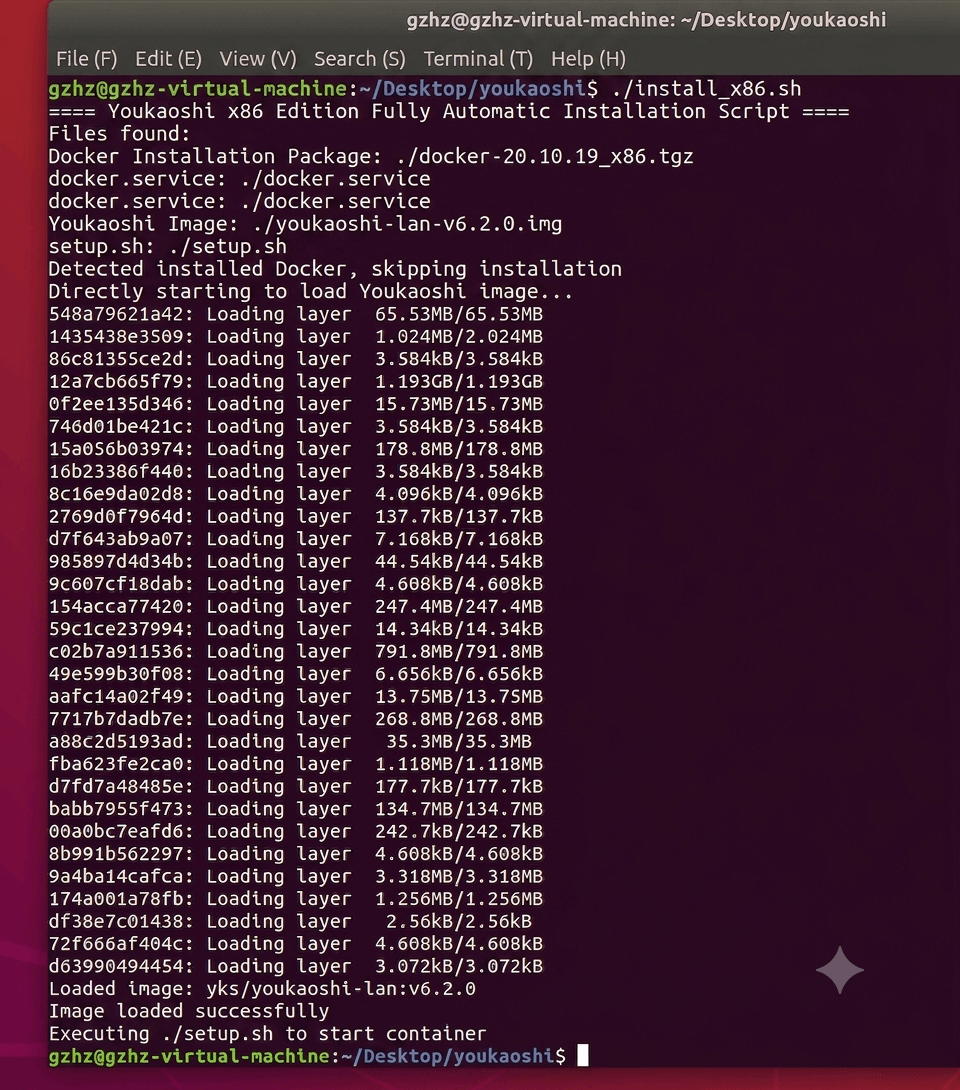
The installation process will automatically:
- Check if Docker is installed
- Automatically install Docker (if it is not already installed).
- Configure Docker service
- Import the LAN Exam Maker Docker image
When you see the message "Image loading complete ," it means the image has been successfully imported.
Step 5: Initialize the system
Step 5: Initialize the system
implement:
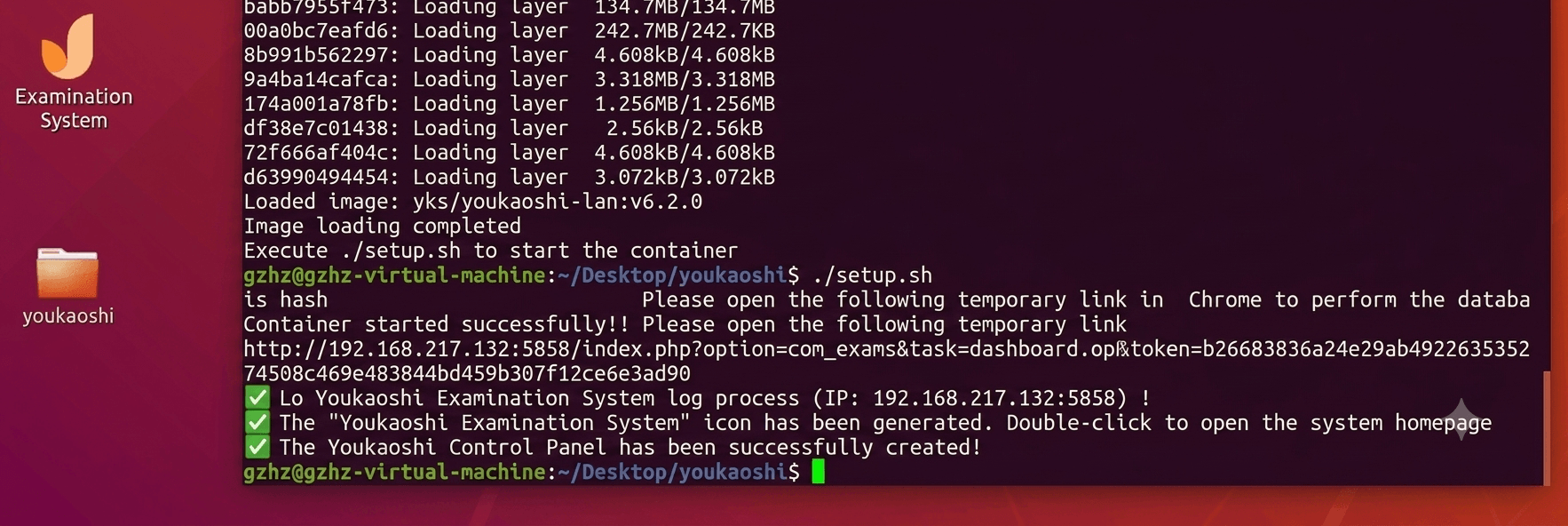
./setup.sh
Wait for the script to finish executing, which means that the LAN Exam Maker installation was successful.
Step 6: System Access
After installation, you can choose one of the following methods to access the system depending on your server environment:
- Graphical desktop environment (GUI)
After installation, a shortcut for LAN Exam Maker will be automatically generated on the desktop. Double-click the icon to launch and enter the system.
- Non-graphical environment (CLI)
If the server does not have a graphical interface installed, please access it using a browser within the same local area network:
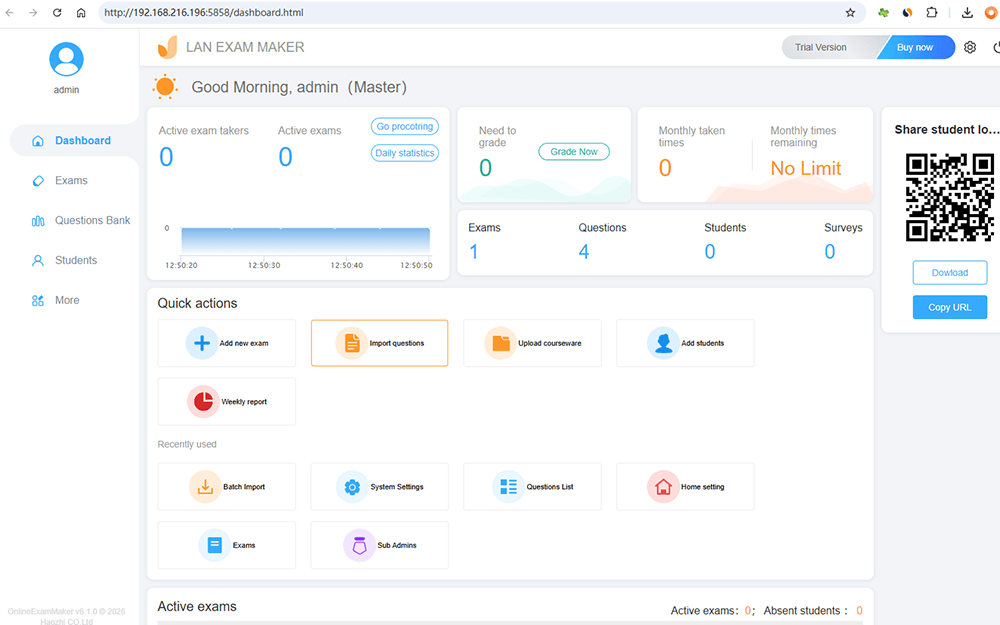
http://server-IP:5858
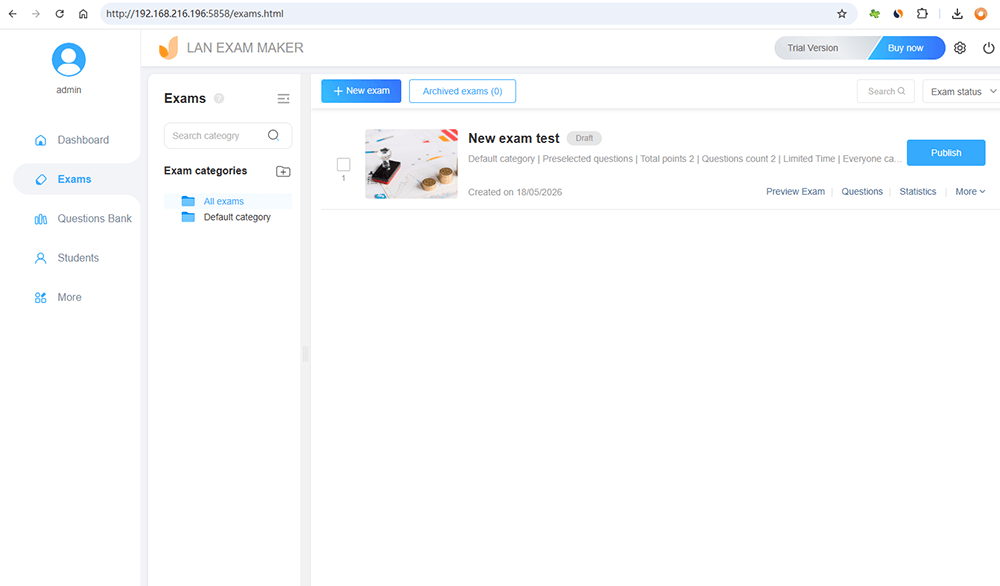
Replace server-IPwith the actual Linux server IP address to access the LAN Exam Maker dasnboard.
If execution fails
If setup.shan exception occurs during execution:
- Reboot the Linux system;
- Execute again:
./setup.sh
Most initialization exceptions can be resolved by re-execution.