Webcam Not Working During an Online Exam? Try These Fixes
If your camera is not working or the exam system cannot access your camera, follow the troubleshooting steps below.
1. Check Your Browser
Your browser may affect camera access during an online exam.
- Do not use Internet Explorer (IE).
- Avoid using the legacy version of Microsoft Edge on Windows 10.
- We recommend using Google Chrome or another modern, up-to-date browser.
- Make sure your browser is updated to the latest version.
Tip: For the best experience, we recommend using the latest version of Google Chrome.
2. Check Your Camera
First, make sure your camera is connected and working properly.
Check the Camera Connection
If you are using an external webcam:
-
Make sure the camera is connected to your computer's USB port.
-
Check that the USB cable is securely connected.
-
If possible, try connecting the camera to a different USB port.
Test Your Camera in Windows
On Windows:
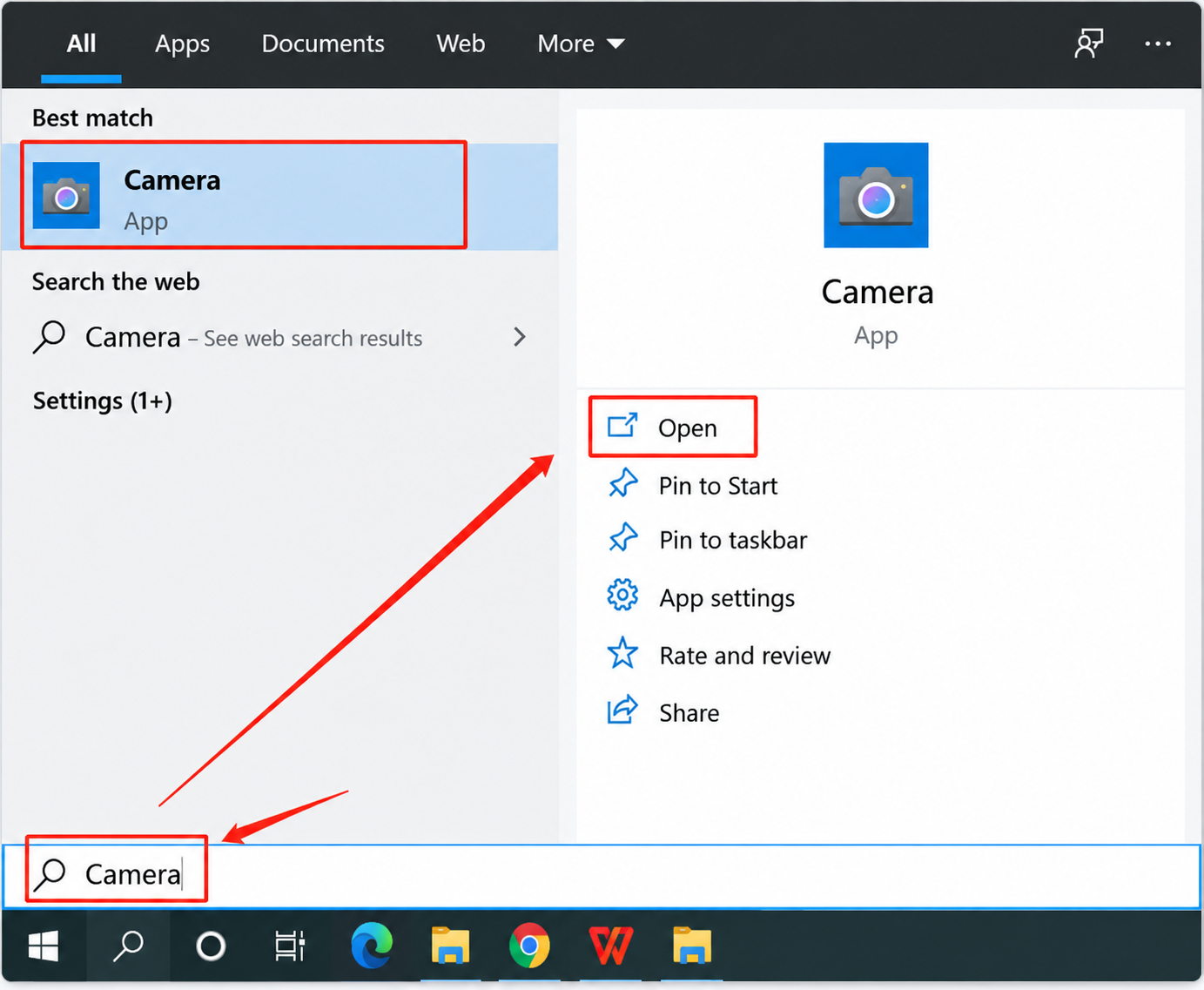
- Click the Start menu.
- Search for Camera.
- Open the Camera app.
- Check whether you can see the camera preview.
If the camera works normally in the Camera app, continue to the next step.
3. Allow the Exam Website to Access Your Camera
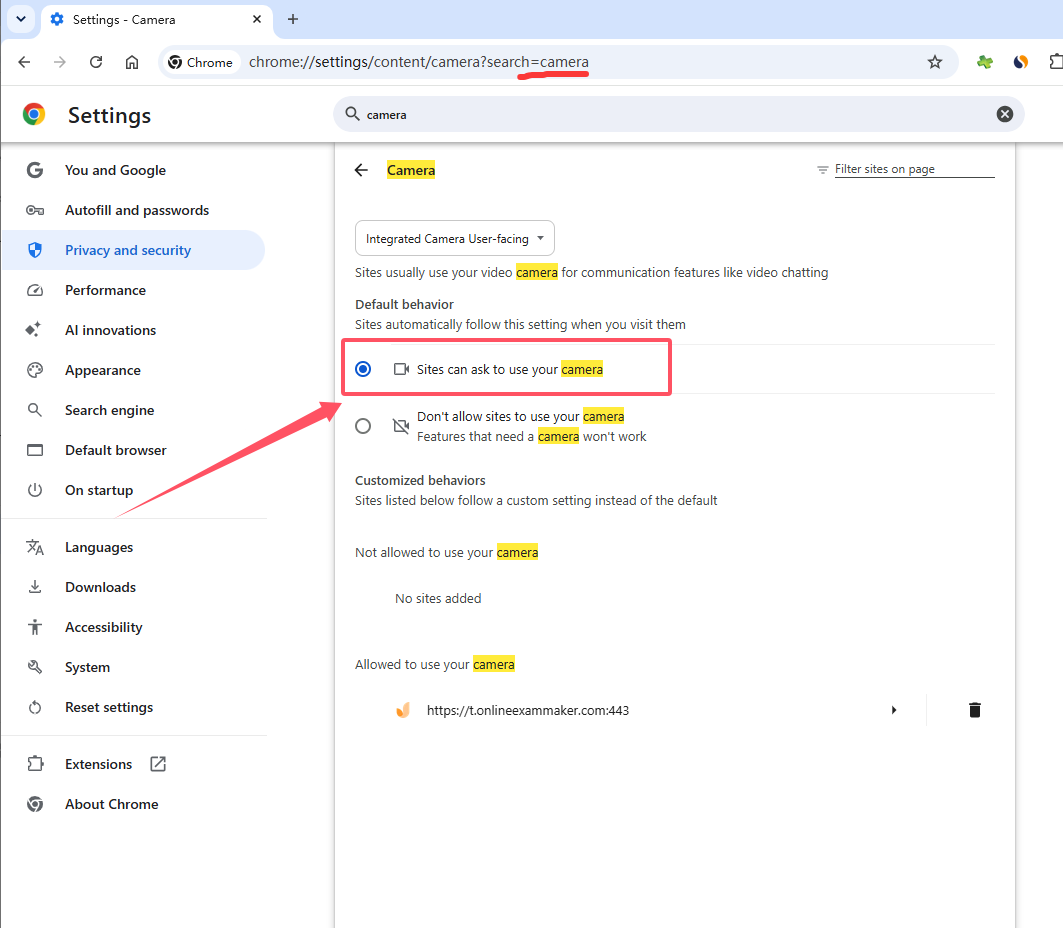
Your browser must have permission to access your camera.
When you open the exam page, your browser may display a permission request asking to use your camera.
Select Allow.
After granting permission:
- Return to the exam page.
- Refresh the page.
- Try entering the exam again.
If you previously selected Block, you may need to change your browser's camera permissions and then refresh the exam page.
4. Check Your Microphone Permissions
If the camera still cannot be accessed, check whether your computer's microphone permissions are enabled.
On Windows:
-
Click the Start menu in the bottom-left corner.
-
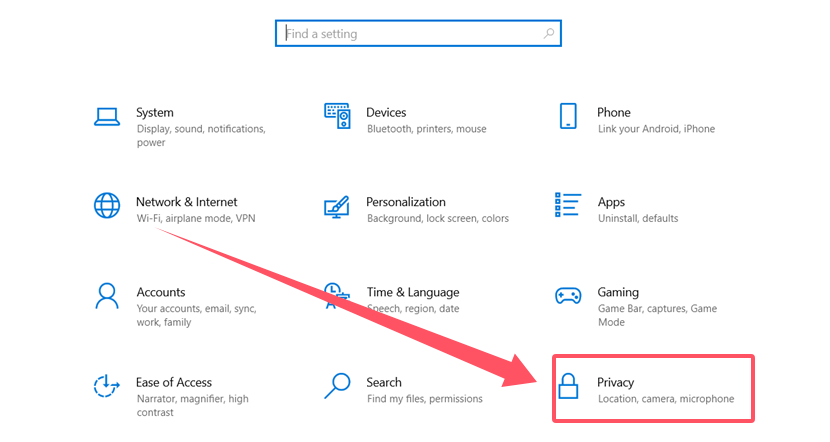
Select Settings.
-
Open Privacy.
-
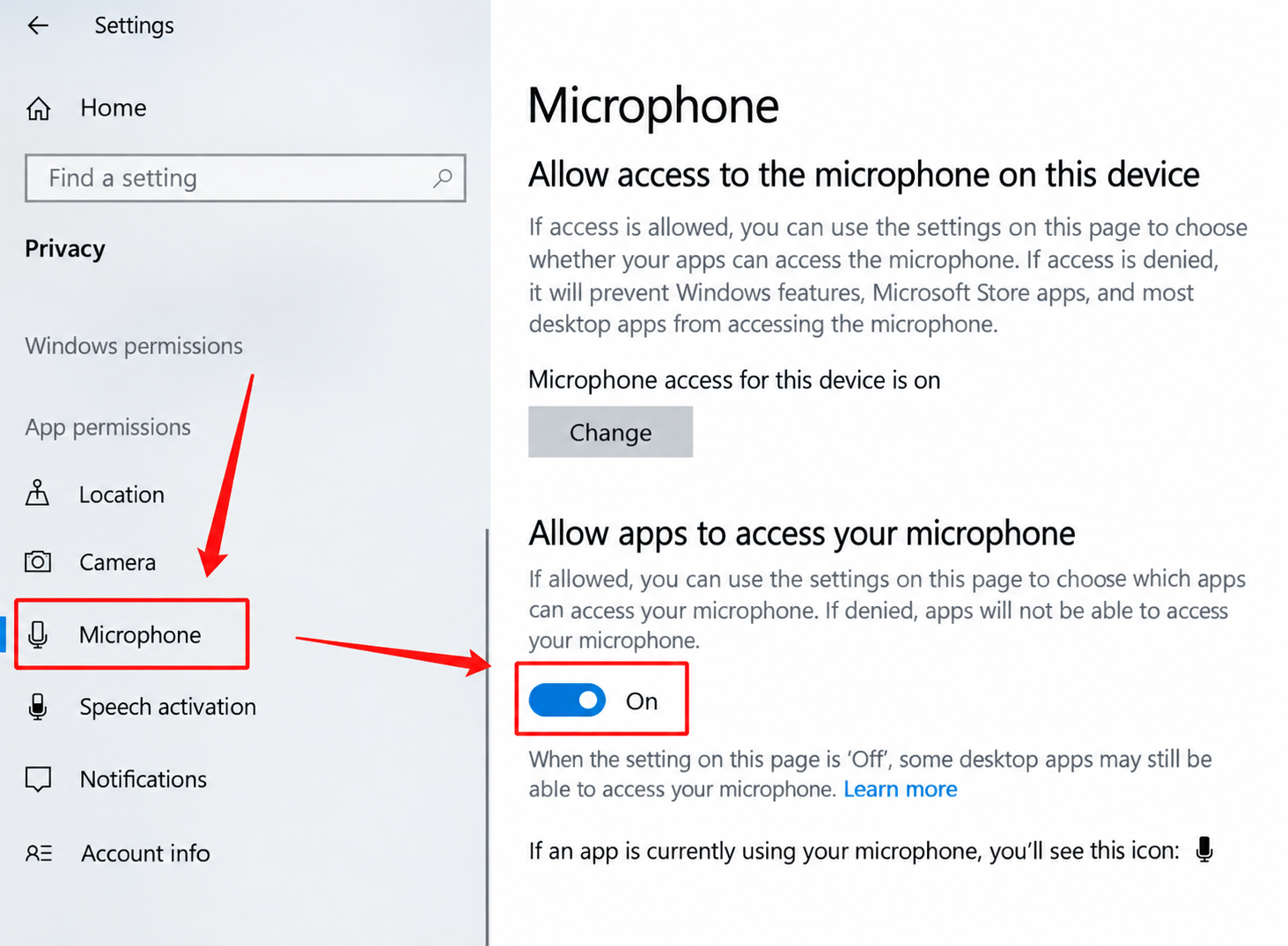
Select Microphone.
-
Turn on Microphone access.
-
Make sure Let apps access your microphone is enabled.
After changing the settings, return to the exam page and refresh the page.
You can also close the exam page completely and open it again.
5. Try the Exam Again
After completing the steps above:
- Make sure your camera is connected and working.
- Make sure your browser has permission to access the camera.
- Make sure microphone access is enabled.
- Refresh the exam page or reopen it.
- Try entering the exam again.
Still Can't Access Your Camera?
If the problem persists, try the following:
- Restart your browser.
- Close other applications that may be using the camera, such as Zoom, Microsoft Teams, or other video apps.
- Restart your computer.
- Try using the latest version of Google Chrome.
- Check your camera and microphone permissions again.
If you still cannot access the camera after trying these steps, please contact your exam administrator or technical support team for further assistance.