How to Print The Online Exam Paper?
If the user creates a test paper on the OnlineExamMaker and then wants to print it out, he can use the "Print " function.
Method 1: Print exam directly
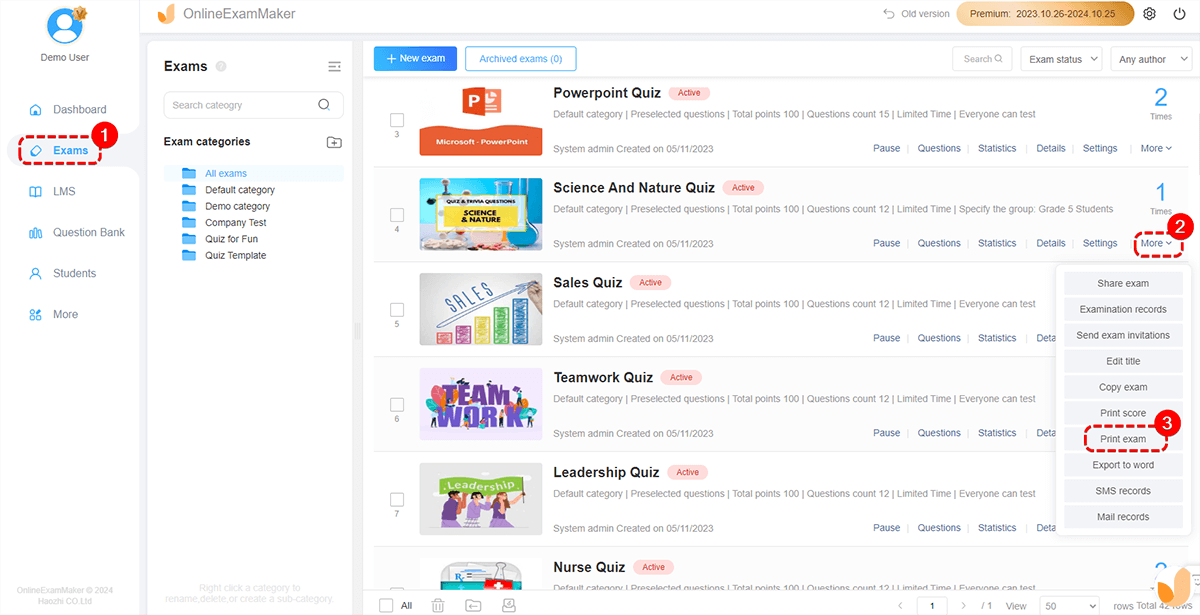
Firstly, enter the "All Exams" page and choose the exam, click "More", then choose the "Print exam."
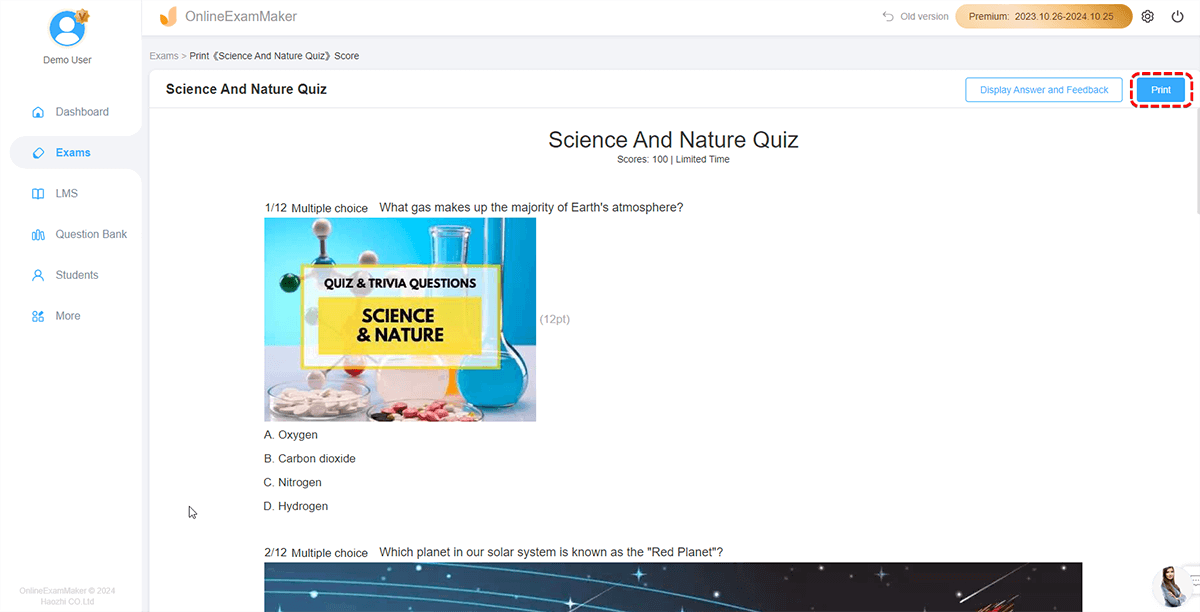
On the print page, we can choose whether to print the paper with answer and feedback. After checking, click "Print" and begin to print.
Method 2: Print via Word document
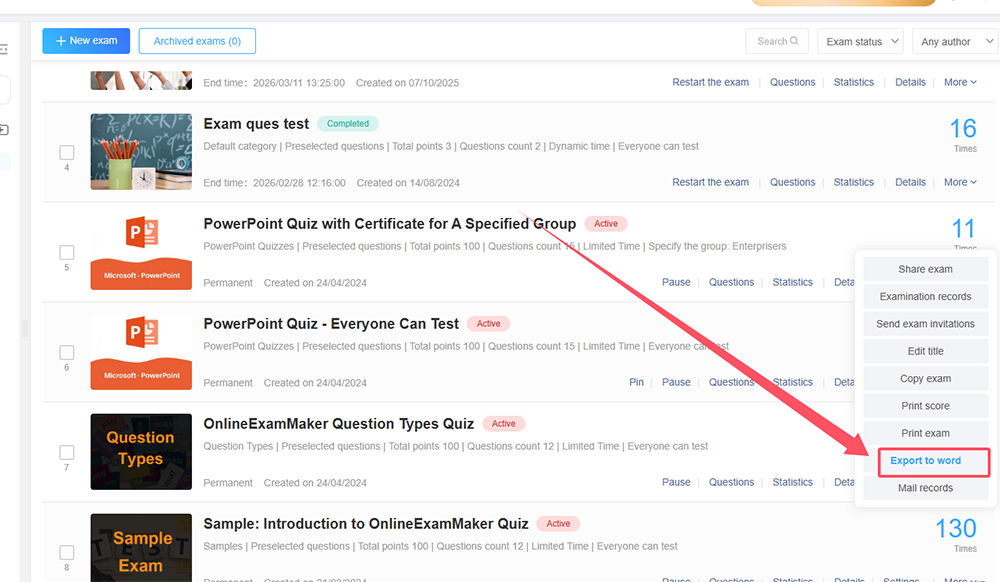
Go to "Exams" > "All Exams", select an exam you want to print, then click "More", and press "Export to word".
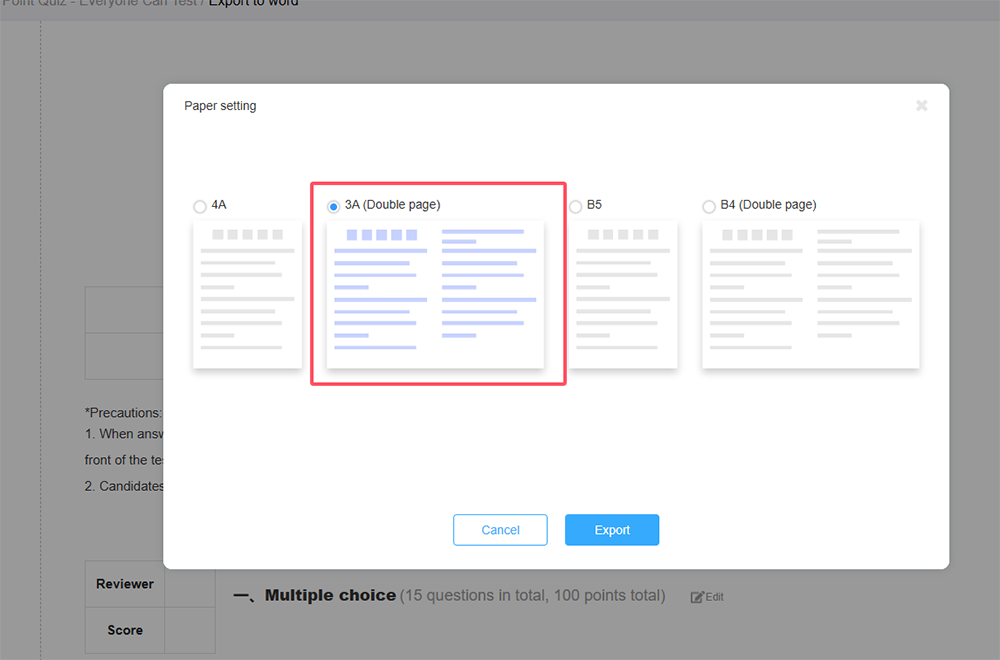
You will go to a setting page, in this place, you can check the checkbox to personalize the information you want to display in the exam paper, you can select items such as subtitle, split line, exam time, total score, and more.
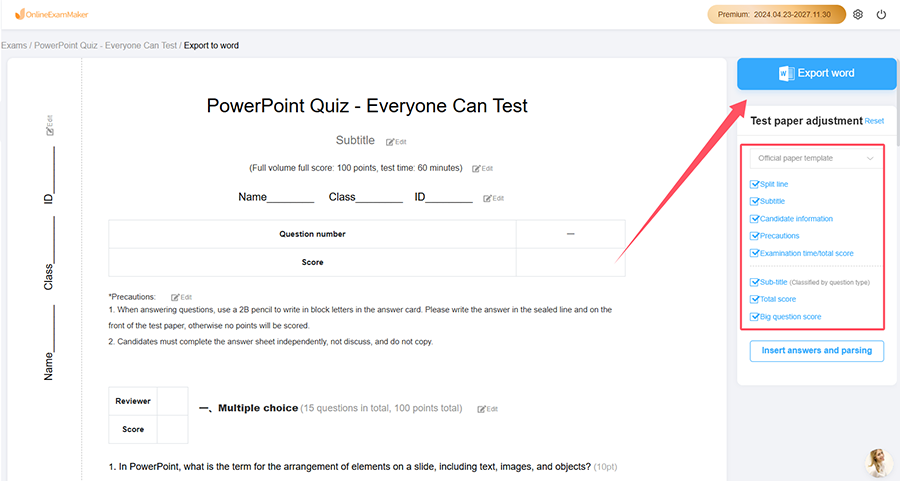
After you are satisfied with the Word document, you can click "Export word" button to continue. You are allowed to choose the paper side of your exam, and export the Word document to your computer.