Ever created a quiz in Google Forms, sent it out to your students, and then realized—wait, that question about mitochondria should be worth way more than one measly point? You’re not alone. Teachers everywhere have faced this moment of quiz-creator’s remorse, staring at their screens wondering if there’s a way to fix point values without starting from scratch.
Good news: You absolutely can change point values after creating your quiz. But here’s the thing—Google Forms doesn’t make it super obvious. There’s no giant “Change All Points” button waiting for you. Instead, you’ll need to know a few tricks to adjust individual questions or update settings in bulk.
- Understanding Google Forms Quiz Point System
- How to Edit Individual Question Points
- Setting Global Default Point Values
- Bulk Reset Method for Multiple Questions
- A Better Way: Using OnlineExamMaker for Quiz Management
- Common Mistakes to Avoid
Understanding Google Forms Quiz Point System
Before we dive into the how-to, let’s talk about what we’re actually dealing with. When you turn a regular Google Form into a quiz (by toggling that “Make this a quiz” option in Settings), you’re essentially telling Google: “Hey, I want to grade this thing.” Each question can then be assigned a point value, typically ranging from 0 to 100 points.
The tricky part? Google Forms sets most questions to 1 point by default. Which is fine if you’re creating a simple true/false assessment, but what if you’re building a comprehensive exam where some questions deserve more weight than others? That’s where the frustration begins—and where our guide comes in handy.
How to Edit Individual Question Points?
Let’s start with the most straightforward method: changing points one question at a time. This works great when you only need to tweak a handful of questions rather than overhauling your entire quiz.
Step-by-step process:
First, open your quiz in Google Forms. You’ll see all your questions laid out in editing mode. Pick the question you want to modify—maybe it’s that essay question about photosynthesis that definitely deserves more than one point.
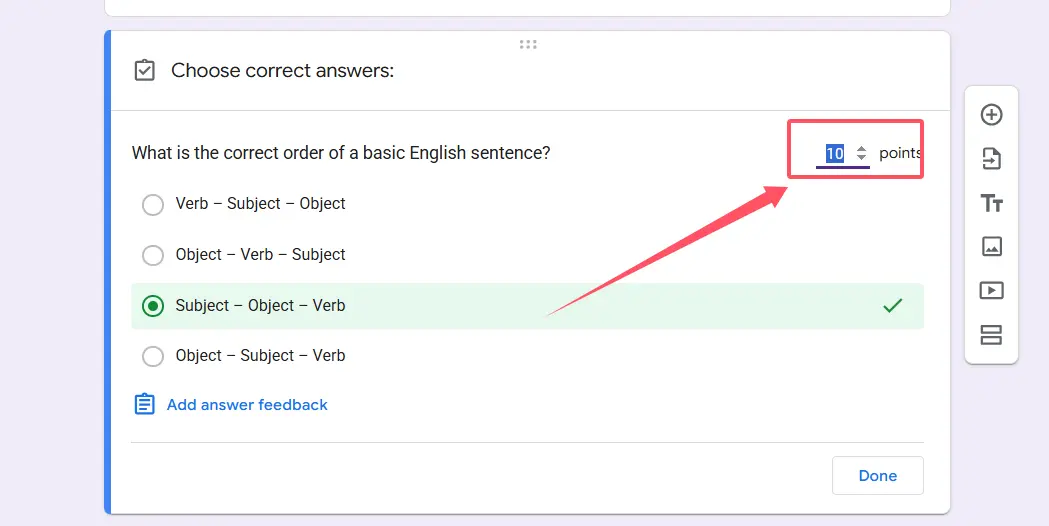
At the bottom of the question box, you’ll spot an “Answer key” button. Click it. This opens up the grading interface where you can set correct answers and adjust point values. Look for the “Points” field—it might show 0 or 1 by default, depending on how you initially set things up.
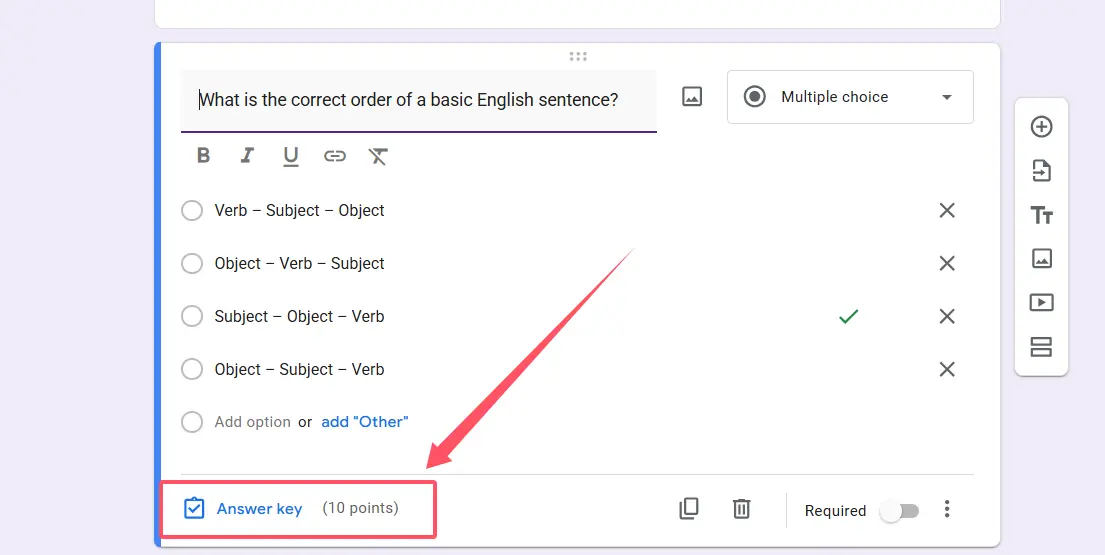
Here’s where it gets simple: Just change that number. You can use the little arrows to increment up or down, or click directly into the field and type whatever value you want (up to 100). Want to make that critical thinking question worth 15 points? Type in 15. Done.
Click “Done” to save your changes, and boom—you’ve successfully adjusted the point value for that question. Repeat this process for any other questions that need tweaking.
Quick tip: This method gives you maximum control and precision. You can create a quiz where simpler recall questions are worth 2 points, analysis questions get 5 points, and that final synthesis essay is worth a whopping 20 points. It’s all about weighting questions based on difficulty and importance.
Setting Global Default Point Values
Now, what if you’re staring at a 50-question quiz and thinking, “There’s got to be a faster way”? Enter: global defaults. This setting lets you establish a baseline point value that Google Forms will automatically apply to new questions going forward.
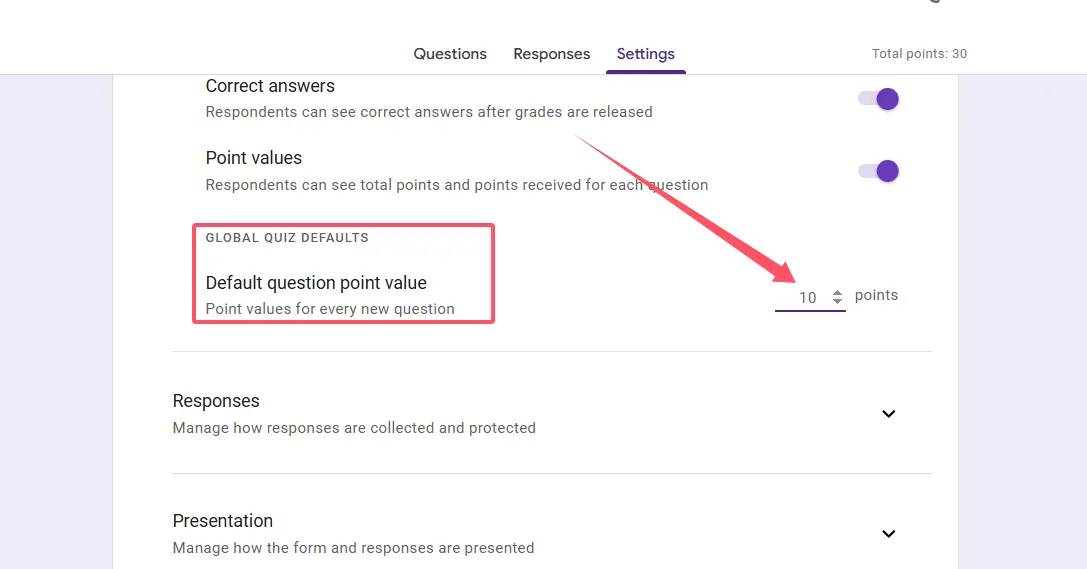
Click that Settings gear icon at the top of your form. Scroll down until you find “Global quiz defaults”—it’s usually hiding near the bottom of the settings panel. Within that section, you’ll see “Default question point value.”
Change this number to whatever makes sense for your quiz. Setting it to 5? Every new question you add from this point forward will automatically be worth 5 points. It’s a real time-saver when you’re building a quiz from scratch or adding supplementary questions later.
But here’s the catch (there’s always a catch, right?): Changing the global default only affects new questions you create after making the change. Your existing questions? They stay exactly as they are. Google Forms won’t retroactively update them, which can be annoying if you’ve already built out your entire quiz.
Some teachers have discovered a workaround: Toggle the “Make this a quiz” option off, then back on again. In theory, this resets everything—but be warned, it might also clear your answer keys. Not exactly ideal if you’ve already spent an hour setting up automated grading. Proceed with caution on this one.
Bulk Reset Method for Multiple Questions
Alright, let’s talk about the nuclear option for when you need to change point values across many questions without losing your mind. This method requires a bit of strategy, but it can save you serious time.
The bulk reset process:
Start by going into Settings and temporarily disabling “Make this a quiz.” Yes, this sounds scary—and yes, you might lose some answer key data, so proceed thoughtfully. The idea is to wipe the slate clean so you can rebuild with better defaults.
Once quiz mode is disabled, re-enable it. Now immediately go set your “Default question point value” to whatever number makes sense for the majority of your questions. Let’s say 5 points works for most items.
Here’s the clever part: Your questions will now adopt this new default. But what about those non-graded items, like name fields or email collection boxes? You’ll need to manually go through and set those to 0 points individually. It’s a bit tedious, but still faster than adjusting 50 individual questions one by one.
This method works best when you’re dealing with a quiz where most questions should have the same value, with just a few exceptions. It’s not perfect—you’ll still need to do some manual adjustments—but it beats the alternative of clicking through dozens of answer keys.
A Better Way: Using OnlineExamMaker for Quiz Management
Let’s be honest: Google Forms is free and familiar, but it wasn’t really built with serious assessment in mind. If you find yourself constantly wrestling with point values, answer keys, and bulk editing limitations, maybe it’s time to consider a platform designed specifically for this stuff.
OnlineExamMaker offers a smarter approach to quiz creation and grading management. Instead of toggling settings on and off or manually editing dozens of questions, you get AI-powered tools that actually understand what you’re trying to accomplish.
The platform lets you adjust point values globally with a few clicks—no workarounds required. Need to change all multiple-choice questions to 3 points and all essay questions to 10? Done in seconds. Want to weight certain question categories differently? The interface is built for exactly that kind of flexibility.
Plus, OnlineExamMaker includes features that Google Forms simply doesn’t offer: advanced question randomization, detailed analytics showing which questions students struggle with most, anti-cheating measures, and automated grading that actually works reliably for complex question types. For teachers, trainers, and HR managers who create quizzes regularly, the time savings alone are worth exploring.
It’s like comparing a bicycle to a car. Sure, the bicycle (Google Forms) gets you there eventually, and it’s free. But when you’re managing assessments for multiple classes or training programs, you need something with a bit more horsepower.
Create Your Next Quiz/Exam Using AI in OnlineExamMaker
Common Mistakes to Avoid
Before we wrap up, let’s talk about what not to do when changing point values. These are mistakes that can cost you time, frustration, or—worst case—a completely broken quiz.
Don’t toggle quiz mode on and off without backing up your answer keys. Seriously, this is the number one way people accidentally delete hours of work. If you’re going to use the bulk reset method, at least take screenshots of your answer keys first. You’ll thank yourself later.
Avoid changing point values after students have already submitted responses—unless absolutely necessary. While technically possible, it can create grading inconsistencies and confused students wondering why their scores changed. If you must make adjustments post-submission, communicate clearly about what you’re doing and why.
Don’t assume the global default applies retroactively. This trips up so many people. You change the default to 5 points, then wonder why your existing 20 questions are still worth 1 point each. Remember: global defaults only affect new questions created after the change.
Stop setting informational fields (like name or email) to anything other than 0 points. It sounds obvious, but it’s easy to overlook when you’re batch-changing values. You definitely don’t want students earning points just for typing their names correctly.
Final thoughts:
Changing point values in Google Forms after creating a quiz isn’t rocket science, but it’s not exactly intuitive either. Whether you’re editing individual questions through answer keys, adjusting global defaults for new items, or using the bulk reset workaround for comprehensive changes, each method has its place depending on your specific situation.
The key is understanding what each approach actually does—and doesn’t do—so you can choose the right tool for your needs. And if you find yourself constantly battling these limitations, well, maybe it’s time to graduate to a platform built for actual assessment management. Your future self (and your students) will appreciate the upgrade.
