Google Forms has quietly revolutionized how educators assess learning. Gone are the days of manually grading stacks of paper tests until your eyes blur. But here’s the thing: having an auto-grading feature means nothing if you can’t actually see what your students submitted. Let’s walk through exactly how to view those responses and scores, plus explore some alternatives that might just change your teaching game.
- Understanding the Responses Tab: Your Command Center
- Summary View: The Bird’s Eye Perspective
- Individual Responses: Getting Personal with Student Data
- Export to Sheets: When You Need the Raw Numbers
- Common Challenges Teachers Face (And How to Fix Them)
- OnlineExamMaker: A Powerful Alternative for Auto-Grading Quizzes
- Final Thoughts: Choosing the Right Tool for Your Classroom
Understanding the Responses Tab: Your Command Center
Think of the Responses tab as mission control for your quiz. It’s where all the magic happens, where student submissions transform from invisible data into actionable insights.
Here’s how to access it: Open your Google Form quiz and look at the top of your screen. You’ll see two tabs—Questions and Responses. Click on Responses. That’s it. No secret handshake required.
Once you’re in, you’ll immediately see the total number of submissions displayed prominently. Below that, you’ll find three view options: Summary, Question, and Individual. Each offers a different lens for examining your quiz results, and knowing when to use which view is half the battle.
Summary View: The Bird’s Eye Perspective
The Summary section is your 10,000-foot view. It’s perfect for when you need quick insights without drowning in details.
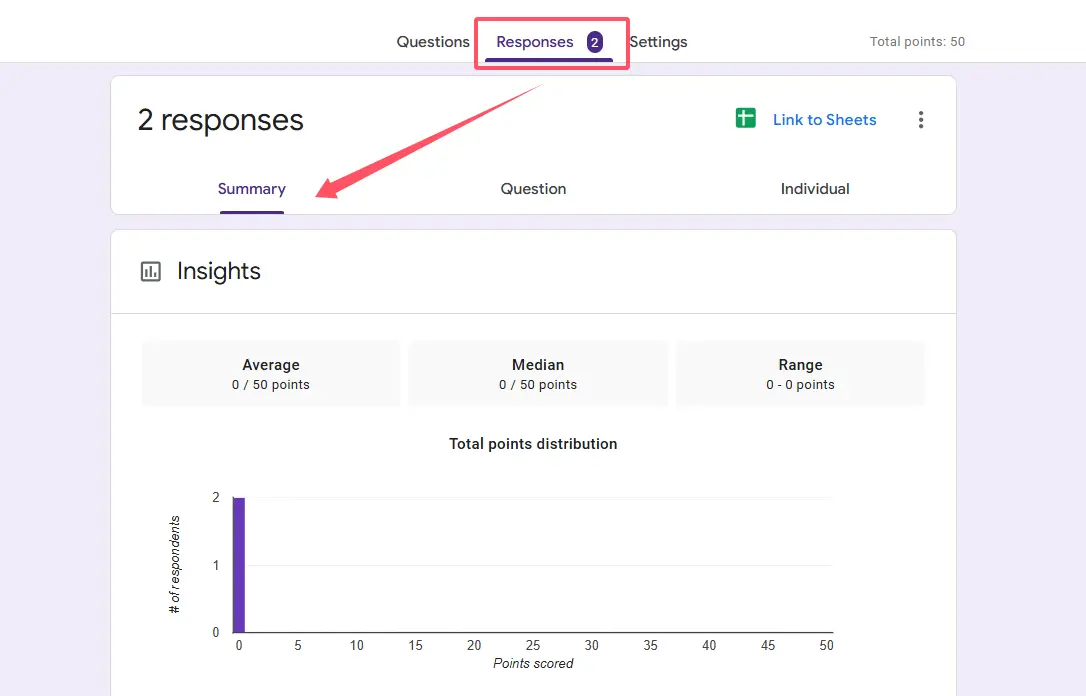
What you’ll find here:
- Average scores displayed right at the top—great for gauging overall class performance at a glance
- Response charts for each question, showing how many students selected each answer option
- Frequently missed items highlighted automatically, which is invaluable for identifying concepts that need re-teaching
- Correct answers appearing with visual indicators (if you’ve set up your form as a quiz)
Here’s a teaching secret: The Summary view is where patterns emerge. Maybe everyone bombed question seven. Maybe ninety percent of your class chose the same wrong answer on the multiple-choice about photosynthesis. These patterns tell stories that individual scores can’t.
I find myself returning to this view after every quiz. It’s become my diagnostic tool—the place where I discover which parts of my lesson plan worked and which need a complete overhaul. There’s something oddly satisfying about seeing those response distributions, like reading tea leaves that actually make sense.
Individual Responses: Getting Personal with Student Data
Sometimes you need more than aggregated data. Sometimes you need to see exactly what Sarah wrote in that short-answer question or whether Marcus attempted the bonus problem.
That’s where the Individual tab becomes your best friend. Switch to this view, and you can review each submission one by one, complete with:
- Every answer the student provided
- Their total score (if you’re using quiz mode)
- Respondent email address (if you’ve required sign-in)
- Submission timestamp
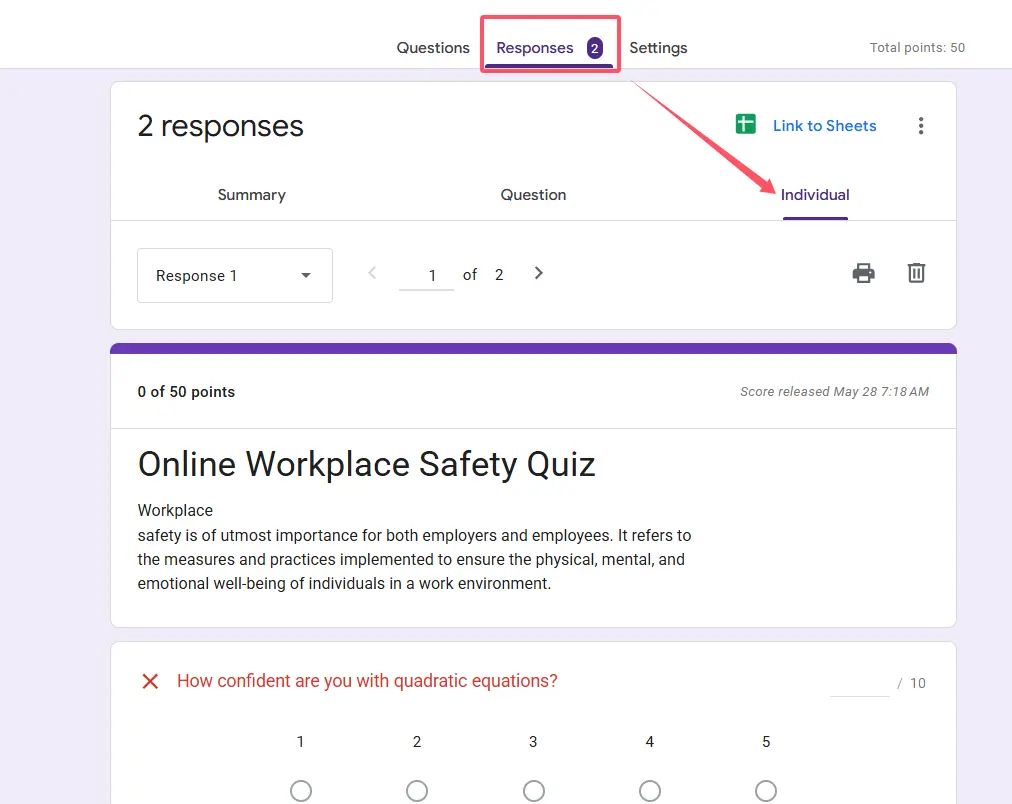
This view is particularly useful when you need to release grades manually. Maybe you want to add personalized feedback before students see their scores. Maybe you’re still grading the open-ended questions. The Individual view gives you that control.
Pro tip: Use the navigation arrows at the top to move between submissions quickly. It’s much faster than scrolling through a long list.
When to Use Individual View
Not every quiz requires individual scrutiny, but certain situations demand it:
- High-stakes assessments where you want to verify auto-grading accuracy
- Quizzes with open-ended questions that need human judgment
- Identifying specific student struggles for targeted intervention
- Reviewing suspicious submissions (we’ve all had those moments)
Export to Sheets: When You Need the Raw Numbers
Google Forms is great, but sometimes you need more analytical horsepower. That’s when you export to Google Sheets.
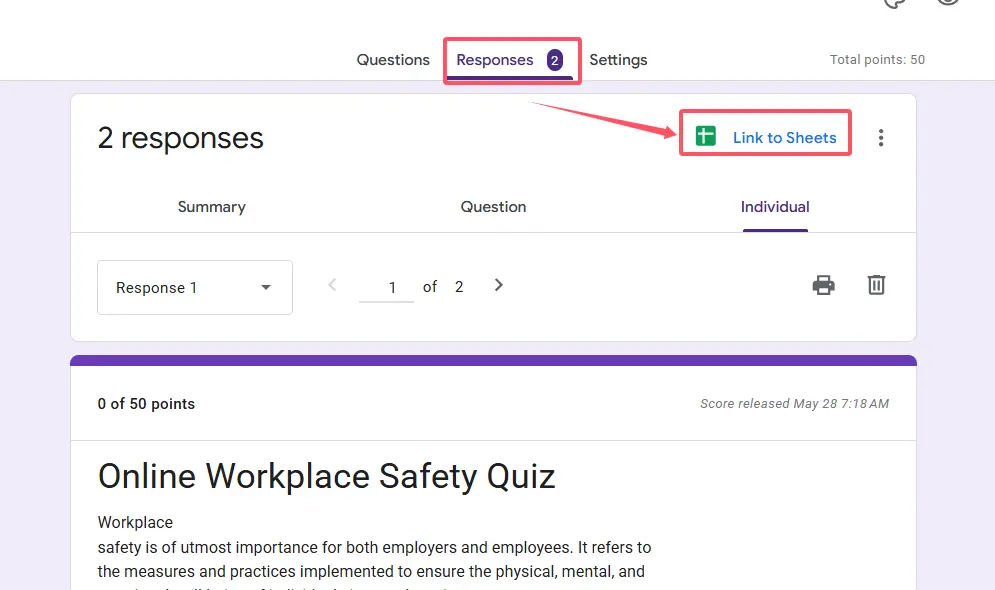
Look for the green Sheets icon at the top of the Responses tab. Click it, and you’ll create a linked spreadsheet containing all your response data: timestamps, scores, individual answers, the works. The beauty? The sheet updates automatically whenever someone submits a new response.
Here’s where it gets interesting. Once your data lives in Sheets, you can:
- Create custom formulas to calculate weighted averages
- Generate pivot tables for deeper analysis
- Design colorful charts and graphs for presentations
- Filter and sort responses based on specific criteria
- Track trends across multiple quiz administrations
Common Challenges Teachers Face (And How to Fix Them)
Let’s talk about the frustrations nobody mentions in the tutorials.
| Challenge | Solution |
|---|---|
| Students can’t see their scores | Check your quiz settings. Under “Responses,” make sure you’ve selected “Immediately after each submission” under “Release score.” Sometimes the default is set to manual release. |
| Response chart looks confusing | This usually happens with long answer options. Try using shorter text or creating a custom chart in Sheets for better visualization. |
| Can’t find specific submission | Export to Sheets and use the search function (Ctrl+F or Cmd+F). Much faster than clicking through dozens of individual responses. |
| Auto-grading marked correct answer wrong | Double-check your answer key. Small typos in the “correct answer” field will cause this. Edit the question, fix the answer, and Google Forms will automatically recalculate scores. |
One frustration I’ve encountered repeatedly: Google Forms’ auto-grading is binary. An answer is either completely right or completely wrong. There’s no partial credit option for multiple-choice questions, and that can be limiting when you want to reward students who were “close” or showed their reasoning.
OnlineExamMaker: A Powerful Alternative for Auto-Grading Quizzes
Speaking of limitations, let’s address the elephant in the room: Google Forms is free and convenient, but it’s not designed specifically for educators. It’s a general-purpose form builder that happens to have quiz functionality. What if you wanted something built from the ground up for assessment?
Enter OnlineExamMaker, a powerful online quiz making software that takes everything Google Forms does and amplifies it specifically for educational contexts.
What Makes OnlineExamMaker Different?
The core difference is intentionality. While Google Forms says, “Hey, you can use this for quizzes,” OnlineExamMaker says, “We built this for your quizzes.” That distinction matters more than you’d think.
OnlineExamMaker offers AI-powered grading capabilities that go beyond simple right-or-wrong answers. The platform can evaluate open-ended responses, essay questions, and complex problem-solving tasks with surprising accuracy. Imagine assigning a short essay question and having the system provide preliminary scoring and feedback while you focus on nuanced review.
Create Your Next Quiz/Exam Using AI in OnlineExamMaker
How OnlineExamMaker Helps Teachers Create Auto-Grading Quizzes
Here’s what the workflow looks like:
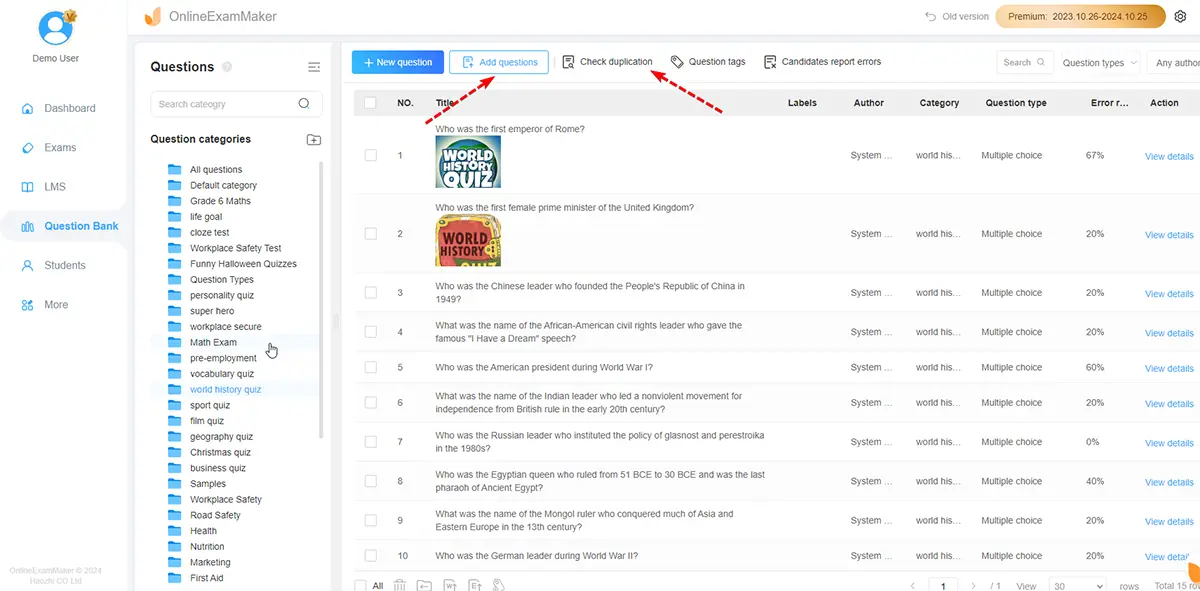
Question Bank Creation: Build a comprehensive library of questions across subjects and difficulty levels. Unlike Google Forms, where questions live within individual forms, OnlineExamMaker maintains a centralized question bank. Write a great question once, use it forever.
Intelligent Question Types: The platform supports everything from traditional multiple-choice to interactive scenarios, matching exercises, fill-in-the-blank with multiple acceptable answers, and more. The auto-grading engine understands context and can recognize synonyms or equivalent mathematical expressions.
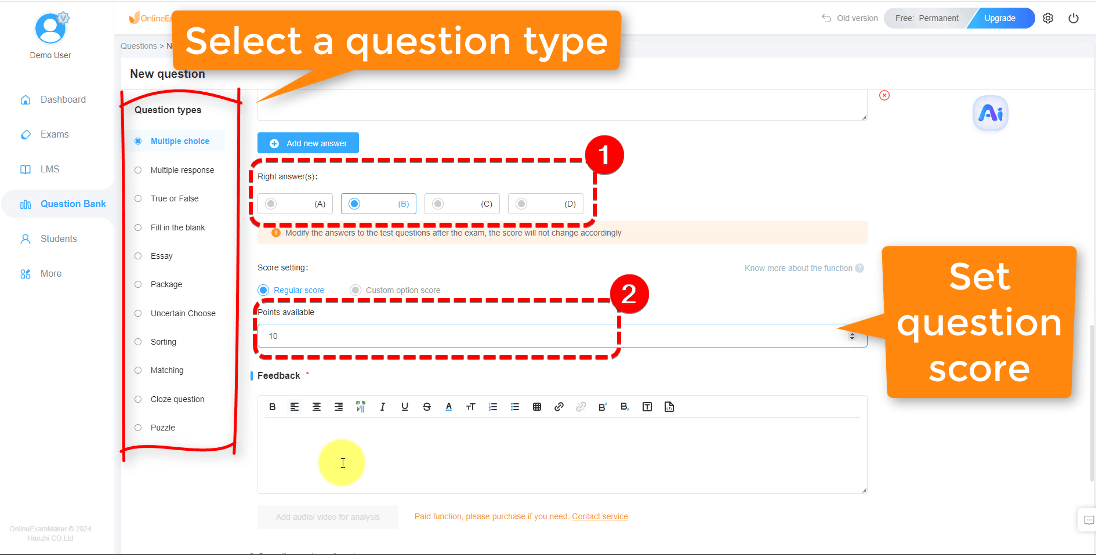
Customizable Scoring Rules: Remember that partial credit limitation in Google Forms? OnlineExamMaker lets you assign different point values to different answer options, award partial credit for “close” answers, and even create weighted scoring based on question difficulty. Your quiz, your rules.
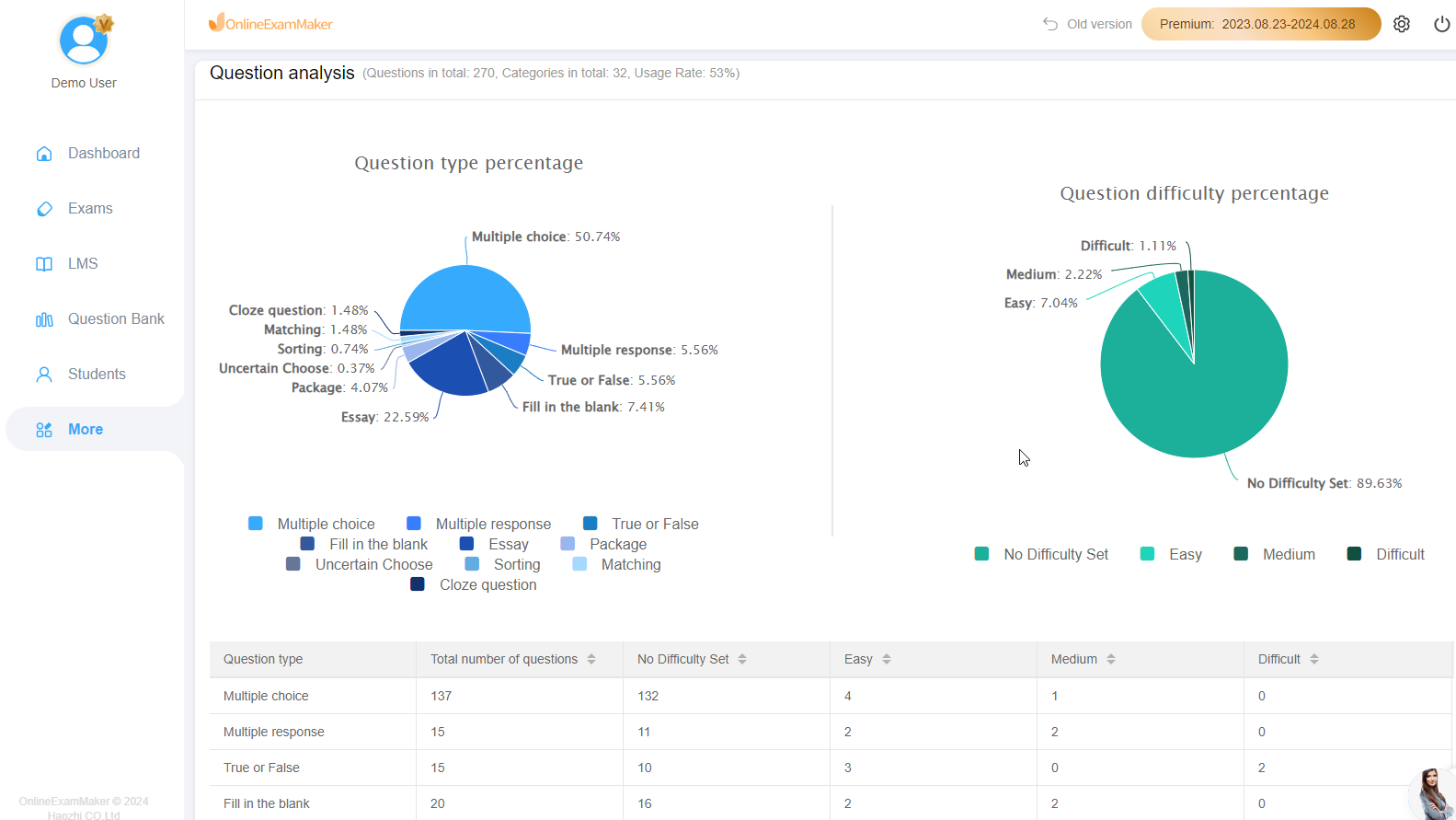
Advanced Analytics Dashboard: While Google Forms gives you charts and spreadsheets, OnlineExamMaker provides a dedicated analytics interface showing item analysis, discrimination indices, student performance trends, and predictive insights about which students might be struggling.
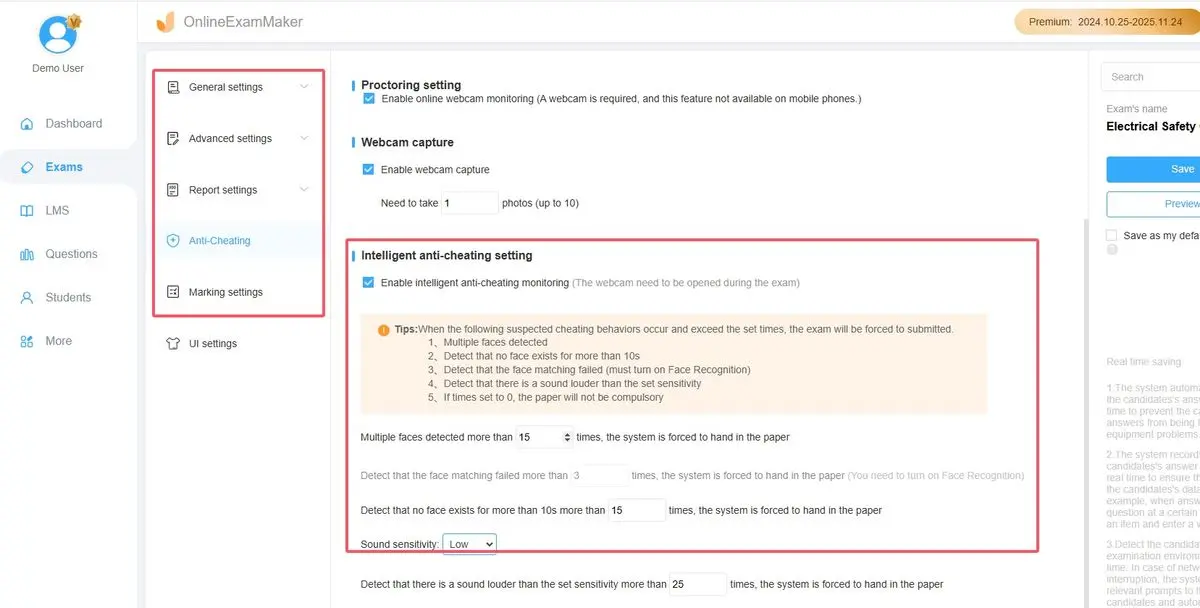
Anti-Cheating Features: If you’ve ever proctored an online quiz and worried about academic integrity, OnlineExamMaker includes randomized question orders, time limits per question, browser lockdown options, and AI-powered plagiarism detection for written responses.
The AI Grading Advantage
Let’s dive deeper into OnlineExamMaker’s AI grading, because this is where things get genuinely impressive. Traditional auto-grading works great for objective questions, but what about when you ask, “Explain why photosynthesis is important to Earth’s ecosystem?”
OnlineExamMaker’s AI can:
- Evaluate response completeness and accuracy
- Identify key concepts and award points accordingly
- Recognize correct answers phrased in different ways
- Flag responses that need human review (the system knows its limitations)
- Provide automated feedback pointing students toward areas for improvement
Is it perfect? No. AI grading for complex written responses still benefits from human oversight. But as a first-pass grading tool that handles 80% of the work automatically? It’s transformative. You spend your energy on the 20% of responses that genuinely need expert judgment, not on marking fifty identical correct answers as correct.
Cost Considerations
Google Forms is free. That’s a huge advantage when budgets are tight. OnlineExamMaker operates on a freemium model with paid tiers offering advanced features. For individual teachers, the free version might suffice. For departments or schools looking for comprehensive assessment infrastructure, the paid plans offer significant value.
The question isn’t whether OnlineExamMaker is objectively “better” than Google Forms—it’s whether its advanced features justify the cost for your specific needs. A teacher giving weekly vocabulary quizzes probably doesn’t need AI grading. A teacher administering complex assessments with varied question types and needing detailed analytics? That’s a different calculation.
