Online testing has become the norm rather than the exception, but it’s brought a troubling companion: unprecedented opportunities for academic dishonesty. The good news? Technology that creates the problem also offers the solution. Modern AI proctoring tools can monitor student behavior with remarkable precision, catching everything from wandering eyes to hidden accomplices.
But here’s the thing—effective monitoring isn’t just about catching cheaters. It’s about creating an environment where honest students feel protected and academic integrity becomes the default, not the exception. Let’s explore how to make that happen.
- Understanding the Challenge of Online Exam Monitoring
- Pre-Exam Setup: Laying the Foundation for Success
- Setting Up AI Proctoring with OnlineExamMaker
- Live Monitoring During the Exam
- Behavioral Red Flags and Warning Signs
- Technology and Logs: Your Digital Paper Trail
- Post-Exam Analysis and Follow-Up
- Teacher-Friendly Workflows and Best Practices
- Final Thoughts: Balancing Security with Trust
Understanding the Challenge of Online Exam Monitoring
Remote testing has democratized education in beautiful ways. Students in rural Montana can access the same AP Chemistry exam as their peers in Manhattan. Working adults can complete certifications without taking time off. But this convenience comes with a catch.
Traditional exam halls had natural deterrents: the watchful eye of a proctor pacing the aisles, the physical isolation from resources, the peer pressure of a silent room. Online exams? Students sit in the comfort of their bedrooms, surrounded by smartphones, textbooks, and sometimes, let’s be honest, a very helpful roommate just off-camera.
The statistics tell a sobering story. Studies indicate that academic dishonesty in online environments can be significantly higher than in traditional settings when proper monitoring isn’t in place. But before you despair, know this: the same technology enabling remote learning also provides sophisticated solutions.
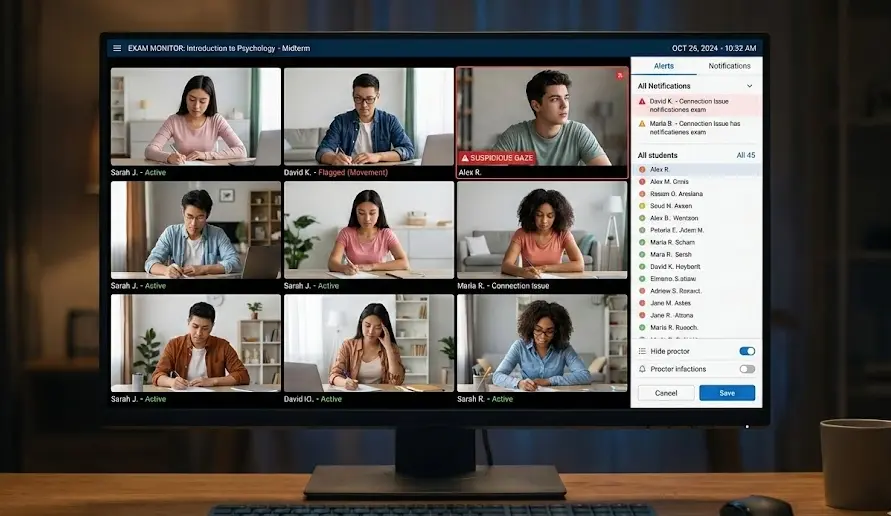
Pre-Exam Setup: Laying the Foundation for Success
Ever heard the phrase “an ounce of prevention is worth a pound of cure”? In online exam monitoring, it’s more like a ton of cure. Your pre-exam setup determines whether you’ll spend exam day peacefully monitoring or frantically troubleshooting.
Establishing Crystal-Clear Expectations
Ambiguity is the enemy of compliance. Students need to know exactly what’s expected before exam day arrives. Here’s what should be non-negotiable in your exam rules:
- Camera requirements: Webcam must be on throughout the entire exam, positioned to show the student’s full face and upper body
- Environmental rules: No headphones, earbuds, or audio devices; no other people in the room; door closed
- Desk setup: Clear workspace with only permitted materials (calculator, blank paper, pencil—whatever you’ve approved)
- Behavior guidelines: Eyes on screen, no excessive head movement, no talking, no leaving the frame without permission
- Device policy: Only one device allowed (the testing device); smartphones must be out of reach and visible or powered off
But don’t just list these rules—explain the why behind them. When students understand that you’re protecting the value of their honest work, they’re more likely to comply.
The Power of the Room Scan
Here’s a clever trick borrowed from professional testing centers: require a 360-degree room scan before the exam begins. Using their webcam, students slowly pan around their testing space, showing you their desk, the area behind them, and any potential hiding spots for unauthorized materials.
Think of it as a digital pat-down. It’s not foolproof—dedicated cheaters will find workarounds—but it eliminates casual cheating and establishes that you’re serious about exam integrity. Plus, recorded room scans provide valuable evidence if questions arise later.
Setting Up AI Proctoring with OnlineExamMaker
Now let’s talk about the tool that makes all this monitoring actually manageable: OnlineExamMaker’s AI proctoring software. Unlike traditional proctoring that requires one human proctor per 20-30 students, AI proctoring can monitor hundreds of students simultaneously while flagging suspicious behavior for human review. It’s like having a tireless assistant with perfect attention to detail.
Create Your Next Quiz/Exam Using AI in OnlineExamMaker
Creating Your AI-Proctored Exam
Setting up an AI-proctored exam in OnlineExamMaker is refreshingly straightforward. The platform has been designed with the understanding that teachers are busy professionals, not IT specialists. Here’s your step-by-step workflow:
- Build your exam: Use OnlineExamMaker’s question bank to create your test, mixing question types (multiple choice, short answer, essay) as needed
- Access proctoring settings: Navigate to the exam settings panel and locate the “Anti-cheating” tab
- Enable AI proctoring: Toggle on the AI proctoring feature—this activates webcam monitoring, browser lockdown, and behavioral analytics
- Configure detection parameters: Choose which behaviors trigger alerts (face detection, multiple people, gaze tracking, tab switching, etc.)
- Set sensitivity levels: Adjust how strict the AI should be—higher sensitivity means more alerts but potentially more false positives
- Enable identity verification: Require students to show ID to the camera before starting the exam
- Test the setup: Use the preview function to experience the exam as a student would, ensuring all proctoring features work correctly
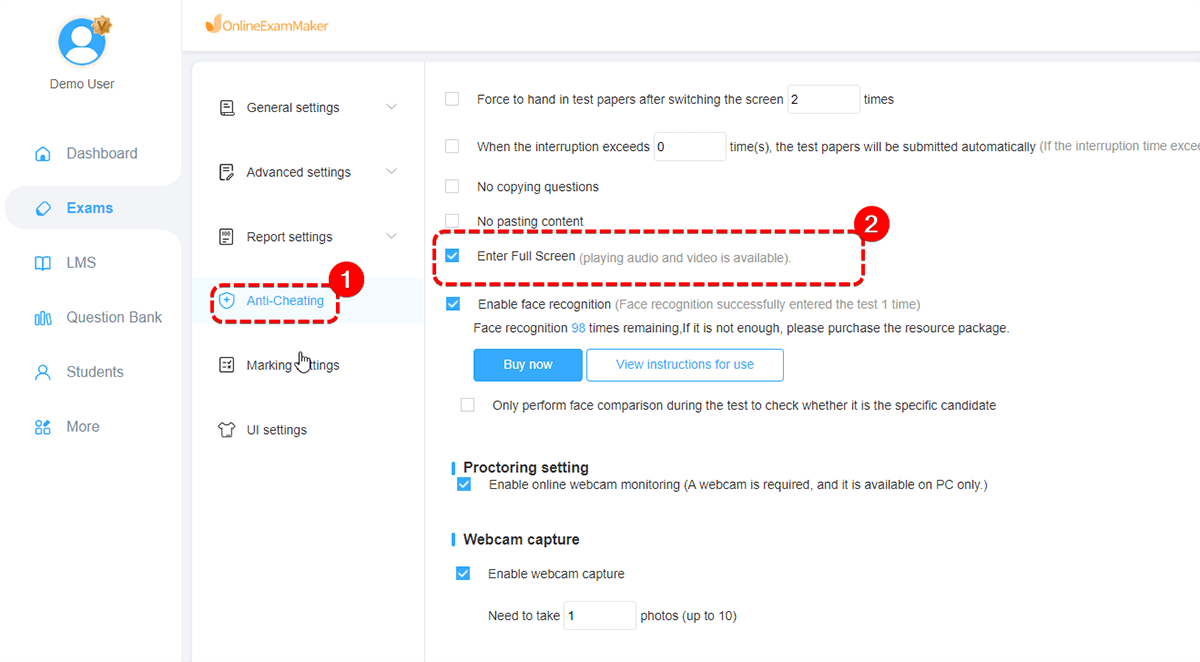
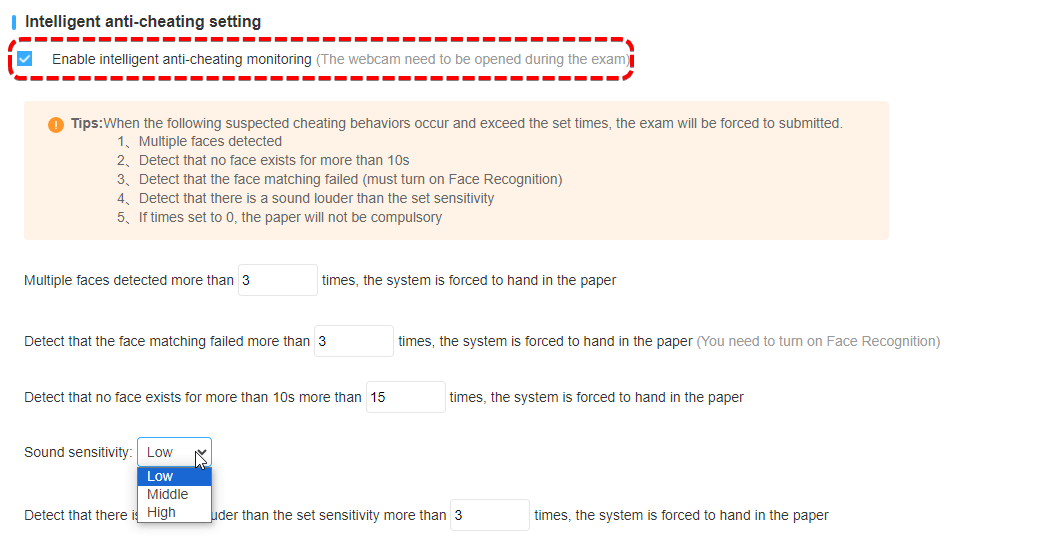
How OnlineExamMaker’s AI Proctoring Works?
The beauty of OnlineExamMaker’s system lies in its multi-layered approach. Rather than relying on a single detection method, it combines several technologies:
| Technology | What It Monitors | What It Catches |
|---|---|---|
| Facial Recognition | Student’s face throughout exam | Face obscured, multiple people, student absence, impersonation |
| Gaze Tracking | Eye and head position | Looking at second screen, reading notes off-camera, consulting with others |
| Audio Monitoring | Background sounds and voices | Verbal communication, phone conversations, suspicious activity |
| Browser Lockdown | Application activity and window focus | Tab switching, accessing other programs, searching for answers |
| Keystroke Analysis | Typing patterns and speed | Copy-pasting, unusual typing bursts, irregular behavior |
What makes OnlineExamMaker particularly smart is its temporal validation approach. Instead of flagging every momentary glance away from the screen, the AI waits to see if suspicious behavior persists. A student who looks away for two seconds? Probably just thinking. A student whose gaze drifts off-screen repeatedly for 30 seconds at a time? That’s worth investigating.
Live Monitoring During the Exam
Exam day arrives. Your students are logging in, cameras flickering to life on your monitoring dashboard. This is where the rubber meets the road—or where the proctor meets the proctoree, if you will.
Your Monitoring Dashboard: Command Center for Academic Integrity
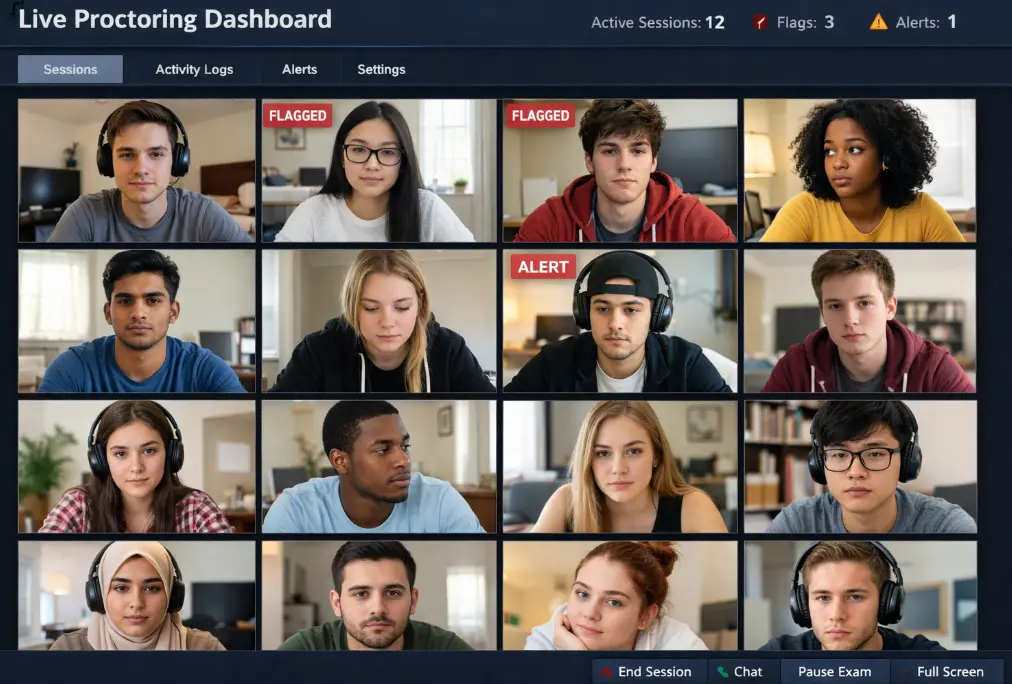
OnlineExamMaker’s live monitoring dashboard is your mission control. At a glance, you can see:
- Grid view of all student webcam feeds
- Real-time status indicators (not started, in progress, completed, flagged)
- Alert notifications as suspicious behaviors are detected
- Individual student timelines showing exam progress
- Quick-action buttons for interventions (send message, pause exam, force submit)
The interface prioritizes students with alerts, bringing them to the top of your view. It’s like having a personal assistant who taps you on the shoulder and says, “Hey, you might want to look at this.”
Choosing Your Monitoring Mode
OnlineExamMaker offers flexibility in how you monitor, because one size definitely doesn’t fit all:
AI-Only Monitoring: The system watches everything and generates a report of flagged behaviors for review after the exam. Perfect for large classes or when you can’t be present during the entire testing window. Think of it as surveillance cameras that you review later.
Live Human Monitoring: You (or a teaching assistant) actively watch the dashboard during the exam, responding to alerts in real-time. Best for high-stakes exams where immediate intervention is crucial.
Hybrid Approach: The AI does the heavy lifting, flagging suspicious behavior, while you periodically check the dashboard and respond to serious alerts. This is the sweet spot for most educators—it combines AI efficiency with human judgment.
Responding to Alerts: The Art of Intervention
Here’s where your teacher instincts matter. Not every alert deserves the same response. A single face-detection failure might mean a student adjusted their laptop. Five consecutive failures? That’s different.
Your intervention toolkit includes:
- Warning messages: Send a chat notification reminding the student to keep their face visible or stop looking away
- Screen snapshot: Capture the current state for documentation
- Exam pause: Temporarily freeze the student’s exam to address an issue
- Test termination: Force-submit the exam if serious violations occur
- Flagging for review: Mark the student for post-exam follow-up without interrupting their test
The key is proportionality. Save the nuclear option (termination) for clear, egregious violations. For ambiguous situations, flag and investigate later. Remember: false accusations can be just as harmful as missed cheating.
Behavioral Red Flags and Warning Signs
Learning to read behavioral patterns is like developing a sixth sense. After monitoring a few exams, you’ll start recognizing the difference between nervous fidgeting and deliberate deception. Here’s what to watch for:
Visual Red Flags
- The Disappearing Act: Face leaves the frame repeatedly or for extended periods
- The Collaboration: Multiple faces appear in the webcam view
- The Wandering Eye: Repeated, sustained glances to the same off-screen location (classic sign of reading notes or a second device)
- The Obstruction: Hand repeatedly covering mouth or camera partially blocked
- The Equipment Malfunction: “Technical difficulties” that conveniently turn off the camera at regular intervals
Behavioral Pattern Flags
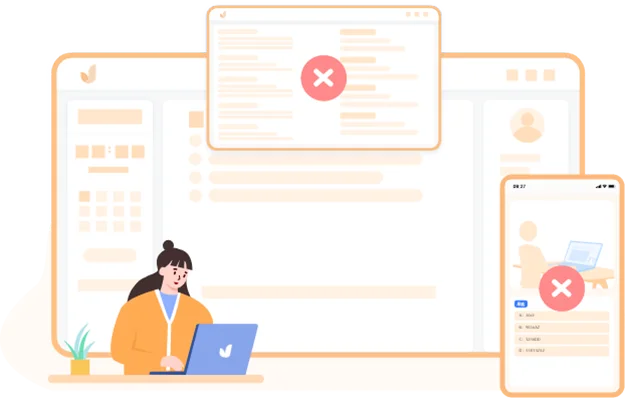
- The Rabbit Hole: Spending 30 seconds on nine questions, then five minutes on one (possibly researching the answer)
- The Copy-Paste Express: Answers appearing in suspiciously rapid bursts of typing
- The Window Shopper: Multiple attempts to switch tabs or access other applications
- The IP Hopper: IP address changes mid-exam (possible device switching)
- The Sudden Genius: Student who struggled on homework suddenly acing complex exam questions
The Temporal Validation Principle: OnlineExamMaker’s AI uses smart timing thresholds. A gaze deviation flagged as “suspicious” typically requires 3-5 seconds of sustained off-screen looking. This prevents false positives from normal thinking pauses while catching genuine cheating attempts. It’s the Goldilocks approach to monitoring—not too sensitive, not too lenient, just right.
Context Matters
Here’s the nuance that separates good monitoring from security theater: context. A student glancing to the side during a creative writing prompt might be thinking. The same behavior during a multiple-choice math test is more suspicious. A sudden typing burst on an essay question is expected; on a true/false quiz, it’s weird.
OnlineExamMaker’s AI learns these patterns, but your human judgment remains irreplaceable. The technology flags; you interpret.
Technology and Logs: Your Digital Paper Trail
Every action during an online exam leaves digital footprints. OnlineExamMaker captures an extraordinary amount of data—not to play Big Brother, but to reconstruct events when integrity questions arise.
Browser Lockdown: Building Digital Walls
OnlineExamMaker’s browser lockdown feature transforms the testing environment into a secure bunker. When enabled, it:
- Prevents opening new tabs or windows
- Blocks access to other applications
- Disables copy-paste functionality
- Restricts right-click menus and browser tools
- Logs every attempt to circumvent these restrictions
Think of it as creating a temporary walled garden. Students can access your exam and nothing else. Any attempt to break out gets recorded for your review.
Event Logs: The Timeline of Truth
OnlineExamMaker’s event logging system creates a detailed chronology of each student’s exam session. Here’s what gets recorded:
| Event Type | What’s Captured | Why It Matters |
|---|---|---|
| Window Focus | Every time the exam window loses/gains focus | Indicates tab-switching attempts or application changes |
| Keystroke Patterns | Typing speed, pauses, bursts of activity | Unusual patterns may indicate copy-pasting from external sources |
| Question Navigation | Time spent on each question, skip patterns | Helps identify collaboration (identical patterns) or researching (long pauses) |
| AI Alerts | Face detection failures, multiple people detected, gaze deviations | Flags potential integrity violations for review |
| Network Data | IP address, connection stability, session continuity | Detects device switching or exam-sharing between students |
These logs don’t prove guilt—they’re breadcrumbs that help you ask the right questions. When combined with AI alerts and your own observations, they create a comprehensive picture of what really happened during the exam.
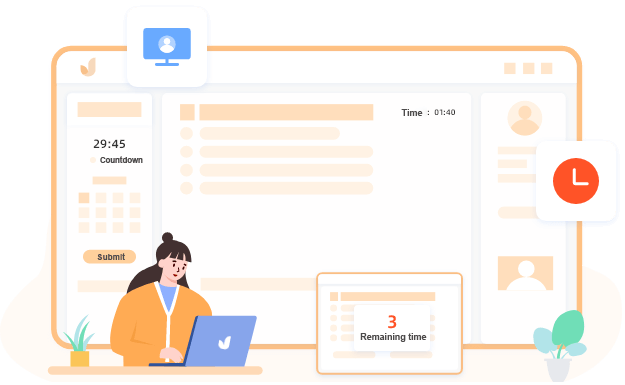
Using AI Metadata Responsibly
Here’s a critical distinction: AI-generated alerts are starting points for investigation, not verdicts. The system might flag “candidate absence” because a student temporarily left the frame. That deserves review, not automatic failure.
OnlineExamMaker’s approach emphasizes privacy-respecting analytics. The AI processes behavioral metadata—patterns and deviations—rather than invasively analyzing every pixel of every frame. It’s sophisticated enough to catch genuine violations while lightweight enough to respect student privacy.
Post-Exam Analysis and Follow-Up
The exam ends. Students submit their tests. Your work as a monitor, however, is just entering a new phase. Post-exam analysis often reveals patterns that weren’t obvious during live monitoring.
Statistical Pattern Analysis
OnlineExamMaker’s analytics tools can identify suspicious patterns across your entire class:
Answer Similarity Detection: The system can flag unusually similar answer patterns between students. Two students getting the same multiple-choice questions wrong in the same sequence? That’s beyond coincidental.
Performance Anomalies: Compare each student’s exam performance against their previous work. A student who’s been averaging 65% suddenly scoring 95% merits a conversation. The system can automatically flag statistically significant performance jumps.
Time Pattern Analysis: Students who completed the exam in identical times (down to the minute) or showed synchronized navigation patterns might have coordinated their efforts.
The Power of Oral Verification
Here’s an old-school technique that remains devastatingly effective: the follow-up interview. Select students with concerning proctoring reports or unusual performance and ask them to explain their solutions to 2-3 randomly chosen questions.
This isn’t an interrogation—frame it as a learning opportunity. “I was really impressed by your answer to question 12. Can you walk me through how you approached that problem?” Students who earned their scores can explain their thinking. Those who cheated typically can’t.
OnlineExamMaker’s detailed reports make this process efficient. You can pull up the specific questions, the student’s answers, and the timeline of alerts, creating a focused conversation guide.
Teacher-Friendly Workflows and Best Practices
Let’s make this practical. Here’s your day-of-exam checklist—print it, laminate it, keep it handy:
Pre-Exam Checklist (30 Minutes Before Start Time)
- ☐ Log into OnlineExamMaker and open the monitoring dashboard
- ☐ Verify exam settings: proctoring enabled, time limits correct, questions randomized (if desired)
- ☐ Send reminder email to students with exam link and technical requirements
- ☐ Test your own internet connection and computer setup
- ☐ Have a backup communication channel ready (phone numbers, alternate email)
- ☐ Prepare to be available 10 minutes early for student tech support questions
During the Exam
- ☐ Monitor the dashboard actively for the first 10 minutes (when most tech issues occur)
- ☐ Check all students have successfully started and verified their identity
- ☐ Review and respond to high-priority alerts (red flags)
- ☐ Document any interventions you make in your own notes
- ☐ Remain available for the entire exam duration, even if using AI-only mode
Post-Exam
- ☐ Download the proctoring report and event logs
- ☐ Review flagged students before grading
- ☐ Run statistical analysis for answer patterns and performance anomalies
- ☐ Schedule follow-up conversations if needed
- ☐ Document any integrity violations through proper channels
Final Thoughts: Balancing Security with Trust
Here’s a paradox worth sitting with: the more visibly you monitor students, the more you communicate that you expect them to cheat. Yet without monitoring, you leave the door wide open for those who would.
The solution isn’t to swing to either extreme. OnlineExamMaker’s AI proctoring technology, when used thoughtfully, strikes a balance. It creates accountability without creating a police state. It protects honest students without presuming guilt.
Remember that monitoring is just one piece of the academic integrity puzzle. The most secure exam can’t compensate for poorly designed questions that reward memorization over understanding. The most sophisticated proctoring can’t replace a classroom culture that values learning over grades.
