Remember the last time you spent hours creating a language test, only to realize you forgot to include a listening section? Or worse – discovered your students couldn’t submit their speaking recordings because your platform didn’t support file uploads?
Creating comprehensive language assessments shouldn’t feel like solving a Rubik’s cube blindfolded. Whether you’re a teacher trying to evaluate your students’ progress, a corporate trainer assessing language proficiency, or an HR manager screening multilingual candidates, you need an online solution that actually works.
- Why Use WordPress for Language Testing?
- The Game-Changer: Quiz Maker Plugin
- Getting Your Hands Dirty: Installation and Setup
- Building Your Question Bank in WordPress: The Foundation
- Assembling Your Language Test
- Reviewing Results: The Teacher’s Dashboard
- An Alternative Way: Create A Language Test Using AI with OnlineExamMaker
Why Use WordPress for Language Testing?
Let’s cut through the noise. WordPress isn’t just for blogs anymore – it’s evolved into a robust platform for educational content. And when you pair it with the right tools, you can build language assessments that test all four critical skills: reading, writing, listening, and speaking. All in one place. No juggling multiple platforms. No technical headaches.
But here’s where it gets interesting.
The Game-Changer: Quiz Maker Plugin
Think of Quiz Maker as your Swiss Army knife for language assessments. It’s a WordPress plugin that lets you create everything from simple vocabulary quizzes to complex, multi-skill language tests. The beauty? You don’t need to be a tech wizard to use it.
Getting Your Hands Dirty: Installation and Setup
First things first – you need to get Quiz Maker installed and activated on your WordPress site. It’s straightforward stuff. Navigate to your plugins section, search for Quiz Maker, click install, then activate.
Once that’s done? The real fun begins.
Building Your Question Bank in WordPress: The Foundation
Here’s something most tutorials won’t tell you: the secret to a great language test isn’t just what you ask – it’s how you organize your questions. Quiz Maker makes this painfully simple.
Creating Individual Questions
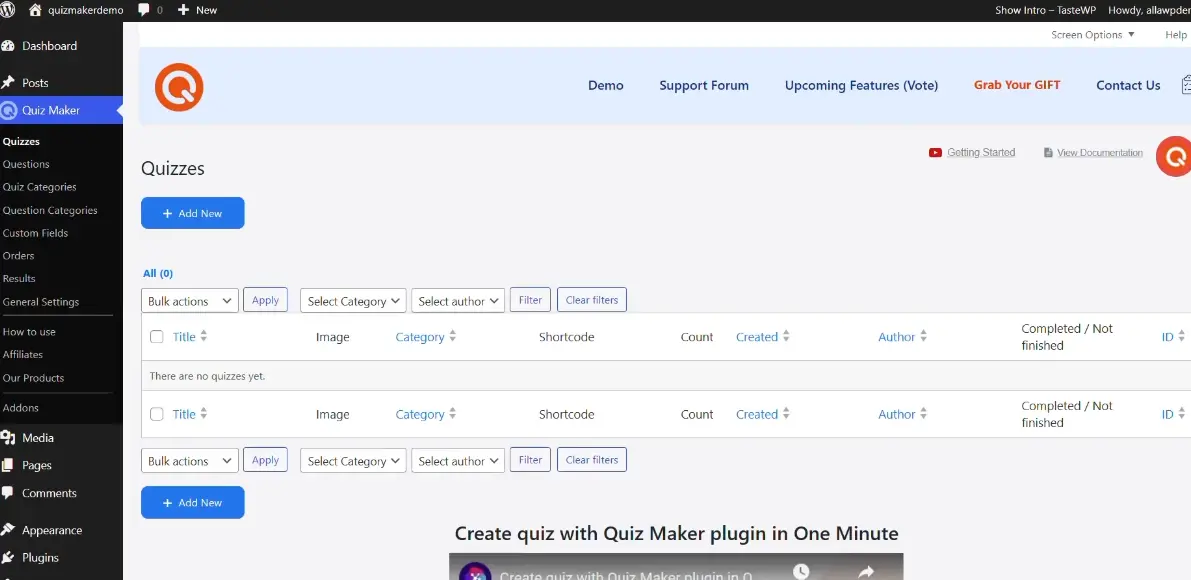
Head over to “Questions” under the Quizzes menu on your left sidebar. You’ll see your question dashboard – this is your command center. If you’re starting fresh, click “Add New” and you’ll be greeted with a clean interface.
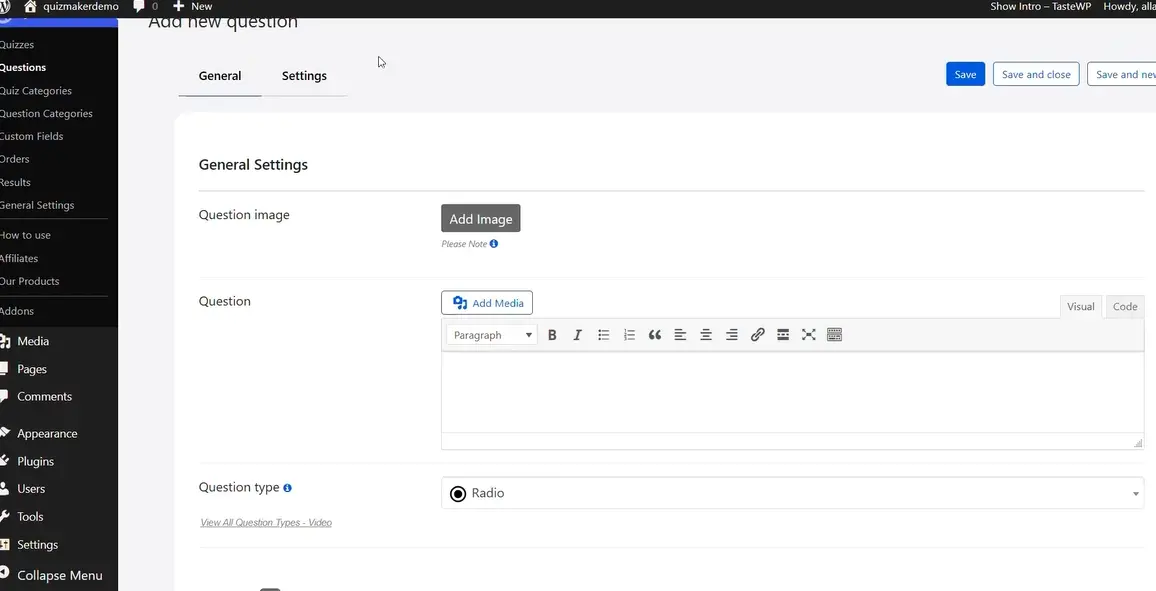
Now, here’s where it gets cool. You’re not limited to boring multiple-choice questions. The plugin offers a smorgasbord of question types:
- Checkboxes for multiple correct answers
- Dropdown menus for matching exercises
- Text fields for written responses
- File uploads for speaking and extended writing tasks
The Speaking Component: A Real-World Example
Let’s tackle something tricky – testing speaking skills in a digital format. Traditionally, this meant scheduling one-on-one sessions or using clunky external recording tools. Not anymore.
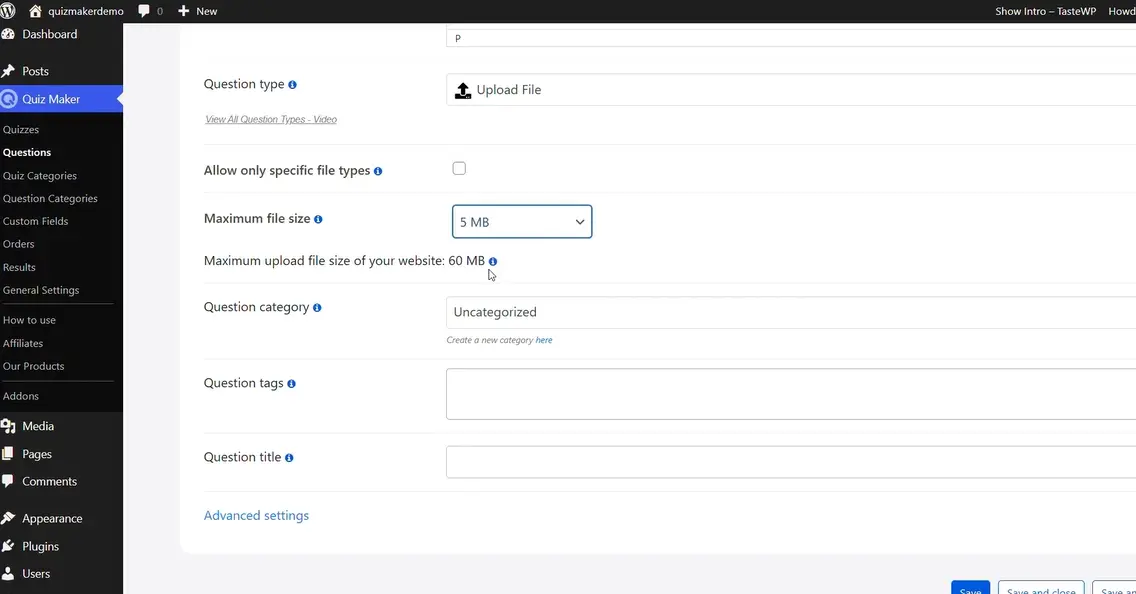
Create a speaking question by selecting “Upload File” as your question type. Add your prompt – maybe something like “Describe your favorite vacation destination and explain why you enjoyed it.” Then set your parameters: file type restrictions (if needed) and maximum file size.
Pro tip: Keep the file size limit reasonable – around 5MB works well. This prevents students from uploading hour-long dissertations while still allowing quality audio recordings.
Students can record themselves on their phones, computers, or any device, then upload the file directly. Simple. Elegant. Effective.
Assembling Your Language Test
You’ve got your questions ready. Now what?
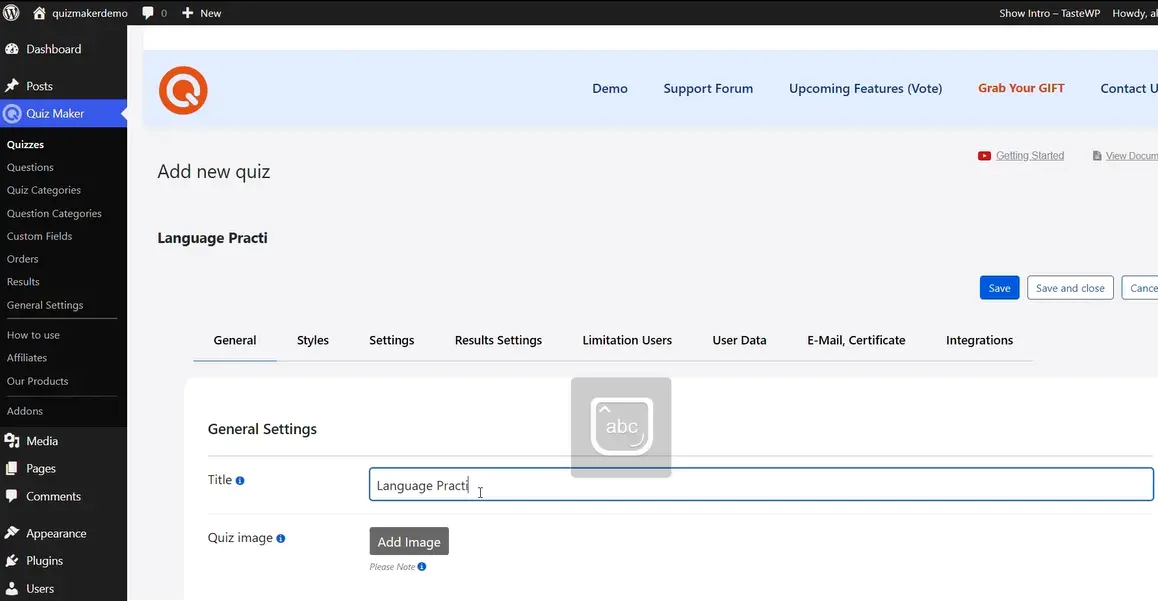
Time to create the actual quiz. Navigate to “Quizzes” and click “Add New.” Give your test a memorable title – something like “English Proficiency Assessment” or “Spanish Language Practice Test.”
Inserting Questions: The Assembly Process
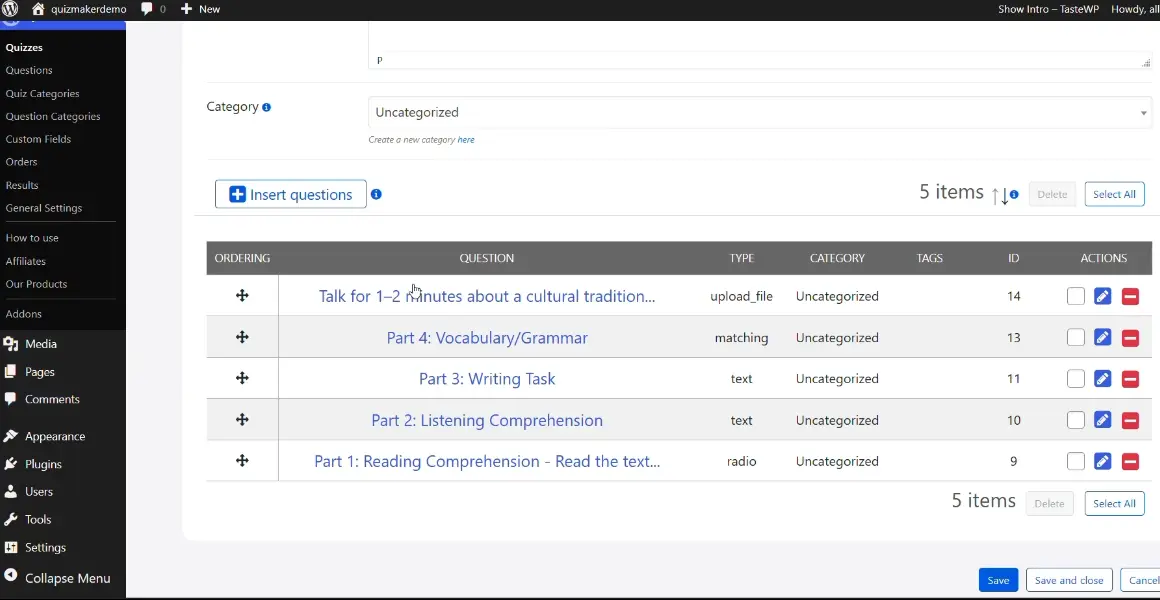
Here’s the moment of truth. Click “Insert Questions” and you’ll see all the questions you’ve created. Select the ones you want – reading comprehension, listening exercises, writing prompts, speaking tasks – and add them to your quiz.
The interface lets you drag and drop to reorder questions. Maybe you want to start with an icebreaker reading passage, move to listening, then writing, and finish with speaking. It’s your call. The flexibility is liberating.
Publishing Your Assessment
You’ve built something beautiful. Now it’s time to share it with the world – or at least with your students.
Quiz Maker generates a shortcode for your test. Think of this as a magic key that unlocks your quiz anywhere on your WordPress site. You have two options for embedding:
- The Shortcode Method: Copy the shortcode, navigate to your desired page, click the plus icon, select “Shortcode,” and paste it in.
- The Direct Method: Click the plus icon, search for “Quiz Maker,” and select your quiz from the list.
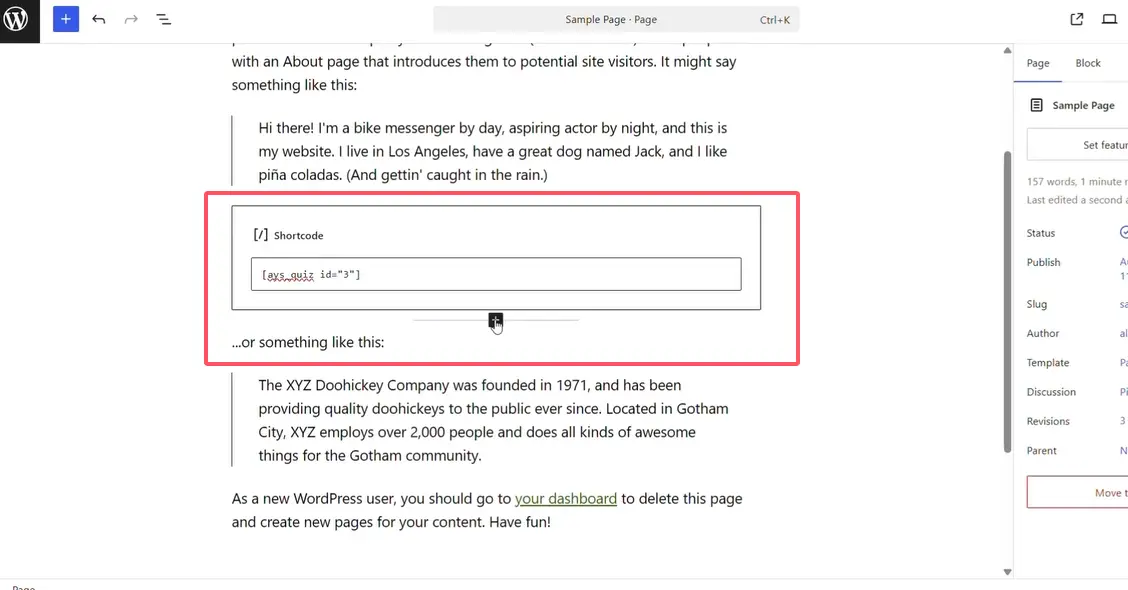
Both roads lead to Rome. Choose whichever feels more intuitive to you.
The Student Experience: What It Actually Looks Like
Let’s walk through what your students will encounter. Because honestly, that’s what matters most.
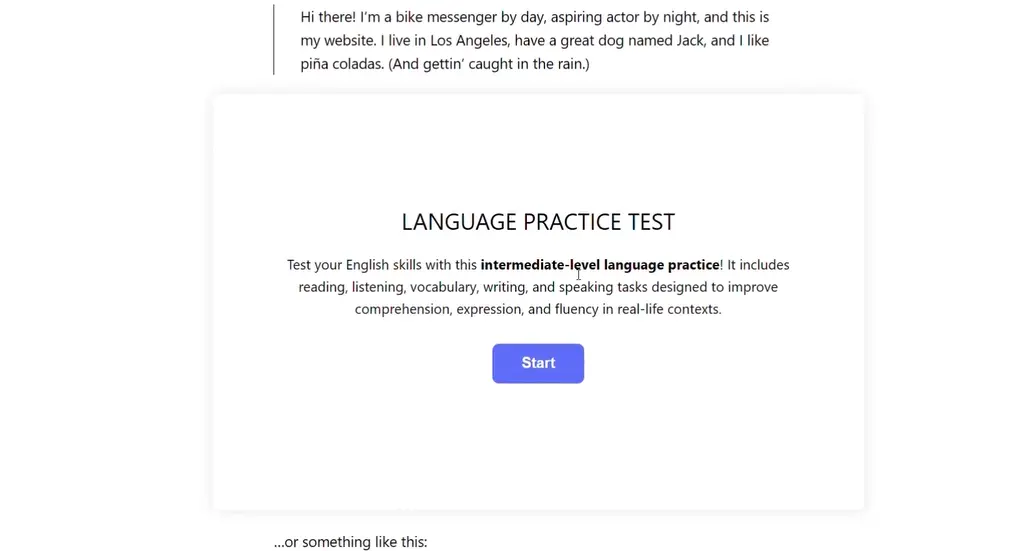
When students land on your assessment page, they’ll see a clean, professional interface. They click “Start” and dive straight into the first question – maybe a reading comprehension passage with multiple-choice questions.
Next up? A listening exercise. The audio player appears right on the page – no external links, no complications. Students listen, digest the content, and type their responses.
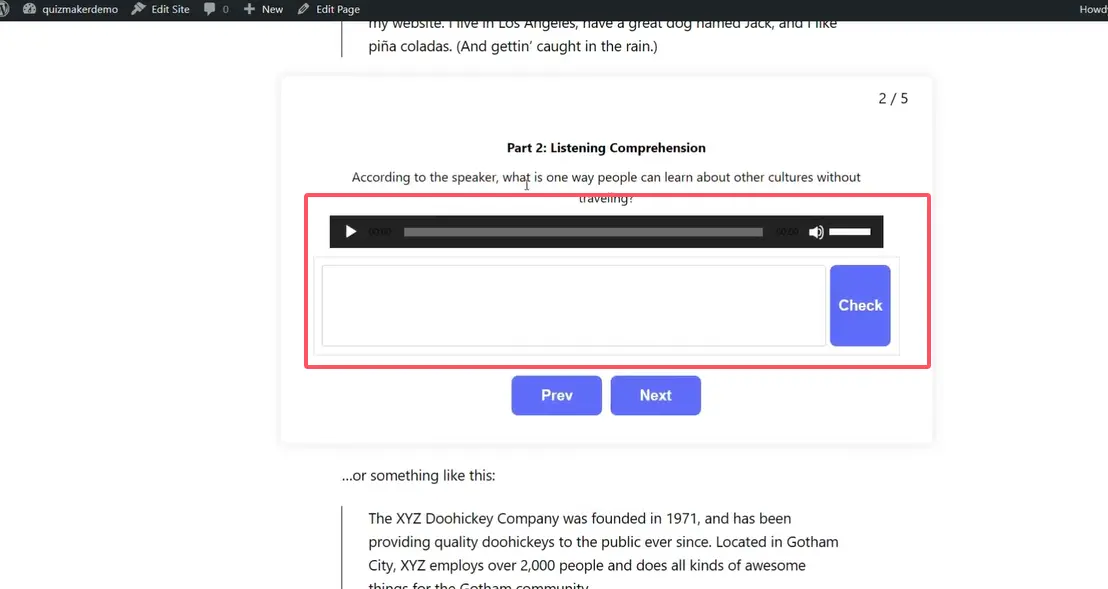
The writing section comes next. Maybe you’re asking them to compose a short essay or respond to a prompt. They type directly into the text box – clean, simple, effective.
Then there’s the matching exercise – connecting vocabulary words to definitions, perhaps. Drag, drop, done.
Finally, the speaking component. Students see the prompt, hit pause on the test, record their response using whatever device they have handy, then upload the file. The whole process takes seconds.
Reviewing Results: The Teacher’s Dashboard
Here’s where Quiz Maker really shines. After students submit their tests, you get a comprehensive view of their performance.
Navigate to “Results” in your dashboard. Click on any submission for details, then select “Detailed Report.” You’ll see every answer – written responses typed out, matching exercises completed, and downloadable files for speaking assessments.
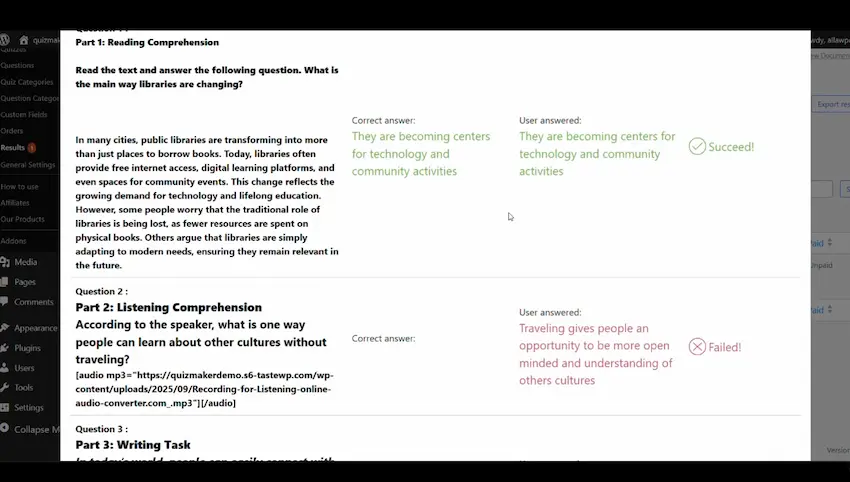
Want to listen to a speaking sample? Download the audio file right from the interface. No hunting through email attachments or cloud storage folders.
An Alternative Way: Create A Language Test Using AI with OnlineExamMaker
Now, if you’re thinking “This is great, but what about AI-powered features?” – I hear you.
This is where OnlineExamMaker enters the conversation. While Quiz Maker gives you solid foundation for language assessments, OnlineExamMaker brings artificial intelligence into the mix, specifically designed for educators who want to work smarter, not harder.
Create Your Next Quiz/Exam with OnlineExamMaker
How OnlineExamMaker Transforms Language Assessment Creation?
If you’re creating a comprehensive language test, but instead of manually typing every single question, you feed the AI a text passage and it automatically generates reading comprehension questions. Or you provide vocabulary words and the system creates matching exercises, fill-in-the-blanks, and context-based questions.
That’s the power OnlineExamMaker brings to the table.
For language teachers specifically, this AI exam-making software offers several game-changing features:
- Automated question generation: Import texts in multiple languages and let the AI suggest relevant questions
- Interactive elements: Create engaging exercises with automatic scoring for vocabulary, grammar, and reading comprehension
- Webcam proctoring: The AI anti-cheating technology can prevent exam takers cheat during the language assessment.
- Multi-language support: Generate assessments in dozens of languages without starting from scratch
But here’s what really matters: time savings. What used to take hours – researching passages, crafting questions, writing distractors for multiple-choice options – now takes minutes. OnlineExamMaker’s AI doesn’t replace your pedagogical expertise; it amplifies it.
Teachers can focus on the nuanced aspects of language teaching – providing feedback on speaking samples, crafting authentic writing prompts, designing culturally relevant content – while the AI handles the heavy lifting of question creation.
Real-world application: Imagine you’re teaching English as a second language. You find a news article about environmental conservation. Instead of spending 30 minutes writing comprehension questions, you upload the article to OnlineExamMaker. Within moments, you have a full set of questions testing vocabulary in context, inference skills, and main idea identification. You review them, make minor adjustments, and boom – you’ve got a professional-grade reading assessment.
Creating language assessments in WordPress isn’t just possible – it’s surprisingly straightforward. With tools like Quiz Maker handling the technical side and platforms like OnlineExamMaker bringing AI-powered efficiency to question creation, you can build comprehensive, professional-grade tests that actually measure what matters.
No more cobbling together different platforms for different skills. No more technical nightmares. Just clean, effective assessment that works.
Whether you’re a seasoned educator or just starting to explore digital assessment tools, the combination of WordPress’s flexibility and modern quiz plugins offers a path forward that’s both powerful and accessible.
