- Why Login Requirements Hurt Participation?
- Step-by-Step Guide to Disable Sign-In
- Previe and Test Your Public Quiz
- Common Mistakes to Avoid in Sharing a Public Quiz
- OnlineExamMaker: A Smarter Way to Create and Share A Quiz
- How to Create Quizzes with OnlineExamMaker AI?
Why Login Requirements Hurt Participation?
Nothing kills quiz completion rates faster than forcing people to sign in. Studies show authentication barriers can reduce form completion by up to 40%. That’s nearly half your audience bouncing before they even start.
For teachers assessing guest sessions, trainers running anonymous feedback, or HR managers conducting culture surveys—requiring login isn’t just inconvenient. It’s a participation killer. Not everyone has a Google account, and frankly, people don’t want to create one just to take your quiz.
Step-by-Step Guide to Disable Sign-In
Good news: making your Google Forms quiz public is easier than you think. But there’s a hidden catch that trips up even experienced users.
The Two Toggles You Must Disable
Here’s the secret: you need to turn off two settings, not just one. Most people disable “Require sign-in” and think they’re done. Wrong. The “Limit to 1 response” toggle will still force login, even with sign-in disabled. Why? Because Google needs authentication to track who’s already submitted.
Quick Setup Process
Step 1: Open your quiz in Google Forms and click the Settings icon (gear symbol) at the top.
Step 2: Navigate to the Responses tab.
Step 3: Uncheck “Require sign-in”.
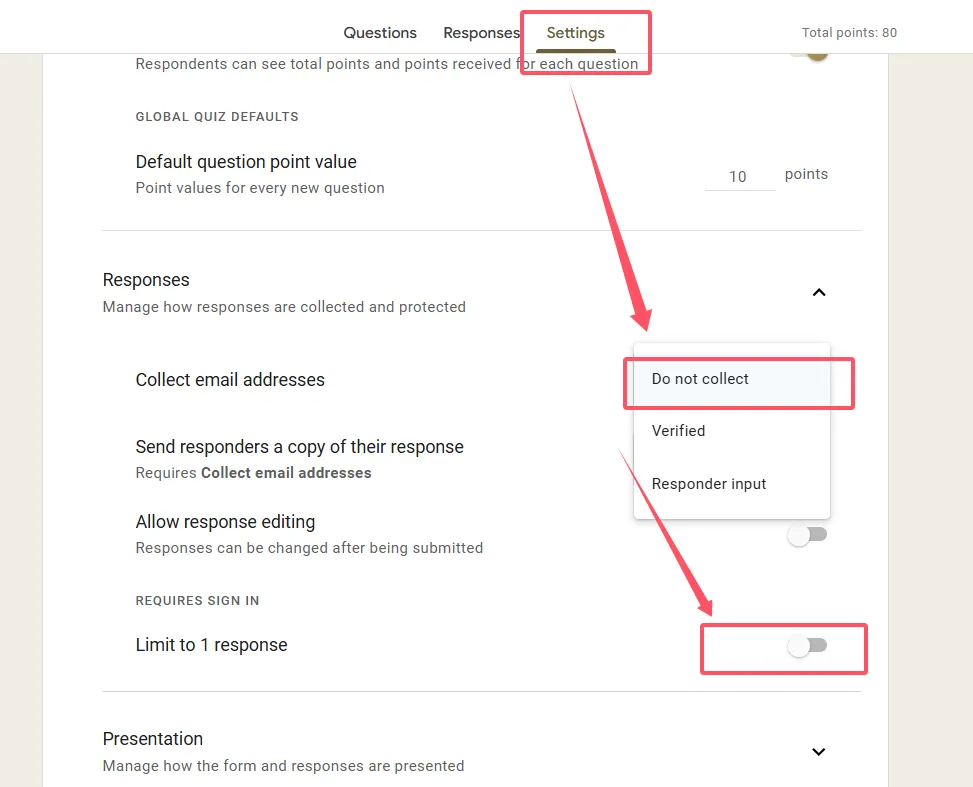
Step 4: Also uncheck “Limit to 1 response” if it’s enabled.
Step 5: Double-check both toggles are off. Changes auto-save, but verify before closing.
That’s it. Your quiz is now truly public—accessible to anyone with the link, no Google account needed.
Testing Your Public Quiz
Never trust your settings without testing. Here’s how to verify your quiz actually works:
The Incognito Test
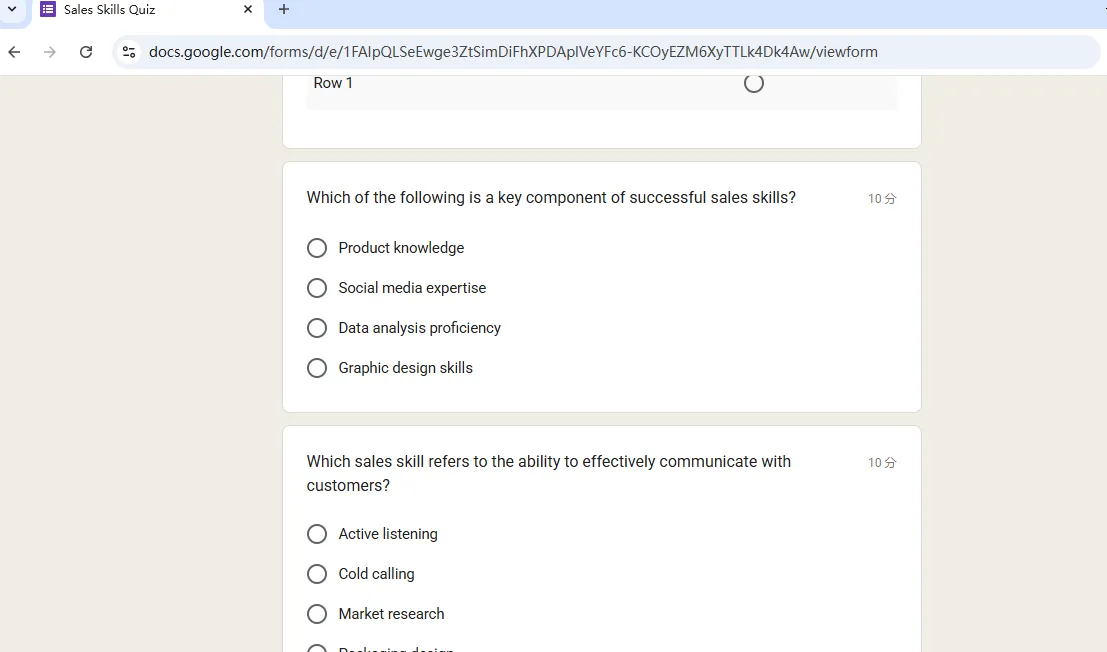
Open an incognito or private browsing window. Paste your quiz link. If it loads without a login prompt, you’re golden. If you see a sign-in screen, back to settings you go.
The Mobile Test
Test on a phone that’s not signed into your Google account. Mobile browsers behave differently, and you want to catch platform-specific issues before your participants do.
The Cross-Browser Check
Try your quiz in Chrome, Firefox, and Safari. What works in one browser might break in another. Ten minutes of testing now prevents dozens of frustrated emails later.
Common Mistakes to Avoid in Sharing a Public Quiz
The Workspace Account Trap
Using Google Workspace? Your administrator might have domain-level restrictions that override your form settings. You can flip toggles all day, but if your admin locked down external sharing, your quiz stays locked. Check with IT before troubleshooting further.
The Email Collection Confusion
Enabling “Collect email addresses” forces sign-in. If you need contact info, add a manual text field instead. Not as elegant, but it preserves accessibility.
The Spam Reality
Public forms mean anyone can submit—including bots and pranksters. Use data validation and add a human-verification question to filter nonsense submissions. Monitor your responses regularly.
OnlineExamMaker: A Smarter Way to Create and Share A Quiz
While Google Forms works for basic quizzes, it’s like using a butter knife when you need a chef’s knife. OnlineExamMaker is an AI-powered exam platform built specifically for educators, trainers, and HR professionals.
OnlineExamMaker Provide Better Methods to Help Users Conduct Online Quizzes
AI-Powered Question Generation: Upload your training materials or course content, and OnlineExamMaker’s AI automatically generates relevant questions. It’s like having a tireless teaching assistant who never gets writer’s block.
Advanced Anti-Cheating: Unlike Google Forms’ honor system, OnlineExamMaker includes webcam monitoring, screen recording, and AI behavior analysis—crucial for high-stakes assessments.
Flexible Access Control: Want it public? Done. Password-protected? Easy. Time-limited? Configured in seconds. No confusing toggle maze.
Smart Analytics: Google Forms gives you spreadsheets. OnlineExamMaker gives you insights — ability maps showing problem questions, completion time analysis, and performance trends.
Mobile-Optimized: According to Statista, over 58% of web traffic comes from mobile devices. OnlineExamMaker’s responsive design ensures professional presentation on any screen.
Create Your Next Quiz/Exam Using AI in OnlineExamMaker
How to Create Quizzes with OnlineExamMaker AI?
Creating quizzes with OnlineExamMaker is surprisingly straightforward, even for non-technical users.
Quick Creation Process
Step 1: Sign up at OnlineExamMaker. They offer a free tier generous enough for testing.
Step 2: Click “New exam” button and choose your method:
• AI-Assisted: Upload a document (texts, Word, PowerPoint) and let AI generate questions
• Manual: Build from scratch with OnlineExamMaker Question Editor
• Import: Pull from existing question banks
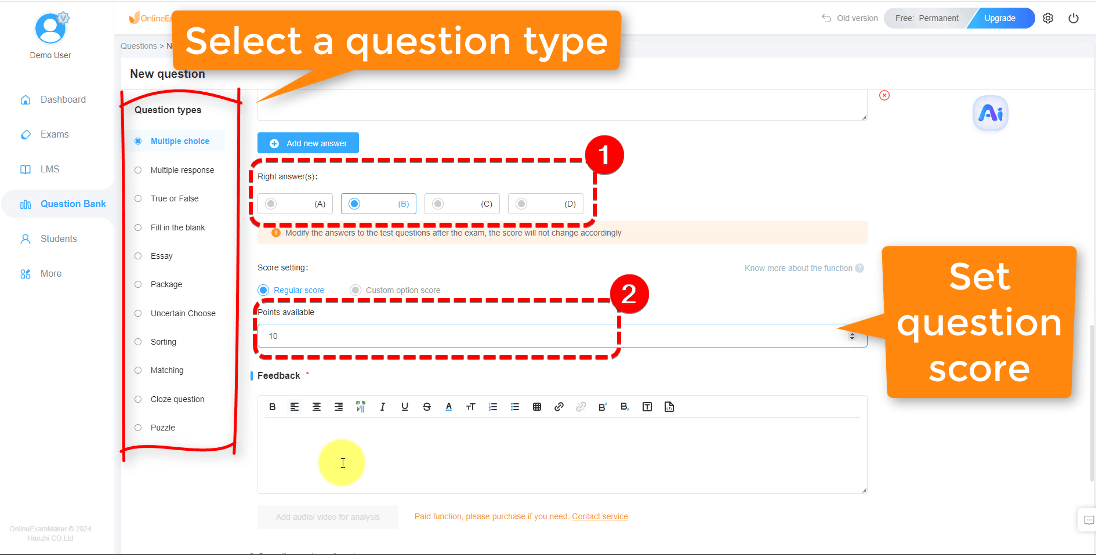
For first-timers, AI-assisted creation is borderline magical—the system analyzes your content and proposes questions in under a minute.
Step 3: Customize question types. OnlineExamMaker supports 15+ formats including:
• Multiple choice and true/false
• Fill-in-the-blank
• Essay responses with AI-assisted grading
• Matching exercises
• Multimedia questions (images, videos, audio)
Step 4: Configure access settings:
• Public (no login—like Google Forms)
• Password-protected
• Registered users only
• Time-limited access windows
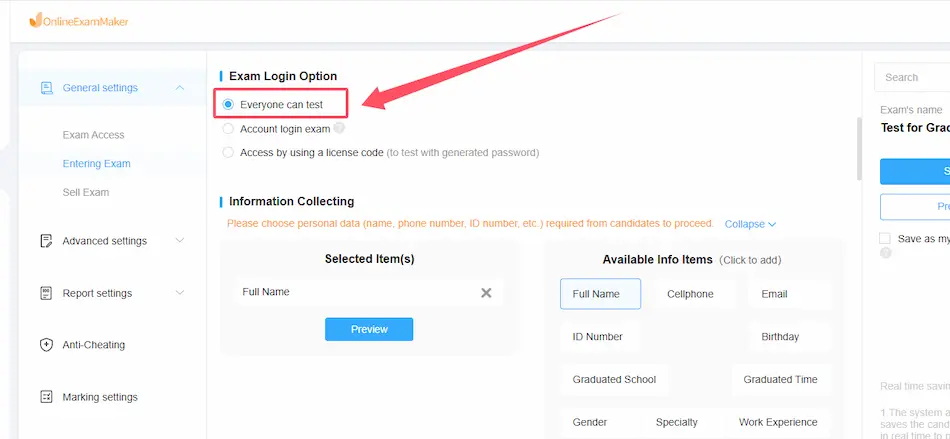
Step 5: Preview and publish. Always test before sharing. When satisfied, hit “Publish” and share your unique URL.
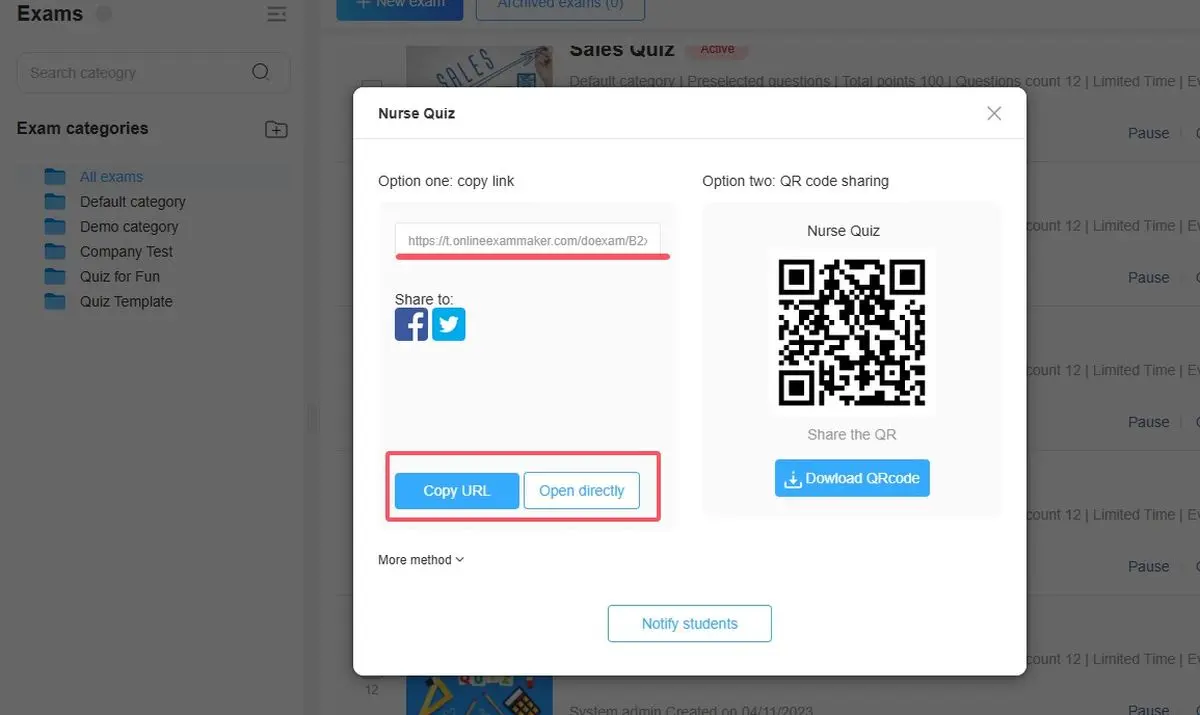
Step 6: Monitor results in real-time. Watch your analytics dashboard populate as submissions arrive—invaluable for iterating and improving assessments.
Google Forms vs. OnlineExamMaker: Quick Comparison
| Feature | Google Forms | OnlineExamMaker |
|---|---|---|
| Price | Free | Free tier; paid from $19/month |
| AI Question Generation | None | Built-in |
| Anti-Cheating | Minimal | Comprehensive |
| Analytics | Basic spreadsheet | Advanced insights |
| Setup Time | 5-10 minutes | 2-3 minutes with AI |
The verdict? Google Forms wins on price and simplicity for quick feedback forms. But for serious assessments—certifications, finals, compliance training—OnlineExamMaker justifies the investment. The AI tools save hours, and anti-cheating features provide peace of mind impossible with Google Forms.
Whether you choose Google Forms or OnlineExamMaker, remember: the best quiz is one people actually complete. Remove barriers, test thoroughly, and respect your respondents’ time. Start with clear instructions, front-load important questions, and monitor data regularly. Making quizzes accessible isn’t just about disabling login—it’s about creating an experience worth completing.
