Think about your situation. How often are you creating assessments? How complex are they? What’s your budget? How much time can you realistically invest in quiz creation?
- The Old School vs The New Wave: Understanding Your Options
- The Manual Route: Creating Quizzes in Google Forms
- The AI Revolution: OnlineExamMaker’s Smart Approach
- Head-to-Head: Google Forms vs OnlineExamMaker Comparison
- When Should You Choose Which Platform?
The Old School vs The New Wave: Understanding Your Options
Here’s a question that’s been bugging teachers, trainers, and HR managers everywhere: Why are we still creating quizzes like it’s 2010?
The truth is, quiz creation doesn’t have to feel like pulling teeth. We’re living in an era where AI can write poetry, compose music, and yes—generate quiz questions faster than you can say “multiple choice.” But here’s the thing: traditional methods like Google Forms still have their place. The real question isn’t which one is better, but which one fits your specific needs.
Let’s break this down without the marketing fluff. We’re talking about two completely different approaches to the same problem: getting quality questions in front of your learners. On one hand, you’ve got Google Forms—the reliable, manual workhorse that’s been around forever. On the other, there’s OnlineExamMaker with its AI-powered wizardry that promises to slash your prep time dramatically.
Which should you choose? Stick around, because we’re about to dive deep into both worlds.
The Manual Route: Creating Quizzes in Google Forms
Let’s start with what you already know—or think you know. Google Forms has been the go-to free tool for educators since, well, forever. It’s simple, it’s accessible, and if you’ve got a Gmail account, you’re already halfway there.
Getting Started: The Basics
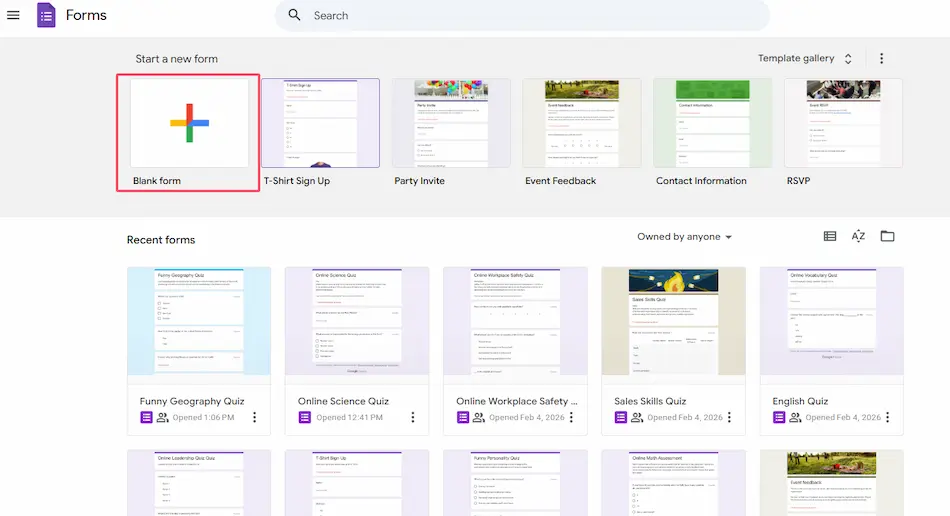
Here’s how the traditional process works. First, you head over to forms.google.com (or take the shortcut to g.co/createaquiz if you’re feeling fancy). The interface greets you with a clean, minimalist design that screams “Google.” Click on the blank form option, and boom—you’re staring at a fresh canvas.
But wait. Before you start throwing questions around, you need to flip a crucial switch. Click that Settings gear icon at the top of your screen. See that option that says “Make this a quiz”? Toggle that bad boy on. This transforms your humble form from a basic survey into a grading powerhouse.
While you’re in settings, you might want to enable email collection or limit responses to one per person. These aren’t just nice-to-haves—they’re essential if you’re running actual assessments where accountability matters.
Building Your Questions: The Long Game
Now comes the part where you earn your paycheck. Click the + icon to add your first question. You’ll see a dropdown menu with options: multiple choice, short answer, checkboxes, linear scale—Google gives you plenty of variety.
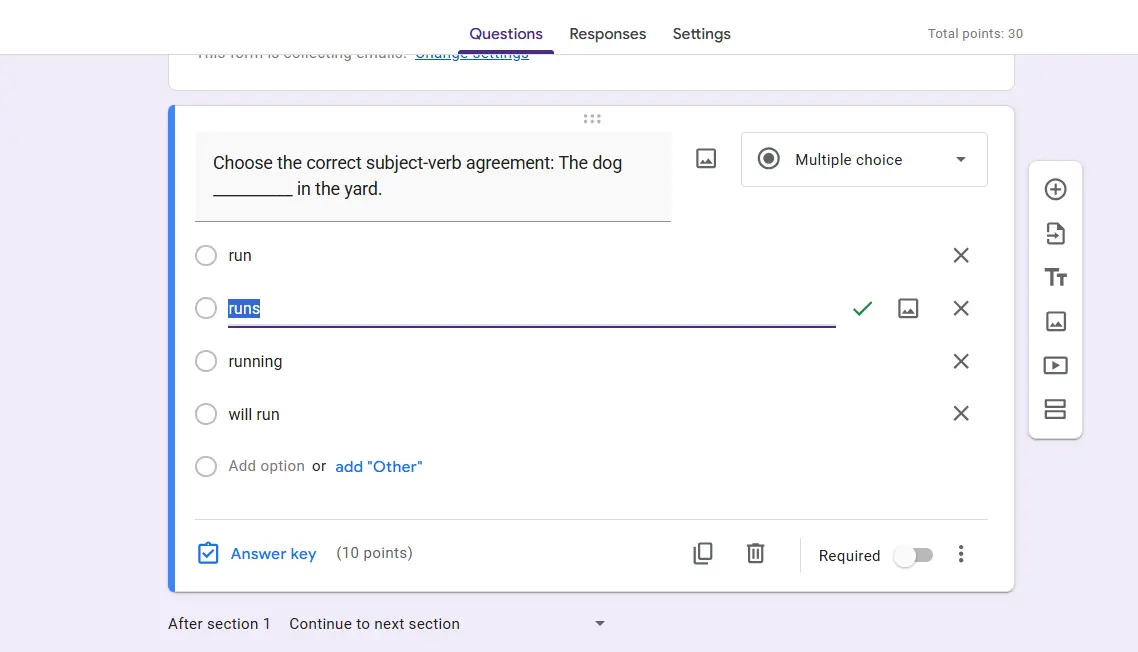
Type your question. Add your options. Then—and this is where it gets tedious—click on “Answer key” at the bottom left of each question. Select the correct answer, assign point values, and add feedback if you’re feeling generous. Rinse and repeat for every single question.
If you’re creating a 50-question exam, you’re going to be clicking that answer key button 50 times. You’re going to be typing point values 50 times. You get the picture. It’s methodical. It’s thorough. It’s also kind of soul-crushing if we’re being honest.
The Polish: Making It Pretty
Google Forms isn’t completely devoid of personality. You can add a title, write a description, and even slap on a theme using the palette icon. Want to see what your quiz looks like from a student’s perspective? Hit that eye icon to preview. Happy with your creation? Click Send and share it via link, email, or embed it on your website.
The whole process is straightforward. Reliable. Predictable. And for many educators, that’s exactly what they need. But there’s no getting around the time investment—creating a comprehensive quiz manually can easily eat up hours of your day.
The AI Revolution: OnlineExamMaker’s Smart Approach
Now, let’s talk about the new kid on the block—except it’s not really that new anymore. OnlineExamMaker has been quietly revolutionizing how assessments get created, and its secret weapon is artificial intelligence.
What Makes OnlineExamMaker Different?
Imagine this: instead of manually crafting each question, you simply tell an AI what you want questions about. Feed it a topic. Upload a document. Paste some text. The AI analyzes it, understands the key concepts, and generates quiz questions automatically. We’re talking multiple choice, true or false, fill-in-the-blank, essay questions—the whole package.
According to OnlineExamMaker’s AI Question Generator, the system can create high-quality questions in seconds by analyzing knowledge points and matching them to appropriate question types. It’s not just randomly generating questions—it’s strategically designing them based on learning competencies.
Create Your Next Quiz/Exam Using AI in OnlineExamMaker
The Two-Pronged Approach: How AI Generation Works
OnlineExamMaker gives you two paths to AI-generated questions, and both are ridiculously simple.
Method 1: Generate by Topic
This is perfect when you know what you want to test but don’t have existing materials. Simply type in your topic—let’s say “World War II battles” or “Python programming basics”—select your preferred question type, set the quantity and difficulty level, and hit generate. The AI does its thing, and within moments you’ve got a bank of questions ready to review.
Method 2: Generate by Text or Document
This one’s a game-changer for teachers who’ve got lecture notes, textbook chapters, or training materials lying around. Upload a PDF, Word document, or just paste text directly into the generator. The AI reads through your content, identifies the key concepts, and creates questions that actually test understanding of that specific material.
No more second-guessing whether you’re testing the right content. The AI pulls directly from what you’ve taught.
Beyond Question Generation: The Full Package
But here’s where OnlineExamMaker really flexes. The platform isn’t just about generating questions—it’s a complete assessment ecosystem. You get automated grading (including for essay questions using AI rubrics), anti-cheating features like webcam proctoring and browser lockdown, detailed analytics that show you which questions students struggled with, and even the ability to sell your courses or issue branded certificates.
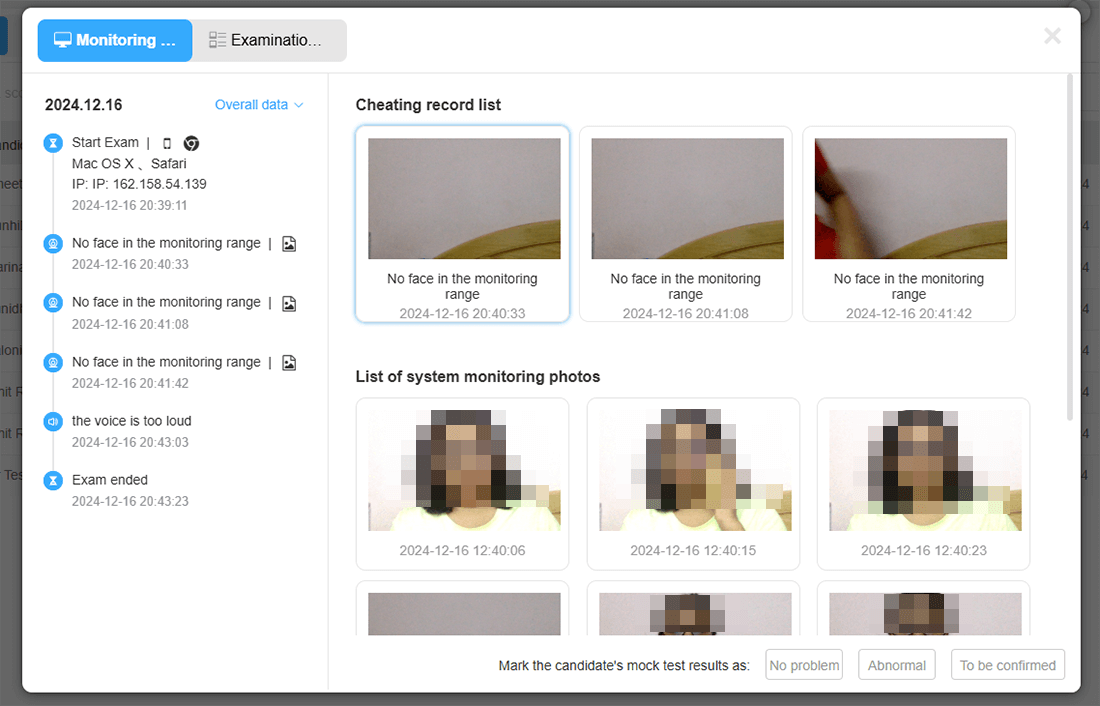
For trainers and HR managers who need to track compliance or measure skill development across large teams, these features aren’t just nice bonuses—they’re essential tools that Google Forms simply can’t match.
Creating Your First AI-Powered Quiz: The Actual Steps
Let’s walk through the real process. You sign up for an OnlineExamMaker account (yes, there’s a free version to start). Once you’re in the dashboard, click “Create Exam” and give your assessment a title and description. This helps organize everything, especially if you’re managing multiple quizzes.
Now, instead of manually adding questions one by one, you head to the AI Question Generator. Choose your generation method—topic or text. If you’re going the text route, drag and drop your document or paste your content. Select your question types and quantity. Click generate.
Boom. Questions appear. Review them to make sure they meet your standards (the AI is good, but it’s not psychic). Save them to your question bank, then add them to your exam. Configure your settings—time limits, randomization, passing scores, whatever you need. Preview it to make sure everything looks right. Publish it and share via QR code, link, or email.
The entire process, from start to finish, can take 15 minutes instead of 3 hours. That’s not an exaggeration—that’s the reality of AI-assisted quiz creation.
Head-to-Head: Google Forms vs OnlineExamMaker Comparison
| Feature | Google Forms | OnlineExamMaker |
|---|---|---|
| Question Creation Method | 100% manual – type every question and answer yourself | AI-powered generation from topics or documents + manual option |
| Time to Create 50-Question Quiz | 2-4 hours depending on complexity | 15-30 minutes with AI assistance |
| Question Types Available | Multiple choice, short answer, paragraph, checkboxes, dropdown, linear scale, grid | 20+ types including multiple choice, true/false, fill-in-the-blank, essay, matching, ordering |
| Auto-Grading | Yes, for objective questions only | Yes, including AI-powered essay grading with custom rubrics |
| Anti-Cheating Features | Limited – can shuffle questions and lock responses | Comprehensive – webcam proctoring, screen monitoring, browser lockdown, face recognition |
| Analytics & Reporting | Basic – response summary and individual responses | Advanced – performance trends, question difficulty analysis, knowledge gap identification |
| Mobile Accessibility | Yes, mobile-responsive | Yes, with dedicated QR code generation for easy mobile access |
| Certification & Credentials | No built-in certification | Automated certificate generation with custom branding |
| Learning Management System | Not available | Full LMS with course creation, learner tracking, and progress monitoring |
| Cost | Free with Google account | Free tier available; paid plans for advanced features |
| Best For | Simple quizzes, surveys, quick assessments, budget-conscious users | Professional assessments, corporate training, certification programs, time-strapped educators |
When Should You Choose Which Platform?
Look, both tools have their sweet spots. Choosing between them isn’t about which one is “better”—it’s about matching the tool to your situation.
Stick with Google Forms If…
You’re working with a tight (read: zero) budget and can’t justify paid software. Your quizzes are relatively simple—maybe 10-20 questions tops. You’re already living in the Google ecosystem and want everything in one place. You don’t need advanced security features or detailed analytics. Or maybe you’re just creating a quick feedback form or a casual trivia quiz for your book club.
Google Forms shines when simplicity and cost are your top priorities. There’s no learning curve, no subscription fees, and it just works right out of the box.
Go with OnlineExamMaker If…
Time is your most valuable resource and you’re creating quizzes frequently. You need professional-grade features like proctoring, certification, or detailed performance analytics. You’re managing assessments for large groups—think corporate training programs or university courses. You have existing course materials that you want to quickly transform into assessments. Or you need the quiz to do more than just collect answers—you need it to actually teach, track progress, and prevent cheating.
OnlineExamMaker is the choice when you need power, speed, and sophistication. Yes, there’s a learning curve. Yes, premium features cost money. But if you’re serious about assessment, the ROI is undeniable.
The Hybrid Approach: Why Not Both?
Here’s a thought: you don’t have to pick just one. Many educators use Google Forms for quick, informal check-ins and save OnlineExamMaker for high-stakes assessments. Use Google Forms for practice quizzes where the results don’t really matter, then deploy OnlineExamMaker when it’s time for the real deal—midterms, final exams, certification tests.
It’s like having a bicycle and a car. You don’t sell the bike just because you bought a car—you use each one when it makes sense.
