Ever opened a Google Forms quiz that felt like running a marathon without water breaks? Questions pile up endlessly, and by question 47, your respondents have mentally checked out. Here’s the thing: a well-structured quiz isn’t just easier on the eyes—it’s easier on the brain.
Adding sections to your Google Forms quiz transforms it from a chaotic checklist into a thoughtfully paced assessment. Think of sections as chapters in a book. Each one groups related questions together, giving your quiz-takers breathing room and helping you organize your thoughts as the quiz creator.
- What Are Google Forms Sections and Why They Matter
- Step-by-Step: Adding Sections to Google Forms
- Managing and Organizing Your Sections
- Advanced Tips for Quiz Sections
- Streamline Quiz Creation with OnlineExamMaker
- Frequently Asked Questions
What Are Google Forms Sections and Why They Matter
Imagine taking a 50-question exam presented as one never-ending scroll. Overwhelming, right? Sections break that monotony.
When you divide a quiz into sections, each segment appears as its own page during the quiz-taking experience. This design choice does more than just look clean—it fundamentally changes how people engage with your assessment. Respondents can focus on one topic at a time without the psychological weight of seeing every question upfront.
For teachers and trainers, sections offer a strategic advantage. You can group questions by topic, difficulty level, or question type. Testing vocabulary? Put those questions together. Moving to essay responses? Give them their own space. This organization makes grading easier and provides clearer insights into where students excel or struggle.
The psychological benefit is real. Studies on cognitive load suggest that chunking information—breaking it into smaller, manageable pieces—improves retention and reduces anxiety. Your quiz respondents will thank you, even if they don’t realize why the experience felt smoother.
Step-by-Step: Adding Sections to Google Forms
Ready to transform your quiz? Here’s how to add sections without breaking a sweat.
First, head over to forms.google.com and open the quiz you want to organize. If you’re starting from scratch, create a new form and toggle on the “Make this a quiz” option in Settings.
Creating Your First Section
Look to the right side of your screen. See that floating toolbar with various icons? You’re hunting for the Add section icon—it looks like two stacked horizontal rectangles or an equal sign (≡). Click it.
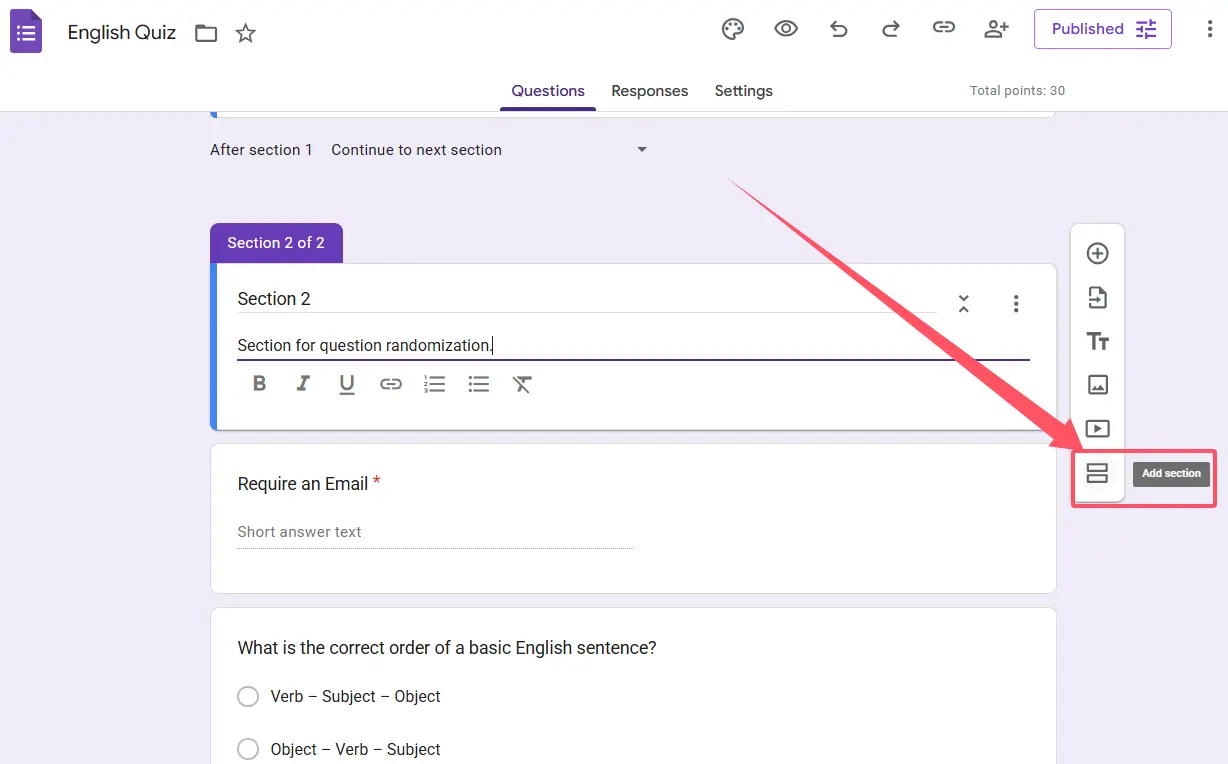
Boom. A new section appears.
Now give it personality. Every section can have a title and description. The title should be clear and concise: “Grammar Basics” or “Part 2: Critical Thinking.” The description is optional but useful for providing context or instructions specific to that section.
Populating Your Sections
Once your section exists, start adding questions by clicking the + icon within that section. You can add multiple-choice questions, short answers, checkboxes—whatever format suits your quiz objectives.
Want to move existing questions into your new section? Easy. Click and hold the six-dot icon at the top of any question card, then drag it into the section where it belongs. Questions will snap into place like puzzle pieces.
Managing and Organizing Your Sections
Created too many sections? Need to shuffle things around? Google Forms makes section management surprisingly intuitive.
Reordering Sections
Each section has a More menu—those three vertical dots at the top right corner of the section. Click it and select Move section. You can shift entire sections up or down without manually relocating every question inside them.
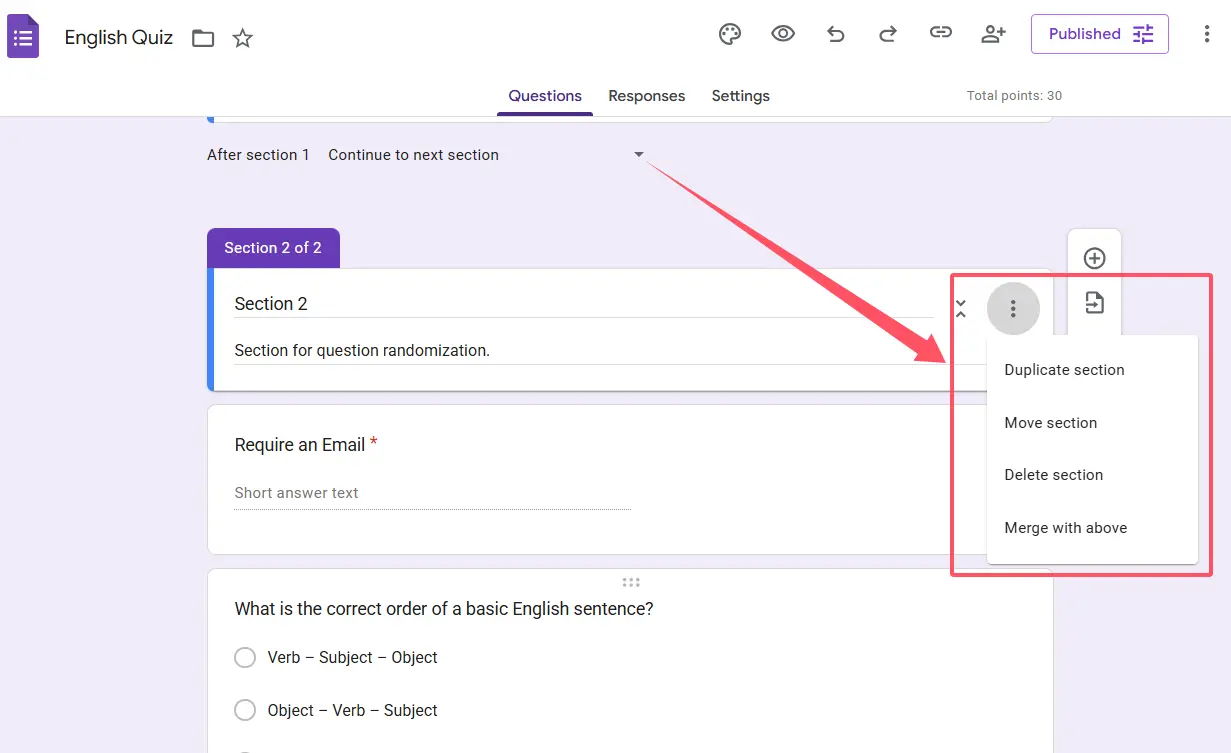
This feature is a lifesaver when you realize halfway through quiz creation that your introduction section should actually come after the warm-up questions.
Deleting Unwanted Sections
Changed your mind about a section? No problem. Empty sections can be deleted through that same More menu. Select Delete section, and it vanishes. Note: you can only delete sections that don’t contain questions, so move or delete those questions first.
Duplicating Sections
Here’s a time-saver: if you have a section format you love, duplicate it. While Google Forms doesn’t have a one-click duplicate button for sections, you can copy individual questions from one section and paste them into another, preserving formatting and answer choices.
Streamline Quiz Creation with OnlineExamMaker
While Google Forms offers solid section organization, creating comprehensive quizzes can still be time-consuming. What if AI could do the heavy lifting?
OnlineExamMaker is an AI-powered exam creation platform that revolutionizes how educators build assessments. Instead of manually crafting every question, you can leverage artificial intelligence to generate high-quality quiz content in minutes.
Create Your Next Quiz/Exam Using AI in OnlineExamMaker
Benefits of AI-Powered Quiz Creation
The traditional approach to quiz creation involves hours of brainstorming questions, ensuring they align with learning objectives, and verifying appropriate difficulty levels. OnlineExamMaker’s AI changes this equation entirely.
Instant question generation: Feed the AI your topic or learning materials, and it generates relevant questions across multiple formats—multiple choice, true/false, short answer, and more. The AI understands context, creating questions that actually test comprehension rather than mere memorization.
Automatic organization: The platform intelligently groups related questions into sections, similar to what you’d do manually in Google Forms but with less effort. The AI recognizes thematic connections and difficulty progressions, creating a natural quiz flow.
Adaptive difficulty: Want to challenge advanced learners while supporting struggling students? OnlineExamMaker can generate questions at varying difficulty levels and create branching paths, ensuring each learner encounters appropriate challenges.
Time savings: What typically takes hours—researching questions, formatting, organizing—happens in minutes. For busy teachers and corporate trainers managing multiple assessments, this efficiency is transformative.
Quality consistency: Human-created quizzes vary in quality depending on your energy level and available time. AI maintains consistent standards, ensuring every quiz meets professional benchmarks.
Beyond Basic Sections
OnlineExamMaker goes beyond simple section creation. The platform offers advanced features like randomized question pools, timed sections, multimedia integration, and detailed analytics showing exactly where learners struggle.
For HR managers conducting employee assessments or compliance training, these capabilities mean more accurate evaluations and better-targeted development programs.
Frequently Asked Questions about Quiz Sections
Can I add sections to an existing quiz without losing my questions?
Absolutely. Adding sections to a quiz you’ve already built won’t delete or modify existing questions. Your questions simply get reorganized into the sections you create. You can drag questions into new sections at any time.
How many sections can I create in one quiz?
Google Forms doesn’t impose a hard limit on section numbers, but practical usability suggests keeping it reasonable. Too many sections (say, 20+) might fragment the experience unnecessarily. For most quizzes, 4-8 well-organized sections strike the right balance.
Do sections work the same way in regular forms and quizzes?
Yes. The section functionality is identical whether you’re creating a quiz, survey, or registration form. The main difference is that quizzes have built-in grading features, but section mechanics remain the same.
Can respondents navigate backward between sections?
By default, yes. Respondents can click the “Back” button to return to previous sections and review or change their answers. However, you can disable this by unchecking “Respondents can edit after submit” in Settings, though this affects the entire form, not just backward navigation between sections.
Will adding sections affect how I view responses?
Section organization is purely for the respondent’s experience. In the Responses tab, you’ll see all answers regardless of which section they came from. However, section titles appear in the response summary, making it easier to identify which part of your quiz generated specific answers.
Can I hide certain sections based on previous answers?
Not exactly “hide,” but close. Using the “Go to section based on answer” feature, you can skip sections entirely depending on how someone responds to a question. If a respondent selects a specific answer, they can jump to Section 5, bypassing Sections 3 and 4 completely. It’s not hiding sections as much as creating custom pathways.
