Shuffling question order isn’t just about preventing cheating. It’s about fairness, genuine assessment, and honestly, your peace of mind. When each student sees questions in a different sequence, you’re leveling the playing field. The student who sits in the back corner gets the same chance as the one up front. No advantages, no patterns to exploit.
- The Simple Truth About Enabling Shuffle in Google Forms
- Using Sections: Your Secret Weapon for Control
- Quiz-Specific Settings That’ll Save Your Sanity
- OnlineExamMaker: When Google Forms Just Isn’t Enough
- Common Mistakes (And How to Dodge Them)
- Frequently Asked Questions
The Simple Truth About Enabling Shuffle in Google Forms
Good news—Google Forms makes this ridiculously easy. Like, “why didn’t I do this sooner” easy.
Here’s what you do:
Step 1: Open your Google Form or quiz. You know, the one you’ve been working on. The one with thirty-seven questions about photosynthesis or Shakespeare or whatever keeps you up at night grading.
Step 2: Look at the top of your screen. See that gear icon? The Settings button that looks like it belongs in a steampunk novel? Click it.
Step 3: Navigate to the Presentation tab. It’s usually the second or third tab, hanging out between General and other settings you probably never touch.
Step 4: Toggle on Shuffle question order. That’s it. Seriously. No complex algorithms to understand, no coding required, no sacrificing your lunch period to figure out.
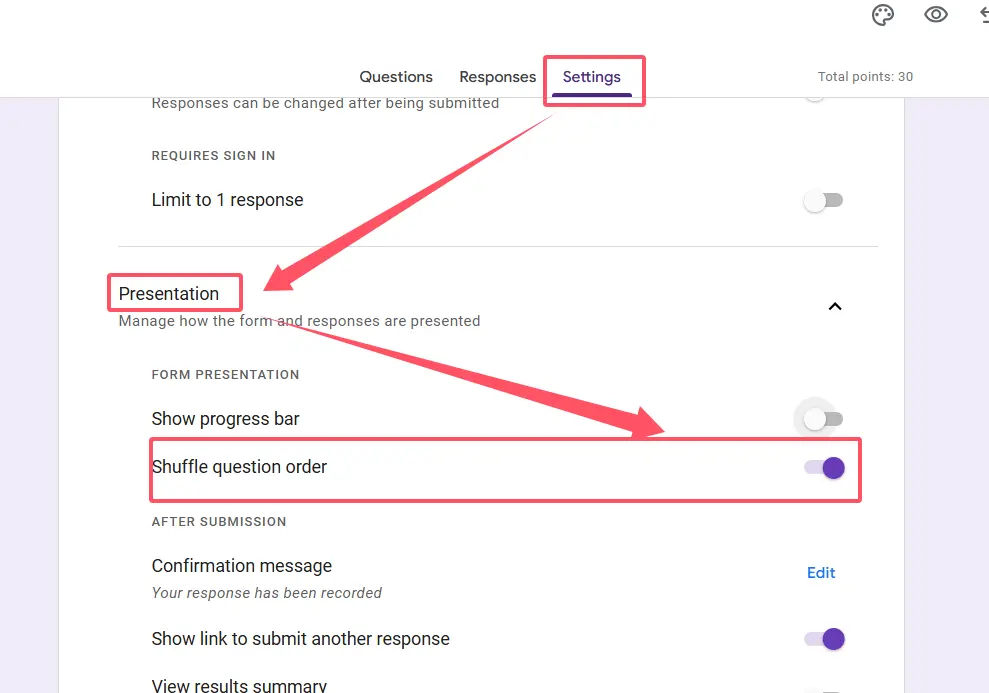
The beauty here? Changes save automatically. Google’s not making you hunt for a save button like it’s 2005. Once you flip that switch, every new respondent gets their questions scrambled like eggs at Sunday brunch.
Want to see it in action? Check out this helpful video tutorial that walks through the entire process. Sometimes watching someone else click buttons makes more sense than reading about it.
What Actually Happens When You Enable Shuffling?
Behind the scenes, Google Forms creates a unique question sequence for each respondent. Student A might see question 12 first, while Student B starts with question 3. The questions remain the same—you’re not generating new content—but the order becomes unpredictable.
This works for both quizzes and standard forms. Whether you’re conducting a formal assessment or just gathering feedback on last week’s cafeteria mystery meat, shuffling is available.
Using Sections: Your Secret Weapon for Control
Now, here’s where things get interesting. Sometimes you don’t want everything shuffled.
Picture this: You’ve created a quiz where students need to enter their name and email at the top. Makes sense, right? Except now those fields are randomly appearing in the middle of your quiz, sandwiched between question 7 and question 8. Your students are confused. You’re getting anonymous submissions. Chaos reigns.
This is where sections save the day.
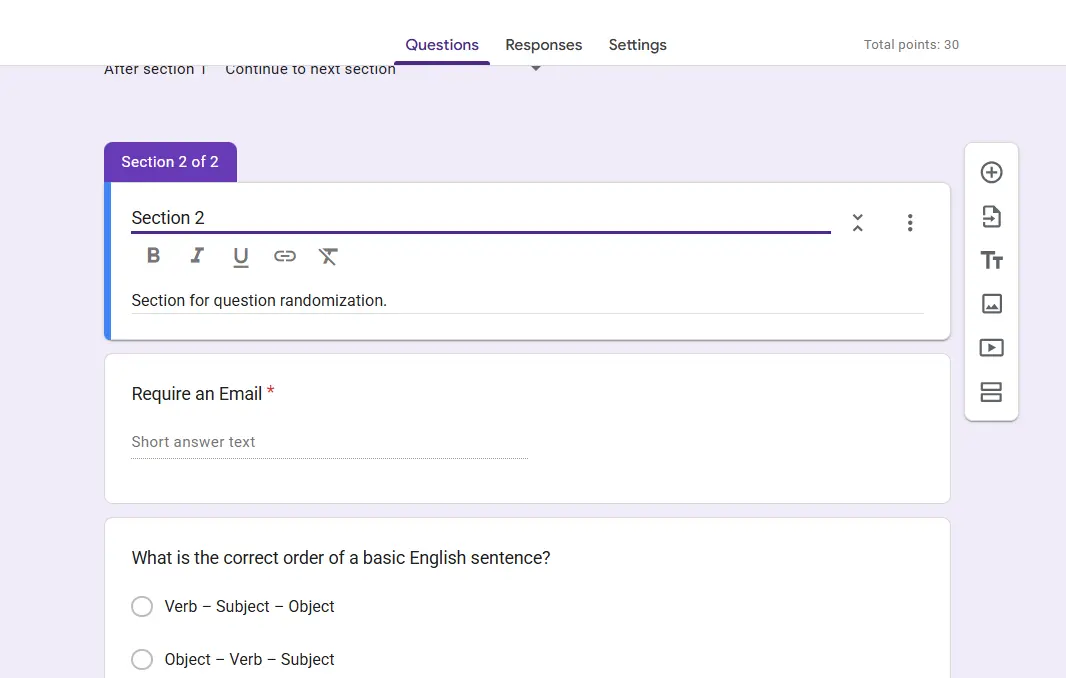
Google Forms lets you divide your quiz into separate sections using the Add section button (it looks like two horizontal lines with a gap between them). Here’s the clever part: when you enable shuffling, you can control what gets randomized and what stays put.
How to Use Sections Strategically
Create a fixed first section: Place your non-negotiable questions here—name, email, student ID, class period, whether they prefer cats or dogs (for morale purposes). These questions will always appear first, in the same order.
Build your shuffled content sections: Everything else goes in subsequent sections. When shuffle is enabled, questions randomize within or across these sections depending on your setup.
Test before deployment: Click that preview button. Open your quiz as if you’re a student. Refresh a few times. Make sure the important stuff stays anchored while the rest dances around.
According to Using Technology Better, this section strategy is particularly useful for teachers managing large classes or standardized assessments where certain demographic questions must appear consistently.
| Section Type | Purpose | Shuffle Behavior |
|---|---|---|
| Introduction Section | Student info, instructions | Remains fixed at the beginning |
| Content Sections | Quiz questions, assessments | Questions randomize within sections |
| Conclusion Section | Feedback, closing remarks | Can be fixed at the end |
Quiz-Specific Settings That’ll Save Your Sanity
If you’re creating an actual quiz (not just a form), there’s one crucial step you might’ve missed.
Before you can shuffle anything, you need to make sure your form is actually designated as a quiz. Sounds obvious, but you’d be surprised how many teachers skip this.
First, turn on “Make this a quiz” in your Settings. This unlocks all the quiz-specific features—point values, answer keys, automatic grading, that satisfying moment when Google does your job for you.
Here’s what matters: shuffling applies form-wide. When you enable it, the entire quiz gets randomized. Your carefully orchestrated difficulty curve? Gone. That strategic placement of easier questions to build confidence? Scrambled.
Is this bad? Not necessarily. But it requires a mental shift. You’re no longer guiding students through a journey—you’re testing their knowledge regardless of sequence.
Testing Your Shuffled Quiz
Always, always, ALWAYS preview your quiz before sending it to students. Click that eye icon. Open it in a private browsing window. Pretend you’re a student who just got three hours of sleep and is mainlining energy drinks.
Check these things:
- Answer keys still work: Shuffling shouldn’t affect grading, but verify that correct answers are properly marked regardless of question order.
- Point values are intact: Make sure your 10-point essay question didn’t accidentally become a 1-pointer.
- Instructions make sense: If you wrote “refer to the previous question,” that instruction becomes nonsense when questions are randomized.
- Dependent questions are handled: If question 5 relies on information from question 2, you might need to restructure.
For more detailed guidance on quiz setup, JotForm’s comprehensive guide offers additional tips and troubleshooting advice.
OnlineExamMaker: When Google Forms Just Isn’t Enough
Look, Google Forms is great. It’s free, it’s integrated with your Google account, it does the job for basic quizzes. But sometimes you need more firepower.
What OnlineExamMaker Is Your Secret Weapon in Quiz Creation?
AI-Assisted Question Generation: OnlineExamMaker uses artificial intelligence to help teachers create questions faster. Upload your course materials, and the software can generate relevant questions based on your content. It’s like having a teaching assistant who never sleeps and doesn’t require coffee.
Advanced Shuffling Options: While Google Forms shuffles questions in a fairly basic way, OnlineExamMaker gives you granular control. You can:
- Shuffle questions within specific categories or topics
- Randomize answer choices independently from questions
- Create question pools where different students get different questions entirely
- Set rules for how many questions from each category appear
- Control the difficulty progression even with shuffling enabled
Robust Anti-Cheating Features: Beyond just shuffling, OnlineExamMaker includes browser lockdown, webcam proctoring, tab-switching detection, and time limits per question. It’s like having a virtual proctor who actually pays attention.
Create Your Next Quiz/Exam Using AI in OnlineExamMaker
How OnlineExamMaker Helps Teachers Create Shuffled Quizzes
The platform streamlines the entire process. Here’s the workflow:
1. Import or Create Questions: Upload existing questions from Word documents, Excel files, or create them using the AI assistant. The system categorizes questions by topic, difficulty, and type.
2. Configure Randomization Settings: Choose your shuffling preferences. Want to shuffle questions but keep sections together? Done. Need to randomize answer choices too? Easy. Want different students to receive entirely different question sets? OnlineExamMaker can handle it.
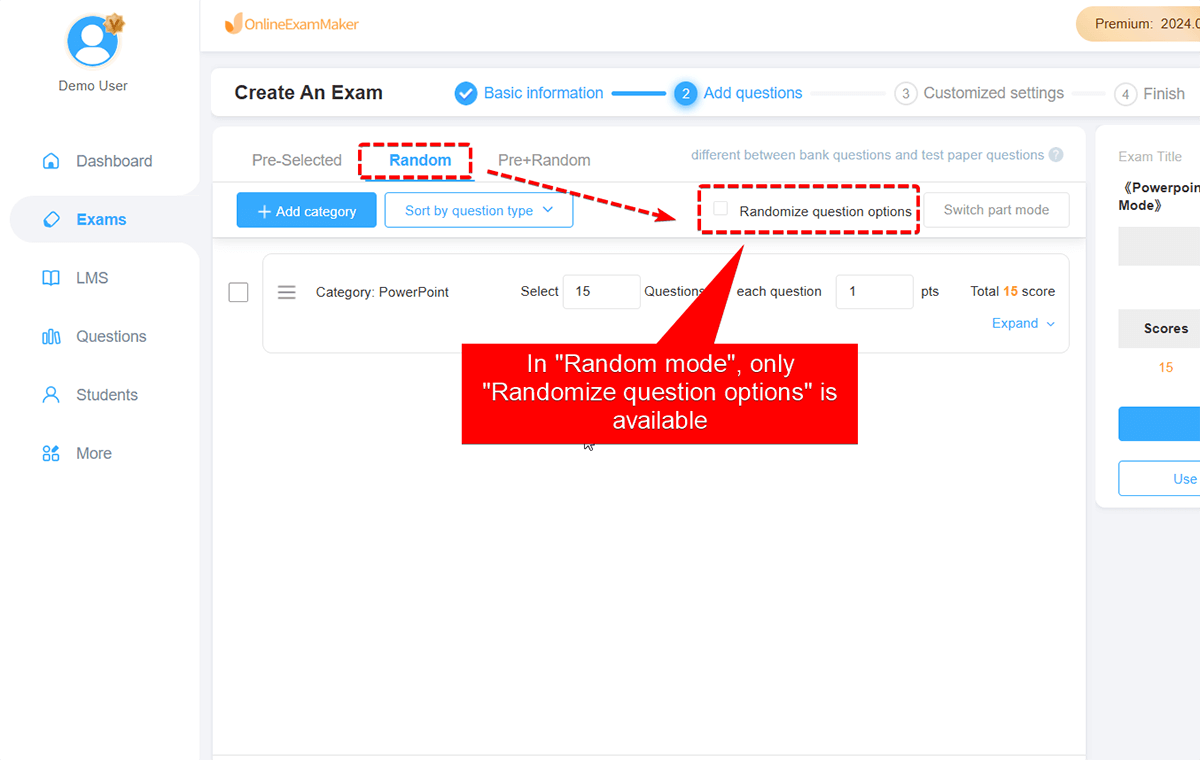
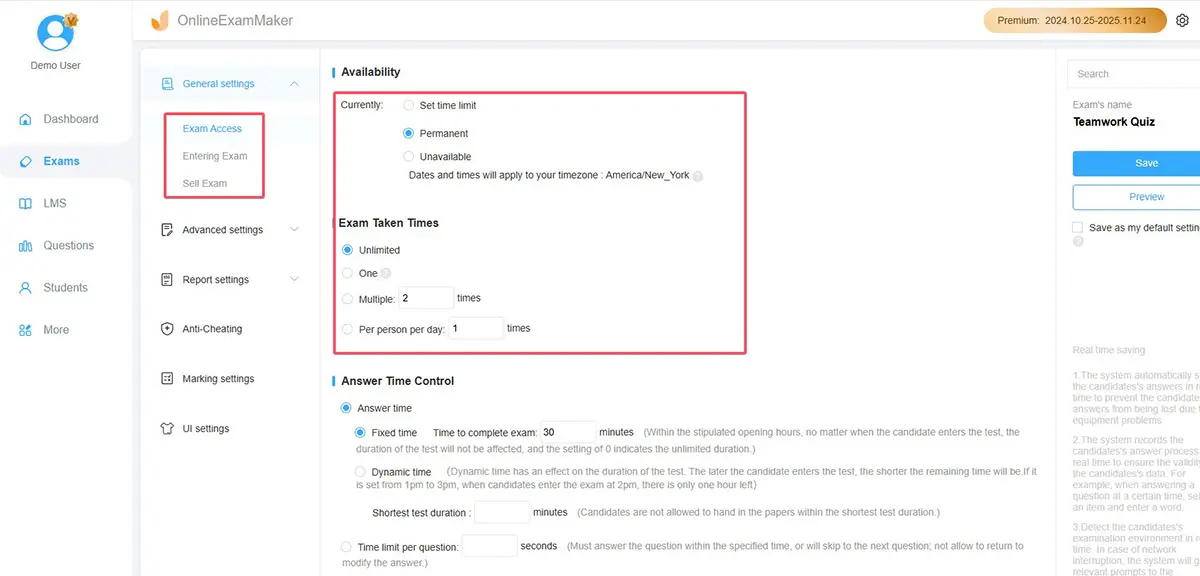
3. Set Exam Parameters: Define time limits, passing scores, number of attempts, and access windows. The platform enforces these automatically.
4. Deploy and Monitor: Students take the exam through a secure browser. You can watch real-time progress, identify struggling students, and even intervene if technical issues arise.
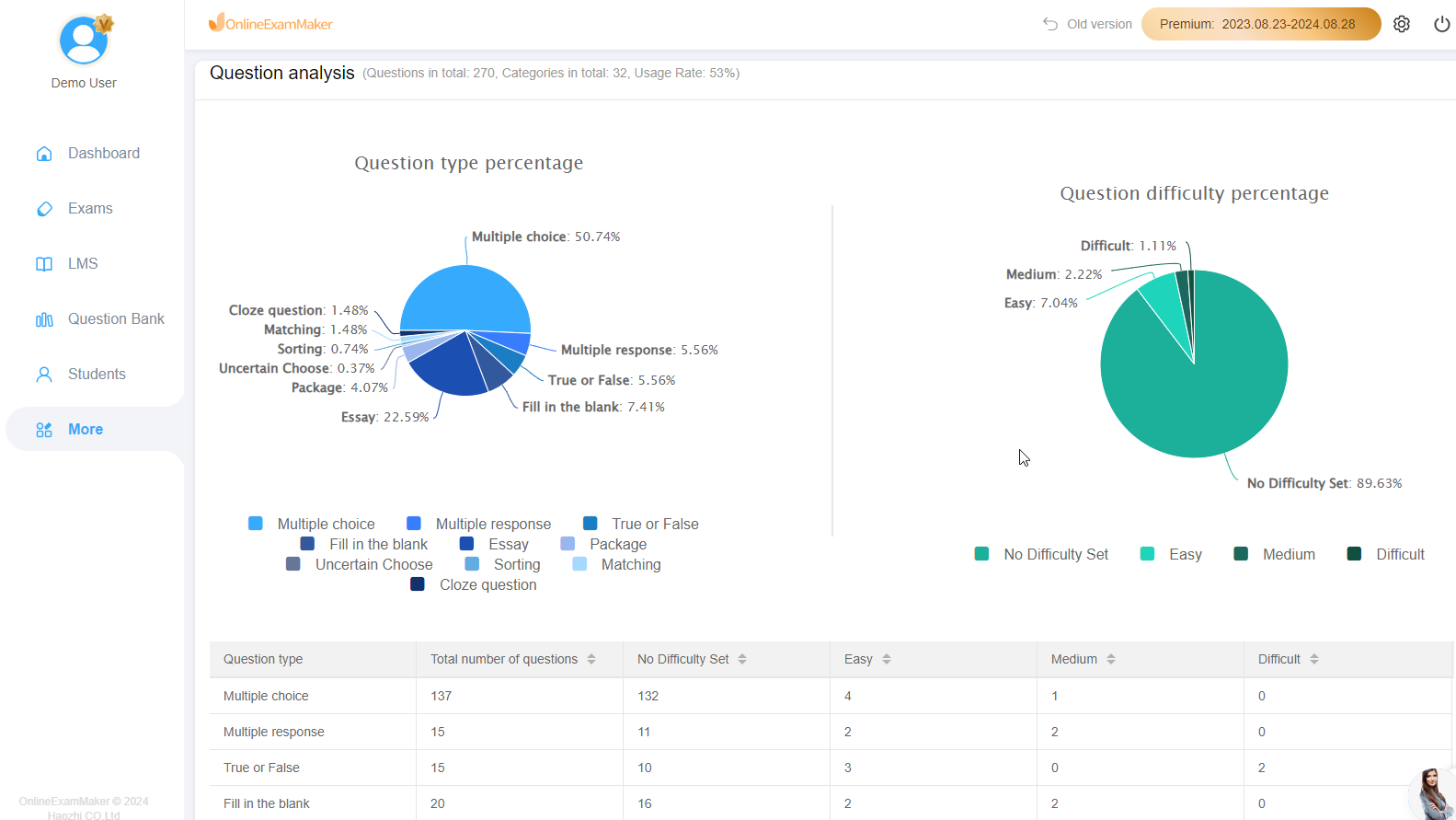
5. Analyze Results: Get detailed analytics showing which questions were most difficult, where students struggled, and how long they spent on each section. This data helps you improve future assessments.
| Feature | Google Forms | OnlineExamMaker |
|---|---|---|
| Basic Question Shuffling | ✓ | ✓ |
| Answer Choice Randomization | ✗ | ✓ |
| Question Pool Creation | ✗ | ✓ |
| AI Question Generation | ✗ | ✓ |
| Advanced Proctoring | ✗ | ✓ |
| Detailed Analytics | Basic | Comprehensive |
| Price | Free | Paid Plans Available |
For teachers managing high-stakes exams, professional certifications, or large-scale assessments, OnlineExamMaker provides the security and flexibility that Google Forms simply can’t match. The AI features alone save hours of preparation time, and the anti-cheating measures give you confidence in your results.
Common Mistakes (And How to Dodge Them)
Even with the simplest features, there are ways to mess things up. Here are the pitfalls I’ve seen teachers stumble into:
Mistake #1: Forgetting About Question Dependencies
You write question 8: “Based on your answer to question 7, explain…” Problem is, when shuffling is enabled, question 7 might now be question 15. Your students are confused. You’re getting nonsense answers. Everyone’s frustrated.
Fix: Rewrite dependent questions to be standalone. Instead of “Based on your previous answer,” say “If you chose to invest in stocks rather than bonds…”
Mistake #2: Shuffling Demographic Questions
Your quiz starts with name and email. Except it doesn’t, because shuffling is on, and now those fields appear randomly throughout. You’re getting anonymous submissions, and your grade book is chaos.
Fix: Use sections. Always. Keep non-quiz content in a fixed first section.
Mistake #3: Not Testing the Preview
You enable shuffling and immediately send it to 150 students. Then you discover that your answer key is broken, or that the point values got scrambled somehow.
Fix: Spend five minutes clicking through the preview. Refresh multiple times. Take the quiz yourself. Be the student who finds the bugs before your actual students do.
Mistake #4: Assuming Shuffle Prevents All Cheating
Question shuffling helps. It doesn’t create an impenetrable fortress. Students can still share answers—they’ll just need to spend more effort matching question text.
Fix: Combine shuffling with other strategies: time limits, varied question types, open-ended responses that require unique answers. Layer your defenses.
Frequently Asked Questions
Q: Does shuffling affect my answer key or grading?
No. Google Forms maintains the correct answer associations regardless of question order. Your grading will work exactly the same whether shuffling is on or off.
Q: Can I shuffle answer choices as well as questions?
Google Forms doesn’t currently offer built-in answer choice shuffling. Each question’s answers will appear in the same order for all students, even if the questions themselves are randomized. For answer choice randomization, you’d need to use a platform like OnlineExamMaker.
Q: Will shuffling work on mobile devices?
Yes. Google Forms shuffling works across all devices—desktop, tablet, and mobile. Each respondent gets their unique question order regardless of how they access the quiz.
Q: Can I see which order questions appeared for each student?
Unfortunately, no. Google Forms doesn’t record or display the specific question sequence each respondent received. The responses are always shown to you in your original question order, regardless of how students saw them.
Q: What happens if I edit questions after students have started taking the quiz?
The changes will apply to anyone who hasn’t submitted yet. Students who already completed the quiz are unaffected. However, editing questions during an active exam is generally not recommended—it can create inconsistencies in your results.
Q: Does shuffling slow down the quiz or affect performance?
No. The shuffling happens instantly when the form loads. There’s no noticeable performance impact or delay for students.
Q: Can I shuffle some sections but not others?
The shuffle setting applies to the entire form. However, by using sections strategically, you can control which questions stay fixed. Place questions you don’t want shuffled in a separate first section, and they’ll remain in order while the rest of the quiz randomizes.
Q: Is there a limit to how many questions I can shuffle?
No. Google Forms can handle shuffling regardless of quiz length. Whether you have 10 questions or 100, the feature works the same way.
Creating fair, secure assessments doesn’t have to be complicated. Whether you stick with Google Forms’ straightforward shuffling feature or upgrade to a comprehensive platform like OnlineExamMaker, the important thing is that you’re taking steps to ensure academic integrity. Your students deserve an honest testing environment, and you deserve results you can trust.
Now go forth and shuffle. Your carefully crafted questions will still shine, just in a slightly different order each time. And isn’t that the beauty of it?
