Ever find yourself stuck in the loop of sending the same quiz over and over, wishing you could just give students or employees a little nudge in the right direction? Maybe you want to share an answer key, provide sample responses, or simply save everyone time by filling in the basics. Good news: pre-filling quiz answers before you hit send is easier than you think.
Whether you’re a teacher preparing study materials, an HR manager distributing training assessments, or a corporate trainer creating onboarding quizzes, pre-filled links can save hours of repetitive work. This guide walks you through exactly how to share quiz links via email with pre-filled answers—no tech wizardry required.
- What Does “Pre-filled Quiz Link” Actually Mean?
- Why Would You Want to Pre-fill Quiz Answers?
- OnlineExamMaker: Your Go-To Tool for Quiz Creation and Sharing
- How to Generate a Pre-filled Quiz Link in Google Forms?
- Sharing Your Pre-filled Quiz via Email
- What Recipients See (And What They Can Do)
- FAQ about Sharing a Google Forms Quiz
What Does “Pre-filled Quiz Link” Actually Mean?
Think of it this way: instead of sending a blank quiz where every field sits empty and waiting, you’re sending a version that already has some answers populated. The recipient opens the link, sees those pre-filled responses, and can either keep them, edit them, or submit as-is.
It’s like handing someone a form with your notes already scribbled in the margins—except cleaner, more professional, and infinitely more useful. The person still has full control; they’re not locked into anything. But they get a head start, which can be invaluable for training scenarios, answer keys, or demonstrating proper responses.
Why Would You Want to Pre-fill Quiz Answers?
Here’s where the magic happens. Pre-filling quiz answers isn’t just about convenience (though that’s a nice bonus). It’s about strategic communication.
Creating answer keys: Teachers love this. You build your quiz, pre-fill all the correct answers, and share the link with colleagues or students as a study guide. Instant answer key without creating a separate document.
Demonstrating expected responses: When training new employees, showing them what a “good” answer looks like can be more effective than explaining it. Pre-fill a few examples, send the quiz, and let them learn by example.
Saving time on repetitive data: If every quiz starts with the same demographic information (name, department, date), why make people type it repeatedly? Pre-fill the basics, let them focus on what matters.
Personalizing assessments: Imagine sending each team member a quiz with their name and role already filled in. It feels thoughtful, saves them keystrokes, and reduces errors.
OnlineExamMaker: An AI-Powered Tool for Quiz Creation and Sharing
Before we dive into the technical steps, let’s talk about OnlineExamMaker—an AI-powered exam creation software that’s changing how educators and trainers build and distribute quizzes.
Here’s the thing about OnlineExamMaker: it doesn’t just help you create quizzes; it helps you create better quizzes. The platform uses AI to generate questions, suggest improvements, and even analyze response patterns to identify knowledge gaps. You’re not just saving time; you’re elevating the entire assessment experience.
Create Your Next Quiz/Exam Using AI in OnlineExamMaker
What makes OnlineExamMaker particularly useful for sharing quizzes?
One-click sharing: Generate a shareable link instantly, no wrestling with permissions or email settings. The platform handles the technical heavy lifting so you can focus on content.
Built-in analytics: Unlike traditional email-based quizzes, OnlineExamMaker tracks who opened your quiz, how long they spent on it, and where they struggled. That’s actionable intelligence you can use to improve future assessments.
Customizable branding: Want your quiz to look professional and on-brand? OnlineExamMaker lets you add logos, adjust colors, and create a consistent visual experience. That matters when you’re representing your school or company.
While this guide focuses on Google Forms (which is free and widely accessible), OnlineExamMaker offers a more robust solution for organizations serious about assessments. It’s worth exploring if you find yourself creating quizzes regularly or need deeper insights into learner performance.
How to Generate a Pre-filled Quiz Link in Google Forms
Alright, let’s get practical. Google Forms offers a straightforward way to create pre-filled quiz links. Here’s the step-by-step breakdown.
Step 1: Open your quiz in Google Forms
Log into Google Forms and pull up the quiz you want to share. Make sure everything looks right—questions are clear, answer options are correct, and the overall flow makes sense. Once you’re satisfied, you’re ready to move forward.
Step 2: Access the pre-fill feature
Look for the three vertical dots in the top right corner of your form editor. That’s your “More” menu. Click it, and you’ll see an option labeled “Get pre-filled link” (some accounts might show this as “Pre-fill form” instead—same thing, different wording).
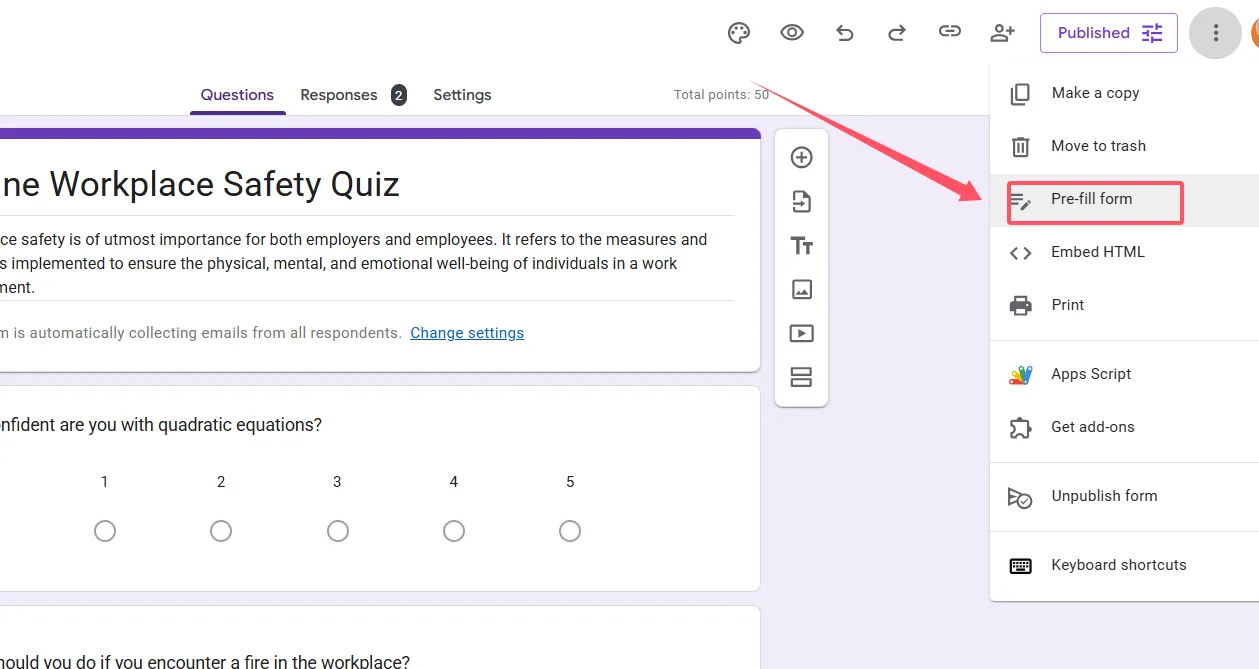
Click that option, and Google Forms will open a preview version of your quiz.
Step 3: Fill in the desired answers
This is where you decide what information gets pre-populated. Maybe you’re creating an answer key, so you fill in all the correct responses. Or perhaps you’re demonstrating how to answer open-ended questions, so you type sample responses into those text fields.
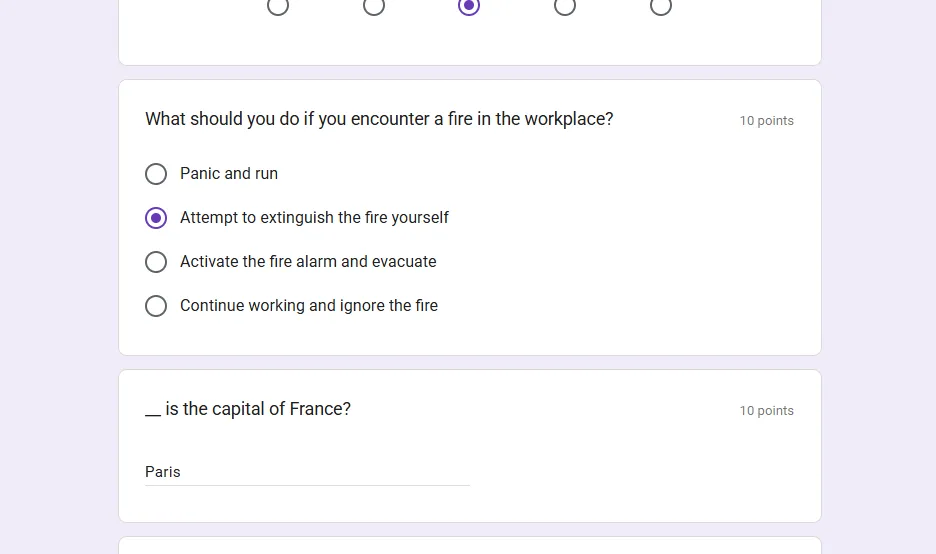
Take your time here. Whatever you enter will be what recipients see when they open your link.
Step 4: Generate and copy the link
Once you’ve filled in everything, scroll to the bottom of the preview. You’ll see a button that says “Get link.” Click it.
Google Forms generates a unique URL that contains all your pre-filled data. It looks long and complicated (because it’s encoding all that information), but don’t worry—it works perfectly. Click “Copy” to grab that link.
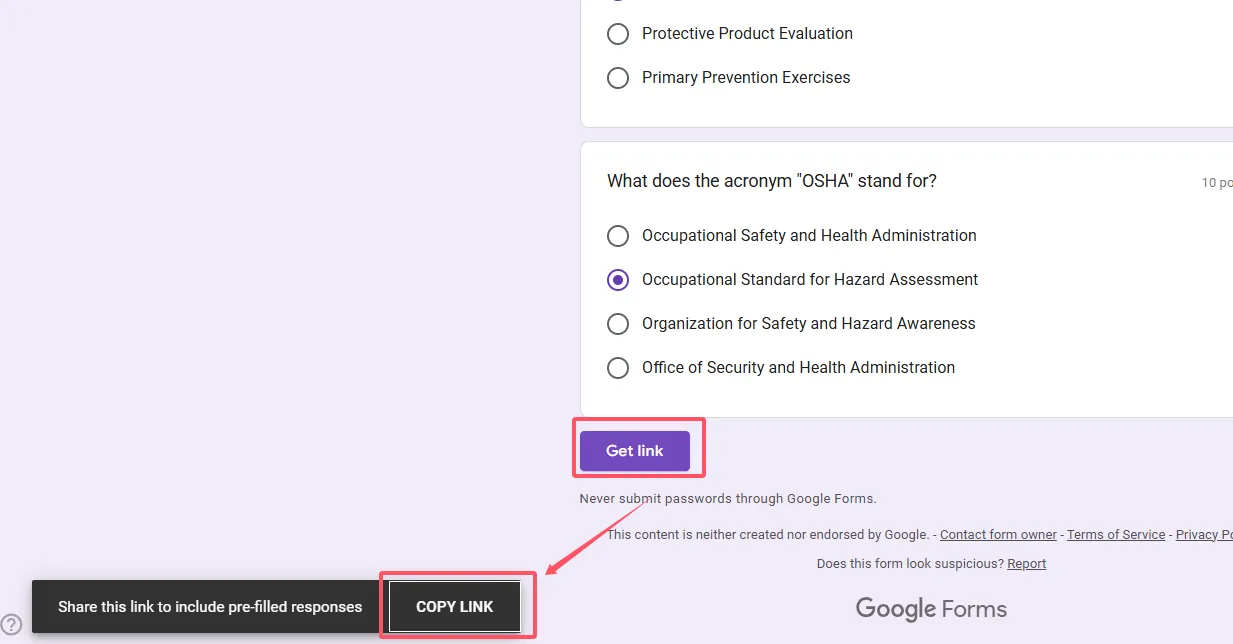
Pro tip: Test the link yourself before sending it to others. Paste it into a private browser window (incognito mode) and see what recipients will experience. This catches any mistakes before they reach your audience.
Sharing Your Pre-filled Quiz via Email
You’ve got your pre-filled link. Now what? Time to get it into the hands of people who need it.
Method 1: Using Google Forms’ built-in send feature
Back in your form editor, click the “Send” button in the top right. Google Forms gives you several sharing options—click the email icon (envelope symbol) to access the email tab.
Here’s the slightly tricky part: the email feature doesn’t automatically use your pre-filled link. You need to manually paste it into the message body. Add your recipient email addresses, craft a subject line (something like “Training Quiz – Sample Answers Included” works well), and paste your pre-filled link into the message text.
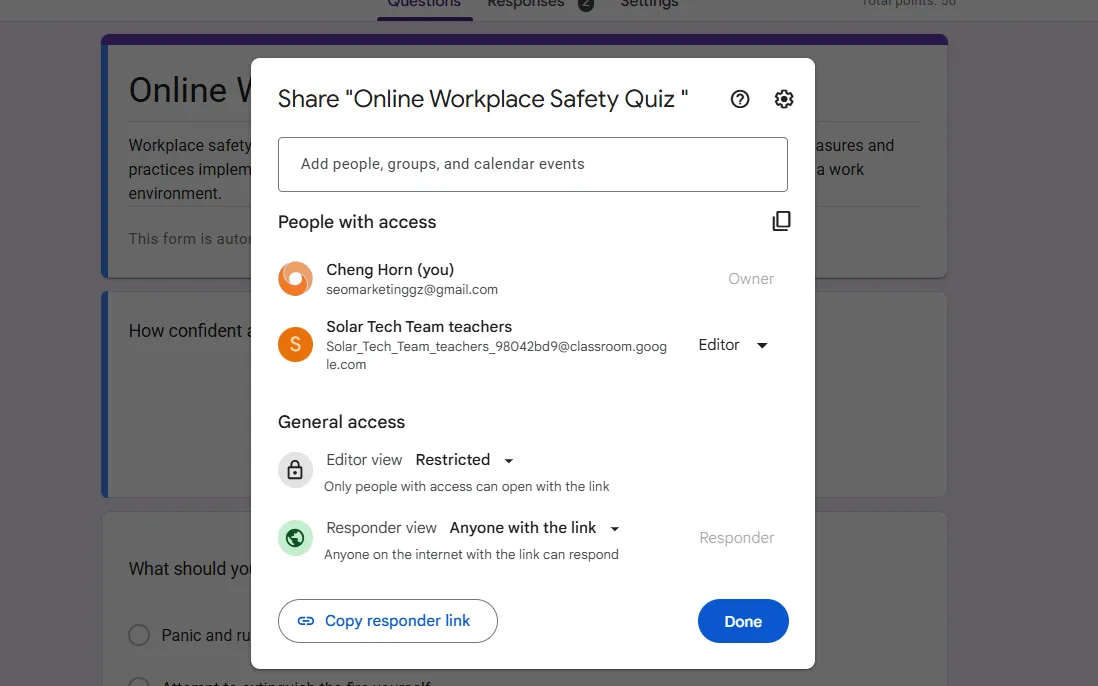
Keep your email message concise but helpful. Explain what the pre-filled information represents (answer key, example responses, etc.) so recipients know what they’re looking at.
Method 2: Using your regular email client
Alternatively, open your preferred email program (Gmail, Outlook, whatever you use) and compose a new message. Paste the pre-filled link directly into the email body. This gives you more control over formatting, lets you add attachments if needed, and feels more natural if you’re already managing correspondence outside Google Forms.
Subject line matters here. “Quiz Link” is vague and might get ignored. Try “Q3 Sales Training Quiz – Pre-filled Examples Inside” or “Spanish Vocabulary Quiz with Answer Key.” Be specific.
What Recipients See (And What They Can Do)
Let’s address the elephant in the room: what happens when someone actually opens your pre-filled quiz link?
They’ll see a quiz with fields already populated with whatever information you entered. Every pre-filled answer is visible and editable. Recipients can change any response, leave things as-is, or mix and match—part of the beauty is flexibility.
One critical thing to understand: pre-filled links don’t auto-submit. The person still needs to click “Submit” at the end. This is intentional (and good). It prevents accidental submissions and gives recipients a chance to review everything before finalizing.
If you sent an answer key, students can view correct responses, compare them to their own thinking, and use the quiz as a study tool. If you pre-filled demographic data, employees can verify it’s accurate, make corrections if needed, and submit when ready.
The recipient experience should feel seamless. They open a link, see helpful information already there, make any adjustments, and submit. Simple, efficient, respectful of their time.
FAQ about Sharing a Google Forms Quiz
Can recipients tell the quiz was pre-filled?
Yes and no. The link looks like a regular Google Forms URL (just longer), but once they open it, the pre-filled answers are obvious. If you want to acknowledge this, mention it in your email. Transparency builds trust.
Do pre-filled answers count toward quiz completion?
No. Pre-filled information doesn’t trigger submission or count as completed responses until the recipient manually submits the form. Think of it as a draft, not a final answer.
Can I pre-fill some fields but leave others blank?
Absolutely. When you’re in the pre-fill preview, just fill in whatever fields you want and leave the rest empty. Recipients will see a mix of populated and blank fields.
What if I need to change the pre-filled answers after sharing the link?
You’ll need to generate a new pre-filled link with the updated information and re-send it. The original link remains unchanged—Google doesn’t dynamically update pre-filled URLs.
Can I use pre-filled links with quiz mode enabled?
Yes. Google Forms quiz mode (where you assign point values and provide immediate feedback) works perfectly with pre-filled links. Great for creating answer keys with point breakdowns.
Is there a limit to how many pre-filled links I can create?
No limit from Google Forms itself. You can generate as many unique pre-filled links as you need. Just keep track of which link contains what information.
Can I pre-fill file upload fields?
Unfortunately, no. File uploads can’t be pre-filled for security reasons. Recipients must upload files themselves.
How does OnlineExamMaker compare to Google Forms for sharing quizzes?
Google Forms is free and great for basic quizzes. OnlineExamMaker offers more sophisticated features: AI question generation, detailed analytics, advanced security options, and professional branding. If you’re creating assessments regularly or need enterprise features, OnlineExamMaker is worth the investment. For occasional quizzes, Google Forms gets the job done.
Can I track which version of a pre-filled link someone used?
Not directly through Google Forms. However, you could include a hidden field in each version with a unique identifier. When responses come in, you’ll see which version they came from.
What happens if someone edits a pre-filled answer before submitting?
Their edited version is what gets recorded. The original pre-filled content has no special status once the form is opened—it’s just default text that can be changed like any other entry.
Sharing quiz links via email with pre-filled answers isn’t just a time-saver; it’s a communication strategy. Whether you’re distributing answer keys, providing training examples, or personalizing assessments, pre-filled links help you work smarter. And with tools like OnlineExamMaker taking quiz creation to the next level, there’s never been a better time to rethink how you share knowledge and measure understanding. Start small, test often, and watch how this simple technique transforms your workflow.
