Picture this: You’ve just spent two hours crafting the perfect interactive quiz in PowerPoint on your shiny MacBook Pro. You’re ready to dazzle your students or colleagues with clickable buttons, automatic scoring, and slick feedback messages. Then reality hits—VBA macros don’t work the same way on Mac, and half your interactive elements are throwing tantrums like a toddler denied dessert.
Sound familiar? You’re not alone. Mac users have been wrestling with PowerPoint’s VBA limitations since, well, forever. But here’s the good news: you don’t actually need VBA to create engaging, interactive quizzes on Mac. In fact, some of the best quiz-building techniques bypass code entirely.
- Understanding the Mac-VBA Conundrum
- Method 1: The Hyperlink Highway
- Method 2: Add-Ins That Actually Work on Mac
- The Modern Solution: Try OnlineExamMaker Online Quiz Creator
- Choosing the Right Method for Your Needs
- Frequently Asked Questions
Understanding the Mac-VBA Conundrum
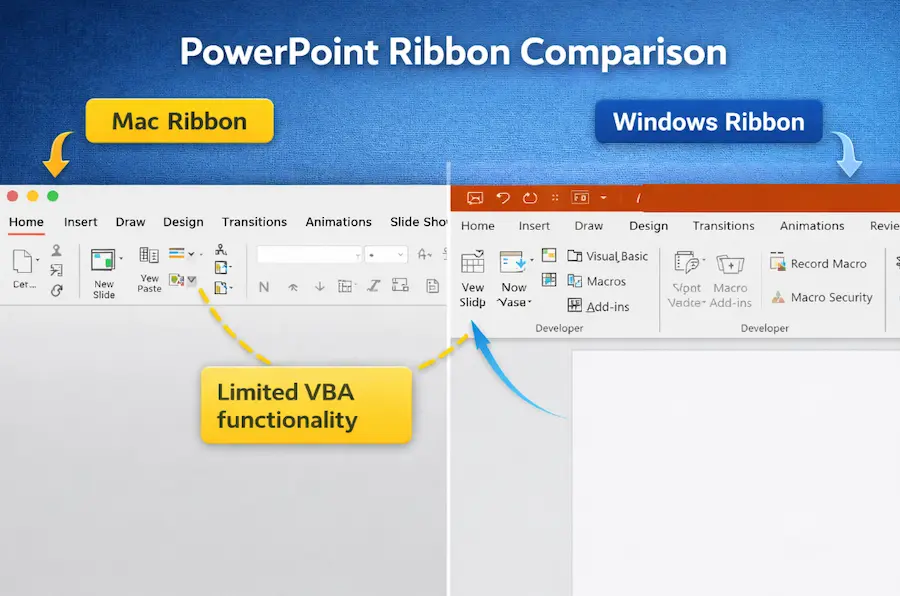
Let’s address the elephant in the room first. Yes, PowerPoint for Mac technically supports VBA. But it’s like saying a bicycle technically supports highway travel—sure, it might get you there, but you’re going to have a rough time.
Here’s what doesn’t work on Mac PowerPoint:
- ActiveX controls (those fancy buttons and checkboxes Windows users take for granted)
- Many Windows-specific VBA commands that reference system files or libraries
- UserForms behave unpredictably or don’t appear at all
- Certain object model properties that simply don’t exist in the Mac version
The good news? The interactive quiz methods we’re about to explore are more reliable than VBA anyway. They work across both platforms, won’t break when PowerPoint updates, and don’t require your audience to enable macros (which most people won’t do because of security warnings).
Method 1: The Hyperlink Highway
Hyperlinks are the unsung heroes of interactive PowerPoint presentations. Think of them as invisible roads connecting your slides—simple, elegant, and they work on every device that can open PowerPoint.
How to Build a Hyperlink-Based Quiz
Step 1: Create Your Question Slide
Start with your question at the top. Below it, create answer options using shapes or text boxes. I personally prefer rounded rectangles—they look cleaner and are easier to click than plain text.
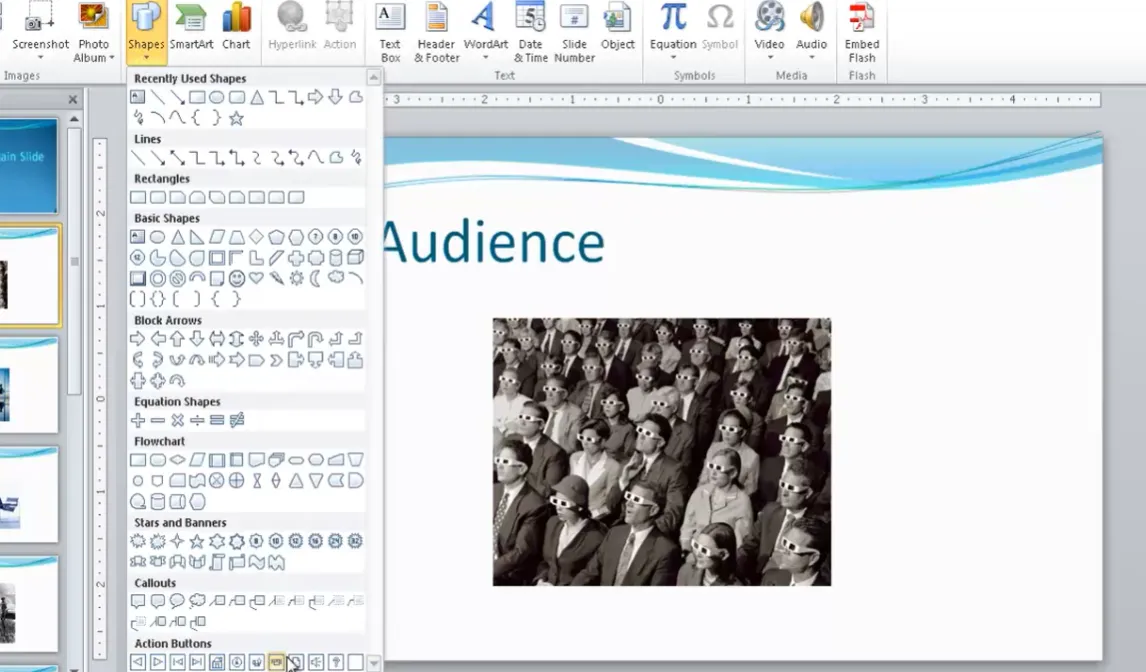
Step 2: Insert Shapes for Answers
- Go to Insert > Shapes
- Choose a shape (rounded rectangles work great)
- Draw one shape for each answer option
- Add text to each shape with your answer choices
Step 3: Create Feedback Slides
You’ll need at least two types of feedback slides:
- A “Correct!” slide with encouraging feedback and a button to continue
- A “Try Again” slide with a button that loops back to the question
Pro tip: Use consistent colors—green for correct, red for incorrect. Your brain processes color faster than text, making the feedback instant and intuitive.
Step 4: Link Everything Together
Here’s where the magic happens:
- Right-click the shape with the correct answer
- Select Action Settings
- Choose Hyperlink to: Slide
- Select your “Correct!” feedback slide
- Repeat for incorrect answers, linking them to the “Try Again” slide
When Hyperlinks Shine
This method is perfect for:
- Multiple-choice quizzes
- Branching scenarios (choose-your-own-adventure style training)
- Presentations that need to work on tablets and phones
- Situations where you’re sharing files with people who might not enable macros
Method 2: Add-Ins That Actually Work on Mac
Add-ins are like apps for PowerPoint—they extend functionality without requiring you to write code. The trick is finding ones that are genuinely Mac-compatible.
ClassPoint: The Teacher’s Favorite
ClassPoint has become incredibly popular in education circles, and for good reason. It’s built specifically for creating interactive presentations and quizzes, and—here’s the kicker—it works flawlessly on Mac.
What ClassPoint offers:
- Multiple-choice, short answer, and fill-in-the-blank questions
- Real-time student response collection (if presenting live)
- Automatic scoring and leaderboards
- Gamification elements like stars and badges
- Works with both Mac and Windows seamlessly
iSpring QuizMaker: The Professional Choice
If you need more robust quiz features, iSpring QuizMaker is worth considering. While it’s primarily a Windows tool, it exports quizzes that work across platforms, and the company has been improving Mac compatibility.
Installation Note for Mac Users
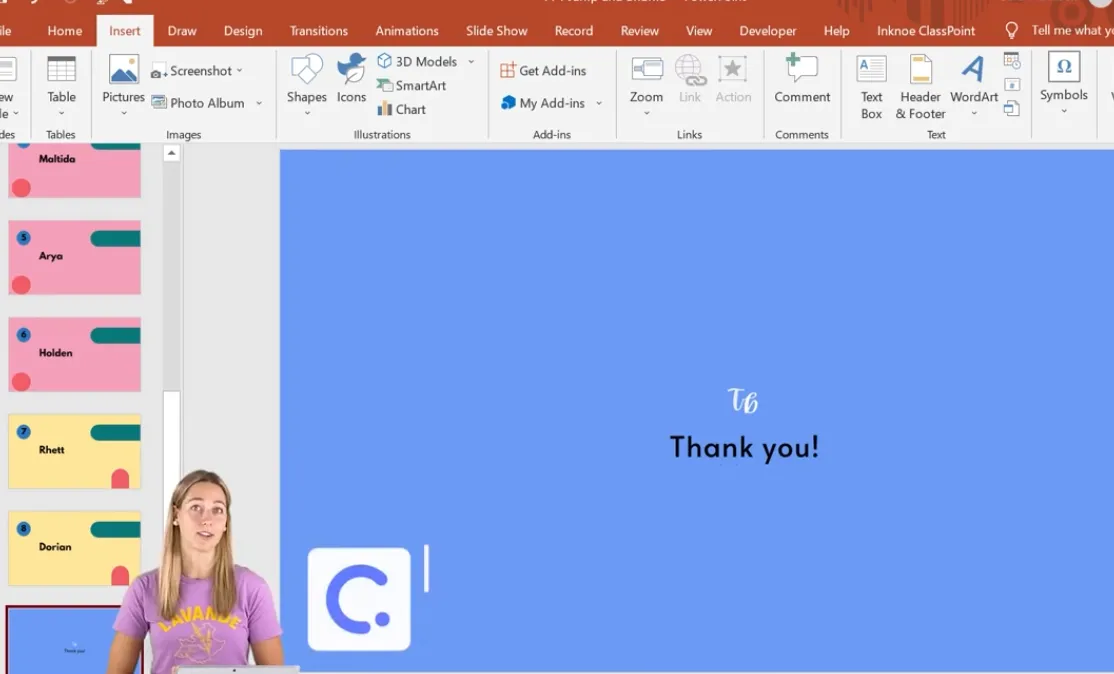
Installing add-ins on Mac PowerPoint has gotten easier, but there’s still a quirk: some add-ins require you to download them from the Office Store within PowerPoint (Insert > Get Add-ins) rather than from a website. Others need manual installation. Always check the provider’s Mac-specific instructions.
The Modern Solution: Try OnlineExamMaker Online Quiz Creator
Let’s be honest—PowerPoint wasn’t designed to be a quiz platform. It’s a presentation tool that we’ve cleverly hacked to create assessments. But what if you could skip the hacks entirely and use something purpose-built for creating quizzes that just happens to work beautifully on Mac?
Enter OnlineExamMaker, an AI-powered exam and quiz creation platform that’s become increasingly popular among educators and trainers. Here’s why Mac users are gravitating toward it:
Why OnlineExamMaker Makes Sense for Mac Users
1. Web-Based (No Installation Headaches)
Since OnlineExamMaker runs entirely in your browser, there’s zero difference between using it on Mac, Windows, or even a Chromebook. No compatibility issues, no missing features, no “this only works on Windows” disappointments.
2. AI Question Generation
Here’s where it gets interesting. Instead of manually typing out every question, you can upload a document or paste in content, and OnlineExamMaker’s AI will generate quiz questions automatically. I tested this with a 10-page training manual, and it created 30 relevant questions in about 45 seconds. Not all were perfect, but it gave me a solid starting point that would have taken hours to create manually.
3. Question Types PowerPoint Can’t Touch
- Drag-and-drop matching
- Image-based hotspot questions
- True/false with instant feedback
- Essay questions with rubric grading
- Fill in multiple blanks
- Ordering/sequencing tasks
Create Your Next Quiz/Exam Using AI in OnlineExamMaker
How to Create a Quiz in OnlineExamMaker for Mac Users?
Step 1: Sign Up and Create a Quiz
Navigate to OnlineExamMaker.com and create a free account. The interface is refreshingly clean—no cluttered menus or buried features. Click “Create New Quiz” and you’re off.
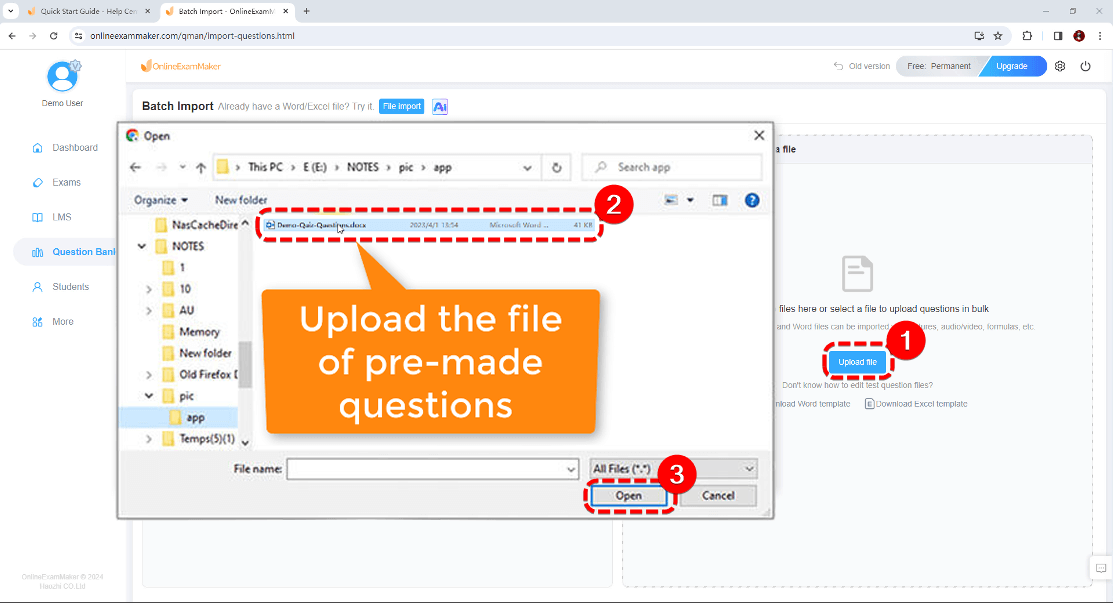
Step 2: Build Your Question Bank
You have several options:
- Manual entry: Type questions one by one (traditional but time-consuming)
- Import from Excel/CSV: Perfect if you already have questions in a spreadsheet
- AI generation: Upload your training materials and let AI create questions
- Question library: Browse pre-made questions if you’re teaching common subjects
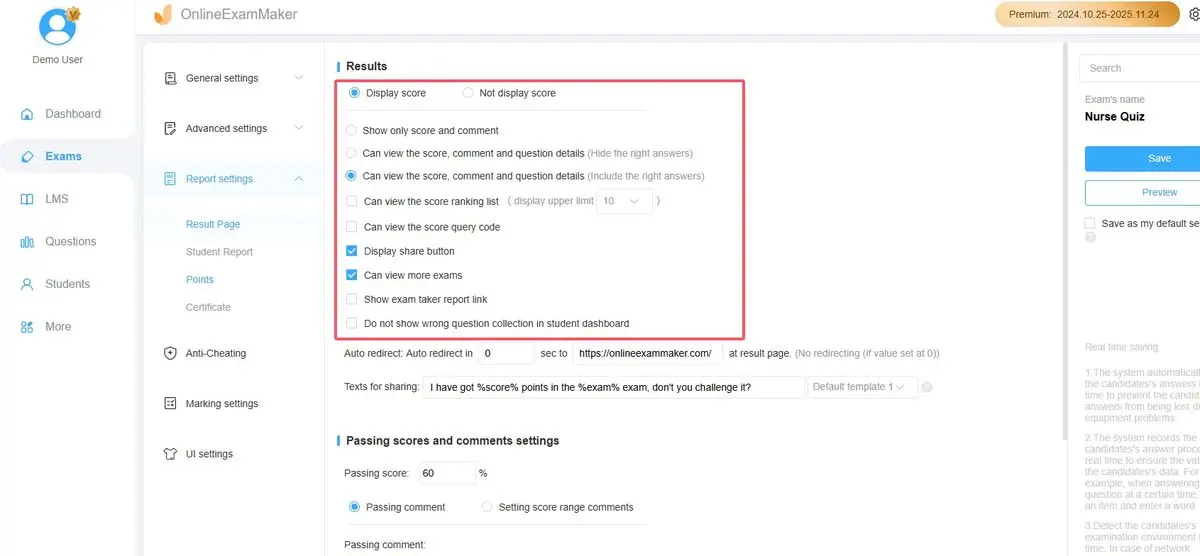
Step 3: Configure Quiz Settings
This is where OnlineExamMaker shines compared to PowerPoint workarounds:
- Set time limits (overall or per question)
- Randomize questions and answer orders
- Enable/disable backtracking
- Add a passing score with custom pass/fail messages
- Schedule when the quiz becomes available
- Set attempt limits
Step 4: Share and Track
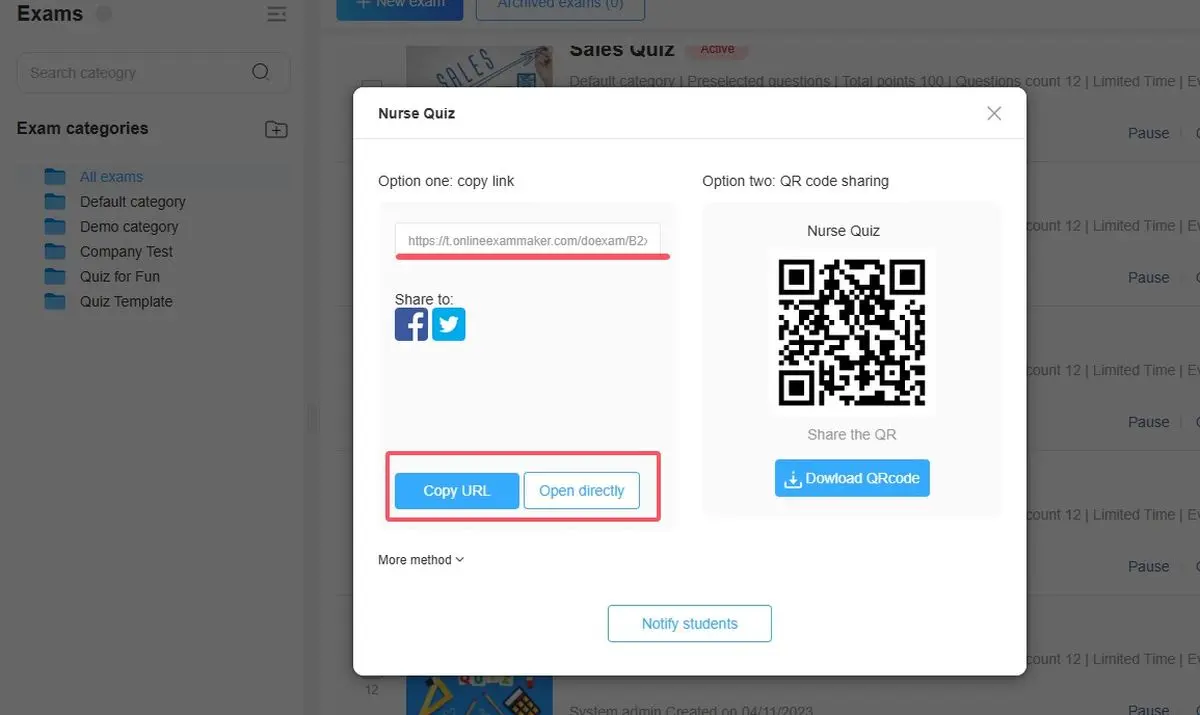
Generate a shareable link or QR code. Your quiz-takers can access it from any device—Mac, PC, tablet, or phone. Results are automatically collected and analyzed. You get detailed reports showing who took the quiz, their scores, which questions they missed, and how long they spent.
The Honest Comparison: PowerPoint vs OnlineExamMaker
| Feature | PowerPoint Methods | OnlineExamMaker |
|---|---|---|
| Mac Compatibility | Good (with workarounds) | Perfect (browser-based) |
| Setup Time | Medium to High | Low (especially with AI) |
| Automatic Scoring | Difficult/Impossible | Automatic |
| Mobile-Friendly | Challenging | Excellent |
| Analytics | None | Comprehensive |
| Question Variety | Limited | Extensive |
| Cost | Free (if you have PowerPoint) | Free tier available, paid plans for advanced features |
When to Use PowerPoint vs OnlineExamMaker
Stick with PowerPoint if:
- You’re creating a one-time quiz for a live presentation
- The quiz is tightly integrated with other presentation content
- You need complete offline functionality
- Your organization mandates PowerPoint for standardization
Switch to OnlineExamMaker if:
- You need automatic grading and detailed analytics
- You’re managing multiple quizzes or regular assessments
- Remote access is important (students taking quizzes from home)
- You want to save significant time with AI question generation
- You need question randomization or anti-cheating features
Choosing the Right Method for Your Needs
After exploring all these options, you might be wondering: “Which method should I actually use?” The answer, as with most things, is “it depends.” But let me make this decision easier with some real-world scenarios.
Scenario 1: Classroom Teacher with 30 Students
You’re teaching high school history and want to quiz students on the causes of World War I. You’ll administer the quiz in class on a mix of school iPads and MacBooks.
Best choice: OnlineExamMaker or ClassPoint
Why: You need automatic scoring to save grading time, and you want to track individual student progress. Both work perfectly on Mac and provide the analytics you need. OnlineExamMaker wins if you want students to complete quizzes outside class; ClassPoint wins if you want everything embedded in your presentation.
Scenario 2: Corporate Trainer Creating Compliance Training
You’re building a sexual harassment prevention training that employees must complete. The quiz needs to certify completion and track results for HR.
Best choice: OnlineExamMaker
Why: You need certification tracking, detailed reporting, and the ability for employees to take the quiz remotely on their own time. The professional appearance and robust analytics will satisfy HR requirements.
Scenario 3: Conference Presentation with Live Audience
You’re presenting at a marketing conference and want to include a fun, interactive knowledge check during your session.
Best choice: Hyperlinks or Animation Triggers in PowerPoint
Why: The quiz is part of your broader presentation narrative. You don’t need individual tracking—you’re just engaging the audience. Keeping everything in one PowerPoint file makes your life simpler, and you don’t need internet connectivity during your presentation.
Frequently Asked Questions
Can I use VBA macros in PowerPoint on Mac at all?
Technically yes, but it’s not recommended. Mac PowerPoint supports a limited subset of VBA, but many Windows-specific features won’t work. ActiveX controls are completely unavailable, and many macros will either fail or behave unpredictably. The methods outlined in this article are more reliable and cross-platform compatible.
Will quizzes created with hyperlinks work on iPads and mobile devices?
Yes! Hyperlink-based quizzes work excellently on mobile devices. Just make sure your clickable shapes are large enough for finger-tapping (aim for at least 44×44 pixels). Test on a mobile device before distributing to ensure buttons are easily tappable.
Can I track who took my PowerPoint quiz and their scores?
Not with native PowerPoint features. This is one of PowerPoint’s biggest limitations as a quiz platform. If you need tracking and analytics, you’ll need to either use an add-in like ClassPoint or switch to a dedicated platform like OnlineExamMaker that provides comprehensive reporting.
Is there a way to prevent cheating in PowerPoint quizzes?
PowerPoint has limited anti-cheating features. You can enable Kiosk mode to prevent slide skipping, but users can still look up answers or share quizzes. For higher-stakes assessments where cheating is a concern, platforms like OnlineExamMaker offer features like question randomization, time limits, browser lockdown, and webcam proctoring.
How do I make my PowerPoint quiz accessible for students with disabilities?
Use PowerPoint’s built-in accessibility checker (Review > Check Accessibility). Ensure all clickable elements have descriptive alt text, use high-contrast colors, make text large enough to read easily (minimum 18pt), and consider adding audio narration for questions. Animation triggers work well with screen readers when properly labeled.
Can I reuse quiz questions across multiple presentations?
In PowerPoint, you’d need to manually copy slides between presentations. This gets tedious with large question banks. Consider maintaining a “master quiz” file that you copy from, or use Excel to store your questions for easier management. OnlineExamMaker and similar platforms have built-in question banks that let you reuse questions across multiple quizzes effortlessly.
What’s the maximum number of questions I should include in a PowerPoint quiz?
From a practical standpoint, keep PowerPoint quizzes under 20 questions. File size grows quickly when you have numerous slides with feedback, and navigation can become cumbersome. For longer assessments, dedicated quiz platforms handle large question sets more elegantly.
