Think about you’ve got 50 questions in a spreadsheet. Maybe 100. Typing each one manually into Google Forms sounds about as fun as watching paint dry, doesn’t it?
Here’s the good news: you don’t have to. There are ways to import those questions directly from your spreadsheet into a Google Forms quiz. And if you’re feeling adventurous, there’s even a way to skip the spreadsheet altogether and let AI do the heavy lifting.
- Why Import Questions Instead of Manual Entry?
- Importing Questions from Google Sheets Using Form Builder Add-On
- Preparing Your Spreadsheet: The Foundation
- Installing and Using Form Builder
- Fine-Tuning Your Quiz in Google Forms
- The Alternative: Create Quiz Questions with OnlineExamMaker AI
- Google Forms Import vs OnlineExamMaker AI: The Showdown
- Which Method Should You Choose?

Why Import Questions Instead of Manual Entry?
Let’s be honest. Nobody wakes up excited to manually type quiz questions into Google Forms. It’s tedious. It’s time-consuming. And one typo can throw off your entire quiz grading.
Importing questions from a spreadsheet solves these problems. You can organize everything in a spreadsheet first—questions, answer choices, correct answers, point values. Then, with a few clicks, boom. Your quiz is built.
But here’s where it gets interesting. There’s another way that doesn’t even require you to create a spreadsheet first. More on that later.
Importing Questions from Google Sheets Using Form Builder Add-On
The most popular way to import questions is using an add-on called Form Builder for Google Sheets. Think of it as a bridge between your spreadsheet and Google Forms.
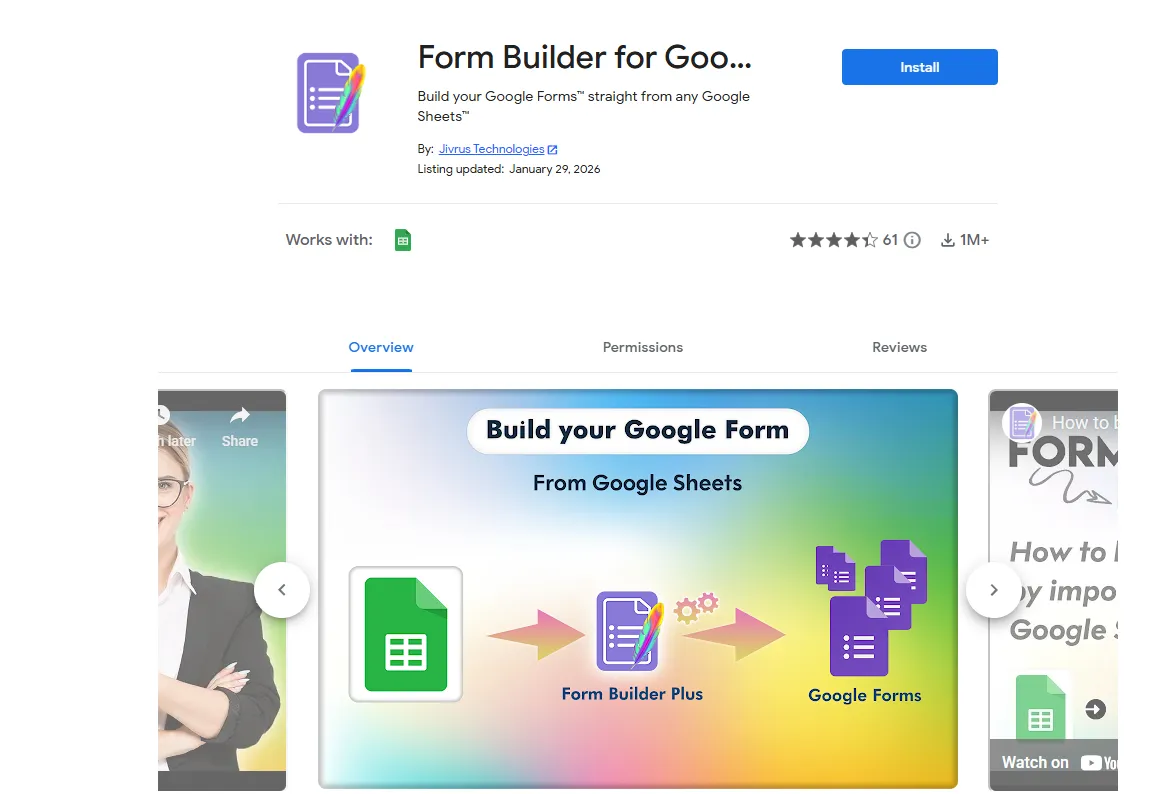
According to Google Workspace Marketplace, this add-on has helped thousands of educators and trainers streamline their quiz creation process. It’s free, relatively simple, and doesn’t require you to know any coding.
Preparing Your Spreadsheet: The Foundation
Before you can import anything, you need to organize your spreadsheet properly. This isn’t complicated, but it matters.
Here’s how to structure it:
Set up your columns like this: Question, Type, Option A, Option B, Option C, Option D, Correct Answer. Each row represents one question.
The “Type” column tells Form Builder what kind of question you’re creating—multiple choice, checkbox, short answer, etc. For example, if you want a multiple-choice question, you’d type “MCQ” in that column.
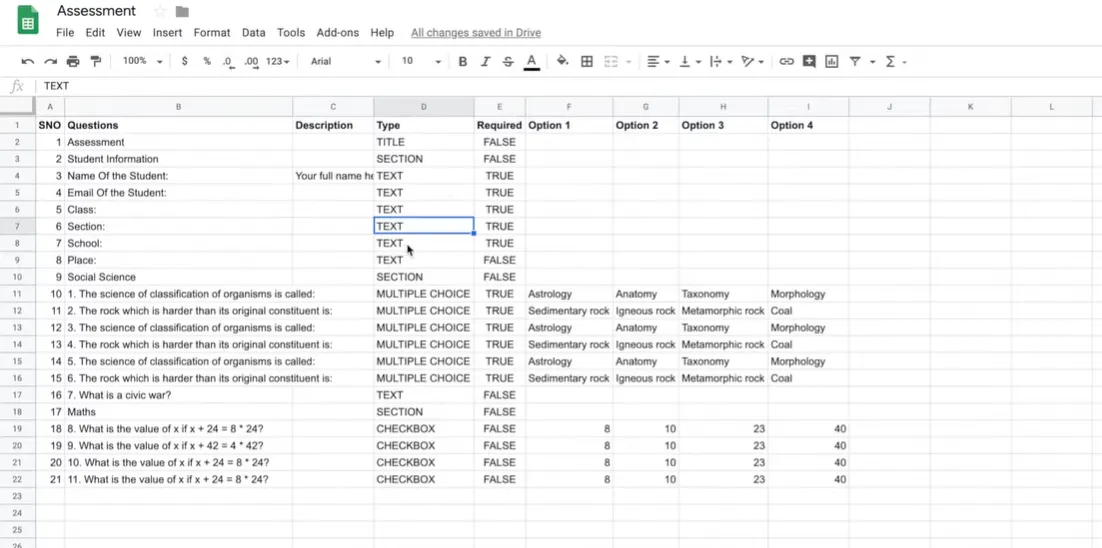
A discussion on Stack Overflow highlights that proper column structure is the most common issue users face when trying to import questions. Get this right, and you’re halfway there.
Want to make things even clearer? Add a header row. Label your columns clearly. Your future self will thank you when you’re troubleshooting at 11 PM before a training session.
Installing and Using Form Builder
Ready to bring your spreadsheet to life? Here’s how.
First, install the add-on. Open your Google Sheet with the questions. Go to Extensions → Add-ons → Get add-ons. Search for “Form Builder for Google Sheets” and hit install.
Once it’s installed, go back to Extensions → Form Builder for Google Sheets → Start.
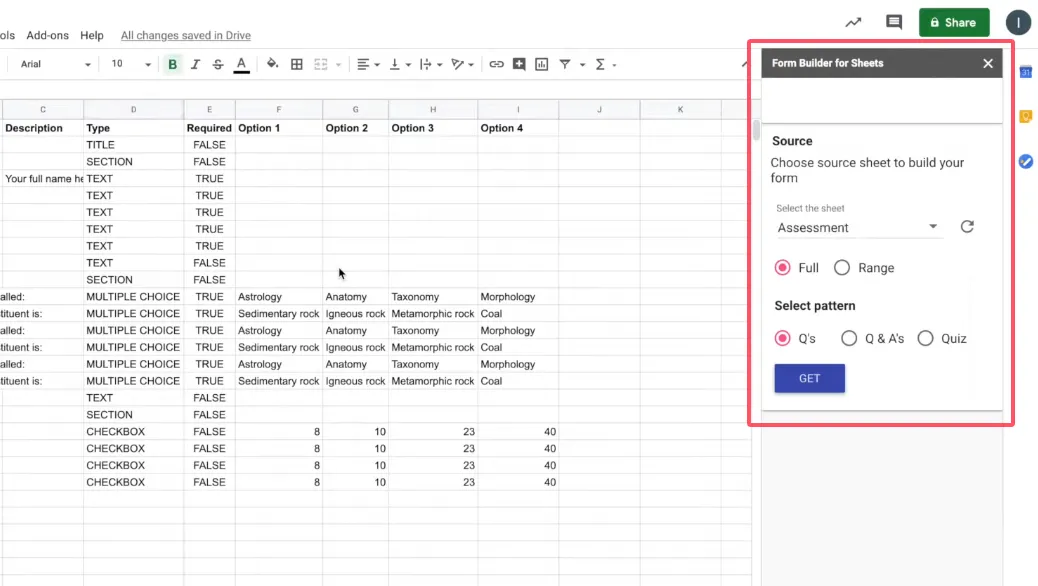
Now comes the fun part. In the sidebar, you’ll see options to import questions or create a new form. Select your sheet and the range of questions you want to import.
Here’s the crucial step: Choose “Quiz” mode. This tells Google Forms that you want this to be a graded quiz, not just a regular form. If you skip this, you’ll have to manually convert it to a quiz later, which defeats the purpose.
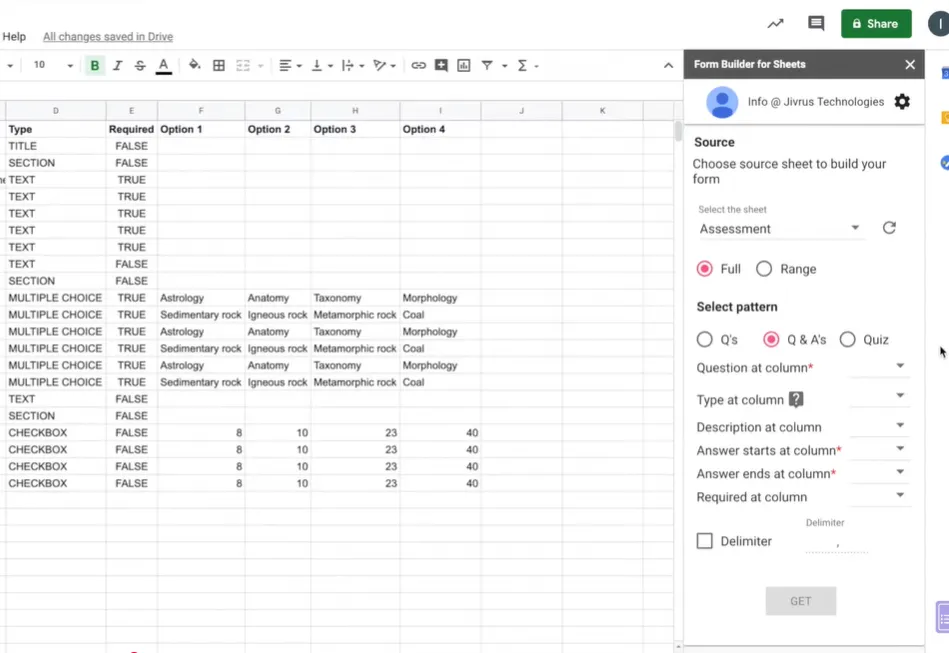
Map your columns if the add-on prompts you to. Basically, you’re telling it “this column is the question text, this one is the options, this one is the correct answer.” It’s usually smart enough to figure it out automatically, but double-check.
Click “Import Questions” or “Create Form.” The add-on will generate your Google Form quiz with all questions, answer choices, and correct answers set automatically.
Fine-Tuning Your Quiz in Google Forms
Your quiz is created, but you’re not done yet. Time for the finishing touches.
Open the generated form in Google Forms. First thing: verify that “Make this a quiz” is turned on. Go to Settings → Quizzes → “Make this a quiz.” If Form Builder did its job, this should already be enabled, but it’s worth checking.
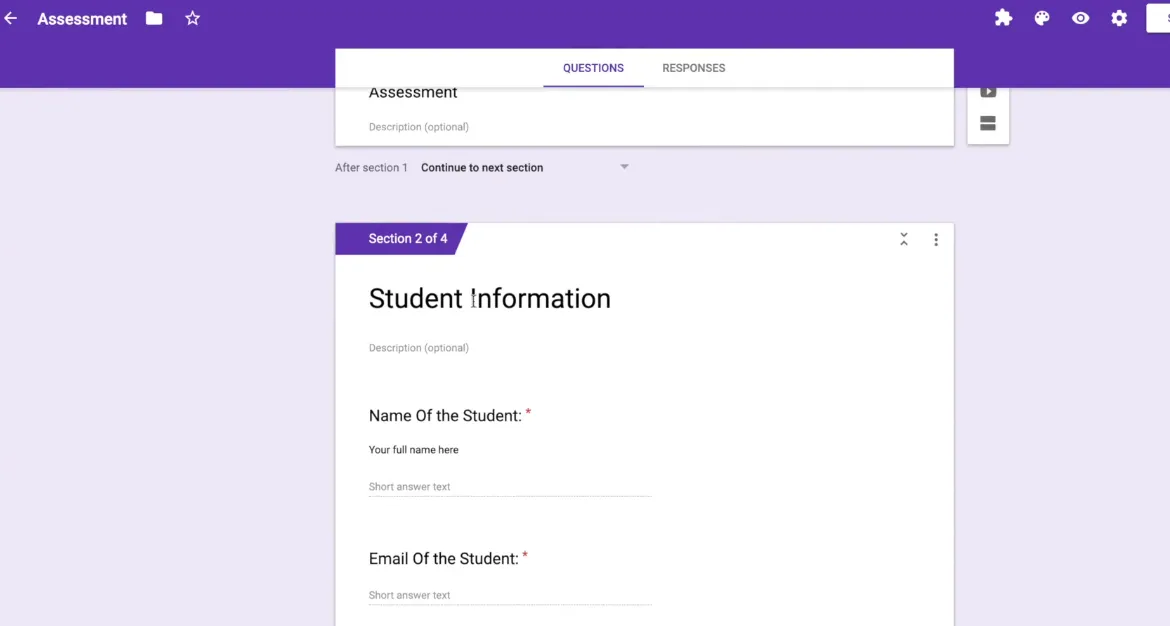
Now adjust the details. Set point values for each question. Add feedback for correct and incorrect answers. Maybe you want to show results immediately after submission, or maybe you want to review them first. These settings are entirely up to you.
Want to shuffle question order? Require a response for certain questions? Add images or videos? This is your chance to make the quiz truly yours.
The Alternative: Create Quiz Questions with OnlineExamMaker AI
Now, what if I told you there’s a way to skip the spreadsheet entirely?
Enter OnlineExamMaker, an AI-powered exam creation platform that’s changing how educators and trainers build quizzes.
Here’s how it works. Instead of organizing questions in a spreadsheet first, you give the AI your learning material—a PPT, a document, even just a topic. The AI reads it, understands the key concepts, and generates quiz questions automatically.
Creating a quiz with OnlineExamMaker AI is surprisingly straightforward. Log into the platform. Upload your source material or describe what you want the quiz to cover. Select your question types—multiple choice, true/false, short answer, whatever fits your needs. Set your preferences for difficulty level and number of questions.
Create Your Next Quiz/Exam Using AI in OnlineExamMaker
Then click generate. Within seconds, you have a complete quiz. The AI doesn’t just create random questions. It identifies important concepts, formulates clear questions, and provides plausible answer choices.
Don’t like a question? Edit it. Want to add your own? Go ahead. The AI gives you a foundation; you maintain full control.
The real advantage? Speed. What would take an hour to organize in a spreadsheet takes minutes with AI. You’re not formatting columns or worrying about whether you typed “MCQ” correctly. You’re creating quizzes.
Google Forms Import vs OnlineExamMaker AI: The Showdown
Both methods work. Both have their place. But they’re designed for different workflows.
| Feature | Google Forms Import (Form Builder) | OnlineExamMaker AI |
|---|---|---|
| Question Creation | Manual entry into spreadsheet required | AI-generated from learning materials |
| Time Investment | Moderate (spreadsheet prep + import) | Minimal (upload and generate) |
| Learning Curve | Easy if you know spreadsheets | Very easy, minimal setup |
| Customization | Full control during spreadsheet creation | Full editing after AI generation |
| Question Quality | Depends on your writing ability | Depends on AI understanding + your review |
| Best For | Pre-existing question banks, collaborative editing | Quick quiz creation from content, idea generation |
| Cost | Free (with Google account) | Free tier available, paid plans for advanced features |
| Platform | Works within Google ecosystem | Standalone platform with export options |
| Bulk Operations | Excellent for importing 100+ questions at once | Excellent for generating many questions quickly |
| Collaboration | Easy with Google Sheets sharing | Depends on team features in paid plans |
Which Method Should You Choose?
It depends on your situation.
Choose the Google Forms import method if: You already have questions written out, you’re working with a team that collaborates on spreadsheets, you need to reuse question banks across multiple quizzes, or you prefer working within the Google ecosystem.
Choose OnlineExamMaker AI if: You’re starting from scratch, you have source material but no written questions yet, you need to create quizzes quickly, or you want AI to help with question writing and idea generation.
Want the best of both worlds? Use AI to generate questions, export them to a spreadsheet for team review, then import them into Google Forms. Nobody said you have to pick just one method.
The goal isn’t to find the “perfect” method. It’s to find the one that fits your workflow, saves you time, and helps you create better quizzes for your learners.
Because at the end of the day, your students don’t care whether you typed those questions manually, imported them from a spreadsheet, or had an AI generate them. They care whether the quiz is well-designed, fair, and helps them learn.
And that’s something both methods can deliver—as long as you bring your expertise to the table.
