Who knew that the same software you use for mundane presentations could transform into a buzzing quiz arena? Here’s the thing—you don’t need fancy game development skills or expensive software. PowerPoint, that trusty tool sitting on your computer, can become your trivia game engine with just a few clever tricks.
- Why PowerPoint Makes a Surprisingly Good Trivia Platform?
- Planning Your Trivia Quiz Like a Pro
- Building Your PowerPoint Trivia Template from Scratch
- Adding Questions: The Manual vs. AI Approach
- Making It Interactive with Hyperlinks and Animations
- Supercharging Your Quiz with Auto-Scoring Features
- Using OnlineExamMaker for AI-Powered Trivia Creation
- Tips for Reusing and Expanding Your Template
Why PowerPoint Makes a Surprisingly Good Trivia Platform?
Let’s be honest—when you think “game engine,” PowerPoint probably doesn’t come to mind. But that’s exactly what makes it brilliant. Everyone already has it. Everyone knows how to use it (sort of). And with the right setup, it transforms from presentation tool to interactive quiz master.
PowerPoint works as a simple game engine by leveraging slides, hyperlinks, and modern add-ins to create interactive trivia experiences complete with live scoring. Think of each slide as a level in your game. You can jump between them, track scores, and even display leaderboards—all without leaving the familiar PowerPoint environment.
This approach shines in classrooms where you’re reviewing lesson content, staff training sessions that desperately need some energy, or social events where friendly competition breaks the ice. The beauty? Once you build your template, you can swap out questions and themes faster than you can say “next round.”
Planning Your Trivia Quiz Like a Pro
Before you dive into slide design, pause. What’s your trivia quiz actually for? Are you helping students review before an exam? Hosting a Friday afternoon team-building session? Running a competitive trivia night with actual prizes?
Your purpose shapes everything else. A review quiz might need 20 quick questions spanning the whole semester. A trivia night might want themed rounds with varying difficulty. A training assessment might focus on specific compliance topics.
Next, decide on your mechanics. Will you stick with multiple choice questions, or mix in true/false and other types? Is this individual play or team-based? Should questions have time limits? These decisions matter because they determine how you’ll structure your slides.
Here’s where it gets interesting: manual scoring or automatic? Manual means you’re tracking points on a whiteboard or asking participants to self-score. Automatic means using an add-in that handles everything—calculating scores, displaying leaderboards, and revealing correct answers instantly. Spoiler alert: automatic is way more fun.
| Quiz Element | Options to Consider | Best For |
|---|---|---|
| Question Type | Multiple choice, True/False, Mixed | Multiple choice for beginners; mixed for engagement |
| Play Style | Individual, Team, Hybrid | Individual for assessments; team for social events |
| Scoring Method | Manual, Automatic with add-in | Automatic for real-time competition and efficiency |
| Time Limit | No limit, 30-60 seconds per question | Time limits increase energy and prevent overthinking |
Building Your PowerPoint Trivia Template from Scratch
Creating Your Title and Navigation Slides
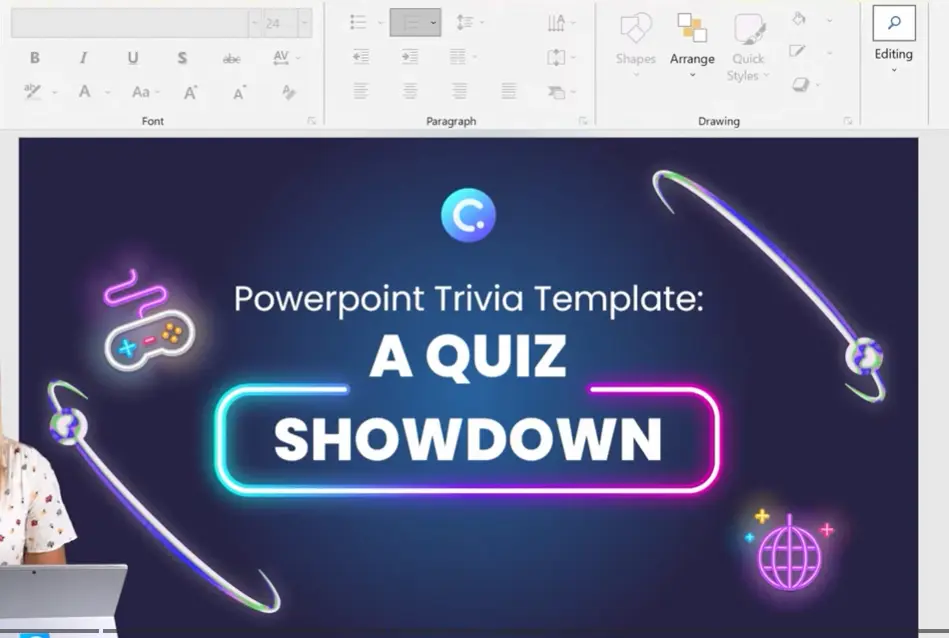
Every good game needs a strong opening. Your title slide sets the mood—add your quiz name, some theme-appropriate graphics, and clear instructions. Maybe it’s “Join with code 12345” or “Click to start the adventure.” Keep it simple but inviting.
Consider adding optional navigation slides too. A “How to Play” slide prevents confused looks later. A category overview builds anticipation. A rules slide ensures everyone’s on the same page before question one appears.
Designing Your Question Slide Layout
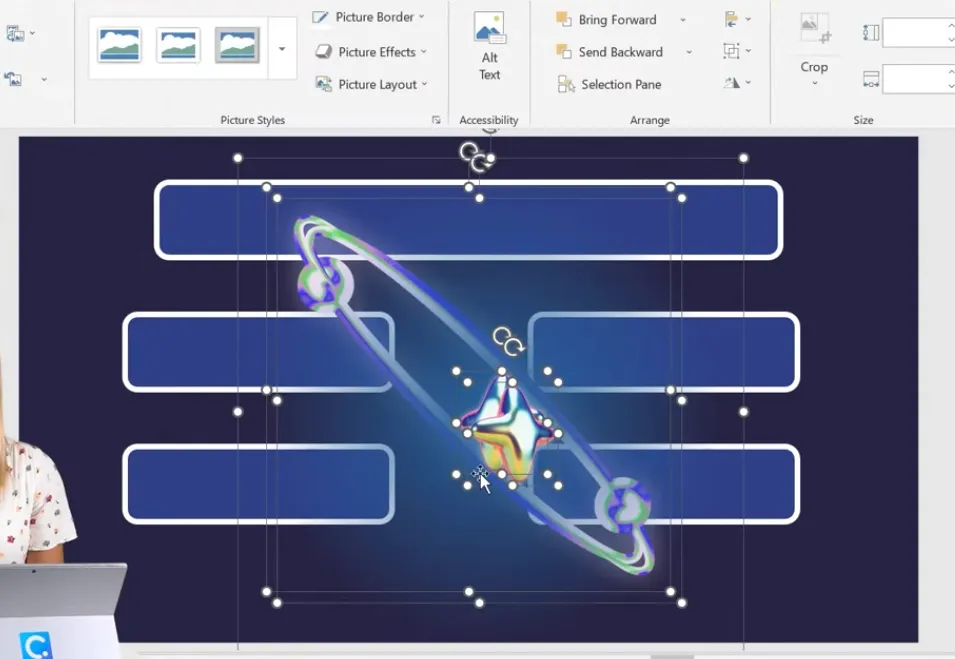
This is where your template takes shape. Start with a blank slide. You need space for the question itself and shapes or buttons for answer options. Four answer choices? Create four shapes. Keep them aligned, consistently colored, and clearly clickable.
Think of this as your master slide. Once you nail this design, you’ll duplicate it for every question in your quiz. That means consistency matters—same fonts, same positioning, same visual hierarchy. Use PowerPoint’s alignment tools religiously. Nothing screams “amateur hour” like crooked answer buttons.
Adding Visual Style and Theme
A trivia quiz without personality is just a test. Customize your background colors to match your theme. Game show vibes? Go bold with reds and golds. Classroom setting? Try calming blues. Corporate training? Stick with brand colors.
Graphics matter too. Free stock sites and design platforms offer thousands of icons and images. Just remember—they’re supporting actors, not the star. Resize and position graphics so they enhance without interfering with those precious clickable answer areas.
Adding Questions: The Manual vs. AI Approach
Writing Your Own Questions
Rolling up your sleeves to write questions manually? Respect. Follow some ground rules: clear wording, exactly one correct answer, and distractors that actually distract. The best wrong answers are plausible enough to make people think.
Vary your difficulty too. Mix easy warm-up questions with brain-benders. If you’re tracking points, mentally tag questions as easy, medium, or hard so you can assign different values later. Three points for “What’s the capital of France?” seems generous. That same three points for a nuanced policy question? Fair game.
Using AI to Generate Questions
Here’s where things get deliciously modern. AI question generators can analyze content and spit out quiz questions faster than you can say “artificial intelligence.” Some teaching add-ins integrate directly into PowerPoint, reading text on your slides and suggesting complete multiple-choice questions with answers.
The workflow is elegant: type your topic into a text box, activate the AI tool, review the generated questions, edit for accuracy and difficulty, then paste into your prepared layout. It’s not perfect—you’ll want to review every AI suggestion—but it’s remarkably fast.
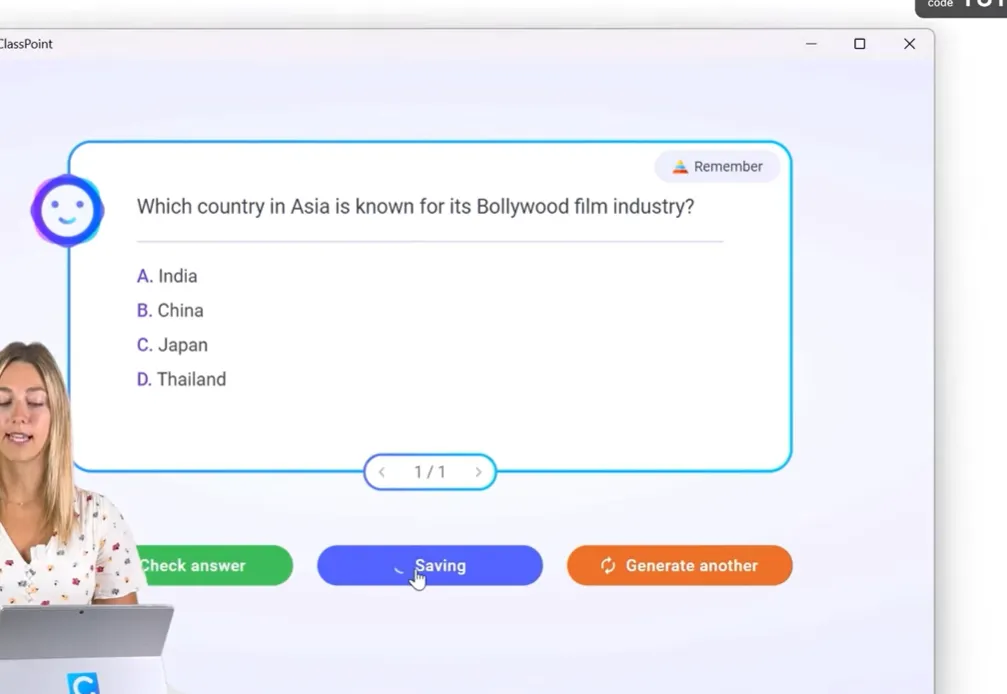
One clever trick: if you’re using an AI add-in that works inside PowerPoint, you never have to leave your workflow. The question appears, you tweak it, and boom—it’s already in the right format.
Making It Interactive with Hyperlinks and Animations
Using Built-in Hyperlinks and Actions
Want your quiz to feel like an actual game? Hyperlinks are your secret weapon. Assign actions to each answer shape—correct answers jump to a “Nice work!” slide or the next question, while wrong answers bounce to a “Try again” message.
The trick is disabling default slide navigation. Switch to kiosk mode so the only way forward is through your custom buttons. Suddenly, your presentation becomes a choose-your-own-adventure where wrong turns have consequences (gentle ones, hopefully).
Adding Animations and Timers
Nothing says “game show” like dramatic reveals. Use entrance animations to unveil answers one by one. Highlight the correct choice with a satisfying color change. Display feedback that slides in with flair.
Timers amp up the pressure. Create simple countdown animations using shapes that wipe across the screen over a set duration. Thirty seconds per question? Watch participants lean forward, suddenly very focused. It’s behavioral psychology wrapped in PowerPoint shapes.
Supercharging Your Quiz with Auto-Scoring Features
Integrating an Audience Response Add-in
This is where your trivia game levels up dramatically. Install a classroom or audience-response add-in that adds quiz functionality directly inside PowerPoint. These tools transform regular slides into live multiple-choice questions that participants answer from their own devices.
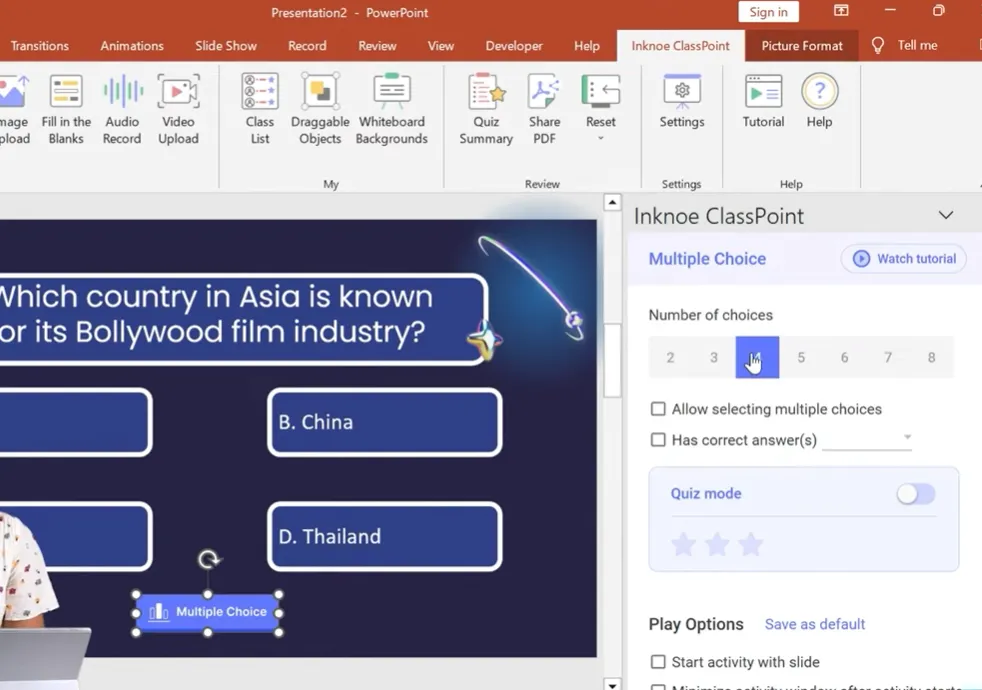
The setup is straightforward: add the quiz toolbar, configure each question’s answer panel to match your slide (number of options, which one’s correct), and generate a session code. Participants join from phones or laptops, and you’re running a live trivia game.
Setting Difficulty Levels and Auto-Scoring
Here’s where automation gets beautiful. Turn on quiz mode and assign difficulty levels—one star for easy, three stars for challenging. When someone answers correctly, they automatically earn those stars. No manual scorekeeping. No disputes about who got what.
Configure your play options for seamless flow: auto-start when you advance to a slide, auto-hide the response box so nobody’s peeking, automatic closing after a countdown. Your quiz basically runs itself while you play host.
Leaderboards and Performance Data
Want to see engagement skyrocket? Display a live leaderboard. Watch participants straighten up when they see their name climbing (or dropping) in the rankings. Competition is a powerful motivator.
Behind the scenes, you’re collecting goldmine data: how many chose each option, response speed, which questions stumped everyone. This summary grows throughout your quiz, giving you insights into what worked and what needs tweaking next time.
Using OnlineExamMaker for AI-Powered Trivia Creation
While PowerPoint handles the presentation side beautifully, sometimes you need industrial-strength quiz creation power. That’s where OnlineExamMaker enters the conversation—an AI quiz making software designed specifically for educators and trainers who need professional-grade assessments without the professional-grade headaches.
What Makes OnlineExamMaker Different
OnlineExamMaker takes the AI question generation we mentioned earlier and cranks it to eleven. Upload your content—lecture notes, PDFs, even entire textbooks—and watch the AI analyze it to generate contextually relevant trivia questions. We’re talking multiple choice, true/false, fill-in-the-blank, even matching questions.
The platform understands context in ways that basic question generators don’t. It identifies key concepts, creates plausible distractors based on common misconceptions, and adjusts difficulty levels automatically. For teachers and trainers creating multiple quizzes across different topics, this is hours of work condensed into minutes.
Create Your Next Quiz/Exam Using AI in OnlineExamMaker
How to Make a Trivia Quiz Using AI in OnlineExamMaker?
Step 1: Generate Trivia Quiz Questions
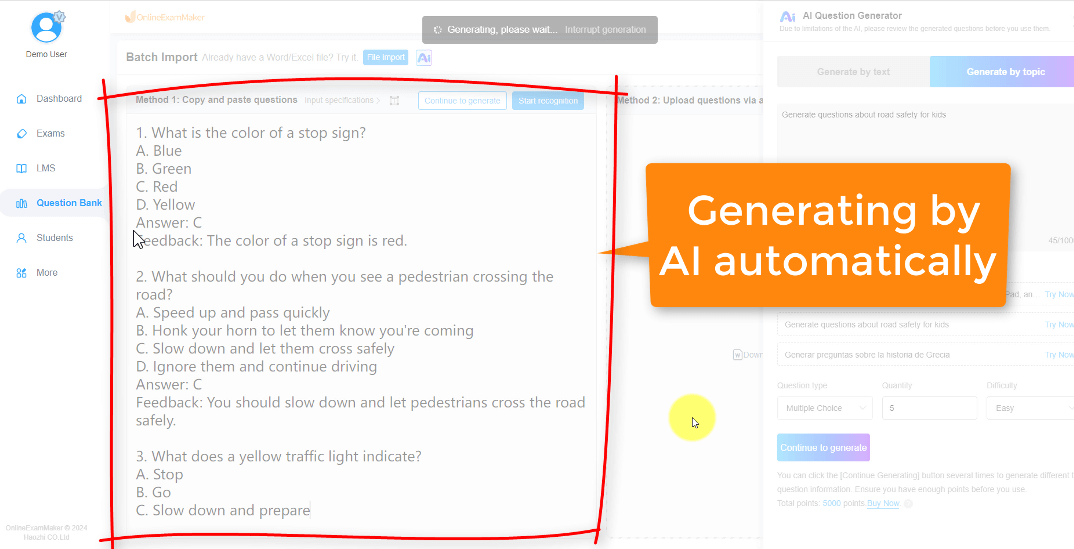
The workflow is refreshingly simple. First, create a new quiz and choose your AI generation option. Upload your source material or paste in text covering your topic. The AI processes this content, identifying quiz-worthy concepts and relationships.
Step 2: Set up a New Quiz
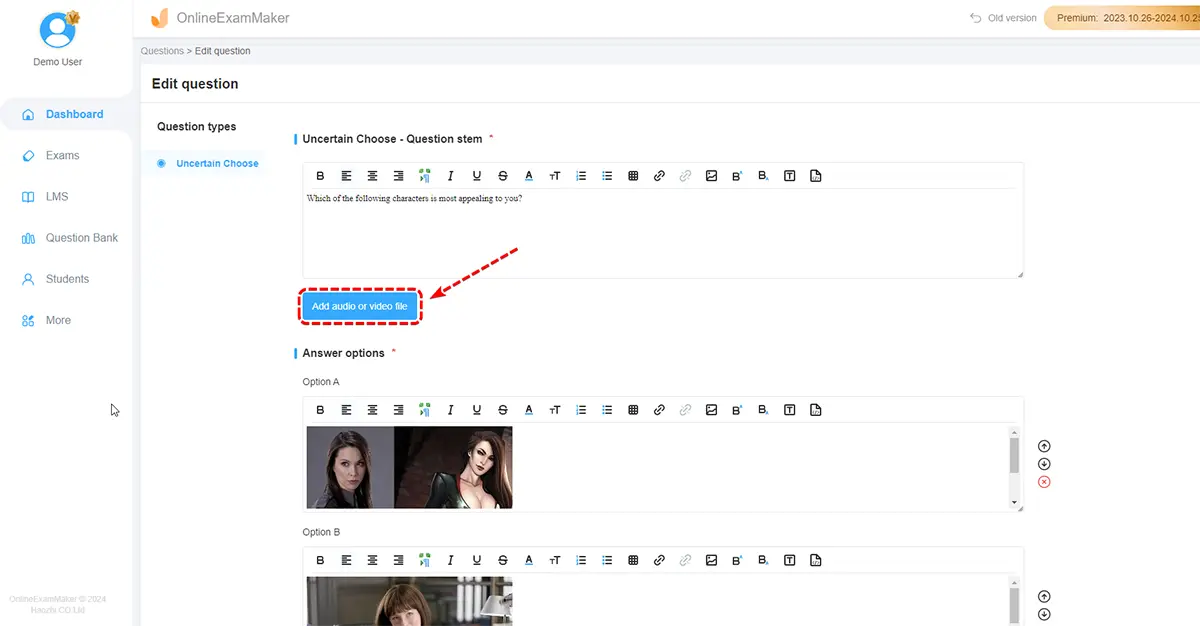
Click “New exam” button to creat a new exam for the trivia quiz, you can add quiz description, add a cover image for the quiz
Step 3: Configure quiz settings
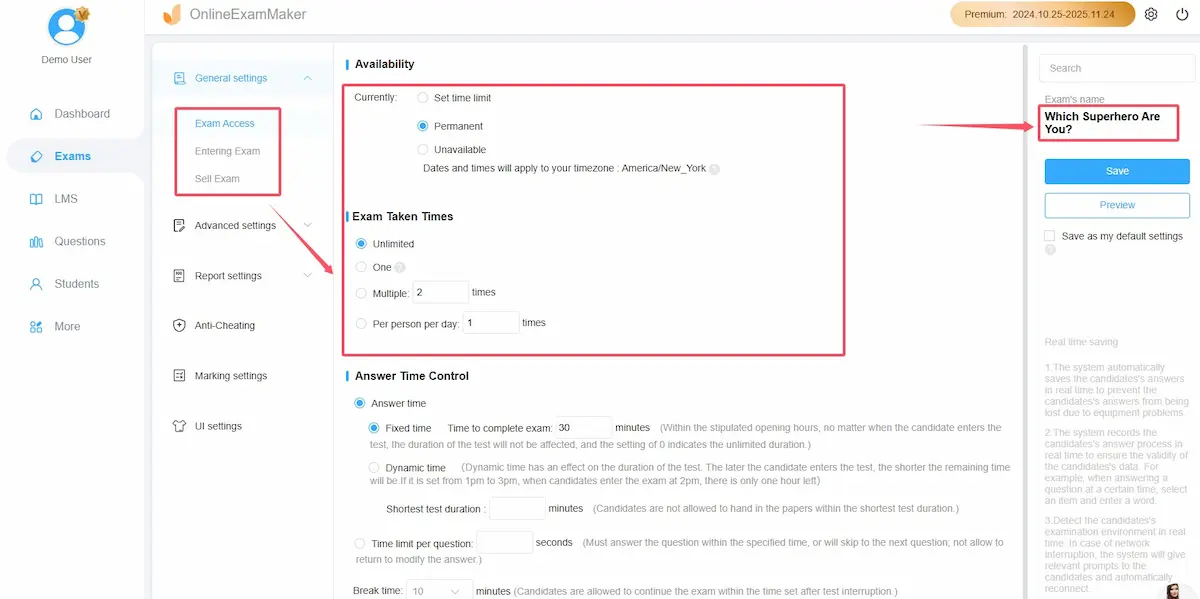
Once the quiz is created, you can add the questions to the test, and configure the exam settings like quiz time, pass score, brand logo, and more.
Step 4: Preview and Publish
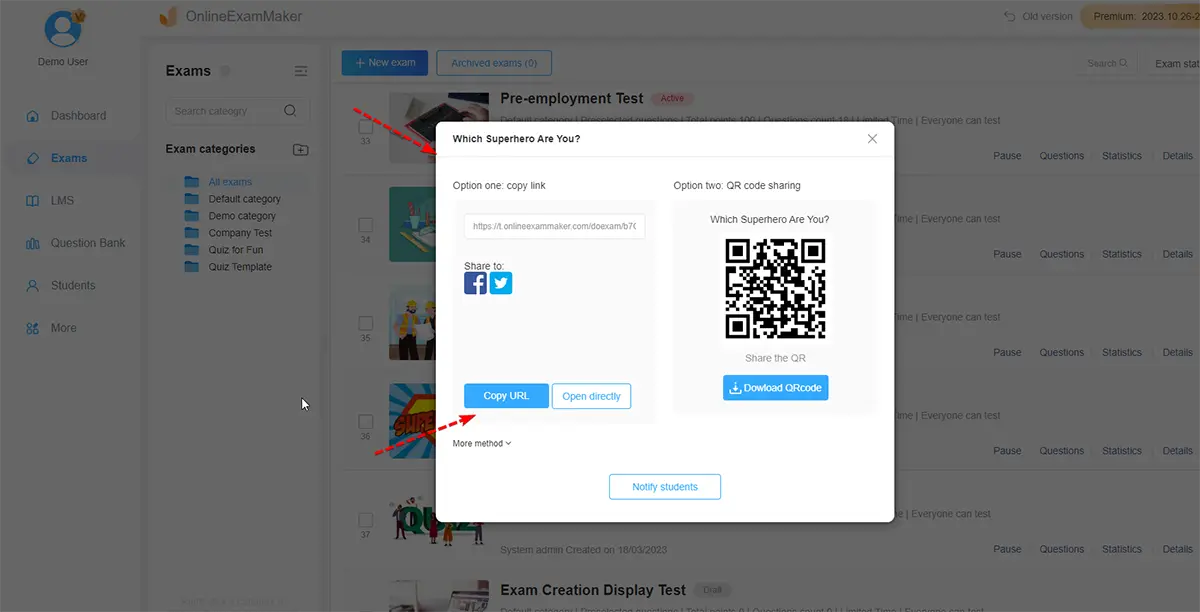
Preview the trivia quiz in your computer, or mobile phone. After you are satisfied with the quiz, you can save the settings and release the quiz.
Why Educators and Trainers Love OnlineExamMaker?
Beyond AI generation, OnlineExamMaker offers question banks (build once, reuse forever), automatic grading, detailed analytics, and remote proctoring for high-stakes assessments. For HR managers running compliance training or teachers managing multiple classes, these features transform assessment from burden to breeze.
The platform works particularly well when combined with PowerPoint trivia games. Use OnlineExamMaker to generate and refine your questions, then import them into your PowerPoint template for live, engaging delivery. Best of both worlds: AI-powered content creation meets interactive presentation.
Tips for Reusing and Expanding Your Template
The smartest move you’ll make? Save your finished quiz as a template file. Now you have a reusable framework that’s infinitely customizable. New topic? Swap the questions. Different audience? Adjust the visuals. Same structure, endless possibilities.
Duplicate the template for various subjects, keeping the same interactive infrastructure while changing content. Your World History trivia uses the same mechanics as your Sales Training quiz—just different questions and themes.
Ready to get adventurous? Extend beyond multiple choice. Add true/false slides, matching exercises, even hotspot questions where participants click areas of an image. Some advanced users integrate with online forms for detailed response export and analysis when they need that level of data granularity.
The template you build today becomes your trivia toolkit for years. Each quiz you run teaches you something—which animations work, what question pacing keeps energy high, how much trash talk to tolerate on the leaderboard. Iterate, improve, and soon you’ll be the person everyone asks: “How do you make training so engaging?”
Because you turned PowerPoint into a game show. And games, as we know, are just better learning wrapped in competition and a timer.
