If you’re a teacher, trainer, or HR manager who’s ever wondered whether there’s a faster way to turn your Excel question banks into interactive quizzes, you’re in the right place. This guide will walk you through a simple method that transforms your spreadsheet data into a fully functional Google Form quiz in minutes—not hours.
- Why Bulk Import Your Quiz Questions?
- Getting Started: Preparing Your Excel Question Data
- Step-by-Step Guide: Converting Excel to Google Forms Questions
- Alternative Solution: OnlineExamMaker for AI-Powered Quiz Creation
- Frequently Asked Questions

Why Bulk Import Your Quiz Questions?
Let’s be honest—manual data entry is nobody’s idea of a good time. When you’re managing a question bank with 50, 100, or even 200 questions, the traditional copy-paste approach quickly becomes a productivity nightmare.
Think about the math: If it takes just two minutes to manually enter each question with its options into Google Forms, a 50-question quiz would consume nearly two hours of your time. Two hours you could spend actually teaching, developing better content, or—dare I say it—taking a coffee break.
Bulk importing isn’t just about saving time. It’s about maintaining your sanity and reducing errors. When you’re manually copying questions, typos happen. Options get jumbled. Correct answers get marked incorrectly. With bulk import, your data moves cleanly from your question bank to your quiz form, preserving accuracy and your peace of mind.
Getting Started: Preparing Your Excel Question Data
Before we dive into the technical steps, let’s talk about structure. Your Excel sheet needs to be organized in a way that Google Forms can understand. Think of it as speaking the same language—if your data isn’t formatted correctly, the import process won’t work smoothly.
Essential Column Structure
Here’s what your Excel spreadsheet should include:
| Column | Purpose | Example |
|---|---|---|
| Serial Number | Question identifier | 1, 2, 3… |
| Question Text | The actual question | “Which of the following is a type of sequential search?” |
| Option A | First answer choice | “Linear search” |
| Option B | Second answer choice | “Binary search” |
| Option C | Third answer choice | “Jump search” |
| Option D | Fourth answer choice | “Exponential search” |
| Correct Answer | The right answer | “A” |
| Points | Marks per question | 1 |
Notice something? This structure is clean, logical, and repeatable. Each row represents one complete question with all its components lined up neatly.
Step-by-Step Guide: Converting Excel to Google Forms Questions
Step 1: Upload Your Excel Data to Google Sheets
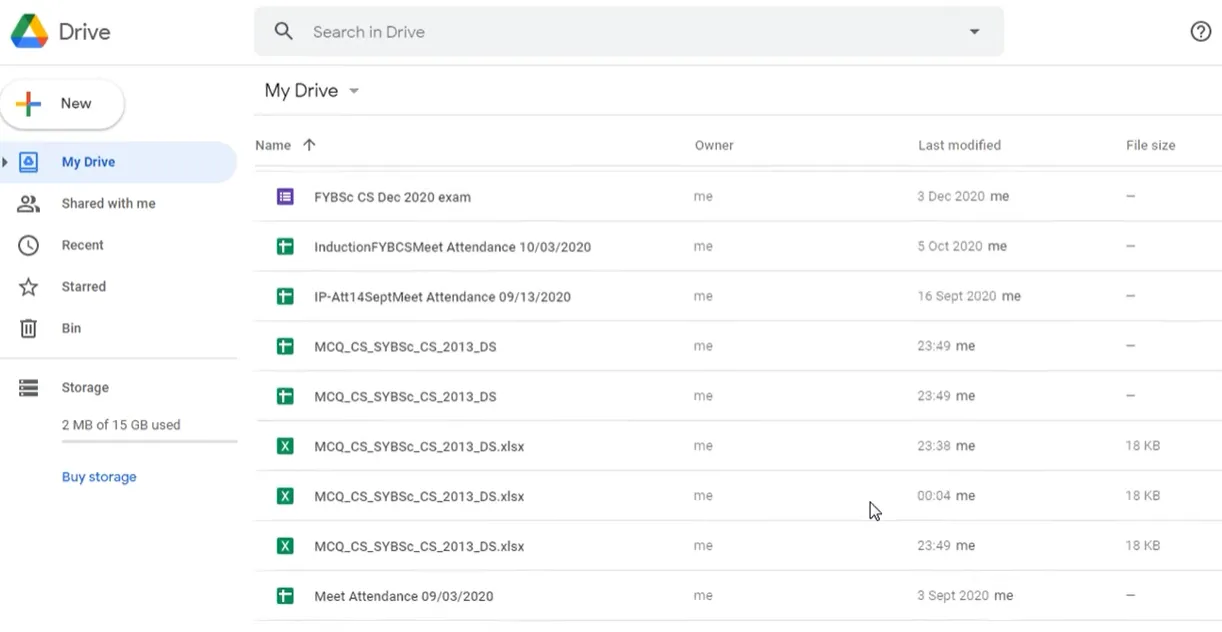
First things first—log into your Gmail account and navigate to Google Drive. You can’t directly import from Excel into Google Forms (wouldn’t that be nice?), so Google Sheets acts as the middleman.
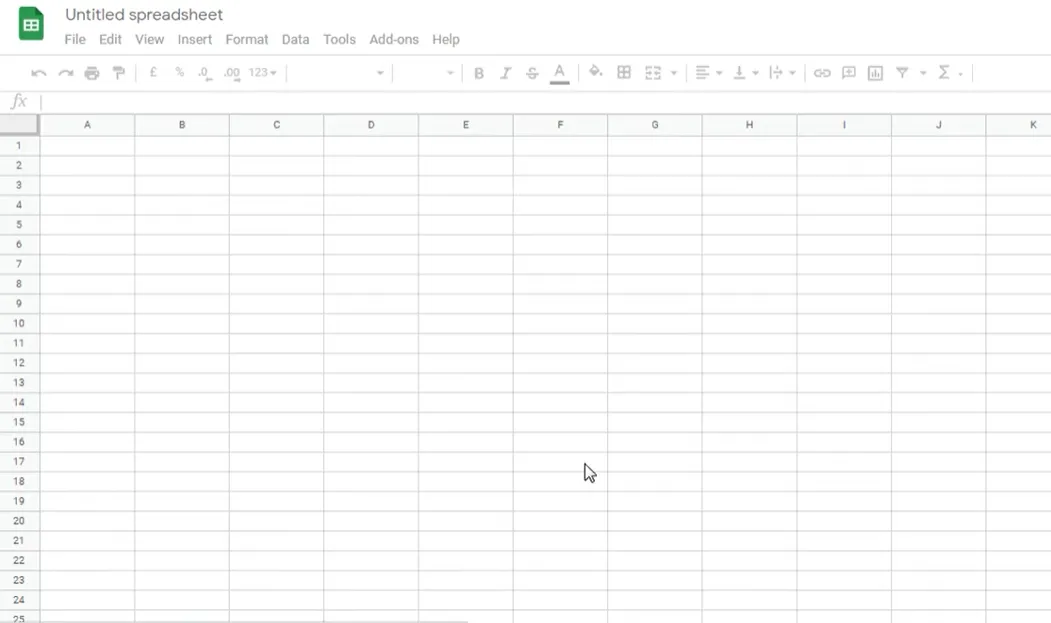
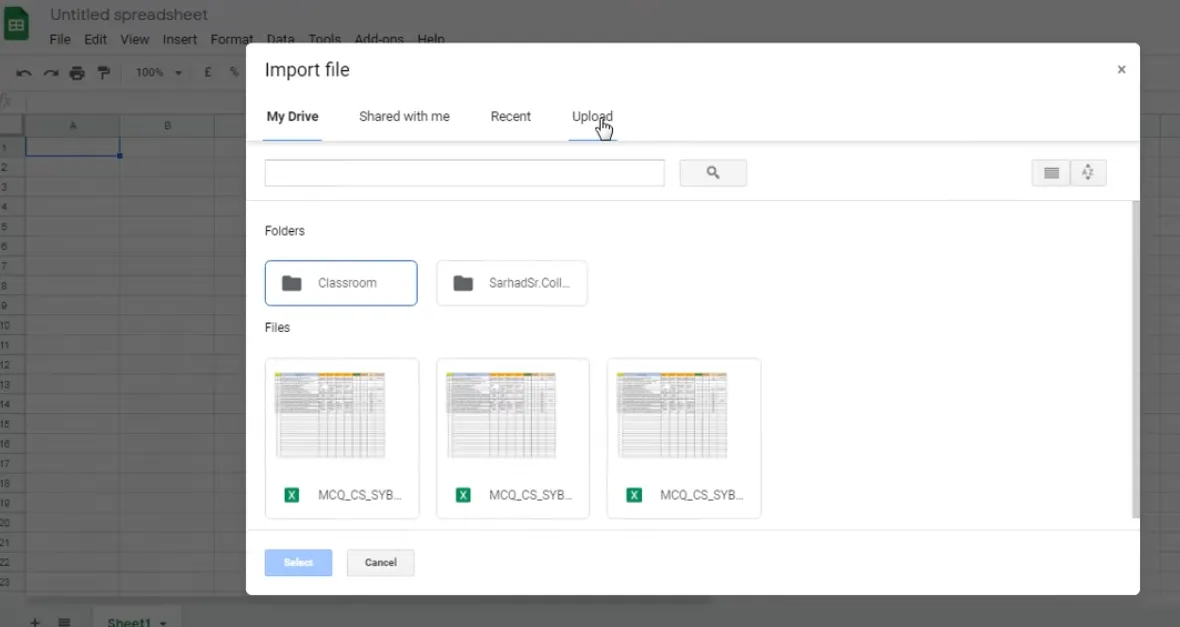
Create a new Google Sheet, then click on File → Import. Select the Upload tab and choose your Excel file from your device. When the upload dialog appears, select “Import data” and watch as your carefully crafted question bank populates the spreadsheet.
Pro tip: Give your sheet a meaningful name right away. Something like “Sample Question Bank – Data Science 101” beats “Untitled Spreadsheet” when you’re hunting through your Drive six months later.
Step 2: Install the Form Builder Add-on
Here’s where the magic happens. Google Sheets add-ons are like apps that extend functionality—and the Form Builder for Sheets add-on is your ticket to automated quiz creation.
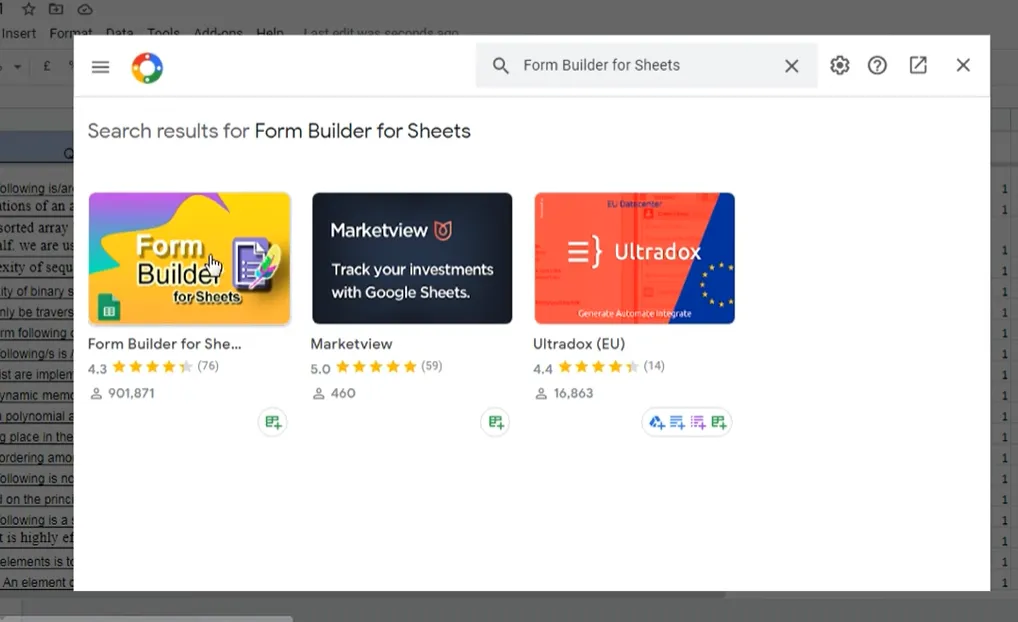
In your Google Sheet, click Extensions → Add-ons → Get add-ons. Search for “Form Builder for Sheets” and click Install. You’ll need to grant some permissions (the add-on needs access to create forms on your behalf), so review and click Allow.
Step 3: Configure Form Builder Settings
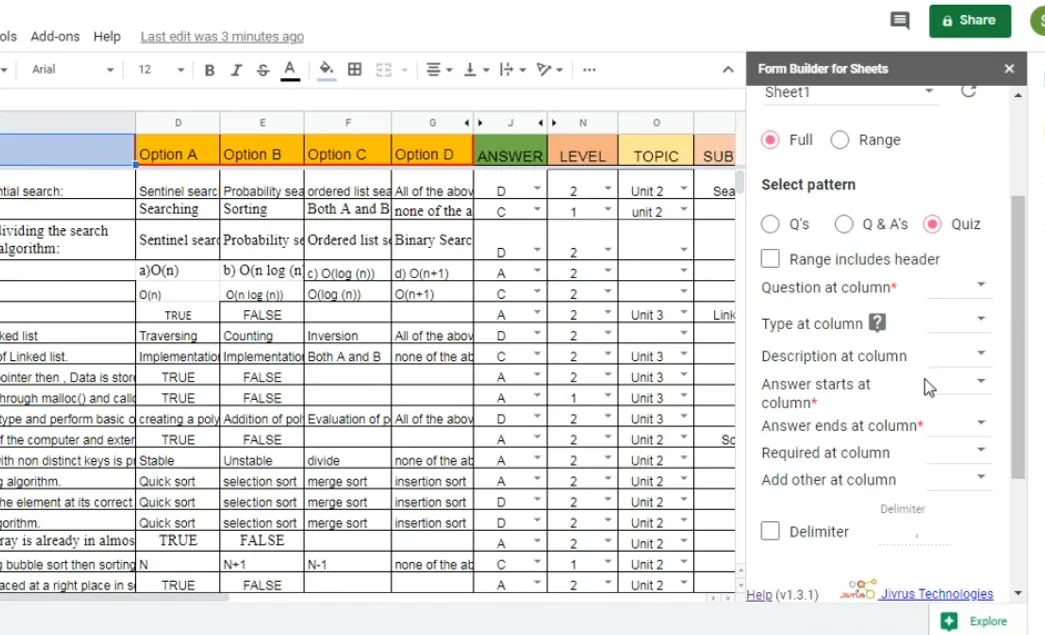
Once installed, click Extensions → Form Builder for Sheets → Start. A sidebar will appear on the right side of your screen—this is your control panel.

Now for the configuration. This part requires attention to detail, but don’t worry—it’s more straightforward than it looks:
- Source: Select your sheet (usually “Sheet1” by default)
- Range: Choose “Full” to include all data, or specify a range if you only want certain questions
- Pattern: Select “Quiz” (this tells the add-on you’re creating a graded assessment, not just a survey)
- Questions Column: Identify which column contains your questions (e.g., Column C)
- Answer Starts At: Where do your answer options begin? (e.g., Column D)
- Answer Ends At: Where do your options finish? (e.g., Column G for A-D options)
- Correct Answer Column: Which column shows the right answer? (e.g., Column J)
- Points Column: Where are the point values? (e.g., Column K)
Step 4: Customize Your Quiz Settings
Before you hit that magical “Create Form” button, scroll down in the Form Builder sidebar to find some genuinely useful options:
Randomize Questions: Want to prevent students from sharing answer sequences? Turn this on. Each student gets the same questions in a different order.
Shuffle Answer Order: Takes randomization one step further by mixing up the answer choices themselves. Question 1 might have “A, B, C, D” for one student and “C, D, A, B” for another.
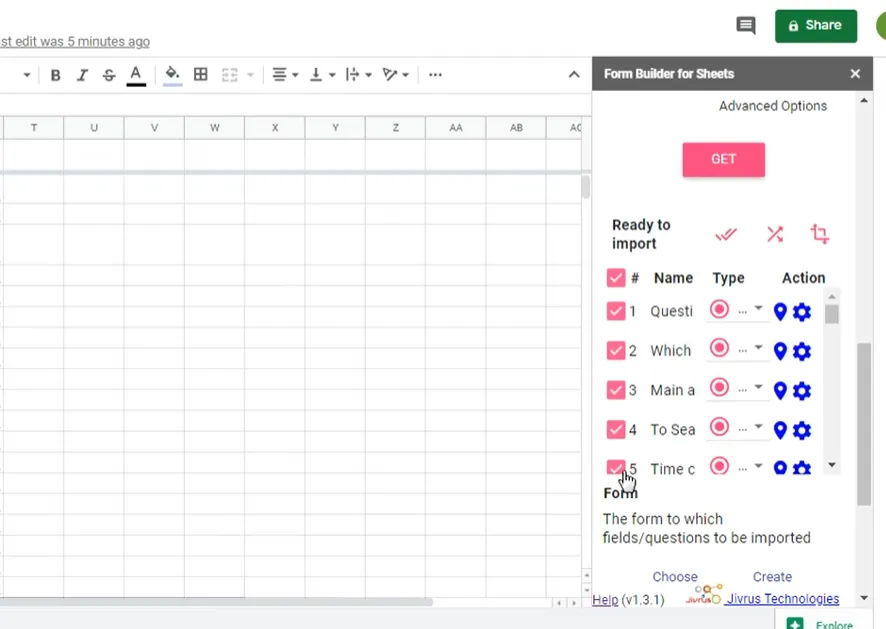
Select Specific Questions: Here’s a feature you’ll love—you don’t have to import your entire question bank. If you have 50 questions but only need 20 for this particular quiz, just select those 20. The Form Builder will deselect the first row automatically (since that’s usually your header row), but you can manually pick exactly which questions make the cut.
Step 5: Create and Import Your Form
Take a breath. You’re almost there.
Click Create Form and give your quiz a name. Something descriptive works best—”Data Science Quiz – Week 3″ tells you more than “Quiz 1.”
Then click Import Selected and wait. Depending on how many questions you’re importing, this might take anywhere from a few seconds to a minute or two. You’ll see a notification when the import completes successfully.
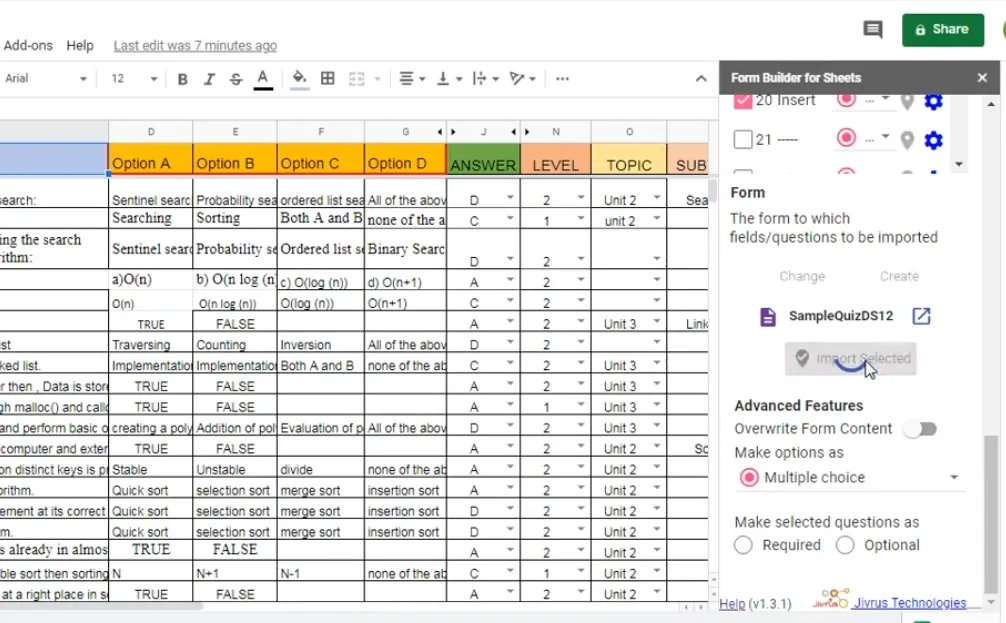
Click Open Form in the notification to view your newly created quiz. What you’ll see might just make you do a little happy dance—all your questions, properly formatted, with answer options in place and correct answers already marked.
Alternative Solution: OnlineExamMaker for AI-Powered Quiz Creation
While Google Forms with Form Builder works beautifully for many educators, it’s not the only game in town. If you’re looking for something with more bells and whistles—particularly artificial intelligence capabilities—OnlineExamMaker deserves a serious look.
OnlineExamMaker is an AI-powered exam creation platform specifically designed for teachers, trainers, and HR professionals who need to build assessments quickly without sacrificing quality. Here’s what sets it apart:
Create Your Next Quiz/Exam Using AI in OnlineExamMaker
AI-Assisted Question Generation
Imagine describing a topic to the software and having it generate relevant quiz questions automatically. That’s exactly what OnlineExamMaker’s AI functionality does. Feed it your course material, textbook chapter, or training module content, and it will propose questions based on that material.
Is it perfect? No—AI-generated questions still need human review and editing. But it’s a massive time-saver when you’re building a question bank from scratch or need inspiration for new questions.
Bulk Upload Capabilities
Like the Google Forms method we’ve covered, OnlineExamMaker supports bulk question uploads from Excel. The difference? It’s built into the platform from the ground up, so there’s no need for add-ons or workarounds. Upload your spreadsheet, map your columns, and you’re done.
Advanced Quiz Features
OnlineExamMaker includes features that Google Forms simply doesn’t offer:
- Time limits per question (not just overall)
- Question pools (randomly pull questions from categories)
- Multimedia questions with video or audio
- More question types beyond multiple choice
- Anti-cheating measures like browser lockdown
- Detailed analytics and reporting
- Certificate generation upon completion
When to Choose OnlineExamMaker Over Google Forms
Google Forms is free, familiar, and works perfectly fine for straightforward quizzes. But consider OnlineExamMaker if:
- You’re conducting high-stakes assessments where security matters
- You need professional-looking certificates for completed courses
- You want AI assistance in generating questions
- You require detailed analytics beyond basic correct/incorrect tracking
- You’re building a large question bank and want sophisticated organization tools
The platform offers both free and paid tiers, so you can test it out before committing financially.
Frequently Asked Questions
Can I import questions with images?
The basic Form Builder add-on handles text-based questions and answers. For questions requiring images, you’ll need to add those manually after importing, or use a platform like OnlineExamMaker that supports multimedia in bulk uploads.
What if my Excel file has more than four answer options?
No problem at all. Simply adjust the “Answer Ends At” column in Form Builder to include columns E, F, G, or however many options you have. The process works the same whether you have two options or ten.
Can I edit questions after importing?
Absolutely. Once imported into Google Forms, your questions behave exactly like manually created ones. Edit the text, change options, adjust point values—whatever you need.
Is my question data secure?
Form Builder is a third-party add-on, so it’s worth reviewing their privacy policy. That said, your data stays within Google’s ecosystem. The add-on reads from your Sheet and writes to Google Forms, but doesn’t store your questions on external servers.
Can I import the same questions into multiple forms?
Yes, you can use your Excel question bank as many times as you want. Just run the import process again and create a new form each time. This is perfect for creating multiple versions of the same exam or reusing questions across different courses.
What happens if I update my Excel sheet after importing?
The Google Form doesn’t automatically update. Think of the import process as a one-time copy operation. If you make changes to your Excel question bank, you’ll need to import again to create an updated form.
Final Thoughts: Work Smarter, Not Harder
Bulk importing quiz questions from Excel to Google Forms isn’t just a technical trick—it’s a fundamental shift in how you approach assessment creation. Instead of spending hours on repetitive data entry, you invest that time in what actually matters: crafting better questions, providing meaningful feedback, and engaging with your students.
The process we’ve covered—uploading to Google Sheets, installing Form Builder, configuring settings, and importing—might seem like several steps, but remember that you’re doing it once to save time dozens or hundreds of times in the future. Your future self will thank you.
Whether you stick with Google Forms or explore AI-powered alternatives like OnlineExamMaker, the principle remains the same: use technology to eliminate tedious tasks so you can focus on the human elements of teaching that technology can’t replicate.
Now go build that question bank. Import those quizzes. And reclaim those hours you’ve been spending on copy-paste.
