Google’s “Locked mode” feature transforms Chromebook classroom into a secure testing environment where wandering browsers simply can’t wander. Let’s dive into how this works and why it might just become your new favorite teaching tool.
- What is Browser Lockdown in Google Forms?
- How to Create a Locked Quiz Directly in Google Forms?
- What Students Experience in Locked Mode
- Requirements and Limitations You Should Know
- OnlineExamMaker: A Better Alternative for Quiz Security
- Best Practices for Locked Browser Quizzes
What is Browser Lockdown in Google Forms?
Browser lockdown—or “Locked mode” in Google speak—is essentially a digital hall monitor. When enabled, it restricts students on managed Chromebooks from accessing other tabs, apps, or keyboard shortcuts during a quiz. No more Alt-Tabbing to search for answers. No screenshots. Just the quiz, staring back at them.
Think of it as putting your quiz in a secure bubble. The moment students click “Start Quiz,” their Chromebook enters kiosk mode. All other tabs close automatically, and they can’t open new ones until they submit their answers.
But here’s the clever part: Once they finish, all their previously open tabs magically reappear. No lost work, no frustrated students wondering where their research paper went.
How to Create a Locked Quiz Directly in Google Forms?
Prefer to start in Google Forms itself? The process is equally straightforward:
- Open Google Forms and create a new form or open an existing one
- Click the Settings icon (that little gear in the upper right)
- Navigate to the “Quizzes” tab
- Toggle “Make this a quiz” on if it isn’t already
- Scroll to “Chromebook settings”
- Turn on “Locked mode” and save
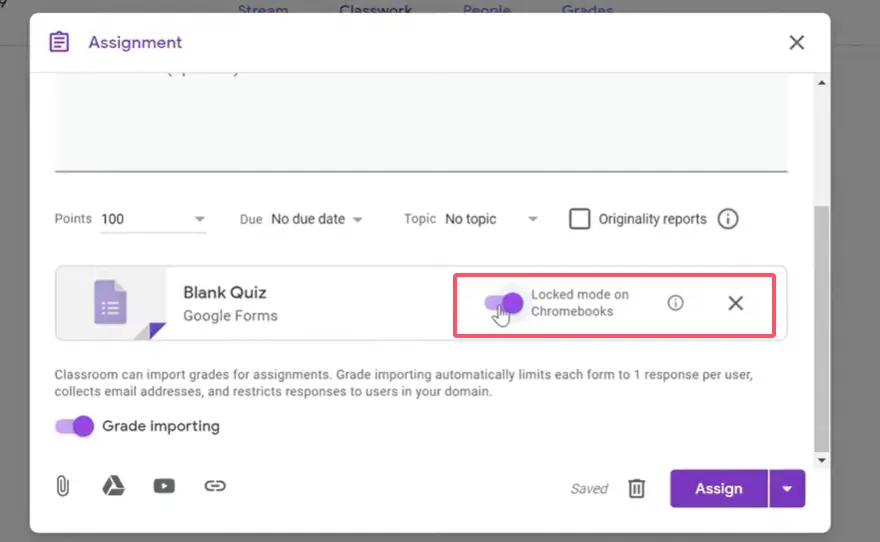
Remember: You’ll need a Google Workspace for Education account for this to work. Regular Gmail accounts won’t see this option.
What Students Experience in Locked Mode
Let’s walk through what happens from a student’s perspective. Understanding this helps you prepare them and troubleshoot issues.
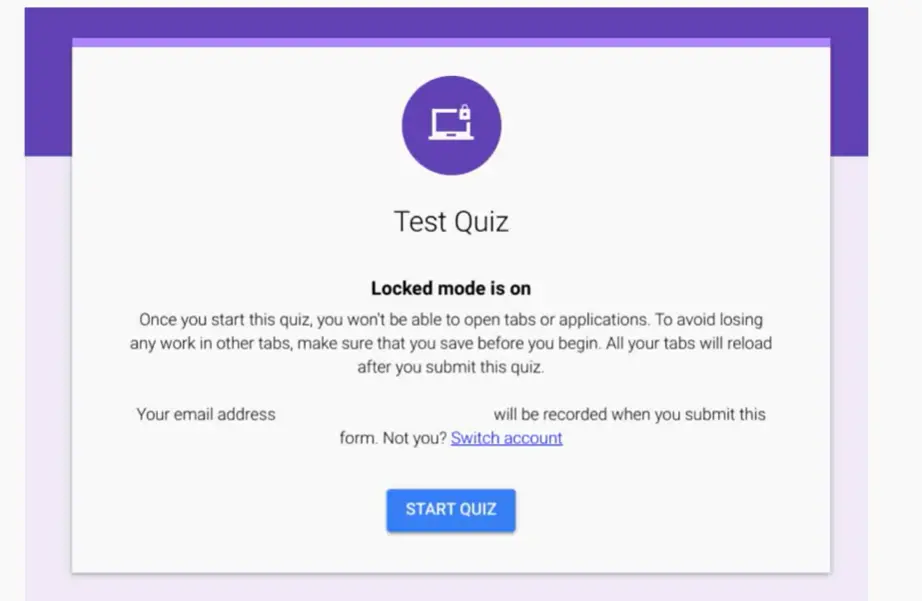
When students click to begin the quiz from Google Classroom:
- A warning appears explaining that starting the quiz will close all other tabs
- They click “Start Quiz” to proceed
- All tabs immediately close—they’re now in the locked environment
- They complete the quiz with no distractions or temptations
- Upon submission, tabs reopen exactly as they were before
What can’t students do in locked mode?
- Open new tabs or windows
- Switch to other applications
- Take screenshots
- Use keyboard shortcuts to escape
- Access bookmarks or browser history
The Exit Scenario
If a student tries to close the quiz early, Google doesn’t mess around. A warning message appears: “If you close the quiz, your responses will not be submitted. Opening the quiz again will notify the form owner.”
That notification is crucial. You’ll know if students exit and attempt to restart. This helps you identify technical issues versus, shall we say, creative test-taking strategies.
Requirements and Limitations You Should Know
Before you get too excited, let’s talk about the fine print. Locked mode isn’t universal—it has specific requirements:
| Requirement | Details |
|---|---|
| Device Type | School-managed Chromebooks only (ChromeOS 75 or higher) |
| Account Type | Google Workspace for Education |
| Access Control | Quiz must be restricted to your domain |
| Email Collection | Must be enabled |
| Response Limit | One response per user |
The big limitation? This only works on Chromebooks. Students using PCs, Macs, tablets, or phones can still take the quiz—but without the lockdown protections. They’ll see the regular quiz interface.
For schools with mixed device environments, this creates an equity issue. Some students face strict controls while others don’t. You’ll need to plan accordingly, perhaps offering separate testing sessions or alternative security measures.
Notification Features
Google keeps you informed about student behavior. You’ll receive notifications if:
- Students exit the quiz early without submitting
- Students reopen the quiz within 30 days
- Suspicious activity patterns emerge
These notifications help you maintain quiz integrity without constantly monitoring screens.
OnlineExamMaker: A Better Alternative for Quiz Security
While Google Forms locked mode works well for Chromebook-only classrooms, many educators need more robust security across all devices. That’s where OnlineExamMaker comes in—a dedicated quiz platform designed specifically for secure assessments.
OnlineExamMaker addresses the main limitation of Google Forms: device compatibility. It provides lockdown browser capabilities and AI-powered proctoring for any device—Windows, Mac, or Chromebook.
Here’s what sets it apart:
- Cross-platform browser lockdown that works on all major operating systems
- AI proctoring that monitors student behavior through webcam
- Screen recording for review if needed
- Automatic flagging of suspicious activities
- Advanced question types beyond multiple choice
Create Your Next Quiz/Exam Using AI in OnlineExamMaker
How to Enable Lockdown Browser in OnlineExamMaker?
Setting up security in OnlineExamMaker is surprisingly simple:
- Create your quiz using OnlineExamMaker’s question builder
- Navigate to Quiz Settings
- Find “Anti Cheating” in the left menu
- Toggle “Enable Full-screen Browser” to activate
- Configure AI proctoring settings:
- Enable webcam monitoring
- Set detection sensitivity (low, medium, high)
- Choose which behaviors to flag (looking away, multiple faces, tab switching attempts)
- Save and publish your quiz
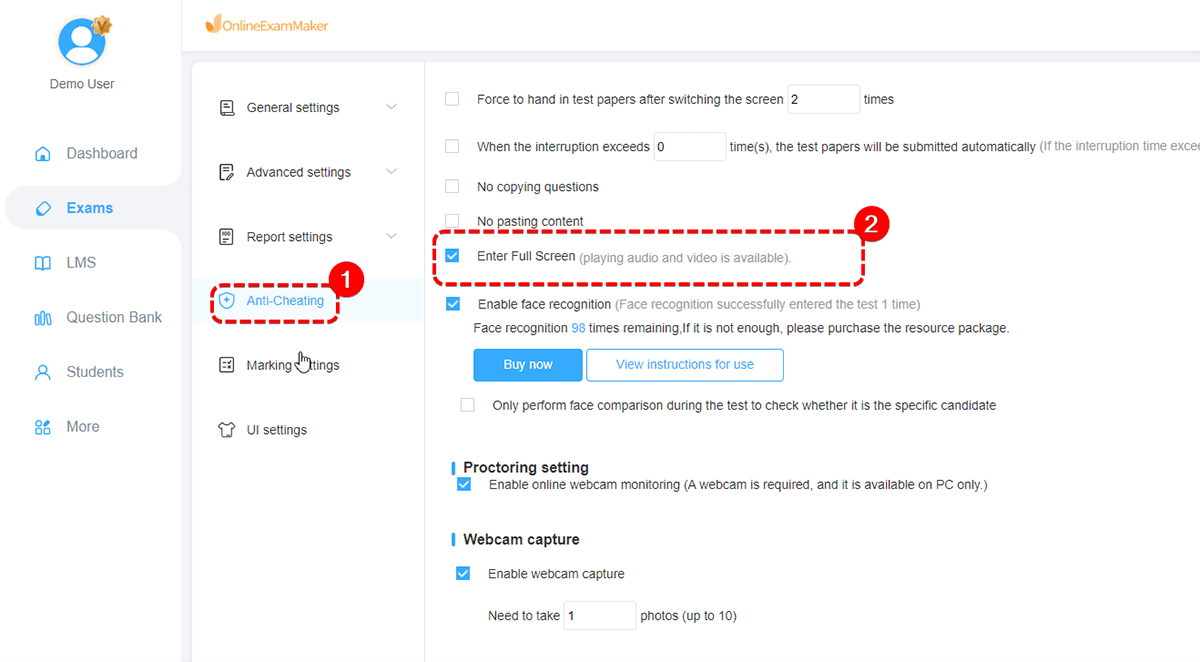
Students taking the quiz will be prompted to download a secure browser plugin (one-time setup) or use a web-based lockdown mode depending on your configuration.
When OnlineExamMaker Makes Sense
Consider OnlineExamMaker if you:
- Have students using mixed devices (not just Chromebooks)
- Need remote testing capabilities for hybrid or online learning
- Want AI proctoring for high-stakes assessments
- Require detailed security reports and analytics
- Need more advanced question types (fill-in-blank, matching, essay with AI grading)
The platform does require a subscription, but many schools find the cross-device compatibility and enhanced security features worth the investment for summative assessments.
Best Practices for Locked Browser Quizzes
Whether you use Google Forms or OnlineExamMaker, follow these practices to maximize effectiveness:
Before the Quiz
- Run a practice quiz so students experience locked mode before it counts
- Verify all Chromebooks are updated to ChromeOS 75 or higher
- Check device enrollments with your IT department
- Communicate clearly with students about what to expect
- Have a backup plan for technical failures
During the Quiz
- Monitor notifications for students who exit early
- Be available for technical support questions
- Keep traditional proctoring for the first few locked quizzes
- Note any patterns in technical issues for future improvement
After the Quiz
- Review completion times for unusual patterns
- Check notification logs for multiple reopening attempts
- Gather student feedback about the experience
- Use instant feedback data to identify concepts needing review
Designing Better Quiz Questions
Locked browser or not, good questions matter more than perfect security. Focus on:
- Application over recall—ask students to use knowledge, not just remember it
- Scenario-based questions that require critical thinking
- Question randomization from larger question banks
- Time limits that discourage leisurely googling (but allow genuine thinking)
The Bottom Line
Browser lockdown in Google Forms isn’t perfect, but it’s a solid tool for Chromebook classrooms. It prevents the easy temptations—the quick Google search, the sneaky tab switch—without requiring expensive third-party software.
For schools with diverse device ecosystems or remote testing needs, platforms like OnlineExamMaker offer more comprehensive solutions with cross-device support and AI proctoring.
Ultimately, the best approach combines smart technology with thoughtful assessment design. Lock down the browser, sure. But also write questions that can’t be easily Googled. Provide instant feedback that turns assessment into learning. Create a culture where understanding matters more than scores.
Because at the end of the day, the goal isn’t just preventing cheating—it’s fostering genuine learning. Browser lockdown is simply one tool in that larger mission.
