What if you could weave your Kahoot quiz directly into your PowerPoint deck? No tab-switching, no awkward pauses, just seamless interaction that keeps your audience locked in. Whether you’re a teacher trying to energize a Friday afternoon class or a trainer running a corporate workshop, embedding Kahoot into PowerPoint is like adding rocket fuel to your presentations.
- Why Bother Integrating Kahoot with PowerPoint?
- Option 1: The Kahoot! Add-In Method (The Pro Move)
- Option 2: The Simple Link Method (The Quick Fix)
- An Alternative Tool: Creating Interactive Quizzes with AI in OnlineExamMaker
- FAQs about Sharing Kahoot to Powerpoint
Why Bother Integrating Kahoot with PowerPoint?
Before we get into the nuts and bolts, let’s address the elephant in the room: why not just run Kahoot separately? Fair question. Here’s why integration matters.
First, according to research published in Computers & Education, game-based learning platforms like Kahoot can increase student engagement by up to 89% when seamlessly integrated into instructional materials. When you embed Kahoot directly into PowerPoint, you’re not just adding a quiz—you’re creating a unified learning experience that flows naturally from content delivery to knowledge assessment.
Second, there’s the practical side. You maintain control. No fumbling with browser tabs while twenty pairs of eyes watch you struggle to find the right window. No “Can everyone still see my screen?” moments. Everything lives in one place, which means you look polished, professional, and prepared.
And let’s be honest—when you’re running a training session at 3 PM on a Tuesday afternoon, every tool that helps you maintain energy in the room is worth its weight in gold.
Option 1: The Kahoot! Add-In Method (The Pro Move)
This is the method you want to master. It’s the difference between being a PowerPoint amateur and a presentation wizard who makes technology work for them instead of against them.
Step 1: Install the Kahoot! Add-In
Open up PowerPoint—desktop version works best here—and navigate to the Insert tab at the top of your screen. Look for the button that says Get Add-ins. If you’re on a newer version of PowerPoint, you might see My Add-ins instead; just click that and then select Store.
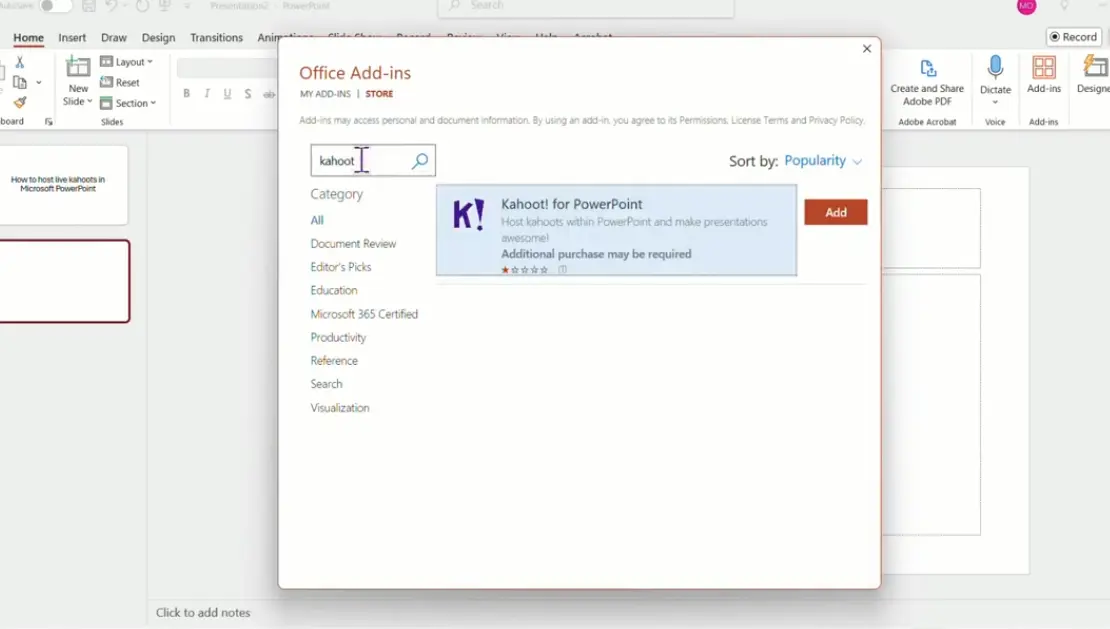
Once the add-ins marketplace opens (think of it as an app store, but boring and Microsoft-branded), type “Kahoot!” into the search bar. The official Kahoot add-in should pop up immediately. Click Add, and PowerPoint will do its thing, installing the add-in in the background.
Here’s a pro tip: Make sure you’re connected to the internet during installation. Sounds obvious, but you’d be surprised how many people try to download add-ins while their laptop is in airplane mode.
Step 2: Prepare Your Slide
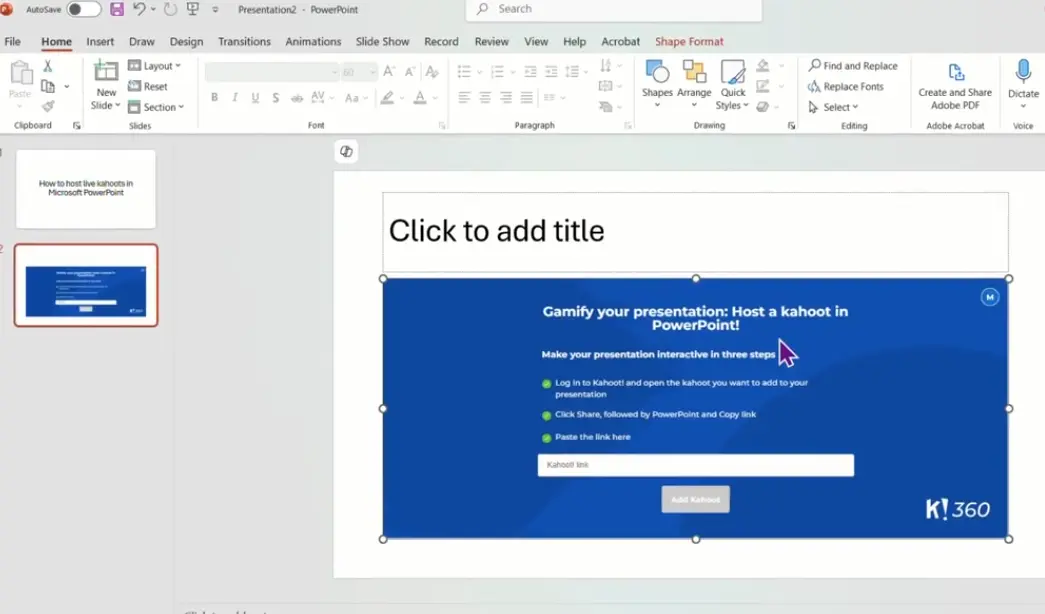
Create a blank slide in your deck where you want the quiz to appear. This is important—don’t try to cram the Kahoot quiz onto a slide that’s already full of text and images. Give it breathing room. Think of it as the intermission before the main event, or the commercial break that’s actually more entertaining than the show.
A clean slide signals to your audience: “Something different is about to happen.” It builds anticipation.
Step 3: Access the Add-In
Go back to the Insert tab and look for your newly installed Kahoot! add-in. Click it to open the add-in panel, which will appear on the right side of your PowerPoint window. This panel is your mission control for all things Kahoot within PowerPoint.
Step 4: Link Your Kahoot
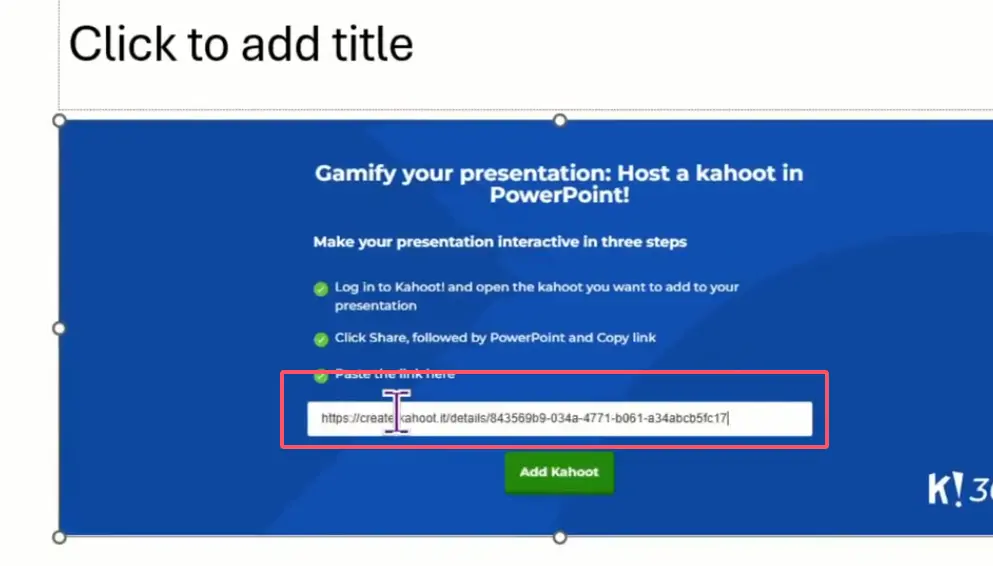
Now comes the critical part. You’ll need to log in to your Kahoot account through the add-in. Once you’re logged in, don’t just paste any random Kahoot link—go to your Kahoot dashboard in a browser, find the specific quiz you want to use, click the Share button, and look for the PowerPoint icon. Copy that specialized shareable link.
Why the special link? Because Kahoot generates different link formats for different purposes, and the PowerPoint-specific one ensures optimal compatibility. It’s like using the right key for the right lock.
Paste this link into the add-in panel, and voilà—your Kahoot quiz is now embedded in your slide.
Step 5: Run Your Presentation
When you enter slideshow mode and reach your Kahoot slide, you can host the live Kahoot directly from within PowerPoint. No browser windows, no separate tabs, no chaos. Your participants can join using their devices as normal, but you’re controlling everything from your presentation deck.
This method is supported by Kahoot’s official announcement from May 2024, which highlights how this integration creates a “seamless presentation experience” for educators and trainers.
Option 2: The Simple Link Method (The Quick Fix)
Not everyone needs the full-featured add-in experience. Sometimes you just need to slap a link on a slide and call it a day. No judgment—we’ve all been there.
Step 1: Get Your Kahoot Link
In your Kahoot dashboard, open the quiz you want to share, click Share, and copy the web link. This is the basic URL that anyone can use to access your Kahoot.
Step 2: Insert the Link in PowerPoint
In your PowerPoint slide, highlight some text (like “Click here to start the quiz” or “Launch Kahoot”), then go to Insert → Link. You can also right-click the text and select Link from the context menu. Paste your Kahoot URL into the address field and click OK.
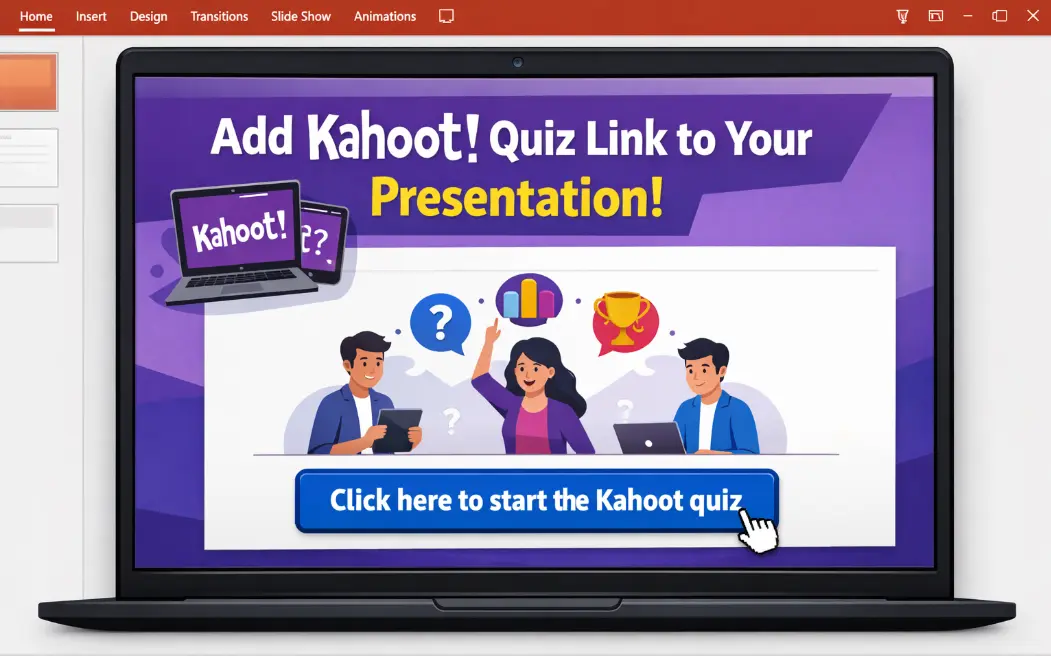
For a cleaner look, you can attach the link to a shape or button. Create a rectangle, format it to look like a button, then add the link the same way.
Step 3: Test Your Link
Before your presentation, run through your slideshow and click the link to make sure it opens correctly. The Kahoot will launch in your default web browser, which means you’ll need to switch between PowerPoint and the browser during your actual presentation.
Is this method as smooth as the add-in? Nope. But it works in a pinch, especially if you’re using a version of PowerPoint that doesn’t support add-ins (looking at you, PowerPoint Online) or if you’re presenting on someone else’s computer.
An Alternative Tool: Creating Interactive Quizzes with AI in OnlineExamMaker
Enter OnlineExamMaker—a platform that’s been quietly revolutionizing how trainers and educators create assessments. What sets it apart? AI-powered quiz generation. Instead of manually crafting every single question, you can feed OnlineExamMaker your content—lecture notes, training materials, even entire documents—and let the AI generate quiz questions automatically.
According to user reports, OnlineExamMaker can reduce quiz creation time by up to 70% compared to manual methods. For busy teachers and trainers who are already stretched thin, that’s not just convenient—it’s transformative.
The platform also offers more question types than Kahoot, including fill-in-the-blank, matching, essay questions, and even file upload submissions. If you’re running professional training or higher education courses where you need more sophisticated assessment options, OnlineExamMaker gives you that flexibility.
Plus, it integrates with PowerPoint too. You can export quizzes as SCORM packages or generate shareable links that work the same way as Kahoot links. The interface isn’t as game-show flashy as Kahoot, but if substance matters more than style in your context, it’s worth exploring.
You can embed OnlineExamMaker quizzes in PowerPoint using the same link method described in Option 2. Just create your quiz in OnlineExamMaker, generate a shareable link, and insert it into your slide. Simple.
Create Your Next Quiz/Exam Using AI in OnlineExamMaker
FAQs about Sharing Kahoot to Powerpoint
Can I use Kahoot in PowerPoint without an internet connection?
No. Kahoot is a cloud-based platform, which means both you and your participants need an active internet connection. If you’re presenting somewhere without reliable WiFi, consider using an offline quiz tool instead.
Do participants need Kahoot accounts to join?
Nope. Participants only need a device with a web browser and the game PIN you provide. They don’t need to create accounts or download apps, which is one of Kahoot’s biggest advantages—low barrier to entry.
Can I edit my Kahoot after embedding it in PowerPoint?
Absolutely. The embedded link points to your Kahoot on their servers, so any changes you make to the quiz in your Kahoot dashboard will automatically be reflected when you run the presentation. No need to re-embed anything.
Does the add-in work on Mac?
Yes, the Kahoot add-in works on PowerPoint for Mac, but you need Office 365 or PowerPoint 2019 or later. Older Mac versions of PowerPoint don’t support add-ins.
How many people can join a Kahoot quiz at once?
It depends on your Kahoot plan. The free version supports up to 50 participants. Paid plans scale up from there, with enterprise options supporting thousands of concurrent users.
What’s better for large corporate training—Kahoot or OnlineExamMaker?
It depends on your goals. If you want engagement and energy in the room, Kahoot’s game-show format wins hands down. If you need detailed assessment data, multiple question types, and AI-assisted quiz creation, OnlineExamMaker is the stronger choice. Many trainers use both—Kahoot for live engagement, OnlineExamMaker for formal assessments.
Final Thoughts
Integrating Kahoot into PowerPoint isn’t rocket science, but it does require a bit of setup and planning. The payoff? Presentations that don’t just inform but engage. Training sessions that people actually remember. Classes where students lean forward instead of tuning out.
Whether you go with the full-featured add-in method or the quick link approach, the key is making technology serve your teaching goals rather than getting in the way of them. Master these tools, and you’ll never have to suffer through another lifeless presentation again.
Now get out there and make your next PowerPoint quiz-tastic.
