In this AI age, createing an engaging quiz for your teaching is not a touch work now. Welcome to the world of AI-powered quiz generation, where your PowerPoint slides become interactive assessments faster than you can say “formative evaluation.”
- Why AI Quiz Generation Changes Everything for Teachers
- Three Powerful Ways to Convert PowerPoint to Quizzes
- OnlineExamMaker: Your PowerPoint-to-Quiz Command Center
- Step-by-Step Guide: Creating AI Quizzes in OnlineExamMaker
- Advanced Features That’ll Make Your Colleagues Jealous
- Real-World Applications Across Different Teaching Scenarios
Why AI Quiz Generation Changes Everything for Teachers
Let’s be honest—traditional quiz creation is about as exciting as watching paint dry in a windowless classroom. You extract key points from your slides, rephrase them as questions,
create plausible distractors, format everything properly, and then upload it to whatever LMS your district decided to adopt this year.
The average teacher spends approximately 7-10 hours per week on assessment creation and grading. That’s nearly a full workday consumed by tasks that, frankly, AI
can now handle with surprising sophistication.
But here’s what makes AI quiz generation genuinely transformative rather than just convenient: it doesn’t simply save time. It fundamentally reimagines how quickly you can iterate
on assessments, experiment with question formats, and personalize learning experiences for different student groups.
Think about it. When quiz creation takes ten minutes instead of two hours, you’re suddenly free to create multiple versions for differentiation. You can generate practice quizzes
without guilt. You can actually assess more frequently, which every educational researcher since the dawn of time has told us improves learning outcomes.
Three Powerful Ways to Convert PowerPoint to Quizzes
Not all AI quiz tools are created equal, and your choice depends on what you actually need. Some teachers want seamless integration with their existing presentation workflow.
Others need standalone quiz platforms with robust analytics. Let’s break down your options.
Option 1: Upload Your PPT to a Dedicated AI Quiz Platform
This approach is beautifully straightforward. You’ve already created your PowerPoint. Now you’re simply feeding it to a specialized AI that knows how to extract meaningful
assessments from educational content.
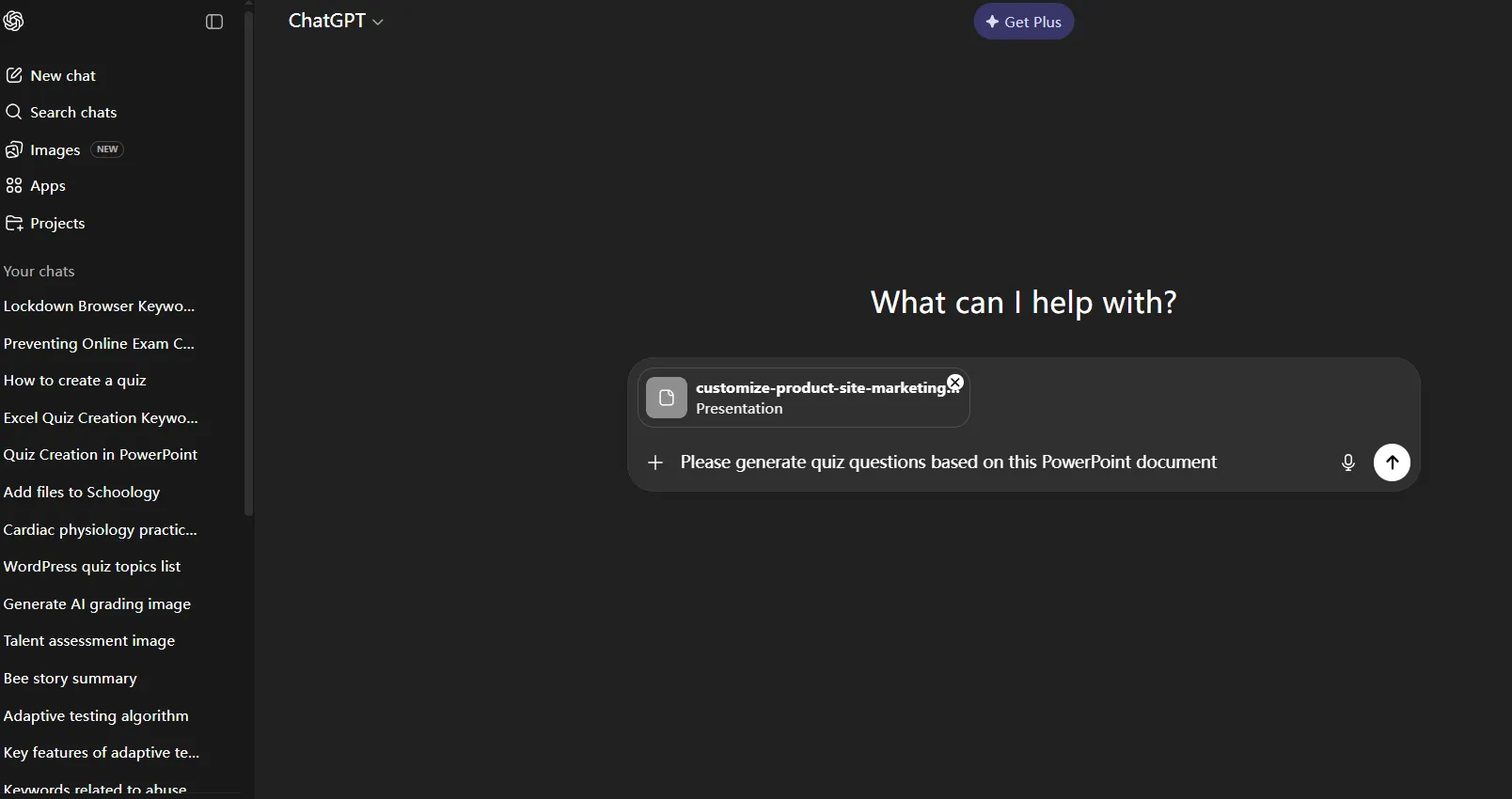
Tools like OnlineExamMaker, ChatGPT, and TurinQ operate on this model. You upload your .ppt or .pptx file, and the AI analyzes your slide text, notes, and even
embedded images to generate questions.
- Navigate to the AI quiz platform
- Upload your PowerPoint file
- Watch as the AI generates multiple-choice, true/false, and fill-in-the-blank questions
- Edit and refine the generated questions
- Export to Google Forms, your LMS, or printable formats
What’s particularly clever about these platforms is that they don’t just pull random sentences from your slides. They identify key concepts, educational objectives, and critical
information—then formulate questions that actually test comprehension rather than mere memorization.
Option 2: Use an AI Quiz Add-in Inside PowerPoint
If you’re the kind of teacher who lives inside PowerPoint and presents directly from your slides, this option might feel more natural. AI quiz add-ins like ClassPoint
AI integrate directly into your PowerPoint environment.
The magic here? You never leave your presentation software. Open a slide, click the add-in button, and it “reads” that specific slide to generate relevant quiz questions. You can
then insert these as interactive quiz slides right into your deck.
During class, you present normally until you hit a quiz slide. Students respond in real-time using their devices, and you see results immediately. It’s like having a built-in
student response system that required zero setup beyond installing the add-in.
Option 3: Generate Complete Quiz Presentations from Scratch
Some AI tools take a different approach entirely. Platforms like AiPPT and SlidesAI can create entire quiz presentations from just a topic description or by
analyzing your existing slides to generate new, quiz-focused presentations.
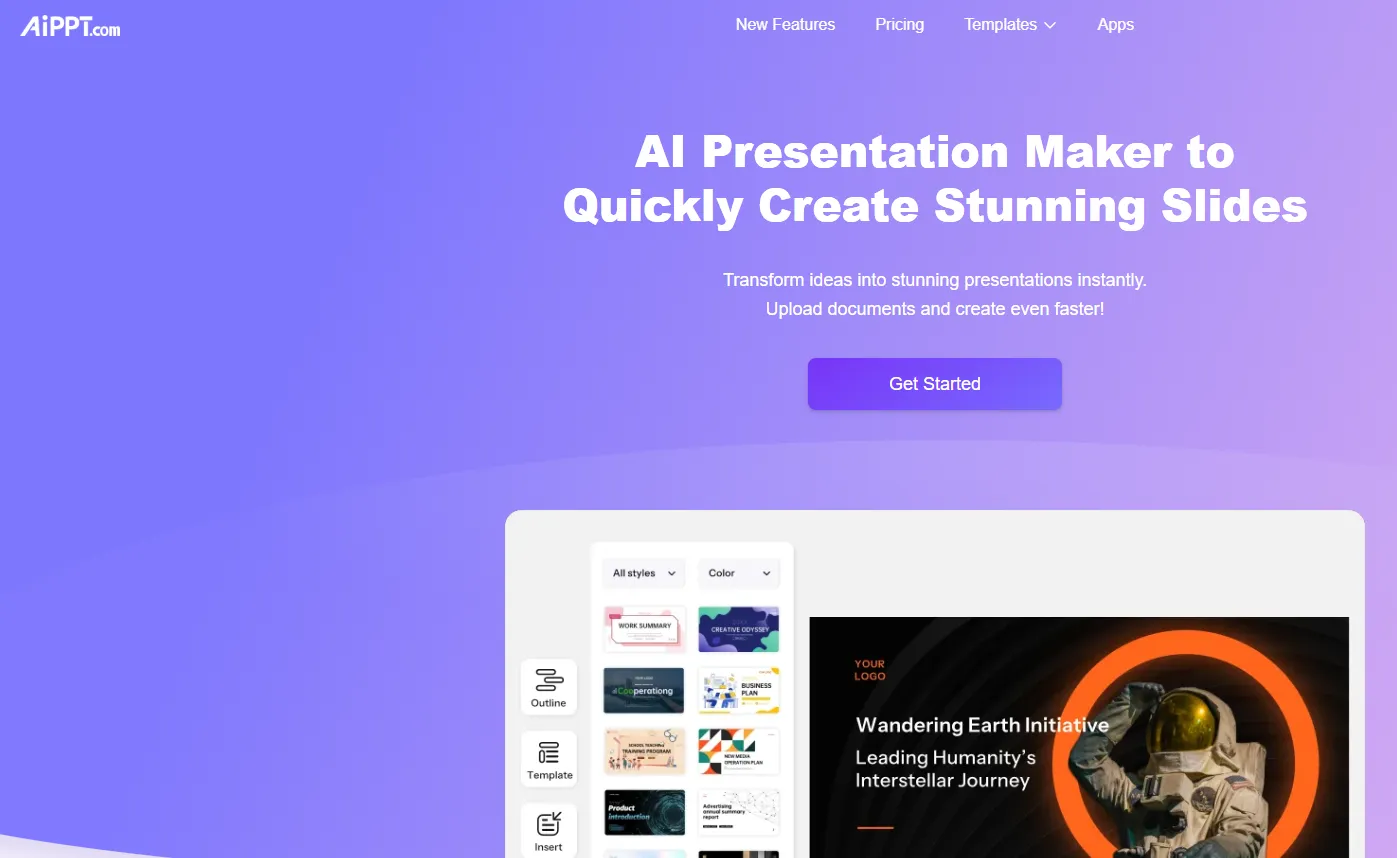
This method works brilliantly when you want a standalone assessment deck rather than converting your teaching slides. Provide your subject matter, specify your parameters, and
receive ready-made quiz slides complete with question layouts, answer buttons, and even design elements.
OnlineExamMaker: Your PowerPoint-to-Quiz Command Center
Among the various AI quiz platforms available, OnlineExamMaker stands out as particularly teacher-friendly. It’s not trying to be everything to everyone—instead,
it focuses on doing one thing exceptionally well: turning your existing content into professional-grade assessments.
What makes OnlineExamMaker worth your attention? Several things, actually.
First, it handles multiple input formats beyond PowerPoint, including Word documents, and PDFs. This flexibility means you’re not locked into one content
format. That guest speaker’s presentation? Quiz it. That documentary you showed in class? Quiz it. Your own lecture notes? You guessed it.
Second, the AI behind OnlineExamMaker demonstrates genuine understanding of educational assessment principles. It doesn’t just extract random facts—it identifies learning
objectives, creates questions at various Bloom’s Taxonomy levels, and generates plausible distractors that test genuine understanding rather than lucky guessing.
Create Your Next Quiz/Exam Using AI in OnlineExamMaker
| Feature | OnlineExamMaker | Generic Quiz Tools |
|---|---|---|
| PowerPoint Processing | Advanced AI analysis of content structure | Basic text extraction |
| Question Types | 15+ formats including essay, matching, hotspot | Usually limited to MCQ and T/F |
| Bloom’s Taxonomy Levels | Automatically generates questions across all levels | Primarily knowledge/comprehension level |
| Export Options | LMS integration, Google Forms, printable, embeddable | Limited export formats |
| Analytics | Detailed performance tracking and item analysis | Basic scoring |
Third, OnlineExamMaker offers robust analytics that actually help you improve your teaching. You don’t just see who passed and who failed—you see which questions confused everyone,
which distractors fooled the most students, and which concepts need reteaching.
Step-by-Step Guide: Creating AI Quizzes in OnlineExamMaker
Enough theory. Let’s get practical. Here’s exactly how to transform your PowerPoint into an assessment using OnlineExamMaker’s AI capabilities.
Create Your Next Quiz/Exam Using AI in OnlineExamMaker
Step 1: Set Up Your OnlineExamMaker Account
Navigate to the OnlineExamMaker website and create your free account. The signup process is refreshingly straightforward—email, password, done. No need to provide your school’s tax
ID number or sacrifice your firstborn.
Once you’re in, you’ll land on the main dashboard. It’s clean, uncluttered, and actually designed with teachers in mind rather than looking like it was borrowed from a 1990s
banking platform.
Step 2: Access the AI Quiz Generator
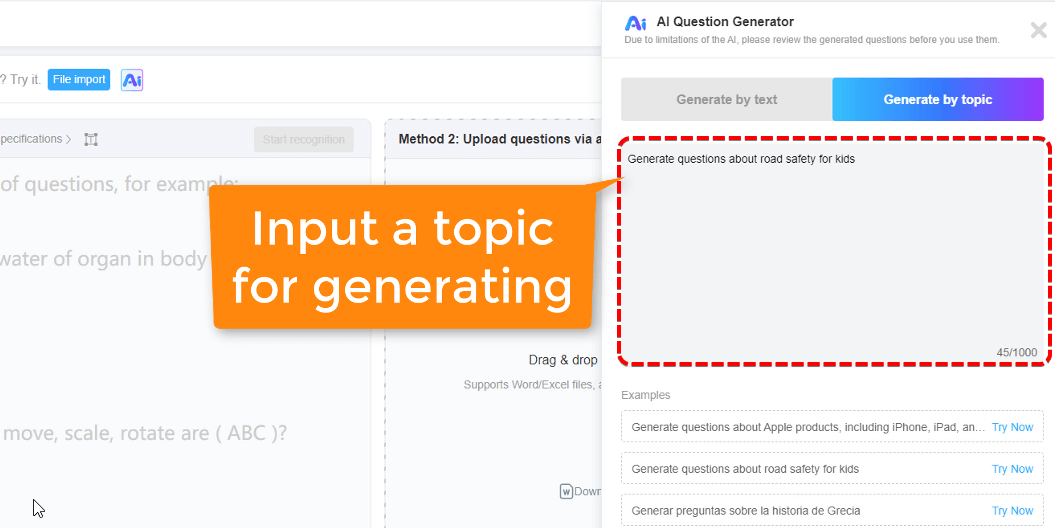
From your dashboard, locate the “AI Question Generator” option. This is your portal to automated quiz creation. Click it, and you’ll see options for different
input methods.
Pro tip: Before uploading, make sure your PowerPoint slides contain substantive text in the notes section. The AI pulls from both slide content and speaker notes, so
those notes you added for yourself become valuable source material for questions.
Step 3: Upload Your PowerPoint File
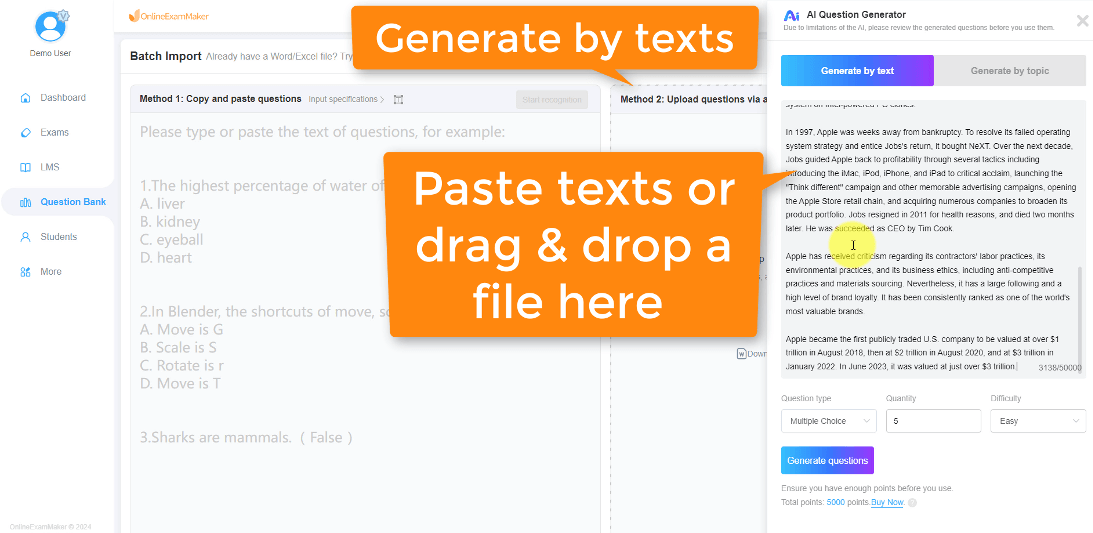
Select the PowerPoint upload option and choose your .ppt or .pptx file. OnlineExamMaker accepts files up to 50MB, which accommodates even image-heavy presentations.
As your file uploads, the AI begins its analysis. This usually takes 30-90 seconds depending on presentation length. You can literally watch it work—the interface shows you which
slides it’s currently processing, which is oddly satisfying.
Step 4: Configure Your Quiz Parameters
Before the AI generates questions, you’ll specify your preferences:
- Number of questions: How many do you need? The AI will suggest an appropriate number based on your content volume.
- Question types: Multiple choice, true/false, fill-in-the-blank, short answer, or a mix?
- Difficulty level: Easy, medium, hard, or varied?
- Bloom’s Taxonomy focus: Do you want mostly knowledge-level questions, or should it include analysis and evaluation?
This customization is where OnlineExamMaker really shines. You’re not stuck with whatever the AI decides to generate—you’re actively steering the process toward your specific
educational goals.
Step 5: Review and Refine AI-Generated Questions
Once generation completes, you’ll see all your questions laid out in an editor interface. This is your opportunity to channel your inner perfectionist.
For each question, you can:
- Edit the question stem for clarity or tone
- Modify answer choices or distractors
- Adjust point values
- Add explanations for correct answers (tremendously helpful for self-paced learning)
- Change question types entirely if the AI’s choice doesn’t fit
- Delete questions that don’t align with your learning objectives
- Add your own manually created questions to supplement the AI-generated ones
Here’s something worth appreciating: the AI usually gets about 80-90% of questions right on the first pass. You’re not starting from scratch—you’re
polishing and perfecting.
Step 6: Configure Quiz Settings
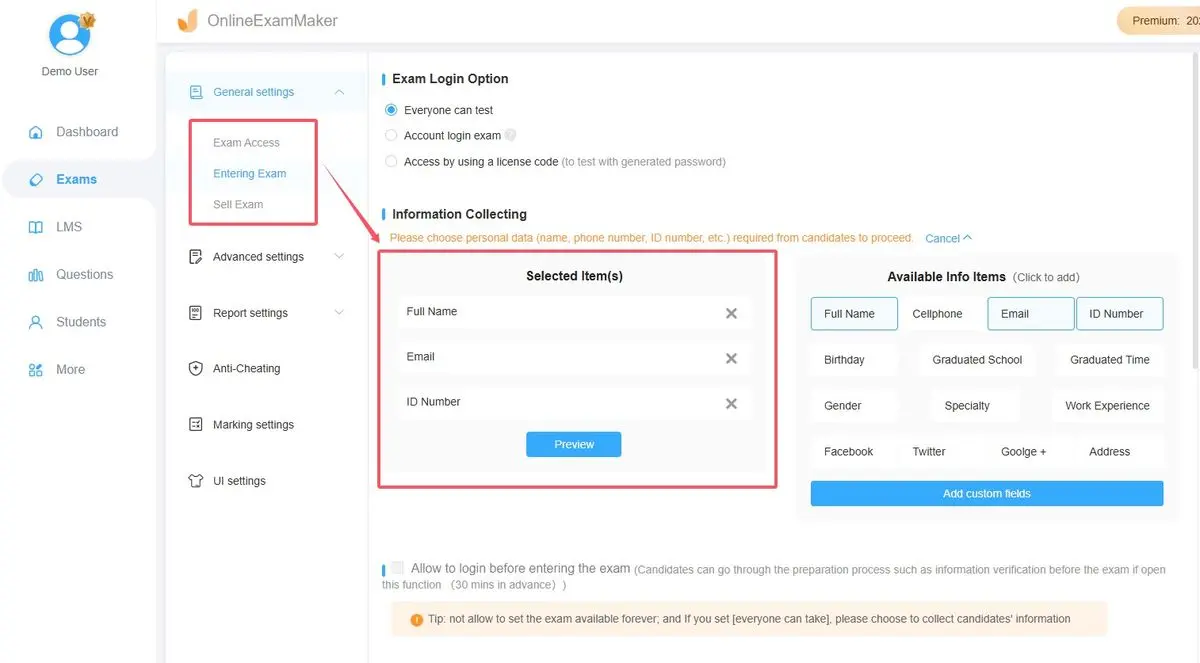
Now you’ll set the rules of engagement. OnlineExamMaker’s settings are comprehensive without being overwhelming:
- Time limits: Set overall quiz duration or per-question timing
- Randomization: Shuffle questions and answer choices to prevent cheating
- Attempts: Allow multiple tries for formative assessment, or restrict to one for summative evaluation
- Feedback: Show correct answers immediately, after submission, or never
- Proctoring: Enable webcam monitoring, screen recording, or browser lockdown for high-stakes tests
- Grading: Automatic scoring with instant results or manual grading for open-ended questions
Step 7: Share and Deploy Your Quiz
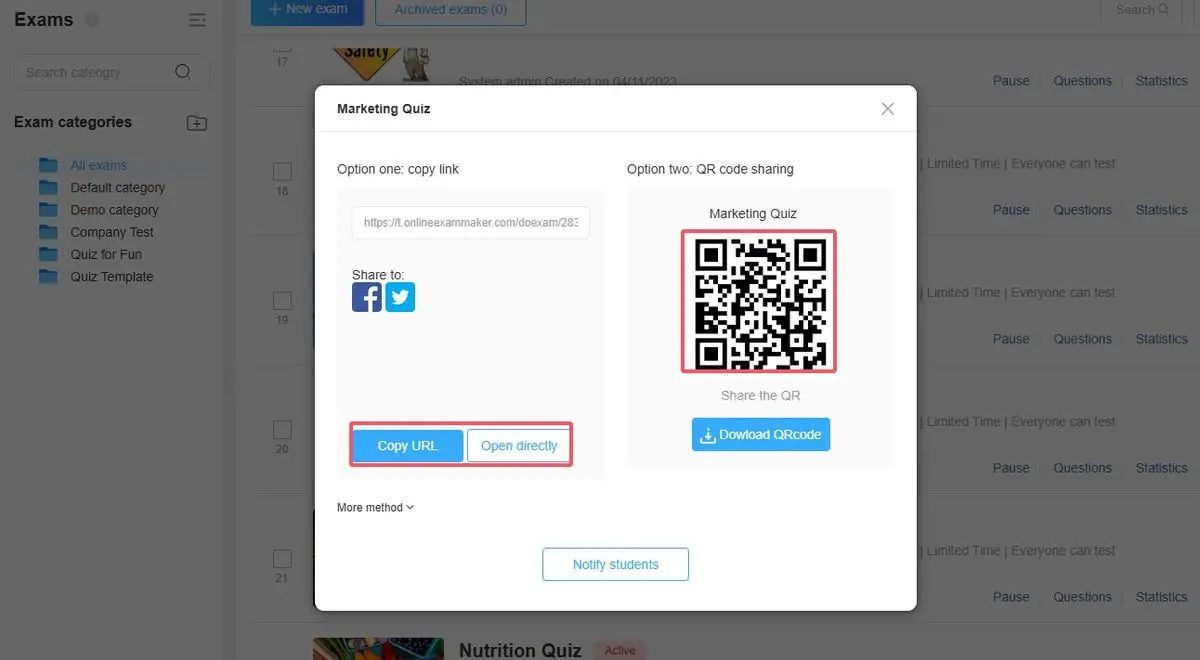
This is where OnlineExamMaker’s flexibility really shines. You have multiple distribution options:
Sharing Methods:
- Direct link: Copy a URL and share via email, LMS, or class website
- QR code: Generate a scannable code for quick mobile access
- Embed code: Insert the quiz directly into your website or LMS
- LMS integration: Push to Canvas, Blackboard, Moodle, or Google Classroom
- Email invitation: Send personalized quiz links to specific students
For classroom use, the QR code option is remarkably convenient. Project it on your screen, students scan with their phones, and everyone’s taking the quiz within seconds.
Step 8: Analyze Results and Iterate
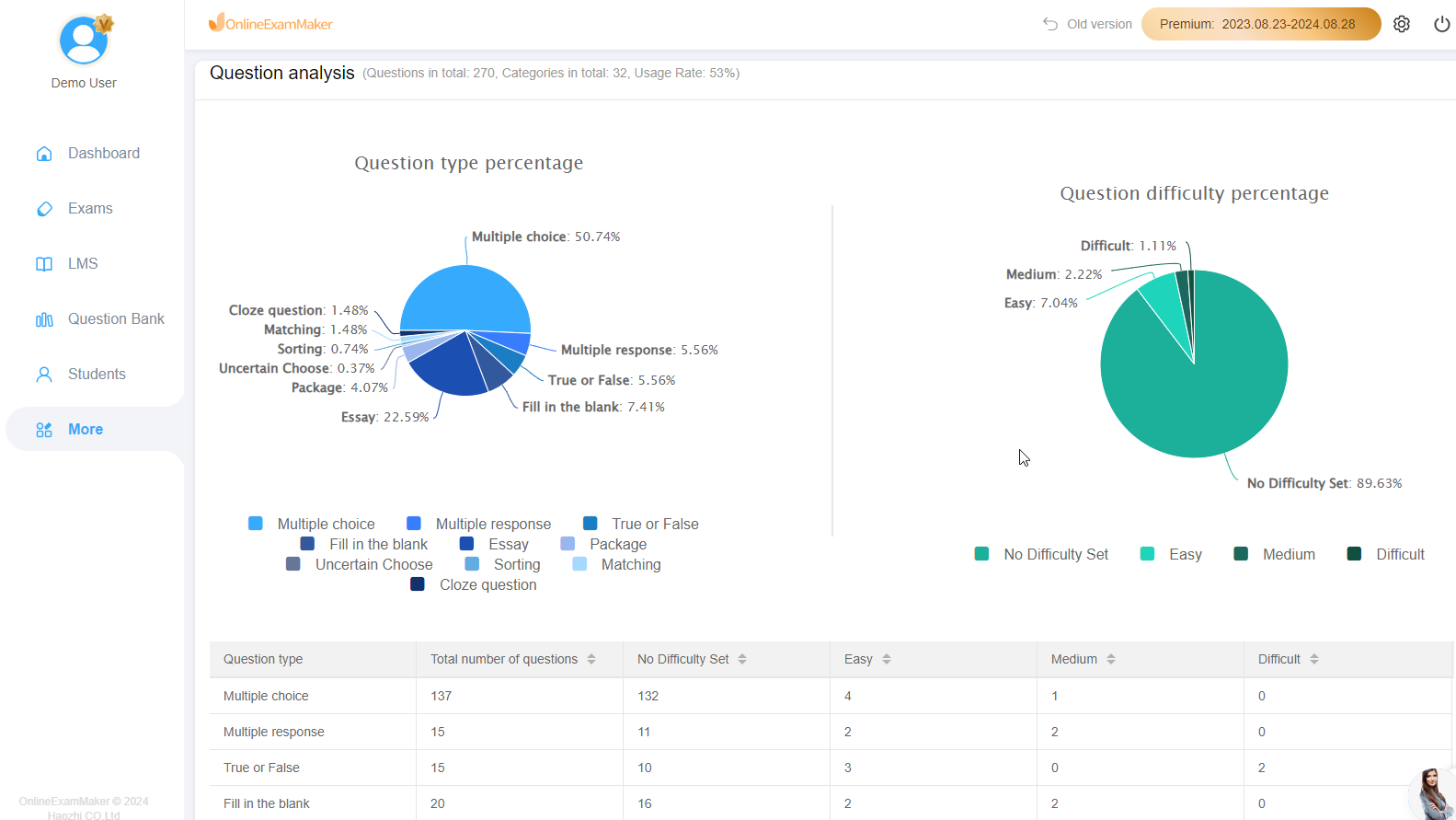
After your quiz closes, dig into the detailed analytics. OnlineExamMaker provides:
- Individual student reports: Complete breakdown of performance
- Question analysis: Difficulty statistics, discrimination indices, distractor effectiveness
- Class statistics: Mean, median, standard deviation, distribution graphs
- Item analysis: Which questions differentiate between high and low performers?
- Time analysis: How long did students spend on each question?
Use this data to refine your questions for next time. That’s the real power of AI-generated quizzes—rapid iteration based on actual performance data.
Advanced Features That’ll Make Your Colleagues Jealous
Once you’ve mastered the basics, OnlineExamMaker offers several advanced capabilities that transform good quizzes into exceptional assessment experiences.
Adaptive Testing
The platform can adjust question difficulty based on student performance. If a student is breezing through, the AI serves up harder questions. Struggling? They receive easier ones.
Everyone ends up appropriately challenged.
Question Banks and Randomization
Create pools of questions on similar topics, then have the system randomly select from these pools for each student. This virtually eliminates cheating while maintaining consistent
assessment standards.
Detailed Feedback and Explanations
Go beyond marking answers correct or incorrect. Add detailed explanations for each option—why the right answer is right, and why the wrong answers are wrong. This turns your quiz
into a learning tool rather than just an evaluation tool.
Certificates and Gamification
For professional development or continuing education contexts, OnlineExamMaker can automatically generate completion certificates. Add badges, leaderboards, and achievement unlocks
to increase engagement.
Real-World Applications Across Different Teaching Scenarios
Theory is nice. Let’s talk about how actual teachers are using PowerPoint-to-quiz AI in their daily practice.
The Flipped Classroom Scenario
Ms. Rodriguez teaches high school chemistry. She records video lectures and assigns them as homework. Her PowerPoint slides accompany these videos. Using OnlineExamMaker, she
generates short quizzes from each lecture deck, which students must pass before class. This ensures everyone arrives prepared for lab work.

The Professional Development Context
Corporate trainer James runs compliance training sessions. His PowerPoint decks contain critical regulatory information. He uses AI quiz generation to create required assessments,
then customizes the passing threshold and certificate generation. Employees complete training at their own pace, and James has documentation for auditors.
The University Lecture Hall
Professor Kim teaches introductory biology to 300 students. She uses AI-generated quizzes as low-stakes “participation points” throughout the semester. Students appreciate the
practice, and she gets valuable data on which topics need more emphasis during review sessions.
The Homeschool Parent
Sarah homeschools three kids at different grade levels. She finds quality educational PowerPoints online, then converts them into quizzes to assess her children’s understanding.
The time savings allow her to focus on areas where her kids actually need help rather than creating assessments from scratch.
