Adding video to Kahoot questions isn’t complicated, but there are a few things you need to know — especially since YouTube support has changed for many account types. This guide walks you through everything: adding videos via link, uploading from your device, troubleshooting common issues, and even exploring a powerful alternative tool, OnlineExamMaker, for creating interactive video quizzes.
- Why Add Video to Kahoot Questions?
- How to Add a Video via Link (Vimeo / YouTube)
- How to Upload a Video from Your Device
- Troubleshooting Common Video Issues in Kahoot
- Kahoot Video Alternatives Compared
- Make Interactive Video Quizzes with OnlineExamMaker
- Frequently Asked Questions
Why Add Video to Kahoot Questions?
Video does something that plain text simply can’t — it shows. Whether you’re teaching a science concept, testing comprehension of a documentary clip, or just adding a dramatic countdown video for fun, media-rich questions make quizzes feel alive.
According to Kahoot’s official support documentation, videos can be used to provide clues, explanations, or pacing for questions. Think of it as the difference between telling students about a historical event versus actually showing them a clip of it. One of those creates a memory. The other… doesn’t.
Keep in mind: each question supports only one media item, and the video length is naturally capped by your question timer. So precision matters — you want to trim your video to exactly the moment that matters.
How to Add a Video via Link (Vimeo / YouTube)
Adding a video through a URL is the quickest method, especially if your video is already hosted online. Here’s exactly how to do it:
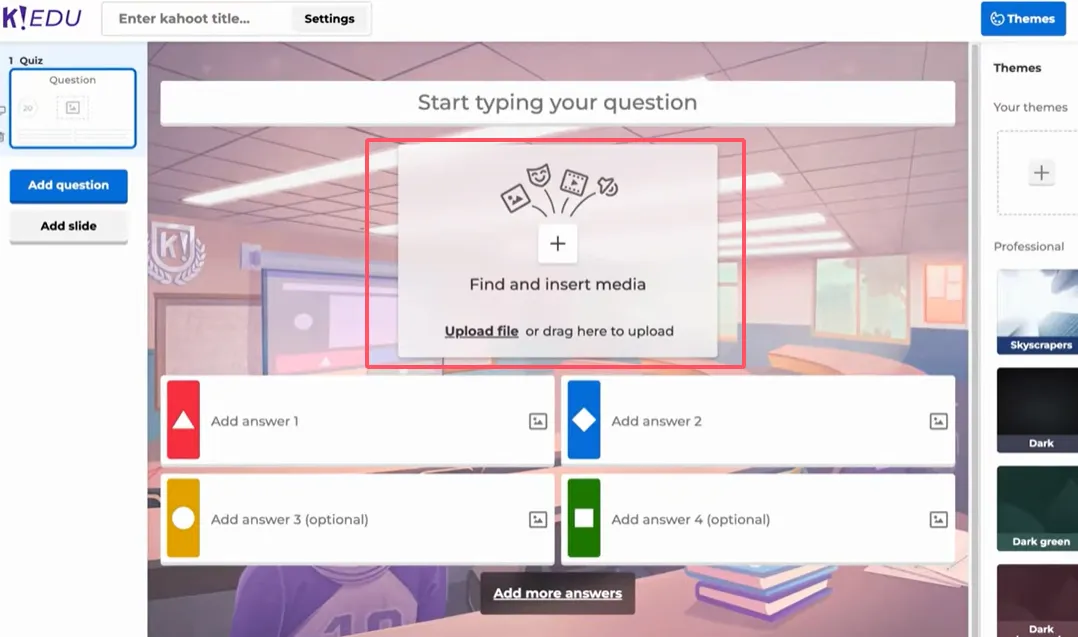
- Open the Kahoot creator and select an existing kahoot to edit, or create a new one.
- Click into a question, then find the media box (usually labeled “Add media” or shown as an image icon).
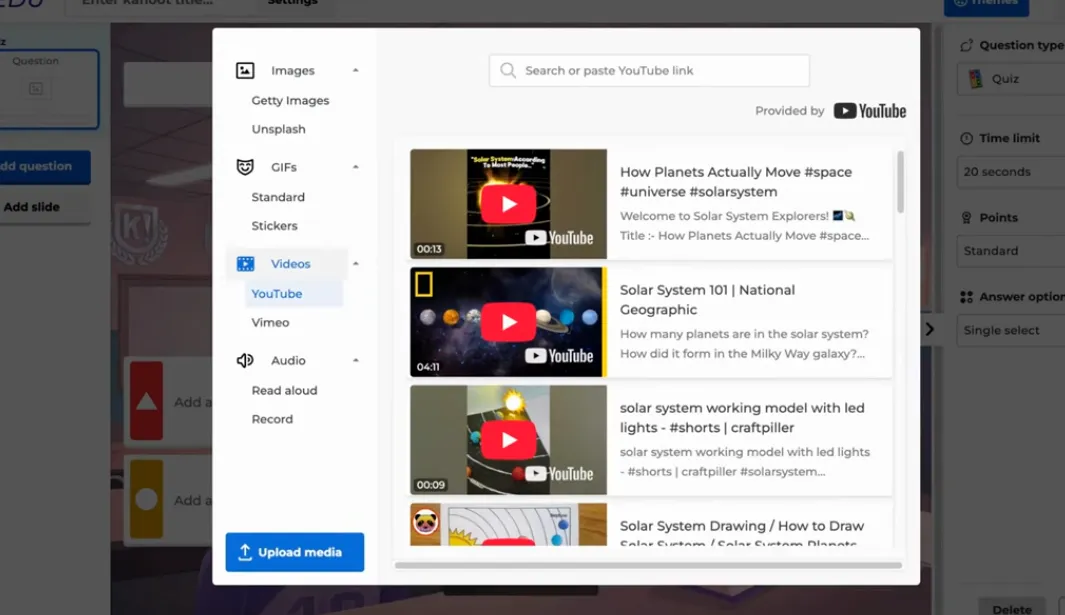
- Select the “Videos” tab in the media panel.
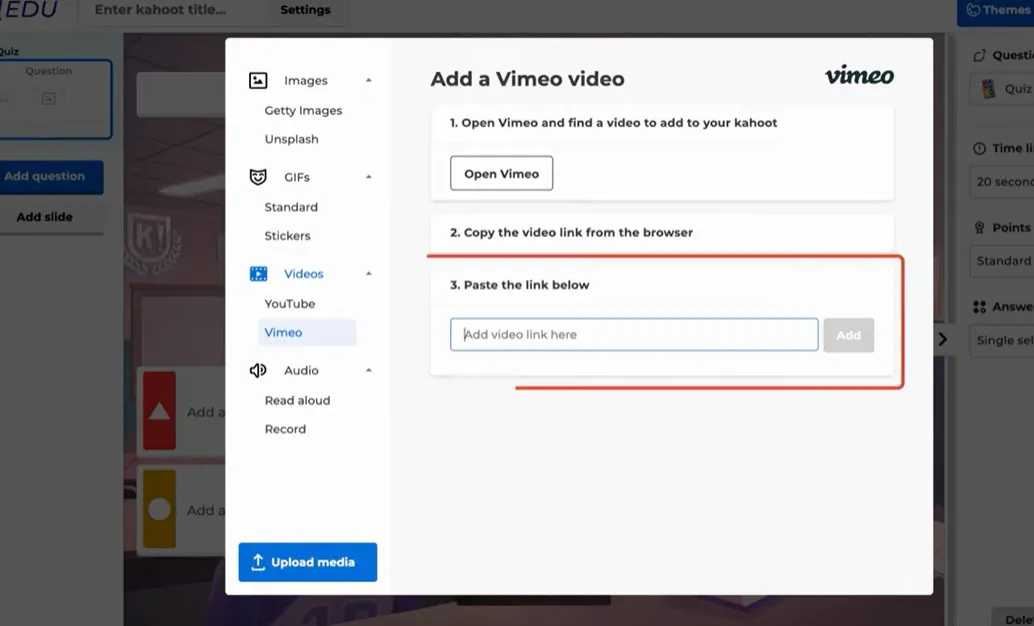
- If YouTube is available for your account, you’ll see a search bar — use it. Otherwise, paste your Vimeo URL directly into the field.
- Once the video loads, use the start/stop time sliders (or type in the exact timestamps manually) to trim it to just the section you need.
- Click “Add” — and you’re done!
Pro tip: Trim your video down to 15–30 seconds for the best quiz experience. Long clips cause students to lose focus before the question even loads.
How to Upload a Video from Your Device
Got a custom video — maybe a screen recording, a classroom clip, or something you made yourself? Uploading directly gives you full control. You’ll need a Kahoot premium plan for this option.
- In the question editor, click the media box to open the media panel.
- Choose “Upload file”, then select “Upload media.”
- Browse your device and select your video file. Remember: maximum 200MB, and MP4 format is most compatible.
- After uploading, use the trim controls to set your start and end points.
- Confirm your selection and click “Add to question.”
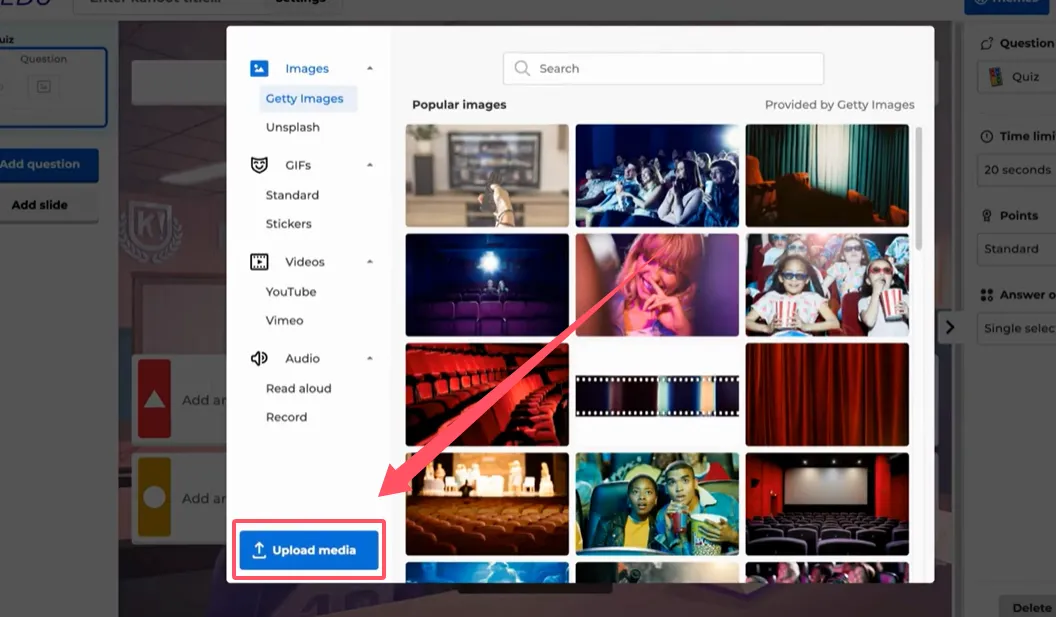
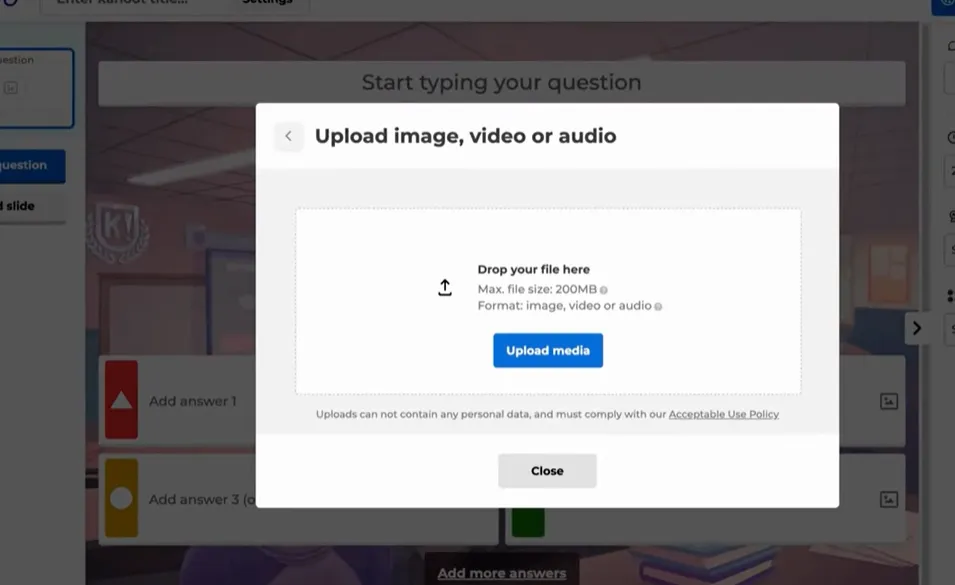
Uploading takes a moment depending on your file size and connection speed, so don’t panic if there’s a brief wait. Once it’s in, it’s in — and it’ll be there every time you run that kahoot.
Troubleshooting Common Video Issues in Kahoot
Something not working? Don’t stress. Here are the most common problems and how to fix them:
YouTube Videos Are Blocked
This is the most frequent complaint. If your YouTube video won’t embed, you have two solid options: use the “Watch on YouTube” button that Kahoot provides as a fallback, or simply switch to a Vimeo link — which is honestly the cleaner option anyway (no ads!).
Video Won’t Load During the Quiz
This is almost always a network issue. Check your internet connection and, if you’re in a school setting, ask your IT team to whitelist YouTube and Vimeo domains on the school’s firewall.
Old Kahoots Have Broken Videos
If you made a kahoot a while back with YouTube embeds that no longer work, you’ll need to go back and edit each question to replace the unsupported video with a new Vimeo link or uploaded file. A bit tedious, yes — but worth it for a smooth experience.
Kahoot Video Alternatives Compared
Not sure which video option suits you best? This table breaks it down:
| Option | Who Can Use It | Pros | Best For |
|---|---|---|---|
| Vimeo Link | All users | Ad-free, direct embed, reliable | Most classroom scenarios |
| File Upload | Premium (360 Spirit+) | Custom videos, full control | Custom-made instructional clips |
| YouTube (limited) | Free/personal accounts | Huge library | Where still supported |
| Images / GIFs | All users | Quick, Giphy integration | Light engagement, humor |
| “Watch on YouTube” Button | All users | Fallback option | When embedding fails |
Make Interactive Video Quizzes with OnlineExamMaker
Kahoot is fantastic for live classroom games — but what if you need something more flexible? Something that lets students take a quiz at their own pace, with video embedded directly into the questions, and detailed results you can actually analyze? Meet OnlineExamMaker.
OnlineExamMaker is a professional online exam and quiz creation platform built for teachers, trainers, and HR professionals. It goes beyond simple game-show formats — giving you a full suite of tools to design, distribute, and evaluate assessments with rich media support.
Why OnlineExamMaker Stands Out for Video Quizzes
- Embed video directly into questions — YouTube, Vimeo, or uploaded files
- Set time limits per question or per exam
- Detailed analytics — see how each student performed, per question
- Mobile-friendly — students can take quizzes on any device
- Anti-cheating features — randomized questions, tab-switch detection
- Share via link or embed — no app download needed
Create Your Next Quiz/Exam Using AI in OnlineExamMaker
How to Make an Interactive Quiz with Video in OnlineExamMaker
Creating a video-based quiz in OnlineExamMaker takes just a few minutes. Here’s how:
- Sign up or log in at onlineexammaker.com.
- Click “New Exam” button and give your quiz a name and description.
- Add a question. In the question editor, look for the media/insert icon — click it to add a video.
- Upload a video file from your device, then insert the video into the quiz question.
- Write your question text below the video, then add your answer choices.
- Repeat for as many questions as you need — then configure your timer, passing score, and attempt limits.
- Click “Publish” and share the link with your students via email, LMS, or social media.
OnlineExamMaker also supports multiple question types — multiple choice, true/false, fill-in-the-blank, short answer, and more. Combine video questions with written ones for a comprehensive assessment experience.
For teachers who want to go beyond the buzzer and create real assessments with video content, OnlineExamMaker is a natural next step from Kahoot. Think of Kahoot as the warm-up and OnlineExamMaker as the full exam.
Frequently Asked Questions
Can I add YouTube videos to Kahoot?
It depends on your account type. YouTube embedding is no longer supported for Kahoot Business and Social accounts. Free and personal accounts may still have limited access. The recommended alternative is Vimeo.
How long can a video be in a Kahoot question?
The video plays during the question time limit, so it’s effectively capped by your timer. There’s no separate hard limit on clip length, but trimming to match your question duration is strongly recommended.
Do I need a premium Kahoot account to add videos?
No — you can add Vimeo links on a free account. However, uploading video files (from your device) requires a premium plan (Kahoot 360 Spirit or higher), and files must be under 200MB.
What’s a good alternative to Kahoot for video quizzes?
OnlineExamMaker is an excellent alternative, especially for formal assessments. It supports video embedding, multiple question types, detailed reporting, and anti-cheating features — making it ideal for both classrooms and corporate training.
Why won’t my video load during the quiz?
This is usually a network or firewall issue. Check your connection and ask your IT team to whitelist Vimeo and YouTube domains if you’re in a school environment.
Whether you’re a teacher looking to spice up Friday’s review session or a corporate trainer designing a compliance quiz, adding video to your questions is one of the smartest engagement moves you can make. Start with Kahoot for the energy, and explore OnlineExamMaker when you need the depth.
