Ever spent hours crafting the perfect quiz in Google Forms, only to realize you need it in a different account? Maybe you’re switching from a personal Gmail to your work Workspace account, or perhaps you’re collaborating with a colleague who needs their own copy. Whatever the reason, transferring a Google Forms quiz between accounts doesn’t have to be a headache.
Here’s the thing: Google Forms doesn’t have a magical “transfer to another account” button sitting there waiting for you. But don’t worry—with a few simple steps, you can move your carefully designed quiz, complete with all its answer keys and point values, to any account you need. And if you’re looking for an even smoother quiz-making experience that sidesteps these account transfer hassles altogether, stick around—we’ll introduce you to a game-changing alternative.
- Why You Might Need to Copy a Google Forms Quiz
- The Quick Method: Making a Copy Within Your Account
- Sharing Your Quiz with the Target Account
- Transferring Ownership: The Full Handoff
- Accessing Your Quiz in the New Account
- What Doesn’t Transfer (And How to Work Around It)
- OnlineExamMaker: A Better Way to Create and Organize Quizzes
- Frequently Asked Questions
Why You Might Need to Copy a Google Forms Quiz
Let’s be honest—life happens, and sometimes your digital assets need to move along with you. Teachers transition between school districts, trainers switch companies, or you might simply want to separate your personal and professional quiz libraries. Maybe you’ve been building training materials on your personal account during the pandemic, and now it’s time to migrate everything to your organization’s official Workspace.
Or consider this scenario: You’ve created the ultimate employee onboarding quiz, and your colleague in another department wants to use it as a template. Rather than starting from scratch, they’d love a copy they can tweak to fit their needs. Whatever your situation, knowing how to move quizzes between accounts is a valuable skill that saves time and preserves your hard work.
The Quick Method: Making a Copy Within Your Account
First things first—you’ll need to create a duplicate within your source account. Think of this as cloning your quiz before you hand it off. Log into the Google account that currently owns the quiz, then navigate to Google Forms or Google Drive. Find your quiz and click those three little dots in the top right corner (the “More” menu that Google loves to hide everything in).
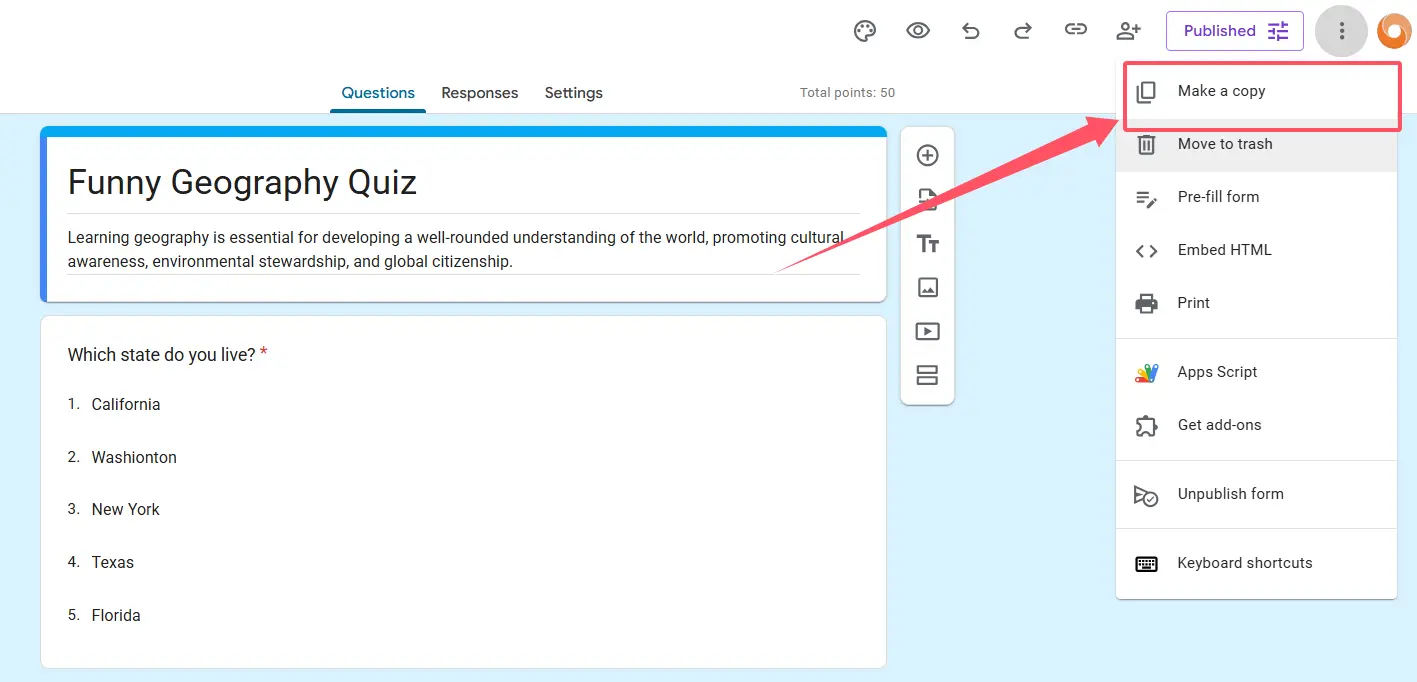
Select “Make a copy” from the dropdown menu. Google will prompt you to name this duplicate—go ahead and give it a descriptive name that makes it clear this is the version you’re transferring. You can also choose which folder in your Drive should house this copy. Confirm your choices, and boom—you’ve got a perfect replica of your original quiz, complete with all questions, answer keys, point values, and settings intact.
Here’s a pro tip: Before making that copy, double-check that your original quiz is exactly how you want it. Any formatting quirks, typo gremlins, or scoring issues will be faithfully reproduced in the duplicate. It’s like photocopying a document—you want to make sure the original is pristine first.
Sharing Your Quiz with the Target Account
Now comes the bridge-building phase. With your freshly minted copy sitting in your Drive, open it up and look for the “Send” button (usually hanging out in the top right area of the form editor). Click it, and you’ll see sharing options appear.
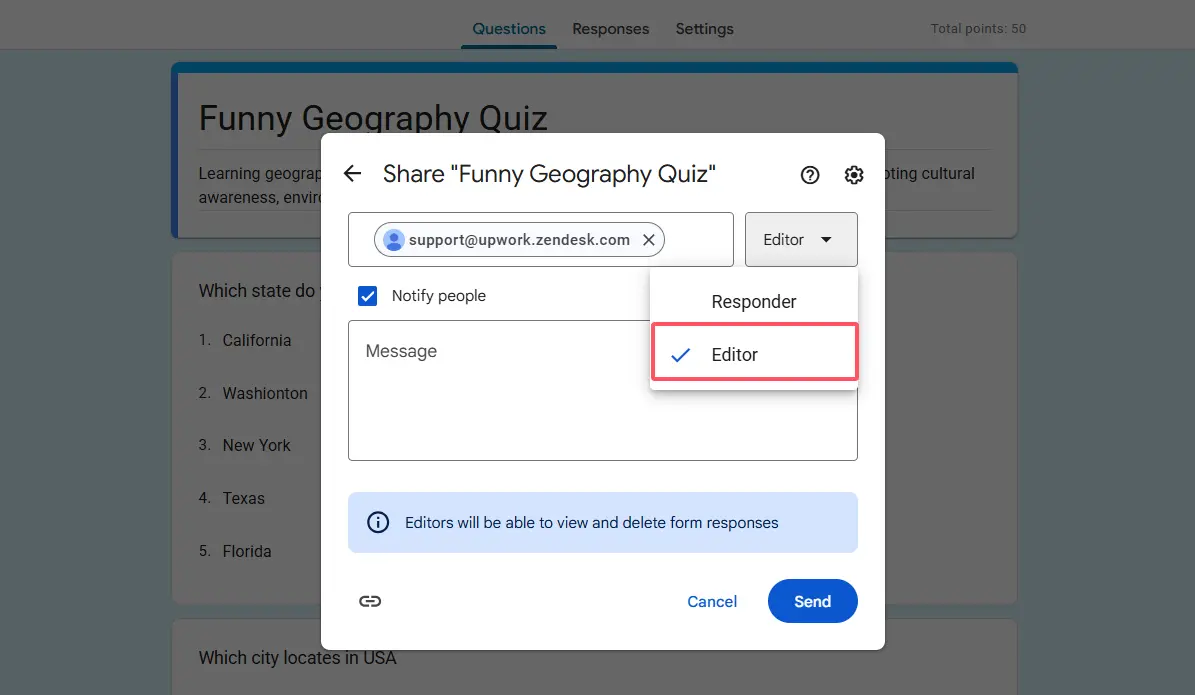
Enter the email address of the account where you want this quiz to live. This is crucial: make sure you share with Editor access, not just Viewer or Commenter permissions. Editor access is what allows the receiving account to actually work with the quiz, make changes, and—if you’re doing a full transfer—take ownership.
Think of Editor access as handing someone the keys to your car versus just letting them sit in the passenger seat. Without those keys, they’re not going anywhere with your quiz. Once you’ve entered the email and selected Editor permissions, hit send. The target account will receive a notification that a form has been shared with them.
Transferring Ownership: The Full Handoff
Sharing with Editor access is great for collaboration, but what if you want to completely transfer ownership? Maybe you’re leaving an organization and need to hand off all your training materials. Or perhaps you’re consolidating everything into one primary account. Either way, Google Forms makes ownership transfer surprisingly straightforward—assuming you have the right permissions.
Go back to your sharing settings for the copied quiz. You’ll see a list of people who have access, and next to the target account’s email, there’s a dropdown menu showing their current permission level (Editor). Click that dropdown, and you should see an option labeled “Owner” or “Make owner.” Select it, and Google will ask you to confirm the transfer.
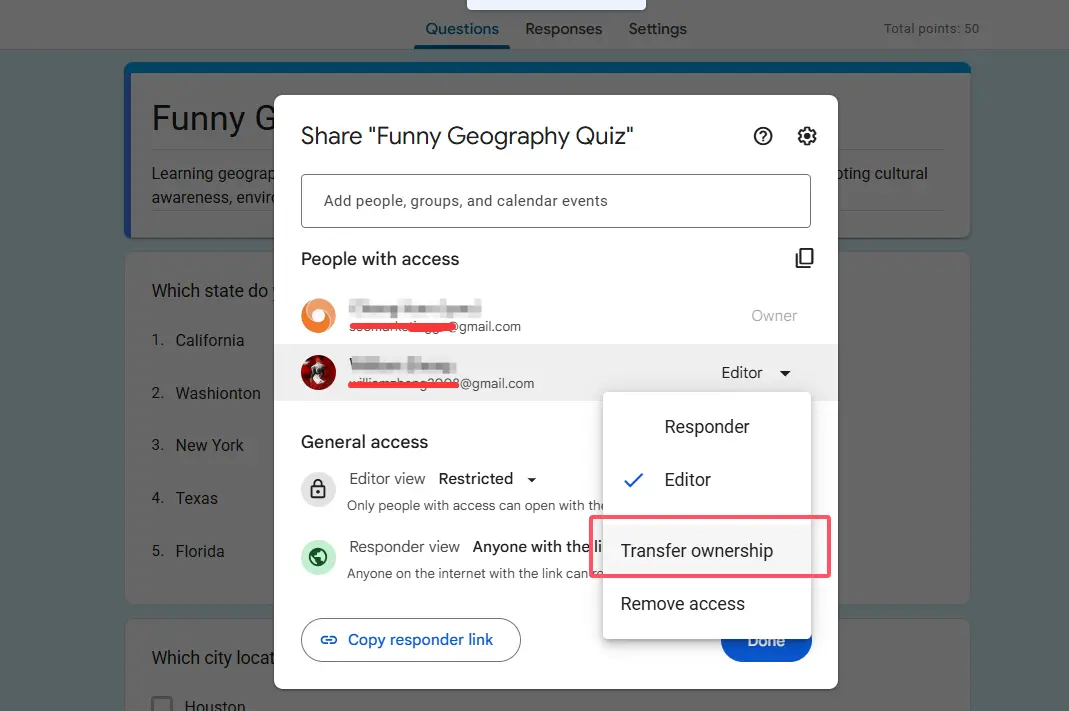
Once you confirm, you’re no longer the boss of this quiz—the other account is. You’ll still have Editor access unless the new owner removes you, but they’re now in the driver’s seat. They can delete the form, change sharing settings, or do whatever they please with it. This ownership transfer works seamlessly whether you’re moving between personal Gmail accounts, between Google Workspace accounts in the same organization, or even across different organizations—though some Workspace admins might impose restrictions.
Accessing Your Quiz in the New Account
Switch hats now—log into the target account (the one receiving the quiz). Head over to Google Drive, and you’ll find the shared quiz chilling in the “Shared with me” section. It’s not quite home yet, though. To make it feel properly settled, right-click on the form and select “Add shortcut to Drive” or drag it into your “My Drive” folder structure wherever you’d like it to live.
If you want a completely independent copy rather than a shared version, you can make another duplicate at this stage. Right-click on the quiz in “Shared with me,” select “Make a copy,” and you’ll have your very own version that’s entirely separate from the original. This is particularly useful if you’re using someone else’s quiz as a template and plan to modify it extensively without affecting their version.
Here’s something many people don’t realize: items in “Shared with me” can disappear if the original owner deletes them or revokes your access. If this quiz is important to your workflow, either request ownership transfer or make that independent copy. Better safe than scrambling to recreate a quiz that vanished because someone cleaned out their Drive.
What Doesn’t Transfer (And How to Work Around It)
Now for the reality check—not everything comes along for the ride when you transfer a Google Forms quiz. The most significant casualty? Your response data. All those quiz results, student scores, and submitted answers stay firmly attached to the original form in the original account. They don’t magically follow the form to its new home.
If you had a linked Google Sheets spreadsheet collecting responses, that connection gets severed during the transfer too. The new quiz owner will need to set up a fresh response spreadsheet if they want automatic collection. To do this, they’ll open the copied quiz, click on the “Responses” tab, and select the green Sheets icon to create a new linked spreadsheet.
For those who actually need the historical response data in the new account, you’ll have to manually export it. Download the responses from the original form (usually as a CSV file or via the linked Sheet), then import that data into wherever you need it in the new account. It’s not elegant, but it works. Just remember: privacy matters. Make sure you have the right permissions before moving any personally identifiable information between accounts.
Another potential gotcha: Google Workspace organizational policies. If your organization’s admin has locked down sharing or ownership transfer settings, you might hit a wall trying to move quizzes between accounts. In that case, you’ll need to sweet-talk your IT department or explore workarounds within the constraints they’ve set.
OnlineExamMaker: A Better Way to Create and Organize Quizzes with AI
While Google Forms gets the job done for basic quizzes, trainers, teachers, and HR managers often find themselves wrestling with its limitations. Account transfers shouldn’t be this complicated, right? Enter OnlineExamMaker—an AI-powered exam-making software that’s designed specifically for people who create and manage assessments professionally.
What makes OnlineExamMaker different? For starters, it’s built around the assumption that you’ll be creating, sharing, and managing multiple quizzes across different contexts. The platform includes robust organizational tools that let you categorize and tag your assessments, making it easy to find and repurpose content without the account transfer acrobatics.
The AI capabilities are where things get really interesting. OnlineExamMaker can help you generate question banks, suggest quiz questions based on your content, and even auto-grade complex responses. It’s like having a teaching assistant who never sleeps and doesn’t drink all the staff room coffee.
Create Your Next Quiz/Exam Using AI in OnlineExamMaker
For trainers managing employee assessments or teachers handling multiple classes, OnlineExamMaker offers features that Google Forms simply doesn’t: advanced question types, comprehensive analytics that actually help you understand learner performance, white-label options for branding, and seamless integrations with learning management systems. Plus, sharing and collaboration are baked into the platform’s design, so you won’t find yourself googling “how to transfer a quiz to another account” at midnight before a training session.
If you’re serious about assessments and tired of fighting with tool limitations, OnlineExamMaker deserves a look. It’s specifically engineered for people who view quizzing not as a occasional task but as a core part of their professional toolkit.
How to Copy or Clone an Exam in OnlineExamMaker?
As a powerful online assessment platform, OnlineExamMaker allows teachers to copy an existed exam to make a new one.
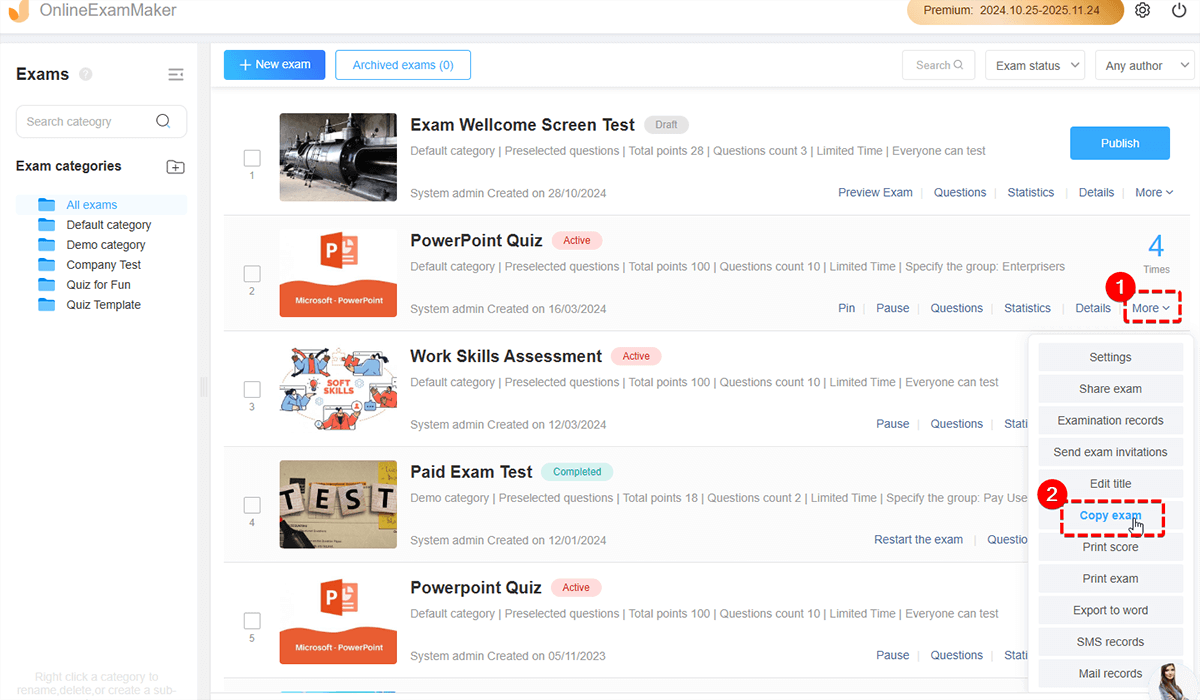
Just go to exam mamagenet center, select an exam you want to make a copy, then click “More” > “Copy exam” to clone an exam.
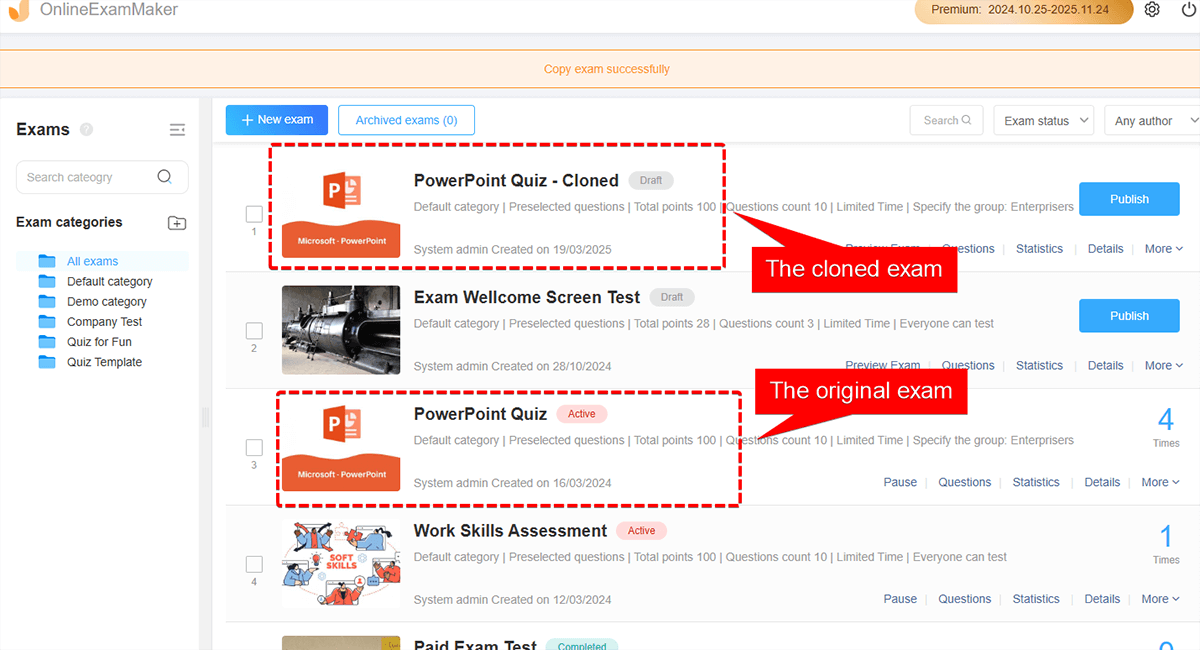
After the exam is cloned successfully, you can see the cloned exam in “All Exams” page. You can rename the exam title, add new questions, and personalized the exam settings with your own.
Frequently Asked Questions
Can I transfer a Google Forms quiz between personal and Workspace accounts?
Absolutely. You can move quizzes between any combination of personal Gmail and Google Workspace accounts, as long as both accounts have proper sharing permissions. Just follow the standard sharing and ownership transfer process—make a copy, share with Editor access, and transfer ownership if needed. The only caveat is that some Workspace administrators might restrict external sharing, so check with your IT department if you encounter issues.
Will the answer key and point values transfer when I copy a quiz?
Yes! When you make a copy of a Google Forms quiz, all the quiz-specific settings come along for the ride. This includes your answer keys, point values for each question, feedback messages, and even settings like shuffle question order or limiting to one response. What doesn’t transfer are the actual submitted responses and any linked spreadsheets—those stay with the original form.
What happens to quiz responses when I transfer ownership?
Quiz responses remain with the original form in the original account. When you create a copy and transfer it to another account, that copy starts with a clean slate—no responses yet. If you need the historical data, you’ll have to manually export it from the original form (as a CSV or via Google Sheets) and import it wherever you need it in the new account. Always respect privacy regulations when moving response data between accounts.
Can the new owner modify a quiz I’ve transferred to them?
Once someone has Editor access or ownership of your quiz, they have full control to modify it—add questions, delete sections, change scoring, whatever they want. If you only want them to view the quiz without editing, share it with Viewer or Commenter permissions instead. However, they won’t be able to accept ownership unless you give them Editor access first.
How do I share a quiz without transferring ownership?
Simply share the form with Editor access and stop there—don’t go through the ownership transfer step. The recipient will have full editing capabilities but won’t own the form. You remain the owner and maintain ultimate control, including the ability to revoke their access at any time. This setup is perfect for collaborative projects where you want to maintain ownership while allowing others to contribute.
Is there a limit to how many times I can copy or share a Google Form?
Google doesn’t impose a specific limit on how many copies you can make or how many people you can share a form with. However, there are overall Google Drive storage limits depending on your account type. Each form takes up minimal space, so you’d have to create thousands before storage becomes a concern. The practical limitation is more about keeping track of all your copies than hitting any technical ceiling.
Why can’t I see the “Make owner” option when sharing my quiz?
This usually happens for one of two reasons: either the person doesn’t have Editor access (you need to grant them Editor permissions first), or there are organizational policies restricting ownership transfers. If you’re using a Google Workspace account, your administrator might have disabled ownership transfers to external accounts. Try changing their permission to Editor first, and if you still don’t see the option, contact your IT department.
