Google Forms is a brilliantly tool for creating quizzes, but that simplicity comes with a catch. Out of the box, Forms is about as secure as leaving your front door wide open with a “please don’t steal anything” sign. Anyone with the link can waltz right in.
But don’t worry. You’re not stuck. With a few smart tweaks and some creative gatekeeping, you can lock down your quizzes tighter than Fort Knox—or at least tight enough that only your intended test-takers get through. Let’s explore how.
- Understanding Access Control: Why It Matters
- Basic Access Restriction Methods
- Password and Quiz Code Gates
- Extra Protections for Classroom Quizzes
- A Better Way: OnlineExamMaker for Advanced Quiz Control
- Frequently Asked Questions
Understanding Access Control: Why It Matters
Before we dive into the how-to, let’s talk about the why. Quiz access control isn’t just about being a control freak (though a little healthy paranoia never hurt anyone). It’s about maintaining the integrity of your assessments.
When quizzes leak beyond your intended audience, several problems crop up. Students who haven’t studied might get advance copies of questions. Your carefully calibrated difficulty level gets thrown off when people take the quiz multiple times until they ace it. And if you’re using quizzes for placement or grading? Unrestricted access turns your data into garbage.
The good news is that Google Forms gives you several built-in tools to control who can access your quizzes and when. The bad news? They’re scattered across different menus, and some require a bit of creative thinking to implement properly.
Basic Access Restriction Methods
Let’s start with the fundamentals—the access controls Google Forms actually gives you without any workarounds.
Restricting by Google Account
The most straightforward restriction is limiting your quiz to people with specific Google accounts. Here’s how it works:
When you’re in your quiz editor, click that little Send button (it looks like a paper plane, because apparently we’re still nostalgic for pre-email communication). You’ll see sharing options pop up. By default, Forms sets access to “Anyone with the link”—which is basically the digital equivalent of shouting your quiz questions in a crowded cafeteria.
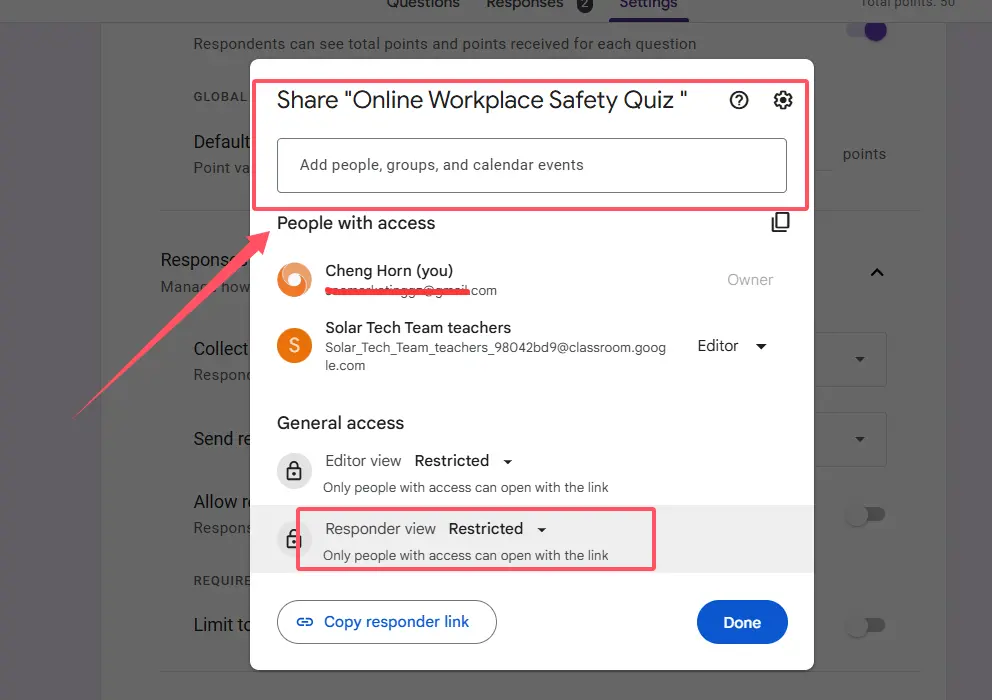
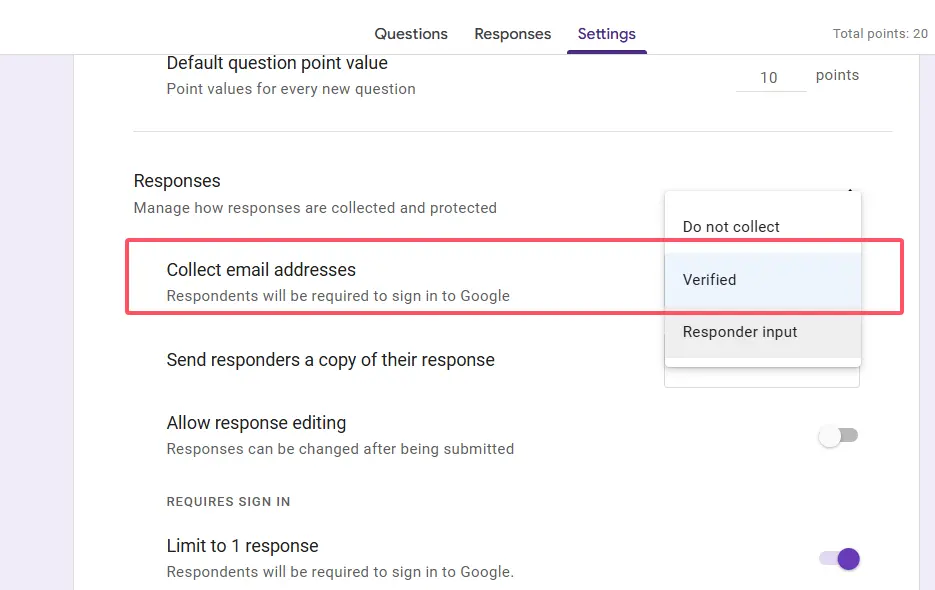
Change this to Restricted. Now only people you explicitly share with can respond. If you’re using Google Workspace for education or business, you can take this further by restricting access to users in your domain only. Navigate to Settings → Responses and enable Restrict to users in [yourdomain.com] and its trusted organizations.
The One-Response Rule
Here’s a sneaky feature that does double duty. Turn on Limit to 1 response in your settings. This forces respondents to sign in with their Google account and prevents the same person from submitting multiple times.
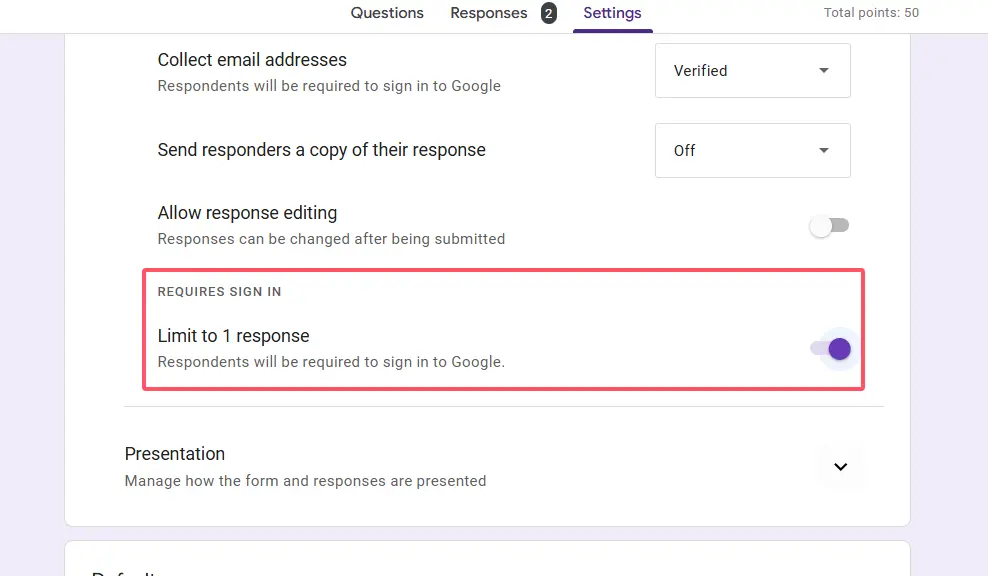
Why is this important? According to Labnol’s research on form security, preventing multiple submissions doesn’t just stop gaming the system—it also creates an audit trail. You’ll know exactly who took your quiz and when.
But here’s the catch: this only works if people are honest about which account they use. A determined student with multiple Gmail addresses can still slip through. Which brings us to our next layer of security.
Password and Quiz Code Gates
Now we’re getting creative. Think of this as adding a bouncer to your quiz club—no code, no entry.
The concept is simple but effective. You add a short-answer question at the very beginning of your quiz asking for a password or quiz code. Only people who know the magic word can proceed to the actual questions.
Setting Up Your Password Gate
Here’s the step-by-step breakdown:
- Create a new short-answer question at the top of your form. Something like “Enter the quiz access code” or “What’s the password for today’s quiz?”
- Turn on Response validation for this question. You’ll find this in the three-dot menu on the question.
- Set validation to Text → Contains (if you want flexibility) or Matches (if you want exact matches).
- Type your chosen code. Could be something simple like “Biology101” or random like “BlueElephant42″—your call.
- Mark it as Required. This is crucial.
- Add a section break after this question, and put all your actual quiz questions in that new section.
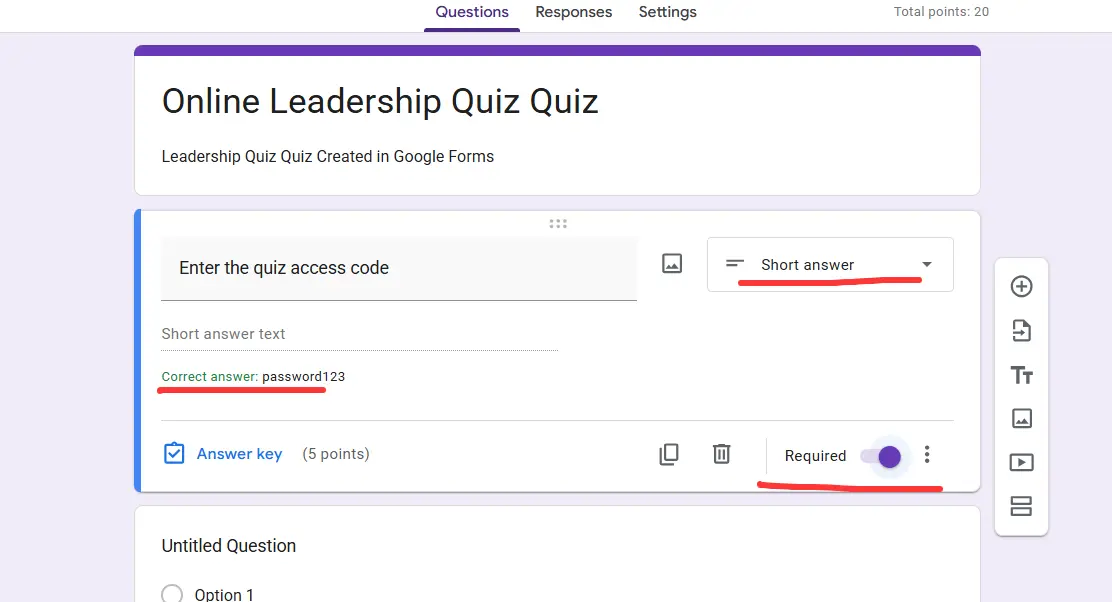
Pro tip: Change your quiz code for each administration. Reusing the same password is like using “password123” for your bank account—technically it works, but come on.
Extra Protections for Classroom Quizzes
If you’re teaching in a school with managed Chromebooks, congratulations—you’ve got access to some serious security features. If not, well, you can still implement some clever protections.
Locked Mode for Chromebooks
This is the closest Google Forms gets to a proctored exam experience. In Settings → Quizzes, you can enable Locked mode on Chromebooks. When students take the quiz in locked mode, they can’t open other tabs, access other apps, or use keyboard shortcuts to escape.
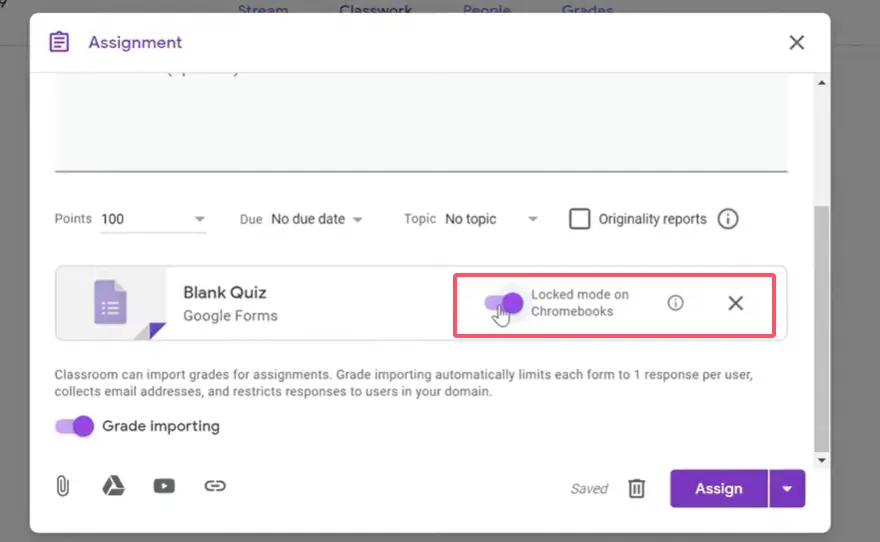
It’s like putting blinders on a horse, except the horse is a teenager with excellent multitasking skills.
Important caveat: This only works if your school has Google Workspace for Education and your IT admin has enabled the feature. As noted in Google’s support forums, locked mode isn’t available for personal Gmail accounts.
Shuffle Everything
Even if you can’t use locked mode, you can make cheating significantly harder by randomizing your quiz. Enable these two settings:
Shuffle question order: Each student sees questions in a different sequence.
Shuffle option order: Multiple choice answers appear in different orders for each student.
This doesn’t prevent someone from sharing “the answer to question 3 is B,” but it makes it way less useful when everyone’s question 3 is different.
Delayed Grade Release
Here’s a setting that often gets overlooked: Release grades → Later, after manual review.
Why does this matter? If students can see their scores and correct answers immediately after submitting, the first person to finish becomes a walking answer key. By delaying grade release, you prevent this cascade of information sharing.
It requires more work on your end—you have to manually release grades later—but for high-stakes quizzes, it’s worth the extra effort.
A Better Way: OnlineExamMaker for Advanced Quiz Control
Now, let’s be honest. Everything we’ve discussed so far is basically duct-taping security features onto a tool that wasn’t originally designed for high-stakes assessment. Google Forms is fantastic for surveys and simple quizzes, but if you need serious access control? You might want to consider a platform built for it from the ground up.
OnlineExamMaker is purpose-built for creating secure, controlled quizzes and exams. Here’s what sets it apart:
Granular Access Control
Instead of cobbling together password gates and response limits, OnlineExamMaker gives you comprehensive access management out of the box. You can:
- Set specific date and time windows for quiz availability
- Create unique access codes for individual students or groups
- Restrict by IP address range (perfect for in-person testing)
- Require authentication through various methods
- Control whether students can review their answers after submission
Built-in Security Features
OnlineExamMaker doesn’t require workarounds for basic security. Features like question randomization, answer shuffling, and time limits are integrated into the core platform. You can set these parameters while creating your quiz, not as afterthought add-ons.
The platform also includes anti-cheating measures that go beyond what Forms offers:
- Browser lockdown: Prevents students from opening new tabs or switching windows
- Webcam monitoring: Optional proctoring for high-stakes exams
- Copy-paste prevention: Stops students from pasting questions into search engines
- Detailed activity logs: See exactly when students started, how long they spent on each question, and when they submitted
Better Analytics and Reporting
While Google Forms gives you basic response data, OnlineExamMaker provides comprehensive analytics. You can track completion rates, identify questions that students struggle with, and generate detailed performance reports—all without exporting to spreadsheets and creating pivot tables.
Create Your Next Quiz/Exam Using AI in OnlineExamMaker
When to Choose OnlineExamMaker
Google Forms still has its place for low-stakes quizzes, quick checks for understanding, or when you need something simple and free. But consider OnlineExamMaker when:
- You’re administering high-stakes assessments that affect grades or placement
- You need detailed control over who accesses your quiz and when
- You want built-in security features without creating workarounds
- You need professional reporting and analytics
- You’re managing quizzes for large groups across multiple sessions
The bottom line? Google Forms with creative security measures can work for many situations. But when quiz security really matters, using a dedicated platform designed for secure assessment just makes life easier.
Frequently Asked Questions
Can students share Google Forms quiz links with others?
Yes, students can technically share links. However, you can mitigate this by using domain restrictions (limiting access to your school or organization’s accounts), requiring sign-in with the one-response limit, and implementing password gates. These measures ensure that even if the link is shared, unauthorized users can’t access or complete the quiz.
How do I prevent students from taking my quiz multiple times?
Enable Limit to 1 response in your form settings. This requires students to sign in with their Google account and prevents multiple submissions from the same account. Keep in mind that students with multiple Google accounts could potentially bypass this, so combine it with other security measures like domain restriction.
Can I schedule when my Google Forms quiz opens and closes?
Google Forms doesn’t have automatic scheduling built-in. You need to manually toggle the Accepting responses switch in the Responses tab. Turn it on when you want the quiz to be available and off when the window closes. Set reminders to ensure you don’t forget to flip the switch at the right times.
What’s the most secure way to password-protect a Google Forms quiz?
Create a short-answer question at the beginning of your form with response validation set to require a specific password or code. Mark it as required and place all actual quiz questions in a separate section. This prevents anyone without the password from seeing your questions. Remember to change the password for each quiz administration.
Does Google Forms have a proctoring feature?
Google Forms itself doesn’t include proctoring. However, if you’re using managed Chromebooks through Google Workspace for Education, you can enable Locked mode, which prevents students from accessing other tabs or applications during the quiz. For more comprehensive proctoring features, consider using dedicated platforms like OnlineExamMaker.
How can I prevent students from seeing quiz questions before the assessment period?
Keep the Accepting responses toggle turned off until your quiz window begins. Even if students have the link, they won’t be able to view any questions when responses are disabled. Additionally, avoid sharing the link until right before the quiz period, and use controlled distribution channels like Google Classroom rather than public posts.
Can I restrict my quiz to only specific email addresses?
Yes, when you click the Send button, you can enter specific email addresses to share the form with. Set the form to Restricted mode, and only those specific accounts will be able to access it. For recurring quizzes with the same group, consider creating a private Google Group and restricting access to that group’s members.
Securing your Google Forms quizzes doesn’t require a computer science degree—just a clear understanding of the tools available and some strategic thinking. Whether you stick with Forms and layer multiple security measures or upgrade to a dedicated platform like OnlineExamMaker, the key is matching your security level to the stakes of your assessment.
Remember: perfect security doesn’t exist. But making unauthorized access more difficult than the quiz itself? That’s absolutely achievable. Now go forth and lock down those quizzes.
