Think abou you are making a quiz for your students, and you need them to select their grade level from a list of twelve options. Multiple choice? Too cluttered. Checkboxes? Confusing. Enter the dropdown question—the unsung hero of clean, organized quiz design.
If you’ve ever felt overwhelmed by the sheer number of question types available in Google Forms, you’re not alone. But here’s the thing: dropdown questions are simpler than you think, and they might just be the perfect solution for your next assessment.
- What Are Dropdown Questions in Google Forms?
- Why Use Dropdown Questions in Your Quizzes?
- How to Create Dropdown Questions: Step-by-Step
- Tips for Designing Effective Dropdown Questions
- Smarter Quiz Creation with OnlineExamMaker
- Final Thoughts

What Are Dropdown Questions in Google Forms?
Dropdown questions are exactly what they sound like—a question format that presents respondents with a list of options hidden in a collapsible menu. Instead of displaying all choices at once (like multiple choice questions do), dropdowns keep things tidy by showing options only when clicked.
Think of them as the Marie Kondo of quiz questions. They spark joy by decluttering your form, especially when you’re dealing with lengthy lists. Countries, states, departments, age ranges—these are all perfect candidates for the dropdown treatment.
Key characteristics:
- Only one answer can be selected per question
- Options remain hidden until the dropdown is clicked
- Supports auto-grading in quiz mode
- Can handle dozens of options without visual overwhelm
Why Use Dropdown Questions in Your Quizzes?
You might be wondering: when should I use a dropdown instead of multiple choice? Good question. The answer isn’t always obvious, but there are some clear scenarios where dropdowns shine.
Space efficiency. When you have more than five or six options, multiple choice questions start eating up screen real estate. A dropdown with twenty options takes up the same space as one with three. That’s powerful for mobile users scrolling through your quiz on their phones during their morning commute.
Reduced cognitive load. Here’s something interesting: seeing all options at once can actually slow down decision-making. Dropdowns force respondents to think about their answer first, then find it in the list. This can lead to more thoughtful responses, especially for demographic questions or preference selections.
Professional appearance. Let’s be honest—a form with ten multiple choice questions, each sporting twelve options, looks like a visual mess. Dropdowns keep your quiz looking polished and professional, which matters when you’re assessing employees or conducting formal evaluations.
Common use cases for dropdown questions:
- Selecting grade levels or academic years
- Choosing departments or job titles in corporate training
- Picking geographic locations (countries, states, cities)
- Rating scales with detailed descriptors
- Subject area preferences or specializations
But here’s the catch: dropdowns aren’t perfect for everything. If you only have three or four options, or if respondents need to see all choices to make an informed decision, stick with multiple choice. Context matters.
How to Create Dropdown Questions in Google Forms: Step-by-Step
Ready to build your first dropdown question? The process is refreshingly straightforward. No technical wizardry required.
Step 1: Add a New Question
Open your Google Form and locate the floating toolbar on the right side of the screen. Click the + icon to insert a new question. You’ll see a blank question box appear, with “Multiple choice” as the default type.
Type your question text into the field. For example: “Select your favorite subject” or “What department do you work in?”
Step 2: Switch to Dropdown Type
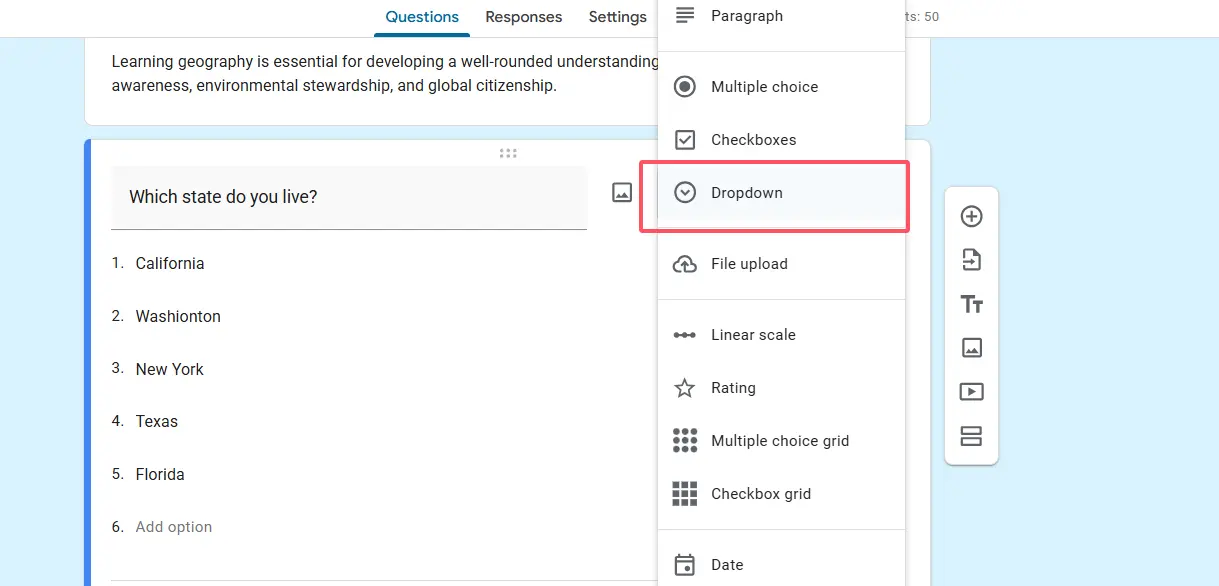
This is where the magic happens. Click on the question type dropdown menu—it’s the small box that currently says “Multiple choice.” Scroll down and select Dropdown from the list of options.
Notice how the format immediately changes? Those radio buttons disappear, replaced by a cleaner dropdown interface. Much better.
Step 3: Add Your Options
Now for the fun part: populating your list. Type your first option into “Option 1″—let’s say “Mathematics.” Hit Enter or click Add option to create a second field. Continue adding options like “Science,” “English,” “History,” and so on.
Pro tip: If you have a long list of options already prepared in a spreadsheet, you can copy and paste them directly into Google Forms. Just copy the column of data, click on Option 1, and paste. Google Forms will automatically create separate options for each entry. This is a massive time-saver when dealing with comprehensive lists like all 50 US states or international country codes.
Step 4: Configure the Answer Key
If you’re using Google Forms in quiz mode (and why wouldn’t you for assessments?), you’ll want to set up auto-grading. At the bottom of your question, click Answer key.
A panel slides open from the right. Select the correct answer from your dropdown options. Assign point values—anywhere from 1 to 10 points, depending on question difficulty. You can also add answer feedback here, which displays to students after submission.
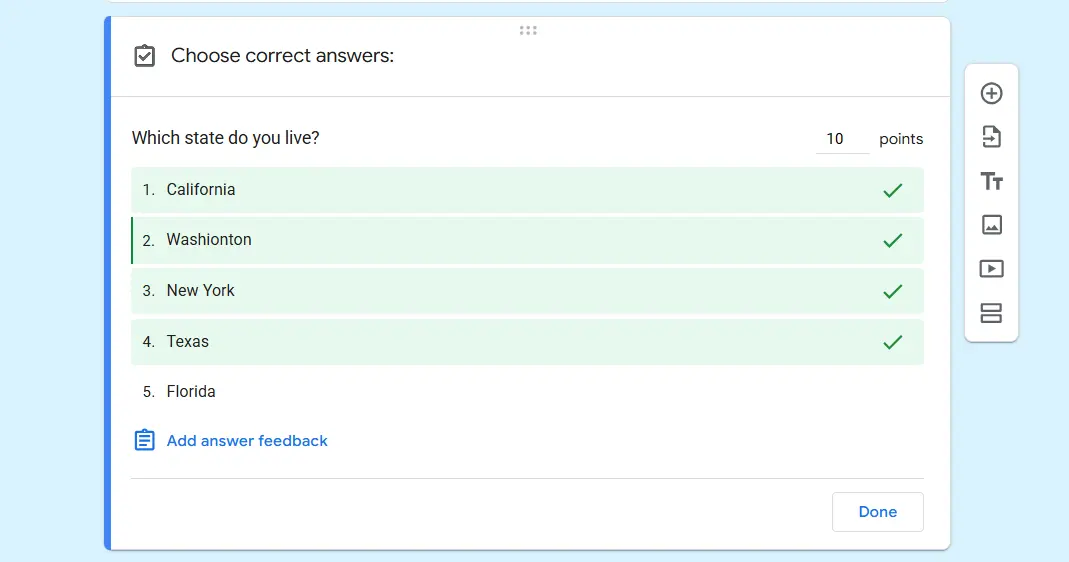
The beauty of dropdown questions is that they support auto-grading just like multiple choice questions. No manual checking required. Your quiz grades itself while you grab another coffee.
Step 5: Make It Required (Optional)
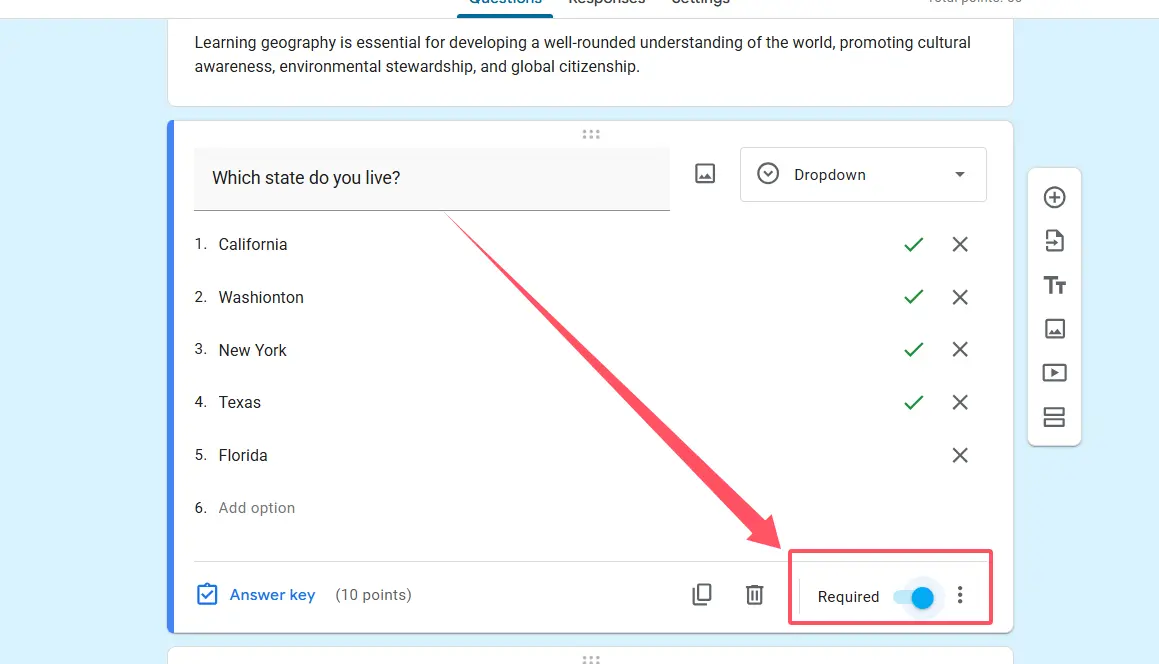
Toggle the “Required” switch at the bottom of the question if you want to ensure every respondent provides an answer. This prevents incomplete submissions and keeps your data clean.
And that’s it. Your dropdown question is live and ready to collect responses.
Tips for Designing Effective Dropdown Questions
Creating a dropdown is easy. Creating a good dropdown requires a bit more thought. Here are some guidelines that separate amateur quizzes from professional assessments.
Keep options in logical order. Alphabetical is usually best for long lists. For ranked items, go from highest to lowest or vice versa. Random ordering frustrates users and wastes their time.
Include an “Other” option when appropriate. Not every list is exhaustive. Giving respondents an out prevents forced selections that skew your data.
Limit dropdown questions per form. Too many dropdowns create a clicking marathon that tests patience more than knowledge. Mix up your question types for better engagement.
Write clear, unambiguous options. “Blue” is clear. “Blue-ish” is not. Avoid overlapping categories that leave respondents guessing which option to pick.
Test on mobile devices. Dropdowns behave differently on phones versus desktops. What looks great on your laptop might be clunky on a smartphone. Always preview before sharing.
Smarter Quiz Creation with OnlineExamMaker AI
While Google Forms offers solid basic functionality for quizzes, educators and trainers seeking more advanced features should explore OnlineExamMaker—an AI-powered exam creation platform that takes assessment design to the next level.
OnlineExamMaker combines the simplicity you love about Google Forms with intelligent automation that saves hours of preparation time. Think AI-generated questions, advanced analytics, and professional-grade security features—all in one platform.
What Makes OnlineExamMaker Different?
The platform’s AI capabilities are genuinely impressive. Instead of manually typing out every question and answer option, you can leverage artificial intelligence to generate entire quizzes based on your course materials or topic areas. It’s like having a teaching assistant who never sleeps.
The question bank feature alone is worth the price of admission. Build a library of reusable questions organized by subject, difficulty, and learning objective. Next time you need a quiz on photosynthesis or corporate compliance training, half your work is already done.
Create Your Next Quiz/Exam Using AI in OnlineExamMaker
How to Create an AI-Powered Quiz in OnlineExamMaker?
Getting started takes just a few minutes:
1. Sign up and access the dashboard.
Create your free account on the OnlineExamMaker website. The interface is clean and intuitive—no learning curve required.
2. Choose AI Quiz Generation.
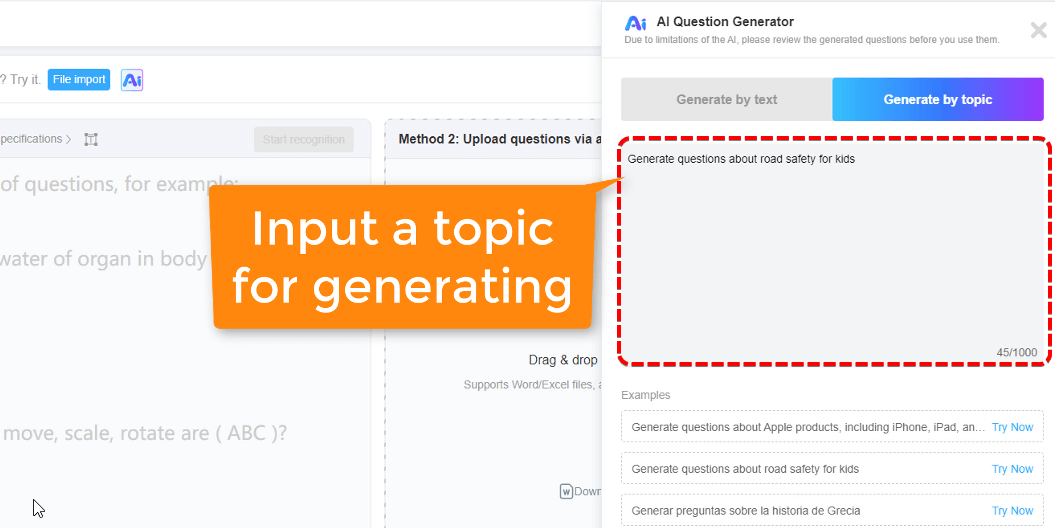
From the main menu, select “New Exam” and look for the AI-powered option. You’ll be prompted to describe your quiz topic and parameters.
3. Input your requirements.
Specify your subject area, grade level, number of questions, and difficulty level. Want a 20-question biology quiz for high school students? Just type it in.
4. Let AI do the heavy lifting.
The system generates questions complete with multiple choice options, dropdowns where appropriate, and even suggested correct answers. Review and edit as needed—you maintain full control.
5. Customize and publish.

Add your branding, adjust time limits, enable anti-cheating measures, and share via link or embed code. Track results in real-time through the analytics dashboard.
The platform supports all major question types including dropdowns, multiple choice, true/false, short answer, and essay questions. Randomization features prevent cheating, while detailed reporting shows exactly where students struggle.
For HR managers conducting employee assessments or trainers managing certification programs, OnlineExamMaker offers enterprise features like bulk user imports, automated certificate generation, and integration with learning management systems.
Final Thoughts
Dropdown questions deserve more credit than they typically receive. They’re the quiet achievers of quiz design—unflashy but incredibly effective when used correctly. Whether you’re a teacher assessing student knowledge, a trainer evaluating employee skills, or an HR manager conducting surveys, mastering dropdown questions will make your forms cleaner and more professional.
Google Forms provides an excellent free platform for basic quiz creation, and now you know exactly how to leverage dropdown questions within it. But when you’re ready to scale up your assessment game with AI-powered automation and advanced analytics, tools like OnlineExamMaker are waiting to transform your workflow.
The best quiz isn’t the one with the most questions—it’s the one that asks the right questions in the right format. Sometimes that format is a dropdown. Choose wisely, design thoughtfully, and watch your response rates climb.
