Personalized feedback transforms assessment from a judgment into a conversation. When students receive tailored responses explaining why their answer was correct or where their reasoning went astray, something magical happens. They stop viewing quizzes as scary judgment days and start seeing them as learning opportunities. Research shows that specific, actionable feedback can improve student performance by up to 20%—that’s the difference between confusion and clarity.
Think about it this way. Would you rather hear “Wrong answer” or “You’re on the right track! Remember that photosynthesis requires sunlight, not just water. Check out this video to see how plants convert light energy”? The second option doesn’t just tell students they’re wrong; it guides them toward understanding.
- Why Personalized Feedback Matters in Online Quizzes?
- Getting Started: Enabling Quiz Mode in Google Forms
- Adding Automatic Answer Feedback to Quiz Questions
- Using Sections and Branching for Dynamic Learning Paths
- Providing Manual Individual Feedback After Submission
- Creating Quizzes with Personalized Feedback in OnlineExamMaker
- Best Practices for Writing Effective Quiz Feedback
- Frequently Asked Questions
Why Personalized Feedback Matters in Online Quizzes?
Ever taken a quiz and gotten your score back with nothing but a cold, clinical percentage? It’s frustrating, right? You’re left wondering what you got wrong and why—like being handed a map with no landmarks. That’s exactly how your students feel when feedback is generic or nonexistent.
The beauty of modern quiz platforms like Google Forms is that they’ve made personalized feedback surprisingly easy to implement. You don’t need to be a tech wizard or spend hours grading papers by hand. With a few clicks, you can set up automated responses that adapt to each student’s answers, branch into remedial content when needed, and even sprinkle in some encouragement for correct responses.
For educators juggling multiple classes, trainers managing corporate learning programs, or HR managers overseeing employee development, this capability is game-changing. It’s like having a teaching assistant who never sleeps, never gets tired, and can give every single learner personalized attention—even if you have 500 quiz takers.
Adding Automatic Answer Feedback to Quiz Questions
Before you can add any feedback wizardry to your Google Form, you need to create a new form and select “Make this a quiz” option. Once a new quiz is set up, Google Forms lets you attach custom messages to correct and incorrect answers, creating a responsive learning experience without any manual grading.
Setting Up Answer Keys and Feedback
Click on any question in your form. At the bottom of the question, you’ll see a tiny link labeled “Answer key.” It’s easy to miss—kind of like finding Waldo in those crowded pictures—but once you click it, a whole new world opens up.
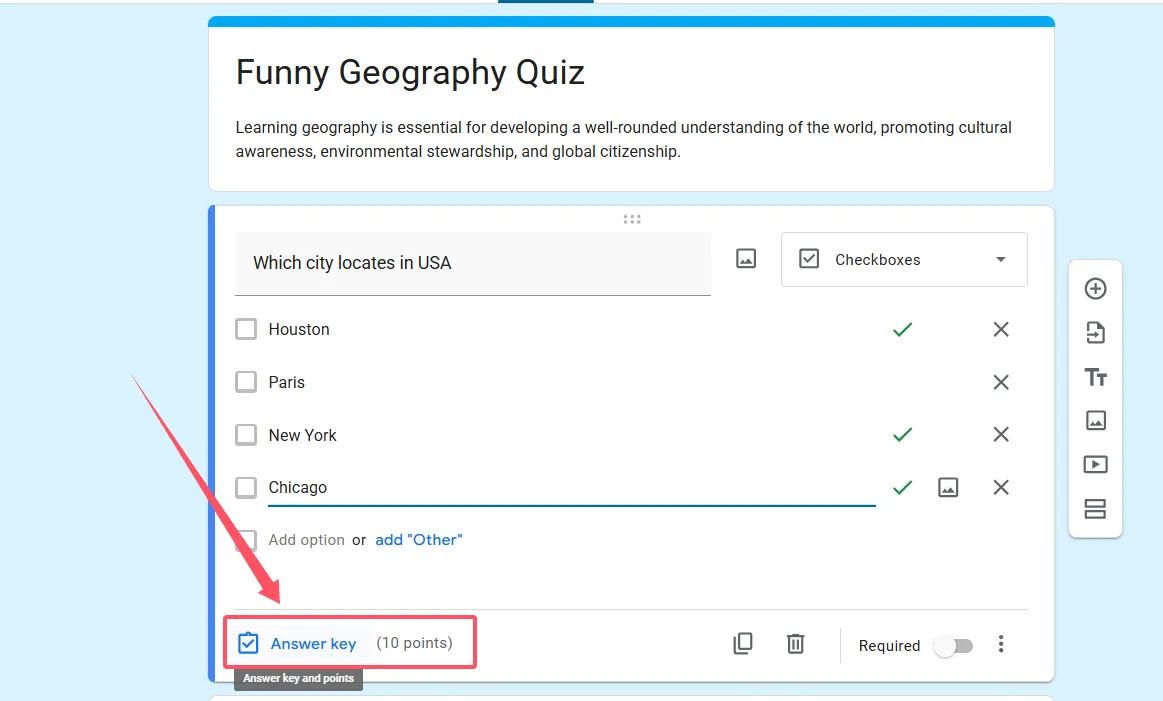
First, mark which answer is correct (for multiple choice or checkboxes) or create an answer key (for short answer questions). Assign points—typically 1 point for simple questions, more for complex ones. Here’s where it gets interesting.
Adding Targeted Feedback Messages
Below the answer choices, you’ll see “Add answer feedback.” Click it, and you get two text boxes:
- Feedback for correct answers — Reinforce learning with explanations like “Exactly! The mitochondria is the powerhouse because it produces ATP through cellular respiration.”
- Feedback for incorrect answers — Guide students with hints like “Not quite! Remember, chloroplasts handle photosynthesis. The mitochondria is responsible for a different process—think about cellular energy.”
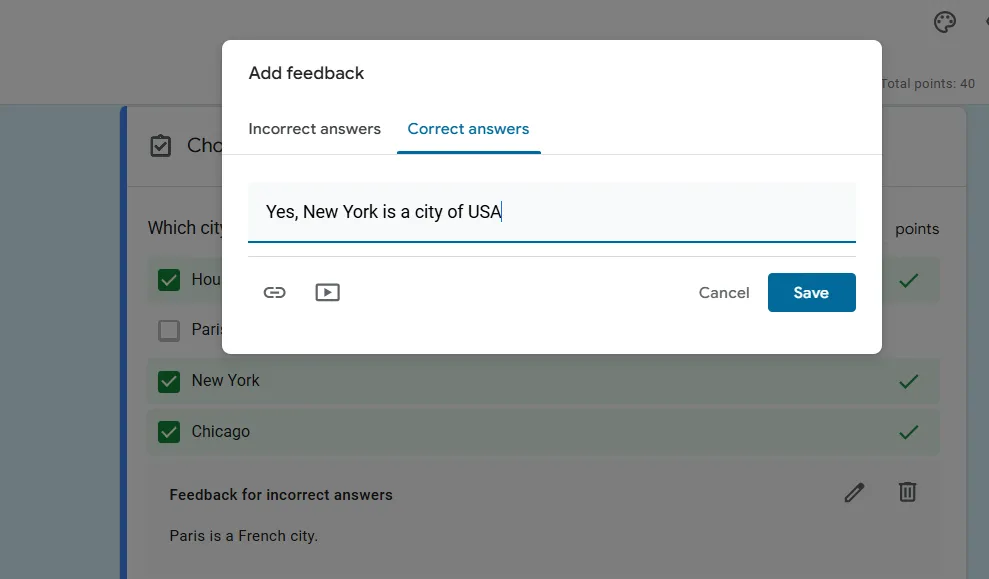
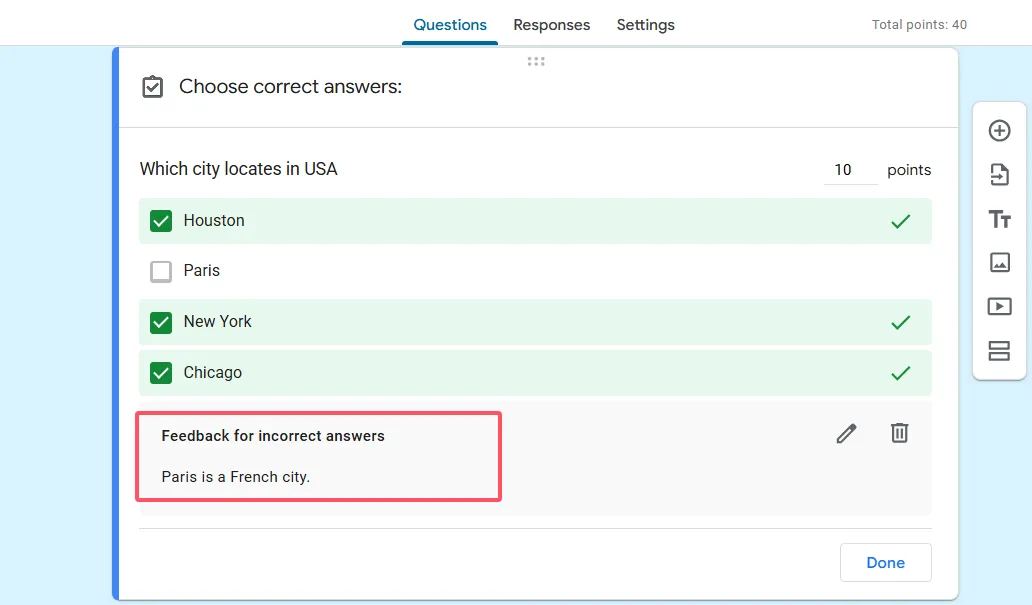
But wait—there’s more! You’re not limited to text. Google Forms lets you embed:
- YouTube videos — Link to 2-minute explainer videos that dive deeper into the concept
- External resources — Direct students to articles, interactive simulations, or practice exercises
- Your own materials — Link to Google Docs with detailed explanations, slideshow presentations, or additional practice problems
Imagine a student gets a question about World War II wrong. Instead of just saying “incorrect,” your feedback could say: “The Treaty of Versailles was signed in 1919, not 1945. Watch this 3-minute video to understand its connection to World War I and how it influenced World War II.” That’s not feedback—that’s scaffolding learning.
Choosing When to Display Feedback
Notice the dropdown menu that says “Show for” with options like “Correct answers,” “Incorrect answers,” or “All answers.” This is surprisingly powerful. You might want to:
- Show positive reinforcement only for correct answers
- Provide corrective guidance only for wrong answers (most common)
- Explain reasoning for all answers, helping students understand why right is right and wrong is wrong
There’s no single correct approach—it depends on your teaching philosophy and the specific learning objectives for each question.
Creating Quizzes with Personalized Feedback in OnlineExamMaker?
While Google Forms is fantastic for its simplicity and integration with Google Workspace, sometimes you need more powerful features or want a platform specifically designed for comprehensive assessments. Enter OnlineExamMaker—an AI-powered quiz creation software that takes personalized feedback to the next level.
Why OnlineExamMaker for Feedback-Rich Quizzes?
OnlineExamMaker offers several advantages for educators and trainers who want to create sophisticated assessments with detailed feedback:
- AI-assisted question generation — Create high-quality questions faster with AI suggestions
- Bulk question upload — Import hundreds of questions with feedback from Excel spreadsheets
- Rich multimedia feedback — Embed images, videos, audio clips, and formatted text in your feedback
- Advanced analytics — Track which feedback messages students view and how long they spend reviewing explanations
- Question bank management — Organize questions by topic, difficulty, and learning objective with associated feedback templates
Creating Your First Quiz in OnlineExamMaker
Getting started is straightforward:
- Sign up and create a new exam — Choose from various quiz types (practice, certification, formative assessment)
- Add questions manually or use AI — The AI question generator can create multiple-choice, true/false, fill-in-the-blank, and short-answer questions based on your topic or uploaded materials
- Configure scoring and timing — Set point values, time limits, and pass/fail thresholds
- Set up personalized feedback — This is where OnlineExamMaker really shines
Create Your Next Quiz/Exam Using AI in OnlineExamMaker
Method 1: Adding Feedback via Excel Upload
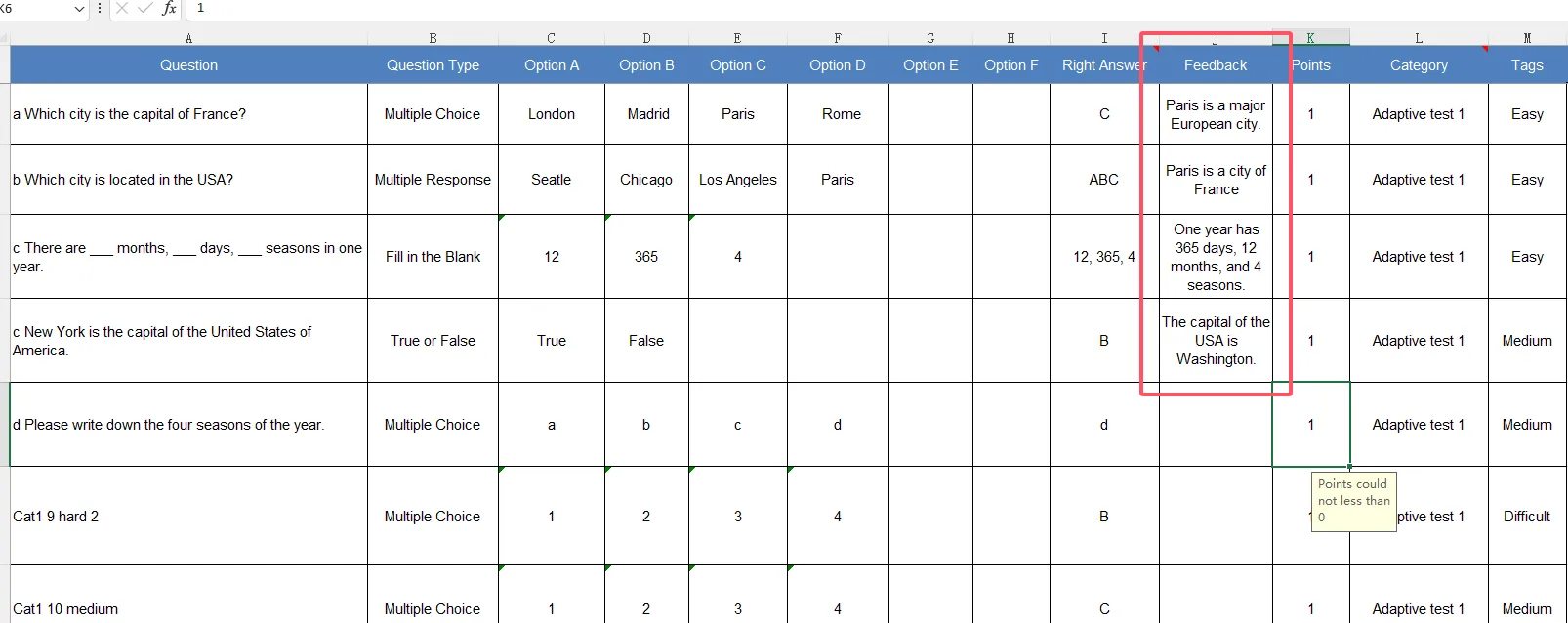
If you’re creating a large quiz or migrating from another platform, the Excel upload method is incredibly efficient. Here’s how it works:
- Download OnlineExamMaker’s Excel template (available in the question import section)
- Fill in your spreadsheet with columns for:
- Question text
- Answer choices (A, B, C, D)
- Correct answer
- Feedback for correct answers
- Feedback for incorrect answers
- Point value
- Question type
- Difficulty level (optional)
- In the feedback columns, write your personalized messages—you can use basic HTML formatting for bold, italics, and links
- Upload the completed Excel file to OnlineExamMaker
- Review and adjust formatting in the preview
This method is perfect when you’re creating a 50-question exam with detailed feedback for each. Instead of clicking through 50 individual question editors, you complete everything in a familiar spreadsheet format and upload it all at once.
Example Excel format:
| Question | Option A | Option B | Option C | Option D | Correct Answer | Feedback (Correct) | Feedback (Incorrect) | Points |
|---|---|---|---|---|---|---|---|---|
| What is the capital of France? | London | Paris | Berlin | Madrid | B | Correct! Paris has been France’s capital since the 12th century. | Not quite. Paris is the capital. Remember, the Eiffel Tower is located in the French capital. | 1 |
Method 2: Adding Feedback in the Question Editor
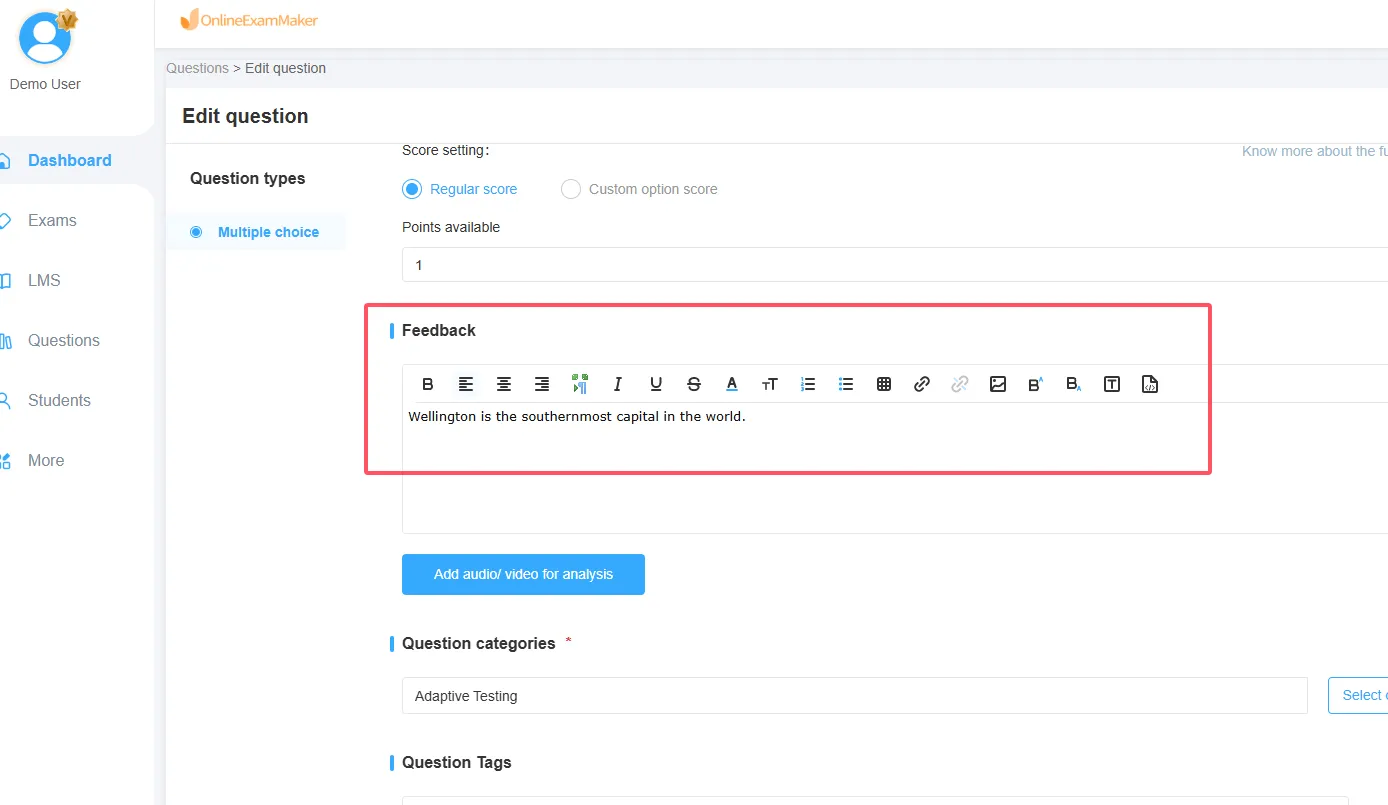
For more detailed feedback with multimedia elements, use OnlineExamMaker’s built-in question editor:
- Create or select a question in your quiz
- Click the “Feedback” tab in the question editor
- You’ll see separate editors for correct and incorrect answer feedback
- Use the rich text editor to format your feedback with:
- Bold, italics, underline, and highlighting
- Bullet points and numbered lists
- Images uploaded from your computer or linked from the web
- Embedded videos from YouTube, Vimeo, or direct video uploads
- Hyperlinks to additional resources
- Mathematical equations (LaTeX support)
- Preview how students will see the feedback
- Save and move to the next question
Advanced Feedback Features in OnlineExamMaker
What sets OnlineExamMaker apart is its sophisticated feedback system:
- Answer-specific feedback — For multiple-choice questions, you can write unique feedback for each wrong answer, not just a generic “incorrect” message. This addresses common misconceptions directly.
- Partial credit with feedback — Assign partial points for partially correct answers and explain what was right and what was missing
- Learning path recommendations — Feedback can include “Next steps” sections suggesting specific modules, videos, or readings based on the student’s performance pattern
- Feedback analytics — See which feedback messages are most frequently triggered, helping you identify common problem areas in your curriculum
Example of Advanced Feedback:
Question: Which of the following is NOT a principle of object-oriented programming?
If student selects “Encapsulation” (wrong):
“Encapsulation IS actually one of the four main principles of OOP! It refers to bundling data and methods that operate on that data within a single unit (class). The correct answer is ‘Procedural Decomposition,’ which is a principle of procedural programming, not OOP. To strengthen your understanding, review the four OOP pillars: Encapsulation, Abstraction, Inheritance, and Polymorphism.”
This targeted feedback doesn’t just say “wrong”—it corrects the misconception, reinforces the correct concept, and provides a path forward for learning.
Best Practices for Writing Effective Quiz Feedback
Creating feedback is one thing; creating effective feedback that actually helps students learn is another. Here are battle-tested strategies from educators who’ve mastered the art of meaningful feedback:
1. Be Specific, Not Generic
Bad feedback: “Incorrect. Try again.”
Good feedback: “You’re thinking of the right time period, but the Cold War ended in 1991 with the dissolution of the Soviet Union, not 1989. The fall of the Berlin Wall in 1989 was a significant event leading to the end, but not the official conclusion.”
2. Acknowledge Partial Understanding
Even wrong answers often contain elements of correct thinking. Recognizing this builds confidence and shows students they’re on the right track.
Example: “You correctly identified that supply and demand affect prices, which shows good economic thinking! However, in this scenario, a decrease in supply with constant demand would increase prices, not decrease them. Think about what happens when something becomes scarce—does its value go up or down?”
3. Explain the ‘Why,’ Not Just the ‘What’
Students need to understand the reasoning behind correct answers. This builds mental models they can apply to new situations.
Example: “The answer is mitosis, not meiosis. Here’s why: Mitosis produces two identical daughter cells for growth and repair, while meiosis produces four genetically different cells specifically for sexual reproduction. Since this question asks about cell division in wound healing, mitosis is the process at work.”
4. Use Questions to Prompt Reflection
Instead of just telling students what’s right, ask questions that guide them toward discovery.
Example: “Not quite. Before finalizing your answer, ask yourself: What happens to the numerator and denominator when you multiply by the reciprocal? Try working through the problem again with that in mind.”
5. Connect to Real-World Applications
Abstract concepts stick better when linked to concrete examples students can relate to.
Example: “Correct! Understanding Newton’s Third Law—for every action there’s an equal and opposite reaction—explains why rockets work in the vacuum of space. When the rocket expels gas downward (action), the rocket is pushed upward (reaction). That’s how SpaceX launches work!”
6. Keep It Concise but Complete
Students won’t read paragraph-long feedback. Aim for 2-4 sentences that deliver maximum insight with minimum words.
7. Include Resources for Deeper Learning
Always give students a next step—a video, article, practice problem, or chapter to review.
Example: “This is a tricky concept! For a clearer explanation with visual examples, watch this 5-minute video on photosynthesis, then try the practice problems on page 78.”
8. Celebrate Correct Answers Meaningfully
Don’t just say “Correct!” Add value even for right answers.
Good feedback for correct answers: “Excellent! You correctly identified the protagonist’s internal conflict. Notice how the author uses weather imagery throughout the chapter to mirror the character’s emotional state—this is called pathetic fallacy, a powerful literary device.”
Frequently Asked Questions
Q: How long should my feedback be for each question?
Aim for 2-4 sentences or 50-100 words. Long enough to provide meaningful guidance, short enough that students will actually read it. For complex topics, consider linking to longer explanations rather than writing essays in the feedback box.
Q: Should I provide feedback for every question or just the difficult ones?
Ideally, every question should have feedback—even the easy ones. For simple questions, brief feedback reinforcing the concept works great. For challenging questions, more detailed explanations are warranted. Think of it this way: if it’s worth asking, it’s worth explaining.
Q: Can students see feedback before submitting the quiz?
No. In Google Forms, feedback only appears after submission based on your settings (immediate or after manual review). This prevents students from using feedback to “game” the quiz by submitting, checking feedback, and then retaking it.
Q: What if I want different feedback for different wrong answers?
Google Forms doesn’t support answer-specific feedback for each wrong option in a multiple-choice question—you can only provide one message for “any incorrect answer.” However, platforms like OnlineExamMaker do support unique feedback for each answer choice, allowing you to address specific misconceptions.
Q: How do I balance detailed feedback with time constraints?
Start with your most important or commonly missed questions. Create feedback templates for common mistake patterns that you can reuse across similar questions. For large quizzes, focus detailed feedback on higher-point value or learning-objective-critical questions.
Q: Can I include images in my feedback?
In Google Forms, you can include links to images, but not embed them directly in the feedback text. OnlineExamMaker and similar advanced platforms do support embedded images, making your feedback visually rich and more engaging.
Q: Should feedback be different for practice quizzes vs. graded assessments?
Absolutely! Practice quiz feedback should be more extensive and instructional since the goal is learning. Include hints, worked examples, and links to resources. Graded assessment feedback can be briefer, focusing on correctness and pointing to resources for review without giving away too much (in case of retakes).
Q: How do I prevent feedback from making my quiz too easy if students can retake it?
Use Google Forms’ quiz settings to limit submissions to one per person, or create multiple versions of your quiz with similar but not identical questions. Alternatively, make feedback available only after the quiz deadline has passed. For practice quizzes where retakes are encouraged, detailed feedback is actually beneficial—it facilitates learning.
Q: Can I track whether students actually read the feedback I provide?
Google Forms doesn’t track feedback viewing, but platforms like OnlineExamMaker offer analytics showing which students viewed feedback and how long they spent reviewing it. This data can help you identify students who might benefit from additional support.
Q: What’s the best way to handle feedback for open-ended or essay questions?
These require manual feedback. Use rubrics to maintain consistency, and structure your feedback with: (1) What was done well, (2) What needs improvement, (3) Specific suggestions for improvement, (4) Resources for further learning. Consider using comment codes or abbreviations for common issues to save time while providing detailed guidance.
