Embedding a Google Forms quiz into your website is surprisingly simple. Whether you’re a teacher creating assessments, a trainer building knowledge checks, or an HR manager designing employee surveys, this guide will walk you through everything you need to know. And we’ll explore some powerful alternatives along the way.
- Why Embed Your Quiz Instead of Sharing a Link?
- Step-by-step Guide to Embed a Google Forms Quiz on a Website
- Getting the Embed Code from Google Forms
- Adding Your Quiz to Different Website Platforms
- Testing and Customizing Your Embedded Quiz
- Meet OnlineExamMaker: Make Embeddable Quizzes Using AI
- Common Questions and Troubleshooting Tips in Embedding a Quiz
Why Embed Your Quiz Instead of Sharing a Link?
Let’s be honest—there’s something about clicking a link that takes people away from your site that just doesn’t feel right. It breaks the flow. Your carefully designed website suddenly gives way to Google’s generic interface, and before you know it, half your visitors have wandered off to check their email.
Embedding keeps everything in one place. Your quiz becomes part of your site’s experience, not an afterthought. It looks professional, feels seamless, and most importantly, keeps your audience engaged right where you want them.
Think about it from your user’s perspective. Would you rather click a link that opens a new tab (or worse, redirects you entirely), or scroll down the page you’re already reading and find the quiz waiting for you? The answer seems pretty clear.
Step-by-step Guide to Embed a Google Forms Quiz on a Website
Getting the Embed Code from Google Forms
Here’s where the magic begins, and it’s easier than making your morning coffee. Google Forms hands you everything you need on a silver platter—you just need to know where to look.
Step 1: Open Your Quiz
Navigate to your Google Forms quiz. See that Send button in the top right corner? That’s your gateway. Click it, and a window pops up with several sharing options.
Step 2: Find the Embed Icon
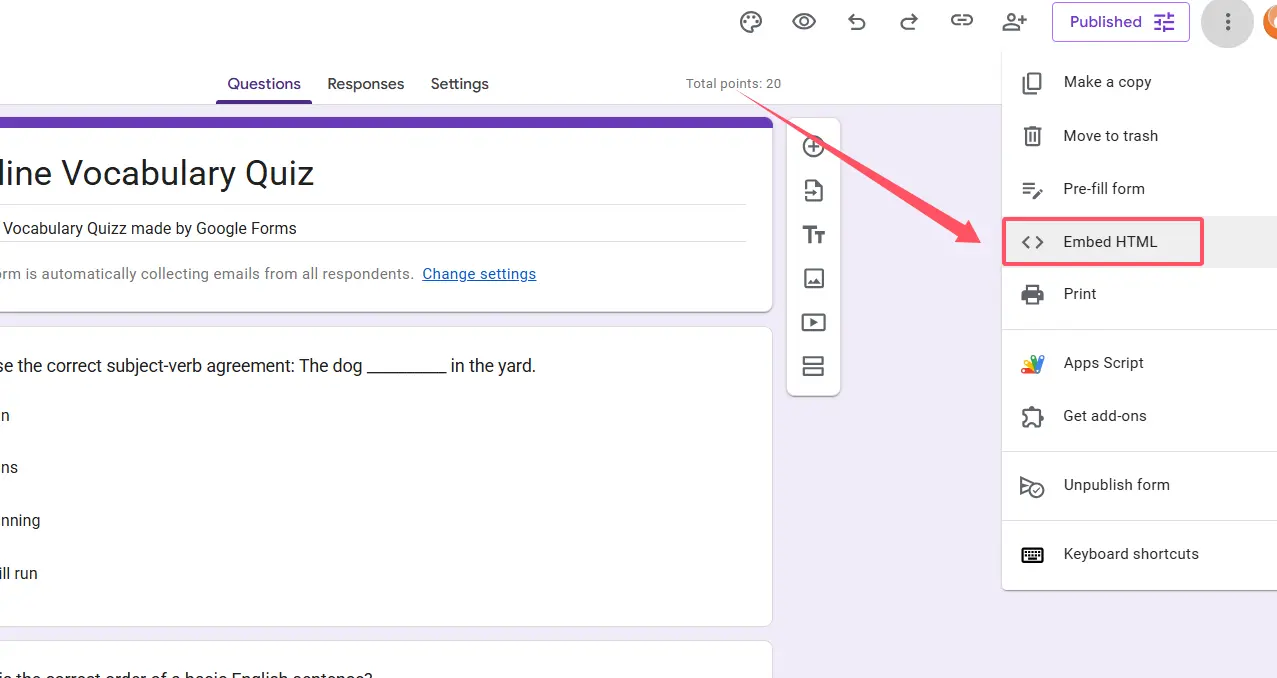
Click three dots icon in the top right corner to get the embed code button. This is the Embed HTML icon, and clicking it reveals the iframe code that will bring your quiz to life on your website.
Step 3: Customize the Dimensions
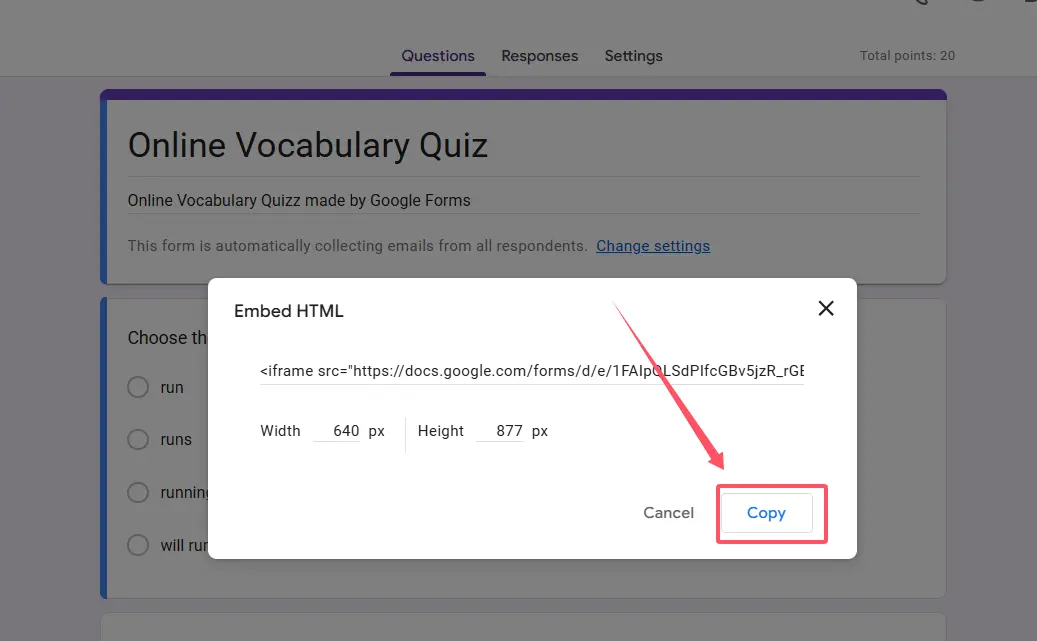
Here’s where you can get a bit creative. The default dimensions might not fit your site perfectly. Want your quiz to stretch across the full width of your content area? Change the width value to 100%. Finding the quiz too squished vertically? Bump that height up to 800 or even 1000 pixels.
Your code will look something like this:
<iframe src="https://docs.google.com/forms/d/e/YOUR_FORM_ID/viewform?embedded=true" width="100%" height="800" frameborder="0">Loading…</iframe>Step 4: Copy the Code
Once you’re happy with the dimensions, copy the entire code snippet. You’re now ready to paste this into your website.
Adding Your Quiz to Different Website Platforms
Different website builders have their quirks, but they all speak the same language when it comes to embedding: HTML. Let’s break down the process for the most popular platforms.
WordPress: The Content Management Heavyweight
WordPress powers a massive chunk of the internet, and for good reason. Here’s how to get your quiz embedded:
Edit the page or post where you want your quiz to appear. In the block editor (also called Gutenberg), click the plus icon to add a new block. Search for Custom HTML and select it. Paste your iframe code directly into that block. Hit publish, and you’re done.
The beauty of WordPress is its flexibility—you can drop that Custom HTML block anywhere in your content, sandwich it between paragraphs, or give it its own dedicated section.
Plain HTML Sites: The Old-School Approach
Working with raw HTML? This is your territory. Open your HTML file in your favorite code editor, find the spot in the <body> section where you want the quiz, and paste the iframe code. Save the file, upload it to your server, and you’re good to go.
There’s something satisfying about the directness of this method. No plugins, no interfaces—just you and the code.
Wix, Squarespace, and Other Drag-and-Drop Builders
These platforms are all about making things visual and intuitive. Look for an Embed widget or HTML block in your editor. Drag it onto your page, paste your iframe code, and adjust the positioning to your liking.
Each platform has slightly different names for this feature—Wix calls it “HTML iframe,” Squarespace uses “Code Block”—but the concept remains the same.
Testing and Customizing Your Embedded Quiz
You’ve embedded your quiz. Great! But hold on—does it actually work the way you want it to?
Pull up your website on different devices. Does the quiz look good on your phone? What about a tablet? If things look cramped or stretched, head back to those width and height values in your iframe code. Setting width to 100% usually works wonders for responsive design, while height might need some trial and error depending on how long your quiz is.
Here’s a sneaky issue that trips people up: if your Google Form requires users to sign in with a Google account, you’ll lose some participants who don’t want to authenticate. Double-check your form settings and make sure it’s set to allow responses from anyone, not just people in your organization.
Test the actual quiz-taking experience. Click through it yourself. Do all the questions display properly? Can you submit it without issues? Sometimes weird formatting sneaks in when content moves from Google Forms to your embedded version.
Meet OnlineExamMaker: Make Embeddable Quizzes Using AI
Google Forms is great for basic quizzes, but what if you need something more robust? What if you’re running high-stakes assessments, tracking detailed analytics, or just want more control over the design and functionality?
Enter OnlineExamMaker, an AI-powered exam creation software that takes quiz-building to the next level.
This isn’t just another form builder. OnlineExamMaker is purpose-built for creating professional exams and quizzes with features that make Google Forms look like a notepad. We’re talking anti-cheating measures, question banks, randomization, detailed analytics, and customizable branding that makes your quizzes look uniquely yours.
For teachers and trainers especially, the ability to create timed exams with randomized questions can be a game-changer. HR managers will appreciate the detailed candidate evaluation tools and the ability to track completion rates across departments.
Create Your Next Quiz/Exam Using AI in OnlineExamMaker
Creating and Embedding a Quiz with OnlineExamMaker
The process is remarkably straightforward. First, you’ll create your exam or quiz within the OnlineExamMaker platform. The interface is intuitive—add your questions, set up scoring rules, configure time limits if needed, and customize the appearance to match your brand.
Once your quiz is ready, OnlineExamMaker generates an embed code similar to Google Forms, but with more customization options. Want to control the quiz’s appearance within your site? You’ve got it. Need to track who took the quiz and how they performed? OnlineExamMaker has you covered.
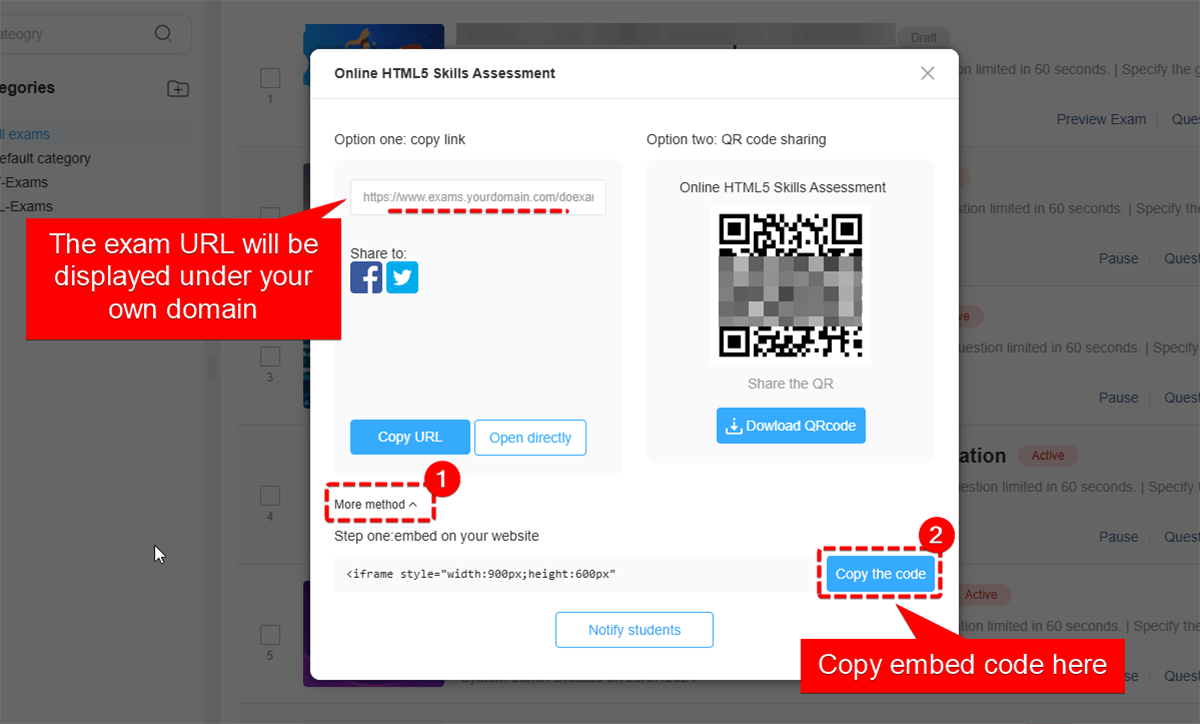
The detailed guide on how to embed your OnlineExamMaker quiz can be found in their official documentation, which walks you through the embed process step by step. You’ll find options for customizing dimensions, choosing between popup or inline display, and even white-labeling the experience so it feels completely native to your site.
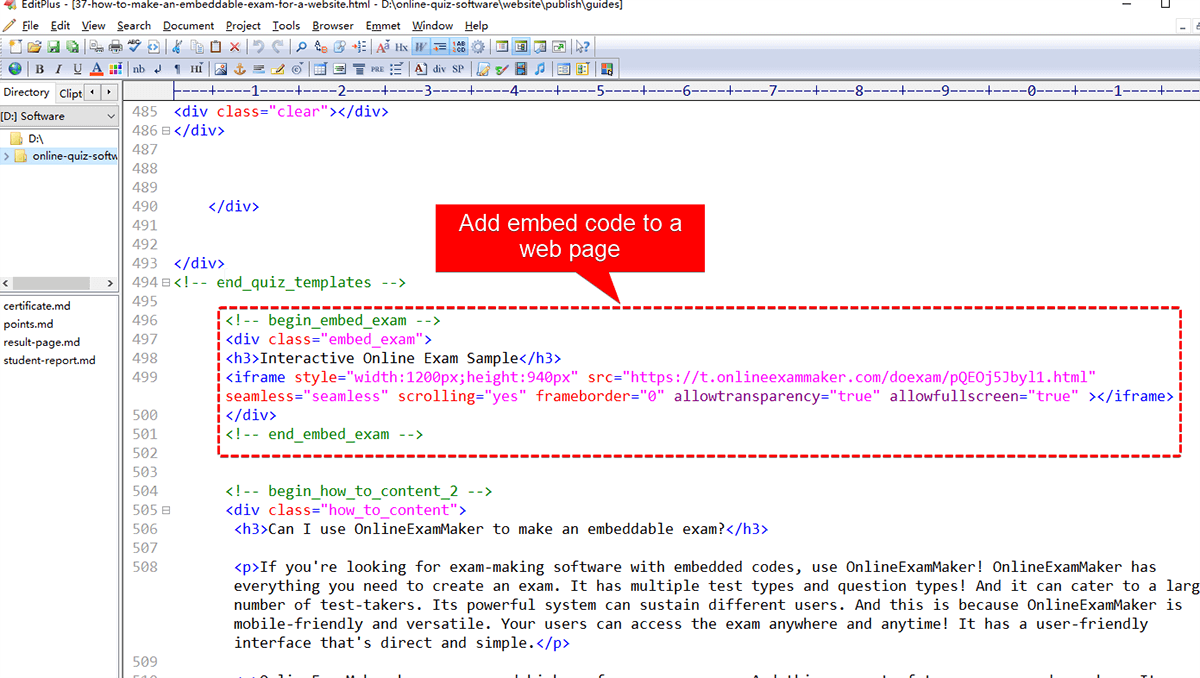
When Should You Choose OnlineExamMaker Over Google Forms?
Google Forms is perfect for simple feedback forms and casual quizzes. But when you need certification exams, employee assessments, or any scenario where security and detailed reporting matter, OnlineExamMaker shines.
Think about the difference this way: Google Forms is like a friendly neighborhood café—great for casual meetups. OnlineExamMaker is the professional conference center—equipped for serious business with all the amenities you’d expect.
Common Questions and Troubleshooting Tips in Embedding a Quiz
Why isn’t my quiz showing up on my website?
First, check if your website allows iframes. Some platforms or security settings block them entirely. If that’s the case, you might see just a blank space where your quiz should be. Also, make sure you’re pasting the code in an HTML editing area, not a rich text editor that might strip out the code.
Can I customize how my Google Forms quiz looks when embedded?
Google Forms offers limited customization within the form itself—you can change theme colors and upload a header image. But the embedded version will always maintain Google’s basic styling. For more control over appearance, platforms like OnlineExamMaker give you extensive branding options.
Is there a limit to how many people can take my embedded quiz?
Google Forms itself can handle up to 5 million responses per form, which is more than most people will ever need. The limitation is more likely to be your website’s traffic capacity rather than the quiz itself.
What if I want to change the quiz after I’ve embedded it?
Good news—you don’t need to update the embed code. Any changes you make to the original Google Form will automatically reflect in the embedded version. Edit your form, and the embedded quiz updates instantly.
My quiz looks great on desktop but terrible on mobile. Help?
This usually comes down to those width and height values. Try using width=”100%” to ensure it scales with the screen size. For height, you might need to use media queries in your CSS to adjust for smaller screens, or simply set a reasonable fixed height that works across devices.
