Ever created a quiz where you worried students might share answers? Or maybe you wanted to make each test attempt feel fresh and unique? You’re not alone. The quest to randomize questions in Google Forms has sent countless educators down a rabbit hole of workarounds, add-ons, and creative solutions.
Here’s the uncomfortable truth: Google Forms doesn’t natively support pulling random questions from a question bank. But don’t close this tab just yet—there are clever ways around this limitation, and we’re about to explore them all.
- Why Randomize Quiz Questions in a Google Forms Quiz?
- The Google Sheets Formula Method
- Using Add-ons for Question Randomization
- OnlineExamMaker: A Powerful Google Forms Alternative for Randomized Quiz Creation
- How to Use OnlineExamMaker for Creating Randomized Quizzes?
- Frequently Asked Questions

Why Randomize Quiz Questions in a Google Forms Quiz?
Before we dive into the technical details, let’s talk about why you’d want to randomize questions in the first place. The benefits are more significant than you might think.
First, there’s academic integrity. When students take exams at different times—especially in online learning environments—having the same questions in the same order creates opportunities for answer sharing. Randomization adds a layer of protection without making the test harder.
Second, randomization combats memorization of question order rather than actual learning. Students can’t rely on “the answer to question 3 is always B” strategies. They actually have to know the material.
Third, if you’re using quizzes for practice or study purposes, randomization lets students take the same quiz multiple times with a different experience each time. It’s like having multiple versions of the same test without doing the work of creating them manually.
The Google Sheets Formula Method
This is where things get interesting. While Google Forms can’t pull random questions on its own, Google Sheets can do the heavy lifting for you.
Here’s how it works: you create a master question bank in a Google Sheet, then use formulas to randomly select and shuffle a subset of those questions. It’s not automated, but it’s effective.
Step-by-step process:
Start by creating a new Google Sheet and listing all your questions in column A, starting from row 2. Row 1 can be your header (something like “Question Bank”). Let’s say you have 50 questions total, running from A2 to A50.
In column B, you’ll use the RANDARRAY formula to randomly select questions. Here’s an example formula: =INDEX(A2:A50,RANDARRAY(10,1,1,49,TRUE))
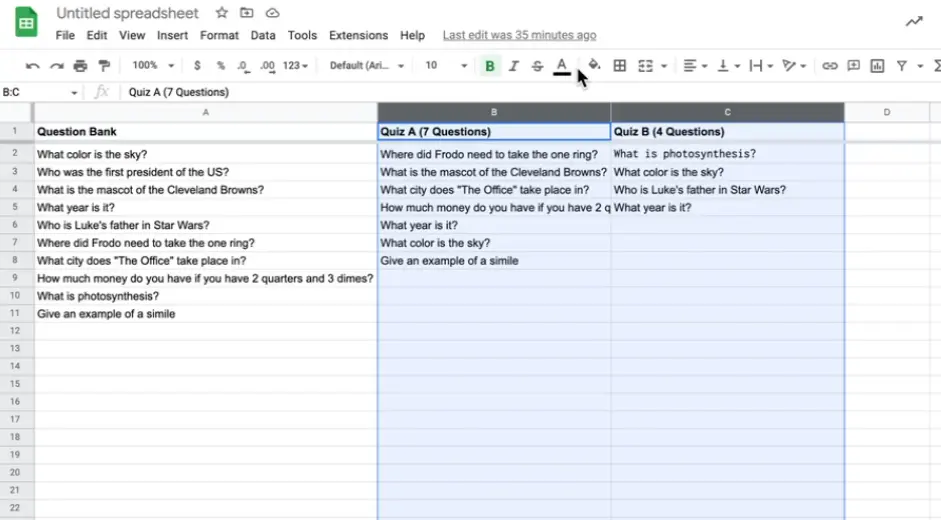
What’s happening here? INDEX pulls values from your question bank (A2:A50). RANDARRAY generates random row numbers—in this case, 10 random selections from rows 1 through 49. The TRUE parameter ensures you get unique questions without repetition.
Every time you refresh the spreadsheet, RANDARRAY recalculates and gives you a new random selection. Copy these questions and manually create a new Google Form with them. Yes, it’s manual. Yes, it’s a bit tedious. But it works.
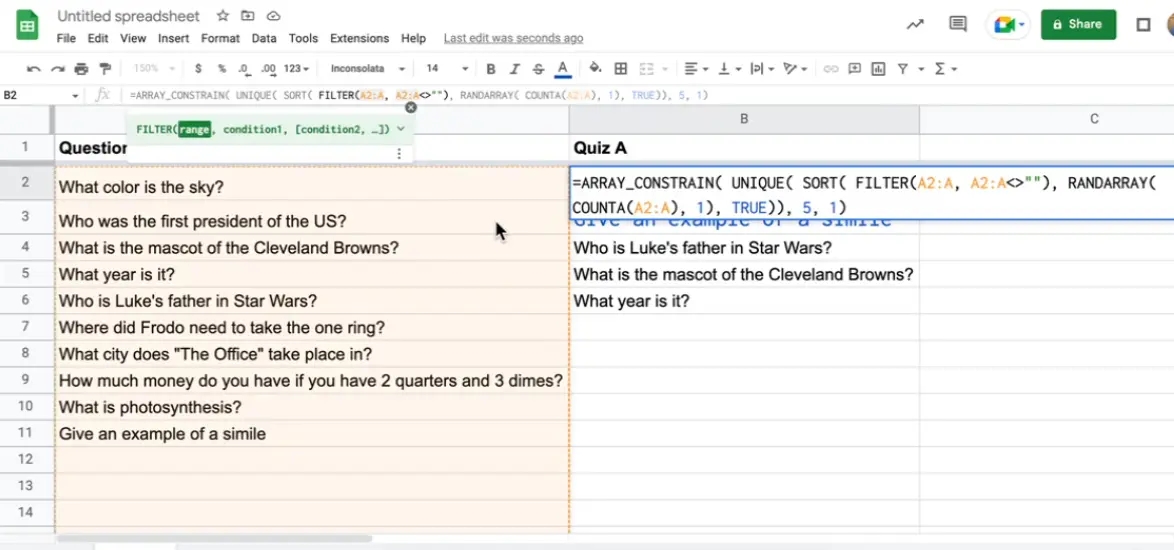
The beauty of this approach is its simplicity. You don’t need to install anything or learn complex scripting. The downside? Each respondent still gets the same quiz unless you create multiple forms. It’s randomization at the setup stage, not per-user.
Using Add-ons for Question Randomization
Add-ons promise to make life easier, and some deliver on that promise—sort of. Two popular options are FormRanger and Form Maker Question Bank, both available in the Google Workspace Marketplace.
FormRanger excels at pulling data from Google Sheets into your forms. You can create dropdown lists, multiple choice options, and yes, questions from a spreadsheet. However, it requires manual selection during form creation. You’re not getting true per-user randomization out of the box.
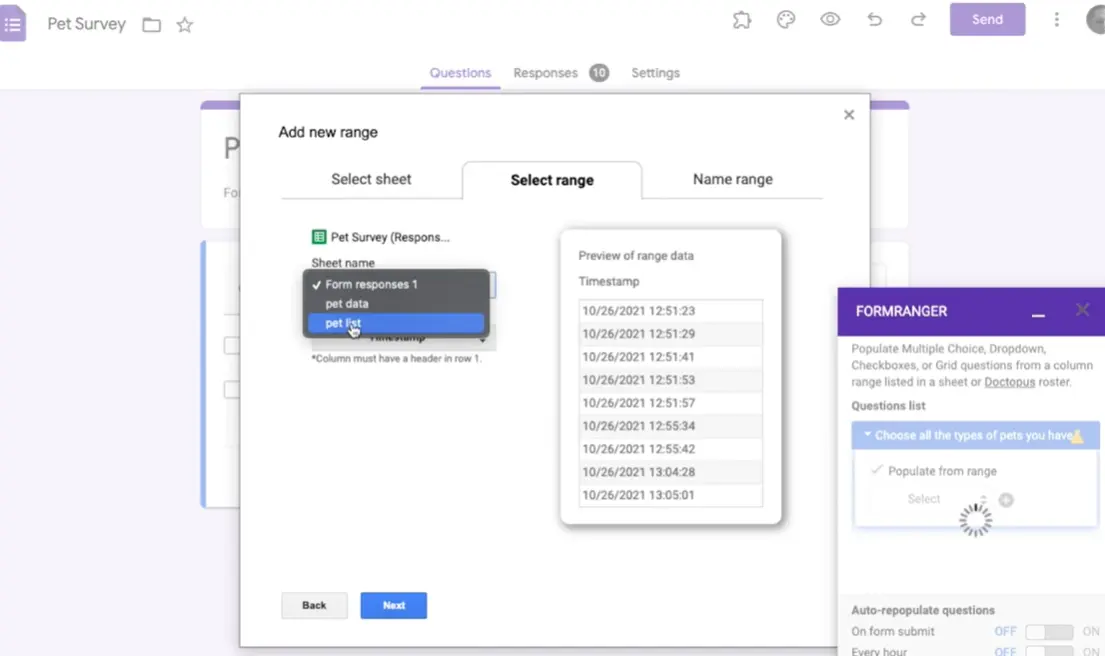
Form Maker Question Bank is specifically designed for educators managing large question banks. It organizes questions by category and difficulty level, making it easier to build quizzes systematically. But again, the randomization happens at form creation, not per response.
Both tools have their place. They’re excellent for managing large question banks and streamlining form creation. But if you want each student to get a different random selection of questions, you’ll need to combine these with Google Apps Script or look at alternative platforms.
OnlineExamMaker: A Powerful Google Forms Alternative for Randomized Quiz Creation
Let’s talk about a solution designed specifically for what you’re trying to accomplish: OnlineExamMaker.
Unlike Google Forms, which was built as a general-purpose survey tool that educators adapted for quizzes, OnlineExamMaker is purpose-built for creating professional assessments. And question randomization? It’s baked right in.
OnlineExamMaker offers features that educators actually need: question banks organized by topic and difficulty, automatic question randomization per test-taker, randomization of answer choices within questions, time limits and anti-cheating features, and detailed analytics on question performance and student results.
The platform supports multiple question types including multiple choice, true/false, fill-in-the-blank, essay questions, and matching. You can mix question types within the same quiz and set different point values for different questions.
What makes OnlineExamMaker particularly valuable is its approach to question banks. Instead of maintaining questions in spreadsheets or form editors, you build organized banks that you can reuse across multiple quizzes. Tag questions by subject, difficulty, or learning objective, then pull random selections based on those criteria.
Create Your Next Quiz/Exam Using AI in OnlineExamMaker
How to Use OnlineExamMaker for Creating Randomized Quizzes?
Setting up a randomized quiz in OnlineExamMaker is straightforward, even if you’re not technically inclined. Let me walk you through it.
Step 1: Creating your question bank
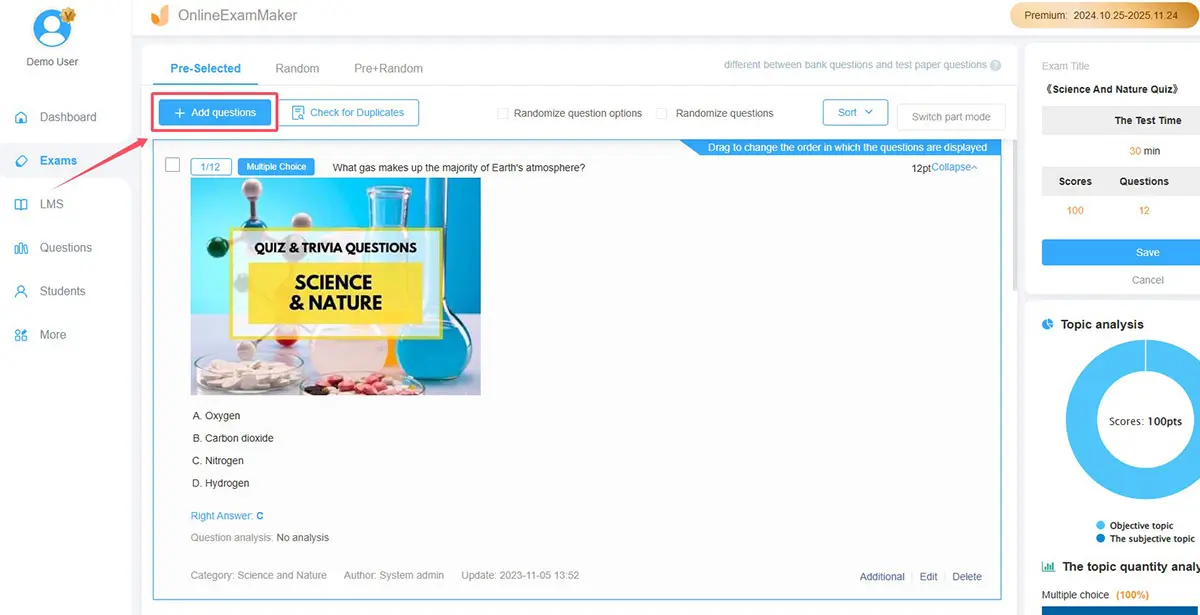
Log into OnlineExamMaker and navigate to the Question Bank section. Here you’ll create collections of questions organized however makes sense for your content—by chapter, topic, difficulty level, or learning objective.
Add questions one at a time or import them in bulk from CSV or Excel files. For each question, you’ll specify the question text, answer choices, correct answer(s), point value, and any tags or categories. The interface is intuitive—think of it as a smarter spreadsheet designed specifically for test questions.
You can include rich media in your questions. Images, videos, audio files—all supported. This is particularly useful for language teaching, science demonstrations, or any subject where visual elements enhance understanding.
Step 2: Building the quiz with randomization:=
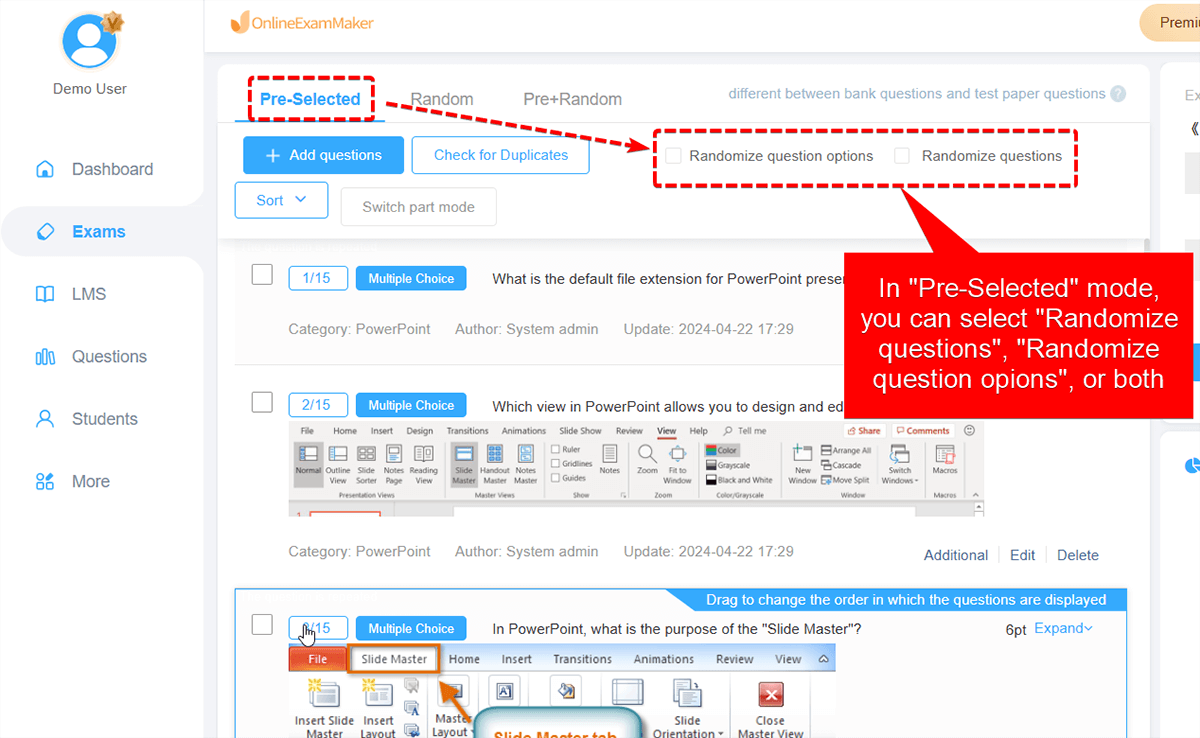
When you create a new quiz in OnlineExamMaker, you’ll have several options for pulling questions from your bank. You can manually select specific questions if you want a fixed test. Or—and this is where it gets good—you can set randomization rules.
Tell the system “pull 10 random questions from the Chapter 3 bank” or “select 5 easy questions, 10 medium questions, and 5 hard questions from Physics – Thermodynamics.” The randomization happens automatically when each student starts the quiz.
Even better, you can randomize the order of answer choices within each question. This prevents students from simply remembering “the answer is always C” for specific questions.
Step 3: Quiz settings and distribution
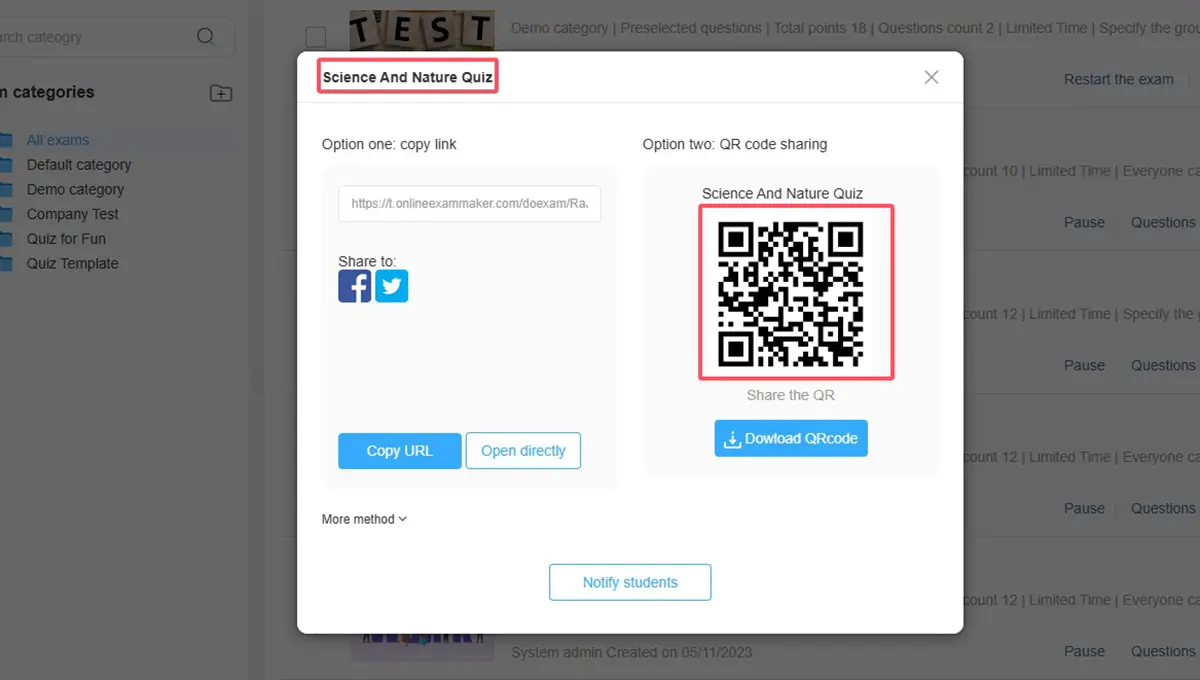
Set your time limit, decide whether students can navigate freely between questions or must answer sequentially, enable or disable backtracking, and configure anti-cheating features like randomization, lockdown browser requirements, or proctoring.
Distribution is flexible. Generate a unique link for each student, embed the quiz on your learning management system, or even set it to display on specific dates and times. Students access their quiz, get their randomized question set, and submit when done.
Step 4: Grading and analytics
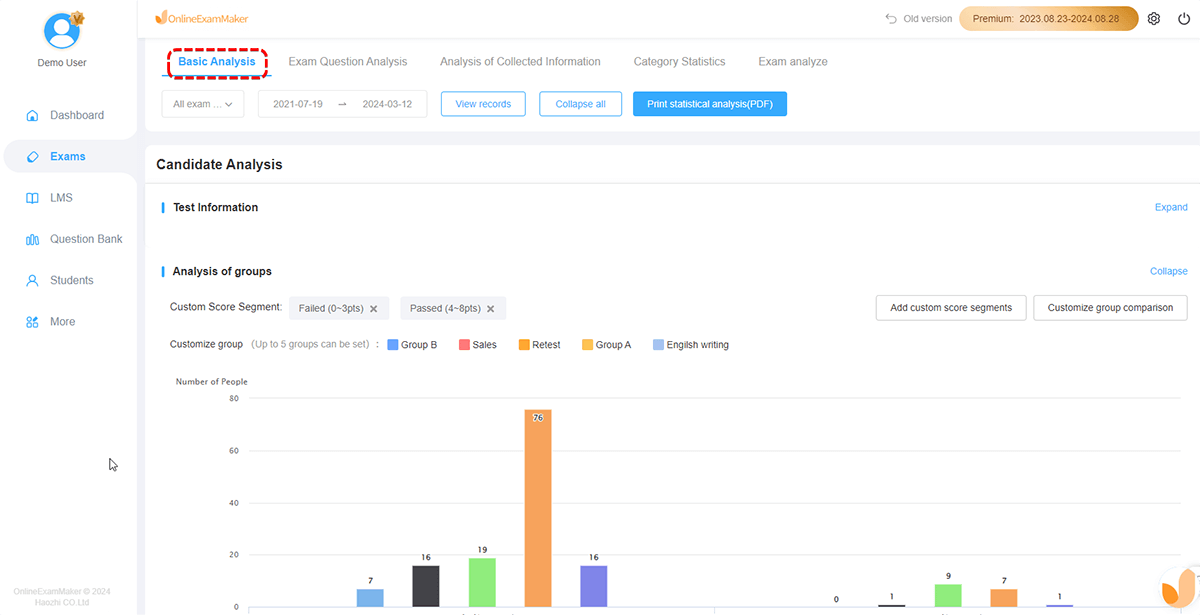
OnlineExamMaker automatically grades multiple choice and true/false questions. Essay and fill-in-the-blank questions are flagged for manual review with the student’s answer displayed next to your answer key.
The analytics dashboard shows not just individual student scores but question-level performance across all test-takers. If 85% of students miss question 47, that’s probably a teaching moment rather than a student problem.
Frequently Asked Questions
Can Google Forms randomize questions from a question bank automatically?
No, Google Forms does not have a native feature to pull random questions from a question bank for each test-taker. You can randomize the order of fixed questions within a form using the “Shuffle question order” option, but you cannot set up a question bank where different random subsets appear for different respondents without using workarounds like Google Sheets formulas, add-ons, or custom scripts.
What’s the easiest way to randomize questions in Google Forms?
The easiest built-in method is to use the “Shuffle question order” option in the form settings, which randomizes the sequence of all questions for each respondent. For pulling random questions from a larger bank, the simplest approach is the Google Sheets formula method using RANDARRAY to select random questions during quiz creation, though this creates fixed quizzes rather than per-user randomization.
Do I need coding skills to randomize Google Forms questions?
For basic randomization of question order, no coding is needed—it’s a checkbox in settings. For the Sheets formula method, you need basic spreadsheet skills but no programming. However, for advanced per-user randomization from question banks, you’ll either need to learn Google Apps Script or use purpose-built platforms like OnlineExamMaker that handle randomization natively.
Is OnlineExamMaker better than Google Forms for quizzes?
It depends on your needs. Google Forms is free, simple, and works well for basic surveys and simple quizzes. OnlineExamMaker is specifically designed for professional assessments with features like true question bank randomization, advanced anti-cheating tools, detailed analytics, and better question type support. For serious testing and certification, OnlineExamMaker offers capabilities Google Forms simply wasn’t designed to provide.
Can students see which questions others got on a randomized quiz?
In Google Forms with shuffled question order, students get the same questions in different sequences—they’ll quickly realize they all got the same questions. True question bank randomization (via scripts or OnlineExamMaker) gives different students different actual questions from your bank, making it much harder to compare answers even if students discuss the test afterward.
How many questions should I include in a question bank?
A good rule of thumb is to have at least 2-3 times as many questions in your bank as you’ll use on any single quiz. If your quiz has 20 questions, aim for a bank of 40-60 questions. This provides enough variety that students taking multiple attempts get meaningfully different experiences while keeping your question writing workload manageable.
