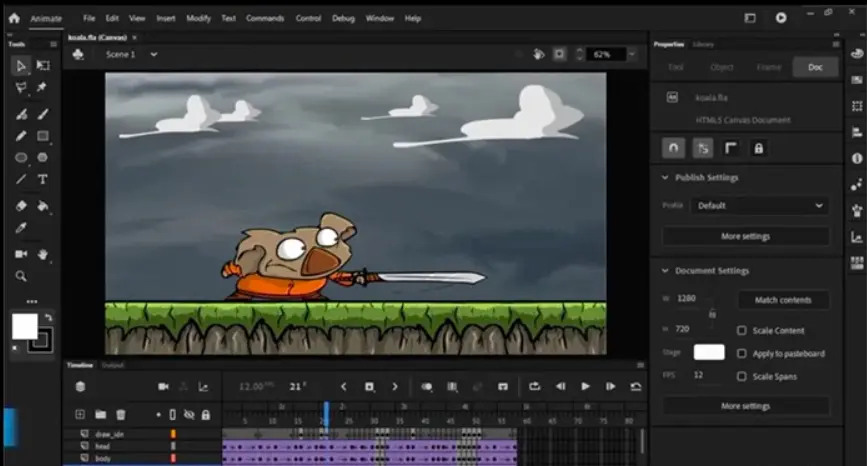
Adobe Animate is a powerful vector graphics and animation software designed for creating interactive content, animations, and multimedia experiences. Originally known as Adobe Flash Professional, it has evolved to support modern web standards, including HTML5 and WebGL, making it ideal for digital artists, designers, and developers.
Key Features:
– Vector and Bitmap Tools: Offers advanced drawing and illustration capabilities with vector graphics for scalable designs, alongside bitmap editing for detailed raster work.
– Timeline and Animation: A robust timeline interface allows for frame-by-frame animation, tweening, and motion paths, enabling smooth and complex sequences.
– Interactivity and Scripting: Supports ActionScript and JavaScript for adding interactivity, such as buttons, games, and responsive elements.
– Asset Integration: Seamlessly imports assets from other Adobe applications like Photoshop and Illustrator, and exports to various formats including SVG, GIF, and video files.
– Mobile and Web Optimization: Provides tools for creating responsive content for websites, apps, and devices, with features for audio integration and character rigging.
Applications:
– Used extensively in web design for banners, ads, and interactive websites.
– Essential for 2D animation in films, TV, and educational content.
– Popular in game development for sprites, UI elements, and prototypes.
– Applied in e-learning for simulations and interactive modules.
– Supports AR/VR projects through export options and plugins.
History and Evolution:
Launched in 2004 as Macromedia Flash, it was acquired by Adobe in 2005 and rebranded as Adobe Animate in 2016. This shift addressed the decline of Flash Player by emphasizing open standards, ensuring its relevance in a post-Flash era.
Why Choose Adobe Animate?
Its user-friendly interface, combined with professional-grade tools, makes it accessible for beginners while offering depth for experts. Whether for creative storytelling or commercial projects, Adobe Animate remains a go-to solution for dynamic digital content, fostering innovation in animation and design.
Table of Contents
- Part 1: OnlineExamMaker AI Quiz Generator – The Easiest Way to Make Quizzes Online
- Part 2: 20 Adobe Animate Quiz Questions & Answers
- Part 3: OnlineExamMaker AI Question Generator: Generate Questions for Any Topic
Part 1: OnlineExamMaker AI Quiz Generator – The Easiest Way to Make Quizzes Online
When it comes to ease of creating a Adobe Animate skills assessment, OnlineExamMaker is one of the best AI-powered quiz making software for your institutions or businesses. With its AI Question Generator, just upload a document or input keywords about your assessment topic, you can generate high-quality quiz questions on any topic, difficulty level, and format.
What you will like:
● AI Question Generator to help you save time in creating quiz questions automatically.
● Share your online exam with audiences on social platforms like Facebook, Twitter, Reddit and more.
● Display the feedback for correct or incorrect answers instantly after a question is answered.
● Create a lead generation form to collect an exam taker’s information, such as email, mobile phone, work title, company profile and so on.
Automatically generate questions using AI
Part 2: 20 Adobe Animate Quiz Questions & Answers
or
1. What is the primary function of the Timeline panel in Adobe Animate?
A. To edit images
B. To manage frames and layers for animation
C. To apply filters and effects
D. To import external files
Answer: B
Explanation: The Timeline panel is used to organize and control the sequence of frames and layers, which is essential for creating and editing animations.
2. Which tool in Adobe Animate is used to draw freehand lines and shapes?
A. Line Tool
B. Pencil Tool
C. Brush Tool
D. Rectangle Tool
Answer: C
Explanation: The Brush Tool allows for freehand drawing with variable stroke widths, making it ideal for creating organic shapes and lines in animations.
3. What does the term “tweening” refer to in Adobe Animate?
A. Manually drawing each frame
B. Automatically generating intermediate frames between two keyframes
C. Adding sound effects
D. Exporting files
Answer: B
Explanation: Tweening is a feature that interpolates frames between keyframes, saving time by automating the animation process.
4. How can you create a symbol in Adobe Animate?
A. By selecting an object and choosing Modify > Convert to Symbol
B. By using the Paint Bucket Tool
C. By importing from external sources
D. By adjusting the timeline settings
Answer: A
Explanation: Converting an object to a symbol allows it to be reused and edited independently, which is a fundamental aspect of efficient animation workflow.
5. What is the purpose of the Bone Tool in Adobe Animate?
A. To create straight lines
B. To rig and animate characters with inverse kinematics
C. To add text effects
D. To manage file exports
Answer: B
Explanation: The Bone Tool enables the creation of skeletal structures for characters, allowing for more natural and poseable animations.
6. Which format is commonly used for exporting animations from Adobe Animate for web use?
A. MP4
B. SWF
C. PSD
D. AI
Answer: B
Explanation: SWF files are designed for web playback, preserving interactivity and vector graphics from Adobe Animate projects.
7. What does the Onion Skin feature help with in Adobe Animate?
A. Previewing the final export
B. Seeing multiple frames overlaid for smoother drawing
C. Applying colors to layers
D. Adding audio tracks
Answer: B
Explanation: Onion Skin displays faint versions of adjacent frames, assisting artists in creating consistent frame-by-frame animations.
8. How do you create a motion tween in Adobe Animate?
A. By drawing freehand on the stage
B. By selecting a symbol and right-clicking to choose Create Motion Tween
C. By using the Eraser Tool
D. By importing a video file
Answer: B
Explanation: A motion tween is created by applying the tween to a symbol, which then animates its properties like position and scale over time.
9. What is a layer in Adobe Animate primarily used for?
A. Storing project files
B. Organizing elements to control visibility and stacking order
C. Editing audio waveforms
D. Applying global effects
Answer: B
Explanation: Layers help in separating different elements of an animation, making it easier to edit and manage complex projects.
10. Which panel in Adobe Animate is used to add and edit actions for interactivity?
A. Library Panel
B. Actions Panel
C. Timeline Panel
D. Properties Panel
Answer: B
Explanation: The Actions Panel allows users to write ActionScript code to add behaviors, such as button clicks, to interactive elements.
11. What is the difference between a graphic symbol and a movie clip symbol?
A. Graphic symbols loop automatically; movie clips have their own timeline
B. They are the same thing
C. Graphic symbols are for static images only
D. Movie clips cannot be edited
Answer: A
Explanation: Graphic symbols are tied to the main timeline for syncing, while movie clips have independent timelines, allowing for more complex animations.
12. How can you reverse the order of frames in Adobe Animate?
A. By using the Reverse command in the Timeline menu
B. By manually reordering them one by one
C. By exporting and re-importing the file
D. By applying a filter
Answer: A
Explanation: The Reverse Frames option in the Timeline menu quickly inverts the sequence, which is useful for animation corrections.
13. What does the Camera tool allow you to do in Adobe Animate?
A. Edit photos
B. Pan, zoom, and rotate the view of the stage
C. Record audio
D. Create 3D effects
Answer: B
Explanation: The Camera tool simulates a virtual camera, enabling dynamic views and movements within the animation scene.
14. Which option is used to make an object follow a path in Adobe Animate?
A. Motion Guide
B. Shape Tween
C. Frame-by-Frame Animation
D. Bone Tool
Answer: A
Explanation: A motion guide layer attaches a tweened object to a path, allowing it to move along a custom route during animation.
15. How do you add sound to an animation in Adobe Animate?
A. By dragging an audio file to the stage
B. By importing it to the Library and placing it on a layer in the Timeline
C. By using the Text Tool
D. By applying a filter
Answer: B
Explanation: Sounds are added via the Library and Timeline, where they can be synchronized with specific frames for precise timing.
16. What is the role of keyframes in Adobe Animate?
A. To define the starting and ending points of changes in an animation
B. To add background music
C. To export files
D. To delete frames
Answer: A
Explanation: Keyframes mark the points where properties like position or scale change, serving as the foundation for tweened animations.
17. Which feature helps in creating smooth color transitions in Adobe Animate?
A. Gradient Tool
B. Shape Tween
C. Paint Bucket Tool
D. Eraser Tool
Answer: B
Explanation: Shape Tween morphs one shape into another, including color changes, to create fluid transitions in animations.
18. How can you loop an animation in Adobe Animate?
A. By setting the loop option in the Properties Panel
B. By adding a script in the Actions Panel
C. By duplicating frames
D. Both A and B
Answer: D
Explanation: Animations can be looped via the Properties Panel for simple cases or through scripts for more advanced control.
19. What is the purpose of the Deco Tool in Adobe Animate?
A. To draw basic shapes
B. To create patterned fills and decorations automatically
C. To edit text
D. To manage layers
Answer: B
Explanation: The Deco Tool generates decorative patterns and fills based on predefined styles, speeding up the creation of complex designs.
20. How do you publish a project from Adobe Animate?
A. By going to File > Export > Export Movie
B. By selecting File > Publish Settings and then Publish
C. By using the Save As command
D. By clicking the Play button
Answer: B
Explanation: The Publish Settings dialog allows customization of output formats, ensuring the project is optimized for its intended platform.
or
Part 3: OnlineExamMaker AI Question Generator: Generate Questions for Any Topic
Automatically generate questions using AI