Data Entry in Excel
Data entry is the process of inputting information into Excel spreadsheets to organize and analyze data effectively. Key aspects include:
– Basic Input Methods: Type data directly into cells using the keyboard. Use shortcuts like Ctrl + Enter to add data to multiple cells simultaneously.
– Efficient Tools: Leverage AutoFill to copy patterns (e.g., dates or sequences) across cells. Flash Fill automatically detects and fills patterns based on examples you provide.
– Data Validation: Apply rules to restrict input types, such as numbers only in a column or specific lists from a dropdown menu, to maintain accuracy and prevent errors.
– Importing Data: Bring external data from sources like CSV files, databases, or web queries using the “Get & Transform Data” feature for seamless integration.
Formatting in Excel
Formatting enhances the visual appeal and readability of data, making it easier to interpret and work with. Essential elements include:
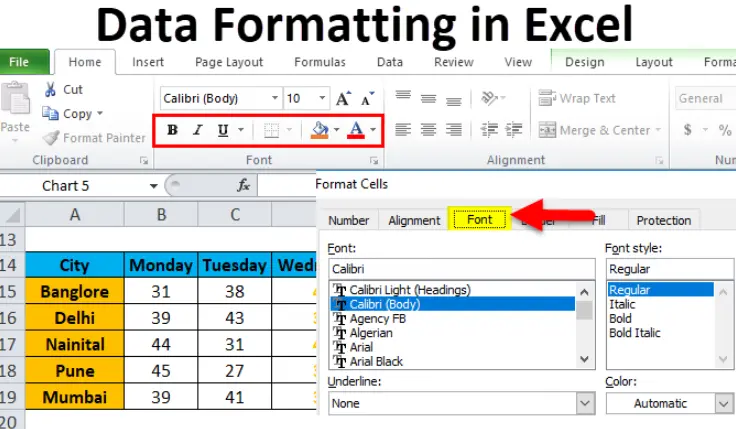
– Cell and Text Formatting: Adjust font styles, sizes, colors, and alignments (e.g., center, left, or right) to improve presentation. Add borders and shading for emphasis.
– Number and Date Formats: Customize how numbers appear, such as converting to currency (e.g., $1,000.00) or dates (e.g., MM/DD/YYYY), to ensure consistency.
– Conditional Formatting: Highlight cells based on criteria, like turning cells red if values exceed a threshold, to quickly identify trends or outliers.
– Table and Style Formatting: Convert ranges to tables for automatic formatting, sorting, and filtering. Apply built-in styles or themes for a professional look.
Best Practices for Integration
Combine data entry and formatting by using templates for consistent layouts, protecting sheets to avoid accidental changes, and employing named ranges for easier reference. This ensures data is not only accurate but also visually intuitive for analysis and reporting.
Table of Contents
- Part 1: OnlineExamMaker – Generate and Share Excel Data Entry & Formatting Quiz with AI Automatically
- Part 2: 20 Excel Data Entry & Formatting Quiz Questions & Answers
- Part 3: OnlineExamMaker AI Question Generator: Generate Questions for Any Topic
Part 1: OnlineExamMaker – Generate and Share Excel Data Entry & Formatting Quiz with AI Automatically
OnlineExamMaker is a powerful AI-powered assessment platform to create auto-grading Excel Data Entry & Formatting skills assessments. It’s designed for educators, trainers, businesses, and anyone looking to generate engaging quizzes without spending hours crafting questions manually. The AI Question Generator feature allows you to input a topic or specific details, and it generates a variety of question types automatically.
Top features for assessment organizers:
● Prevent cheating by randomizing questions or changing the order of questions, so learners don’t get the same set of questions each time.
● AI Exam Grader for efficiently grading quizzes and assignments, offering inline comments, automatic scoring, and “fudge points” for manual adjustments.
● Embed quizzes on websites, blogs, or share via email, social media (Facebook, Twitter), or direct links.
● Handles large-scale testing (thousands of exams/semester) without internet dependency, backed by cloud infrastructure.
Automatically generate questions using AI
Part 2: 20 Excel Data Entry & Formatting Quiz Questions & Answers
or
1. What is the purpose of the “Data Validation” feature in Excel?
A. To automatically calculate sums
B. To restrict the type of data that can be entered into a cell
C. To format cells with colors
D. To create charts
Answer: B
Explanation: Data Validation allows users to set rules for what data can be entered in a cell, such as limiting inputs to numbers or dates, which helps maintain data integrity.
2. Which keyboard shortcut is used to enter the current date in a cell in Excel?
A. Ctrl + ;
B. Ctrl + Shift + ;
C. Alt + Enter
D. Ctrl + D
Answer: A
Explanation: Pressing Ctrl + ; inserts the current date into the active cell, making data entry faster for date-specific records.
3. In Excel, what does the “Wrap Text” formatting option do?
A. Aligns text to the left
B. Makes text appear on multiple lines within a cell
C. Converts text to uppercase
D. Hides text overflow
Answer: B
Explanation: Wrap Text adjusts the cell’s content to display on multiple lines if it exceeds the cell width, improving readability without changing the column size.
4. How can you apply a specific number format to a cell, such as currency?
A. Using the Home tab’s Number group
B. By inserting a formula
C. Through the View tab
D. Via the Data tab’s Sort & Filter
Answer: A
Explanation: The Number group on the Home tab provides options to format cells as currency, percentage, or date, ensuring data is displayed in the desired format.
5. What happens when you use the “Flash Fill” feature in Excel?
A. It automatically fills a series of numbers
B. It recognizes patterns in your data entry and completes it for you
C. It deletes duplicate entries
D. It applies conditional formatting
Answer: B
Explanation: Flash Fill detects patterns from your manual entries and automatically fills in the rest of the data, saving time during data entry tasks.
6. Which option is used to merge cells in Excel?
A. Under the Insert tab
B. In the Alignment group on the Home tab
C. Via the Page Layout tab
D. In the Formulas tab
Answer: B
Explanation: The Merge & Center option in the Alignment group combines selected cells into one, which is useful for formatting headers or titles.
7. What is the function of the “AutoFit” feature in Excel?
A. Automatically sums a column
B. Adjusts column width to fit the content
C. Copies data to another sheet
D. Formats cells based on values
Answer: B
Explanation: AutoFit resizes columns or rows to perfectly fit the longest entry, preventing truncated data and improving the overall layout.
8. In Excel, how do you apply bold formatting to text?
A. Press Ctrl + B
B. Use the Format Painter
C. Go to the Review tab
D. Insert a hyperlink
Answer: A
Explanation: Ctrl + B quickly applies bold formatting to selected text, enhancing the visual hierarchy of data in your spreadsheet.
9. What does the “Conditional Formatting” tool allow you to do?
A. Enter data conditionally
B. Format cells based on specific rules or values
C. Validate formulas
D. Sort data automatically
Answer: B
Explanation: Conditional Formatting changes the appearance of cells (e.g., color) based on rules, making it easier to highlight trends or errors in data.
10. Which method is best for entering a large amount of data quickly in Excel?
A. Using the Fill Handle
B. Manually typing each entry
C. Applying filters
D. Creating a pivot table
Answer: A
Explanation: The Fill Handle drags to copy or extend data patterns, such as sequences or formulas, speeding up repetitive data entry.
11. How can you remove duplicate values from a dataset in Excel?
A. Using the Remove Duplicates button in the Data tab
B. By sorting the data
C. Through conditional formatting
D. Via the Insert tab
Answer: A
Explanation: The Remove Duplicates feature in the Data tab scans and deletes identical rows, ensuring your data entry remains clean and accurate.
12. What is the effect of applying a “Percentage” format to a cell?
A. It multiplies the value by 100 and adds a % sign
B. It converts the value to a fraction
C. It rounds the number to the nearest whole
D. It changes the font size
Answer: A
Explanation: Percentage format displays numbers as percentages by multiplying by 100 and adding the % symbol, which is essential for financial data entry.
13. In Excel, what does the “Freeze Panes” option do during data entry?
A. Locks rows or columns in place while scrolling
B. Hides unnecessary columns
C. Merges cells automatically
D. Applies borders to cells
Answer: A
Explanation: Freeze Panes keeps headers visible while scrolling through large datasets, making it easier to enter data without losing context.
14. How do you insert a hyperlink in a cell for quick navigation?
A. Right-click the cell and select Hyperlink
B. Use the Insert tab’s Links group
C. Apply conditional formatting
D. Go to the Data tab
Answer: B
Explanation: The Hyperlink option in the Insert tab allows you to link to websites or other files, facilitating organized data entry and reference.
15. What is the purpose of the “Text to Columns” feature?
A. To split data from one column into multiple columns
B. To merge text in cells
C. To format text as numbers
D. To align text centers
Answer: A
Explanation: Text to Columns separates data (e.g., splitting full names into first and last names), which is useful for refining imported or entered data.
16. Which formatting option changes the orientation of text in a cell?
A. Orientation in the Alignment group
B. Text Direction in the Home tab
C. Rotate in the Insert tab
D. Angle in the Page Layout tab
Answer: A
Explanation: The Orientation option allows you to rotate text at angles, such as 45 degrees, for better fitting labels in data-heavy sheets.
17. How can you protect a worksheet to prevent accidental data changes?
A. By using the Protect Sheet option in the Review tab
B. Applying conditional formatting
C. Freezing panes
D. Sorting data
Answer: A
Explanation: Protect Sheet locks cells and restricts editing, ensuring that entered data remains secure and unaltered by unauthorized users.
18. What does the “Format as Table” feature do in Excel?
A. Applies predefined styles and formatting to a range of data
B. Converts data into a chart
C. Enters data automatically
D. Hides rows
Answer: A
Explanation: Format as Table quickly styles your data with colors, filters, and sorting options, making entered data more organized and visually appealing.
19. In Excel, how do you apply a border to cells?
A. Using the Borders button in the Home tab
B. Through the Data tab
C. Via the Formulas tab
D. In the View tab
Answer: A
Explanation: The Borders option in the Font group adds lines around cells, helping to visually separate and highlight sections of entered data.
20. What is the benefit of using named ranges during data entry?
A. It makes formulas easier to understand and manage
B. It automatically sorts data
C. It changes cell colors
D. It deletes empty cells
Answer: A
Explanation: Named ranges assign descriptive names to cell ranges, simplifying references in formulas and reducing errors in complex data entry tasks.
or
Part 3: OnlineExamMaker AI Question Generator: Generate Questions for Any Topic
Automatically generate questions using AI