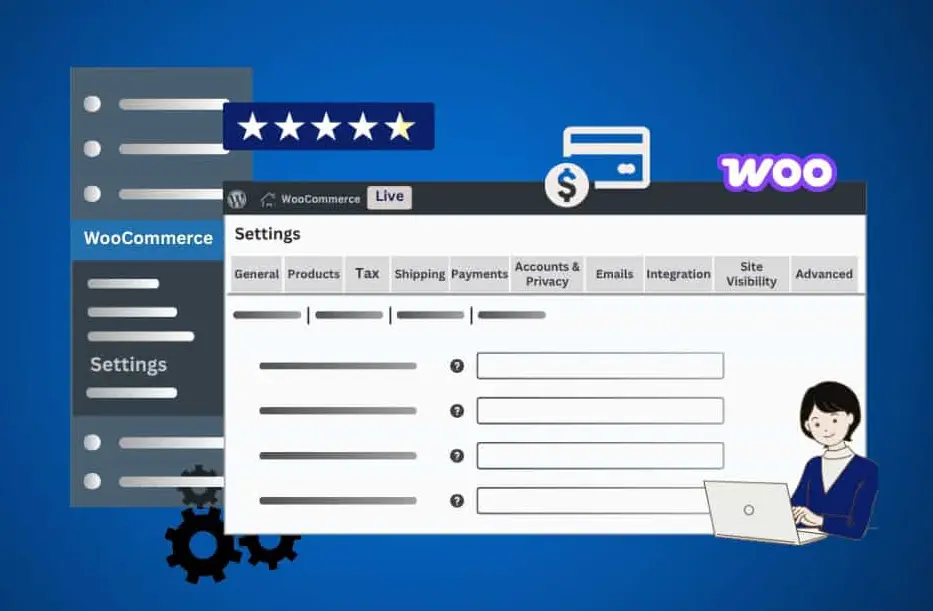
WooCommerce provides a robust set of settings to customize your e-commerce store. Below is a structured overview of the key sections:
1. General Settings
– Configure your store’s base location, currency, and units of measurement.
– Enable or disable features like product reviews, coupons, and tax calculations.
– Set up email notifications for orders and customer communications.
2. Products Settings
– Manage inventory tracking, stock management, and product visibility.
– Define product attributes, categories, and tags for better organization.
– Control downloadable products, virtual products, and product add-ons.
3. Shipping Settings
– Create shipping zones based on countries, states, or zip codes.
– Set up shipping methods like flat rate, free shipping, or local pickup.
– Integrate with carriers for real-time shipping rates and classes.
4. Payments Settings
– Enable payment gateways such as PayPal, Stripe, or bank transfer.
– Configure payment options for credit cards, direct bank transfers, or cash on delivery.
– Manage transaction settings, including test modes and payment refunds.
5. Accounts & Privacy Settings
– Control customer account creation, login requirements, and password policies.
– Set privacy options, including data protection and GDPR compliance.
– Customize account endpoints for my account pages.
6. Advanced Settings
– Handle legacy settings, webhooks, and API integrations for custom development.
– Manage product lookup tables, endpoint masks, and performance optimizations.
– Configure features like featured products and product visibility by user roles.
This overview helps in navigating WooCommerce’s settings for an efficient store setup. Always refer to the official WooCommerce documentation for detailed instructions.
Table of Contents
- Part 1: Create An Amazing WooCommerce Settings Quiz Using AI Instantly in OnlineExamMaker
- Part 2: 20 WooCommerce Settings Quiz Questions & Answers
- Part 3: Automatically Generate Quiz Questions Using AI Question Generator
Part 1: Create An Amazing WooCommerce Settings Quiz Using AI Instantly in OnlineExamMaker
Nowadays more and more people create WooCommerce Settings quizzes using AI technologies, OnlineExamMaker a powerful AI-based quiz making tool that can save you time and efforts. The software makes it simple to design and launch interactive quizzes, assessments, and surveys. With the Question Editor, you can create multiple-choice, open-ended, matching, sequencing and many other types of questions for your tests, exams and inventories. You are allowed to enhance quizzes with multimedia elements like images, audio, and video to make them more interactive and visually appealing.
Recommended features for you:
● Prevent cheating by randomizing questions or changing the order of questions, so learners don’t get the same set of questions each time.
● Automatically generates detailed reports—individual scores, question report, and group performance.
● Simply copy a few lines of codes, and add them to a web page, you can present your online quiz in your website, blog, or landing page.
● Offers question analysis to evaluate question performance and reliability, helping instructors optimize their training plan.
Automatically generate questions using AI
Part 2: 20 WooCommerce Settings Quiz Questions & Answers
or
Question 1:
In WooCommerce settings, where can you configure the store’s base location?
A) General > Store Address
B) Products > Inventory
C) Shipping > Zones
D) Advanced > Webhooks
Answer: A
Explanation: The base location is set in the General settings under Store Address, as it defines the primary country and state for tax and shipping calculations.
Question 2:
Which WooCommerce setting allows you to enable guest checkout?
A) Accounts & Privacy > Accounts
B) Products > Downloadable Products
C) Checkout > Checkout Options
D) Payments > Gateways
Answer: C
Explanation: In the Checkout settings under Checkout Options, you can toggle guest checkout, allowing customers to purchase without creating an account.
Question 3:
What is the purpose of the “Enable taxes” option in WooCommerce settings?
A) To calculate shipping costs
B) To manage product variations
C) To apply tax rates to orders
D) To set up payment gateways
Answer: C
Explanation: Enabling taxes in the Tax settings activates the system for calculating and applying tax rates based on product prices and customer locations.
Question 4:
In WooCommerce, how do you set up free shipping?
A) Shipping > Shipping Zones
B) Products > Attributes
C) Payments > Methods
D) General > Currency
Answer: A
Explanation: Free shipping is configured in the Shipping settings under Shipping Zones by adding a method and setting conditions for free delivery.
Question 5:
Which section in WooCommerce settings controls the display of related products?
A) Products > General
B) Appearance > Theme
C) Emails > Settings
D) Advanced > Legacy API
Answer: A
Explanation: The Products settings under General allow you to control options like the number of related products shown on product pages.
Question 6:
What does the “Hold stock (minutes)” option in WooCommerce do?
A) Reserves stock for pending orders
B) Manages product downloads
C) Sets up tax exemptions
D) Configures email notifications
Answer: A
Explanation: In the Products settings under Inventory, this option holds stock for a specified time for orders in a pending state to prevent overselling.
Question 7:
In WooCommerce, where can you manage payment gateways?
A) Payments > Manage
B) Shipping > Options
C) Accounts & Privacy > Profiles
D) Advanced > Features
Answer: A
Explanation: The Payments settings section allows you to enable and configure various payment gateways like PayPal or Stripe for your store.
Question 8:
Which WooCommerce setting enables customers to download products after purchase?
A) Products > Downloadable Products
B) Emails > Order Notifications
C) Shipping > Methods
D) General > Options
Answer: A
Explanation: In the Products settings under Downloadable Products, you can enable features for digital goods, including download restrictions and expirations.
Question 9:
How do you enable coupon codes in WooCommerce?
A) Marketing > Coupons
B) Products > Variations
C) Checkout > Fields
D) Advanced > REST API
Answer: A
Explanation: Coupons are managed in the Marketing settings, where you can create and enable coupon codes for discounts and promotions.
Question 10:
In WooCommerce settings, what controls the currency symbol position?
A) General > Currency Options
B) Products > Pricing
C) Emails > Formatting
D) Advanced > Performance
Answer: A
Explanation: The General settings under Currency Options allow you to set the currency symbol and its position (e.g., before or after the amount).
Question 11:
Which option in WooCommerce settings allows you to set up shipping zones?
A) Shipping > Shipping Zones
B) Products > Categories
C) Payments > Gateways
D) Accounts & Privacy > Data
Answer: A
Explanation: Shipping Zones in the Shipping settings define regions and assign shipping methods, rates, and classes for different areas.
Question 12:
What is the function of the “Product visibility” setting in WooCommerce?
A) To control search engine indexing
B) To manage stock levels
C) To set up email templates
D) To configure payment methods
Answer: A
Explanation: In the Products settings, Product visibility options help control how products appear in catalogs, searches, and to search engines.
Question 13:
In WooCommerce, where do you configure automatic order status updates?
A) Orders > Status
B) Advanced > Order Settings
C) Emails > Notifications
D) Shipping > Tracking
Answer: B
Explanation: The Advanced settings include options for order behaviors, such as automatic status updates based on payment or fulfillment.
Question 14:
Which WooCommerce setting manages the display of product reviews?
A) Products > Reviews
B) Appearance > Pages
C) Accounts & Privacy > Comments
D) General > Options
Answer: A
Explanation: In the Products settings under Reviews, you can enable or disable product reviews and set moderation rules.
Question 15:
How do you enable the “My Account” page in WooCommerce?
A) Accounts & Privacy > Accounts
B) Products > User Roles
C) Checkout > Endpoints
D) Advanced > Endpoints
Answer: D
Explanation: The Advanced settings under Endpoints allow you to configure and enable features like the My Account page for customer logins.
Question 16:
In WooCommerce settings, what does the “Tax based on” option determine?
A) The location for tax calculations
B) Product pricing rules
C) Shipping method selection
D) Email recipient lists
Answer: A
Explanation: In the Tax settings, “Tax based on” specifies whether taxes are calculated based on the store address, customer billing, or shipping address.
Question 17:
Which section allows you to customize order email templates?
A) Emails > Settings
B) Products > Emails
C) Advanced > Templates
D) Accounts & Privacy > Notifications
Answer: A
Explanation: The Emails settings section provides options to customize templates for order confirmations, notifications, and more.
Question 18:
In WooCommerce, how do you set up product attributes?
A) Products > Attributes
B) Shipping > Classes
C) Payments > Options
D) General > Categories
Answer: A
Explanation: The Products settings under Attributes let you create and manage attributes like size or color for variable products.
Question 19:
What controls the inventory management in WooCommerce?
A) Products > Inventory
B) Orders > Stock
C) Shipping > Stock Levels
D) Advanced > Inventory Tracking
Answer: A
Explanation: In the Products settings under Inventory, you can enable stock management, set thresholds, and track product quantities.
Question 20:
In WooCommerce settings, where can you enable REST API access?
A) Advanced > REST API
B) Products > API Keys
C) Payments > Integrations
D) Accounts & Privacy > API
Answer: A
Explanation: The Advanced settings include the REST API section, where you can enable and manage API keys for integrating with external services.
or
Part 3: Automatically generate quiz questions using OnlineExamMaker AI Question Generator
Automatically generate questions using AI