Manually typing hundreds of quiz questions into Google Forms feels like digital torture. You’ve got a perfectly good spreadsheet or document with all your questions ready to go, but Google Forms sits there, forcing you to copy-paste one question at a time like it’s 1999.
Here’s the thing, though. Smart educators and trainers don’t play that game anymore.
They use add-ons. These nifty extensions transform the tedious process of question import into something that actually feels like living in the 21st century. Whether you’re building a pop quiz for your middle schoolers or a certification exam for corporate training, the right add-on can save you hours of mind-numbing data entry.
- Why Importing Questions Matters for Teachers and Trainers?
- The Top 3 Question Import Add-ons for Google Forms
- Detailed Comparison: Which Add-on Fits Your Workflow?
- How to Install and Use These Add-ons?
- Beyond Google Forms: OnlineExamMaker for Professional Quiz Creation
- Final Thoughts: Pick Your Import Partner
Why Bulk Importing Questions Matters for Teachers and Trainers?
Picture this: You’ve spent weeks curating the perfect 50-question assessment. Your questions are polished, your answer choices are balanced, and your point values are calibrated. Now you just need to… type them all into Google Forms. One. By. One.
Sound familiar?
This is where bulk import transforms from “nice to have” into “absolutely essential.” For teachers managing multiple classes or trainers building certification programs, time is the ultimate currency. Every minute spent on data entry is a minute stolen from actual teaching, content development, or—let’s be radical here—taking a lunch break.
But efficiency isn’t the only benefit. Importing questions preserves formatting, maintains consistency across assessments, and reduces the human error that creeps in during manual entry. Plus, when you can reuse question banks across different forms, you’re building a sustainable assessment system rather than reinventing the wheel every semester.
The Top 3 Add-ons for Question Import
After testing various tools and reviewing what actually works in classroom and training environments, three add-ons consistently rise to the top. These are tools that real educators use to actually save time while creating better assessments.
1. AI Form Builder: The Smart Choice for Quiz Creators
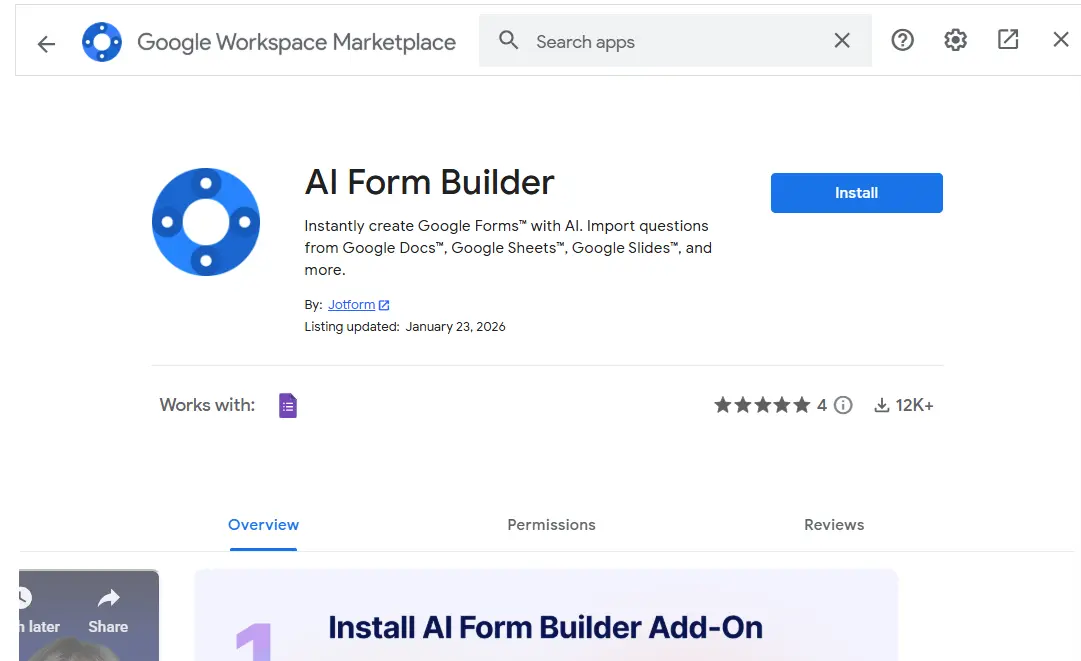
Jotform’s AI Form Builder doesn’t just import questions—it thinks about them. This add-on uses artificial intelligence to detect question structures, multiple choice options, and even images embedded in your source documents.
What makes it special? Intelligence.
Point your AI Form Builder at a Google Doc filled with questions, and it automatically identifies what’s a question stem, what’s an answer choice, and what’s meant to be the correct answer. It supports imports from Docs, Sheets, Slides, and Drive, giving you flexibility in how you organize your source material.
For quiz creators specifically, this tool shines with features like preview modes, question shuffling, and the ability to mark questions as required. The free tier allows 50 questions per import, which handles most typical assessments without requiring a paid upgrade.
Pro tip: The AI detection works best when your source document follows consistent formatting. Use clear numbering for questions (1., 2., 3.) and standard labeling for answer choices (A., B., C., D.).
2. Form Builder Plus: Speed Meets Simplicity
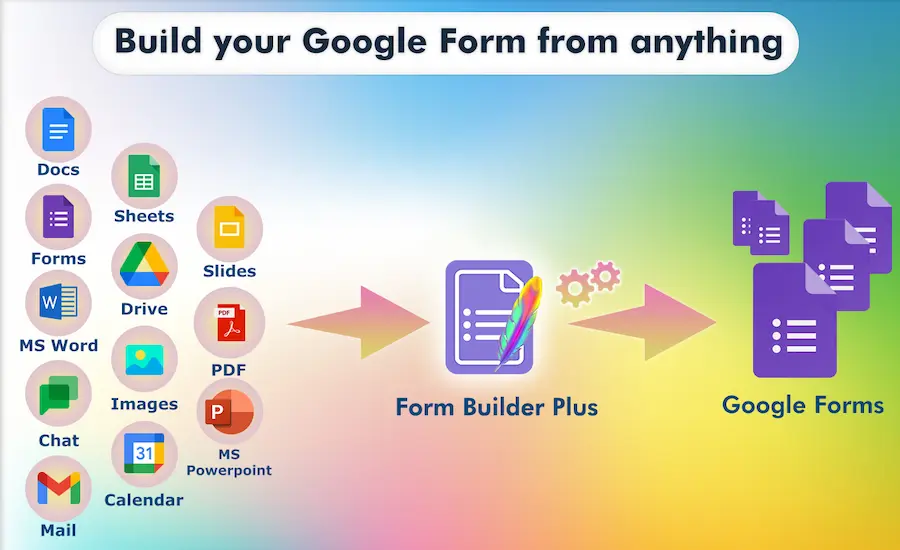
Form Builder Plus takes a different approach. Instead of AI-powered detection, it focuses on blazing-fast bulk imports with support for images and multiple source formats including PDFs.
Think of it as the workhorse of question import tools.
What sets Form Builder Plus apart is its reliability with formatting. When you import from a spreadsheet or document, what you see is what you get. Images come through cleanly, special characters don’t mysteriously vanish, and the structure of your questions remains intact.
The entire tool is free, which is remarkable given its capabilities. For trainers working with standardized question banks or teachers who’ve built extensive question libraries in spreadsheets, Form Builder Plus offers the most straightforward path from source to form.
3. FormRanger: The Dynamic Data Champion
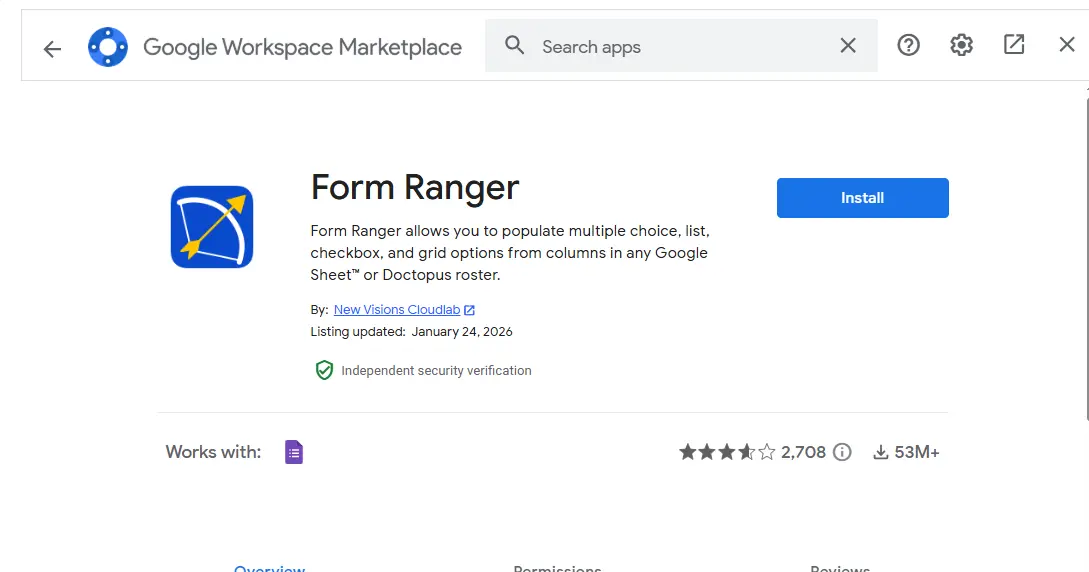
FormRanger operates in a slightly different category. Rather than one-time bulk imports, it creates dynamic connections between Google Sheets and your Forms.
Why does this matter?
Imagine you’re running weekly quizzes where question sets change based on what you covered in class. Or you’re creating training assessments that need to pull from an evolving database of scenarios. FormRanger automatically updates your form choices whenever the source spreadsheet changes.
This tool excels at populating dropdown menus and multiple choice options from live data. It’s particularly powerful for creating personalized quizzes where question selection might depend on student performance or learning paths.
The entire tool is free with unlimited usage, making it perfect for educators on tight budgets. Just be aware that FormRanger focuses specifically on Sheets integration—it won’t import from Docs or PDFs.
Detailed Comparison: Which Add-on Fits Your Workflow?
Let’s break down how these tools actually perform in real teaching and training scenarios:
| Add-on | Key Strengths | Sources Supported | Quiz Support | Free Tier |
|---|---|---|---|---|
| AI Form Builder | AI parsing, previews, shuffling | Docs, Sheets, Slides, Drive | Full (points assigned post-import) | 50 questions per import |
| Form Builder Plus | Images, fast bulk import | Docs, Sheets, PDFs | Strong | Completely free |
| FormRanger | Dynamic Sheets updates | Sheets only | Basic | Unlimited free |
Choose AI Form Builder if: You work with diverse source formats and want intelligent question detection. The AI handles messier source documents better than manual mapping.
Choose Form Builder Plus if: You’ve got well-organized spreadsheets or PDFs and want the fastest, most reliable import with image support.
Choose FormRanger if: You need dynamic content that updates automatically, or you’re building adaptive quizzes based on changing data.
How to Install and Use These Add-ons?
Getting started with any of these tools follows the same basic process. Open your Google Form, navigate to Extensions > Add-ons > Get add-ons, then search for your chosen tool.
After installation, the add-on appears in your Extensions menu. Each tool has slightly different configuration screens, but they all follow a similar workflow:
- Select your source – Point the add-on to your document, spreadsheet, or drive file containing questions
- Map your content – Identify which columns or sections contain questions, answers, and other relevant data
- Configure quiz settings – Set up question types, shuffling, and other form-specific options
- Import and review – Run the import and check that everything transferred correctly
This testing phase saves enormous headaches. Better to discover formatting issues on a 10-question test than after importing 200 questions and realizing half your answer choices are misaligned.
Beyond Google Forms: OnlineExamMaker for Professional Quiz Creation
While Google Forms serves many educators well, some assessment needs demand more robust features. Enter OnlineExamMaker, an AI-powered exam creation platform designed specifically for professional assessment environments.
What distinguishes OnlineExamMaker from Google Forms add-ons?
Comprehensive exam management. This isn’t just about importing questions—it’s about building complete assessment systems with proctoring, advanced question types, detailed analytics, and enterprise-grade security.
Bulk Import Questions to OnlineExamMaker
OnlineExamMaker’s bulk import functionality takes question management to another level. Instead of fighting with add-ons and workarounds, you get native support for batch importing questions directly into organized question banks.
Create Your Next Quiz/Exam Using AI in OnlineExamMaker
Here’s how the process works:
- Prepare your question file – OnlineExamMaker accepts Excel, Word, and TXT formats with structured templates that ensure clean imports
- Navigate to Question Bank – Access the question bank management section within your OnlineExamMaker dashboard
- Select Batch Import – Choose the bulk import option and upload your prepared file
- Map question properties – The system intelligently maps question types, correct answers, point values, and difficulty levels
- Review and organize – Imported questions automatically categorize into your question bank, ready for exam assembly
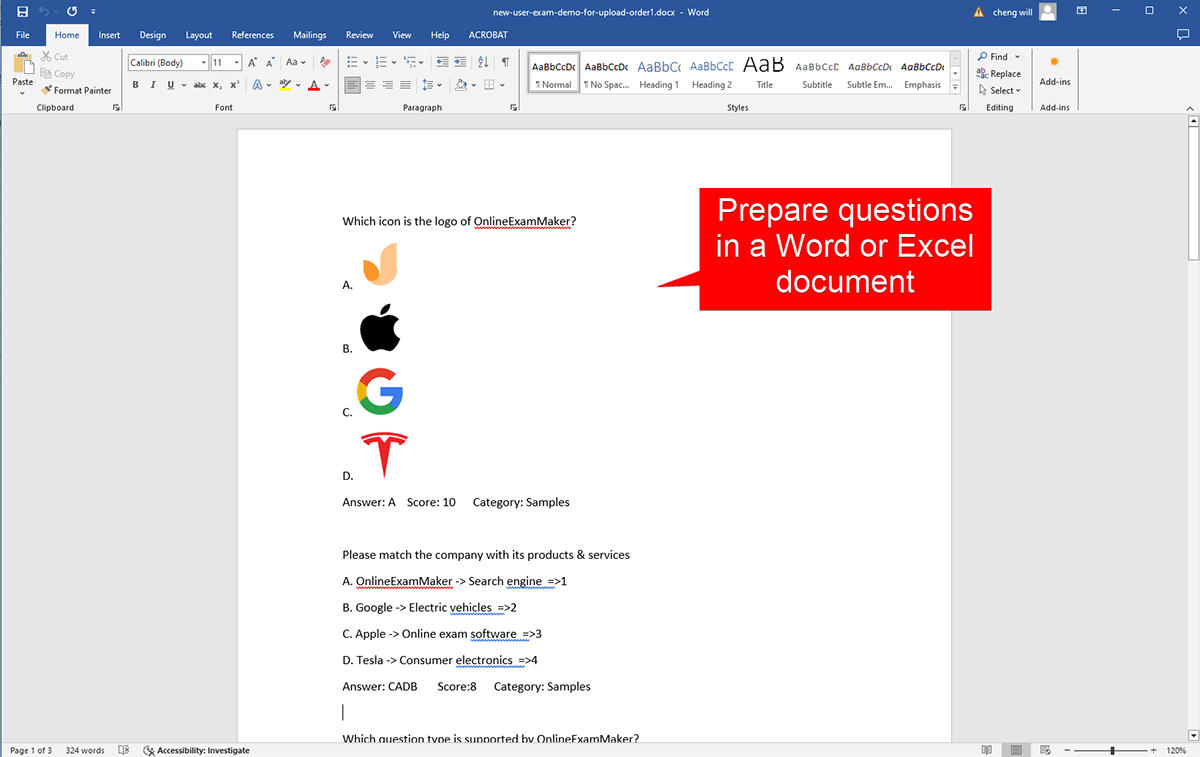
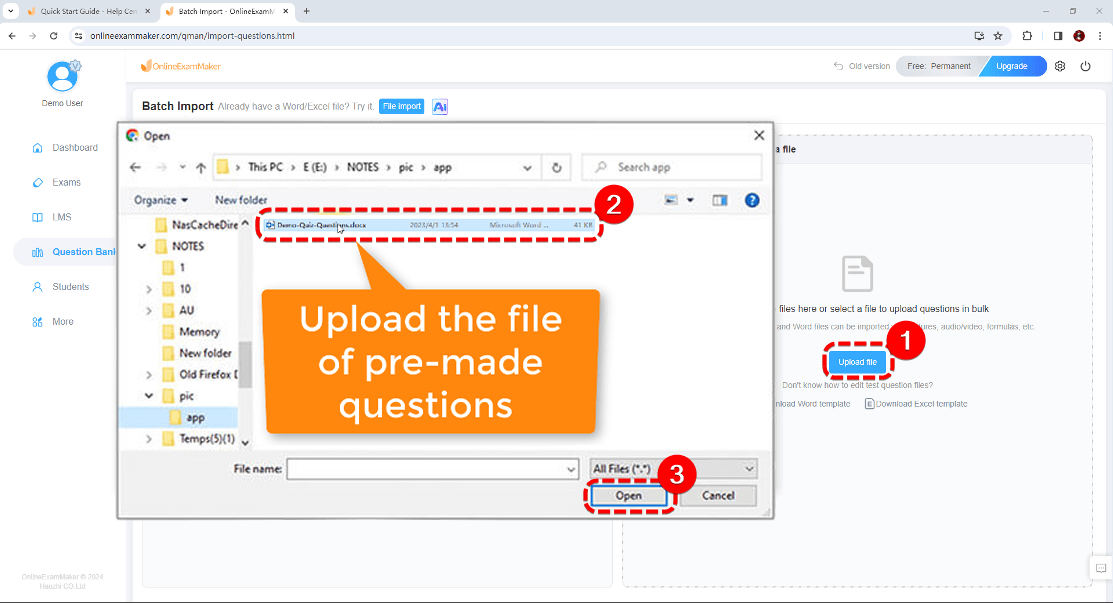
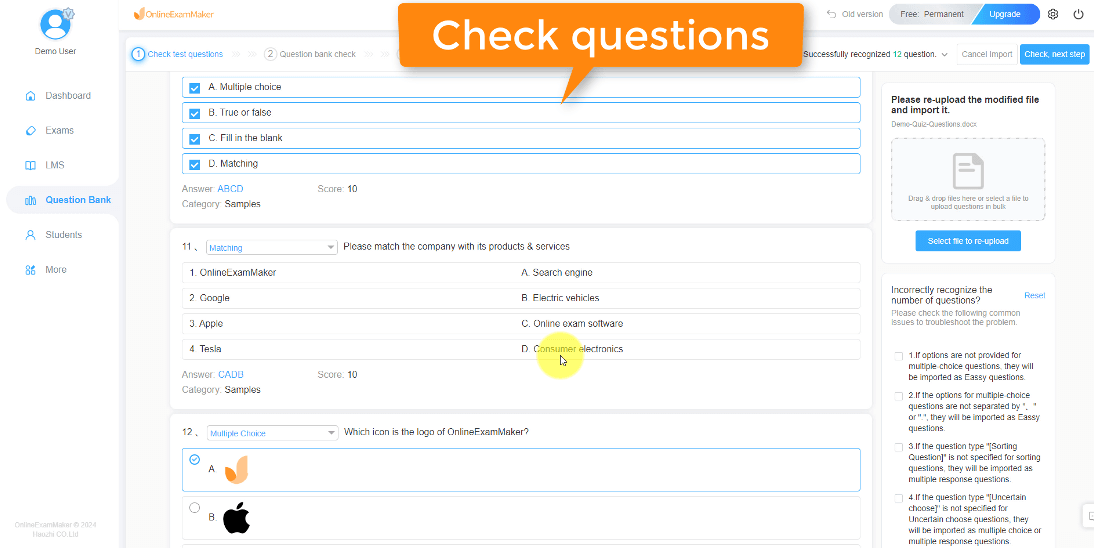
The AI features within OnlineExamMaker extend beyond import. The platform can generate questions from source material, suggest question variations, and even help identify potential issues with question clarity or bias.
For trainers managing certification programs or teachers building comprehensive course assessments, the investment in a dedicated exam platform often pays dividends in reduced administrative burden and improved assessment quality. The detailed documentation walks through advanced import scenarios including question tagging, category assignment, and metadata management.
Final Thoughts: Pick Your Import Partner
Question import shouldn’t be complicated. Yet here we are, comparing tools and workflows to accomplish something that should be straightforward: getting questions from one place into your assessment form.
The good news? All three add-ons we’ve covered actually work. They’re not vaporware or half-baked solutions. Real educators use these tools daily to save real time.
Your choice comes down to your specific situation:
- Working with messy source documents and diverse formats? AI Form Builder handles the chaos.
- Got organized spreadsheets and need rock-solid reliability? Form Builder Plus delivers.
- Building dynamic assessments that update automatically? FormRanger is your answer.
- Managing professional certification or comprehensive testing programs? Consider OnlineExamMaker for enterprise-level features.
Start with the free options. Test them with real question sets. Pay attention to which workflow feels most natural for how you actually organize your content.
And remember: the best assessment tool is the one you’ll consistently use. Don’t get paralyzed by feature comparison. Pick one, learn it well, and get back to what actually matters—creating great learning experiences for your students and trainees.
Because at the end of the day, nobody remembers the add-on you used. They remember whether they learned something valuable.
