If you’ve ever watched students huddle together during an online quiz or noticed suspiciously identical answers, you know the struggle. The truth is, Google Forms wasn’t built with security as its top priority. It’s a survey tool that moonlights as a quiz platform, which means it lacks the sophisticated anti-cheating features that dedicated assessment tools offer.
But don’t worry. Whether you’re sticking with Google Forms or ready to upgrade to something more robust, I’ve got strategies that’ll help you lock down your assessments.
- Traditional Strategies to Reduce Cheating in Google Forms
- The Reality Check: Google Forms’ Limitations in Preventing Cheating
- The Better Alternative: AI-Proctored Quizzes with OnlineExamMaker
- How to Create an AI-Proctored Quiz with OnlineExamMaker
- Making the Right Choice for Your Assessment Needs
Traditional Strategies to Reduce Cheating in Google Forms
Here are some clever workarounds that’ll make cheating harder for your online quizzes.
Shuffle Everything Like a Deck of Cards
The easiest trick in the book? Randomization. Head to Settings > Presentation and enable “Shuffle question order.” Now each student sees questions in a different sequence, making it tough for them to compare answers in real-time.
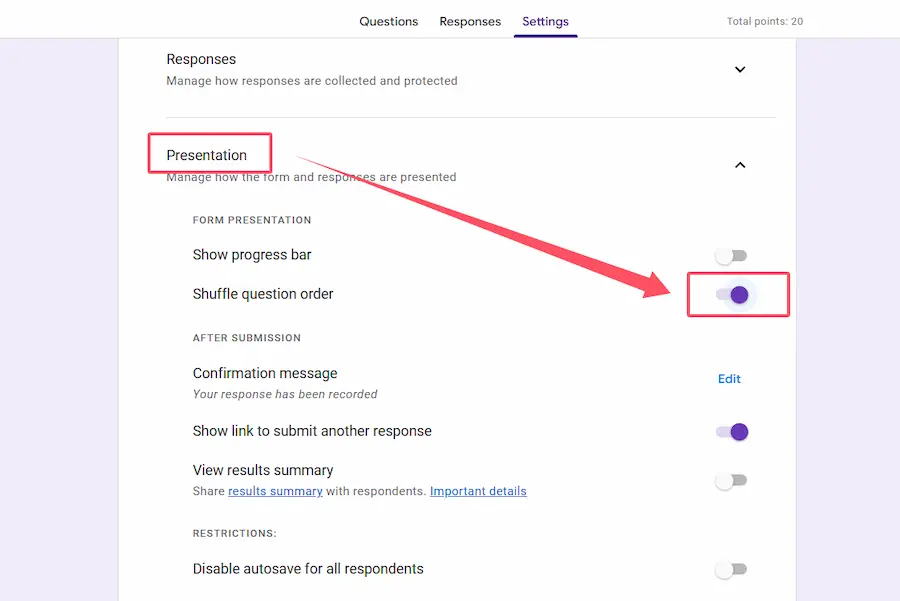
But don’t stop there. For multiple-choice questions, click those three dots and select “Shuffle option order.” Suddenly, Answer A for Student 1 becomes Answer C for Student 2. Side-by-side copying just became significantly more complicated.
Create a Maze with Sections and Branching
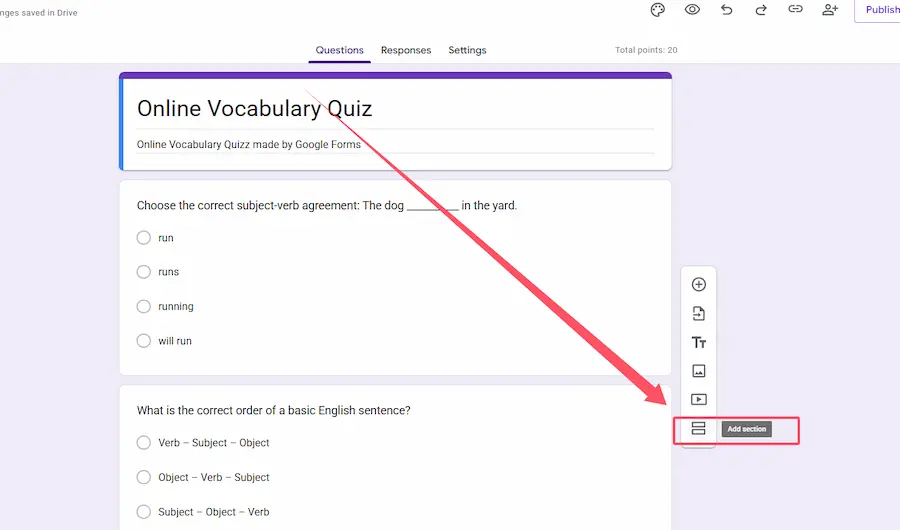
Here’s where you can get creative. Use section breaks (that two-rectangle icon in the toolbar) to reveal questions progressively instead of showing the entire quiz upfront. Students can’t screenshot what they can’t see.
Want to level up? Apply “Go to section based on answer” logic. You can create different pathways through your quiz, so Student A might see questions 1, 5, 8, while Student B gets 2, 6, 9. It’s like creating personalized quiz experiences—except your goal is confusion rather than delight.
Ask Questions That Require Actual Thinking
Multiple-choice questions are a cheater’s best friend. They’re easy to share, easy to screenshot, easy to Google. So mix it up.
Incorporate:
- Short-answer questions that require original explanations
- Paragraph responses where students must demonstrate understanding
- Checkbox grids that test nuanced knowledge
- Image-based questions that are harder to search for online
Yes, these take longer to grade. But they also make cheating exponentially harder because you can’t copy-paste critical thinking.
Lock Down Access Like Fort Knox
In Settings > Responses, limit responses to one per person and require email collection. This creates accountability—students are less likely to cheat when their name is directly attached to their work.
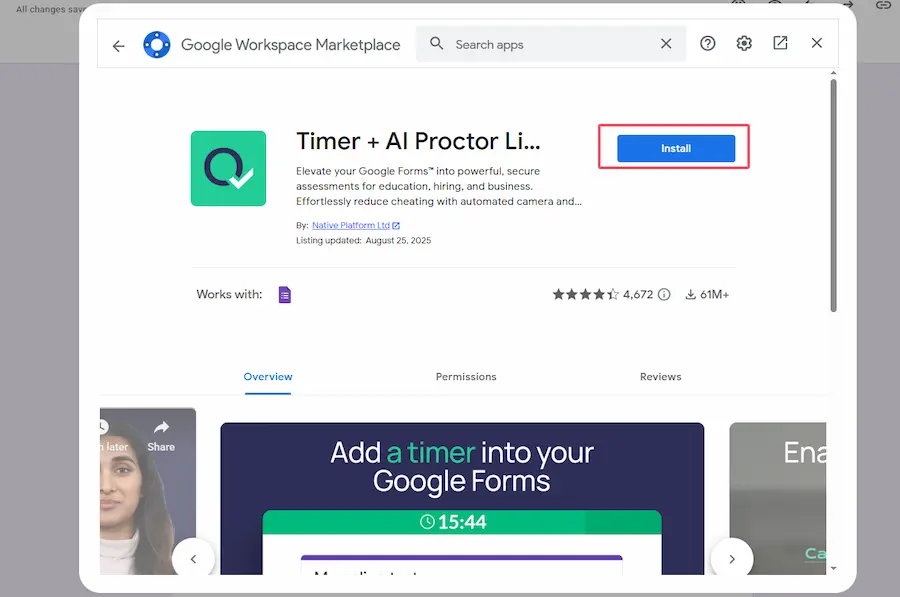
Consider using add-ons like Quilgo that add timers and basic monitoring features. While not true proctoring, time pressure reduces the opportunity to search for answers. You can also create a password using data validation on your initial section—only students in your physical or virtual classroom get access.
The Hard Truth About These Strategies
| Strategy | Effectiveness | Limitation |
|---|---|---|
| Question shuffling | Moderate | Doesn’t prevent tab switching or external resources |
| Section branching | Moderate | Complex to set up; students can still cheat individually |
| Open-ended questions | High | Time-intensive to grade; AI tools can now generate responses |
| Time limits via add-ons | Low-Moderate | No actual monitoring; clever students adapt quickly |
Notice a pattern? These are band-aids, not solutions. You’re making cheating inconvenient, not impossible.
The Reality Check: Google Forms’ Limitations in Preventing Cheating
Here’s what keeps educators up at night: Google Forms has zero built-in proctoring capabilities. Zero. Nada. Nothing.
Think about it. When a student takes your Google Forms quiz, they can:
- Open multiple browser tabs to search for answers
- Screenshot questions and share them with classmates
- Use their phone to Google answers while sitting at their computer
- Collaborate with friends on video calls without you ever knowing
- Take the quiz multiple times if you haven’t restricted responses
The platform can’t monitor what’s happening on the test-taker’s screen. It can’t detect if someone switches tabs. It definitely can’t tell if there are three people crowded around one laptop, pooling their collective knowledge.
Google Forms is like giving someone a take-home exam and hoping they won’t peek at their notes. Sometimes they won’t—but sometimes they absolutely will.
The Better Alternative: AI-Proctored Quizzes with OnlineExamMaker
So what if you actually want to prevent cheating rather than just discourage it? That’s where dedicated assessment platforms come in—and OnlineExamMaker is leading the pack with AI-powered proctoring.
Think of it this way: Google Forms is like leaving your front door unlocked and hoping burglars don’t notice. OnlineExamMaker is like installing a security system with cameras, motion detectors, and an alarm.
What Is OnlineExamMaker AI Proctoring Technology?
AI proctoring uses your student’s webcam and computer to actively monitor their behavior during the exam. It’s not just about prevention—it’s about detection and documentation.
OnlineExamMaker’s AI watches for:
- Multiple faces in frame (is someone helping them?)
- The test-taker looking away from the screen repeatedly
- Tab switching or leaving the exam window
- Suspicious movements that might indicate phone use
- Unusual patterns like extended periods looking down or to the side
Create Your Next Quiz/Exam Using AI in OnlineExamMaker
But here’s what I appreciate most: the system doesn’t just block the student or end the exam when it detects something suspicious. Instead, it flags these moments with timestamps, so you can review them later and make informed decisions. Maybe that student was just thinking. Maybe they were checking notes. You get to be the judge.
Beyond Just Watching: Comprehensive Security Features
OnlineExamMaker doesn’t stop at AI proctoring. The platform includes:
- Browser lockdown that prevents tab switching and right-clicking
- Question bank randomization that’s actually sophisticated
- IP address tracking to verify location
- Copy-paste prevention so questions can’t be easily shared
- Automatic flagging of suspicious behavior patterns
The difference is night and day. With Google Forms, you’re hoping students won’t cheat. With OnlineExamMaker, you’re making it genuinely difficult—and catching them if they try.
How to Create an AI-Proctored Quiz with OnlineExamMaker
Ready to upgrade your assessment game? Creating a secure, AI-proctored quiz is surprisingly straightforward. Let me walk you through it.
Step 1: Set Up Your Account and Create Your Quiz
Head to OnlineExamMaker and sign up for an account. The interface is intuitive—if you can use Google Forms, you can use this.
Click “Create New Exam” and you’ll find question types that go well beyond basic multiple choice: matching questions, fill-in-the-blank, essay responses, even video responses if you’re feeling fancy.
Import questions from a spreadsheet if you’ve already prepared them, or build your quiz from scratch using the question bank feature.
Step 2: Configure Your Security Settings
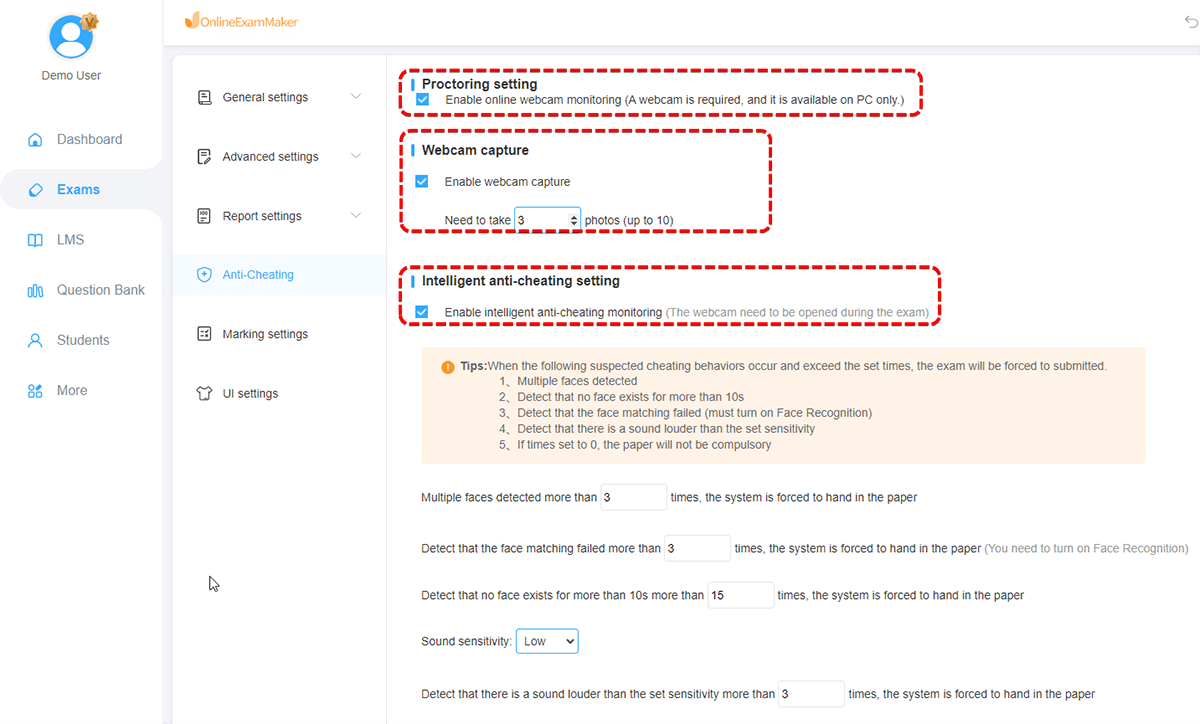
This is where the magic happens. Navigate to the exam settings and find the “Anti-Cheating” section.
Enable these features:
- AI Proctoring: Turn this on and configure sensitivity levels (strict, moderate, or lenient)
- Webcam Monitoring: Require students to enable their camera before starting
- Screen Recording: Optionally record the entire exam session for review
- Safe Exam Browser: Force students to use a locked-down browser
- Question Randomization: Pull questions randomly from your question bank
Step 3: Set Your Exam Parameters
Define when the exam is available, how long students have to complete it, and whether they can pause or restart. You can set specific time windows (“available January 15th from 2-4 PM”) or leave it open with a time limit per attempt.
Configure passing scores, feedback timing (immediate or after deadline), and whether students can see correct answers afterward. The flexibility here is incredible.
Step 4: Test Everything Before Game Day
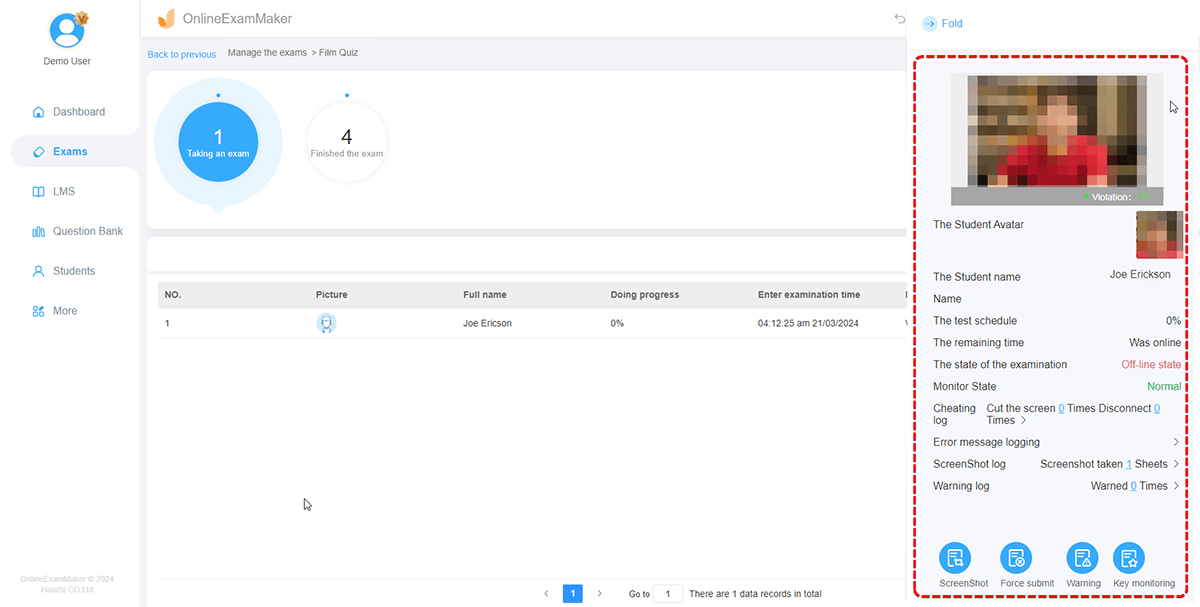
Here’s a rookie mistake: launching your AI-proctored exam without testing it first. Take your own exam. Get a colleague to try it. Make sure the webcam prompts work, the timer functions correctly, and the questions display properly.
Check the AI proctoring recordings—can you see the test-taker clearly? Is the audio capturing well? Better to discover technical issues when the stakes are low.
Step 5: Share and Monitor
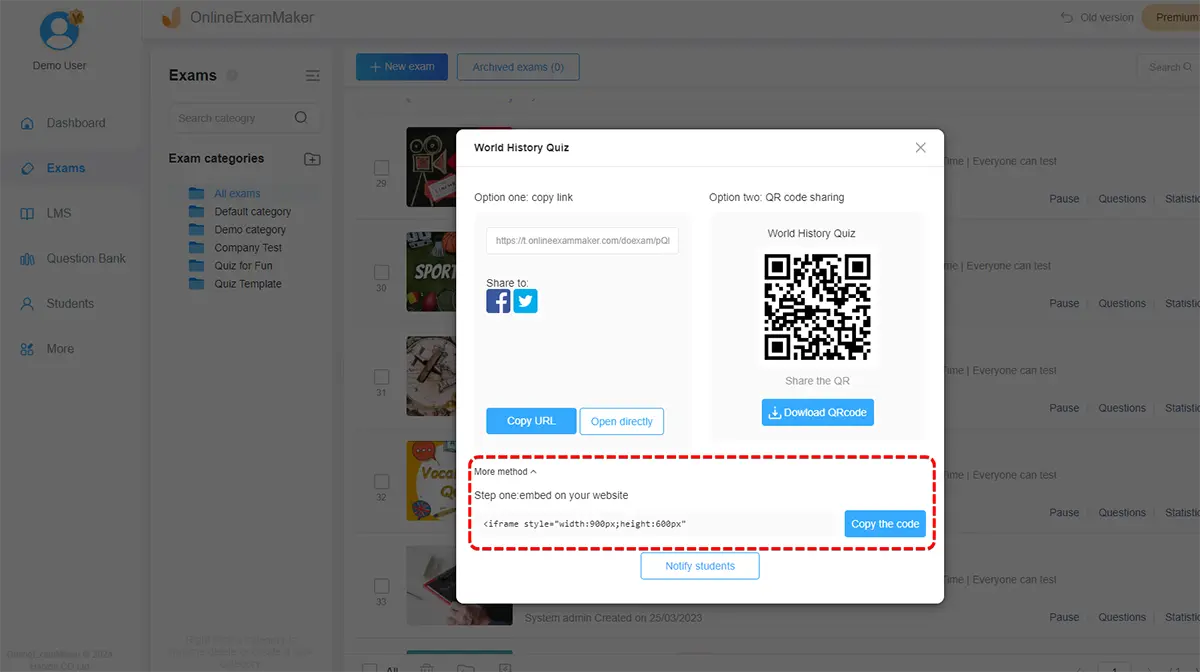
OnlineExamMaker generates a unique link or QR code for your exam. Share it via email, your learning management system, or however you communicate with students.
During the exam, you can monitor live sessions if you want—seeing who’s currently taking the test and whether any flags have been raised. After completion, review the AI proctoring report. It’ll show you flagged incidents with timestamps, screenshots, and severity ratings.
Making the Right Choice for Your Assessment Needs
Look, I’m not here to bash Google Forms. For low-stakes quizzes, feedback surveys, or quick knowledge checks, it’s perfectly adequate. Free tools have their place.
But for assessments that matter—final exams, certification tests, placement evaluations—you need something more robust. The question isn’t whether students might cheat; it’s whether you can afford for them to cheat and get away with it.
Think about the students who study hard and play by the rules. Don’t they deserve to be evaluated fairly, in an environment where cheating isn’t just discouraged but actively prevented? That’s what AI proctoring delivers.
Google Forms plus clever workarounds might reduce cheating by 30-40%. OnlineExamMaker with AI proctoring? You’re looking at 90%+ effectiveness. Sometimes the peace of mind is worth the investment.
The choice is yours. Shuffle questions and hope for the best, or actually secure your assessments with technology that’s built for the job. Either way, you now have the knowledge to make an informed decision.
Good luck—and may your next quiz be refreshingly, wonderfully cheat-free.
