Ever stared at a textbook diagram for twenty minutes, trying to dream up quiz questions that actually test understanding? Yeah, me too. But here’s the thing – there’s a smarter way now.
- Why Start with Images? The Visual Learning Revolution
- The Real Benefits of Image-to-Exam Conversion
- Step-by-Step Guide: From Image to Quiz in Minutes
- OnlineExamMaker: Your AI-Powered Quiz Assistant
- Pro Tips for Better Image-Based Questions
- Final Thoughts: The Future of Assessment
Why Start with Images? The Visual Learning Revolution
Let’s be honest. Most educational content doesn’t live in neat paragraphs anymore. It lives in PowerPoint slides. In textbook diagrams. In those colorful infographics your students actually pay attention to. And increasingly, in screenshots of lecture notes and past papers.
Teachers don’t work from scratch – they work from what’s already there. That biology diagram showing cellular respiration? That’s gold. That chemistry flowchart explaining reactions? Pure assessment material. The problem isn’t finding content worth testing. The problem is the tedious translation from visual to question.
Here’s what’s changed: AI tools can now look at these images and understand them. Not just read text off them, but actually comprehend the relationships, processes, and concepts they represent.
Key Insight: Visual content often contains more context than plain text. A diagram shows relationships, hierarchies, and processes in ways that paragraphs can’t match. When you generate questions from images, you’re testing deeper understanding.
The Real Benefits of Image-to-Exam Conversion
Why should you care about turning images into exam questions? Let me count the ways.
Speed That Actually Matters
Creating five multiple-choice questions from a complex diagram used to take thirty minutes. Now? Try three minutes. You’re not just saving time – you’re reclaiming entire afternoons.
Authentic Assessment
When students learn from visual materials and get tested on visual materials, that’s alignment. That’s authentic assessment. You’re not asking them to memorize disconnected facts; you’re asking them to interpret, analyze, and apply what they see.
The Liberation Factor
Here’s what nobody talks about: the mental energy you save. When you’re not stuck crafting individual questions, you can focus on the stuff that actually requires your expertise – like figuring out what to assess and how to help students who struggle.
Plus, there’s this: you can create more varied assessments. When question creation takes minutes instead of hours, you can build multiple versions, add bonus questions, or personalize quizzes for different learning levels.
Step-by-Step Guide: From Image to Quiz in Minutes
Alright, enough philosophy. Let’s get practical. I’m going to walk you through exactly how this works, using a real example of creating a cellular respiration quiz from a diagram.
Step 1: Get Your Quiz Template Ready
First, you need the structure. Most quiz platforms (like Quizizz, or Kahoot) use CSV templates. Think of this as the skeleton of your quiz – it tells the software what questions go where, what the answer choices are, and what the correct answer is.
Step 2: Find and Link Your Image
Now comes the interesting part. You need to find the image you want to base your quiz on. Let’s say you search for “cellular respiration” in Google Images. You find a perfect diagram showing glycolysis, the Krebs cycle, and electron transport chain.
Don’t just download it. Right-click and select “Open image in new tab”. This gives you a direct URL to the image file – something ending in .jpg or .png. That URL is what you’ll feed to the AI.
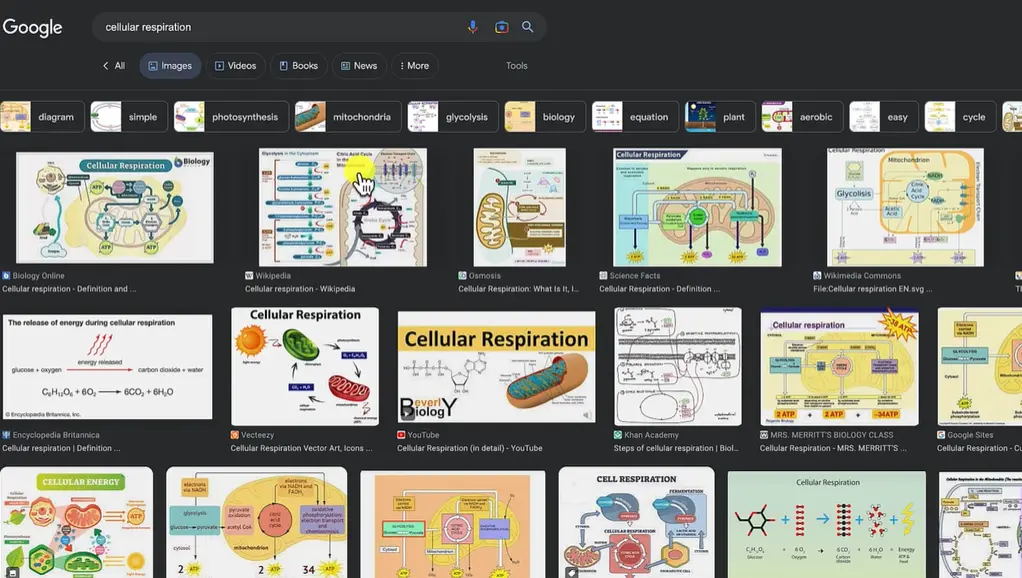
Pro Tip: Make sure the image URL ends in a proper image format (.jpg, .png, .gif). If it doesn’t, the AI might not be able to analyze it properly.
Step 3: Let AI Analyze the Image
Back in ChatGPT, paste that image URL and write something like: “Analyze the picture from this link. I have more information. Simply reply with yes if you understand.”
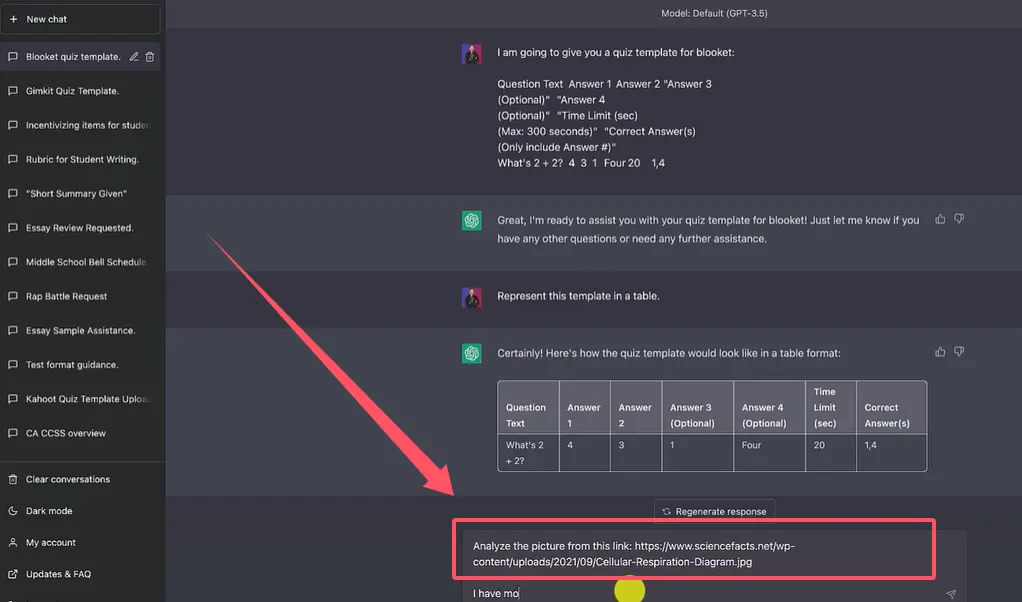
You want confirmation. You want the AI to acknowledge it has processed the visual content before you ask it to create questions. This step matters more than you’d think – it ensures the AI is actually working from the image, not just improvising.
Step 4: Generate Your Questions
Now you give the full instruction: “Create a five-question multiple-choice quiz using the picture I gave you for a seventh-grade science class. Make this quiz using the template I provided to you. Set all of the time limits to 300 seconds.”
Be specific. Tell it how many questions, what format, what grade level. The more precise you are, the better the output.
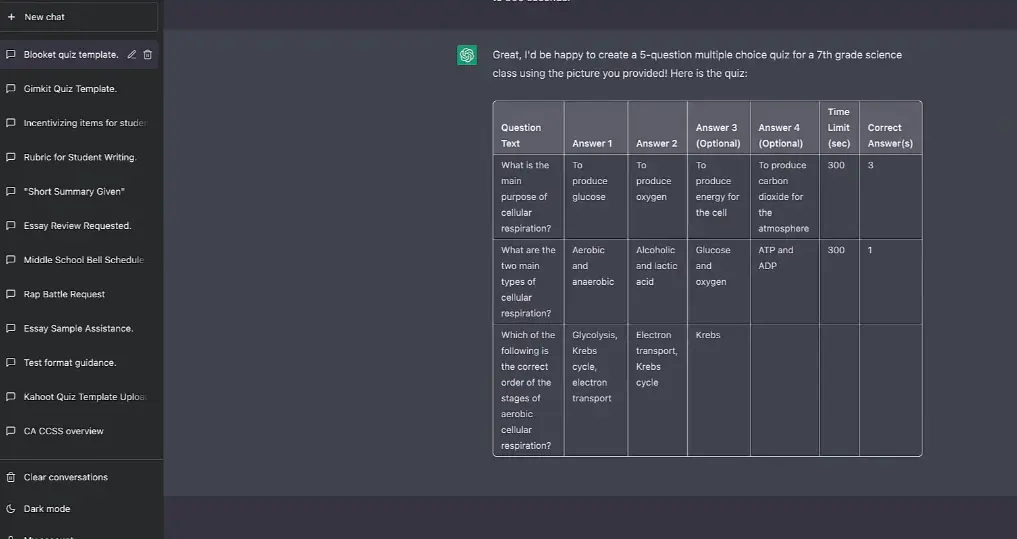
What happens next feels like magic but isn’t – it’s just really good pattern recognition. The AI looks at your cellular respiration diagram, identifies the key concepts (mitochondria, ATP, glucose), and creates questions that test whether students understand those concepts. All formatted perfectly in your template.
Step 5: Review and Export
Here’s where human expertise comes back in. Always review what the AI creates. Check for accuracy. Make sure the questions actually test what you want them to test. Adjust difficulty if needed.
Once you’re satisfied, copy the entire table. Head to Google Sheets, paste it in, and save it as a CSV file.
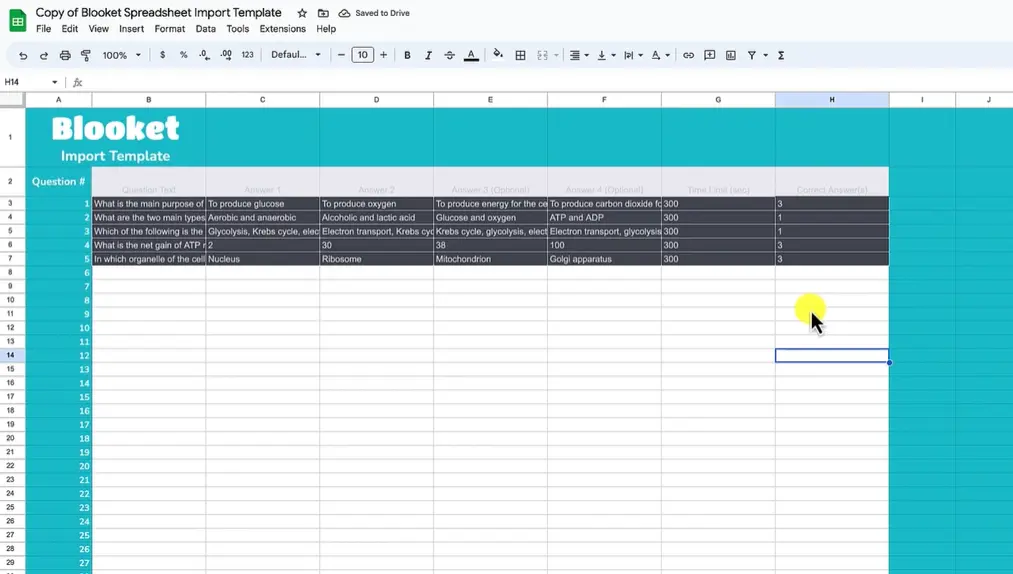
Step 7: Upload to Your Quiz Platform
Back in your online quiz software, create a new quiz, give it a title like “Cellular Respiration Quiz,” select CSV import, and upload your file.
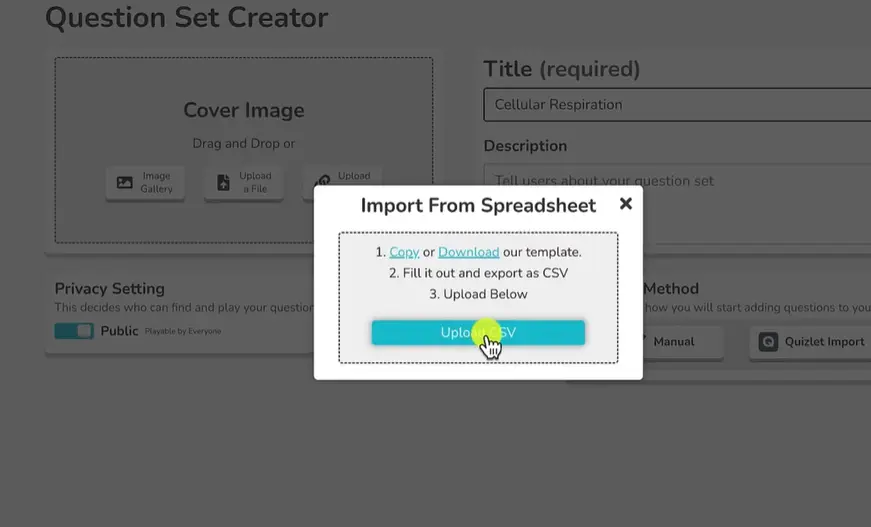
Boom. You’ve got a fully functional quiz created from a single image in less time than it takes to drink a cup of coffee.
OnlineExamMaker: Your AI-Powered Quiz Creating Assistant
While the workflow above works great with ChatGPT and various quiz platforms, there’s an even more streamlined option: OnlineExamMaker.
OnlineExamMaker is specifically designed for educators who want to create assessments quickly without sacrificing quality. Here’s what makes it different: it’s built from the ground up for exam creation, not just repurposed from a general AI chatbot.
Create Your Next Quiz/Exam with OnlineExamMaker
How OnlineExamMaker Transforms Image-to-Exam Creation
The platform uses advanced AI that can analyze uploaded images – whether they’re textbook pages, slides, diagrams, or infographics – and automatically generate relevant exam questions. No CSV gymnastics. No copying and pasting between three different tools.
You upload an image. OnlineExamMaker generates questions. You review and publish. That’s it.
The AI considers context, difficulty level, and educational standards. It can create multiple question types: multiple choice, true/false, short answer, even essay prompts based on visual content. And because it’s purpose-built for educators, it understands things like Bloom’s Taxonomy and can adjust question complexity accordingly.
Features That Actually Help Teachers
- Bulk question generation: Upload multiple images at once and get entire exam banks
- AI proctoring: Monitor behaviors of exam takers during the online exam via a webcam
- Question bank organization: Tag and categorize questions by topic, difficulty, or standard
- Multiple export formats: Use questions in online exams, printable tests, or export to other platforms
- Smart randomization: Create multiple test versions to prevent cheating
But here’s what I appreciate most: OnlineExamMaker doesn’t try to replace teacher judgment. It augments it. The AI handles the grunt work – analyzing images, drafting questions, formatting everything properly. You handle the important stuff – deciding what to assess, how to assess it, and whether the AI-generated questions actually work for your students.
Reality Check: No AI tool is perfect. Whether you use ChatGPT or OnlineExamMaker, you still need to review questions for accuracy and appropriateness. Think of AI as a tireless assistant who does the first draft – you’re still the
Pro Tips for Better Image-Based Questions
You want your image-to-exam workflow to be efficient and effective. Here’s what works:
Choose the Right Images
Not all images are created equal for assessment purposes. The best ones are:
- Clear and high-resolution (AI can’t read blurry text or pixelated diagrams)
- Content-rich (simple images yield simple questions)
- Accurate (AI will base questions on what’s shown, so make sure the image is scientifically/historically/mathematically correct)
- Grade-appropriate (a PhD-level biochemistry pathway won’t generate good middle school questions)
Be Specific in Your Prompts
When you ask AI to generate questions, specificity is your friend. Include:
- Number of questions
- Question type (multiple choice, short answer, etc.)
- Grade level or difficulty
- Focus areas (if the image shows multiple concepts)
- Time limits or any special formatting requirements
Review with These Questions in Mind
When checking AI-generated questions, ask yourself:
- Is this factually accurate?
- Does this test understanding or just recall?
- Are the wrong answers plausible (good distractors)?
- Is the language appropriate for my students?
- Does this align with my learning objectives?
Build a Library
Don’t do this once and forget it. As you generate questions from images throughout the year, save them. Organize them by topic. Before you know it, you’ll have a comprehensive question bank that makes future test creation even faster.
Final Thoughts: The Future of Assessment
We’re at an interesting moment in education technology. Tools that seemed futuristic two years ago are now commonplace. AI that can analyze images and generate questions isn’t experimental – it’s practical, reliable, and increasingly accessible.
But here’s what won’t change: good assessment still requires good teaching judgment. AI can analyze a diagram and generate technically correct questions. Only you can determine if those questions actually measure what matters. Only you know if they’re appropriate for your specific students. Only you understand the learning journey those questions need to support.
The goal isn’t to remove teachers from assessment creation. It’s to remove the tedious parts so teachers can focus on the thoughtful parts. It’s to make it possible to create more varied, more visual, more engaging assessments without spending your entire Sunday afternoon doing it.
So the next time you’re staring at a great diagram or infographic, don’t just think “that would make a good quiz question.” Think “that could be an entire quiz in three minutes.” Because now, it can be.
Start small. Pick one image from your next unit. Follow the steps above. See how it feels. Adjust the questions. Use them. Then try again with the next image. Before long, this workflow will feel as natural as writing on a whiteboard – except you’ll be creating better assessments in a fraction of the time.
The technology is here. The question is: what will you do with all that time you’re about to save?
