Randomizing PowerPoint quizzes isn’t just about preventing cheating—it’s about creating dynamic, engaging learning experiences that keep students on their toes. It is an ideal solution to help exam organizers deliver interactive testing experience to exam takers.
- Why Randomize Your PowerPoint Quizzes?
- Method 1: Manual Slide Shuffling (Quick and Code-Free)
- Method 2: Jump to Random Slides Using VBA Macros
- Method 3: Shuffle Slides in Edit Mode with VBA
- Using OnlineExamMaker for Effortless Randomized Quizzes
- Code-Free Alternative: ClassPoint Add-in
- Best Practices for Randomized Quiz Design
- Frequently Asked Questions
Why Randomize Your PowerPoint Quizzes?
If You are running a quiz game in your classroom, and students are already predicting the next question before you even click forward. Sound familiar? That’s the problem with predictable presentations. Randomization changes everything.
When you shuffle questions or jump to random slides, you create an element of surprise that keeps everyone engaged. No more students tuning out because they know what’s coming next. Plus, randomization prevents cheating by ensuring each quiz session presents questions in a different order. It’s like shuffling a deck of cards—every deal is unique.
But here’s the catch: PowerPoint doesn’t have a built-in “randomize” button. You’ll need to get creative with manual rearrangement, VBA macros, or specialized tools. Don’t worry though—I’ll walk you through every method, from the simplest drag-and-drop approach to sophisticated coding solutions.
Method 1: Manual Slide Shuffling (Quick and Code-Free)
Let’s start with the easiest approach—perfect if you’re running a one-time quiz and don’t want to mess with code.
Here’s how it works:
- Open your PowerPoint presentation and navigate to the View tab
- Click on Slide Sorter view—this displays all your slides in a grid layout
- Click and drag slides to rearrange them randomly (hold Ctrl or Cmd to select multiple slides at once)
- Switch back to Normal view when you’re satisfied with the order
Pro tip: Save a copy of your original presentation first! Once you shuffle slides manually, you’ll need to manually restore the original order—or shuffle again from scratch next time.
This method works great for quick setups, but it becomes tedious if you’re running the same quiz multiple times. That’s where automation comes in handy.
Method 2: Jump to Random Slides Using VBA Macros
Want to add some real excitement to your quiz? Instead of shuffling the entire deck, why not let PowerPoint pick a random card each time you click a button? This method keeps your original slide order intact while jumping unpredictably through your presentation.
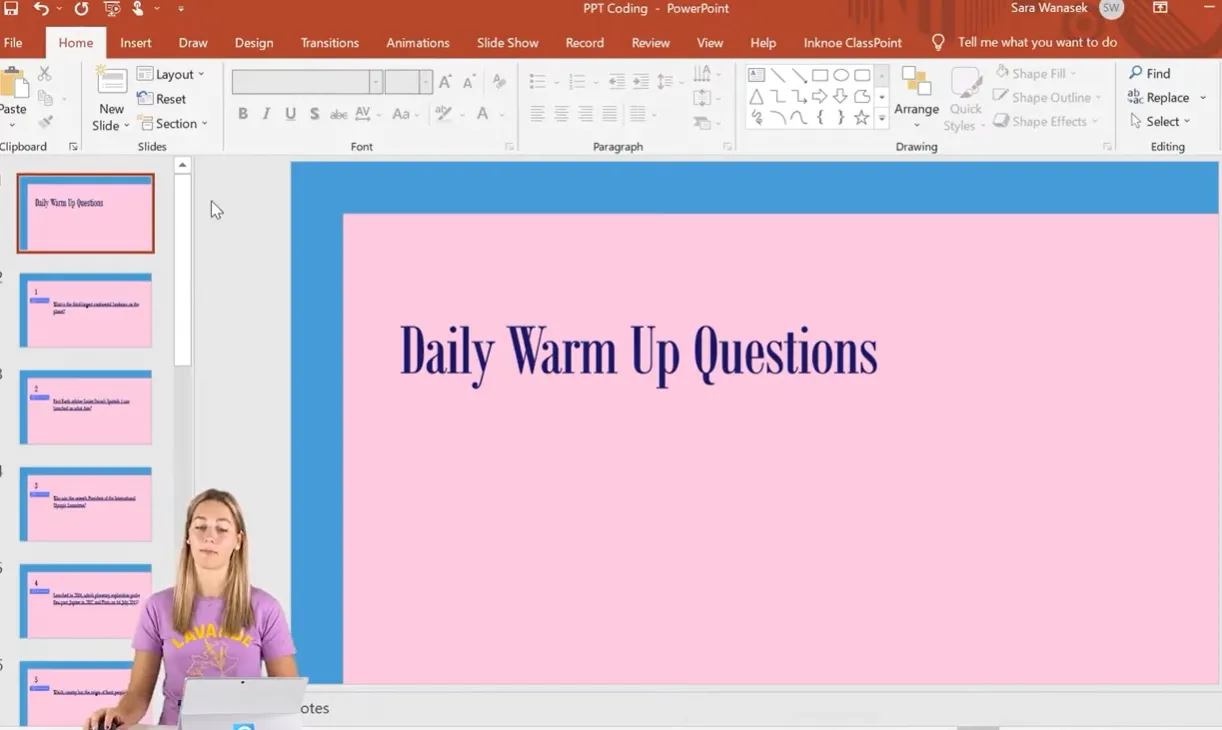
Setting Up the Developer Tab
First, you’ll need access to PowerPoint’s coding tools. The Developer tab isn’t visible by default, but enabling it takes just seconds:
- Right-click anywhere on the PowerPoint ribbon
- Select Customize the Ribbon
- Check the box next to Developer on the right side
- Click OK
Boom—the Developer tab now appears in your ribbon, unlocking PowerPoint’s programming capabilities.
Creating Your Jump-to-Random-Slide Macro
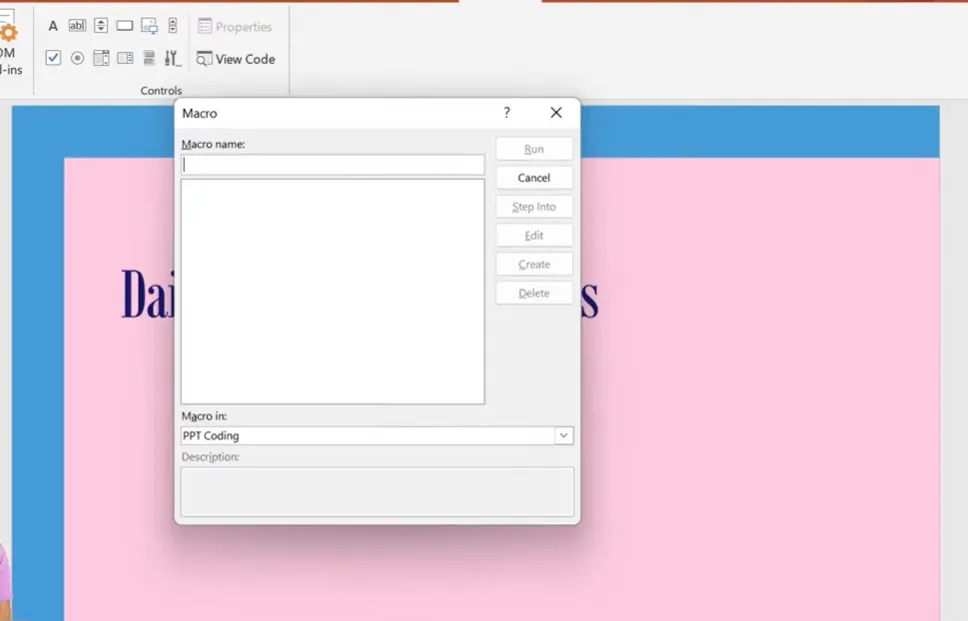
Now for the fun part. Here’s how to create a macro that jumps to random slides:
- Click on the Developer tab and select Macros
- Name your macro something memorable like “JumpToRandomSlide”
- Click Create—this opens the Visual Basic for Applications (VBA) editor
- Copy and paste this code into the editor:
Sub JumpToRandomSlide()
    FirstSlide = 2  ' Start after your title slide
    LastSlide = 16  ' Adjust to your last quiz slide
    Randomize
    RandomSlideNumber = Int((LastSlide - FirstSlide + 1) * Rnd + FirstSlide)
    SlideShowWindows(1).View.GotoSlide RandomSlideNumber
End Sub
Customize the numbers: Change FirstSlide to 2 if you have a title slide you don’t want to include, or 1 if you want to start from the very first slide. Adjust LastSlide to match the total number of slides you want to randomize through.
The rest of the code handles the magic—it generates a random number within your specified range and tells PowerPoint to jump to that slide.
Adding a Button to Trigger the Macro
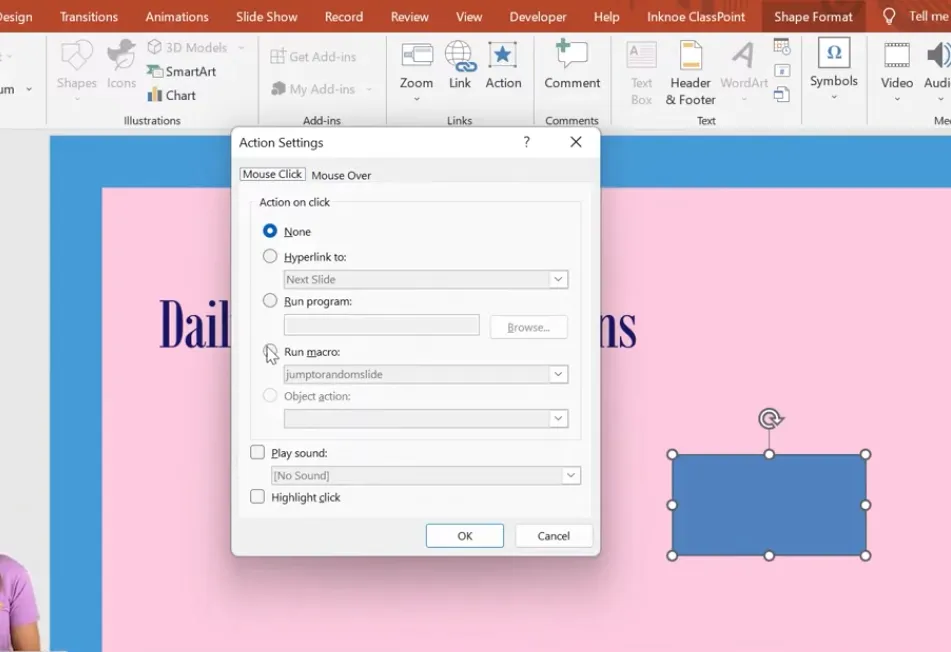
Now you need a way to activate this randomization during your presentation:
- Go to the Insert tab and click Shapes
- Choose any shape (a button-style rectangle works well)
- Add text like “Random Question” so you remember what it does
- With the shape selected, click Insert > Action
- Stay on Mouse Click, but change the action to Run Macro
- Select your “JumpToRandomSlide” macro from the dropdown
- Click OK
Copy this button onto every slide where you want the random jump option. Once you’re done, save your presentation as a macro-enabled PowerPoint (.pptm) file—otherwise, your macros won’t work!
Testing Your Random Jump Feature

Enter presentation mode and click your button. Instead of advancing to the next slide sequentially, PowerPoint jumps to a random question. Click again, and you’ll land somewhere completely different.
One caveat: This method doesn’t prevent duplicates. You might see question 5 twice before seeing question 3 at all. If that’s a problem, keep reading—the next methods solve this issue.
Method 3: Shuffle Slides in Edit Mode with VBA
What if you want to completely randomize your slide order before the quiz starts, ensuring no duplicates? This method physically rearranges your slides in PowerPoint’s edit mode, creating a fresh random sequence each time you run the macro.
Creating the Shuffle Macro
Back in the Developer tab, click Macros and create a new macro called “ShuffleSlidesEdit”:
Sub ShuffleSlides()
    FirstSlide = 2  ' Starting slide number
    LastSlide = 10  ' Ending slide number
    Randomize
    For i = FirstSlide To LastSlide
        RSN = Int((LastSlide - FirstSlide + 1) * Rnd + FirstSlide)
        ActivePresentation.Slides(i).MoveTo RSN
    Next i
End Sub
This code loops through your specified slide range and moves each slide to a random position. Simple but effective.
Pro tip: If your presentation constantly changes in length, replace the LastSlide = 10 line with this dynamic code:
LastSlide = ActivePresentation.Slides.Count
Now the macro automatically detects how many slides you have and shuffles all of them.
Setting Up the Shuffle Button
Since you only need to shuffle once before starting the quiz, add a button to your first slide only:
- Insert a shape on your title or instruction slide
- Click Insert > Action
- Select Run Macro and choose “ShuffleSlidesEdit”
- Click OK

Now when you enter presentation mode and click your shuffle button, PowerPoint rearranges all the slides. Navigate forward, and you’ll see they’re in a completely different order—no duplicates, no predictability.
The downside? Your slides are now permanently shuffled in edit mode too. You’ll need to manually reorder them or run the macro again for a new shuffle. If that bothers you, the next method offers a better solution.
Using OnlineExamMaker for Effortless Randomized Quizzes
VBA macros are powerful, but they’re not everyone’s cup of tea. If you’re thinking, “There has to be an easier way,” you’re absolutely right. Enter OnlineExamMaker, an AI-powered exam creation platform that handles randomization automatically.
OnlineExamMaker is specifically designed for teachers, trainers, and HR managers who need professional assessment tools without the technical headaches. Here’s what sets it apart:
- AI-Powered Question Generation: Upload course materials, and OnlineExamMaker’s AI creates quiz questions automatically—saving hours of manual work
- Built-in Randomization: No coding required. Simply enable question shuffling in the quiz settings, and the platform handles the rest
- Answer Order Randomization: Not only can you shuffle questions, but you can also randomize answer choices within each question—making it nearly impossible to cheat
- Question Bank Management: Create pools of questions and let the system randomly select which questions appear for each student
- Real-Time Analytics: Track student performance, identify difficult questions, and adjust your quizzes based on data
Create Your Next Quiz/Exam Using AI in OnlineExamMaker
How OnlineExamMaker Helps with Randomized Quizzes
Creating a randomized quiz in OnlineExamMaker takes minutes, not hours:
- Create Your Question Bank: Upload questions manually or use AI to generate them from your teaching materials
- Enable Randomization Settings: Toggle on “Shuffle Questions” to randomize question order for each test-taker
- Set Up Answer Shuffling: Enable “Shuffle Answer Options” so multiple-choice answers appear in different orders
- Configure Question Pool Logic: If you have 50 questions but want each student to answer only 20, set the system to randomly select questions from your bank
- Publish and Share: Distribute your quiz via link, QR code, or embed it directly into your learning management system
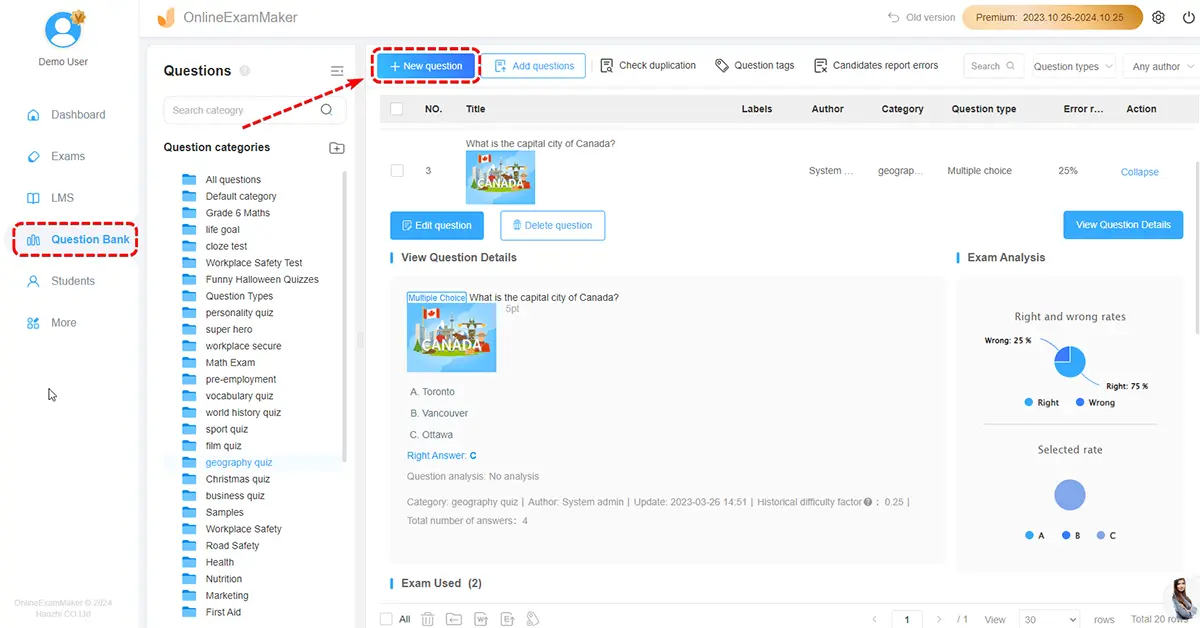
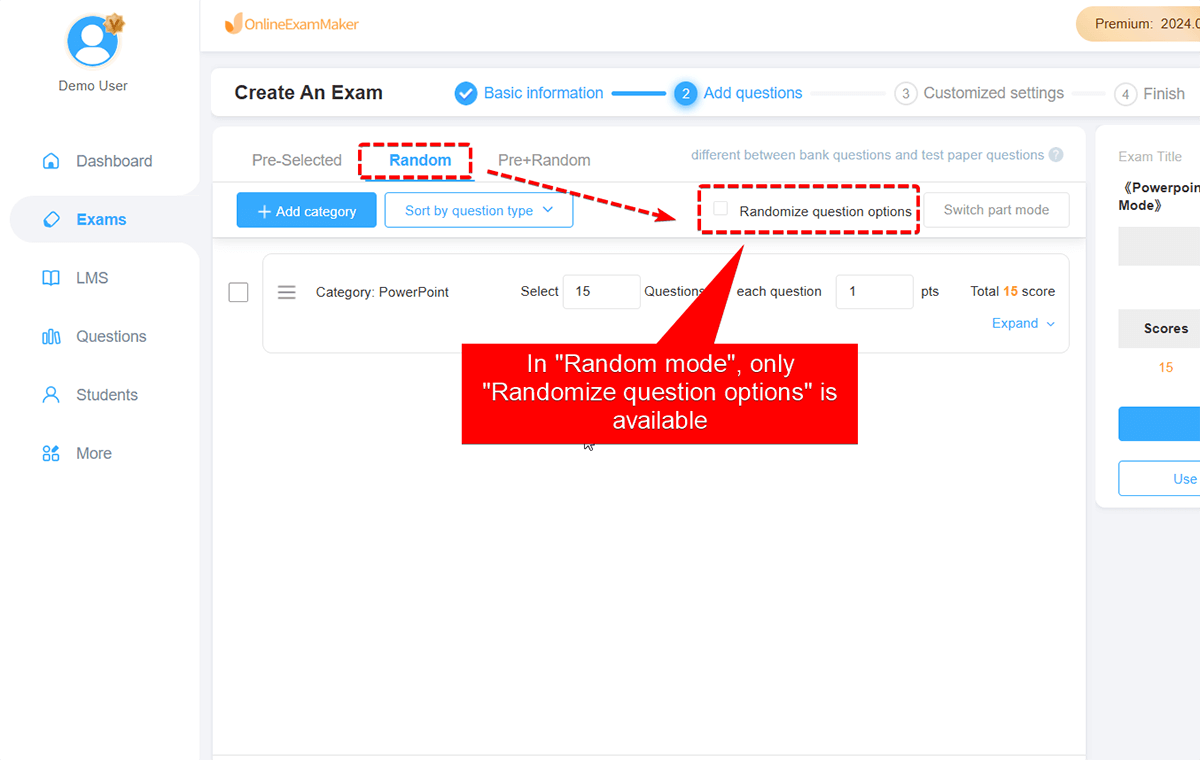
The platform handles all the randomization logic behind the scenes. No macros to debug, no file format headaches, and no risk of corrupted presentations. Plus, students can take quizzes on any device—smartphones, tablets, or computers.
When to Choose OnlineExamMaker Over PowerPoint
PowerPoint randomization works great for in-person, instructor-led quiz games. But if you need:
- Remote or asynchronous assessments
- Automated grading and instant feedback
- Question banks with hundreds of items
- Detailed analytics on student performance
- Security features like time limits and browser lockdown
…then OnlineExamMaker becomes the better choice. It’s purpose-built for educational assessment, whereas PowerPoint is a presentation tool that we’re creatively hacking for quiz purposes.
Code-Free Alternative: ClassPoint Add-in
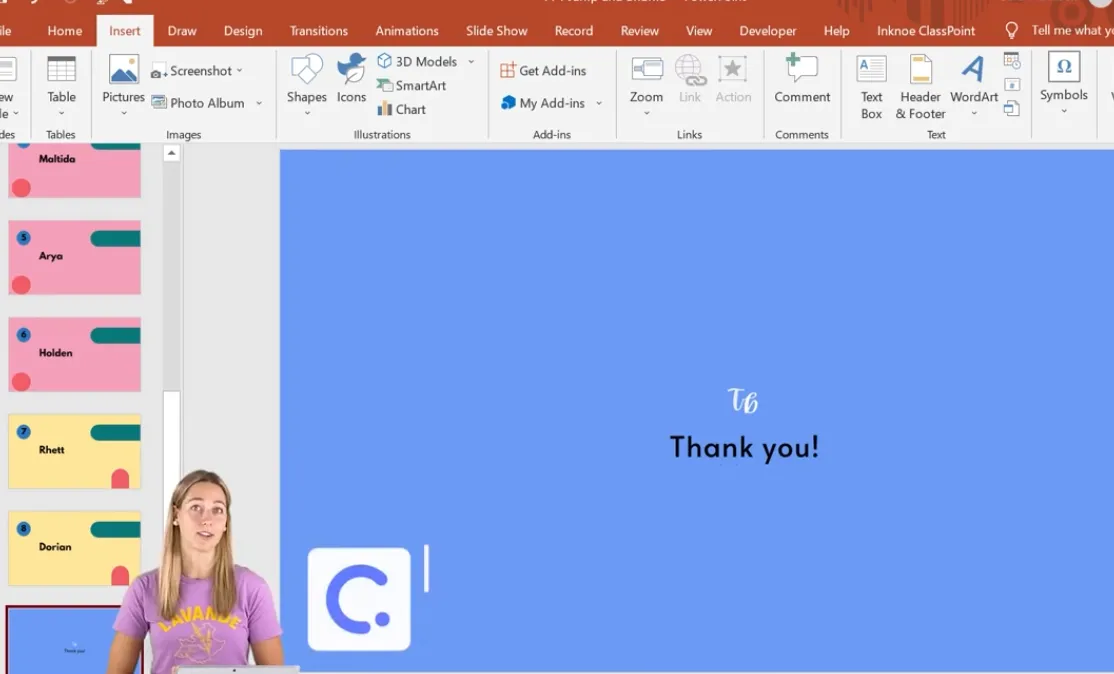
If you love PowerPoint but hate coding, ClassPoint offers a perfect middle ground. This interactive teaching add-in integrates directly into PowerPoint, adding education-specific features without requiring any VBA knowledge.
Key Features for Randomization
ClassPoint’s standout feature is its random name picker—ideal for calling on students randomly during class:
- Install ClassPoint from classpoint.io
- Present your PowerPoint with students joined to your class session
- Click the “Pick Name” icon on the ClassPoint toolbar
- Student names appear behind boxes—click to reveal a randomly selected name
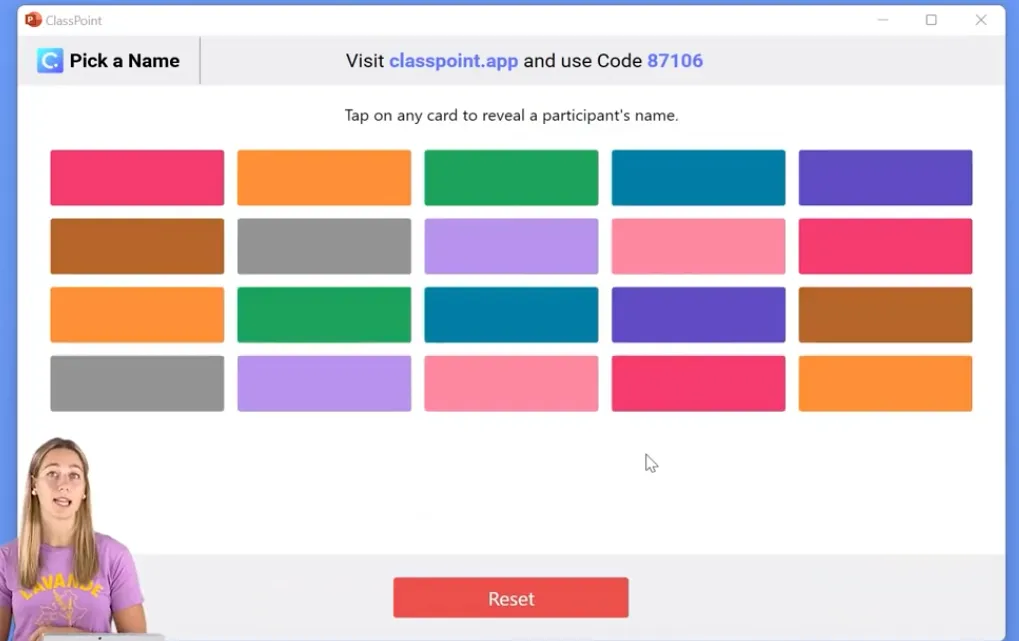
It’s faster, cleaner, and more reliable than any macro solution. Plus, ClassPoint includes interactive question types, live polls, quizzes with automatic grading, and gamification features—all without leaving PowerPoint.
The trade-off? ClassPoint requires an internet connection and student devices, whereas VBA macros work completely offline. Choose based on your classroom setup and teaching style.
Best Practices for Randomized Quiz Design
Randomization is powerful, but it’s not a magic bullet. Here’s how to design quizzes that actually improve learning:
Balance Difficulty Levels
Don’t randomize a mix of easy and impossibly hard questions without considering flow. If students hit three brutal questions in a row by chance, they’ll feel discouraged. Consider grouping questions by difficulty and randomizing within each tier.
Test Your Randomization
Run through your randomized quiz several times before using it with students. Check for:
- Broken hyperlinks or actions
- Questions that don’t make sense out of context
- Technical glitches with your macros
- Timing issues if you’ve set time limits
Always Save Backup Copies
Before running any shuffle macro, save a copy of your original presentation. Macros that rearrange slides can’t be easily undone—especially if you’ve added more content since the shuffle.
Communicate the Format
Tell students upfront that questions will appear in random order. This prevents confusion and ensures everyone understands the quiz format.
Consider Accessibility
Some students with learning differences benefit from predictable structures. If you’re randomizing for anti-cheating purposes, consider whether accommodations are needed for certain students.
Frequently Asked Questions
Can I randomize answer choices within questions, not just question order?
PowerPoint’s native features don’t support this, but tools like OnlineExamMaker and ClassPoint can randomize both questions and answer options. If you’re committed to PowerPoint, you’d need to create multiple versions of each question slide with answers in different orders—tedious but possible.
Will my macros work on both Windows and Mac?
Most VBA macros work on both platforms, but Mac versions of PowerPoint have historically had quirks with certain VBA features. Always test on the platform you’ll present from. If you encounter issues on Mac, consider using cloud-based solutions like OnlineExamMaker instead.
How do I prevent the same slide from appearing twice when using the jump method?
Use Method 4 (Advanced Shuffling) described above, which tracks which slides have been shown. The simple jump method (Method 2) doesn’t prevent duplicates because each click is an independent random selection.
Can I randomize only specific slides while keeping others in order?
Absolutely. Just adjust the FirstSlide and LastSlide variables in your macro code to target only your quiz question slides, leaving introduction and conclusion slides untouched.
Is there a way to undo a shuffle if I don’t like the result?
If you’ve used a macro that physically rearranges slides (Method 3 or Method 4), you can press Ctrl+Z (Cmd+Z on Mac) immediately after running the macro to undo the changes. If you’ve saved the file, you’ll need to revert to your backup copy or manually reorder slides.
Do I need to enable macros every time I open the presentation?
By default, PowerPoint blocks macros for security reasons. When you open a macro-enabled presentation (.pptm file), you’ll see a warning bar—click “Enable Content” to activate your macros. If you trust the file, you can adjust your macro security settings in PowerPoint’s Trust Center, but be cautious about enabling macros in files from unknown sources.
Can students see the slides before they’re randomized?
If you’re using Method 2 (Jump to Random Slides) or Method 4 (Advanced Shuffling), students never see the original slide order—randomization happens during the slideshow. With Method 3 (Shuffle in Edit Mode), the slides are physically rearranged before you present, so there’s no risk of students seeing the pre-shuffled order.
