Creating fair assessments is one of those teaching challenges that keeps you up at night. You spend hours crafting the perfect quiz, only to worry about students sharing answers or glancing at their neighbor’s screen. Here’s the thing—randomization isn’t just about preventing cheating. It’s about creating unique learning experiences that actually test understanding rather than memorization patterns.
Excel might seem like an unlikely hero in your quest for quiz randomization, but it’s surprisingly powerful once you know the tricks. Whether you’re working with the latest Microsoft 365 version or still rocking Excel 2010, there’s a method that’ll work for you.
- Why Randomize Quiz Questions?
- Method 1: Using SORTBY and RANDARRAY (Microsoft 365)
- Method 2: Using RAND and SORT (All Excel Versions)
- The Modern Solution: OnlineExamMaker
- Randomizing Question Order with RANDBETWEEN and INDEX
- Randomizing Answer Choices
- Avoiding Duplicates and Managing Answer Keys
- Formatting Your Quiz for Export
Why Randomize Quiz Questions?
Think about the last time you took a multiple-choice test. Did you notice yourself developing patterns? “When in doubt, choose C.” We’ve all been there. Students are remarkably good at gaming static quizzes, and not because they’re trying to cheat—it’s just human nature to look for patterns.
Randomizing both questions and answer choices forces genuine comprehension. A student can’t rely on remembering that “the answer to question 3 is always B” when question 3 might be entirely different on their version. Plus, for educators managing multiple class sections or retakes, randomized quizzes mean you’re not constantly writing new assessments from scratch.
Method 1: Using SORTBY and RANDARRAY (Microsoft 365)
If you’re using Microsoft 365, you’ve got access to some seriously elegant functions that make randomization almost too easy. The SORTBY function combined with RANDARRAY is your new best friend.
The Basic Formula
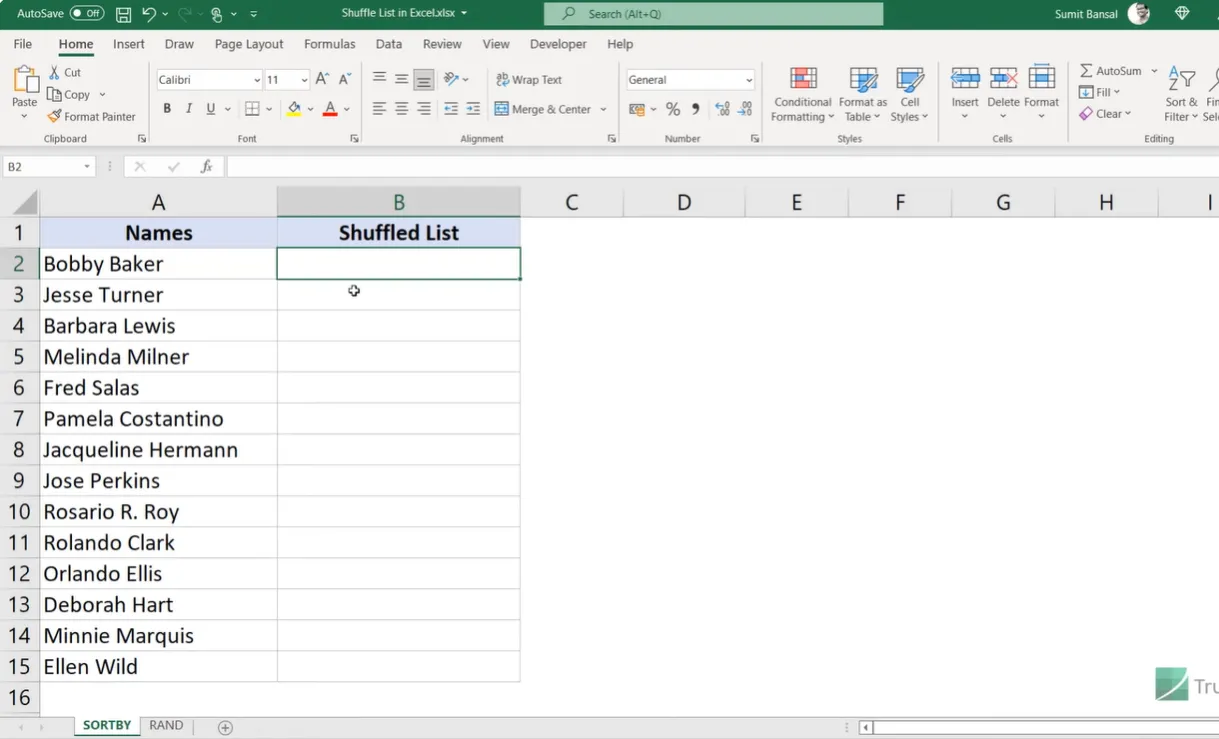
Let’s say you have a list of questions or items starting in cell A2. Here’s how to shuffle them:
=SORTBY(A2:A15, RANDARRAY(14))
What’s happening here? SORTBY takes your list and sorts it based on random numbers generated by RANDARRAY. Simple, right? The RANDARRAY function creates random numbers between zero and one, and SORTBY uses those as the sorting criteria.
Making It Dynamic
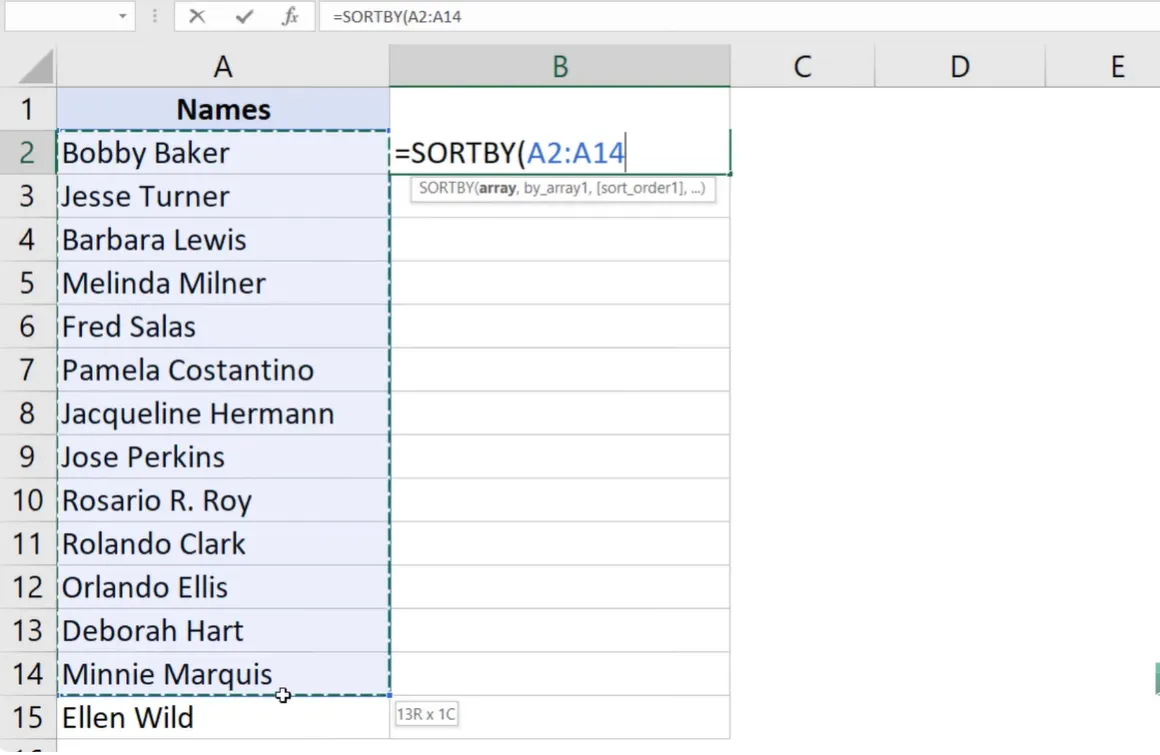
The problem with hardcoding “14” is that your list might grow. Here’s the smarter version:
=SORTBY(A2:A15, RANDARRAY(ROWS(A2:A15)))
The ROWS function automatically counts how many items you have, so adding or removing questions doesn’t break your formula. This is the kind of future-proofing that saves you headaches down the road.
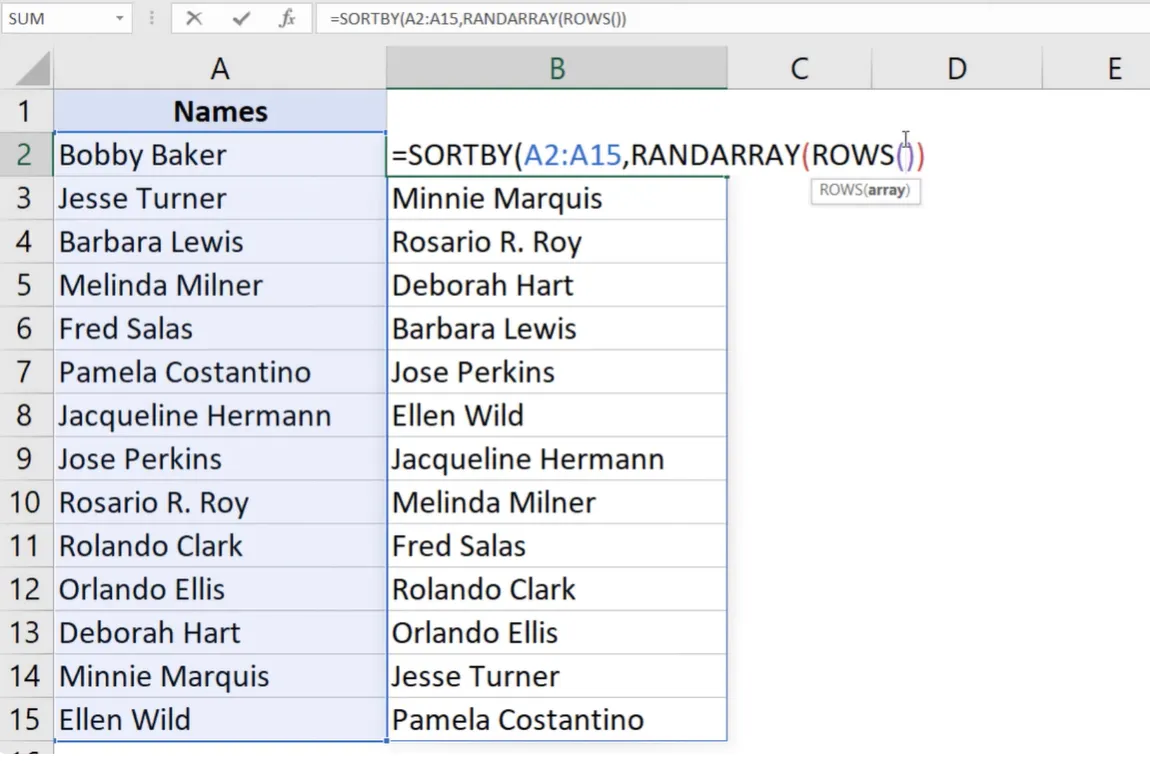
One quirk worth knowing: because RANDARRAY is what’s called a “volatile” function, your list will reshuffle every time anything changes in your worksheet. Type something in any cell, hit enter, and boom—new order. Want to manually reshuffle? Just press F9. Once you’ve got the arrangement you want, copy and paste as values to lock it in place.
Method 2: Using RAND and SORT (All Excel Versions)
Not everyone has Microsoft 365, and that’s perfectly fine. This method works in virtually any version of Excel, though it requires a few more manual steps.
The Helper Column Approach
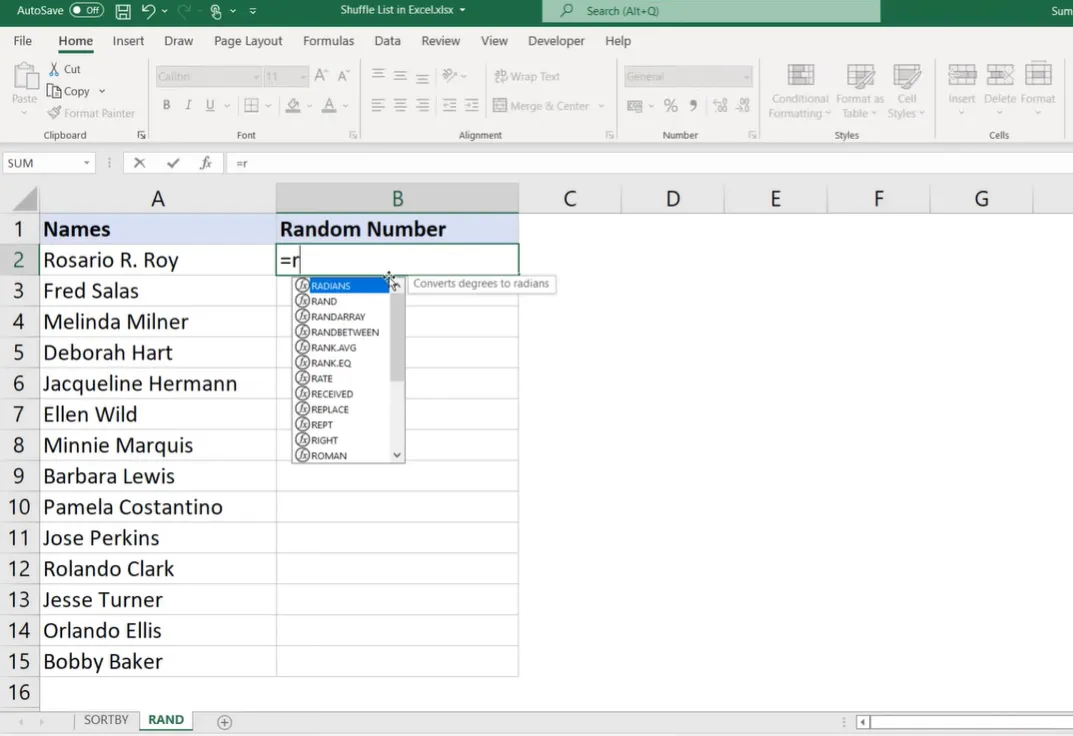
Create a helper column next to your list and use the RAND function: =RAND()
This generates a random decimal between 0 and 1 for each row. Copy the formula down for all your items. Now comes the manual part: select any cell in your random number column, right-click, choose Sort, and select either “Sort Smallest to Largest” or “Sort Largest to Smallest.” Doesn’t matter which—randomness is randomness.
Your list is now shuffled. Want to shuffle again? Just repeat the sort process. Once you’re happy with the order, you can delete the helper column. The beauty of this method is its simplicity—no fancy functions, no version requirements. Just basic Excel doing basic Excel things.
OnlineExamMaker: AI-powered Free Random Question Generator
Look, Excel is powerful, but let’s be honest—it’s also a bit of a workaround. You’re essentially jury-rigging a spreadsheet program to do something it wasn’t really designed for. For teachers creating regular assessments, there’s a better way.
OnlineExamMaker is purpose-built software that handles quiz randomization automatically, without requiring you to become an Excel wizard. Here’s what makes it compelling for educators:
Create Your Next Quiz/Exam with OnlineExamMaker
AI-Powered Question Generation
The platform uses artificial intelligence to help generate quiz questions from your teaching materials. Upload your lesson content, and the AI suggests relevant questions and plausible wrong answers. It’s not perfect—you’ll still need to review and edit—but it’s a massive time-saver compared to writing everything from scratch.
Built-In Randomization
Unlike Excel where randomization requires complex formulas, OnlineExamMaker handles this with simple checkbox options. Want to randomize question order? Check a box. Want to shuffle answer choices? Another checkbox. Want different students to see different subsets of questions from a larger pool? That’s built in too.
Automatic Grading and Analytics
Here’s where dedicated quiz software really shines. Every response is automatically graded, and you get detailed analytics showing which questions students struggled with, average completion times, and individual performance trends. This kind of insight is gold for improving your teaching—and it’s essentially impossible to replicate in Excel without building incredibly complex macros.
Device-Friendly Delivery
Students can take quizzes on any device—computers, tablets, phones. The interface adjusts automatically, and you don’t have to worry about Excel version compatibility or students accidentally breaking your carefully crafted formulas. Plus, you can set time limits, prevent backtracking, and even enable proctoring features for high-stakes assessments.
Is it overkill if you’re just creating the occasional quiz? Maybe. But for teachers regularly assessing students, the time saved and stress reduced makes it worth considering. Excel is brilliant for learning the mechanics of randomization, but purpose-built tools exist for a reason.
Randomizing Question Order with RANDBETWEEN and INDEX
Now we’re getting into the real quiz-building territory. Let’s say you have a question bank with 25 items, but you only want to present 5 random questions each time.
Selecting Random Questions
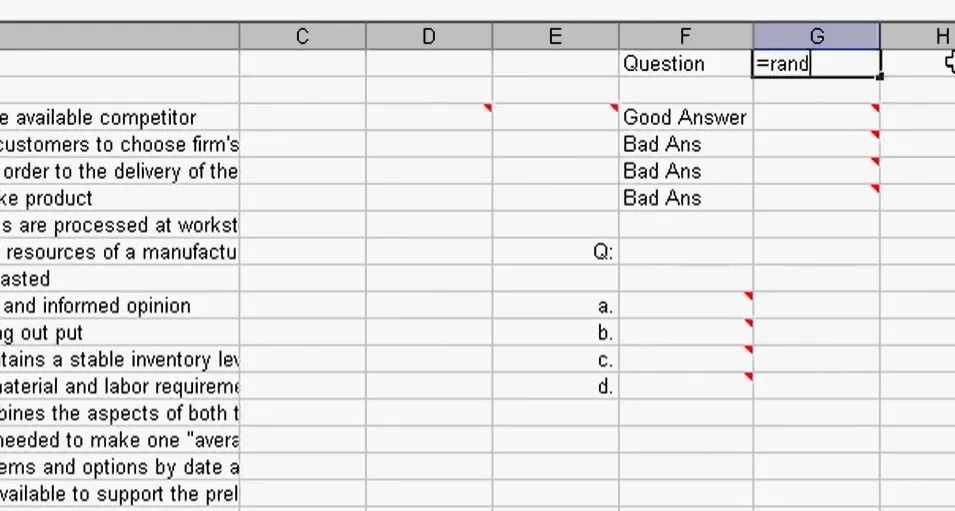
The RANDBETWEEN function picks a random integer within a range you specify:
=RANDBETWEEN(1, 25)
This gives you a random number between 1 and 25, representing which question to pull from your bank. But here’s where it gets clever—pair this with the INDEX function to actually retrieve that question:
=INDEX($A$2:$A$26, RANDBETWEEN(1, 25))
The dollar signs create absolute references so your formula doesn’t shift when copied. This combination lets you pull random questions from your bank without manually selecting them.
Using RANK to Avoid Duplicates
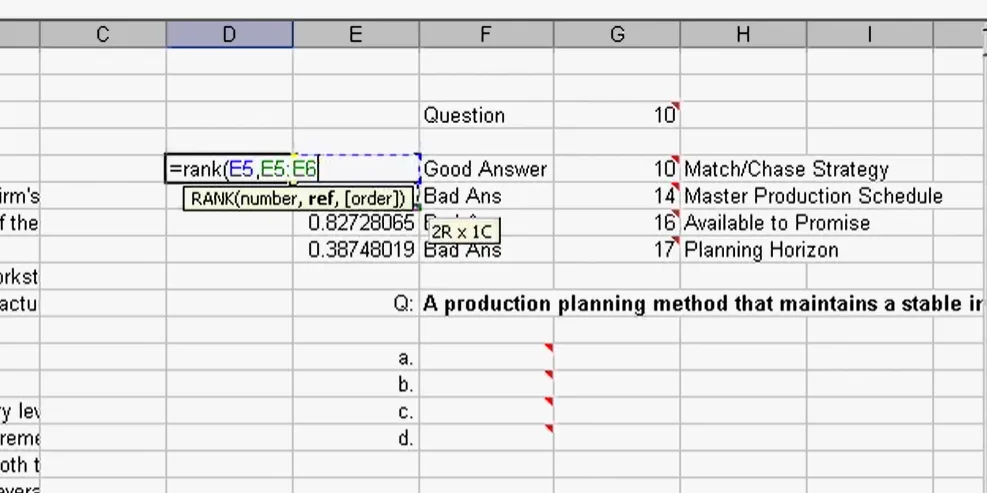
One problem with pure randomization: you might get the same question twice. The solution involves a helper column with RAND() and another with RANK:
=RANK(B2, $B$2:$B$6)
This ranks your random numbers from 1 to however many questions you want, guaranteeing no duplicates. Then use INDEX with these ranked numbers to pull your questions in a unique random order.
Randomizing Answer Choices
Here’s where things get interesting. Shuffling questions is one thing, but randomizing answer choices for each question? That’s the advanced course.
Setting Up Your Question Bank
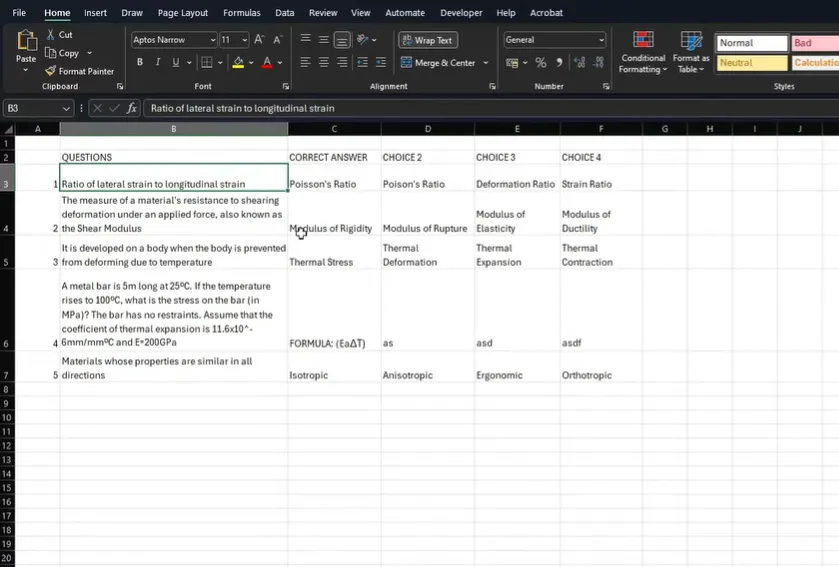
Structure your question bank with columns for: Question ID, Question Text, Correct Answer, Option B, Option C, Option D. The key is keeping the correct answer in a consistent position initially—you’ll randomize the display later.
The Randomization Process
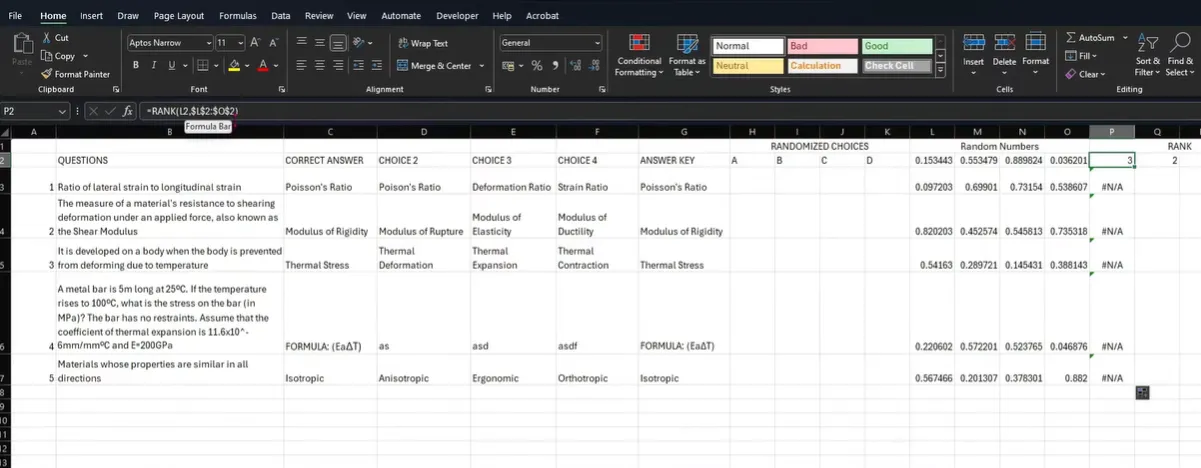
Create helper columns for random numbers (one per answer choice) and another set to rank them. For each question row:
=RAND() in four columns, then =RANK(L2, $L2:$O2) to rank them 1-4.
The trick is using mixed referencing—lock the column letters with dollar signs but let the row numbers change. This ensures each question’s answers shuffle independently.
Displaying Randomized Choices
Use INDEX with your rank numbers to pull answers in shuffled order:
=INDEX($B2:$E2, L2)
Where L2 contains your rank for answer position A. The beauty of this setup is that every time you recalculate (press F9), you get a completely different arrangement of answer choices while maintaining which answer is actually correct.
Avoiding Duplicates and Managing Answer Keys
The trickiest part of quiz randomization isn’t the shuffling—it’s keeping track of what’s correct after everything moves around.
The INDIRECT Function Trick
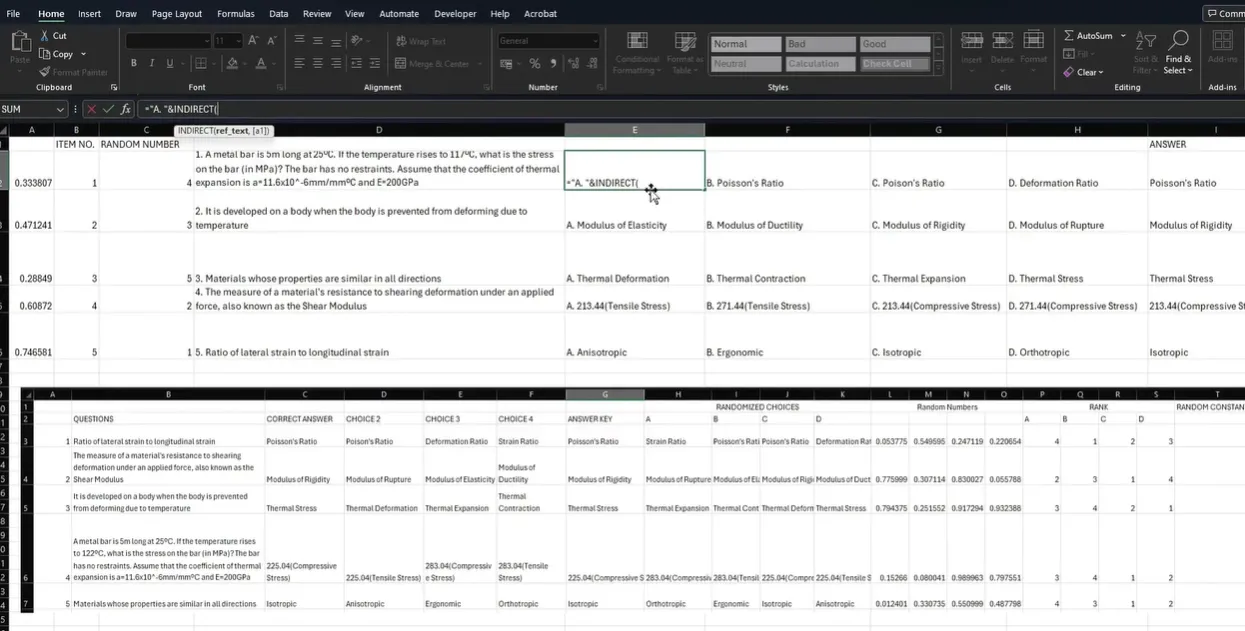
When you randomize both questions and answers, you need a way to map back to the correct answer. The INDIRECT function solves this by dynamically referencing cells based on your randomization:
=INDIRECT("QuestionBank!H"&(A2+2))
This constructs a cell reference on the fly, adjusting for the offset between your random number and where your answers actually start. It’s like giving Excel GPS coordinates instead of a static address.
Creating Your Answer Key
Keep a separate column in your question bank specifically for the answer key. When you randomize your quiz display, use VLOOKUP or INDEX/MATCH to pull the correct answer indicator along with each question. This way, regardless of how answers shuffle, you always know which position contains the right one.
Formatting Your Quiz for Export
You’ve built this beautiful randomization engine, but how do you actually turn it into a printable quiz?
The CONCATENATE Approach
Use CONCATENATE (or the simpler ampersand method) to combine your question number, question text, and answer choices:
=A2&". "&B2&CHAR(10)&"A. "&C2&CHAR(10)&"B. "&D2&CHAR(10)&"C. "&E2&CHAR(10)&"D. "&F2
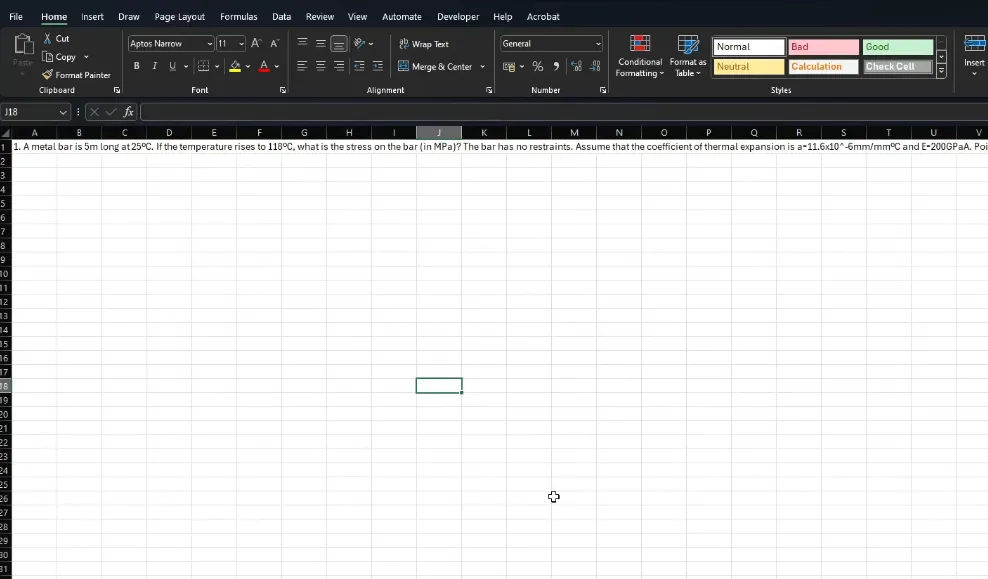
The CHAR(10) function inserts line breaks. Enable “Wrap Text” in Excel to see it formatted, then copy to Word for final formatting. This creates properly formatted quiz questions ready for printing or digital distribution.
When to Stick with Excel
That said, Excel still has its place. If you’re creating paper-based quizzes, need complete control over formatting, or want to understand exactly how randomization works under the hood, Excel remains the better choice. It’s also free if you already have Office, which matters when budgets are tight.
The real answer, as with most teaching tools, is: use what works for your situation. Small-scale, occasional quizzes? Excel is fine. Regular digital assessments for multiple classes? Dedicated software pays for itself in saved time.
Creating randomized quizzes doesn’t have to be intimidating. Whether you’re crafting formulas in Excel or clicking buttons in specialized software, the goal is the same: assessments that genuinely measure understanding. Start simple, maybe with just randomizing question order, and build complexity as you get comfortable. Your students might not appreciate the extra effort, but their improved learning outcomes will speak for themselves.
