Google Forms wasn’t built for high-stakes exams. It’s a lightweight tool meant for quick surveys and casual quizzes—not for preventing your students from Googling answers on their second monitor. But does that mean you’re out of luck if you need identity verification? Not quite.
While Google Forms lacks native face detection capabilities, you can absolutely layer on sophisticated proctoring features using third-party integrations, add-ons, and purpose-built exam platforms. Think of it like turning a bicycle into a motorcycle—you need the right parts, but it’s doable.
- Why Google Forms Needs Help with Identity Verification?
- Using Extended Forms Add-On for Exam Supervision
- Custom API Development for Face Detection
- OnlineExamMaker: The Purpose-Built Alternative
- How to Create an AI-Proctored Exam in OnlineExamMaker?
- Comparing Your Options: What Works Best?
Why Google Forms Needs Help with Identity Verification?
Let’s start with the obvious: Google Forms is fantastic for what it does. Creating a quiz takes minutes, sharing is effortless, and the integration with Google Classroom is seamless. But exam proctoring? That’s not in its DNA.
The platform has zero built-in biometric capabilities. No webcam monitoring, no face recognition, no liveness detection to confirm someone’s actually human and not holding up a photo. If you need to verify who’s taking your exam, you’re going to need reinforcements.
The challenge isn’t just technical—it’s also legal. Biometric data collection triggers privacy regulations like GDPR in Europe and various state laws in the US. Any solution you implement needs proper consent mechanisms, data encryption, and transparent policies. Otherwise, you’re opening yourself up to compliance headaches that make cheating look minor by comparison.
Using Extended Forms Add-On for Google Forms Supervision
If full-blown proctoring services feel like overkill, Google Workspace add-ons offer a middle ground. Extended Forms is a popular option that adds proctoring capabilities directly to your Google Forms interface.
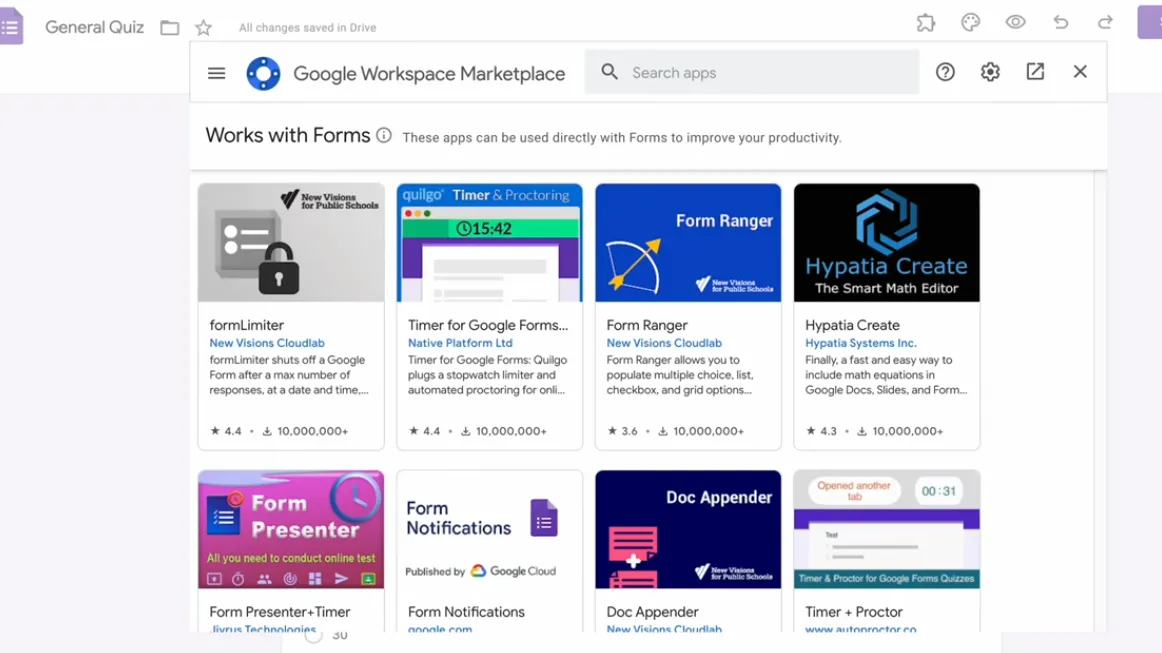
Installing and Configuring Extended Forms
The setup is straightforward. Click the puzzle icon in your Google Form, search for Extended Forms in the Workspace Marketplace, and install it. You’ll need to grant permissions for it to access your form and responses.
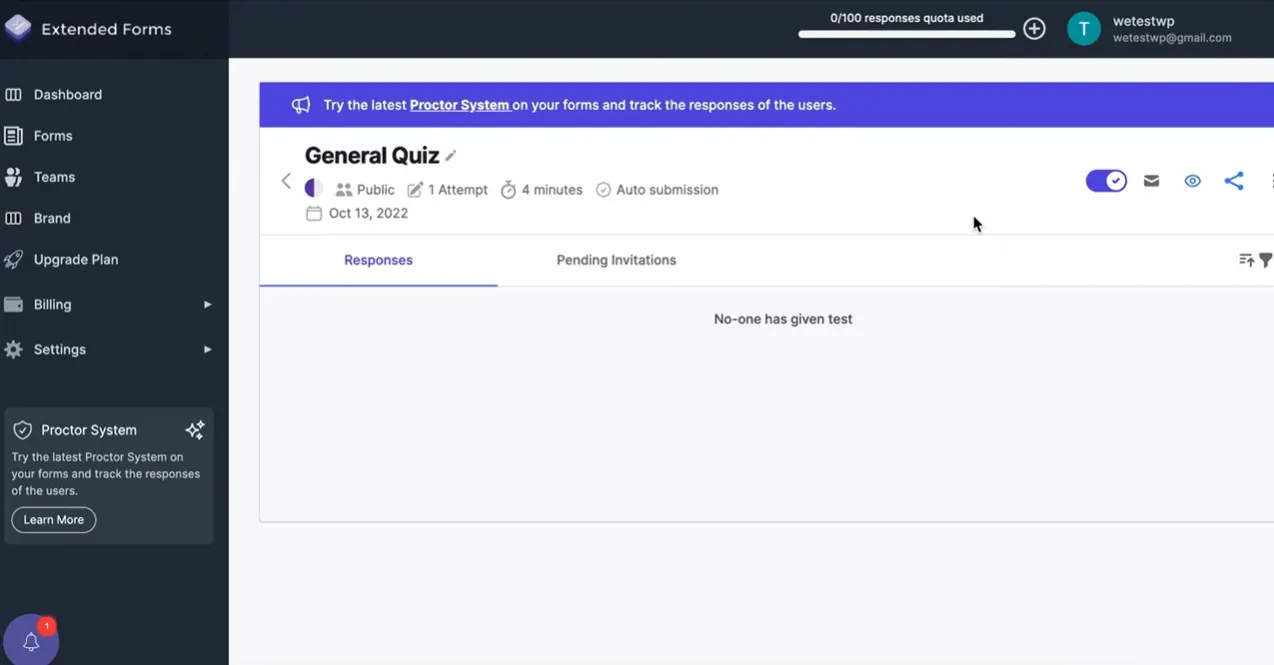
Once installed, toggle the add-on on and configure your basic settings—things like time limits, attempt restrictions, and auto-submission rules. But the real magic happens when you enable the Proctor feature.
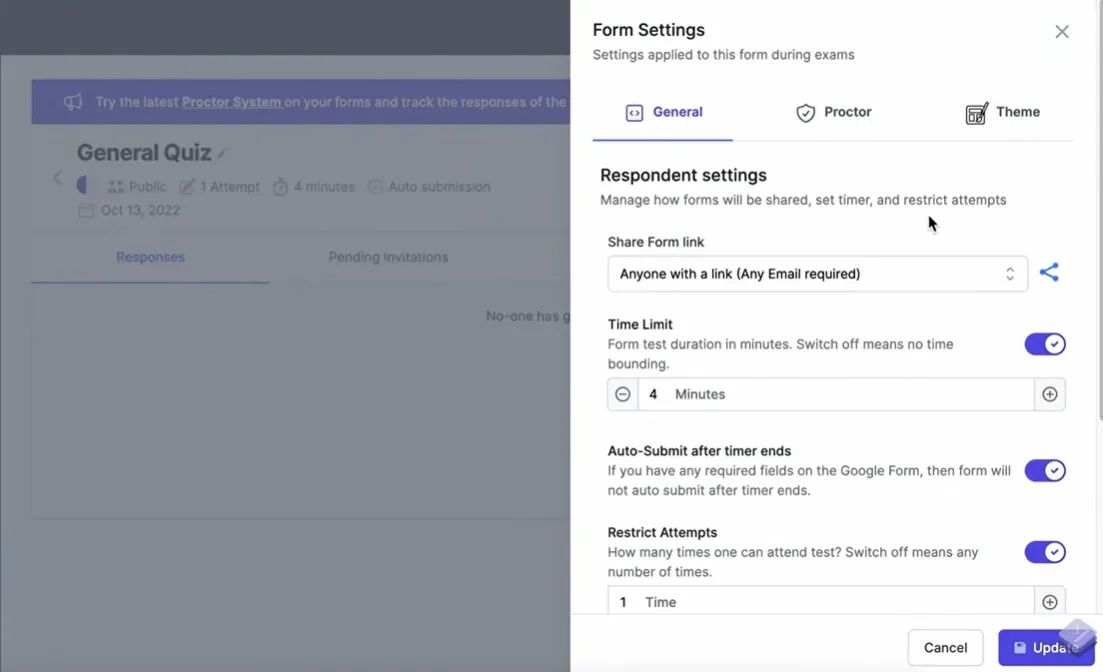
Proctor Feature Options
Extended Forms offers three main proctoring tools:
- Full-screen mode: Forces the exam to run in full-screen, making it harder to casually browse for answers
- Tab switch detection: Logs every time a student switches away from the exam tab—the digital equivalent of looking over their shoulder
- Camera snapshots: Takes random photos throughout the exam using the student’s webcam
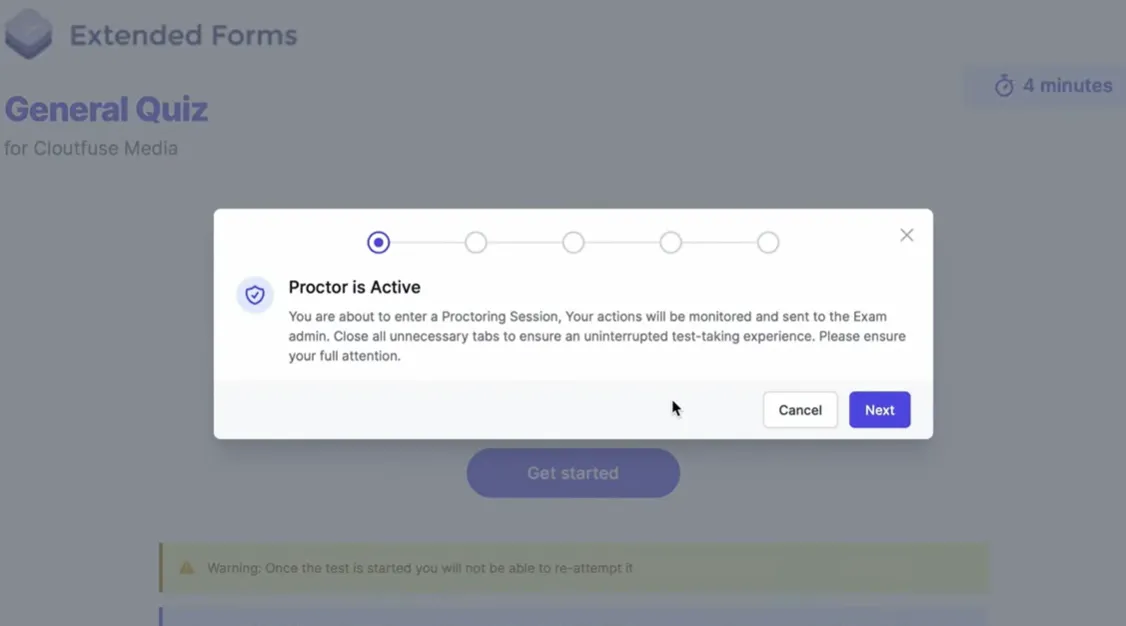
When students access the quiz, they’ll be prompted to enable their camera and accept full-screen mode. The system then monitors their activity and generates a trust score based on detected events.
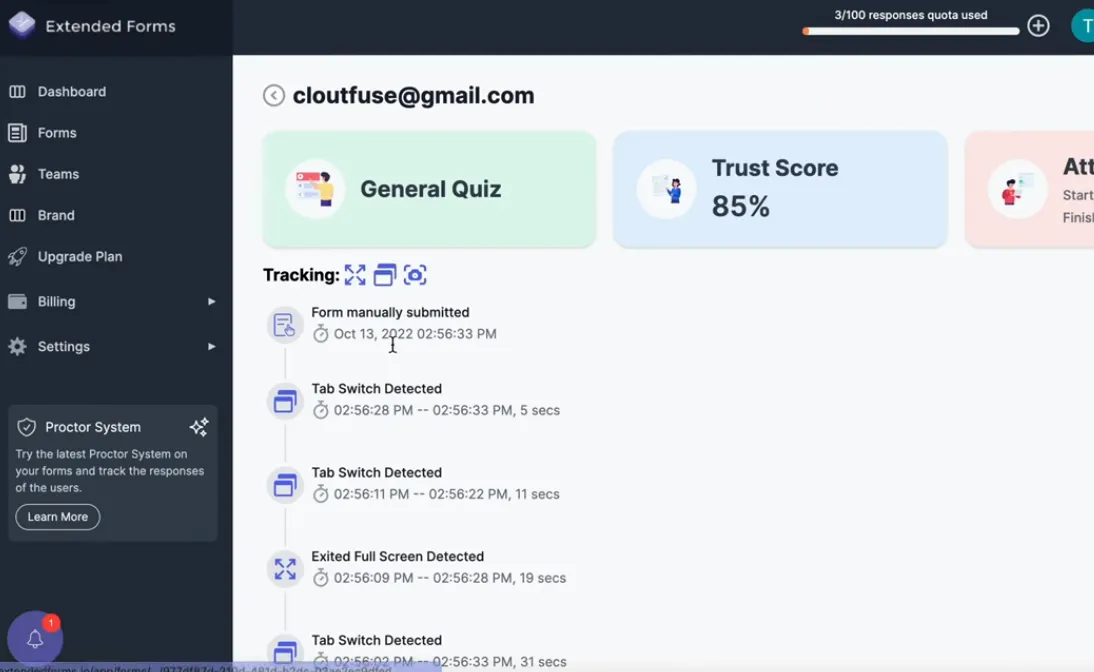
Understanding Trust Scores
After exam completion, you get a detailed report showing each student’s trust score (typically a percentage) along with timestamped events. Switched tabs twice? That’s logged. Camera detected a second person? Flagged. Left full-screen mode? Recorded.
The system isn’t perfect. It can’t prevent cheating—it just makes it visible. Someone determined to cheat might use a second device, have notes just off-camera, or enlist a friend to whisper answers. But for most educational contexts, the deterrent effect alone is valuable. Students knowing they’re being monitored tends to reduce casual dishonesty.
Custom API Development for Face Detection
For institutions with technical resources, building a custom solution offers maximum flexibility. The approach involves using Google Forms API alongside cloud-based face recognition services.
The Technical Architecture
Here’s the typical setup:
- Pre-registration phase: Students submit photos during course enrollment, which get stored in your database with encrypted identifiers
- Verification page: Before accessing the quiz, students land on a custom verification page (built with Google Apps Script or a separate web app) that captures a live webcam image
- API comparison: The live image gets sent to Microsoft Azure Face API or AWS Rekognition, which compares it against the stored profile
- Conditional access: Only if the match exceeds your confidence threshold (typically 70-90%) does the script redirect students to the actual Google Form
| Service | Accuracy | Pricing Model | Best For |
|---|---|---|---|
| Azure Face API | 95%+ match rate | $1 per 1,000 transactions | Enterprise deployments |
| AWS Rekognition | 94%+ match rate | $1 per 1,000 images | AWS ecosystem users |
| Google Cloud Vision | 93%+ match rate | $1.50 per 1,000 images | Google Workspace integration |
Compliance Considerations
This approach requires serious attention to data protection. You’re collecting and processing biometric data, which is considered sensitive under most privacy frameworks. That means:
- Explicit consent with clear explanations of how data is used
- Secure storage with encryption at rest and in transit
- Defined retention policies and deletion procedures
- Regular security audits
For most educational institutions, the legal and technical overhead makes this option viable only for large-scale implementations where per-student costs justify the development investment.
OnlineExamMaker: The Purpose-Built Alternative
Here’s where we shift gears. Instead of jerry-rigging Google Forms into something it’s not, what if you used software actually designed for proctored exams?
OnlineExamMaker is an AI-powered exam platform that includes built-in face detection and comprehensive anti-cheating features. Unlike add-ons or integrations, everything is native to the platform—no duct tape required.
Key Face Detection Features
The platform offers several layers of identity verification:
- Pre-exam face registration: Students register their face before accessing any exams, creating a biometric baseline
- Continuous face monitoring: AI tracks the test-taker’s face throughout the exam, flagging when it disappears or when multiple faces appear
- Liveness detection: The system can detect photo spoofing by requiring random movements or expressions
- Identity verification reports: Get detailed analytics showing verification status, confidence scores, and any anomalies detected
What sets it apart is the integration. Face detection works alongside screen recording, tab tracking, copy-paste blocking, and question randomization—all managed from a single dashboard. No jumping between platforms or hoping your API connections hold up during exam time.
Create Your Next Quiz/Exam Using AI in OnlineExamMaker
How to Create an AI-Proctored Exam in OnlineExamMaker?
Let’s walk through the actual process of setting up a face-detection enabled exam.
Step 1: Create Your Exam
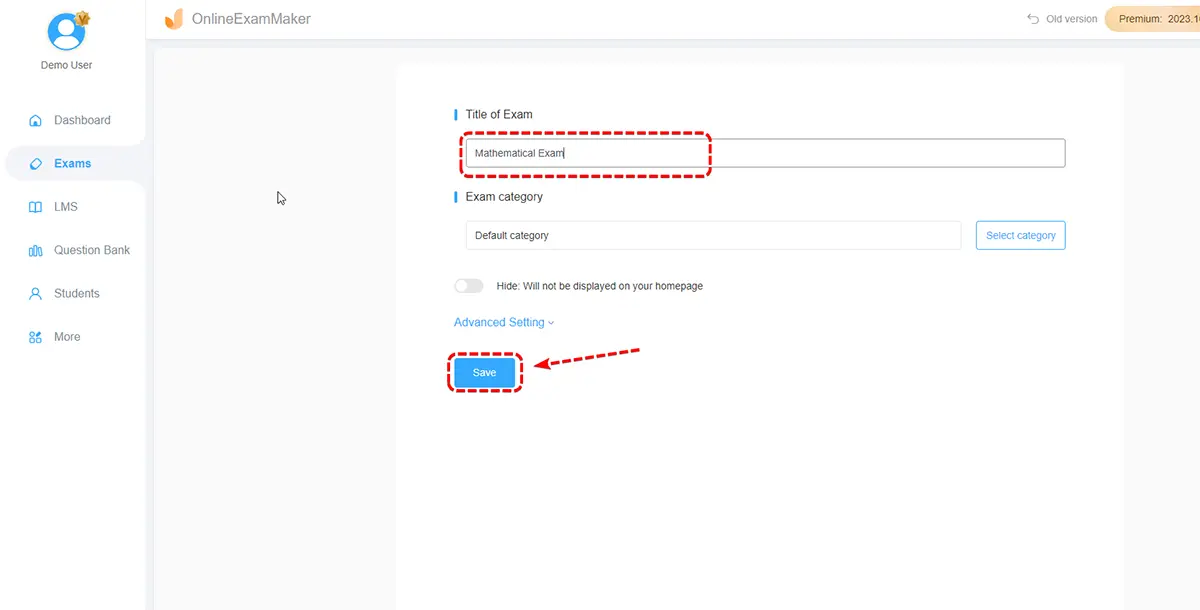
Log into OnlineExamMaker and click “New Exam” button. You can manually add questions, import from a question bank, or even use the AI question generator to create content from your course materials. The platform supports multiple question types—multiple choice, essay, fill-in-the-blank, matching, and more.
Step 2: Configure Anti-Cheating Settings
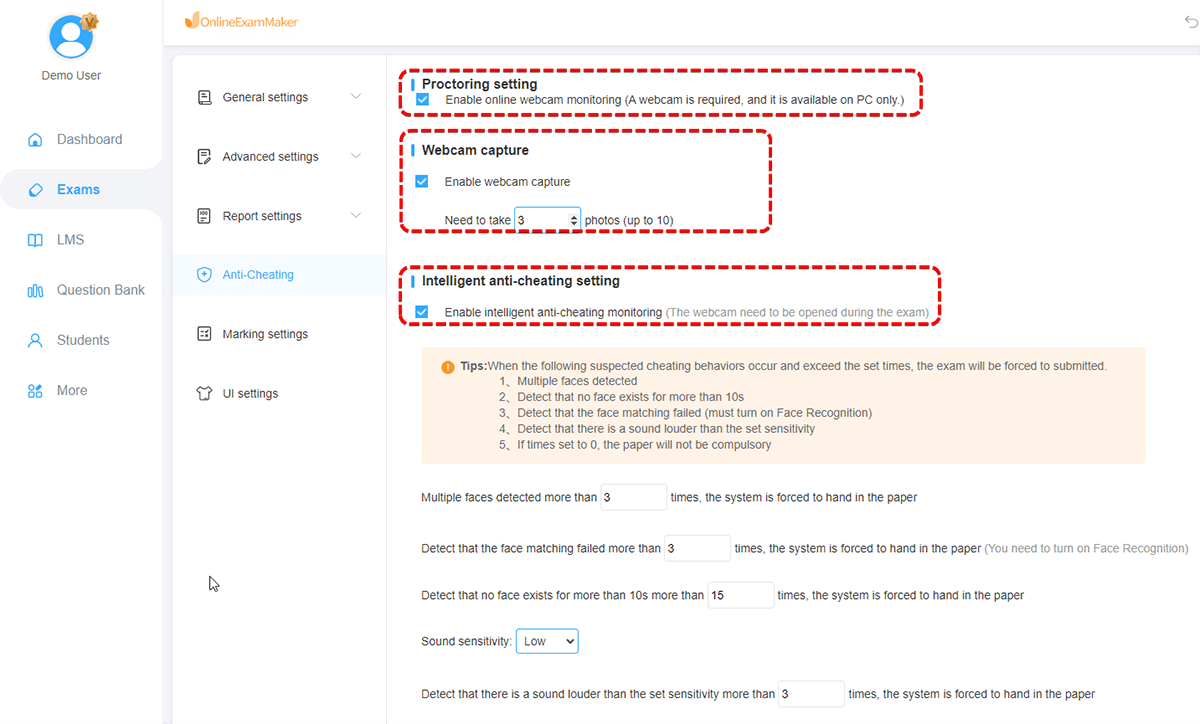
Navigate to the “Anti-Cheating” section in exam settings. This is where the magic happens:
- Toggle on Face Detection and choose your strictness level (lenient, moderate, or strict)
- Enable Identity Verification to require face matching against registered profiles
- Set continuous monitoring intervals—how frequently the AI checks for the test-taker’s presence
- Configure violation thresholds—how many incidents before auto-submission or flagging occurs
Step 3: Set Additional Proctoring Rules
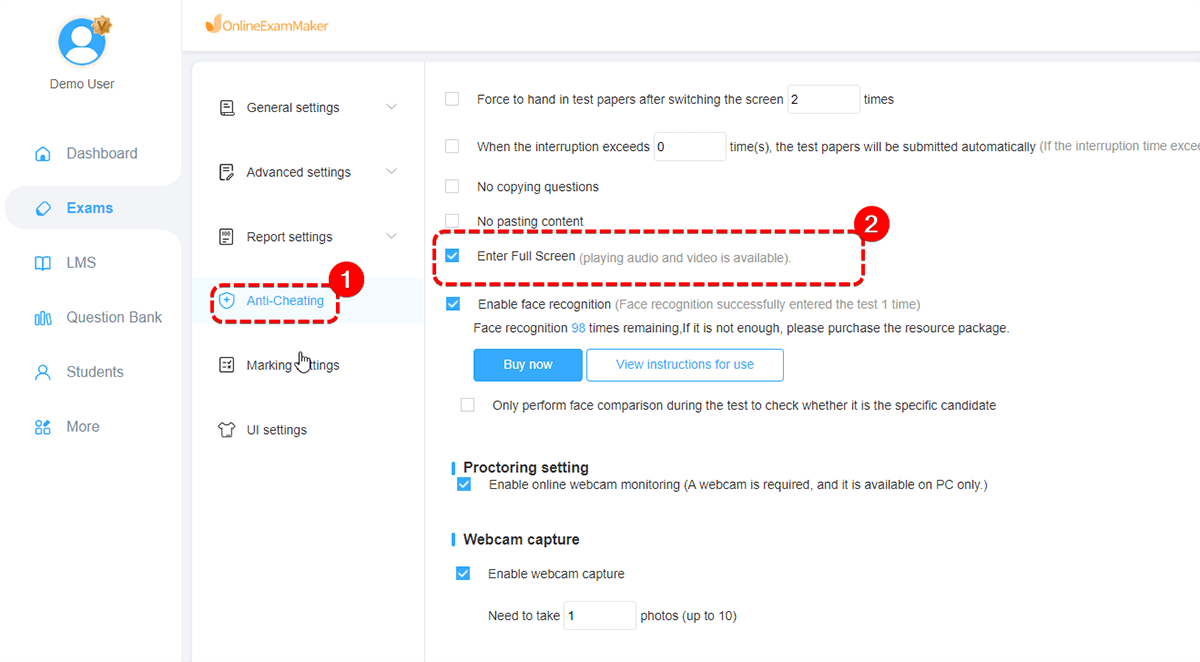
Beyond face detection, layer on complementary security:
- Require full-screen mode
- Disable right-click and copy-paste
- Randomize question order and answer choices
- Set time limits per question or entire exam
- Enable webcam and screen recording
Step 4: Student Registration
Before exam day, students must complete face registration. They’ll be prompted to take several photos from different angles, which the AI uses to create their biometric profile. This happens once—future exams reference the same profile.
Step 5: Launch and Monitor
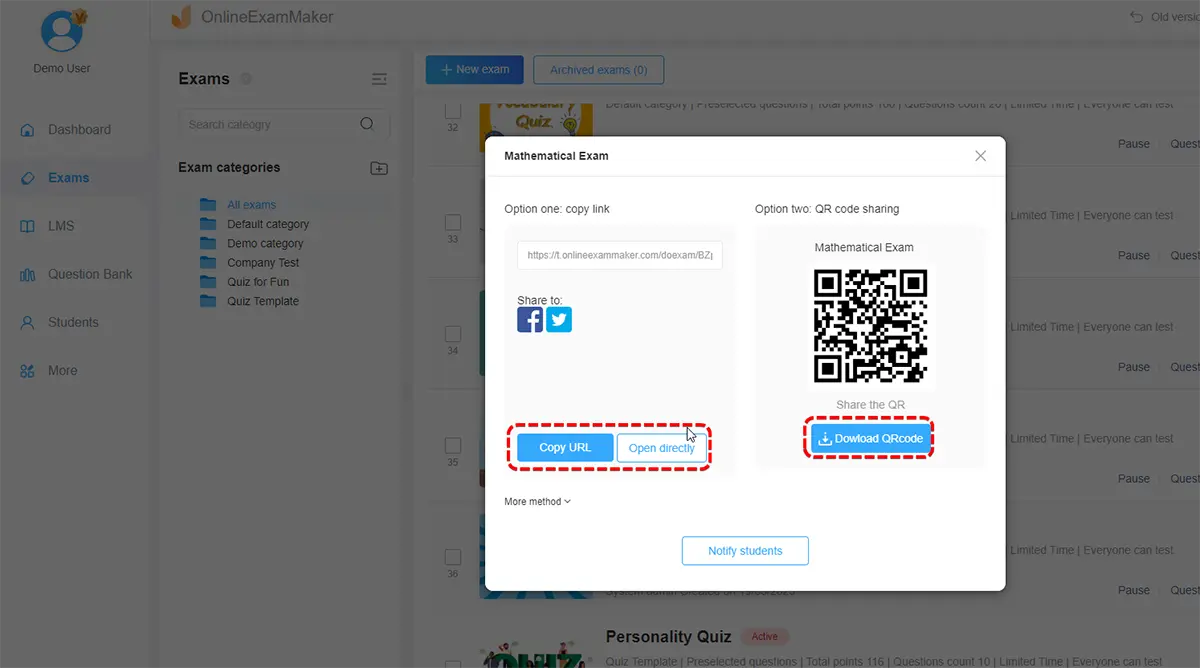
When students access the exam, they go through identity verification automatically. The system compares their live image to their registered profile, grants access if verified, and begins continuous monitoring.
From your instructor dashboard, you can watch live as students take the exam, seeing real-time alerts for any suspicious activity. After completion, detailed reports show every verified student, flagged incidents, and trust scores.
Comparing Your Options: What Works Best?
So which approach should you choose? It depends on your context:
| Solution | Setup Complexity | Cost | Best Use Case |
|---|---|---|---|
| Proctoring Services (Honorlock, ProctorU) | Low | $5-20 per exam | High-stakes certification exams with large budgets |
| Extended Forms Add-On | Low | Free to $50/year | Classroom quizzes needing basic deterrence |
| Custom API Development | High | Development costs + $1 per 1,000 verifications | Large institutions with technical teams |
| OnlineExamMaker | Medium | Subscription-based, volume discounts | Regular testing with comprehensive security needs |
For occasional quizzes, Extended Forms offers the best effort-to-value ratio. It’s not bulletproof, but the monitoring features deter casual cheating without breaking the bank.
For high-stakes exams where integrity is paramount—professional certifications, entrance exams, academic finals—dedicated proctoring services or OnlineExamMaker make sense. The higher cost buys you stronger verification and legal defensibility.
For ongoing assessment programs across multiple courses, OnlineExamMaker’s subscription model often proves more economical than per-exam proctoring fees, plus you get the benefit of centralized question banks and analytics.
