Assigning point values isn’t just about making numbers add up—it’s about designing assessments that accurately measure what matters.
- Why Point Values Matter in Online Quizzes?
- Enabling Quiz Mode in Google Forms
- Assigning Points to Different Question Types
- Working with Multiple Choice Questions
- Scoring Grid Questions and Complex Formats
- Handling Short Answer and Paragraph Questions
- OnlineExamMaker: A Powerful Alternative for Auto-Grading Quizzes
- How to Create Auto-Grading Quizzes in OnlineExamMaker?
- Comparing Google Forms and OnlineExamMaker
Why Point Values Matter in Online Quizzes?
Point values in online quizzes aren’t just numbers—they’re your ticket to freedom. When you assign point values correctly, you’re essentially teaching the quiz to grade itself. Smart, right? But here’s where it gets interesting: not all quiz platforms handle point assignment the same way, and knowing these differences can save you hours of frustration.
For teachers, and trainers running assessments, understanding how to properly weight questions means the difference between a quiz that accurately measures knowledge and one that’s just… well, counting answers. A well-structured point system reflects the complexity of each question, rewards deeper understanding, and gives you meaningful data about where your students actually stand.
Let’s dive into the mechanics of making this work in Google Forms—and explore a powerful alternative that might just change how you think about online assessments.
Enabling Quiz Mode in Google Forms
Before you can assign a single point, you need to unlock Google Forms’ hidden superpower: quiz mode. Think of it as flipping a switch that transforms your friendly feedback form into a legitimate grading machine.
Here’s how to make it happen:
- Open your Google Form and locate the gear icon in the upper right corner—that’s your settings portal.
- Click on the Quizzes tab. You’ll see it sitting there next to General and Presentation.
- Toggle the switch that says “Make this a quiz” to the ON position. Boom. You’ve just entered the scoring dimension.
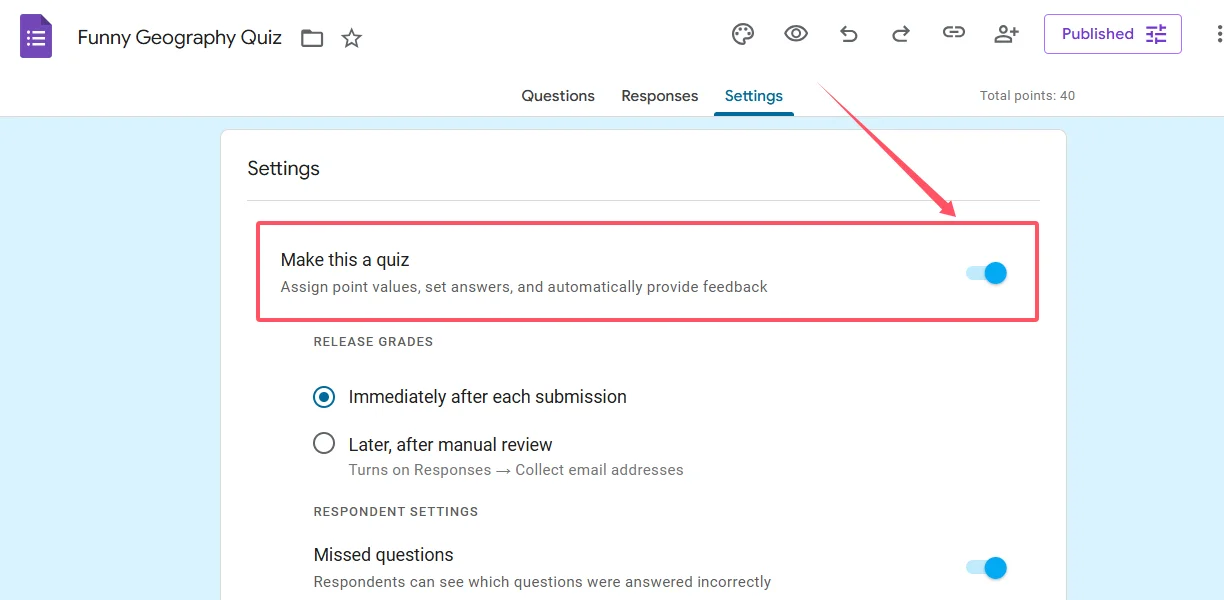
But wait—there’s a clever time-saver hiding in plain sight. See that option for default point values? This is where you can set a standard point value (anywhere from 0 to 100) that automatically applies to every new question you add. If you’re creating a 20-question quiz where each question is worth 5 points, setting that default means you won’t be typing “5” twenty separate times. Small detail? Maybe. But small details add up when you’re building assessments at scale.
Once quiz mode is active, you’ll notice an “Answer key” option appearing at the bottom of each question. That’s your cue that Google Forms is ready to start keeping score.
Assigning Points to Different Question Types
Now for the main event: actually assigning those point values. Google Forms supports several question types, and each one has its own quirks when it comes to scoring. Here’s your roadmap:
The basic workflow goes like this:
- Navigate to the Questions tab in your form.
- Select the question you want to score.
- Click the “Answer key” button at the bottom of the question box.
- Mark which answers are correct.
- Enter your desired point value in the points box (whole numbers only—Google Forms doesn’t do decimals here).
- Optionally add feedback for correct and incorrect responses. This is gold for learning, by the way.
- Click Done to save your settings.
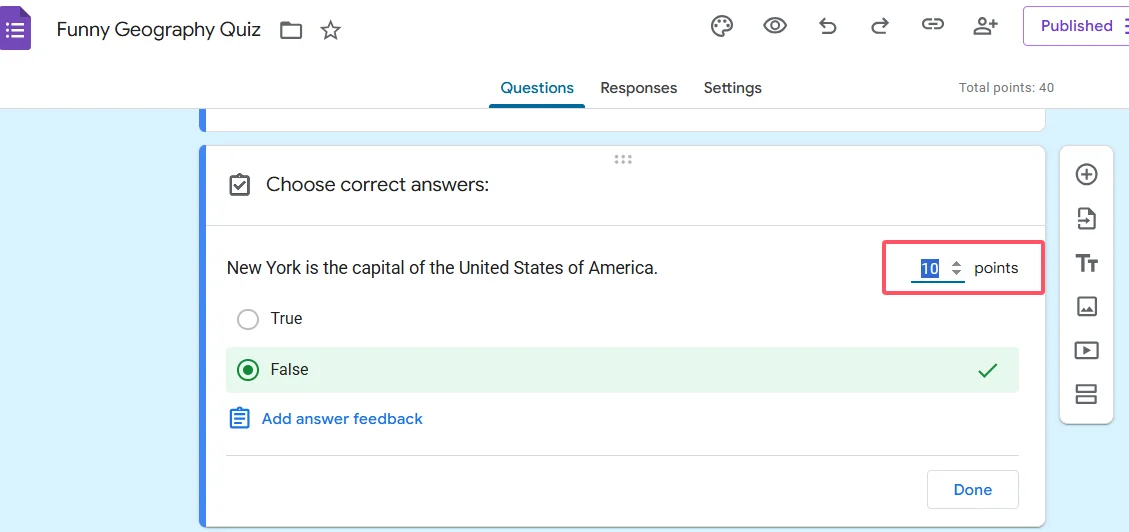
Simple enough, right? But here’s where it gets nuanced: different question types behave differently when it comes to point assignment.
Working with Multiple Choice Questions
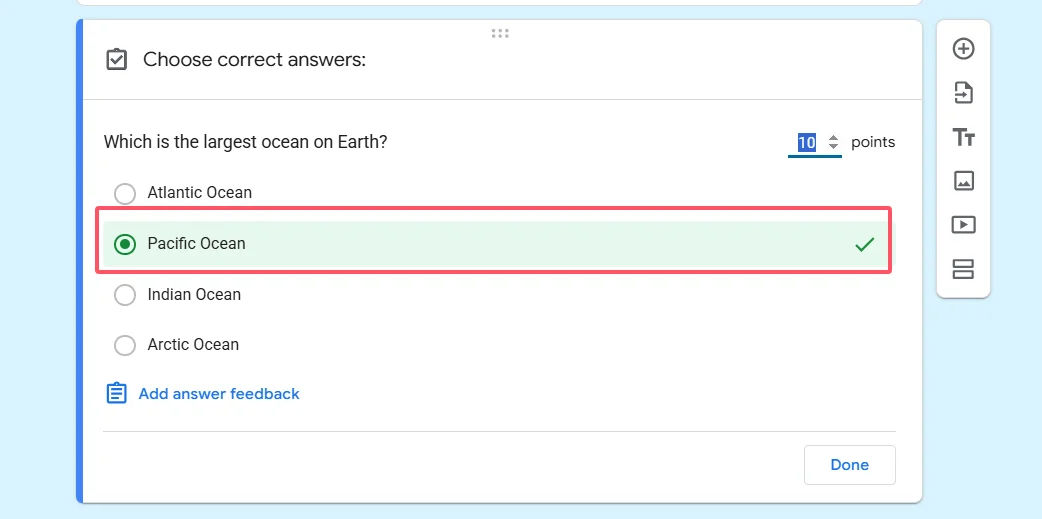
Multiple choice questions are the bread and butter of auto-graded quizzes. They’re straightforward: one correct answer, one point value for the entire question. When a student picks the right option, they get the points. Wrong option? Zero points. Clean, simple, effective.
The same logic applies to checkbox questions (where multiple answers can be correct). You assign points to the question as a whole, not to individual checkboxes. Students need to select all the correct options to earn the full points—partial credit isn’t built into the standard checkbox format.
Here’s a pro tip: use the feedback feature to explain why an answer is correct or incorrect. When students review their results, they’re not just seeing a score—they’re getting mini-lessons that reinforce the material. That’s the difference between assessment and actual learning.
Scoring Grid Questions and Complex Formats
Want to get fancy? Enter the multiple choice grid. This is where Google Forms lets you assign different point values to different answers within the same question structure—but you need to know the trick.
Here’s how it works:
- Add your grid questions as rows (these are your individual questions)
- Set up your answer choices as columns (these are the options students can pick)
- Enable the setting to limit responses to one per column—this prevents students from selecting the same answer twice
- In the answer key, score each cell individually. Yes, you can assign different points to different cells in the grid.
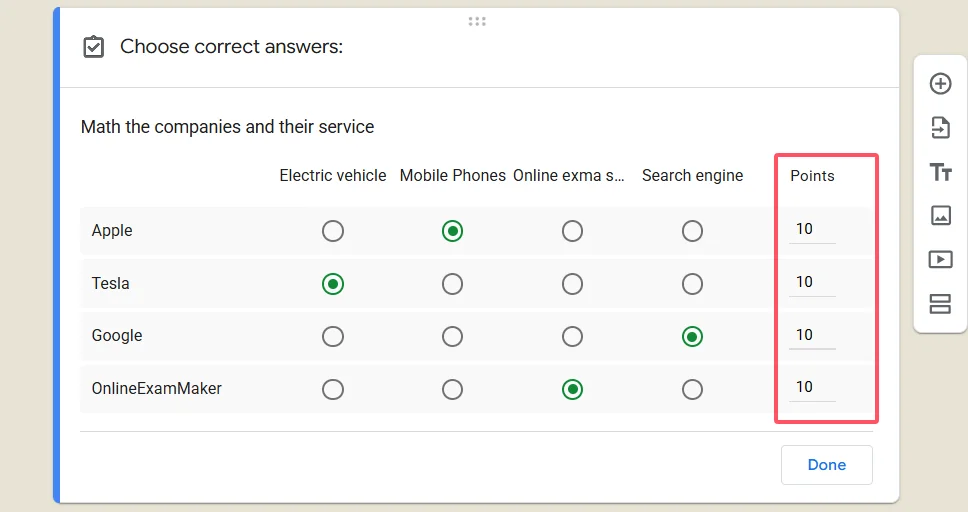
This format is perfect for matching exercises, Likert scales with weighted responses, or any scenario where you want granular control over how each answer contributes to the total score. It’s more complex to set up, but the payoff is a much more sophisticated assessment tool.
Handling Short Answer and Paragraph Questions
Now for the reality check: short answer and paragraph questions don’t support automatic point assignment in Google Forms. These question types require human judgment, which means manual grading is part of the package.
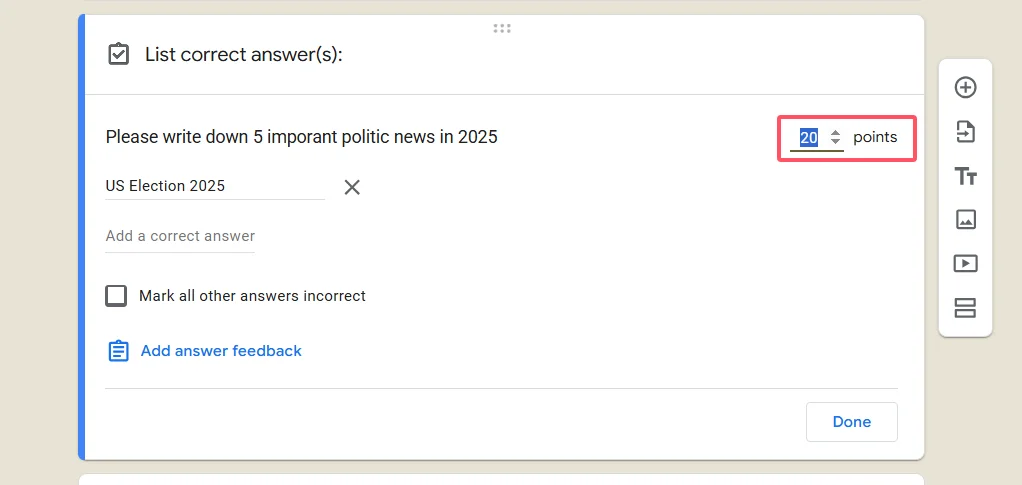
You can still include these questions in your quiz—they’ll show up in the responses, and you can assign points when you review submissions. But don’t expect Google Forms to auto-grade an essay or evaluate a nuanced short-answer response. The technology just isn’t there yet for standard Google Forms.
This limitation is actually a good thing to keep in mind when designing your assessment. If you need extensive auto-grading for open-ended questions, you might want to explore specialized platforms that use AI for response evaluation—which brings us to our next topic.
OnlineExamMaker: A Powerful Alternative for Auto-Grading Quizzes
Google Forms is great—free, familiar, and deeply integrated with the Google ecosystem. But what if you need more horsepower?
Enter OnlineExamMaker, an AI-powered exam creation platform that takes quiz building to the next level. While Google Forms gives you the basics, OnlineExamMaker is designed specifically for educators and training professionals who need advanced features without the steep learning curve.
Here’s what makes OnlineExamMaker stand out:
- AI-assisted question generation: Upload your content, and the AI helps create questions automatically. Yes, really.
- Advanced auto-grading: Beyond multiple choice, OnlineExamMaker can handle more complex scoring scenarios with intelligent feedback.
- Question banks: Build libraries of questions you can reuse, randomize, and mix-and-match across different assessments.
- Detailed analytics: See not just who passed, but which questions are too hard, too easy, or need revision.
- Anti-cheating features: Randomized questions, time limits, and proctoring options to maintain assessment integrity.
- Professional branding: Customize the look and feel to match your organization.
For HR managers running certification programs or teachers managing multiple classes, these features translate to hours saved every week. The platform is built around the idea that creating good assessments shouldn’t require a computer science degree.
Create Your Next Quiz/Exam Using AI in OnlineExamMaker
How to Create Auto-Grading Quizzes in OnlineExamMaker?
Ready to build your first auto-grading quiz in OnlineExamMaker? The process is surprisingly intuitive. Here’s your step-by-step guide:
Step 1: Create Your Account and Start a New Exam
Log into OnlineExamMaker and click “Create New Exam” from your dashboard. You’ll choose between starting from scratch, using a template, or—here’s where it gets cool—using the AI assistant to generate questions from your existing content.
Step 2: Set Up Your Quiz Structure
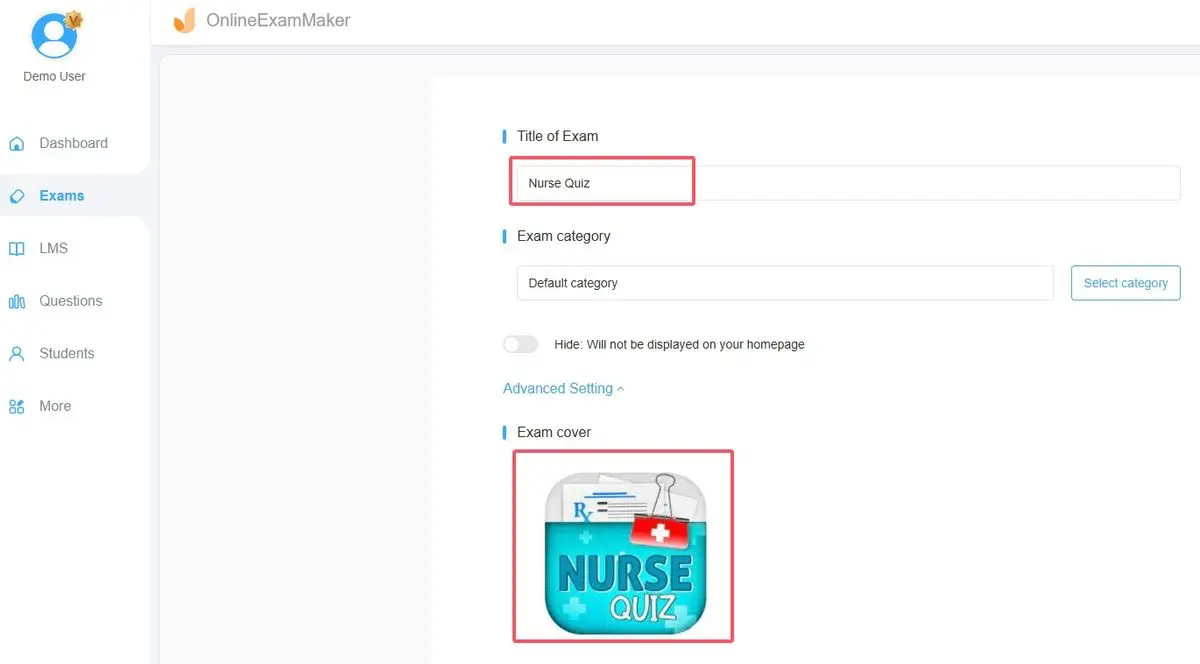
Name your quiz, set the duration, and choose your question types. OnlineExamMaker supports multiple choice, true/false, multiple response, fill-in-the-blank, and even matching questions—all with auto-grading capabilities.
Step 3: Add and Configure Questions
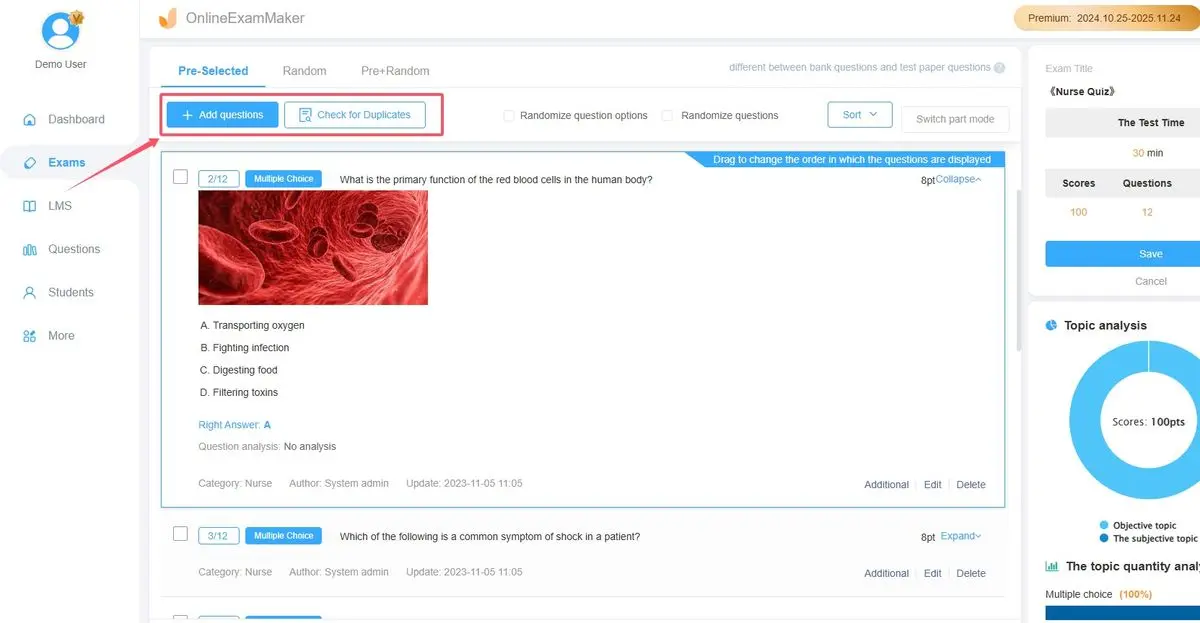
For each question:
- Type your question or use AI to generate it from your course materials
- Add answer options
- Mark the correct answer(s)
- Assign point values—you can weight questions differently based on difficulty
- Add explanatory feedback that appears after students submit
Step 4: Configure Auto-Grading Settings
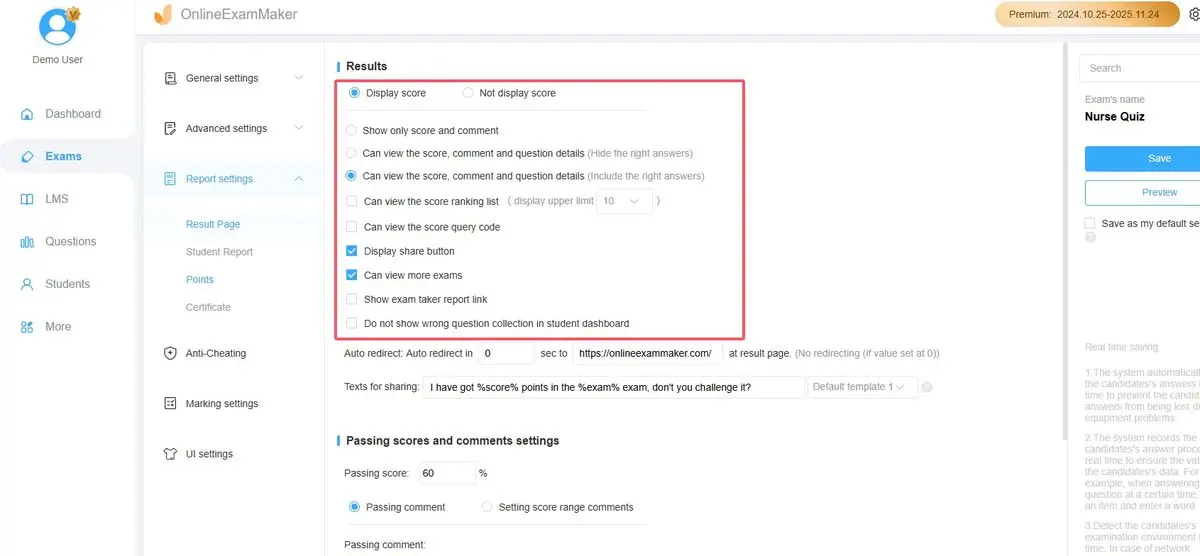
This is where OnlineExamMaker shines. In the exam settings, you can:
- Enable instant grading so students see results immediately
- Set passing scores and automatically generate certificates for those who qualify
- Create weighted sections if different parts of your exam should count differently toward the final score
- Configure whether students see correct answers, only their score, or detailed feedback
Step 5: Test and Deploy

Before sending your quiz to students, take it yourself using the preview function. Check that point values make sense, feedback displays correctly, and the total score adds up as expected. Then share via link, embed it on your website, or send it through email.
The platform handles all the grading math automatically. When students submit, you’ll get instant results with detailed breakdowns showing performance by question, by section, and by individual student. No manual calculation required.
Comparing Google Forms and OnlineExamMaker
So which platform should you choose? It depends on your needs. Here’s an honest comparison:
| Feature | Google Forms | OnlineExamMaker |
|---|---|---|
| Cost | Free | Free tier available; paid plans for advanced features |
| Question Types | 9 types (limited auto-grading) | 10+ types with full auto-grading |
| AI Assistance | None | AI question generation from content |
| Question Banks | No | Yes, with randomization |
| Analytics | Basic (Google Sheets export) | Advanced with item analysis |
| Anti-Cheating | Limited | Comprehensive (proctoring, randomization, time limits) |
| Certification | No | Automatic certificate generation |
| Best For | Quick surveys, simple quizzes, tight Google Workspace integration | Professional assessments, training programs, certification exams |
Use Google Forms when: You need something quick, free, and simple. Your quiz is straightforward with mostly multiple-choice questions. You’re already living in the Google ecosystem and want responses in Sheets.
Use OnlineExamMaker when: You’re running formal assessments that require detailed analytics. You need advanced features like question randomization, AI assistance, or certificates. Assessment integrity and professional presentation matter to your organization.
The truth? Many educators use both. Google Forms for informal check-ins and feedback; OnlineExamMaker for the high-stakes stuff where reliability and features justify the investment.
