Ever finished grading a quiz, only to realize you now face the tedious task of manually notifying each student? You’re not alone. While Google Forms has revolutionized how teachers create quizzes, its email notification system remains surprisingly manual—a quirk that leaves many educators scratching their heads.
Here’s the thing: Google Forms doesn’t automatically fire off quiz results the moment a student clicks submit. Instead, it holds scores hostage until you manually release them. It’s like having a delivery truck that refuses to leave the warehouse without your personal signature each time.
But don’t worry. Whether you want to stick with Google’s built-in tools or explore smarter alternatives that actually save you time, this guide walks you through everything you need to know about getting quiz results into your students’ inboxes.
- Understanding Google Forms’ Email Limitation
- Setting Up Email Collection in Your Quiz
- The Manual Method: Releasing Scores Step-by-Step
- Automating Email Delivery with Add-ons
- Why OnlineExamMaker Is the Smarter Alternative
- Best Practices for Sending Quiz Results
Understanding Google Forms’ Email Limitation
Let’s clear up a common misconception right away: Google Forms cannot automatically email quiz results to respondents without some manual intervention or additional setup. When you enable the “Release score immediately after each submission” option, students see their scores on-screen—but that’s it. No email. No notification. Just a fleeting glimpse before they close the browser tab and forget their score entirely.
Think of it as receiving your exam results written on a chalkboard that gets erased the moment you walk away. Not exactly ideal for record-keeping.
The platform does offer manual email release through the Responses tab, which we’ll explore shortly. But automatic emailing? That requires either third-party add-ons or custom coding with Google Apps Script. It’s a design choice that might make sense for Google’s engineers but leaves teachers doing extra work.
Setting Up Email Collection in Your Quiz
Before you can send anything to anyone, you need their email addresses. This is step zero—the foundation everything else builds on.
Here’s how to enable email collection:
- Open your Google Form and click the Settings icon (that little gear in the upper right)
- Navigate to the Responses tab
- Toggle on “Collect email addresses”
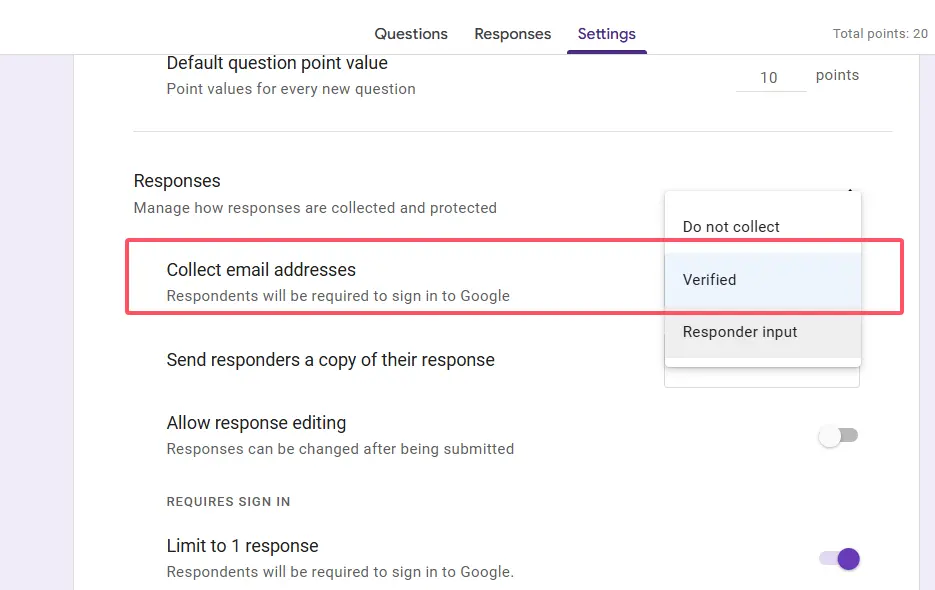
Simple enough, right? Once enabled, a mandatory email field appears at the top of your form. Students must enter their email to submit—no exceptions. Google stores these addresses with their responses, creating the connection you’ll need later for sending results.
Pro tip: If you’re using Google Workspace for Education, you can also restrict responses to your organization. This automatically collects emails from signed-in users without making them type anything, reducing friction and preventing typos.
The Manual Method: Releasing Scores Step-by-Step
Alright, your quiz is complete. Responses are flooding in. Now comes the moment of truth: actually getting those scores to your students.
The manual release method works like this:
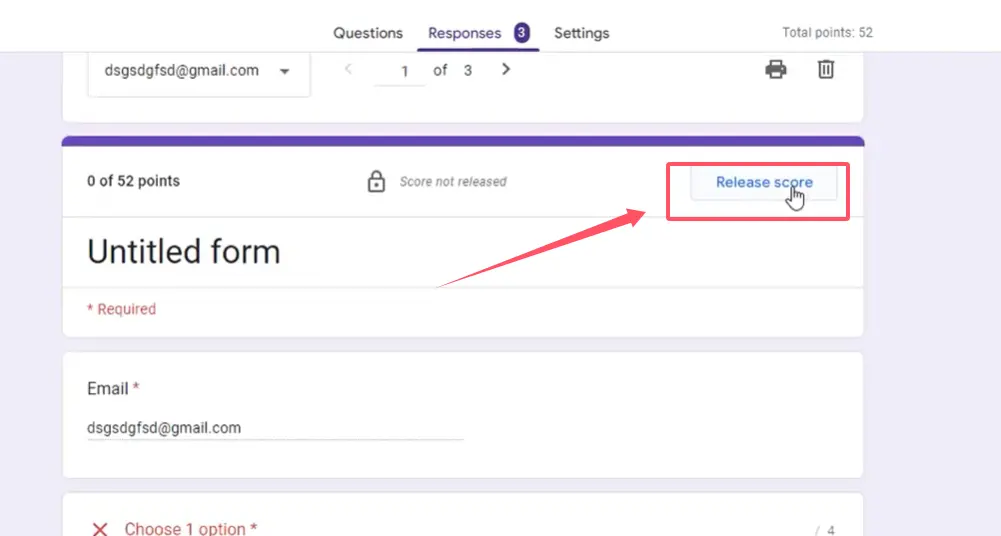
- Navigate to your form’s Responses tab—this is where all submitted answers live
- You’ll see a list of respondents. Check the boxes next to the students whose scores you want to release (or select all if you’re feeling generous)
- Click the “Release scores” button at the top
- Add an optional personal message. Something like “Great work on the quiz!” or “Review your incorrect answers for next time”
- Choose “Send emails and release”
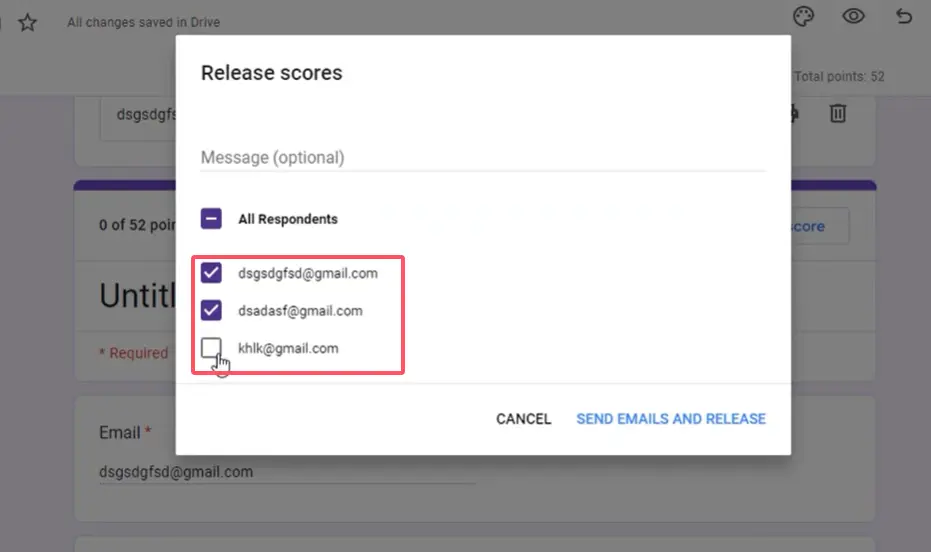
Google then dispatches individual emails to each selected respondent. These emails include their score summary and a copy of their responses—essentially a digital report card delivered straight to their inbox.
Is this method reliable? Absolutely. Is it efficient for a teacher managing 100+ students across multiple classes? Not really. Clicking through this process after every quiz gets old fast. It’s functional, sure, but it’s also the equivalent of hand-addressing envelopes when email automation exists.
Automating Email Delivery with Add-ons
Here’s where things get interesting. If you’re tired of the click-select-release routine, add-ons can handle the heavy lifting automatically.
Email Notifications for Forms is probably the most popular choice. You’ll find it in the Google Workspace Marketplace (search for it directly from your form via Add-ons → Get add-ons). Once installed, this tool lets you create conditional email triggers based on quiz responses.
What does that mean in practice? You can set rules like:
- Send a congratulatory email to students who score above 80%
- Trigger a different message for those who didn’t pass
- Include their exact score and personalized feedback
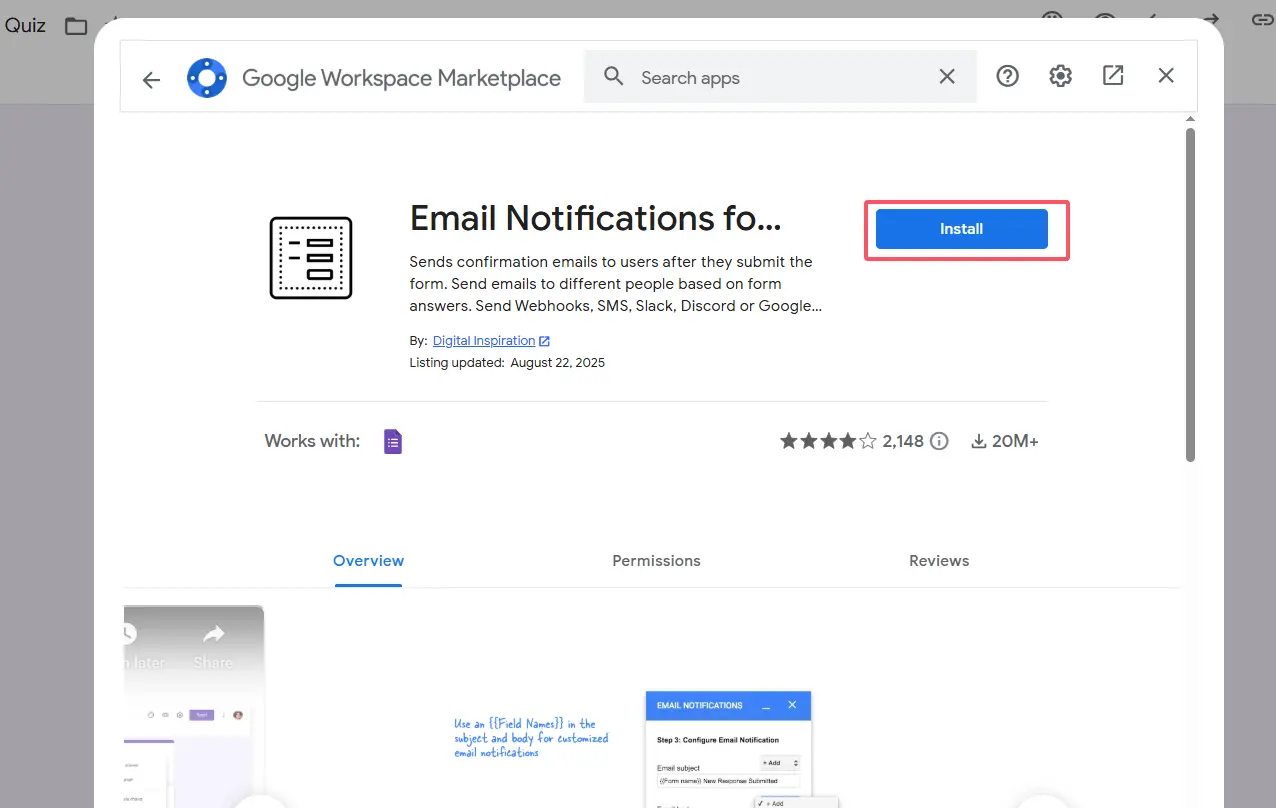
The add-on monitors your form. When someone submits, it immediately evaluates their responses against your rules and fires off the appropriate email—no manual intervention required. It’s like having a teaching assistant who never sleeps and never forgets to send notifications.
Other solid alternatives include formRecycler and Form Notifications. Each has slightly different features, but they all solve the same core problem: turning Google Forms into an actual automated quiz delivery system.
Why OnlineExamMaker Is the Smarter Alternative
Let’s be honest: all these workarounds exist because Google Forms wasn’t really designed as a comprehensive assessment platform. It’s a form builder that happens to have quiz features tacked on.
This is where OnlineExamMaker enters the picture—and trust me, the difference is night and day.
AI-Powered Assessment Creation
OnlineExamMaker leverages artificial intelligence to help teachers create assessments in a fraction of the time. Upload your course materials, textbooks, or lecture notes, and the AI can generate relevant quiz questions automatically. No more staring at a blank screen wondering how to phrase question #47.
The AI understands context and difficulty levels. Want a mix of easy, medium, and challenging questions? Done. Need to avoid repetition across multiple test versions? The system handles it. It’s like having a seasoned educator as your co-author, minus the coffee breaks.
Automatic Result Delivery That Actually Works
Unlike Google Forms’ “maybe manual, maybe add-on, maybe script” approach, OnlineExamMaker sends quiz results automatically—right out of the box. No configuration needed. No code required. Students submit their quiz, and within moments, they receive a comprehensive email with:
- Their total score and percentage
- Detailed breakdown showing correct and incorrect answers
- Explanations for each question (if you’ve enabled that feature)
- Performance analytics comparing them to class averages
The platform also gives teachers real-time dashboards showing who’s completed the quiz, average scores, question-level statistics, and areas where students commonly struggle. This data appears instantly—no waiting for spreadsheet syncing or manual calculations.
Create Your Next Quiz/Exam Using AI in OnlineExamMaker
Advanced Features That Save Real Time
Beyond email automation, OnlineExamMaker includes features that Google Forms simply can’t match:
- Question banks: Build reusable libraries of questions organized by topic, difficulty, or learning objective
- Anti-cheating measures: Randomize question order, enable webcam proctoring, and detect tab switching
- Customizable certificates: Automatically generate and email completion certificates to students who pass
- Integration capabilities: Connect with learning management systems, Google Classroom, or Microsoft Teams
For teachers, trainers, and HR managers running regular assessments, these aren’t just nice-to-haves—they’re genuine time-savers that transform how you work.
Best Practices for Sending Quiz Results
Regardless of which platform you choose, follow these guidelines to make your result notifications more effective:
Timing matters. Send results within 24-48 hours while the quiz material is still fresh in students’ minds. Delayed feedback loses educational value—learners can’t connect their mistakes to their thought process if they’ve already moved on mentally.
Include constructive feedback. A bare number tells students nothing useful. Explain what they got wrong and why the correct answer is what it is. This transforms assessment from mere grading into actual learning.
Personalize when possible. Even a simple “Great improvement from last time, Sarah!” makes emails feel less robotic. Students are more likely to read and engage with messages that acknowledge them as individuals.
Set clear expectations upfront. Tell students before they take the quiz exactly when and how they’ll receive results. Mystery builds anxiety; transparency builds trust.
Provide next steps. If someone failed, what resources can help them improve? If they aced it, what’s the next challenge? Results should open doors, not close them.
The Bottom Line
Sending Google Forms quiz results via email ranges from tediously manual to technically complex, depending on your chosen method. The built-in manual release works but doesn’t scale well. Add-ons provide automation at the cost of setup time. Apps Script offers ultimate flexibility for those who can code.
Or you could step outside the Google ecosystem entirely and use purpose-built assessment platforms like OnlineExamMaker, which solve these problems by design rather than as afterthoughts.
The choice ultimately depends on your technical comfort level, how many quizzes you run, and whether you want to spend your time teaching or troubleshooting email delivery systems. Because here’s the truth teachers know too well: every minute spent wrestling with technology is a minute stolen from actually educating students.
Choose tools that respect your time. Your students—and your sanity—will thank you.
