In today’s digital classroom, sharing quizzes securely isn’t just a nice-to-have—it’s essential. Whether you’re a teacher protecting exam integrity, an HR manager conducting confidential assessments, or a trainer delivering certification tests, the way you share your quizzes can make or break the entire experience.
But here’s the thing: not all quiz-sharing methods are created equal. Some involve tedious manual steps that feel like you’re building a fortress one brick at a time. Others leverage AI to do the heavy lifting while you sip your coffee. Let’s dive into both worlds and see which one actually makes sense for your needs.
- Why Quiz Security Actually Matters (More Than You Think)
- The Manual Method: Sharing Google Forms Quizzes Securely
- The AI-Powered Alternative: OnlineExamMaker Takes the Stage
- Head-to-Head Comparison: Google Forms vs OnlineExamMaker
- How to Create and Share AI-Generated Exams with OnlineExamMaker
- Which Method Is Right for You?
Why Quiz Security Actually Matters (More Than You Think)
Let’s get real for a second. When your quiz link goes public, you’re not just risking unauthorized access—you’re potentially compromising the validity of your entire assessment. One leaked link in a student group chat or employee forum, and suddenly your carefully calibrated questions are being dissected, shared, and solved collectively before the official test date.
The stakes? Higher than ever. Academic integrity violations are on the rise, with online assessments being particularly vulnerable. For HR managers, a compromised pre-employment test means unreliable hiring decisions. For trainers, it means certifications that don’t actually certify competence. The question isn’t whether to secure your quizzes—it’s how to do it without losing your mind in the process.
The Manual Method: Sharing Google Forms Quizzes Securely
Google Forms is the reliable workhorse many of us know and tolerate (let’s be honest, it’s not exactly thrilling). But it can be secured—if you’re willing to click through approximately seventeen settings and remember to toggle things on and off at the right times. Here’s what the manual security dance looks like:
Step 1: Lock Down Access Settings
First things first: open your Google Form and hunt for that Share button lurking in the top right corner. Click it, then locate the General access dropdown. This is where you switch from “Anyone with the link” (translation: the entire internet) to Restricted mode. Now you can add specific email addresses or Google Groups—these lucky individuals get responder access, meaning they can submit your quiz without being able to mess with your carefully crafted questions.
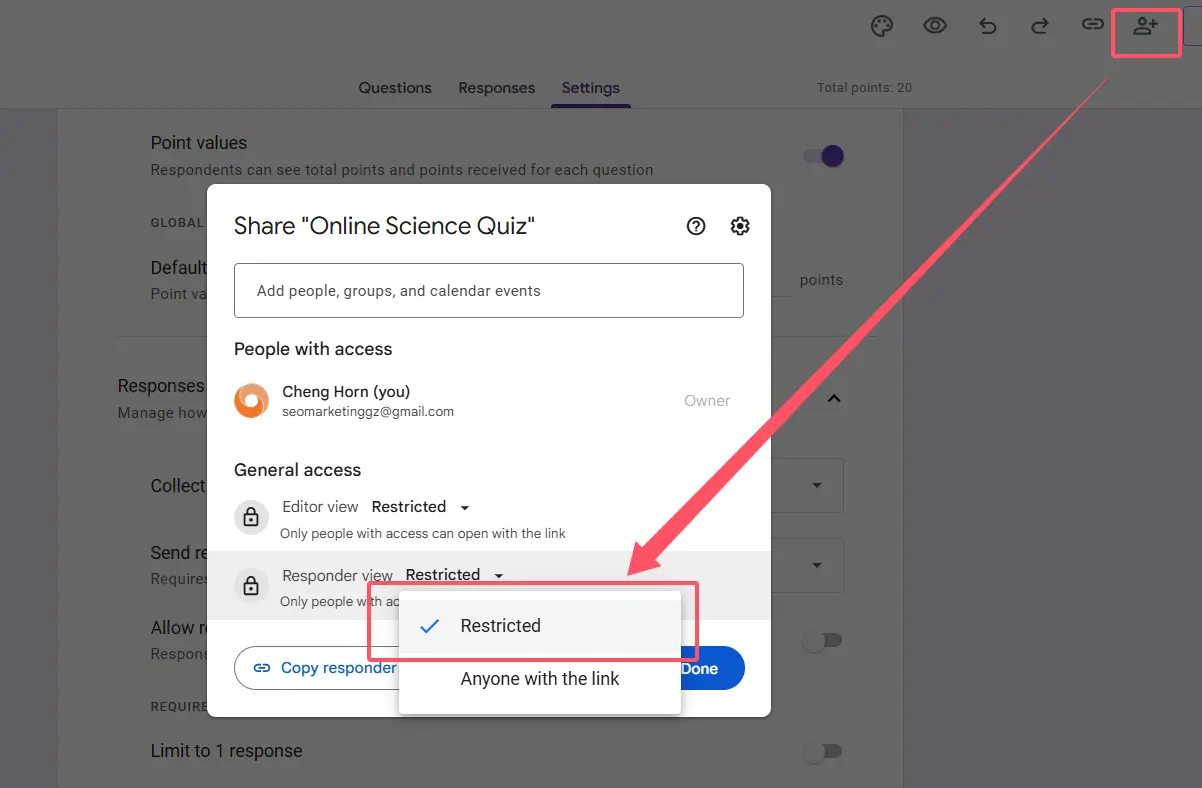
Think of it like creating a VIP guest list for a very exclusive, very nerdy party.
Step 2: Enable Response Restrictions
Navigate to Settings > General and start toggling. Enable Limit to 1 response to prevent that overachiever from submitting fifteen times hoping for a better score. Turn on Collect email addresses to verify who’s actually taking your quiz (spoiler: it’s usually who they say they are, but better safe than sorry).
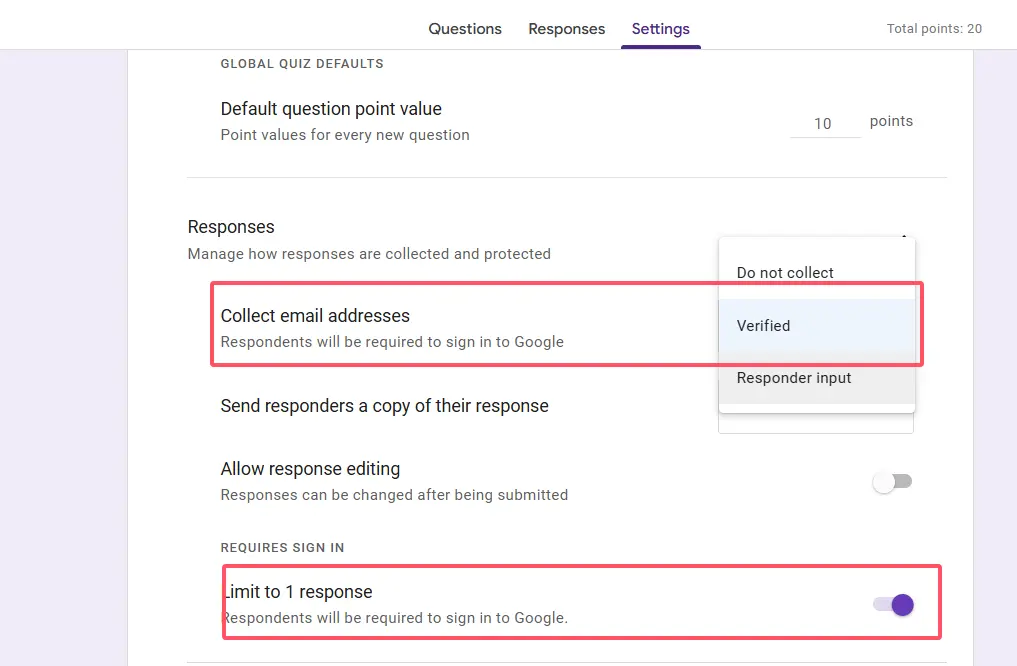
Here’s a pro move: toggle off Accepting responses when your quiz isn’t actively in use. It’s like locking your front door when you leave the house—basic, but surprisingly effective.
Step 3: Add Extra Security Layers
Want to go full secret agent? Add a password question as your first quiz item. Use response validation rules to ensure only people with the correct password can proceed. It’s not Fort Knox, but it’ll stop casual snoopers.
If you’re using Google Workspace, restrict access to your organization only. This keeps things in the family, so to speak. And whatever you do, share via direct email invites rather than posting links publicly. Links have a way of traveling farther than you’d expect—kind of like rumors, but with more data breaches.
The Reality Check
All this manual configuration works, sure. But it’s time-consuming, easy to misconfigure, and requires constant vigilance. Forget to toggle one setting, and your “secure” quiz is suddenly as public as a billboard on Times Square. Plus, creating the quiz content itself is entirely on you—AI isn’t rushing in to help craft those questions at 11 PM when inspiration strikes.
The AI-Powered Alternative: OnlineExamMaker Takes the Stage
Now, what if I told you there’s a way to create and secure your quizzes using artificial intelligence? Enter OnlineExamMaker, an AI exam maker software that’s basically the cool, tech-savvy cousin of traditional quiz platforms.
OnlineExamMaker doesn’t just help you share quizzes securely—it helps you create them using AI in the first place. Imagine describing your learning objectives to a system, and having it generate question banks tailored to your needs. No more staring at blank screens wondering how to phrase that tricky multiple-choice option. The AI does the heavy lifting while you fine-tune the final product.
What Makes OnlineExamMaker Different?
First off, it’s built from the ground up with security in mind. You’re not retrofitting protection onto a general-purpose form builder—you’re using a dedicated exam platform that treats assessment security as a core feature, not an afterthought.
The platform offers robust group management capabilities, meaning you can organize your test-takers into cohorts, departments, or classes, then assign exams to entire groups with just a few clicks. No more copying and pasting email addresses like you’re writing Santa’s naughty list.
But the real magic? The AI question generation. Feed it your curriculum, topic outline, or learning objectives, and watch it produce questions that actually make sense. You can specify difficulty levels, question types, and topics—then review and customize everything before publishing. It’s like having an assistant who never gets tired or complains about working late.
Head-to-Head Comparison: Google Forms vs OnlineExamMaker
Let’s put these two platforms side by side and see how they stack up when it comes to sharing quizzes securely with specific users:
| Feature | Google Forms | OnlineExamMaker |
|---|---|---|
| Access Control | Manual email list entry; restricted mode requires Google accounts | Built-in group management; assign exams to pre-configured groups with login options |
| AI Question Generation | Not available—all questions manually created | AI-powered question generation from curriculum or topics; saves significant time |
| User Authentication | Email collection; requires Google sign-in for restricted access | Multiple login options including guest access, registered users, and organization-specific authentication |
| Response Limitations | Can limit to 1 response per user (requires sign-in) | Advanced proctoring options; customizable attempt limits per group |
| Group Management | Google Groups integration (requires setup); manual email lists | Native group creation and management; hierarchical organization structures |
| Security Features | Password questions via validation; organization-only access (Workspace) | Dedicated exam security settings; IP restrictions; time limits; anti-cheating measures |
| Sharing Method | Email invites or link sharing with access restrictions | Direct group assignment; automated email notifications; secure exam codes |
| Setup Complexity | Moderate—requires configuring multiple settings across different menus | Streamlined—centralized exam settings with guided setup |
| Analytics & Reporting | Basic response summary and individual responses; export to Sheets | Comprehensive analytics; performance tracking by group; automated grading with detailed reports |
| Cost | Free for basic use; Workspace pricing for organization features | Freemium model; paid plans for advanced features and higher volumes |
Create Your Next Quiz/Exam Using AI in OnlineExamMaker
How to Create and Share AI-Generated Exams with OnlineExamMaker
Ready to see how the AI-powered approach actually works? Here’s a practical walkthrough of creating and sharing a secure exam using OnlineExamMaker:
Creating Your Exam with AI
Step 1: Start with AI Question Generation
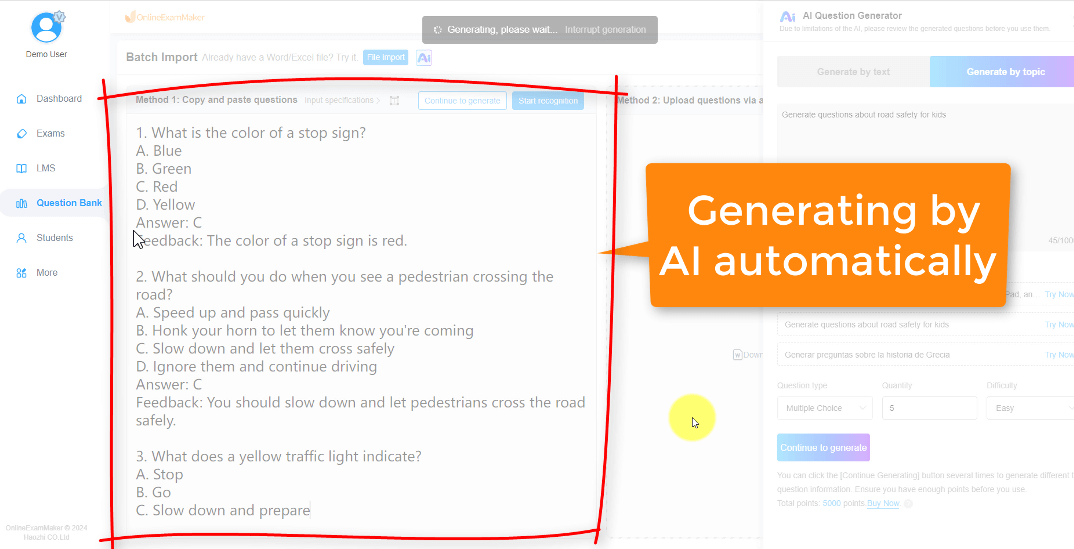
Log into OnlineExamMaker and navigate to the question bank section. Select the AI generation feature and provide your input—this could be a topic outline, curriculum standards, or specific learning objectives. The AI will analyze your requirements and generate relevant questions across multiple formats (multiple choice, true/false, short answer, etc.). Review the generated questions, tweak any that need adjusting, and add them to your exam.
Step 2: Build Your Exam
Create a new exam and pull questions from your AI-generated bank. Arrange them in your preferred order, set point values, and configure automatic grading where applicable. The platform makes it easy to mix AI-generated content with your own custom questions, giving you the best of both worlds.
Assigning the Exam to a Group
Here’s where OnlineExamMaker really shines compared to the manual Google Forms method:
Step 1: Set Up Your Group
If you haven’t already, create a group for your test-takers. Groups can represent classes, departments, training cohorts, or any organizational structure that makes sense for your needs. Add members by uploading a list or inviting them individually.
Step 2: Configure Exam Settings
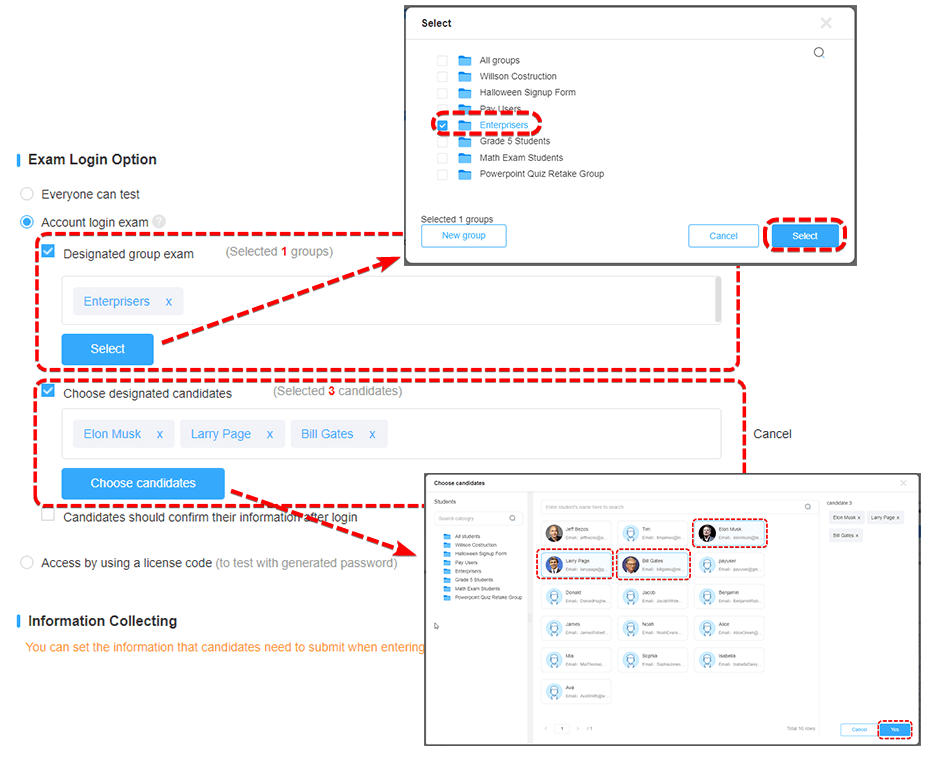
Navigate to your exam’s settings and locate the General Settings section. Here you’ll find the Exam Login Option, which is key to controlling access. You can choose from several authentication methods:
- Guest Access: Allow users to take the exam without creating an account (use with caution for secure assessments)
- Registered Users: Require users to have an account on your OnlineExamMaker instance
- Organization-Specific: Restrict to users from your specific organization or domain
For maximum security, select registered users or organization-specific access, then assign the exam to your pre-configured group.
Step 3: Set Additional Security Parameters
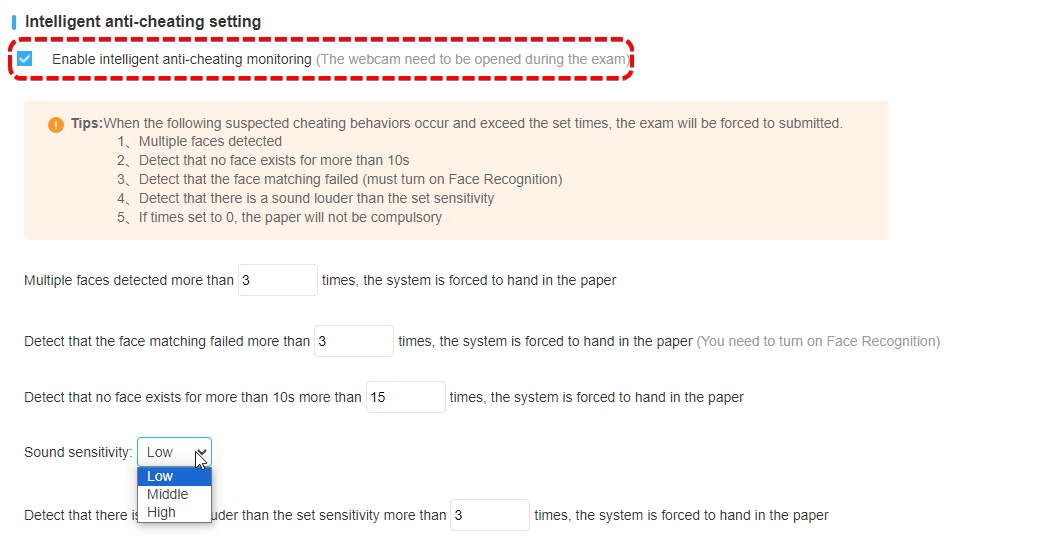
Configure time limits, attempt restrictions, and enable any anti-cheating features you need (webcam monitoring, browser lockdown, randomized question order, etc.). Set your exam’s active date range so it’s only accessible during your testing window.
Step 4: Publish and Notify
Once everything’s configured, publish your exam and send automated notifications to your group members. They’ll receive a secure link or access code that only works for them during the designated time period. No manual email list copying, no worrying about link leaks—the system handles access control automatically.
Why This Approach Wins
The entire process—from AI-generated questions to group assignment—takes a fraction of the time required for the manual Google Forms method. You’re not juggling multiple settings across different menus, hoping you remembered to toggle everything correctly. Instead, you’re using a purpose-built platform that assumes you want security by default.
Which Method Is Right for You?
So, manual Google Forms or AI-powered OnlineExamMaker? The honest answer: it depends on your situation.
Stick with Google Forms if:
- You’re already deep in the Google ecosystem and can’t imagine life without Sheets integration
- Your quizzes are simple, low-stakes, and infrequent
- You have plenty of time to manually configure settings for each quiz
- Your audience is small and already uses Google accounts
- Budget is absolutely zero, and free is non-negotiable
Switch to OnlineExamMaker if:
- You create exams regularly and value your time
- Security isn’t just important—it’s mission-critical
- You want AI to help generate quality questions quickly
- You manage multiple groups or cohorts and need efficient organization
- Advanced features like proctoring, detailed analytics, and anti-cheating measures matter
- You’re tired of retrofitting security onto a general-purpose tool
Here’s the bottom line: Google Forms can work if you’re willing to invest time in manual configuration and accept its limitations. But if you’re serious about assessment security, efficiency, and leveraging AI to streamline your workflow, OnlineExamMaker offers a more comprehensive, purpose-built solution that just makes sense.
The future of secure quiz sharing isn’t about working harder—it’s about working smarter. AI-powered tools are eliminating the tedious manual work that used to eat up hours of our time, letting us focus on what actually matters: creating meaningful assessments that accurately measure knowledge and skills.
Which path will you choose? The manual route with its reliable but labor-intensive security measures, or the AI-accelerated approach that handles the heavy lifting while you focus on educational outcomes? Either way, at least you now know your options—and that’s half the battle.
Now go forth and share those quizzes securely. Your students, employees, or trainees are waiting (and hopefully, only the authorized ones will actually find them).
