Whether you’re a teacher prepping for Monday’s class, an HR manager designing onboarding assessments, or a corporate trainer building certification tests, the question-writing grind is real. Here’s the good news—you don’t have to do it alone anymore. AI has crashed the quiz-making party, and it’s brought some seriously helpful tools along for the ride.
- Why AI-Generated Questions Are a Game-Changer?
- Method 1: Generate Questions Externally with AI Chatbots
- Method 2: Use Google Forms Add-ons for Seamless Integration
- A Better Alternative: OnlineExamMaker AI Quiz Builder
- Best Practices for AI-Generated Quiz Questions
Why AI-Generated Questions Are a Game-Changer?
Let’s be honest—writing quiz questions isn’t exactly anyone’s favorite task. It’s time-consuming, mentally draining, and let’s not even talk about coming up with plausible wrong answers for multiple-choice questions. That’s where AI steps in like a caffeinated assistant who never complains.
AI question generation tools can:
- Create dozens of questions in minutes instead of hours
- Generate varied question types from the same content source
- Maintain consistency in difficulty and format
- Pull from diverse materials like documents, videos, or plain text
But here’s the kicker—Google Forms doesn’t have native AI capabilities. Surprised? You shouldn’t be. Google has been relatively slow to integrate AI directly into Forms, which means you’ll need to get a bit creative. Think of it as a workaround, not a roadblock.
Method 1: Generate Questions Externally with AI Chatbots
This is the most straightforward approach, and honestly? It’s surprisingly effective. You’re essentially outsourcing the brainstorming to AI, then manually transferring the results into Google Forms.
Step-by-Step Process
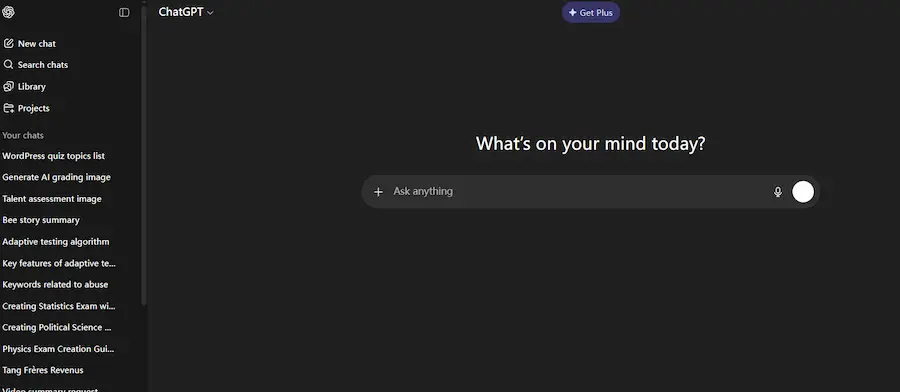
1. Choose Your AI Tool
Popular options include ChatGPT, Google’s Gemini, Claude, or Microsoft Copilot. Each has its strengths, but they all speak the language of question generation fluently.
2. Craft a Clear Prompt
This is where specificity pays off. Instead of vaguely asking for “some questions about biology,” try something like:
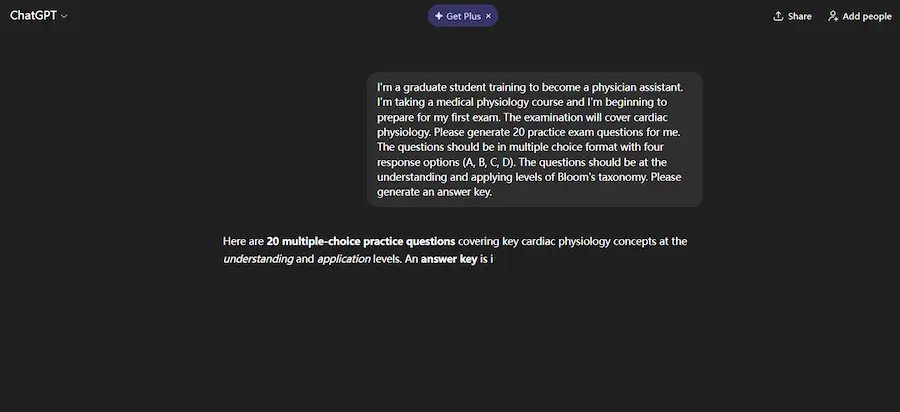
“Generate 10 multiple-choice questions about cellular respiration for high school students. Include 4 answer options per question with one correct answer. Mark the correct answers clearly and ensure questions progress from basic recall to application level.”
The more detailed your prompt, the better your output. Think of it as ordering a custom pizza—you wouldn’t just say “make me food,” right?
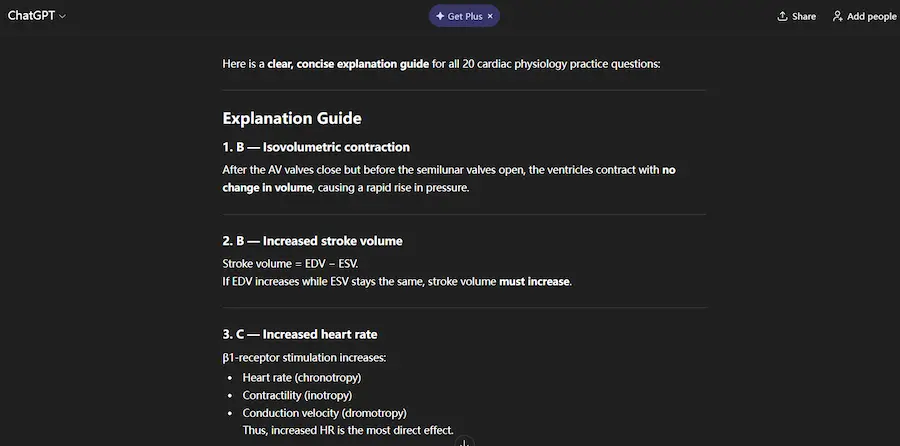
3. Review and Refine
AI is smart, but it’s not perfect. Sometimes it generates questions that are too easy, occasionally too obscure, or—my personal favorite—technically correct but completely impractical. Always review the output with a critical eye.
4. Transfer to Google Forms
This part involves good old-fashioned copy-paste. Open your Google Form, create new questions, and transfer the AI-generated content. Yes, it’s manual. Yes, there’s a better way (keep reading).
5. Set Up Answer Keys and Scoring
For each question, click “Answer key” to designate the correct response. Assign point values—typically 1-10 points per question depending on difficulty. According to Google’s official documentation, you can also add answer feedback to help students learn from mistakes.
Pro Tips for External Generation
| Question Type | Best For | AI Prompt Tip |
|---|---|---|
| Multiple Choice | Objective knowledge assessment | Request plausible distractors that address common misconceptions |
| True/False | Quick comprehension checks | Ask for statements that aren’t obviously true or false |
| Short Answer | Critical thinking and application | Specify desired response length and key concepts to include |
| Checkboxes | Multiple correct answers | Request questions with 2-3 correct options among 5-6 total choices |
Method 2: Use Google Forms Add-ons for Seamless Integration
If the manual copy-paste method feels too 2015 for you, add-ons are your upgrade path. These tools integrate directly with Google Forms, cutting out the middleman entirely.
Popular Add-ons Worth Exploring
GPT for Google Forms
This add-on connects ChatGPT directly to your Forms interface. It’s like having an AI assistant living inside your quiz builder. You input your source material—could be a text block, a link to a Google Doc, or even a YouTube video URL—and the tool generates questions on the spot.
ChatGPT Quiz Generator
Similar functionality, slightly different interface. Some users prefer this one for its cleaner design and batch processing capabilities.
How to Install and Use Add-ons
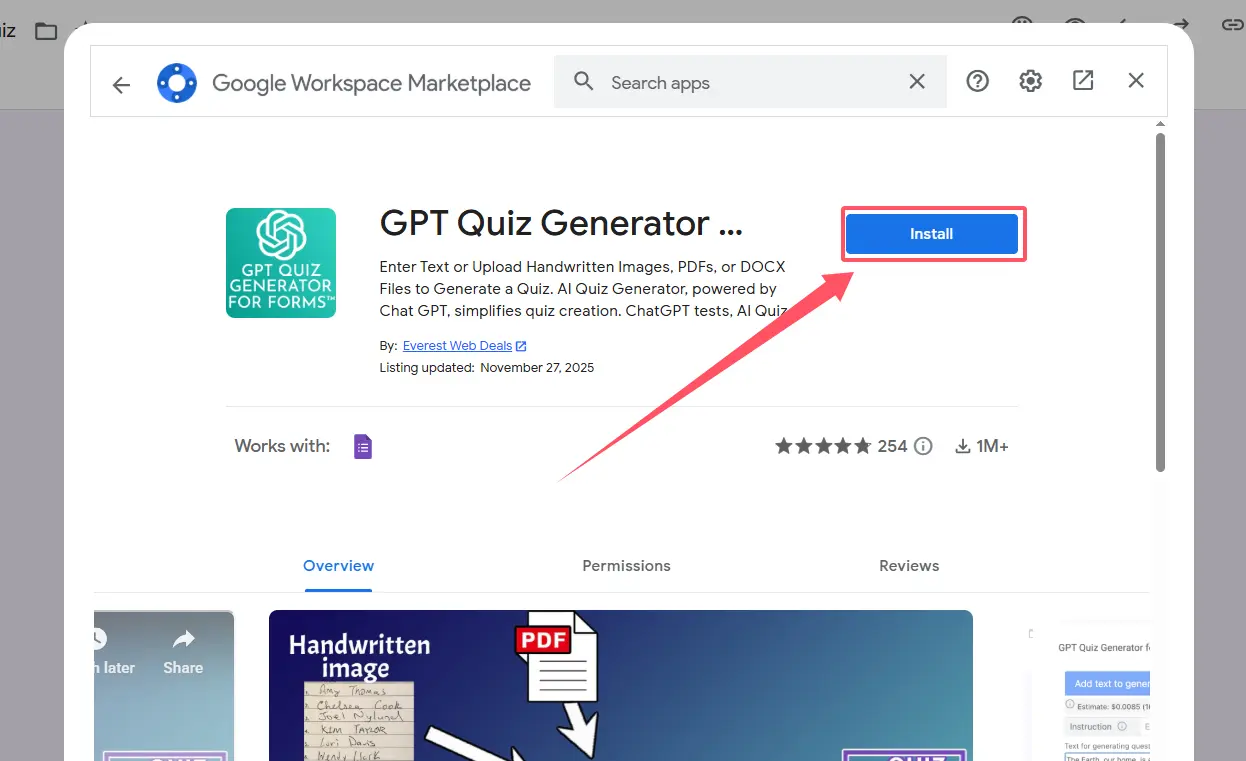
Installation (One-Time Setup)
- Open a new or existing Google Form
- Click the three-dot menu icon in the upper right
- Select “Add-ons” → “Get add-ons”
- Search for your chosen AI tool (e.g., “GPT for Google Forms”)
- Click “Install” and grant necessary permissions
Generating Questions
- Access the add-on from your Form’s Add-ons menu
- Input your source content or topic
- Specify parameters: number of questions, question types, difficulty level
- Click generate and watch the magic happen
- Review, edit if needed, then insert directly into your form
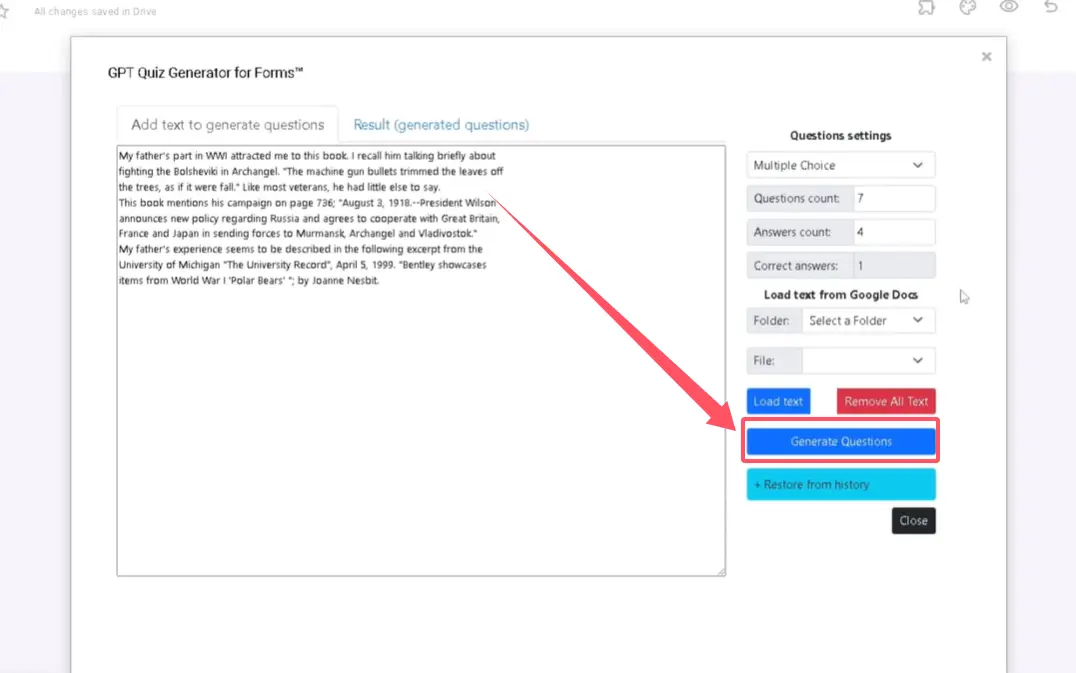
The beauty of add-ons? They preserve formatting and can automatically set up answer keys, saving you significant setup time. According to user reviews and tutorial demonstrations, these tools can reduce quiz creation time by up to 75%.
When Add-ons Shine
- Bulk question creation: Need 100 questions? No problem.
- Video-based assessments: Paste a YouTube link, get comprehension questions
- Document-driven quizzes: Upload a PDF or link to a Google Doc, generate questions from the content
- Consistent formatting: All questions follow the same structure automatically
A Better Alternative: OnlineExamMaker AI Quiz Builder
Let’s talk about the elephant in the room: Google Forms is free, accessible, and familiar—but it’s not actually built for serious assessment work. It’s like using a butter knife when you really need a chef’s knife. It’ll get the job done, but there are better tools designed specifically for this purpose.
Enter OnlineExamMaker—a platform built from the ground up for creating, delivering, and securing professional assessments.
Create Your Next Quiz/Exam Using AI in OnlineExamMaker
Why OnlineExamMaker Is A Suitable Tool for You
1. Native AI Question Generation
Unlike Google Forms, which requires workarounds, OnlineExamMaker has AI built directly into the platform. Upload your course materials, training documents, or presentation slides, and the system generates relevant questions automatically. No add-ons, no copy-pasting, no hassle.
The AI understands context better than generic chatbots because it’s specifically trained for educational and professional assessment scenarios. It can create questions that test different cognitive levels—from simple recall to complex application and analysis.
2. AI Proctoring for Exam Integrity
Here’s where Google Forms falls completely flat: exam security. When you’re conducting certification exams, employee assessments, or any high-stakes testing, you need to know the person taking the test is who they claim to be and isn’t getting help from their friend, another browser tab, or a very helpful ChatGPT session.

OnlineExamMaker’s AI proctoring includes:
- Facial recognition: Verifies test-taker identity
- Browser lockdown: Prevents tab-switching and unauthorized app usage
- Behavioral monitoring: Flags suspicious activities like looking away from screen excessively
- Audio detection: Identifies potential collaboration or unauthorized assistance
Google Forms? It trusts everyone. Which is great for “What should we order for lunch?” surveys, not so great for certification exams.
3. Advanced Question Types
While Google Forms handles basic formats well, OnlineExamMaker supports:
- Fill-in-the-blank with multiple gaps
- Matching questions
- Ordering/sequencing questions
- Essay questions with rubric-based grading
- File upload responses
4. Professional Reporting and Analytics
Google Forms gives you basic charts and a spreadsheet. OnlineExamMaker provides comprehensive analytics including item analysis, difficulty distribution, time-per-question metrics, and comparative performance reports. If you’re serious about assessment—whether for education, training, or certification—these insights are invaluable.
When to Choose OnlineExamMaker Over Google Forms
| Use Case | Google Forms | OnlineExamMaker |
|---|---|---|
| Quick classroom quiz (low stakes) | ✓ Perfect choice | Overkill (but works great) |
| Certification exam | ❌ No security features | ✓ Ideal solution |
| Employee skill assessment | ⚠ Workable but limited | ✓ Professional-grade |
| Regulatory compliance training test | ❌ Lacks necessary controls | ✓ Meets requirements |
| Practice quiz with feedback | ✓ Works well | ✓ Better feedback options |
Best Practices for AI-Generated Quiz Questions
Regardless of which tool you use, AI-generated questions need human oversight. Here’s what separates mediocre AI quizzes from excellent ones:
Always Review for Accuracy
AI can confidently state incorrect information. It’s rare with current models, but it happens. Never publish AI-generated questions without verification—especially in technical or scientific subjects where precision matters.
I once saw an AI-generated biology quiz that claimed mitochondria produce ATP through “photosynthetic processes.” Close, but very wrong. One review would have caught it.
Check for Bias and Fairness
AI models can inadvertently include cultural bias or make assumptions about background knowledge. Review questions through an equity lens:
- Do examples assume specific cultural contexts?
- Is language accessible to all learners, including non-native speakers?
- Are scenarios inclusive and representative?
Vary Cognitive Levels
A good assessment doesn’t just test recall. Use Bloom’s Taxonomy as a guide:
- Remember: 20-30% of questions (basic recall)
- Understand: 30-40% of questions (comprehension and explanation)
- Apply/Analyze: 20-30% of questions (using knowledge in new situations)
- Evaluate/Create: 10-20% of questions (higher-order thinking)
Tell your AI to create questions across these levels. Most AI tools default to recall and comprehension unless specifically prompted otherwise.
Write Distractors That Teach
Wrong answers in multiple-choice questions shouldn’t be random—they should address common misconceptions. When reviewing AI-generated questions, ask: “If a student picks the wrong answer, can I understand what they misunderstood?”
Keep Language Clear and Concise
AI sometimes gets verbose. Edit for clarity. Your students shouldn’t need a decoder ring to understand what you’re asking. A good question stem is direct and unambiguous.
Conclusion
AI-generated questions have transformed quiz creation from a time-intensive chore into a manageable, even enjoyable task. Google Forms, paired with external AI tools or add-ons, provides a free, accessible starting point for educators and trainers looking to streamline their workflow.
But here’s the thing: free tools are perfect for casual use, practice quizzes, and low-stakes assessments. When you need professional-grade features—AI proctoring, advanced question types, comprehensive analytics, and robust security—platforms like OnlineExamMaker deliver what Google Forms simply can’t.
The future of assessment isn’t just about creating questions faster; it’s about creating better questions, delivering them securely, and gaining insights that improve learning outcomes. Whether you stick with Google Forms or upgrade to a specialized platform, AI is your ally in this mission.
So next time you’re staring at that blank form on a Sunday evening? Let AI do the heavy lifting. Your time is too valuable to spend crafting “Which of the following…” questions from scratch. Use the technology, review thoughtfully, and focus your energy on what really matters—helping your learners succeed.
Now, if you’ll excuse me, I have some AI-generated questions to review. Because even AI needs an editor.
