Imaine that you’ve already created dozens of great questions. They’re just scattered across old forms, random documents, and that one spreadsheet you swear you saved somewhere.
What if you could build a question vault—a central repository where every brilliant question you’ve ever written lives, ready to be pulled into any quiz at a moment’s notice? That’s exactly what a test bank does. And yes, you can absolutely build one using Google Forms, even though it doesn’t shout about having this feature.
- What Is a Test Bank and Why Should You Care?
- Method 1: The Reuse Questions Trick
- Method 2: Google Sheets Add-ons for Power Users
- OnlineExamMaker: Create and Manage Quiz Questions Using AI
- Smart Tips for Managing Your Question Bank

What Is a Test Bank and Why Should You Care?
Let’s cut through the jargon. A test bank is basically your personal library of quiz questions—organized, tagged, and ready to deploy. Think of it as Netflix for assessment questions: browse, select, randomize, and serve.
Why bother? Three reasons that’ll save your sanity:
Time efficiency: Stop reinventing the wheel every assessment cycle. Got a killer question about photosynthesis? Use it again. And again. And maybe one more time with different students.
Randomization: Academic integrity gets a boost when Student A’s quiz looks different from Student B’s—same content, different questions. Cheating suddenly becomes a lot harder when your neighbor’s test asks completely different questions.
Quality control: Your questions get better with age, like fine wine (or at least, that’s what we tell ourselves). Track which questions work, which confuse students, and which need retirement.
Method 1: The Reuse Questions Trick
Google Forms has a built-in feature that most people never discover. It’s hiding in plain sight, like that “reply all” button you accidentally hit last Tuesday.
Step 1: Build Your Master Question Bank Form
Create a dedicated Google Form—call it something boring like “Question Bank Master” so students don’t accidentally stumble upon it. This isn’t a quiz they’ll take. It’s your warehouse.
Load it up with questions. Multiple choice? Check. Checkboxes? Absolutely. Short answer, linear scale, whatever floats your educational boat. Just make sure each question is properly formatted with answer keys if you plan to use them later in graded quizzes.
Here’s where people get clever: organize questions by topic. Create sections within your master form—one for algebra, another for geometry, maybe a third for those random probability questions that always trip students up.
Step 2: Import Questions Into New Quizzes
When you’re ready to create an actual quiz, open a fresh Google Form. Look for that little icon in the question panel that looks like two curved arrows forming a square. That’s your golden ticket—the “Reuse question” button.
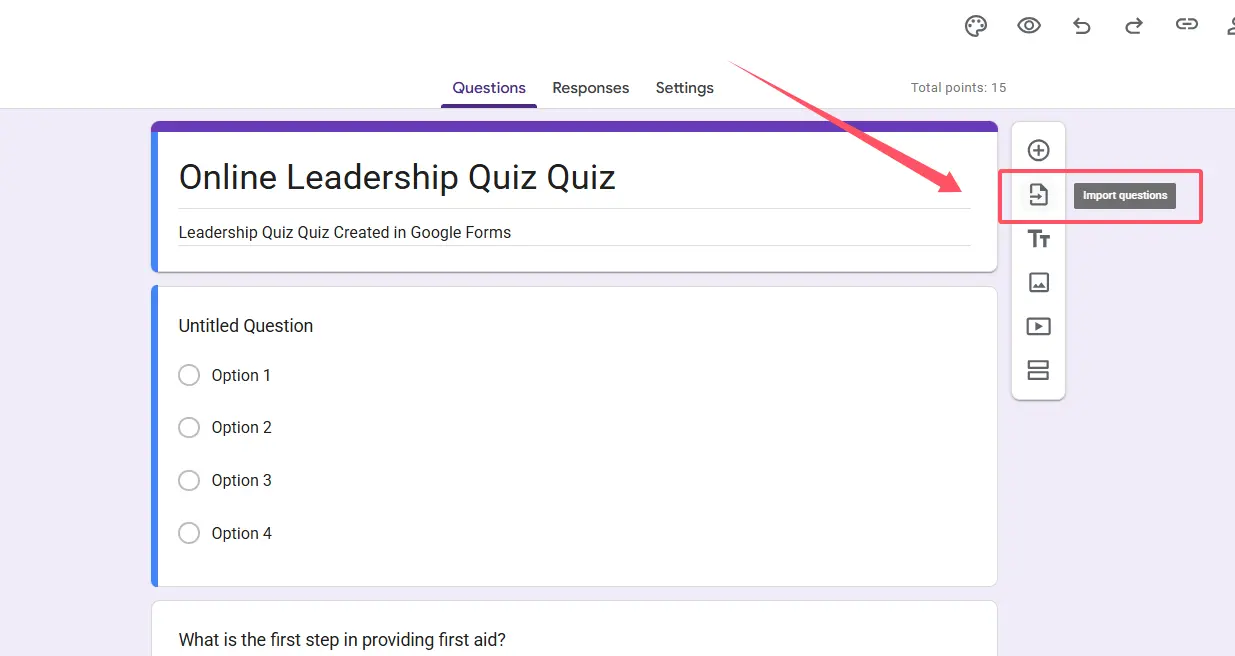
Click it. A search window appears showing all your Google Forms. Navigate to your master question bank, and boom—every single question you’ve ever written appears. Check the boxes next to the questions you want, click “Import questions,” and watch them populate your new quiz faster than students can ask “Is this going to be on the test?”
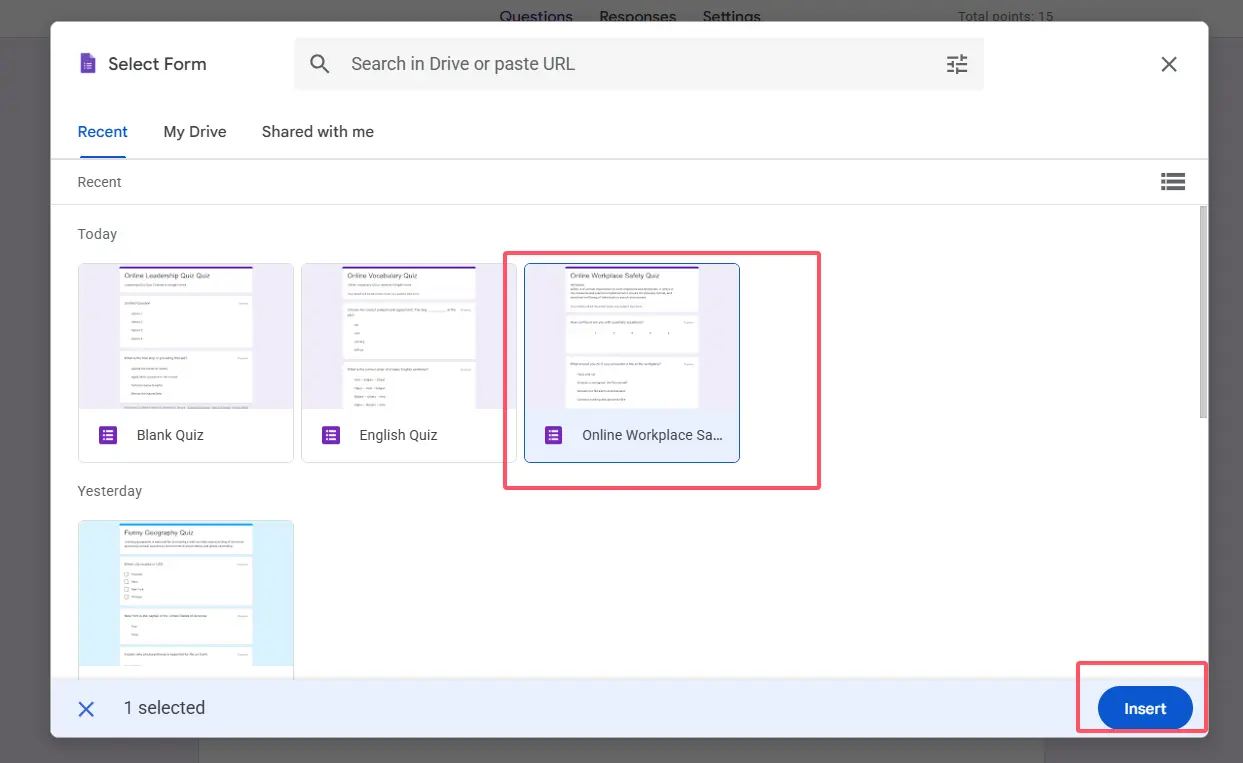
The beauty? You can edit imported questions without touching the originals. Need to tweak an answer choice? Go ahead. Your master bank stays pristine.
The Catch (Because There’s Always a Catch)
This method works brilliantly for manually selecting questions. But randomization? Not so much. You’ll need to eyeball which questions to pull, and if you want 10 random questions from a pool of 50, you’re clicking boxes like it’s 1999.
Method 2: Google Sheets Add-ons for Power Users
Ready to level up? Google Sheets add-ons transform your question bank from a filing cabinet into a smart system that thinks for itself (well, almost).
Setting Up Your Spreadsheet Question Bank
Start with a Google Sheet. Column A: your questions. Column B: question type (multiple choice, short answer, etc.). Column C: answer options. Column D: correct answer. Column E: point values. Add columns for tags, difficulty levels, or last-used dates if you’re feeling organizational.
This might sound tedious, but think of it as front-loading the work. Once it’s set up, you’re cooking with gas.
The Add-on Arsenal
Head to Google Workspace Marketplace and search for form builder add-ons. FormMaker Question Bank and Form Builder are popular choices—both free with paid tiers for advanced features.
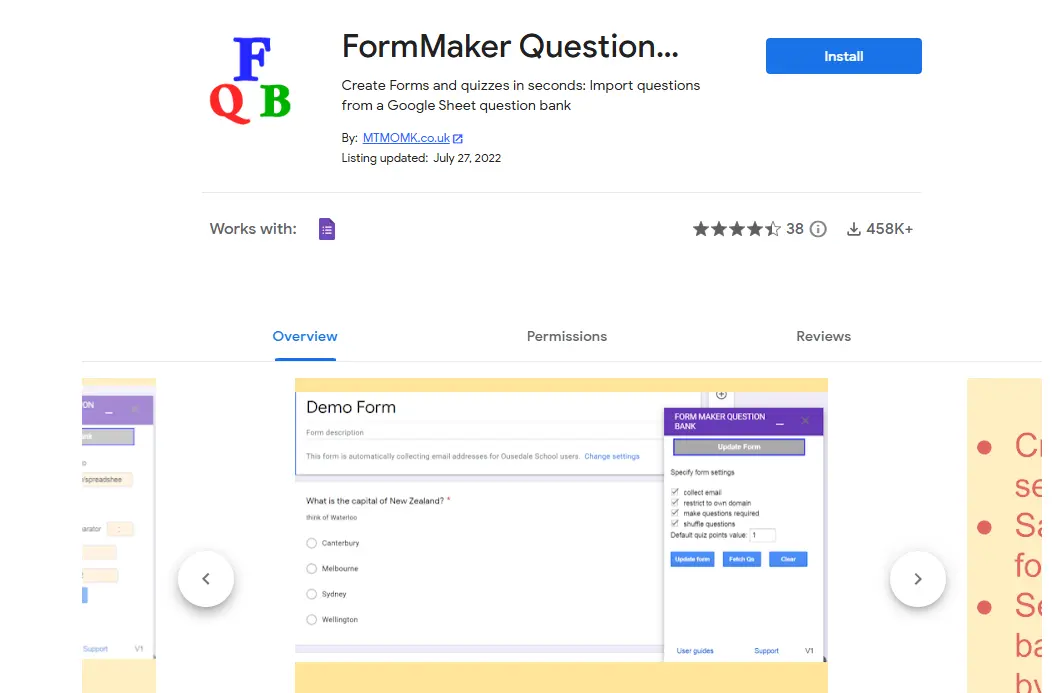
After installation, open your spreadsheet. A new sidebar appears with the add-on’s controls. Select rows from your sheet (either manually or using filters), click “Create Form,” and watch as the add-on generates a Google Form quiz populated with your selected questions.
Want true randomization? Most add-ons let you specify “pull 15 random questions from rows 1-100” or “select 5 questions tagged ‘difficult.'” This is where the magic happens—every quiz becomes unique without lifting a finger.
Advanced Moves
Tag questions by learning objective, difficulty, or cognitive level (thanks, Bloom’s taxonomy). When assessment time rolls around, filter your sheet: “Show me 10 medium-difficulty questions about cell division.” Export those. Done.
Track question performance by adding a column for “times used” and “average score.” Over time, you’ll identify which questions are money and which need reworking.
OnlineExamMaker: Create and Manage Quiz Questions Using AI
OnlineExamMaker is an AI-powered exam creation platform that makes Google Forms look like… well, like a free tool that’s doing its best. Where Google Forms says “here’s a form builder,” OnlineExamMaker says “let me create your entire assessment for you.”
AI Question Generation That Actually Works
Feed OnlineExamMaker a document, a PDF, or even just a topic. The AI reads it, understands it (or does a convincing impression of understanding), and generates quiz questions. We’re talking multiple choice, true/false, fill-in-the-blank—the whole assessment buffet.
Is it perfect? Of course not. AI can occasionally produce questions that make you go “huh?” But it gets you 80% of the way there in minutes. Clean up the remaining 20%, and you’ve saved hours compared to writing questions from scratch.
Upload a textbook chapter? Get 30 questions. Paste in your lecture notes? Get 25 questions. Copy-paste a Wikipedia article about the French Revolution? Get 40 questions that might even make sense.
Create Your Next Quiz/Exam Using AI in OnlineExamMaker
Question Bank Management Done Right
OnlineExamMaker’s question bank isn’t just storage—it’s a smart filing system that would make Marie Kondo weep with joy.
Upload: Bulk import questions from Word docs, Excel sheets, or even other quiz platforms. Moving from another system? OnlineExamMaker speaks multiple formats.
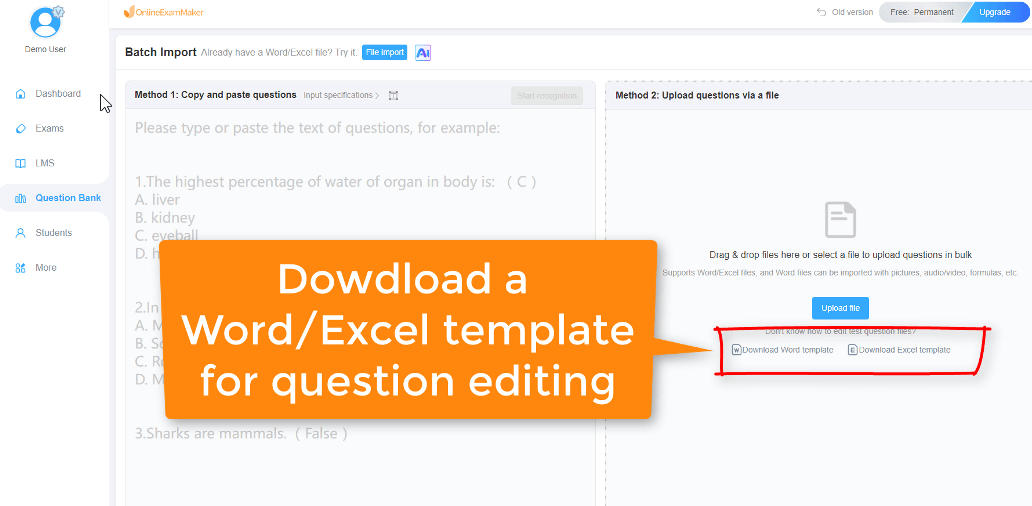
Create: Manual question creation interface that’s actually intuitive. Rich text editing, image uploads, formula support for math questions—everything you’d expect from dedicated exam software.
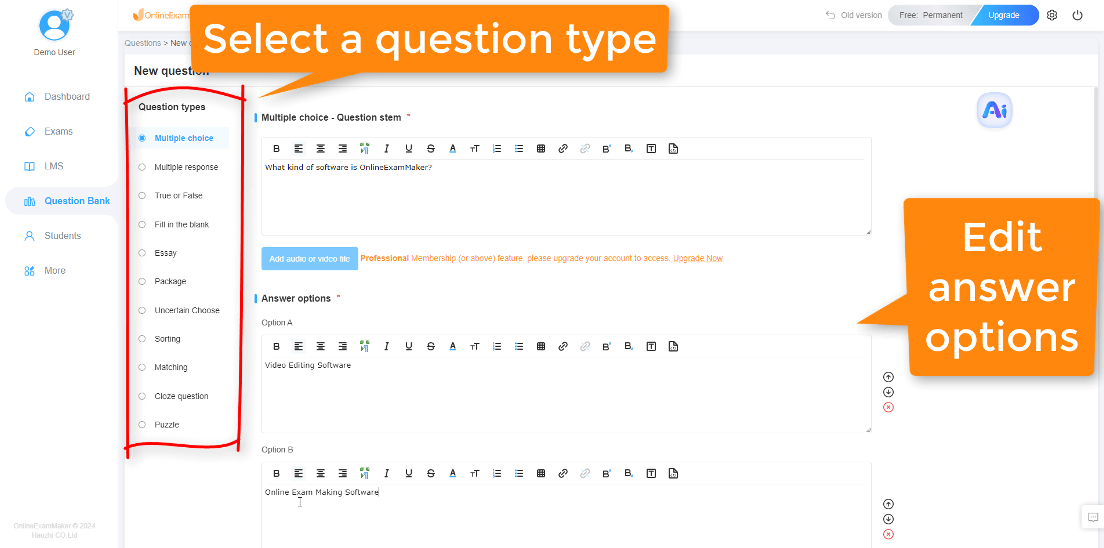
Copy: Clone questions across banks. Found a great question in your Biology bank that would work in Environmental Science? Copy it over in two clicks.
Tag Management: This is where OnlineExamMaker shows off. Create custom tags for anything—subject, difficulty, learning objective, cognitive level, last semester’s average score, whether Mercury was in retrograde when you wrote it. Whatever taxonomy makes sense for your brain.
Filter by multiple tags simultaneously: “Show me all medium-difficulty algebra questions about quadratic equations that we haven’t used in the last 30 days.” The software handles it without breaking a sweat.
The Real Benefits
Built-in anti-cheating features (question randomization, time limits, browser lockdown). Detailed analytics that show which questions work and which don’t. Integration with learning management systems if you’re in that ecosystem. Support for advanced question types that Google Forms can’t touch—drag-and-drop, matching, ordering sequences.
Is it overkill for a 10-question weekly quiz? Probably. But for comprehensive exams, standardized testing, or high-stakes assessments? OnlineExamMaker might just become your new best friend.
Smart Tips for Managing Your Question Bank
Whether you’re using Google Forms or dedicated software, these strategies will keep your question bank from becoming a digital junk drawer:
Organize by topic from day one. Create folders in Google Drive mirroring your curriculum structure. “Unit 1: Cells,” “Unit 2: Genetics,” “Unit 3: Evolution.” Future you will send back gratitude in the form of saved time.
Version control matters. When you edit a question, consider saving the original and creating a new version rather than overwriting. Sometimes that “improved” question actually works worse, and you’ll want the original back.
Preview everything. Google Forms’ preview mode shows you exactly what students will see. Catch formatting issues, confusing wording, or that typo that turns “photosynthesis” into “photosyntheses” (which, yes, has happened to all of us).
Link responses to Sheets for analysis. Google Forms can automatically send responses to a spreadsheet. Track question performance, identify patterns, and use data to improve your bank over time.
Consider randomization carefully. Random questions work great for formative assessment. High-stakes exams might need more precise curation to ensure fair difficulty distribution.
Refresh regularly. Questions go stale faster than bread. Review your bank each semester. Retire questions that students consistently ace (too easy) or bomb (too hard or unclear). Add new questions that reflect current content or teaching approaches.
Collaborate if possible. Share question banks with colleagues teaching the same subject. Different brains produce different questions, and variety strengthens assessment. Just establish clear guidelines about quality and formatting.
