Ever tried scanning a QR code that looked like someone sneezed black pixels onto a piece of paper? Chances are, it was connected to a ridiculously long URL. Here’s the thing about Google Forms—they’re fantastic for creating quizzes, but their default URLs are about as compact as a collection of encyclopedia volumes.
- Why Shortened URLs Matter for Your Quiz?
- Step-by-Step: Generating Your Shortened Google Form Quiz Link
- Verify Your Link Works Perfectly
- Creating QR Codes with Your Shortened URL
- Pro Tips for Quiz Distribution
- Alternative Solution: OnlineExamMaker for Advanced Quiz Creation
Why Shortened URLs Matter for Your Quiz?
Think about it. Would you rather type out https://docs.google.com/forms/d/e/1FAIpQLSdKj8Hf… (and that’s just the beginning) or simply share https://forms.gle/abc123? The choice seems obvious.
Shortened URLs aren’t just about aesthetics—though let’s be honest, they do look cleaner. They’re about functionality. When you convert your marathon-length Google Form URL into something digestible, you’re making life easier for everyone involved. Students can type them quickly if needed. QR codes become scannable masterpieces instead of abstract art. And your printed materials suddenly have more breathing room.
For teachers distributing assessments, trainers sharing evaluation forms, or HR managers sending surveys, this small technical step makes a surprisingly big difference in participation rates. People are more likely to engage when the barrier to entry is low.
Step-by-Step: Generating Your Shortened Google Form Quiz Link
Google built this feature right into Forms, which means you won’t need any external URL shortening services. No account creation on third-party sites. No tracking concerns. Just pure, simple functionality.
The Process
Start by opening your Google Form quiz. You’ll notice a “Copy responder link” button hovering in the top-right corner of your screen—it’s practically begging to be clicked.
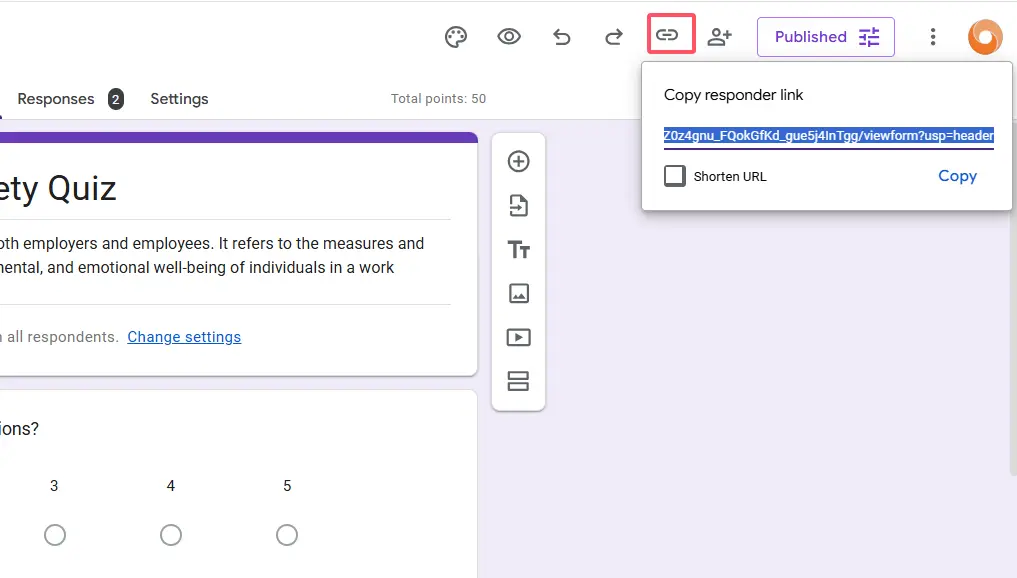
Once you click it, a dialog box appears with multiple sharing options. Look for the link icon—it resembles a chain link, which is delightfully literal. Click that icon.
Here’s where the magic happens. You’ll see a checkbox labeled “Shorten URL”. Check that box and watch your unwieldy link transform into something resembling https://forms.gle/abc123. The transformation is almost therapeutic.
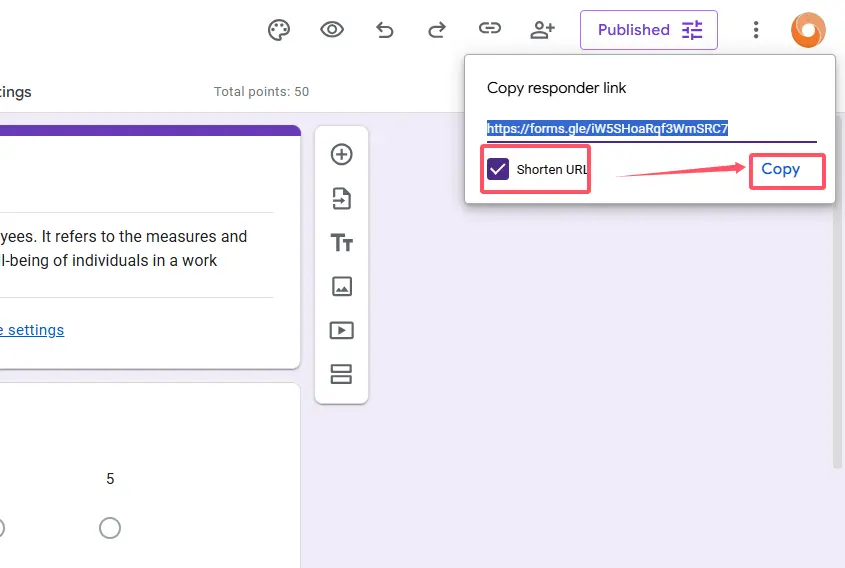
Hit “Copy” and you’re done. The shortened link now lives in your clipboard, ready to be deployed wherever you need it.
Quick Tip: Google’s URL shortener uses the forms.gle domain, which is immediately recognizable and trustworthy. Recipients will know they’re clicking on a legitimate Google Form link.
Verify Your Link Works Perfectly
Before you broadcast your shortened URL to the world, take thirty seconds to test it. Open an incognito or private browsing window and paste your link. This step simulates the experience of someone who isn’t logged into your Google account.
Why bother? Sometimes form permissions get wonky. You might have accidentally restricted access to specific email domains or forgotten to publish the form properly. Testing in incognito mode catches these issues before your audience encounters them.
If the form loads correctly and looks exactly how you intended, you’re golden. If something seems off—permissions errors, unexpected login prompts, missing questions—now’s the time to fix it.
Creating QR Codes with Your Shortened URL
Shortened URLs and QR codes go together like peanut butter and jelly. Or coffee and Monday mornings. Choose your preferred analogy.
Head to a free QR code generator. Options like qr-code-generator.com work perfectly for this purpose. Paste your shortened Google Form URL into the generator’s input field.
The resulting QR code will be significantly cleaner than one generated from a full-length URL. Fewer characters mean simpler patterns, which translates to faster scanning and better reliability—especially when printed at smaller sizes or displayed on screens.
| URL Type | QR Code Complexity | Scan Reliability | Print Size Needed |
|---|---|---|---|
| Full Google Form URL | Very High | Moderate | Large (3+ inches) |
| Shortened URL | Low | Excellent | Small (1 inch) |
Download your QR code in a high-resolution format (PNG or SVG work well) and you’re ready to add it to posters, handouts, presentations, or even t-shirts if you’re feeling ambitious.
Pro Tips for Quiz Distribution
Customize Your QR Code Design: Many generators let you add colors or logos to your QR code. A small school emblem or company logo in the center can boost recognition while maintaining scannability.
Include Context: Don’t just slap a QR code on something and call it done. Add a brief description like “Scan to take the History Quiz” or “Employee Feedback Survey.” People are more likely to scan codes when they know what awaits them.
Test Across Devices: QR codes can behave differently depending on phone models and camera apps. Test your code with both iOS and Android devices before mass distribution.
Consider Placement: Position QR codes at comfortable scanning height (roughly chest level) and ensure adequate lighting in the area where they’ll be displayed.
Alternative Solution: OnlineExamMaker for Advanced Quiz Creation
While Google Forms handles basic quizzes admirably, some educators and organizations need more sophisticated features. This is where OnlineExamMaker enters the conversation.
OnlineExamMaker offers AI-powered exam creation that goes beyond standard form builders. The platform includes advanced question types, automatic grading with detailed analytics, anti-cheating measures, and customizable branding options. For quiz organizers managing multiple assessments across different groups, these features can be transformative.
Create Your Next Quiz/Exam Using AI in OnlineExamMaker
The platform also generates shortened URLs and QR codes natively, eliminating the need for multiple tools. Everything lives under one roof—question creation, distribution, data collection, and analysis.
Does this mean you should abandon Google Forms entirely? Not necessarily. For quick surveys or simple quizzes, Google Forms remains unbeatable in terms of accessibility and ease of use. But when you need robust proctoring, complex scoring algorithms, or professional certification capabilities, OnlineExamMaker provides a comprehensive solution worth exploring.
Bottom Line: Creating a shortened URL for your Google Form quiz takes less time than brewing coffee. The benefits—cleaner appearance, better QR codes, easier sharing—compound with every person who interacts with your form. Whether you’re assessing student knowledge, gathering employee feedback, or conducting training evaluations, this simple technical improvement elevates the entire experience.
