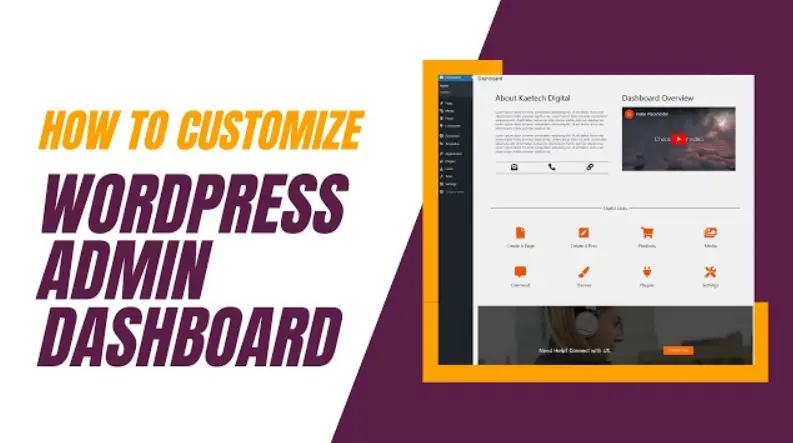
The WordPress Admin Dashboard is the central hub for managing your website, offering an intuitive interface that empowers users to handle content, customize designs, and optimize functionality with ease. Accessible via your site’s login, it features a clean sidebar menu with key sections like Posts, Pages, Media, Appearance, Plugins, Users, and Settings, allowing you to create and edit content, install themes and extensions, monitor site health, and analyze traffic statistics. Its user-friendly design, complete with notifications, quick drafts, and activity logs, makes it a powerful tool for both beginners and experienced webmasters to maintain and grow their online presence efficiently.
Table of Contents
- Part 1: Create A WordPress Admin Dashboard Quiz in Minutes Using AI with OnlineExamMaker
- Part 2: 20 WordPress Admin Dashboard Quiz Questions & Answers
- Part 3: Try OnlineExamMaker AI Question Generator to Create Quiz Questions
Part 1: Create A WordPress Admin Dashboard Quiz in Minutes Using AI with OnlineExamMaker
Are you looking for an online assessment to test the WordPress Admin Dashboard skills of your learners? OnlineExamMaker uses artificial intelligence to help quiz organizers to create, manage, and analyze exams or tests automatically. Apart from AI features, OnlineExamMaker advanced security features such as full-screen lockdown browser, online webcam proctoring, and face ID recognition.
Recommended features for you:
● Includes a safe exam browser (lockdown mode), webcam and screen recording, live monitoring, and chat oversight to prevent cheating.
● Enhances assessments with interactive experience by embedding video, audio, image into quizzes and multimedia feedback.
● Once the exam ends, the exam scores, question reports, ranking and other analytics data can be exported to your device in Excel file format.
● Offers question analysis to evaluate question performance and reliability, helping instructors optimize their training plan.
Automatically generate questions using AI
Part 2: 20 WordPress Admin Dashboard Quiz Questions & Answers
or
Question 1:
What is the default login URL for a standard WordPress installation?
Options:
A) example.com/wp-admin
B) example.com/admin
C) example.com/login
D) example.com/dashboard
Correct Answer: A
Explanation: The default login URL for WordPress is typically yoursite.com/wp-admin, which leads to the admin dashboard for managing the site.
Question 2:
Which menu item in the WordPress Admin Dashboard is used to create and manage blog posts?
Options:
A) Pages
B) Posts
C) Media
D) Appearance
Correct Answer: B
Explanation: The “Posts” menu allows users to add, edit, and manage blog posts, which are dynamic content types in WordPress.
Question 3:
In the WordPress Admin Dashboard, where can you upload and manage images and files?
Options:
A) Settings
B) Media
C) Plugins
D) Tools
Correct Answer: B
Explanation: The “Media” section is dedicated to uploading, organizing, and inserting files like images, videos, and documents into your site.
Question 4:
How do you install a new plugin in the WordPress Admin Dashboard?
Options:
A) Go to Appearance > Themes
B) Go to Plugins > Add New
C) Go to Settings > Plugins
D) Go to Users > Add Plugins
Correct Answer: B
Explanation: Under the “Plugins” menu, selecting “Add New” allows you to search for, install, and activate plugins to extend your site’s functionality.
Question 5:
What is the primary purpose of the “Appearance” menu in the WordPress Admin Dashboard?
Options:
A) To manage user accounts
B) To customize themes and widgets
C) To edit posts and pages
D) To configure site settings
Correct Answer: B
Explanation: The “Appearance” menu handles themes, customization options, menus, and widgets to control the visual layout of your WordPress site.
Question 6:
Which section allows you to add or edit user accounts in the WordPress Admin Dashboard?
Options:
A) Users
B) Settings
C) Profile
D) Comments
Correct Answer: A
Explanation: The “Users” section enables administrators to add, edit, delete, and manage user roles and permissions for the site.
Question 7:
What does the “Settings” menu primarily control in the WordPress Admin Dashboard?
Options:
A) Theme designs
B) General site configurations like permalinks and reading settings
C) Plugin installations
D) Media uploads
Correct Answer: B
Explanation: The “Settings” menu includes options for general site settings, writing preferences, reading settings, and permalinks to configure how the site operates.
Question 8:
How can you update the WordPress core software from the Admin Dashboard?
Options:
A) Go to Plugins > Update
B) Go to Dashboard > Updates
C) Go to Appearance > Themes
D) Go to Tools > Export
Correct Answer: B
Explanation: The “Updates” link in the main dashboard allows you to check for and apply updates to WordPress core, themes, and plugins to maintain security and features.
Question 9:
What is the difference between “Posts” and “Pages” in the WordPress Admin Dashboard?
Options:
A) Posts are for static content, Pages for dynamic
B) Posts are for blog entries and are date-based, Pages for static content like about pages
C) Pages are for plugins, Posts for themes
D) There is no difference
Correct Answer: B
Explanation: Posts are typically used for time-sensitive content like blog articles and support categories/tags, while Pages are for timeless, static content like a homepage or contact page.
Question 10:
Where can you customize the navigation menu in the WordPress Admin Dashboard?
Options:
A) Appearance > Menus
B) Settings > Navigation
C) Widgets > Menus
D) Posts > Menus
Correct Answer: A
Explanation: In “Appearance > Menus,” you can create, edit, and assign menus to different locations on your theme for site navigation.
Question 11:
What are widgets used for in the WordPress Admin Dashboard?
Options:
A) To manage user comments
B) To add dynamic content to sidebar areas or footers
C) To install themes
D) To edit core code
Correct Answer: B
Explanation: Widgets are small blocks of content that can be added to widget-ready areas in your theme, such as sidebars, to display features like recent posts or search bars.
Question 12:
How do you access the Media Library to organize uploaded files?
Options:
A) Go to Settings > Media
B) Go to Media > Library
C) Go to Appearance > Media
D) Go to Tools > Media
Correct Answer: B
Explanation: Under the “Media” menu, “Library” lets you view, edit, and organize all uploaded files for easy management and insertion into content.
Question 13:
In which section can you configure permalinks for better SEO?
Options:
A) Settings > Permalinks
B) Appearance > SEO
C) Plugins > SEO Tools
D) Dashboard > Settings
Correct Answer: A
Explanation: In “Settings > Permalinks,” you can customize URL structures to make them more user-friendly and search engine optimized.
Question 14:
What is the main function of the “Comments” menu in the WordPress Admin Dashboard?
Options:
A) To manage site themes
B) To moderate and approve user comments on posts
C) To add new users
D) To update plugins
Correct Answer: B
Explanation: The “Comments” section allows administrators to review, approve, reply to, or delete comments left by visitors on posts and pages.
Question 15:
How do you create a custom post type in WordPress?
Options:
A) Directly in the Posts menu
B) By using a plugin or adding code via a child theme
C) In Settings > Post Types
D) In Appearance > Customizer
Correct Answer: B
Explanation: Custom post types are typically created using plugins like Custom Post Type UI or by adding code to functions.php in a theme, extending beyond default posts and pages.
Question 16:
Where can you edit the content of a page using the block editor?
Options:
A) Pages > All Pages
B) Appearance > Editor
C) Media > Edit
D) Tools > Pages
Correct Answer: A
Explanation: In “Pages > All Pages,” you can select a page and use the Gutenberg block editor to add, edit, or rearrange content blocks.
Question 17:
What is the purpose of categories in WordPress posts?
Options:
A) To add tags to images
B) To organize posts into hierarchical groups for better navigation
C) To manage user roles
D) To customize themes
Correct Answer: B
Explanation: Categories help in grouping related posts hierarchically, making it easier for users to browse content on your site.
Question 18:
How do you set a static front page in the WordPress Admin Dashboard?
Options:
A) Go to Settings > Reading and select a page
B) Go to Appearance > Front Page
C) Go to Posts > Homepage
D) Go to Tools > Static Page
Correct Answer: A
Explanation: In “Settings > Reading,” you can choose a static page for your front page and another for posts, instead of showing the latest posts.
Question 19:
What tools are available in the “Tools” menu of the WordPress Admin Dashboard?
Options:
A) Only for exporting site data
B) Import, Export, and other utilities like Available Tools
C) Theme customization only
D) User management
Correct Answer: B
Explanation: The “Tools” menu provides options for importing/exporting content, checking for available tools, and performing site maintenance tasks.
Question 20:
In the WordPress Admin Dashboard, where might you find options to optimize site performance?
Options:
A) Settings > Performance
B) Plugins for caching or through the dashboard’s updates
C) Appearance > Speed
D) Media > Optimization
Correct Answer: B
Explanation: Performance optimization often involves installing plugins like WP Super Cache or monitoring updates in the dashboard, as there isn’t a dedicated performance menu.
or
Part 3: Try OnlineExamMaker AI Question Generator to Create Quiz Questions
Automatically generate questions using AI