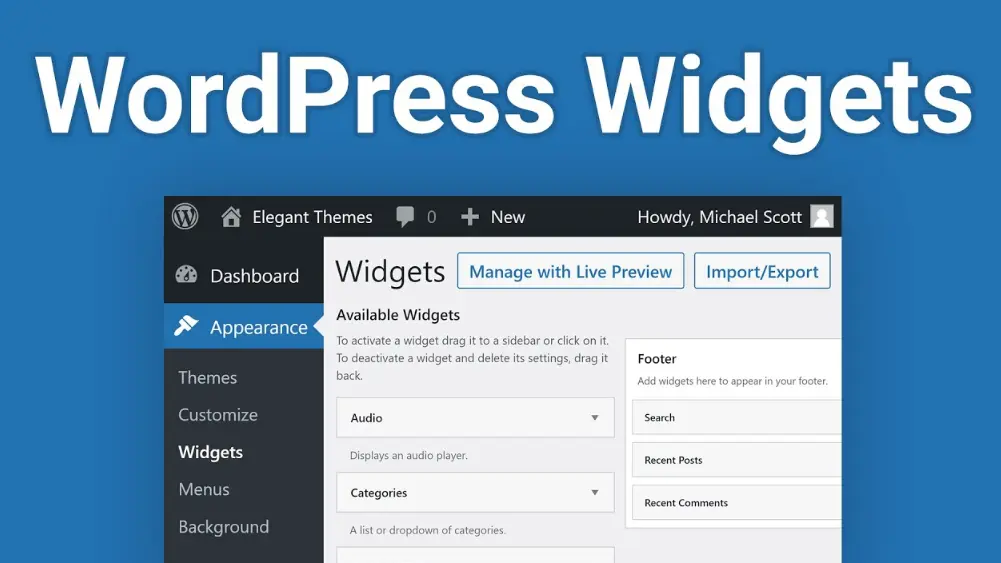
WordPress Widgets are versatile building blocks that enhance the functionality and layout of a WordPress website. These small, customizable elements can be added to designated areas like sidebars, footers, or headers, allowing users to display dynamic content such as recent posts, search bars, calendars, social media feeds, or custom HTML code. Widgets require no advanced programming skills, making them accessible for beginners while offering flexibility for developers to create tailored experiences. By dragging and dropping widgets via the WordPress dashboard, site owners can easily organize and update their site’s appearance, improving user engagement and site navigation. With a vast library of pre-built widgets and the option to develop custom ones, they provide an efficient way to add interactivity and personalization to any WordPress-powered site.
Table of Contents
- Part 1: OnlineExamMaker AI Quiz Generator – The Easiest Way to Make Quizzes Online
- Part 2: 20 WordPress Widgets Quiz Questions & Answers
- Part 3: Try OnlineExamMaker AI Question Generator to Create Quiz Questions
Part 1: OnlineExamMaker AI Quiz Generator – The Easiest Way to Make Quizzes Online
When it comes to ease of creating a WordPress Widgets skills assessment, OnlineExamMaker is one of the best AI-powered quiz making software for your institutions or businesses. With its AI Question Generator, just upload a document or input keywords about your assessment topic, you can generate high-quality quiz questions on any topic, difficulty level, and format.
What you will like:
● AI Question Generator to help you save time in creating quiz questions automatically.
● Share your online exam with audiences on social platforms like Facebook, Twitter, Reddit and more.
● Display the feedback for correct or incorrect answers instantly after a question is answered.
● Create a lead generation form to collect an exam taker’s information, such as email, mobile phone, work title, company profile and so on.
Automatically generate questions using AI
Part 2: 20 WordPress Widgets Quiz Questions & Answers
or
1. What is a WordPress Widget?
A. A full-page template for a website
B. A small block of content or functionality that can be added to widget areas
C. A type of WordPress theme
D. A plugin for managing user accounts
Answer: B
Explanation: Widgets are modular components in WordPress that allow users to add features like search bars or recent posts to specific areas of their site without coding.
2. How do you access the Widgets section in the WordPress dashboard?
A. Go to Appearance > Themes
B. Go to Appearance > Widgets
C. Go to Plugins > Add New
D. Go to Settings > General
Answer: B
Explanation: The Widgets section is found under Appearance in the WordPress admin menu, where users can drag and drop widgets into available areas.
3. Which of the following is NOT a default widget in WordPress?
A. Recent Posts
B. Calendar
C. Custom HTML
D. E-commerce Cart
Answer: D
Explanation: E-commerce Cart is not a default widget; it’s typically provided by e-commerce plugins, while Recent Posts, Calendar, and Custom HTML are standard.
4. What is the purpose of the ‘Sidebar’ in WordPress widgets?
A. To store inactive widgets
B. A common widget area for adding elements like menus
C. To edit the main content of posts
D. To manage theme settings
Answer: B
Explanation: The Sidebar is a designated area in many WordPress themes where widgets can be placed to enhance the layout with additional features.
5. Can widgets be customized with CSS?
A. No, widgets cannot be styled
B. Yes, but only through plugins
C. Yes, by adding custom CSS in the theme’s style.css file
D. Yes, directly in the widget settings
Answer: C
Explanation: While some widgets have basic styling options, full customization often requires adding custom CSS to the theme’s files to target widget elements.
6. What happens when you drag a widget into a widget area?
A. It immediately deletes the widget
B. It saves the widget to the area for display on the site
C. It creates a backup of the widget
D. It sends an email notification
Answer: B
Explanation: Dragging a widget into an area in the WordPress dashboard assigns it to that location, making it visible on the frontend of the site.
7. Which file in a WordPress theme defines widget areas?
A. functions.php
B. style.css
C. index.php
D. header.php
Answer: A
Explanation: The functions.php file in a WordPress theme is used to register and define custom widget areas using functions like register_sidebar.
8. What is a ‘Text’ widget used for?
A. To display images only
B. To add custom text, HTML, or shortcodes
C. To manage user comments
D. To create navigation menus
Answer: B
Explanation: The Text widget allows users to insert arbitrary content, including text and HTML, directly into a widget area without needing a plugin.
9. How can you make a widget visible only on certain pages?
A. By using conditional tags in the widget settings
B. It’s not possible without a plugin
C. By editing the widget’s PHP code
D. By setting it in the theme’s header
Answer: A
Explanation: WordPress allows conditional tags in custom widget code or through plugins to control where widgets appear based on page conditions.
10. What is the difference between widgets and shortcodes in WordPress?
A. Widgets are only for sidebars, while shortcodes work anywhere
B. They are the same thing
C. Widgets require plugins, shortcodes do not
D. Shortcodes are for plugins only
Answer: A
Explanation: Widgets are typically placed in predefined areas like sidebars, whereas shortcodes can be embedded directly into posts, pages, or text widgets for more flexibility.
11. Can you add a widget to a footer area?
A. No, footers only support menus
B. Yes, if the theme supports footer widget areas
C. Yes, but only with custom code
D. No, widgets are sidebar-exclusive
Answer: B
Explanation: Many WordPress themes include footer widget areas, allowing users to add widgets like copyright notices or social links to the footer.
12. What does the ‘Archives’ widget display?
A. A list of upcoming events
B. A monthly archive of posts
C. User profiles
D. Recent comments
Answer: B
Explanation: The Archives widget shows a list of months with published posts, helping users navigate to older content easily.
13. How do you remove a widget from a live site?
A. Delete it from the database
B. Drag it to the ‘Inactive Widgets’ area in the dashboard
C. Edit the theme files
D. Log out and log back in
Answer: B
Explanation: Moving a widget to the Inactive Widgets section in the WordPress dashboard removes it from the live site without deleting it permanently.
14. Are widgets responsive by default in WordPress?
A. No, they require custom coding
B. Yes, if the theme is responsive
C. Yes, all widgets are always responsive
D. No, only plugins can make them responsive
Answer: B
Explanation: Widgets themselves are not inherently responsive, but they will adapt if the theme uses responsive design principles.
15. What is a common use of the ‘Search’ widget?
A. To search for plugins
B. To provide a site search bar for visitors
C. To search WordPress themes
D. To find inactive widgets
Answer: B
Explanation: The Search widget adds a search form to widget areas, allowing users to search the site’s content directly.
16. Can third-party plugins add custom widgets?
A. No, only core WordPress supports widgets
B. Yes, plugins can register and add new widgets
C. Yes, but only for premium themes
D. No, widgets are theme-dependent
Answer: B
Explanation: Many plugins extend WordPress functionality by registering custom widgets that can be added like default ones.
17. What should you do before editing widget settings?
A. Backup your site
B. Nothing, it’s always safe
C. Delete old widgets
D. Restart the server
Answer: A
Explanation: Always backup your site before making changes, as widget configurations can affect site layout and functionality.
18. How do widgets enhance user experience?
A. By slowing down the site
B. By providing quick access to features like login forms
C. By removing navigation
D. By limiting content
Answer: B
Explanation: Widgets improve user experience by offering easy access to tools, information, and interactive elements in key areas of the site.
19. What is the ‘Meta’ widget?
A. A widget for site metadata like login and RSS feeds
B. A widget for editing posts
C. A widget for custom metadata tags
D. A widget for theme customization
Answer: A
Explanation: The Meta widget displays links to login, logout, the admin dashboard, and RSS feeds, providing quick administrative access.
20. Why might a widget not appear on your site?
A. It’s always visible
B. The theme doesn’t support the widget area, or there’s a configuration error
C. Widgets don’t need to be activated
D. It’s due to browser issues
Answer: B
Explanation: Widgets may not display if the theme lacks the specified widget area, if there’s a code conflict, or if the widget is not properly configured.
or
Part 3: Try OnlineExamMaker AI Question Generator to Create Quiz Questions
Automatically generate questions using AI