Ever sent out a quiz and felt like you were throwing knowledge into a void? You’re not alone. The gap between asking questions and actually helping people learn from their answers is where most assessments fall flat. But here’s the thing—feedback isn’t just a nice-to-have feature. It’s the bridge between testing and teaching.
Google Forms has quietly become one of the most popular tools for creating quizzes, and for good reason. It’s free, accessible, and surprisingly powerful once you know how to use it properly. Setting up answer feedback might sound technical, but it’s actually straightforward once you understand the flow.
- Why Answer Feedback Matters in Online Assessments?
- Enabling Quiz Mode in Google Forms
- Accessing and Setting Up the Answer Key
- Adding Custom Feedback Messages
- Advanced Feedback Options and Best Practices
- Alternative Solutions: Create A Quiz Using AI in OnlineExamMaker
Why Answer Feedback Matters in Online Assessments?
Think about the last time you took a test and got your score back with zero explanation. Frustrating, right? That’s exactly how your students, employees, or trainees feel when they receive a plain number without context.
Feedback transforms passive testing into active learning. When someone gets an answer wrong, telling them why it’s wrong—and pointing them toward the right answer—turns failure into a teaching moment. Research consistently shows that immediate, constructive feedback improves retention and understanding far better than delayed results or simple right-wrong indicators.
For teachers juggling multiple classes, for HR managers onboarding new hires, or for trainers running certification programs, automated feedback saves countless hours while maintaining quality instruction. You set it up once, and it works every time someone takes your quiz.
Enabling Quiz Mode in Google Forms
Before you can add feedback, you need to tell Google Forms that you’re creating a quiz, not just a survey. This is the foundation everything else builds on.
Open your Google Form and click the Settings gear icon in the upper right. Navigate to the Quizzes tab and toggle on “Make this a quiz.” Simple as that.
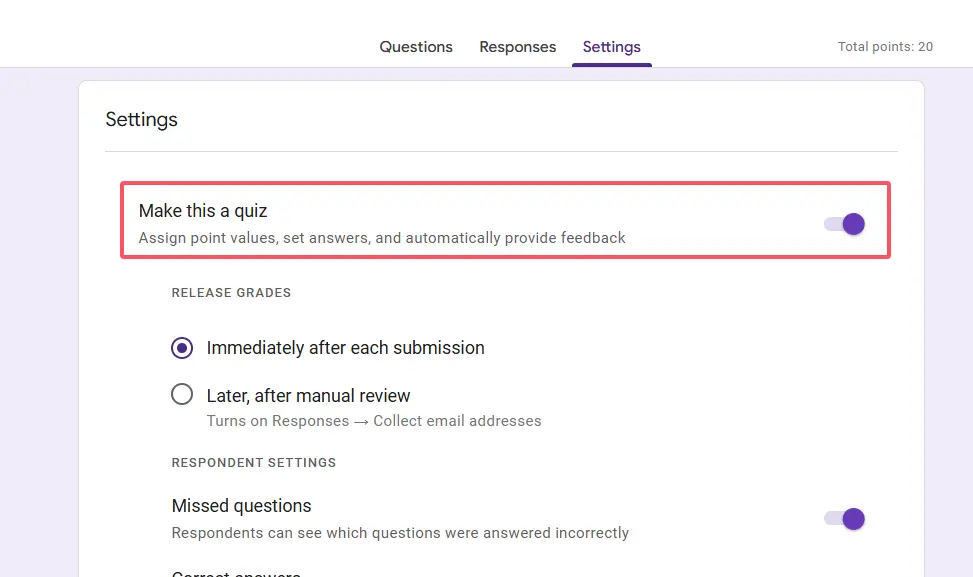
Once quiz mode is enabled, you’ll see additional options appear—point values, answer keys, and feedback settings. You can also choose when respondents see their scores: immediately after submission or later after you review them manually. For most training scenarios, immediate feedback works best because the learning is fresh.
Accessing and Setting Up the Answer Key
Now comes the meat of the process. Each question in your form needs an answer key before Google Forms can provide any feedback.
Click on any question you’ve created. At the bottom of the question box, you’ll see an Answer key option—click it. A panel slides open where you’ll select the correct answer from your multiple choice options. If your question has more than one correct answer, select all that apply.
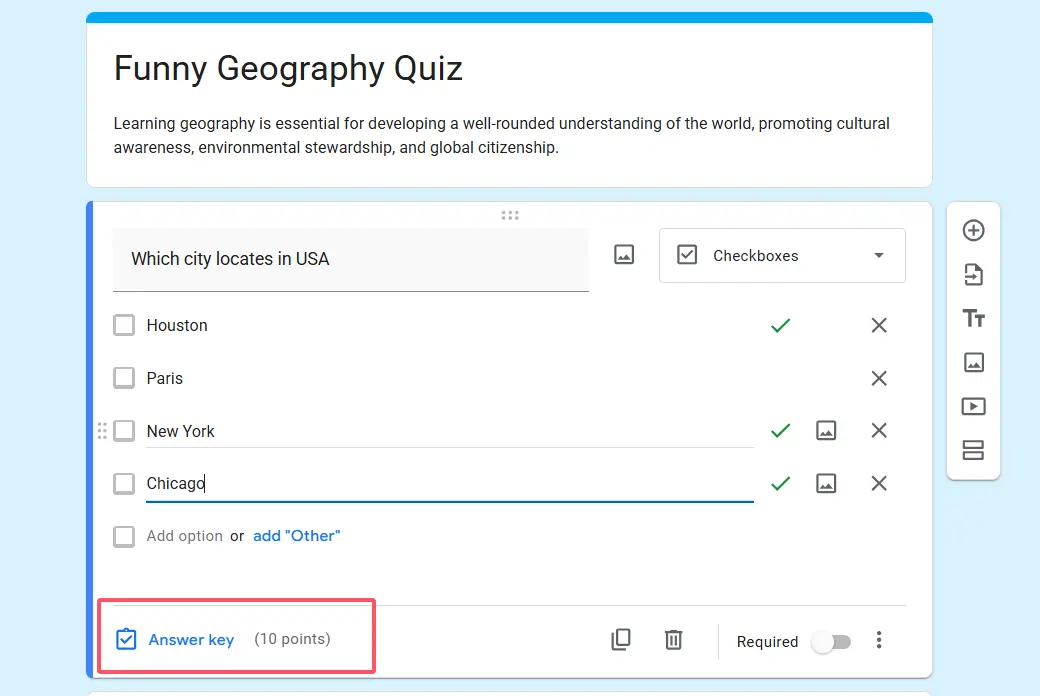
In the top-right corner of this answer key panel, you’ll see a point value field. Assign points based on question difficulty or importance. Standard practice is 1 point for easy questions, up to 5-10 points for challenging ones. This creates a weighted scoring system that reflects the actual value of each question.
Adding Custom Feedback Messages
Here’s where personality meets pedagogy. Generic feedback like “Correct!” or “Wrong” doesn’t cut it anymore. Your feedback should reinforce learning, not just confirm results.
Within the answer key panel, click Add answer feedback. You’ll see two text boxes: one for correct answers and one for incorrect answers.
For correct answers: Go beyond simple praise. Try something like, “Excellent! You’ve grasped the key concept that [brief explanation].” This reinforces why they got it right.
For incorrect answers: This is your teaching moment. Instead of just saying “That’s wrong,” explain: “Not quite—remember that [concept]. The correct answer is [X] because [brief reason].” You can even embed YouTube video links here for visual learners who need a different explanation format.
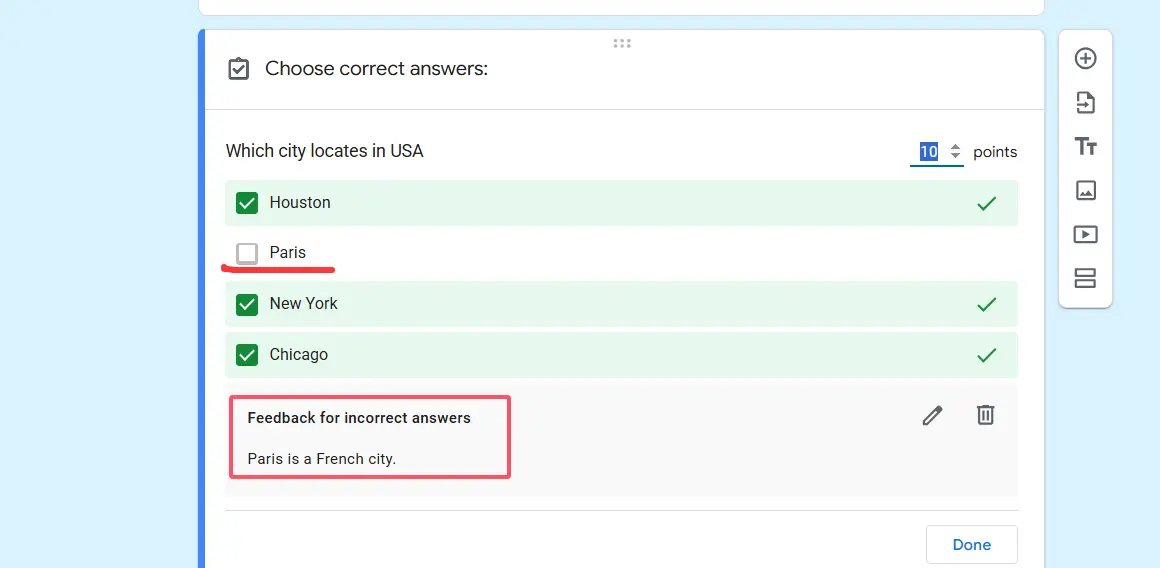
Google Forms lets you add videos, images, or links directly into feedback. If you’ve created tutorial videos or have helpful external resources, this is the perfect place to integrate them seamlessly into the learning experience.
Advanced Feedback Options and Best Practices
Once you’ve got the basics down, consider these strategies to elevate your quizzes:
| Strategy | Why It Works | Example |
|---|---|---|
| Tiered Feedback | Different messages for common wrong answers | “If you chose B, you might be confusing X with Y…” |
| Resource Links | Directs learners to study materials | “Review Chapter 3, pages 45-47 for more details” |
| Encouragement Language | Maintains motivation after mistakes | “Close! You’re thinking in the right direction…” |
| Question Hints | Guides without giving away answers | “Consider the relationship between time and distance” |
Remember that your target audience—teachers, trainers, and HR managers—often deals with varied skill levels. Feedback that adapts to common misunderstandings shows you understand your learners’ journey.
Alternative Solutions: Create A Quiz Using AI in OnlineExamMaker
While Google Forms works wonderfully for straightforward quizzes, some organizations need more robust features. Enter OnlineExamMaker—an AI-powered exam creation platform designed specifically for professional exam organizers, educators, and training departments.
What makes OnlineExamMaker stand out? It uses artificial intelligence to help you generate questions, randomize answer orders to prevent cheating, and create adaptive tests that adjust difficulty based on performance. The platform includes advanced analytics showing exactly where learners struggle, anti-cheating measures like webcam proctoring, and branded certificates for course completion.
Create Your Next Quiz/Exam Using AI in OnlineExamMaker
For HR managers running compliance training or teachers managing large student populations, OnlineExamMaker’s automated grading and detailed reporting features eliminate administrative headaches. The software integrates with learning management systems and supports question banks that you can reuse across multiple assessments.
It’s not about replacing Google Forms entirely—for quick, informal assessments, Forms is perfect. But when you need enterprise-level features, detailed learner analytics, or want to create high-stakes examinations, specialized software like OnlineExamMaker becomes essential.
Final Thoughts
Setting up answer feedback in Google Forms transforms a simple quiz into a genuine learning tool. The process—enabling quiz mode, creating answer keys, crafting meaningful feedback, and testing thoroughly—might seem tedious at first. But it becomes second nature quickly.
The real magic happens when you hear from a student who finally understood a concept because your feedback pointed them in the right direction. Or when a training cohort scores significantly higher because they learned from their mistakes in real-time. That’s when you realize feedback isn’t just about corrections—it’s about creating moments where learning actually happens.
Whether you stick with Google Forms for its simplicity or graduate to specialized platforms like OnlineExamMaker for advanced needs, the principle remains the same: good assessments don’t just measure knowledge. They build it.
