Whether you’re a teacher trying to assess student understanding, a corporate trainer measuring knowledge retention, or an HR manager conducting evaluations, turning your PowerPoint into an interactive learning experience can transform passive viewers into active participants.
The good news? You don’t need to be a tech wizard to make it happen. With Microsoft Forms and Google Forms, you can seamlessly blend assessment into your presentations without breaking a sweat.
- Understanding the Basics: PowerPoint Meets Forms
- Method 1: Embedding Microsoft Forms into PowerPoint
- Method 2: Linking Google Forms with PowerPoint
- The Quick and Simple Approach: Links and QR Codes
- Choosing the Right Tool for Your Needs
- Creating Better Quizzes with AI: The OnlineExamMaker Advantage
- Best Practices for Interactive Quiz Integration
Understanding the Basics: PowerPoint Meets Forms
Let’s clear something up right away. You can’t run a Google Forms or Microsoft Forms quiz inside PowerPoint like some magical native feature that just works everywhere. But—and this is important—you absolutely can integrate them smoothly enough that your learners won’t know the difference.
Think of it like this: your PowerPoint is the stage, and Forms is the interactive prop that makes the show memorable. Learners click or scan from your slide, complete the quiz in Forms, and all the results flow back to one central location where you can analyze them. Clean. Simple. Effective.
The approach you choose depends on your ecosystem. Running Microsoft 365? You’ve got native embedding options that feel almost seamless. Stuck with Google Workspace or a mixed environment? Links and QR codes become your best friends.
Method 1: Embedding Microsoft Forms into PowerPoint
If you’re working within the Microsoft ecosystem, you’ve hit the jackpot. Microsoft Forms can be directly embedded into PowerPoint slides using the Forms add-in, creating an experience that feels native and integrated.
Step 1: Create Your Quiz in Microsoft Forms
Head over to forms.microsoft.com and select New Quiz. This isn’t just a regular form—quiz mode unlocks special features like point values, automatic grading, and instant feedback.
Add your questions one by one. Microsoft Forms supports multiple choice, text responses, ratings, rankings, and more. For each question, set the correct answer, assign point values, and craft helpful feedback messages. This is where you channel your inner teacher and think about not just what students should know, but how to guide them when they stumble.
Step 2: Insert the Quiz Directly into PowerPoint
Now comes the satisfying part. Open your PowerPoint presentation in PowerPoint for Microsoft 365 and navigate to the slide where you want the quiz to appear.
On the Insert tab, look for the Forms button. Don’t see it? Click Get Add-ins and search for Forms to add it to your ribbon.
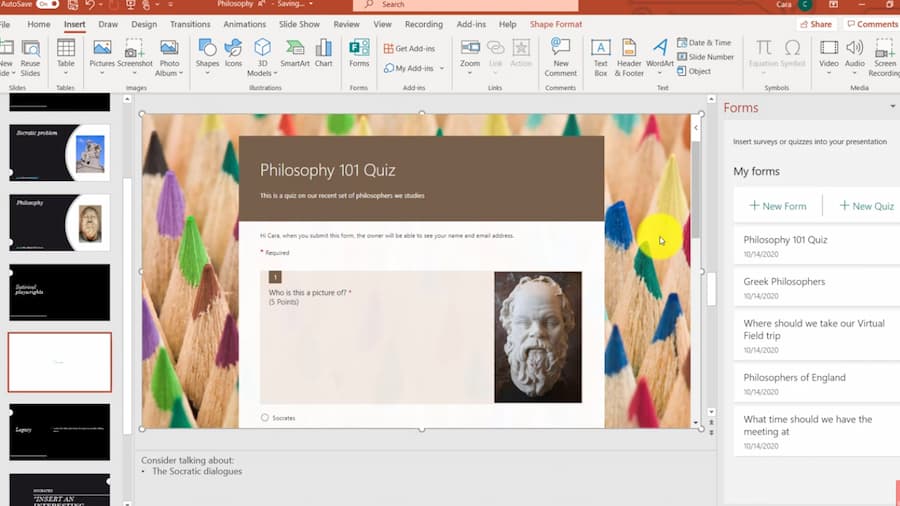
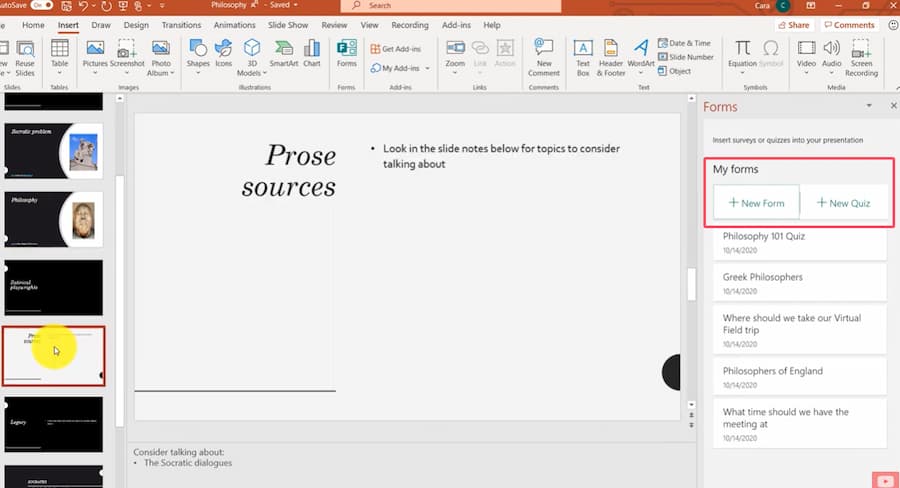
When you click Forms, a panel slides open on the right side of your screen, displaying all the forms and quizzes you’ve created. Find your quiz under My forms and click Insert.
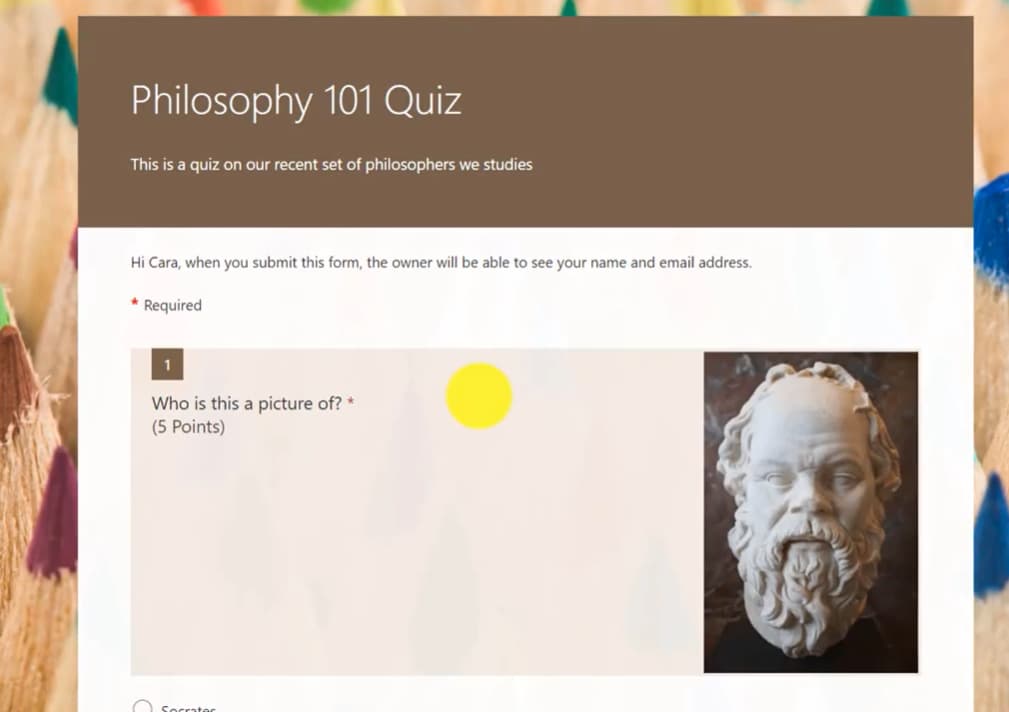
Boom. Your quiz appears directly on the slide as an embedded Forms frame. During your slideshow, participants answer questions right there in the slide without ever leaving PowerPoint. It’s honestly pretty slick.
Step 3: Review Responses Like a Pro
After your participants submit their answers, head back to forms.microsoft.com. Open your quiz and navigate to the Responses tab.
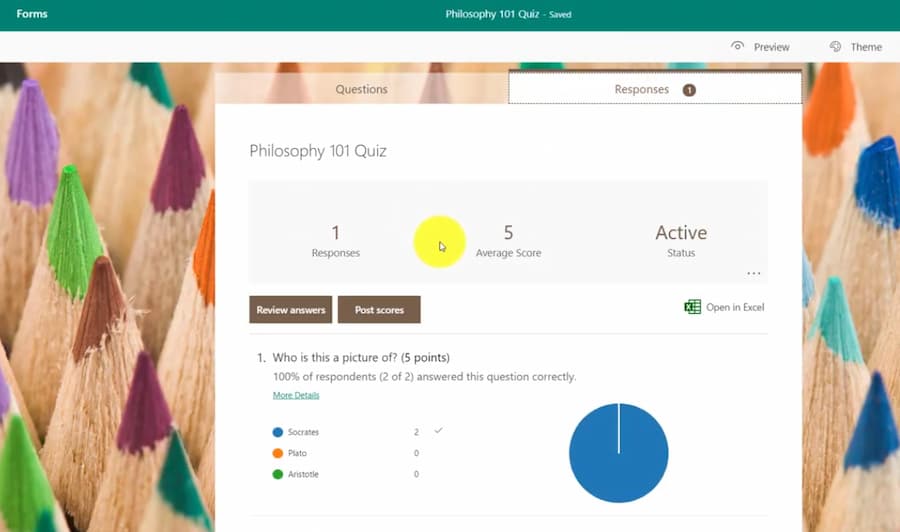
Microsoft automatically tallies results, generates charts, and breaks down performance by question. You can even export everything to Excel if you want to dig deeper into the data. Want to identify knowledge gaps? The visual breakdown makes patterns immediately obvious.
Method 2: Linking Google Forms with PowerPoint
Google Forms can’t be embedded natively into PowerPoint the way Microsoft Forms can, but that doesn’t make it any less powerful. The workaround involves links and QR codes, which actually offers some unexpected advantages—especially if your audience is on mobile devices.
Step 1: Build Your Quiz in Google Forms
Open Google Forms and create a new form. In Settings (the gear icon), toggle on Make this a quiz. This activates quiz-specific features like point assignment, answer keys, and automatic grading.
Add your questions using the various question types available. For each question, click Answer key to mark correct answers and assign points. You can also add feedback that appears when students submit incorrect responses—think of it as your chance to teach, even when you’re not in the room.
Step 2: Generate and Shorten Your Quiz Link
Once your quiz is ready, click the Send button in the top-right corner. In the popup, select the link icon, check Shorten URL, and copy the link.
Before you paste it anywhere, double-check your form settings. If you’re in an educational or corporate environment using Google Workspace, make sure response restrictions match your audience—you don’t want your quiz accidentally locked to only your domain if you’re sharing it externally.
Step 3: Connect It to Your PowerPoint Presentation
Now the creative part begins. In your PowerPoint slide, you have options:
Option A: Hyperlinked Button
Create a shape or text box with something like “Start Quiz” or “Click Here to Begin.” Right-click it, select Link, and paste your Google Forms URL. During your presentation, clicking the button opens the quiz in the default browser.
Option B: QR Code
Generate a QR code from your Google Forms link using a free QR generator. Insert the QR code image into your slide. This is brilliant for in-person training because participants can scan with their phones and complete the quiz on their own devices while you continue presenting.
After participants submit their responses, you can toggle to the Google Forms Responses tab in your browser (Alt+Tab is your friend) to show live charts or summary data without leaving slideshow mode.
The Quick and Simple Approach: Links and QR Codes
Sometimes you don’t need bells and whistles. Sometimes you just need something that works, and fast.
Both Microsoft Forms and Google Forms can be shared via direct links or QR codes, making this the universal method that works regardless of your platform limitations.
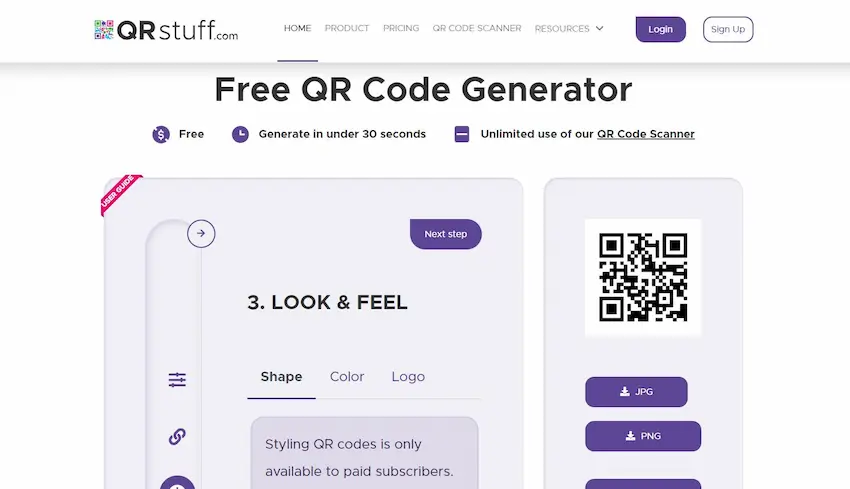
For Microsoft Forms, open your quiz, click Collect responses, choose your sharing options (like “Anyone can respond” for public quizzes), and copy the link. Generate a QR code using Insert > Add-ins in PowerPoint or an external QR generator.
For Google Forms, the process is nearly identical: Send > Link icon > Copy.
The beauty of this approach? It works on any version of PowerPoint—desktop, web, Mac, PC, even older versions. Plus, QR codes feel modern and interactive, which learners tend to appreciate.
Choosing the Right Tool for Your Needs
So, Microsoft Forms or Google Forms? The answer isn’t one-size-fits-all. It depends on your environment, your audience, and what features matter most to you.
| Feature | Google Forms + PowerPoint | Microsoft Forms + PowerPoint |
|---|---|---|
| Native embedding in slides | Not supported—links and QR codes only | Fully supported with Forms add-in (Microsoft 365) |
| Quiz mode features | Strong: answer keys, points, automatic grading | Strong: points, feedback, automatic grading |
| Device experience | Opens in browser (works on any device) | Can be answered directly in slide or browser |
| Best for | Mixed environments, Google Workspace users, mobile-first audiences | Microsoft 365 ecosystems, Teams integration, education scenarios |
| Data analysis | Google Sheets integration, visual summaries | Excel export, built-in charts and insights |
If you’re in a school district running Google Workspace for Education, Google Forms is the obvious choice. If you’re in a corporate environment with Microsoft 365 licenses, the native Forms integration is hard to beat. And if you’re in a mixed environment? Links and QR codes give you flexibility without vendor lock-in.
Creating Better Quizzes with AI: The OnlineExamMaker Advantage
Here’s where things get interesting. While Google Forms and Microsoft Forms are excellent tools, they require you to manually write every question, craft every answer option, and design every feedback message. That’s fine for a five-question quiz. But what if you need fifty questions? Or a hundred?
Enter OnlineExamMaker, an AI-powered exam creation platform that fundamentally changes how you build assessments.
Instead of typing out questions one by one, you can upload your teaching materials—PDFs, Word documents, even entire textbooks—and OnlineExamMaker’s AI generates quiz questions automatically. The AI analyzes your content, identifies key concepts, and produces questions in multiple formats: multiple choice, true/false, short answer, and more.
But it doesn’t stop there. OnlineExamMaker includes:
- Smart question banks that categorize questions by topic and difficulty level
- Automated grading for objective questions with detailed performance analytics
- Anti-cheating features like question randomization and time limits
- Mobile-friendly interfaces that work seamlessly on any device
- Customizable branding so your quizzes reflect your organization’s identity
Create Your Next Quiz/Exam Using AI in OnlineExamMaker
For trainers and HR managers dealing with compliance training, onboarding assessments, or certification exams, this is a game-changer. You’re not just saving time—you’re creating higher-quality assessments based on proven educational principles baked into the AI.
The platform integrates smoothly with PowerPoint using the same link and QR code methods we’ve discussed, but with far more sophisticated assessment capabilities under the hood. Think of it as upgrading from a bicycle to a sports car—both get you where you’re going, but one makes the journey considerably more efficient.
Best Practices for Interactive Quiz Integration
Technology is only as good as how you use it. Here are some hard-won lessons for making quiz integration actually work in the real world:
Set Clear Expectations Upfront
Don’t surprise your audience with a quiz. Use an instruction slide that explains what’s about to happen: “On the next slide, you’ll click a button (or scan a QR code) to answer five questions. It’ll take about three minutes. Return to this presentation when you’re done.”
Clarity reduces anxiety and technical confusion, especially for less tech-savvy participants.
Test Everything Before Showtime
Open your presentation on the actual computer you’ll be presenting from. Click your quiz link. Make sure it opens correctly. Submit a test response and verify it appears in your Forms dashboard.
This sounds obvious, but you’d be amazed how many presentations have been derailed by a broken link or incorrect sharing permissions.
Design for Mobile When Using QR Codes
If participants are scanning QR codes with phones, your quiz needs to be mobile-friendly. Both Google Forms and Microsoft Forms handle this automatically, but keep questions concise and avoid requiring extensive typing on small screens.
Plan Your Timing
Build buffer time into your presentation. If you have a 10-question quiz, assume it’ll take 5-7 minutes for everyone to complete. Don’t rush people—nothing kills engagement faster than feeling pressured during assessment.
Make Results Part of the Conversation
The quiz isn’t the end point—it’s a conversation starter. After participants submit, pull up the response summary and discuss it. “Interesting—80% of you got question three wrong. Let’s talk about why that concept is tricky.” This transforms assessment into active learning.
Keep Questions Focused and Relevant
Every question should directly relate to your presentation content. Avoid trivia or gotcha questions. The goal is to assess understanding and reinforce learning, not to trick people.
Provide Immediate Feedback When Possible
Both Forms platforms support feedback messages. Use them. When someone gets a question wrong, don’t just mark it incorrect—explain why it’s incorrect and point them toward the right concept. That’s where real learning happens.
Consider Anonymity Carefully
Should your quiz collect names or be anonymous? This depends on context. Formal assessments and compliance training usually require identification. Informal knowledge checks and engagement activities often work better when anonymous—people answer more honestly without fear of judgment.
Integration isn’t about showing off technical prowess. It’s about creating moments where passive consumption transforms into active engagement. When done right, a simple quiz embedded in your PowerPoint can be the difference between information that’s forgotten by tomorrow and knowledge that actually sticks.
Whether you choose Microsoft Forms, Google Forms, or leverage AI-powered platforms like OnlineExamMaker, the key is matching the tool to your needs and using it intentionally. Start simple, test thoroughly, and always keep the learner experience at the center of your decisions.
Now go forth and make your presentations unforgettable. Your audience will thank you—even if they grumble about the quiz.
