- Why Fill-in-the-Blank Quizzes Work?
- Method 1: Basic Text Box Approach
- Method 2: Using ClassPoint Add-In
- Creating Fill-in-the-Blank Quizzes with OnlineExamMaker AI
- Best Practices and Tips in Making Fill-in-the-Blank Questions
- Comparing Your Options
Why Fill-in-the-Blank Quizzes Work?
Remember that moment when you’re teaching, and you see the blank stares? You know the ones—where students are physically present but mentally somewhere in the Bermuda Triangle of attention spans. That’s where fill-in-the-blank quizzes swoop in like educational superheroes.
Unlike multiple-choice questions that offer a safety net of options, fill-in-the-blank questions demand genuine recall. Students can’t rely on recognition; they must retrieve information from memory. This cognitive challenge makes learning stick like gum on a shoe—annoying at first, but remarkably persistent.
PowerPoint, that trusty presentation workhorse we’ve all used for decades, can transform into an interactive quiz platform. Whether you’re a teacher crafting classroom assessments, a trainer developing employee onboarding materials, or an HR manager building compliance tests, fill-in-the-blank quizzes offer a sweet spot between simplicity and effectiveness.
But here’s the thing: PowerPoint wasn’t designed for quizzes. It’s like using a hammer to paint a wall—technically possible, but you’ll need some creativity. Let’s explore four distinct approaches, from basic to brilliant.

Method 1: Basic Text Box Approach
This method is PowerPoint in its purest form—no bells, no whistles, just straightforward functionality that works across any version from 2010 onward.
Setting Up Your Quiz Structure
Start with architecture. Create a title slide that sets expectations—think of it as the “You Are Here” sign at a shopping mall. Nobody likes getting lost, especially in a quiz.
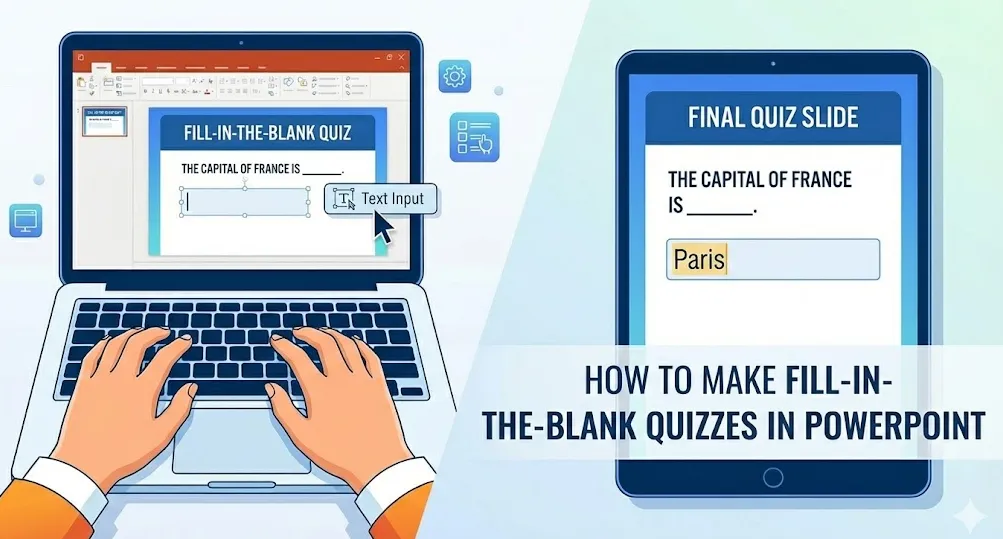
Next, build your question slides. Here’s where simplicity becomes an art form. Write sentences with strategic gaps, using underscores to mark where answers belong: “The capital of France is ___.” The underscore acts as a visual cue, a blank canvas waiting for knowledge.
Adding Interactive Text Boxes
Navigate to Insert > Text Box and draw a box directly over your blank. Size it appropriately—too small, and it feels cramped; too large, and it screams “I don’t know what I’m doing.”
During slideshow mode, users can click these text boxes and type their answers. It’s beautifully simple, like a digital version of those workbook pages we filled out in elementary school. The downside? No automatic grading. You’re the human calculator here, manually reviewing each response.

When to Use This Method
This approach shines in low-stakes environments: practice quizzes, self-study materials, or informal knowledge checks. It’s perfect when you need something quick, when technology might fail (because Murphy’s Law loves presentations), or when you’re working with younger students who need straightforward interfaces.
Method 2: Make Fill-in-the-Blank Questions Using ClassPoint Add-In
If VBA is the manual transmission, ClassPoint is the automatic—same destination, smoother ride.
Installation and Setup
ClassPoint offers a free tier (always music to a budget-conscious educator’s ears). Download from their website, install, and watch as your PowerPoint ribbon sprouts new tools like a garden in spring.
Creating Interactive Blanks
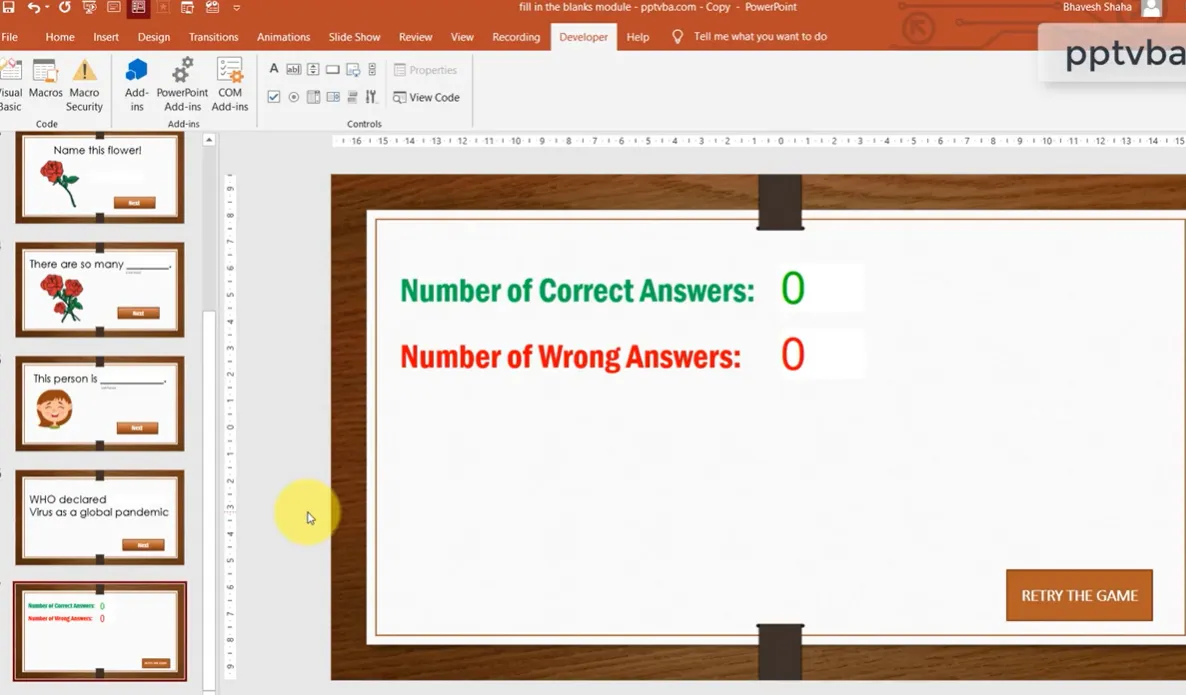
Select text containing your blanks. Click the Fill in the Blanks button in the ClassPoint ribbon. A dialog appears, letting you set correct answers—and here’s the beautiful part—multiple correct answers per blank. “USA,” “United States,” “America”? All correct. No student penalized for creative accuracy.
Add timers to create urgency. Assign point values to gamify learning. During presentation mode, students respond in real-time, and ClassPoint tallies scores automatically. It’s like having a teaching assistant who never calls in sick.
Live Polling and Engagement
ClassPoint excels in live classroom or training scenarios. Students use their devices to submit answers. You see responses populate in real-time, like watching thoughts materialize on screen. It creates energy, competition, engagement—all those things that make learning stick.
Creating Fill-in-the-Blank Quizzes with OnlineExamMaker AI
Now, what if I told you there’s a way to create quizzes without wrestling with PowerPoint at all?
What is OnlineExamMaker?
OnlineExamMaker is AI-powered exam creation software that thinks about quizzes differently. Instead of retrofitting presentation software into assessment tools, it starts with assessment as the foundation. It’s like comparing a Swiss Army knife to a scalpel—both cut, but one is purpose-built for precision.
The AI Advantage
Here’s where it gets interesting. OnlineExamMaker’s AI can generate fill-in-the-blank questions automatically from your source material. Feed it a textbook chapter, a training manual, or lecture notes, and watch as it identifies key concepts and converts them into questions.
The AI doesn’t just randomly select sentences—it understands context, importance, and learning objectives. It’s like having an experienced teacher’s intuition, scaled to machine speed.
Create Your Next Quiz/Exam Using AI in OnlineExamMaker
How to Create Your Fill-in-the-Blank Quiz with OnlineExamMaker
The process is refreshingly straightforward:
- Upload your content – Documents, Words, even PowerPoint files
- Select question types – Choose fill-in-the-blank along with other formats
- Review and refine – The AI generates questions; you polish and approve
- Configure settings – Set time limits, point values, passing scores
- Deploy and analyze – Share via link, embed in websites, or integrate with LMS platforms
Features That Matter
OnlineExamMaker handles what PowerPoint can’t:
- Automatic grading with intelligent answer matching (recognizing synonyms and alternate correct responses)
- Detailed analytics showing which questions students struggle with
- Anti-cheating measures like question randomization and time limits
- Mobile optimization because students take quizzes on phones, tablets, laptops—whatever’s handy
- Export options to share results with stakeholders or import into gradebooks
Real-World Application
Imagine you’re an HR manager rolling out new compliance training across 500 employees in different time zones. PowerPoint quizzes require physical presence or complex distribution. OnlineExamMaker? Send a link. Track completion rates. Identify knowledge gaps. Generate reports for leadership. All while sipping coffee and looking productive.
Best Practices and Tips in Making Fill-in-the-Blank Questions
Regardless of which method you choose, certain principles separate mediocre quizzes from memorable ones.
Question Design Matters
Craft blanks that test understanding, not memorization of trivial details. “The _____ is the powerhouse of the cell” teaches basic biology. “The process by which cells generate _____ through cellular respiration occurs in the mitochondria” requires deeper comprehension.
Avoid ambiguity like it’s a plagued rat. If multiple answers could reasonably fit, you’re testing mind-reading skills, not knowledge.
Visual Design Principles
White space is not wasted space—it’s breathing room for cognitive processing. Don’t cram seventeen questions onto one slide unless you’re specifically trying to induce anxiety.
Use consistent formatting. If question one has blue underscores, question seventeen shouldn’t suddenly switch to red italics. Consistency reduces cognitive load, letting students focus on content rather than decoding format.
Testing Your Quiz
Always run through your quiz as a student would. Click every button. Type every answer. Try to break it. Because if you can break it in testing, students will break it during the actual assessment, probably at the worst possible moment.
Accessibility Considerations
Screen readers should be able to navigate your quiz. Use alt text for images. Ensure sufficient color contrast. Not every student experiences content the same way—design inclusively from the start.
Comparing Your Options
| Method | Complexity | Auto-Grading | Best For | Cost |
|---|---|---|---|---|
| Basic Text Boxes | Low | No | Quick practice quizzes, self-study | Free |
| VBA Coding | High | Yes | Tech-savvy users, custom solutions | Free |
| ClassPoint Add-In | Low-Medium | Yes | Live classroom engagement | Free tier available |
| Hyperlink Navigation | Low | No | Self-paced learning, maximum compatibility | Free |
| OnlineExamMaker AI | Low | Yes | Professional assessments, large-scale deployment | Paid plans |
Making Your Choice
Choose based on your needs, not the coolest technology. A simple text box quiz might serve better than an over-engineered VBA solution if students just need basic practice.
Consider your audience’s tech comfort level. If they struggle with clicking hyperlinks, complex interactive elements will frustrate rather than engage.
Think about scale. Five students? PowerPoint works fine. Five hundred employees across three continents? You need dedicated assessment software like OnlineExamMaker.
The Hybrid Approach
Nothing says you can’t mix methods. Use PowerPoint for in-class review sessions, OnlineExamMaker for formal assessments, basic text boxes for homework practice. Different tools for different purposes—that’s not inconsistency, that’s strategic versatility.
Final Thoughts
Fill-in-the-blank quizzes occupy a special place in the assessment ecosystem. They’re more rigorous than multiple choice but less overwhelming than essay questions. They test recall without demanding extensive writing. They’re the Goldilocks of question types—just right.
PowerPoint can absolutely host these quizzes, though it requires some creative problem-solving. Whether you embrace VBA’s power, ClassPoint’s elegance, hyperlinks’ simplicity, or OnlineExamMaker’s AI intelligence, the goal remains constant: helping students demonstrate and reinforce their knowledge.
The best quiz isn’t the one with the fanciest technology—it’s the one students actually complete, learn from, and remember. Sometimes that’s a simple PowerPoint with text boxes. Sometimes it’s a sophisticated AI-generated assessment. Most often, it’s somewhere in between.
So start simple. Test thoroughly. Iterate based on feedback. And remember: you’re not just creating quizzes—you’re building learning experiences that stick, one blank at a time.
