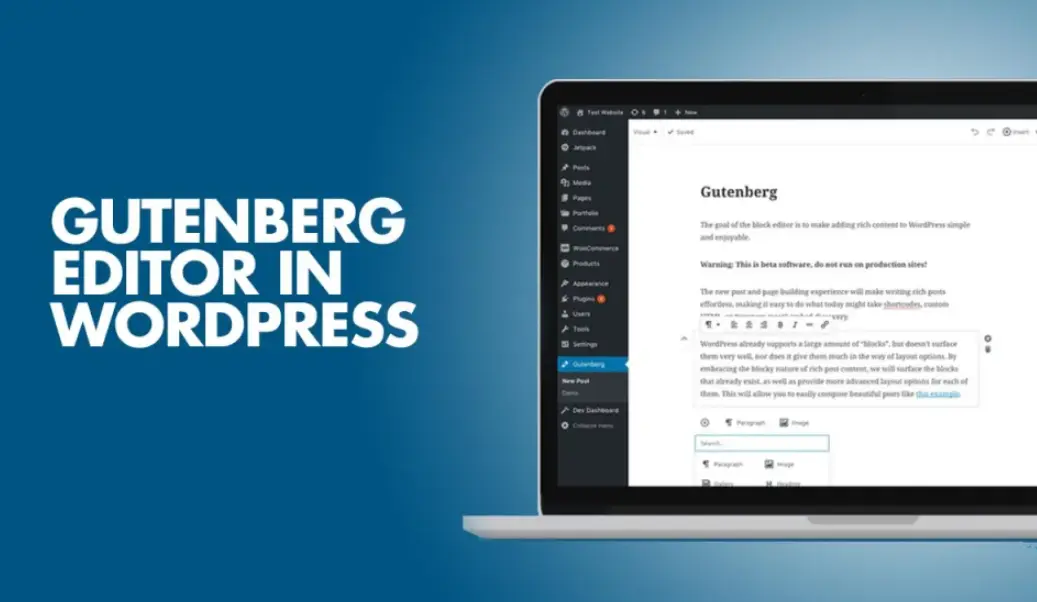
The WordPress Gutenberg Editor is a dynamic, block-based interface introduced in WordPress 5.0, transforming how users create and manage content. Unlike the classic editor, Gutenberg breaks down pages and posts into individual blocks—such as paragraphs, images, headings, videos, and custom layouts—allowing for intuitive drag-and-drop arrangement and precise customization.
This editor emphasizes visual editing, enabling users to see real-time previews of their work, which streamlines the design process. Key features include reusable blocks for efficiency, pre-built block patterns for common layouts, and seamless integration with plugins to extend functionality, such as adding advanced elements like galleries or forms.
Gutenberg promotes accessibility and flexibility, making it easier for beginners to build professional websites while offering developers tools for more complex projects. Its mobile-responsive design ensures content looks great on any device, marking a significant evolution in WordPress’s user experience.
Table of Contents
- Part 1: OnlineExamMaker AI Quiz Generator – The Easiest Way to Make Quizzes Online
- Part 2: 20 WordPress Gutenberg Editor Quiz Questions & Answers
- Part 3: Try OnlineExamMaker AI Question Generator to Create Quiz Questions
Part 1: OnlineExamMaker AI Quiz Generator – The Easiest Way to Make Quizzes Online
Are you looking for an online assessment to test the WordPress Gutenberg Editor skills of your learners? OnlineExamMaker uses artificial intelligence to help quiz organizers to create, manage, and analyze exams or tests automatically. Apart from AI features, OnlineExamMaker advanced security features such as full-screen lockdown browser, online webcam proctoring, and face ID recognition.
Take a product tour of OnlineExamMaker:
● Includes a safe exam browser (lockdown mode), webcam and screen recording, live monitoring, and chat oversight to prevent cheating.
● AI Exam Grader for efficiently grading quizzes and assignments, offering inline comments, automatic scoring, and “fudge points” for manual adjustments.
● Embed quizzes on websites, blogs, or share via email, social media (Facebook, Twitter), or direct links.
● Handles large-scale testing (thousands of exams/semester) without internet dependency, backed by cloud infrastructure.
Automatically generate questions using AI
Part 2: 20 WordPress Gutenberg Editor Quiz Questions & Answers
or
1. Question: What is the Gutenberg Editor in WordPress?
Options:
A) A plugin for adding images
B) The default block-based editor introduced in WordPress 5.0
C) A theme customization tool
D) A backup utility
Answer: B
Explanation: Gutenberg is the block editor that replaced the classic editor, enabling users to create content using modular blocks for better structure and flexibility.
2. Question: How do you add a new block in the Gutenberg Editor?
Options:
A) By typing a shortcode
B) By clicking the “+” icon in the editor toolbar
C) By editing the page’s HTML directly
D) By uploading a file
Answer: B
Explanation: The “+” icon allows users to insert various blocks, making it easy to build content dynamically without coding.
3. Question: What type of blocks are available in Gutenberg?
Options:
A) Only text blocks
B) Common blocks, reusable blocks, and dynamic blocks
C) Only image blocks
D) Audio blocks only
Answer: B
Explanation: Gutenberg offers a wide range of blocks, including common ones like paragraphs and headings, as well as reusable and dynamic blocks for advanced functionality.
4. Question: What is a reusable block in Gutenberg?
Options:
A) A block that can only be used once
B) A saved block configuration that can be inserted multiple times across posts
C) A block for reusable themes
D) A block that automatically updates content
Answer: B
Explanation: Reusable blocks allow users to create and reuse custom block setups, saving time and ensuring consistency in design.
5. Question: How does Gutenberg differ from the classic WordPress editor?
Options:
A) Gutenberg uses a WYSIWYG interface only
B) Gutenberg employs a block-based system instead of a single text area
C) The classic editor has more plugins
D) Gutenberg is not mobile-friendly
Answer: B
Explanation: Unlike the classic editor’s linear text field, Gutenberg’s block system provides a more visual and modular approach to content creation.
6. Question: What keyboard shortcut adds a new block in Gutenberg?
Options:
A) Ctrl + S
B) Ctrl + Shift + D
C) Enter key while in a block
D) Ctrl + Alt + Y
Answer: C
Explanation: Pressing the Enter key at the end of a block automatically creates a new one, streamlining the editing process.
7. Question: Can you customize block settings in Gutenberg?
Options:
A) No, blocks are fixed
B) Yes, by using the block settings sidebar
C) Only for premium themes
D) Only via CSS
Answer: B
Explanation: The block settings sidebar allows users to adjust properties like alignment, colors, and links for each block individually.
8. Question: What is the purpose of the Block Pattern feature in Gutenberg?
Options:
A) To create random block designs
B) To provide pre-designed layouts that can be inserted quickly
C) To lock blocks permanently
D) To delete unused blocks
Answer: B
Explanation: Block patterns offer ready-made arrangements of blocks, helping users build professional layouts without starting from scratch.
9. Question: How do you convert classic content to Gutenberg blocks?
Options:
A) It is not possible
B) By using the “Classic” block and converting it
C) By manually rewriting everything
D) Only with external tools
Answer: B
Explanation: The Classic block in Gutenberg allows imported or existing content to be converted into individual blocks for easier editing.
10. Question: What does the “List View” button do in Gutenberg?
Options:
A) Displays a list of all blocks on the page
B) Shows only image blocks
C) Edits the page’s metadata
D) Previews the post
Answer: A
Explanation: The List View provides a hierarchical outline of all blocks, making it easier to navigate and reorganize content.
11. Question: Can Gutenberg blocks be grouped?
Options:
A) No, grouping is not supported
B) Yes, using the Group block
C) Only in the classic editor
D) Only for text blocks
Answer: B
Explanation: The Group block allows users to bundle multiple blocks together, treating them as a single unit for styling and management.
12. Question: What is a dynamic block in Gutenberg?
Options:
A) A block that doesn’t change
B) A block that pulls in live data, like latest posts
C) A block for static images
D) A block that requires manual updates
Answer: B
Explanation: Dynamic blocks fetch and display real-time content, such as recent comments or posts, enhancing interactivity.
13. Question: How do you align blocks in Gutenberg?
Options:
A) Only through HTML
B) Using alignment options in the block settings
C) By resizing the browser window
D) It is automatic
Answer: B
Explanation: Each block has alignment tools in its settings, allowing users to justify, center, or align content precisely.
14. Question: What happens when you duplicate a block in Gutenberg?
Options:
A) It deletes the original
B) It creates an identical copy next to it
C) It converts it to a pattern
D) Nothing, duplication is not possible
Answer: B
Explanation: Duplicating a block quickly replicates its content and settings, speeding up repetitive tasks.
15. Question: Is Gutenberg accessible for users with disabilities?
Options:
A) No, it lacks features
B) Yes, it includes ARIA labels and keyboard navigation
C) Only in certain browsers
D) It requires additional plugins
Answer: B
Explanation: Gutenberg incorporates accessibility features like semantic HTML and keyboard shortcuts to ensure usability for all users.
16. Question: How can you add media to a Gutenberg page?
Options:
A) Only via external links
B) Using the Image, Video, or Audio blocks
C) By editing the theme files
D) Through the comments section
Answer: B
Explanation: Dedicated media blocks make it simple to insert and manage images, videos, and audio directly in the editor.
17. Question: What is the role of the “Cover” block in Gutenberg?
Options:
A) To hide content
B) To create a full-width image or video with overlay text
C) To add a simple paragraph
D) To link to external sites
Answer: B
Explanation: The Cover block is designed for eye-catching headers, combining backgrounds with text for visually appealing sections.
18. Question: Can you lock blocks in Gutenberg to prevent accidental changes?
Options:
A) No, locking is not available
B) Yes, using the block options to lock movement or content
C) Only for administrators
D) Only in preview mode
Answer: B
Explanation: Locking blocks helps maintain design integrity by restricting edits or movements during collaboration.
19. Question: How do you switch between visual and code editing in Gutenberg?
Options:
A) It is not possible
B) By using the Code Editor block or toggling to the full Code view
C) Only through plugins
D) By refreshing the page
Answer: B
Explanation: Gutenberg provides a Code Editor block for HTML editing and a full code view for advanced users.
20. Question: What is one advantage of using Gutenberg over the classic editor?
Options:
A) Faster loading times for simple posts
B) More flexible layout options with blocks
C) Less customization
D) Limited to text only
Answer: B
Explanation: Gutenberg’s block system offers greater flexibility for creating responsive, modern designs compared to the classic editor’s limitations.
or
Part 3: Try OnlineExamMaker AI Question Generator to Create Quiz Questions
Automatically generate questions using AI