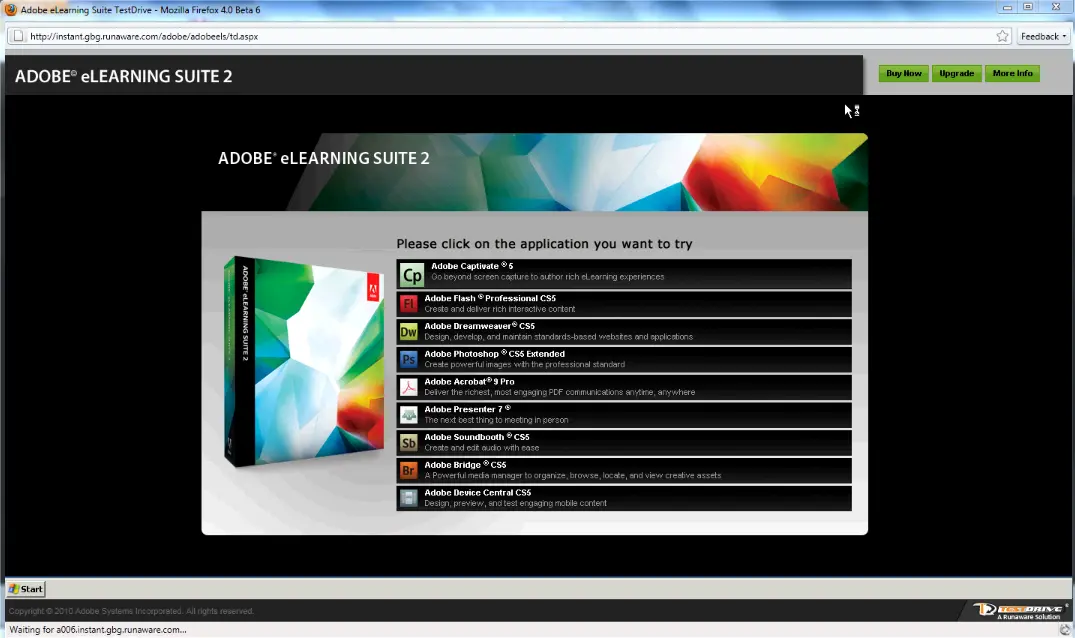
Adobe eLearning Suite is a comprehensive software bundle designed for creating, managing, and delivering interactive e-learning content. It integrates several Adobe tools to streamline the development process for educators, trainers, and instructional designers.
Key Components:
– Adobe Captivate: A leading authoring tool for creating software simulations, interactive videos, and responsive e-learning modules. It supports responsive design, gamification, and assessments, making it ideal for engaging learners.
– Adobe Photoshop Extended: Enables the creation and editing of high-quality images, graphics, and animations. It’s useful for designing visual elements like icons, backgrounds, and infographics for e-learning courses.
– Adobe Flash Professional: Focuses on developing rich internet applications and animations. It allows for the creation of interactive content, though its role has evolved with the rise of HTML5 alternatives.
– Adobe Dreamweaver: A web development tool for building and managing HTML-based e-learning content. It supports responsive design and integration with other Adobe products for seamless workflows.
– Adobe Acrobat Professional: Facilitates the creation, editing, and sharing of PDF documents. It’s essential for converting e-learning materials into portable formats and adding interactive forms or annotations.
– Adobe Illustrator: Used for vector graphics creation, helping design scalable illustrations, logos, and diagrams that enhance e-learning visuals.
Features and Benefits:
– Integrated Workflow: The suite promotes a unified environment where content can be created in one tool and easily imported into another, reducing development time and improving efficiency.
– Interactivity and Engagement: Tools enable the addition of quizzes, simulations, and multimedia elements, boosting learner interaction and retention.
– Multi-Device Support: Content can be optimized for desktops, tablets, and mobiles, ensuring accessibility across platforms.
– LMS Integration: Easily integrates with Learning Management Systems (LMS) like Moodle or Blackboard for tracking progress and analytics.
– Scalability: Suitable for small-scale training to enterprise-level e-learning programs, with options for customization and localization.
Target Audience:
Primarily aimed at instructional designers, e-learning developers, corporate trainers, educators, and organizations seeking to produce professional-grade online training materials.
Adobe eLearning Suite has been succeeded by newer Adobe offerings in Creative Cloud, such as Adobe Captivate as a standalone app, but it remains a foundational solution for e-learning development.
Table of Contents
- Part 1: OnlineExamMaker AI Quiz Generator – The Easiest Way to Make Quizzes Online
- Part 2: 20 Adobe Elearning Suite Quiz Questions & Answers
- Part 3: OnlineExamMaker AI Question Generator: Generate Questions for Any Topic
Part 1: OnlineExamMaker AI Quiz Generator – The Easiest Way to Make Quizzes Online
Are you looking for an online assessment to test the Adobe Elearning Suite skills of your learners? OnlineExamMaker uses artificial intelligence to help quiz organizers to create, manage, and analyze exams or tests automatically. Apart from AI features, OnlineExamMaker advanced security features such as full-screen lockdown browser, online webcam proctoring, and face ID recognition.
Take a product tour of OnlineExamMaker:
● Includes a safe exam browser (lockdown mode), webcam and screen recording, live monitoring, and chat oversight to prevent cheating.
● AI Exam Grader for efficiently grading quizzes and assignments, offering inline comments, automatic scoring, and “fudge points” for manual adjustments.
● Embed quizzes on websites, blogs, or share via email, social media (Facebook, Twitter), or direct links.
● Handles large-scale testing (thousands of exams/semester) without internet dependency, backed by cloud infrastructure.
Automatically generate questions using AI
Part 2: 20 Adobe Elearning Suite Quiz Questions & Answers
or
1. Question: What is the primary purpose of Adobe Captivate in the Adobe eLearning Suite?
A) Video editing
B) Creating interactive eLearning content
C) Graphic design
D) Web development
Answer: B
Explanation: Adobe Captivate is designed specifically for developing interactive simulations, software demonstrations, and quizzes to enhance eLearning experiences.
2. Question: Which Adobe tool in the eLearning Suite is best for creating responsive eLearning projects?
A) Adobe Photoshop
B) Adobe Captivate
C) Adobe Illustrator
D) Adobe Premiere Pro
Answer: B
Explanation: Adobe Captivate allows for responsive design features, enabling eLearning content to adapt to different devices and screen sizes.
3. Question: In Adobe Captivate, what does the Timeline panel primarily manage?
A) Color schemes
B) Audio effects
C) Object timing and animations
D) File exports
Answer: C
Explanation: The Timeline panel in Adobe Captivate controls the sequencing, duration, and synchronization of objects, slides, and animations in a project.
4. Question: Which feature in Adobe eLearning Suite allows for branching scenarios in courses?
A) Slide transitions
B) Question slides
C) Interactive videos
D) Advanced actions
Answer: D
Explanation: Advanced actions in Adobe Captivate enable conditional logic, allowing learners to follow different paths based on their responses or choices.
5. Question: What type of assessment can be created using Adobe Captivate’s quiz features?
A) Only true/false questions
B) Multiple choice, drag-and-drop, and simulations
C) Audio-only tests
D) Text-based essays
Answer: B
Explanation: Adobe Captivate supports a variety of question types, including multiple choice, drag-and-drop, and interactive simulations for comprehensive assessments.
6. Question: In Adobe eLearning Suite, which tool is used for editing images that might be incorporated into eLearning modules?
A) Adobe Captivate
B) Adobe Photoshop
C) Adobe Audition
D) Adobe After Effects
Answer: B
Explanation: Adobe Photoshop is ideal for image editing, retouching, and creating graphics that can be imported into eLearning projects for visual enhancement.
7. Question: What is the function of the Variables panel in Adobe Captivate?
A) To manage project colors
B) To store and manipulate data dynamically
C) To add background music
D) To export files
Answer: B
Explanation: The Variables panel allows users to create and use variables for tracking learner progress, scores, or other dynamic elements in eLearning content.
8. Question: Which Adobe eLearning Suite component is essential for recording software demonstrations?
A) Adobe Illustrator
B) Adobe Captivate
C) Adobe Premiere Pro
D) Adobe InDesign
Answer: B
Explanation: Adobe Captivate includes screen recording capabilities to capture software interactions, which can then be turned into interactive tutorials.
9. Question: In Adobe Captivate, what does the Skin Editor allow users to customize?
A) Project fonts only
B) Playbar, borders, and playback controls
C) Audio tracks
D) Slide content
Answer: B
Explanation: The Skin Editor in Adobe Captivate customizes the interface elements like the playbar, borders, and other visual controls for a polished eLearning project.
10. Question: Which format is commonly used for publishing eLearning content from Adobe Captivate?
A) PDF
B) SCORM
C) JPEG
D) MP4
Answer: B
Explanation: SCORM is a standard format for eLearning content that allows Adobe Captivate projects to be uploaded to learning management systems (LMS) for tracking and reporting.
11. Question: What is the role of the Object States panel in Adobe Captivate?
A) To manage slide layouts
B) To define different visual states for objects
C) To add text effects
D) To import images
Answer: B
Explanation: The Object States panel lets users create multiple states (e.g., normal, hover, clicked) for buttons or objects, enhancing interactivity in eLearning modules.
12. Question: In the Adobe eLearning Suite, which tool can be used to create vector graphics for eLearning slides?
A) Adobe Captivate
B) Adobe Illustrator
C) Adobe Photoshop
D) Adobe Audition
Answer: B
Explanation: Adobe Illustrator is used for creating scalable vector graphics that can be integrated into eLearning content for high-quality visuals.
13. Question: What feature in Adobe Captivate helps in making content accessible for users with disabilities?
A) Slide notes
B) Accessibility options like closed captions
C) Background colors
D) Export settings
Answer: B
Explanation: Accessibility features in Adobe Captivate, such as closed captions and keyboard navigation, ensure that eLearning content complies with standards like Section 508.
14. Question: Which Adobe tool in the eLearning Suite is primarily for audio editing?
A) Adobe Captivate
B) Adobe Audition
C) Adobe Premiere Pro
D) Adobe InDesign
Answer: B
Explanation: Adobe Audition provides advanced audio editing tools, which can be used to refine voiceovers and sound effects for eLearning projects.
15. Question: In Adobe Captivate, how can you add interactivity to a slide?
A) By using static images
B) Through click boxes and buttons
C) With text boxes only
D) Via export options
Answer: B
Explanation: Click boxes and buttons in Adobe Captivate allow users to create interactive elements that respond to learner actions, such as advancing slides or revealing content.
16. Question: What does the Theme feature in Adobe Captivate do?
A) Changes the project language
B) Applies a consistent look and feel across slides
C) Edits audio files
D) Manages user variables
Answer: B
Explanation: Themes in Adobe Captivate provide pre-designed templates for colors, fonts, and layouts, ensuring a uniform and professional appearance in eLearning courses.
17. Question: Which integration in Adobe eLearning Suite allows for embedding videos into Captivate projects?
A) Adobe Photoshop integration
B) Adobe Premiere Pro integration
C) Adobe Illustrator integration
D) Adobe InDesign integration
Answer: B
Explanation: Adobe Premiere Pro can be used to edit videos, which can then be imported into Adobe Captivate for seamless integration into eLearning modules.
18. Question: In Adobe Captivate, what is the purpose of the Effects panel?
A) To add transitions between slides
B) To apply animations and visual effects to objects
C) To manage file sizes
D) To edit text
Answer: B
Explanation: The Effects panel allows users to add animations, fades, and other visual effects to objects, making eLearning content more engaging.
19. Question: Which Adobe eLearning Suite tool is useful for creating infographics in eLearning content?
A) Adobe Captivate
B) Adobe Illustrator
C) Adobe Photoshop
D) Both B and C
Answer: D
Explanation: Adobe Illustrator and Adobe Photoshop can both be used to design infographics, which can then be incorporated into Adobe Captivate for educational purposes.
20. Question: How does Adobe Captivate support mobile learning?
A) Through desktop-only exports
B) By providing responsive project options
C) With print-friendly formats
D) Via audio-only modes
Answer: B
Explanation: Adobe Captivate offers responsive design and mobile-friendly publishing options, allowing eLearning content to be accessed and interacted with on mobile devices.
or
Part 3: OnlineExamMaker AI Question Generator: Generate Questions for Any Topic
Automatically generate questions using AI